December 15, 2025
GUI app to deploy Docker apps to VPS in minutes without knowing command lines
Server Compass introduces visual Docker deployment for VPS with GitHub Actions build, local build, port conflict detection, framework detection for 16+ project types, and real-time tracking.
The Problem: VPS Deployment Shouldn't Be This Hard
If you've ever deployed an application to a VPS, you know the drill:
- SSH into your server
- Install Docker (if not already installed)
- Create a directory for your app
- Write a
docker-compose.ymlfile (or copy-paste from the last project) - Create a
Dockerfile(if you need custom builds) - Set up environment variables in a
.envfile - Run
docker compose up -d - Wait... and hope nothing fails
- Realize port 3000 is already in use
- Debug for 20 minutes
- Try again
For a simple Next.js app, this process takes 30-60 minutes. And that's if everything goes right.
What if your VPS only has 512MB RAM? Building a Next.js app will likely fail with out-of-memory errors. You'll need to either upgrade your server or build locally and push the image manually.
This is the reality for thousands of developers deploying side projects, client work, and production apps to VPS instances.
The Solution: Deploy New App Wizard
Server Compass introduces a visual wizard that handles the entire deployment process for you:
1. Choose Your Source
Deploy from anywhere:
- GitHub Repository — Connect your repo, select a branch, and deploy
- Container Registry — Pull images from DockerHub, GHCR, GitLab, or private registries
- Pre-built Templates — WordPress, PostgreSQL, Redis, MongoDB, Nginx, and more
- Paste YAML — Already have a
docker-compose.yml? Paste it in - Upload Files — Drag and drop your local project folder
2. Configure Your App
The wizard walks you through:
- Project naming
- Port configuration (with automatic conflict detection)
- Docker Compose editing with real-time validation
- Environment variables (individual fields or bulk paste)
- Build settings and build location selection
3. Choose Where to Build
Here's where it gets interesting. Server Compass gives you three build options:
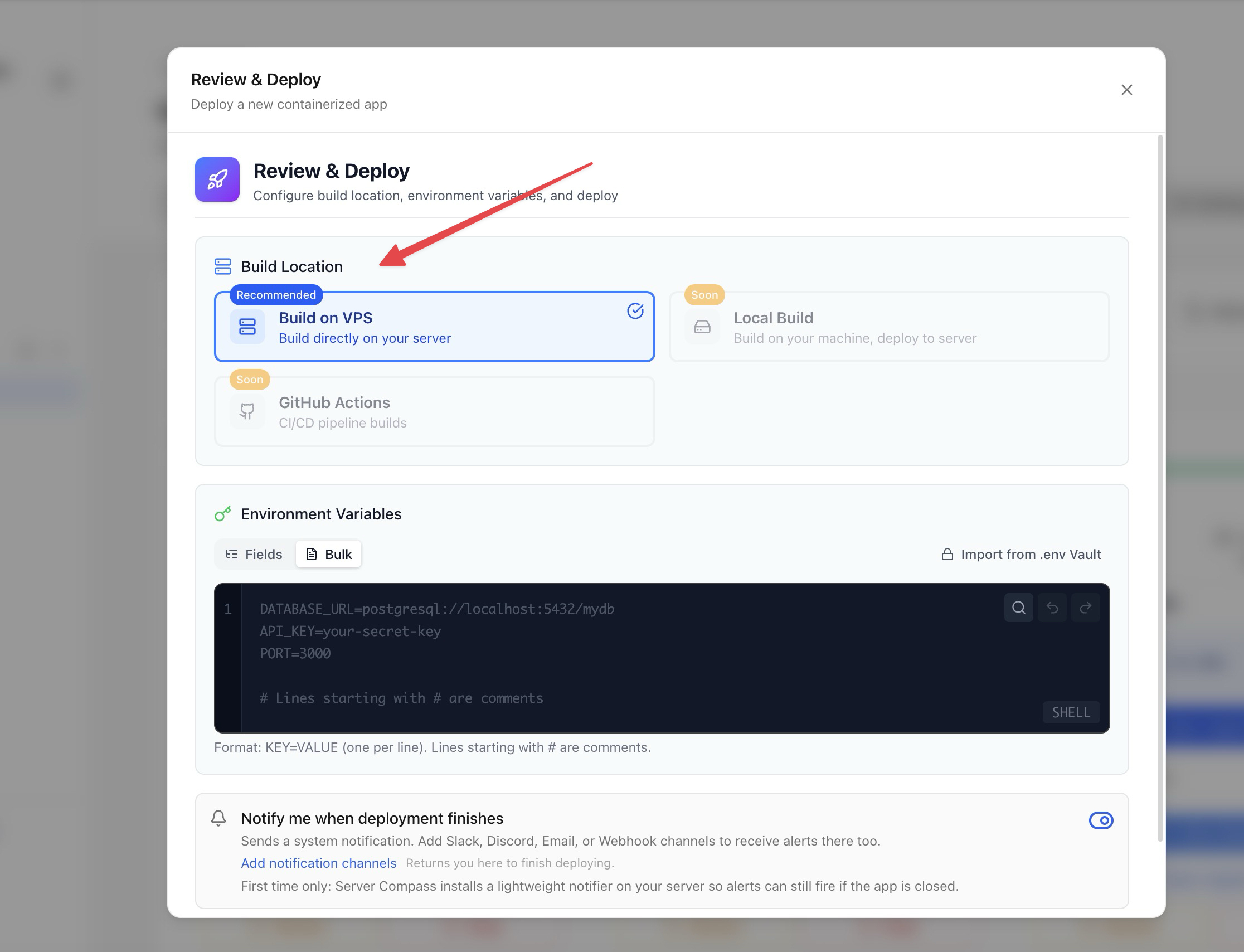
Option 1: Build on VPS
- Docker images build directly on your server
- Good for small apps and powerful VPS instances
- No external dependencies
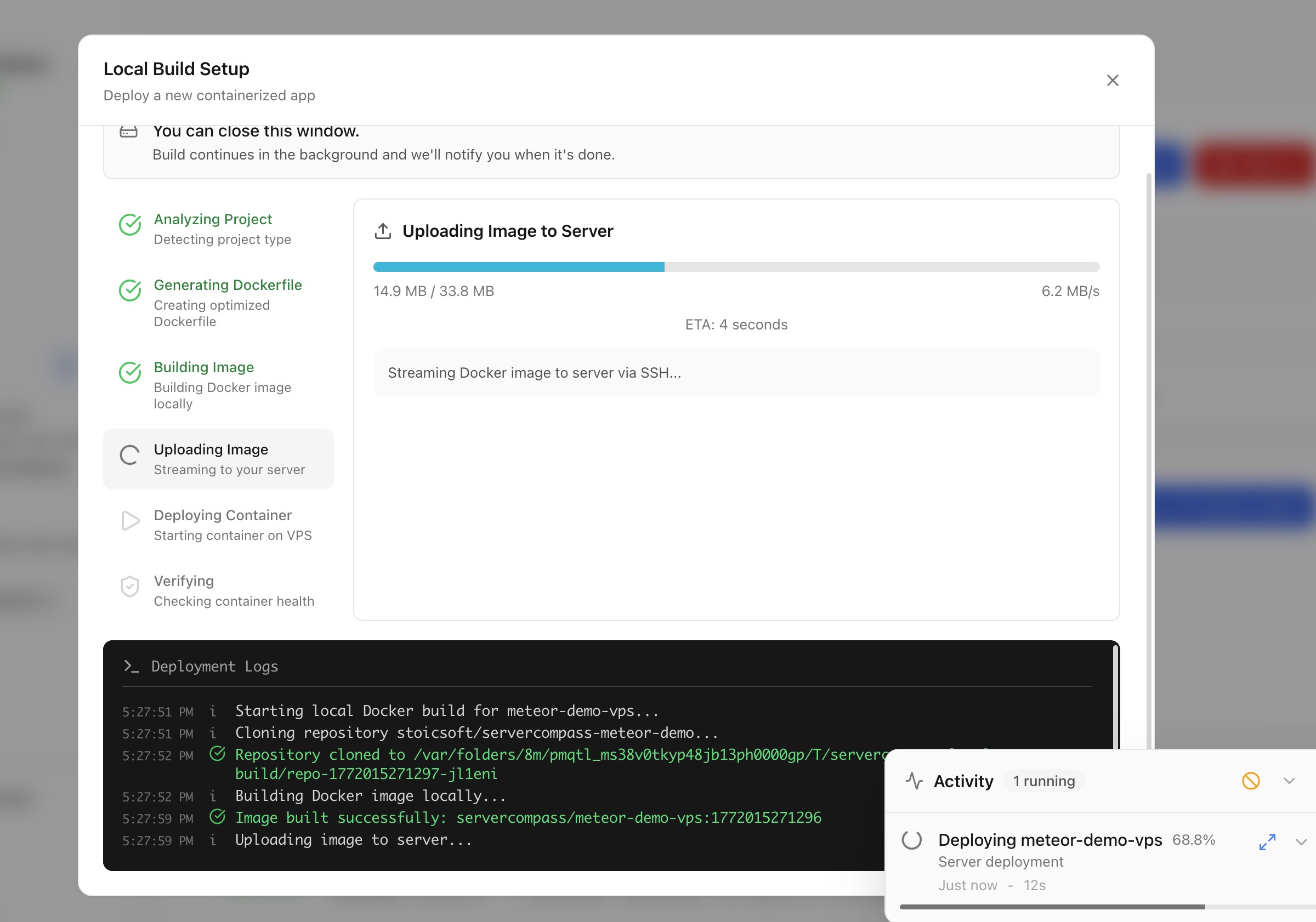
Option 2: Build Locally
- Docker images build on your local machine
- Image is streamed to your VPS via SSH
- Great when your laptop is more powerful than your VPS
- No GitHub account required
Option 3: Build with GitHub Actions
- Docker images build on GitHub's infrastructure (2-core CPU, 7GB RAM)
- Pushed to GitHub Container Registry (GHCR)
- Your VPS only pulls and runs the final image
- Perfect for small VPS instances that can't handle large builds
- Includes zero-downtime blue-green deployment via Traefik
4. Review & Deploy
Before deployment, Server Compass shows you:
- Ports being used (with conflict detection)
- Services being created
- Environment variables
- Resource requirements
If there are any issues (port conflicts, invalid YAML, missing SSH keys), you'll know before the deployment fails.
5. Watch It Happen
Once you hit "Deploy", you'll see:
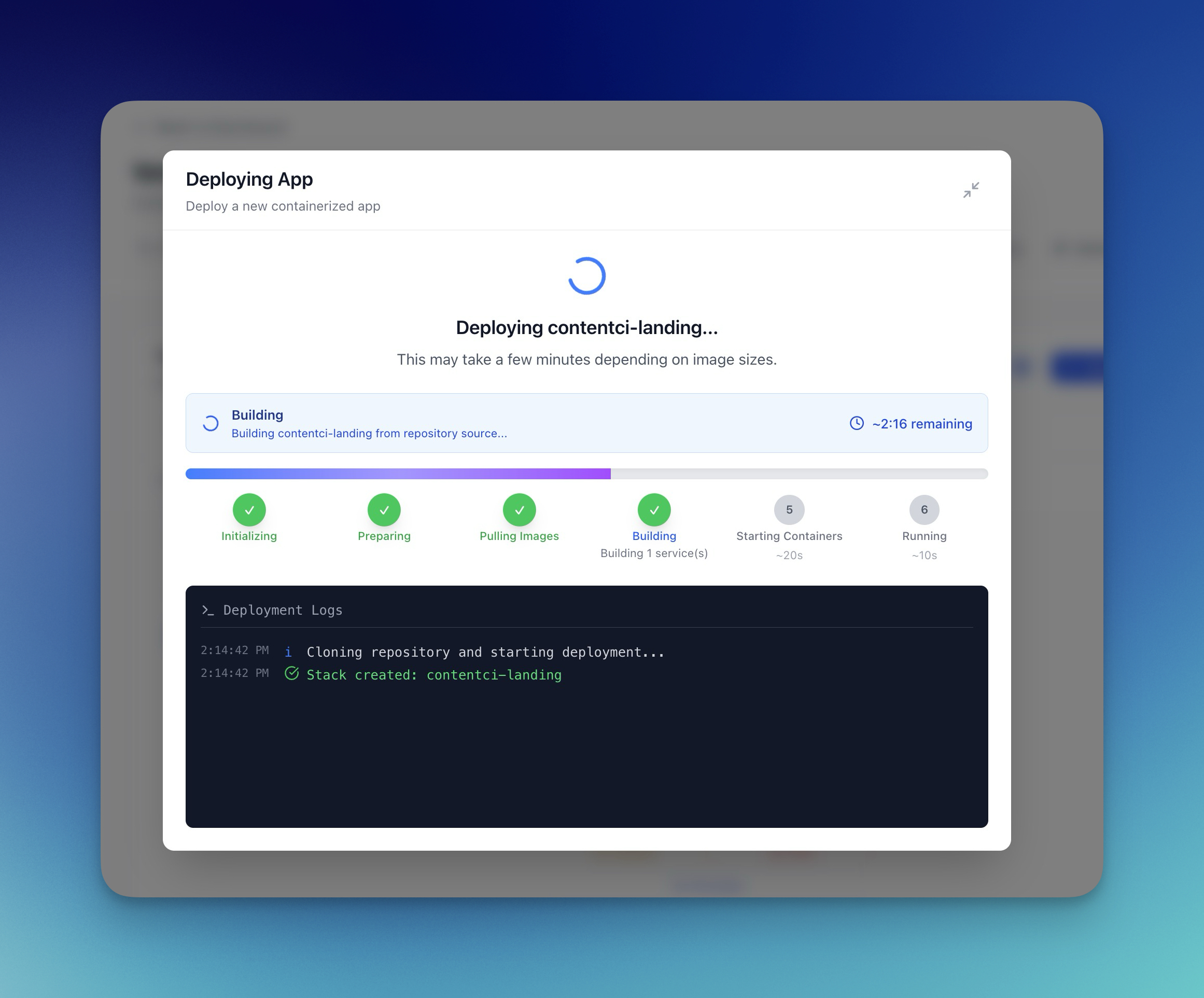
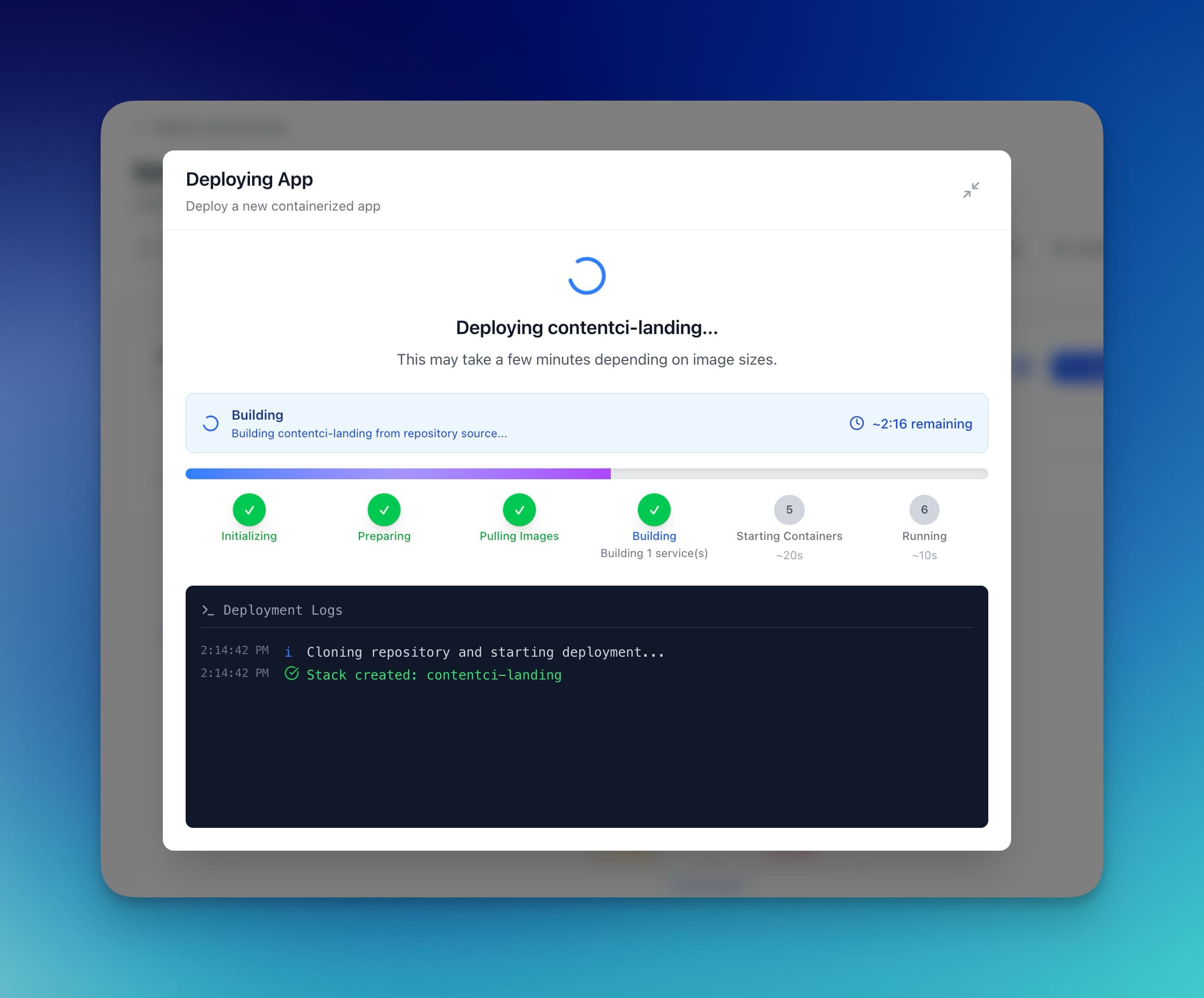
- Current phase: Initializing → Preparing → Pulling Images → Building → Starting Containers → Running
- Progress percentage: Estimated based on typical deployment times
- Live logs: See exactly what's happening
- Error messages: If something fails, you'll know why
No more "is it working?" uncertainty. You'll know exactly what's happening and when it's done.
GitHub Actions Build: The Game-Changer
This is the feature we're most excited about.
The Problem with Small VPS Instances
A $4/month VPS with 512MB RAM is perfect for running applications. But building them? That's a different story.
Try building a Next.js app with dependencies on a 512MB server:
`$ docker compose build ... npm install # 10 minutes later Killed`
Out of memory. Your build fails.
Your options:
- Upgrade to a more expensive VPS
- Build locally and push images manually
- Use a CI/CD service (complex setup)
Or use Server Compass with GitHub Actions build.
How It Works
When you select "Build with GitHub Actions", Server Compass orchestrates a 5-phase deployment pipeline:

- Commit Build Files — Generates an optimized GitHub Actions workflow and pushes it along with a Dockerfile to your repository
- Detect Workflow — Waits for GitHub Actions to pick up the workflow and tracks the run ID
- Build & Push — Builds your Docker image on GitHub's runners (2-core CPU, 7GB RAM) and pushes to GitHub Container Registry (GHCR)
- Environment Variables — Configures secrets for your deployment using libsodium sealed-box encryption (XSalsa20-Poly1305)
- Pull & Deploy — SSHs into your VPS, pulls the pre-built image, and starts the container with zero-downtime blue-green deployment
Zero-Downtime Blue-Green Deployment
The generated workflow doesn't just restart your container. It performs a blue-green deployment:
- A new "staging" container starts alongside the existing one
- Traefik routing labels are configured for the staging container
- 5 health probes run over 15 seconds to verify the new container is healthy
- Once healthy, the old container is stopped and removed
- The staging container is renamed to become the production container
Your users never see downtime. If the new version fails health checks, the old container keeps running.
Automatic SSH Key Setup
For GitHub Actions to deploy to your VPS, it needs SSH access. Server Compass handles this automatically:
- Generates a fresh Ed25519 key pair locally
- Adds the public key to your VPS
authorized_keys - Encrypts the private key with GitHub's repository public key using libsodium sealed boxes
- Stores it as a GitHub Secret — the private key never touches Server Compass's storage
- Keys are scoped per-app so one compromised key doesn't affect others
The Result
Your $4/month VPS can now run applications it could never build.
- Build time: 3-5 minutes on GitHub's infrastructure vs 20+ minutes (if it doesn't crash) on a small VPS
- VPS resource usage during build: 0% (vs 100% CPU, 95%+ memory)
- Automatic deployments: Push to your branch → GitHub builds and deploys automatically
Plus, you get:
- Build history on GitHub
- Cached builds (faster subsequent deployments)
- CI/CD out of the box
- Ability to review builds before they deploy
Real-Time Build Tracking
You don't need to switch to GitHub to monitor your build. Server Compass streams the workflow status directly into the app:

- Workflow status: queued, building, deploying, complete
- Timestamped log entries streamed in real-time
- Direct link to view the full workflow run on GitHub
- Background deployment support — close the window and get notified when done
Port Conflict Detection: Stop Failures Before They Happen
One of the most frustrating deployment failures:
`$ docker compose up -d Error: bind: address already in use`
You SSH in, run netstat -tuln, grep for the port, find what's using it, change your config, try again.
Server Compass detects port conflicts before deployment.

When you reach the Review step, Server Compass scans your server using both docker ps and ss -ltn (or netstat -ltn on older systems) to find:
- Docker containers using ports
- System services (nginx, Apache, sshd)
- Database services (PostgreSQL, MySQL, Redis, MongoDB)
- Node.js/PM2 processes
If your app wants to use port 3000 and it's already taken, you'll see the conflict with details about what's using it. You can fix the conflict before deployment fails.
Smart Framework Detection
Don't have a Dockerfile? No problem.
If you deploy a GitHub repository without a Dockerfile, Server Compass automatically detects your framework and generates an optimized Dockerfile:

Supported frameworks (16+ project types):
- JavaScript/TypeScript: Next.js, React, Vue, Nuxt, Express, NestJS, generic Node.js
- Python: Django, Flask, FastAPI, generic Python
- Go: Go modules
- Rust: Cargo projects
- Ruby: Rails, generic Ruby
- Static: HTML/CSS sites
Package manager detection: Server Compass detects pnpm, yarn, bun, or npm based on your lock files and generates the correct install commands.
For a Next.js app with pnpm, it generates a multi-stage Dockerfile:
`FROM node:18-alpine AS deps WORKDIR /app COPY package.json pnpm-lock.yaml ./ RUN corepack enable && pnpm install --frozen-lockfile FROM node:18-alpine AS builder WORKDIR /app COPY --from=deps /app/node_modules ./node_modules COPY . . RUN corepack enable && pnpm run build FROM node:18-alpine AS runner WORKDIR /app COPY --from=builder /app/.next/standalone ./ COPY --from=builder /app/.next/static ./.next/static COPY --from=builder /app/public ./public EXPOSE 3000 CMD ["node", "server.js"]`
Optimized for:
- Multi-stage builds (smaller final image)
- Layer caching (dependencies cached separately)
- Production-only output
- Correct package manager commands
Real-World Examples
Example 1: Deploying a Next.js Side Project
Before Server Compass:
`# SSH into VPS ssh [email protected] # Create directory mkdir -p /var/www/my-app cd /var/www/my-app # Clone repo git clone [email protected]:me/my-app.git . # Create Dockerfile (if not exists) nano Dockerfile ... write Dockerfile ... # Create docker-compose.yml nano docker-compose.yml ... write compose file ... # Create .env nano .env ... add environment variables ... # Build (hope it doesn't OOM) docker compose build ... wait 15-20 minutes ... # Start docker compose up -d # Check if it's actually running docker compose ps curl localhost:3000`
Total time: 45-60 minutes (if everything goes right)
With Server Compass:
- Click "New App"
- Select "GitHub Repository"
- Choose your repo and branch
- Select your build location (VPS, Local, or GitHub Actions)
- Review and deploy
Total time: 5 minutes (mostly waiting for the build)
Example 2: Deploying from a Template
Need a PostgreSQL database?
Before Server Compass:
`ssh root@vps mkdir -p /var/www/postgres-db cd /var/www/postgres-db nano docker-compose.yml ... copy-paste from postgres docs ... nano .env ... set POSTGRES_PASSWORD ... docker compose up -d`
With Server Compass:
- Click "New App"
- Select "Templates"
- Choose "PostgreSQL"
- Set password and port
- Deploy
Total time: 60 seconds
Example 3: Client Project with Custom Registry
Before Server Compass:
`ssh root@client-vps docker login registry.gitlab.com ... enter credentials ... cd /var/www/client-app nano docker-compose.yml ... configure to pull from private registry ... docker compose pull docker compose up -d`
With Server Compass:
- Add container registry credentials (one-time)
- Click "New App"
- Select your registry
- Paste docker-compose.yml
- Deploy
Total time: 2 minutes
Environment Variable Management
Environment variables are stored securely and synced automatically:
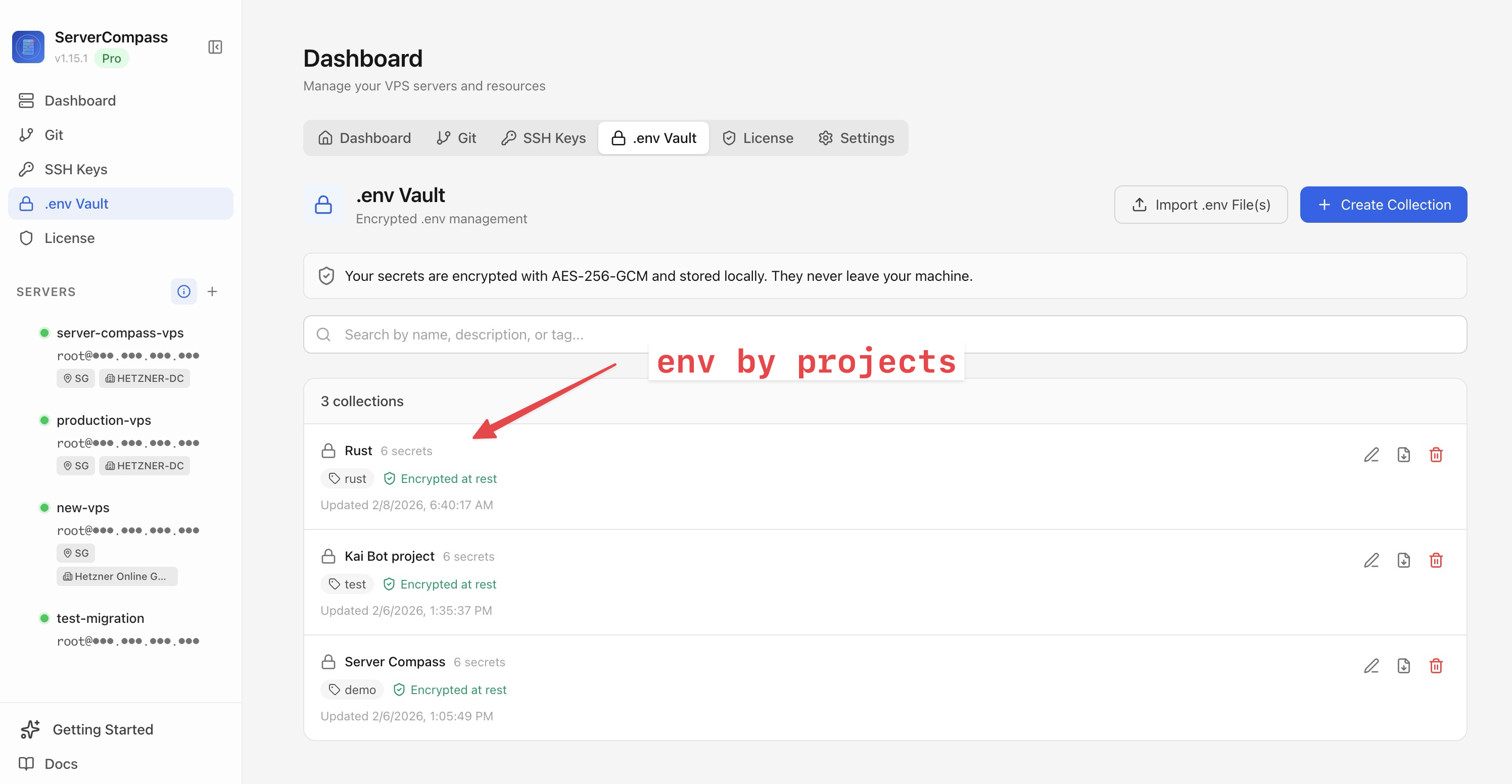
- .env Vault: Variables encrypted with AES-256-GCM and stored locally — they never leave your machine
- VPS sync: Automatically creates
.envfiles on your server during deployment - Bulk paste: Copy your entire
.envfile and paste it in — variables are automatically parsed and validated - Next.js NEXT_PUBLIC_ handling: Build-time variables like
NEXT_PUBLIC_*are automatically base64-encoded and injected as a separate GitHub Secret so they're available during the Docker build step - Runtime variables: Injected via
env_filedirective in docker-compose.yml
Deployment History and Rollbacks
Every deployment is tracked with full logs, commit references, and status badges:
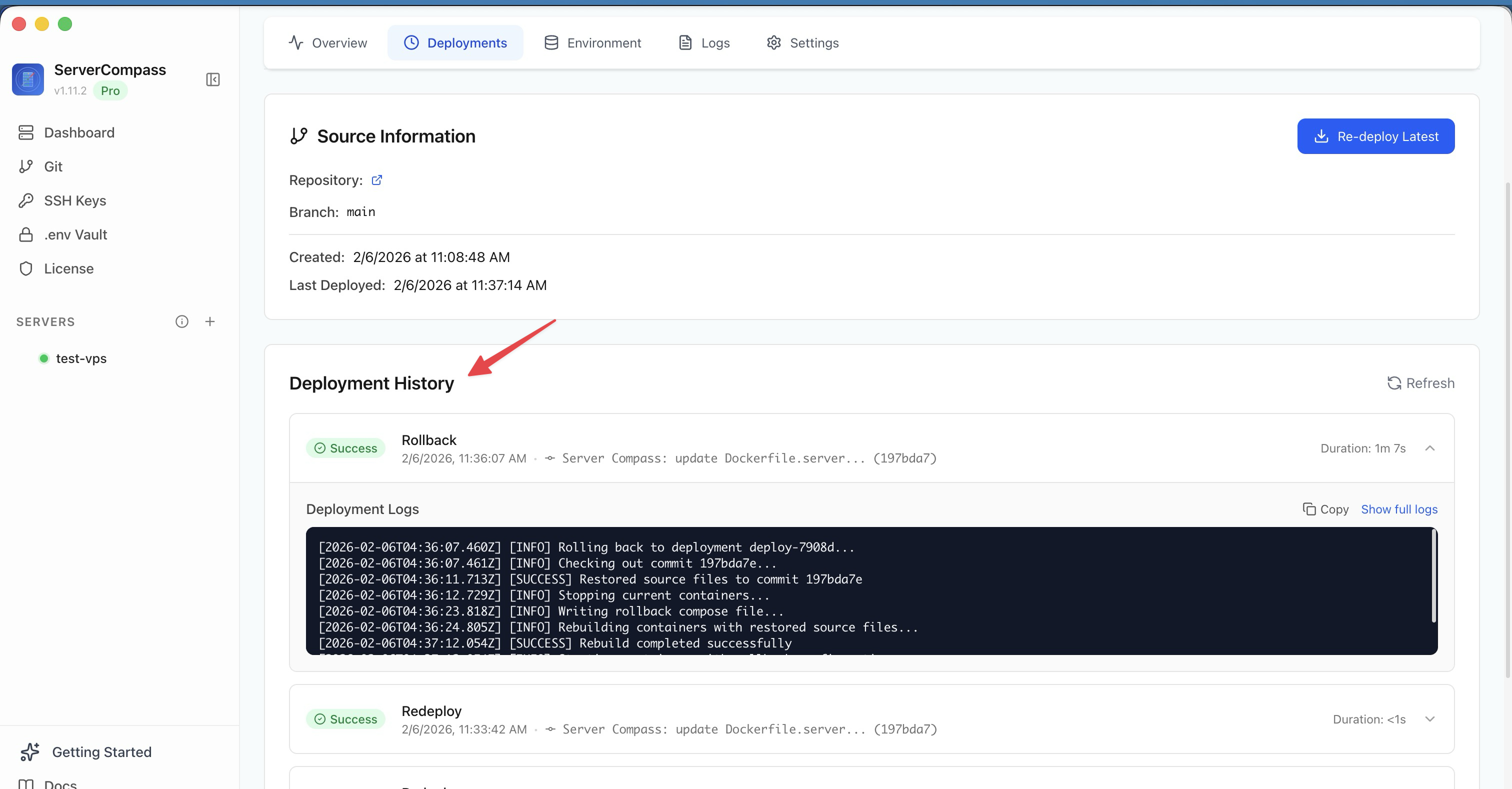
- Full deployment history: See every deployment with status (success/failed), duration, and trigger type (Git Push, Manual Deploy, Rollback)
- One-click rollback: Restore a previous version instantly
- Deployment logs: Complete logs for every deployment with copy and expand options
- Git commit tracking: See which commit triggered each deployment
Container Monitoring
Once deployed, Server Compass gives you a real-time view of your containers:
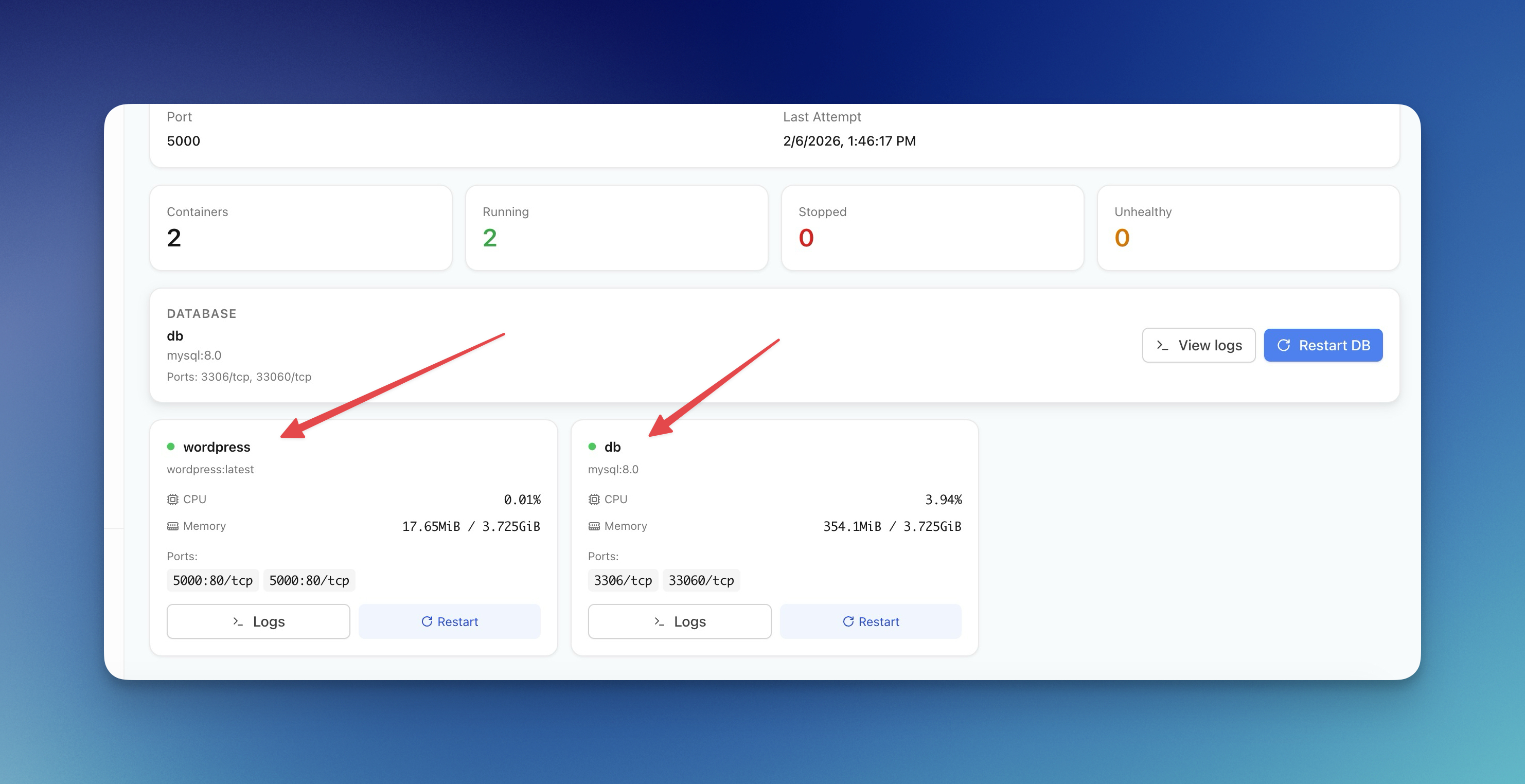
- Container status: Running, stopped, or unhealthy at a glance
- Resource usage: Real-time CPU and memory per container
- Port mappings: See which ports are exposed
- Quick actions: Restart individual containers, view logs, or redeploy the entire stack
Deployment Notifications
Get notified when deployments finish — even when the app is closed:
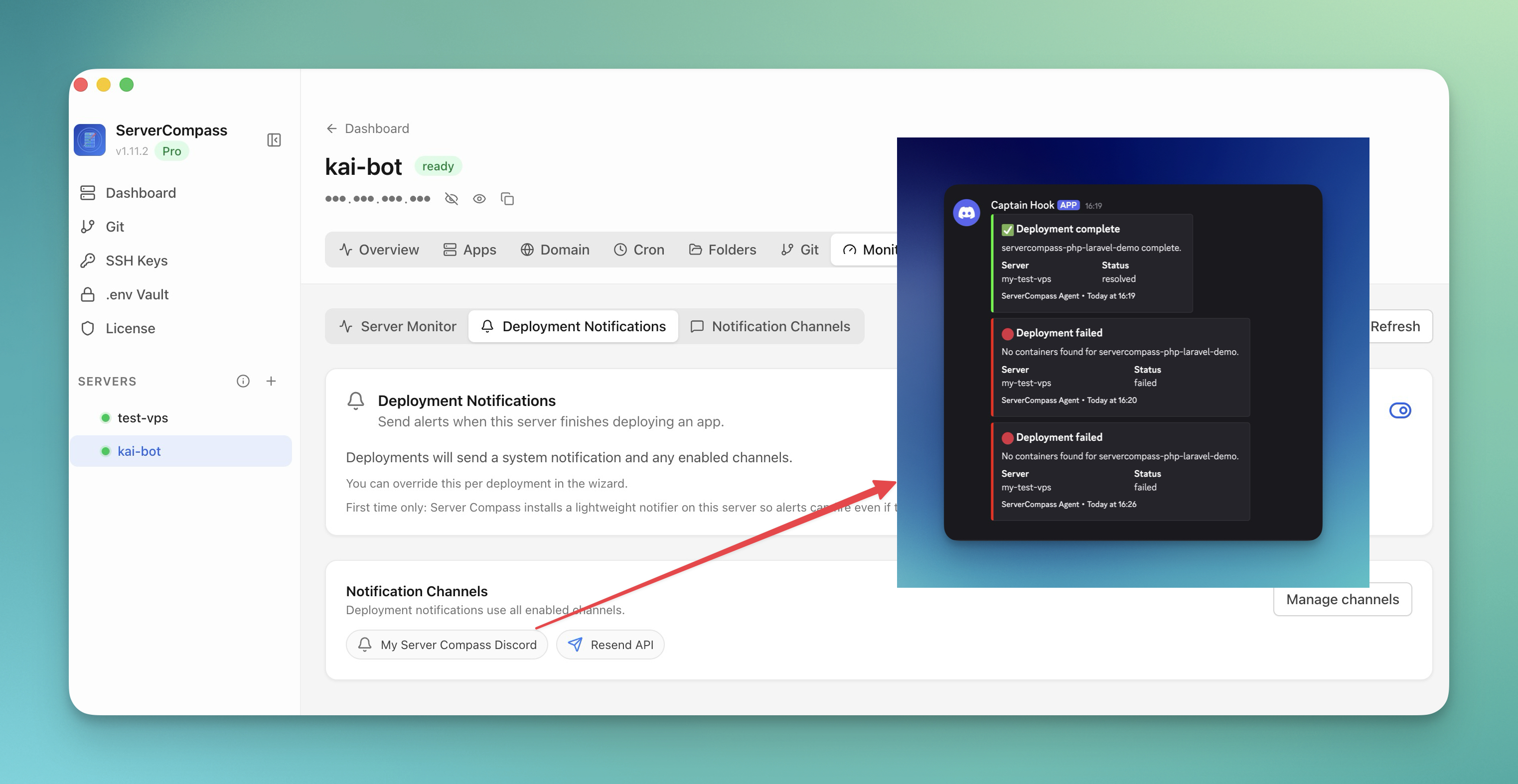
- System notifications on your desktop
- Discord, Slack, Email, or Webhook channels
- Server Compass installs a lightweight notifier on your VPS so alerts work even when the app is closed
Auto-Deploy on Git Push
For GitHub Actions builds, every push to your configured branch triggers an automatic deployment:

Push to main and your app is live in minutes. The deployment history shows the git commit hash and message for each deployment, so you always know exactly what version is running.
Security Features
Credential Encryption
All sensitive data is encrypted:
- SSH passwords: AES-256-GCM encryption
- SSH private keys: Stored in credential vault
- Container registry credentials: Encrypted at rest
- GitHub Secrets: Encrypted with libsodium sealed boxes (XSalsa20-Poly1305) using GitHub's repository public key
- .env variables: AES-256-GCM encrypted in the .env Vault, never leave your machine
SSH Key Management
For GitHub Actions deployments:
- Ed25519 key pairs generated locally on your machine
- Private keys never stored in Server Compass — they're sent directly to GitHub Secrets
- Public keys added to your VPS
authorized_keys - Keys scoped per-app (one compromised key doesn't affect others)
Docker Auto-Installation
Deploying to a fresh VPS with no Docker installed? Server Compass detects this and automatically installs Docker from the official get.docker.com script. No manual setup required.
Technical Details
For the curious:
Architecture:
- Desktop app: Electron + React
- Local database: SQLite (better-sqlite3)
- SSH execution: ssh2 library
- Container orchestration: Docker Compose v2
- CI/CD: GitHub Actions with workflow_dispatch
- Container registry: GitHub Container Registry (GHCR)
- Reverse proxy: Traefik (for blue-green deployments)
- Encryption: libsodium.js sealed boxes + AES-256-GCM
System requirements:
- macOS 12+, Windows 10+, or Linux
- VPS with Docker support (auto-installs if missing)
- SSH access to VPS (root or Docker group)
Supported VPS providers:
- DigitalOcean, Linode, Vultr, Hetzner
- AWS EC2, Google Cloud Compute
- Any VPS with SSH access
Get Started Today
Ready to stop manually deploying to VPS?
Server Compass is $29. One-time payment. No subscription.
You get every feature, all future updates, and support. It works on Mac, Windows, and Linux. You can manage unlimited servers and deploy unlimited apps.
Compare this to Vercel Pro at $240/year, or Railway at $200+/month once you're past their free tier. Server Compass pays for itself with your first month of VPS savings.
Quick Start:
- Download from servercompass.app
- Add your VPS (SSH credentials)
- Click "New App"
- Follow the wizard
- Watch your app deploy in real-time
Final Thoughts
We built Server Compass because we were tired of spending evenings debugging VPS deployments instead of building features.
The Deploy New App feature represents hundreds of hours of work to make VPS deployment as simple as deploying to Vercel or Netlify — but with the control and cost-effectiveness of managing your own servers.
Whether you're deploying side projects to $4/month VPS instances or managing client applications across multiple servers, Server Compass helps you focus on building, not infrastructure.
Try it out and let us know what you think. We read every piece of feedback and use it to guide development.
Happy deploying!
Related in the StoicSoft network
If you're self-hosting on a VPS or working through a deployment guide like the one above, DeployToVPS is the StoicSoft network's handbook for VPS deployment recipes — docker-compose, nginx, traefik, and common app self-hosts.
From across the StoicSoft network
Hand-curated reads on the same topic from sister sites in the StoicSoft family.
 1DevTool10 min read
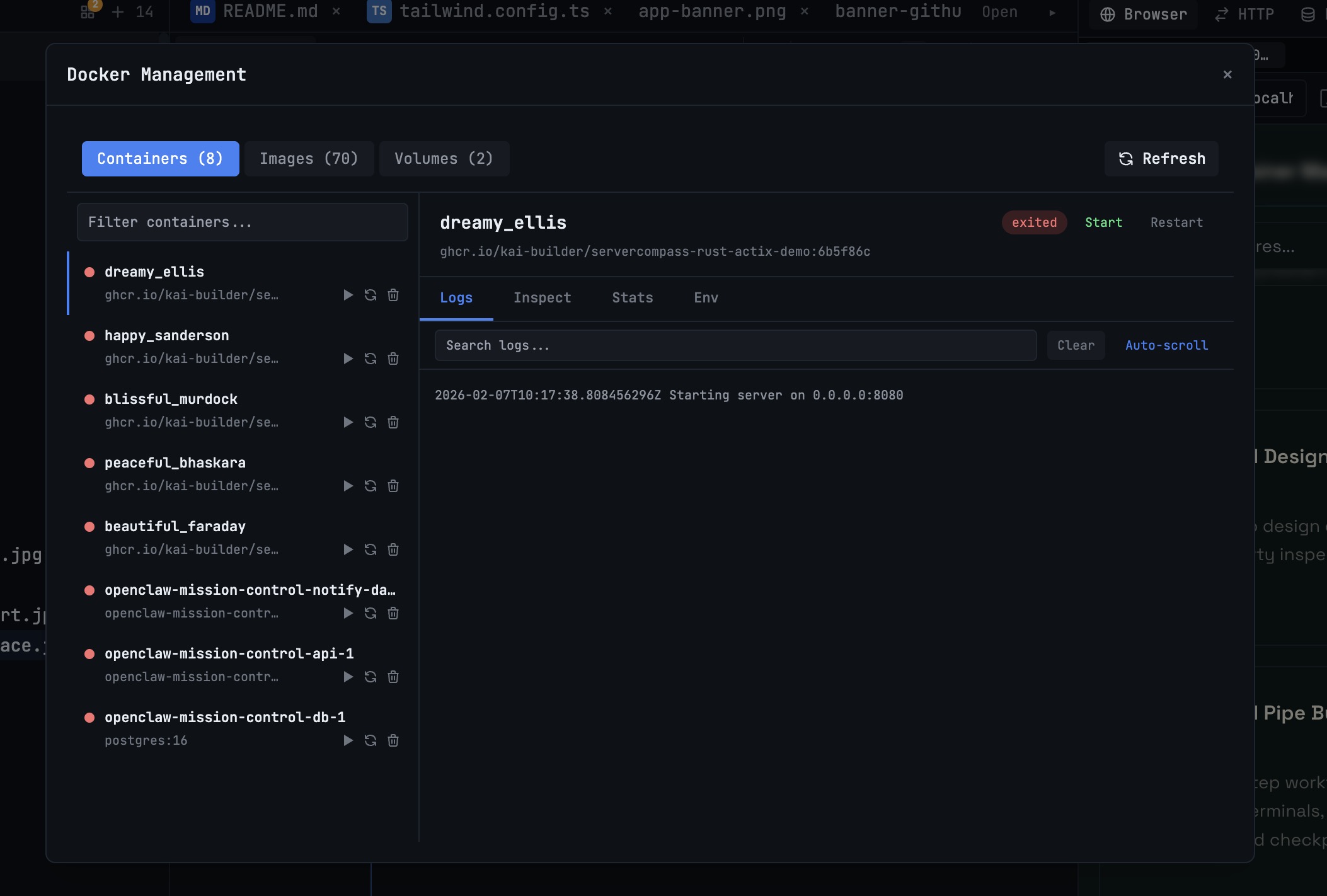
Docker Desktop Alternatives for Developers in 2026
Developers want a Docker workflow that stays close to code, logs, and AI agents. This comparison breaks down Docker Desktop alternatives by performance, observability, and daily usability.
Read on 1devtool.com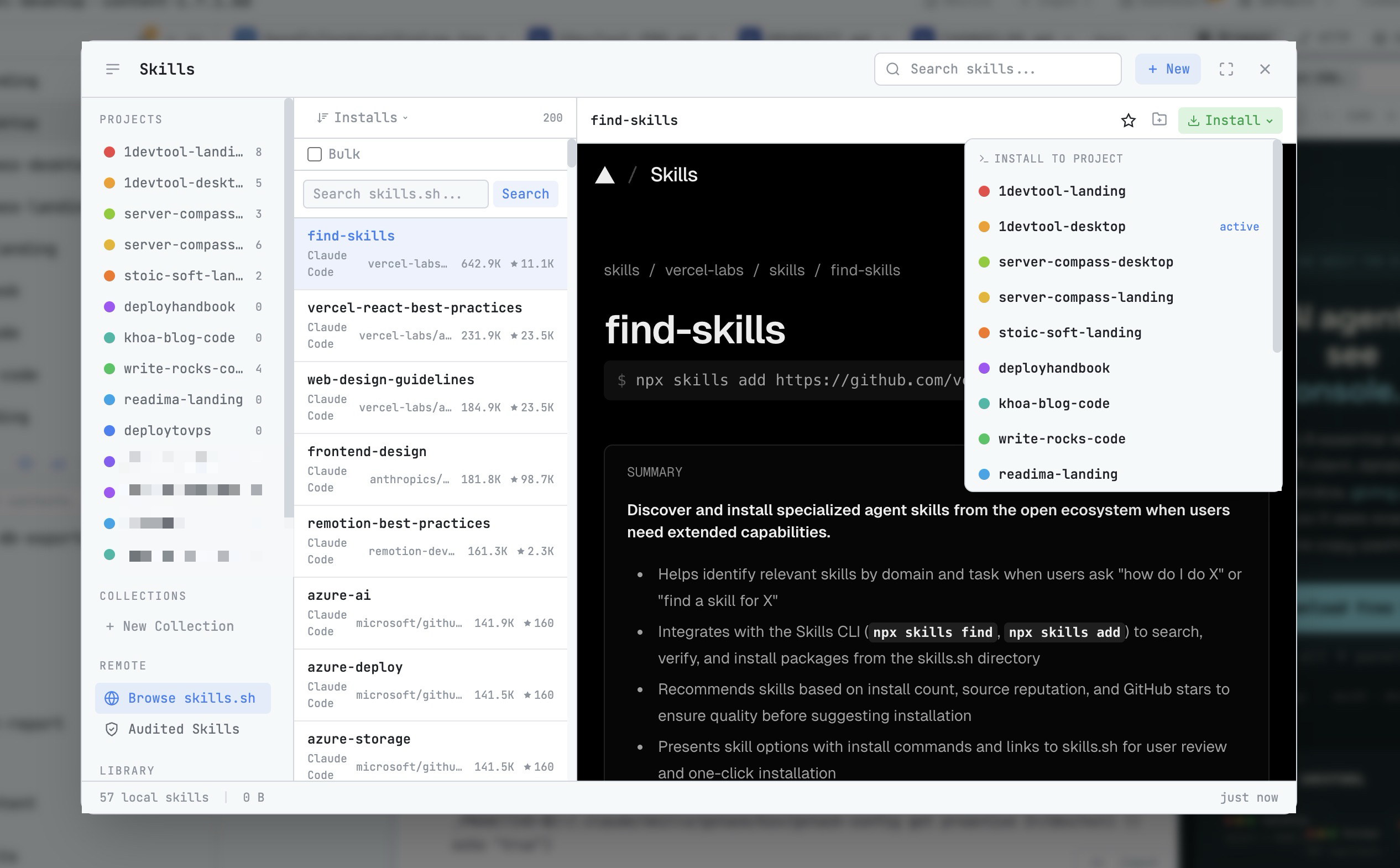 1DevTool8 min read
AI Skills Manager & Docker Deep Dive: Extend Your Agents, Monitor Your Containers
Browse, create, and install AI agent skills with built-in security scanning. Plus a redesigned Docker manager with live CPU, memory, and network monitoring for every container.
Read on 1devtool.com