April 15, 2026
Coolify and Dokploy 502 Bad Gateway Errors: Fast VPS Deployment Triage
A practical decision tree for Coolify 502 and Dokploy 502 Bad Gateway errors after Docker deploys: container health, bind address, internal port, proxy logs, startup grace, health endpoints, and rollback.
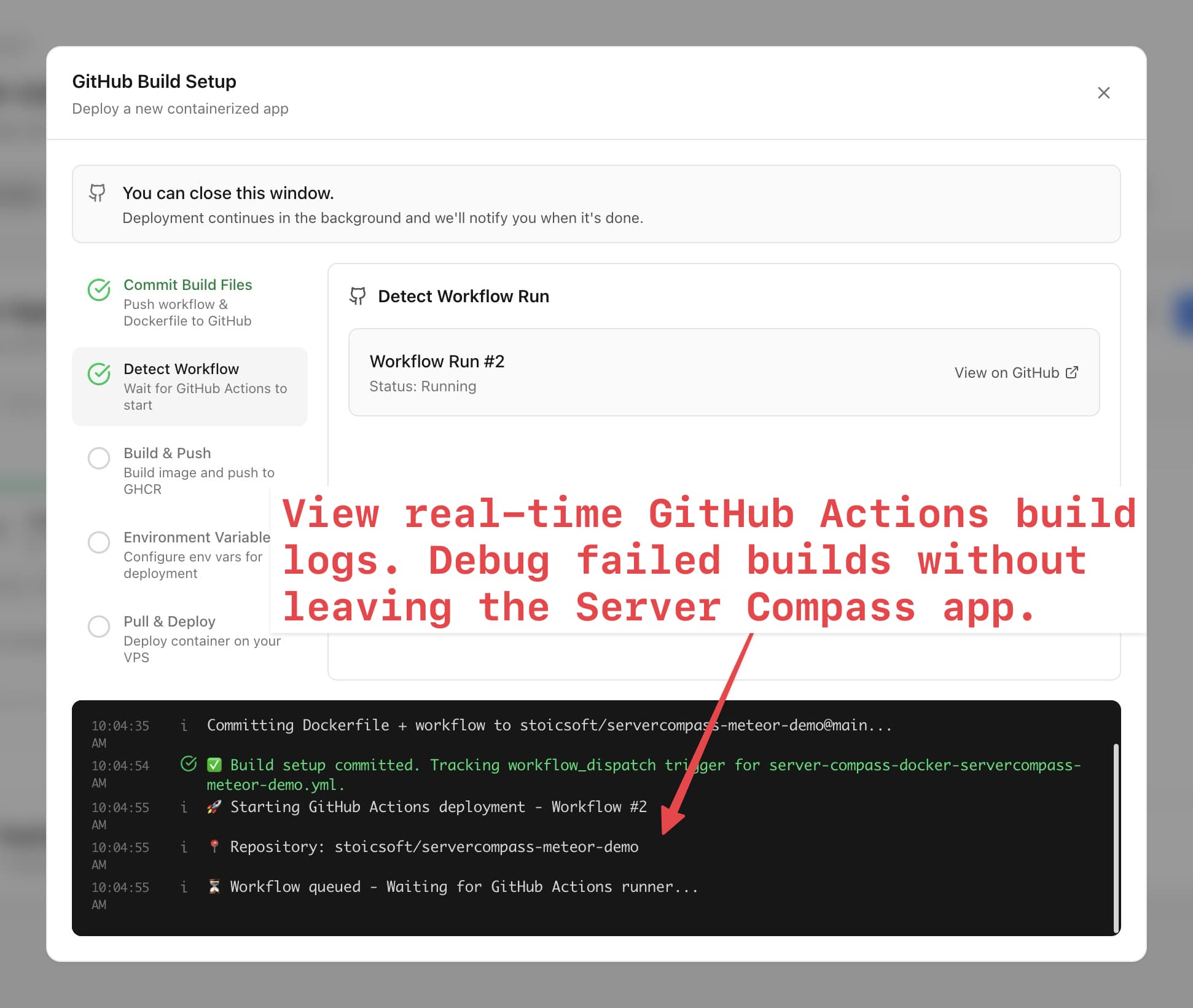
A 502 after deploy usually means the reverse proxy cannot reach your app. The confusing part is that the container may still show as "running", which leads people to redeploy, rebuild, and change random settings before checking the actual upstream path.
Whether you use Coolify, Dokploy, raw Docker Compose, or Server Compass, the fastest triage path is the same: process, bind address, port, proxy, startup timing, then rollback.
Quick answer: what causes 502 after a Docker deploy?
A 502 Bad Gateway after a self-hosted Docker deploy usually means Traefik, Nginx, or another reverse proxy cannot connect to the upstream app container. The most common causes are a crashed app process, wrong internal port, binding to 127.0.0.1 instead of 0.0.0.0, missing environment variables, a slow startup, or a failed health check.
1. Verify the container is healthy, not only running
"Up" means Docker started the container. It does not mean your app is accepting traffic. First check logs and process state:
docker ps
docker logs --tail=100 your-container
docker inspect --format='{{json .State.Health}}' your-container
Look for boot errors, missing environment variables, failed migrations, port conflicts, or a server process that exited while the wrapper process stayed alive.
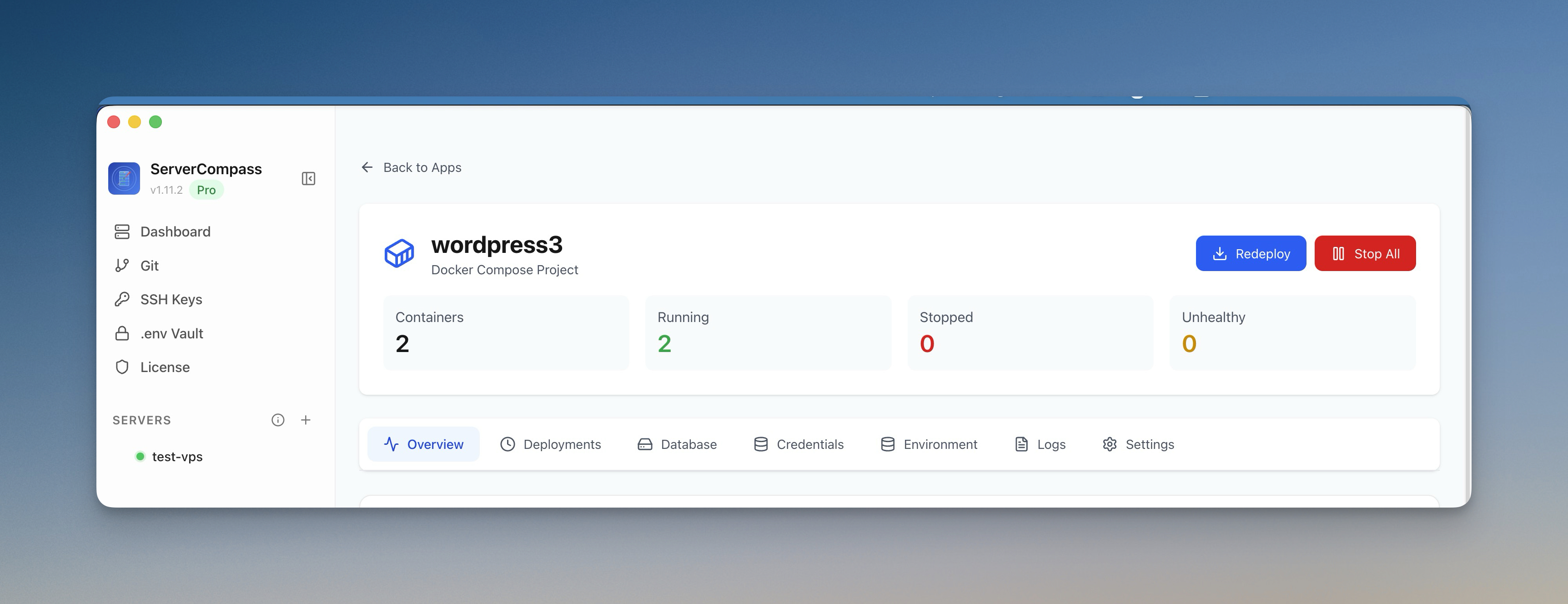
In Server Compass, open container status and real-time logs before you redeploy. The first useful clue is usually already there.
2. Confirm the app binds to the right address
A common cause of 502s is an app that listens on 127.0.0.1 inside the container instead of 0.0.0.0. The process is alive, but the proxy cannot reach it over the Docker network.
Stack
Common production bind setting
Node/Express
app.listen(PORT, '0.0.0.0')
Next.js
next start -H 0.0.0.0
Vite preview
vite preview --host 0.0.0.0
FastAPI
uvicorn app:app --host 0.0.0.0
3. Match internal port, exposed port, and proxy target
The proxy must send traffic to the port your app actually listens on inside the container. EXPOSE is documentation; it does not force your app to listen there.
Check the app logs for a line like Listening on port 3000, then compare it to the service port and proxy target. In Server Compass, use Port Management to inspect open ports and identify conflicts.
docker exec your-container sh -lc "ss -ltnp || netstat -ltnp"
docker port your-container

4. Read the reverse proxy error
Reverse proxies are usually explicit about why they returned a 502. Look for errors like:
connection refused: app is not listening on the target port.no route to host: network or container target is wrong.upstream timed out: app is too slow or stuck during startup.bad gatewayafter deploy only: new version failed health checks or boot.
Server Compass records deployment output, build logs, activity logs, and container logs so you can correlate the proxy failure with what changed during deploy.
Proxy error
Most likely fix
connect: connection refused
Fix the app port, bind address, or startup command.
upstream timed out
Add a health check and increase startup grace.
host not found
Check Docker network and service names.
5. Increase startup grace for slow boots
Some apps need time to run migrations, warm caches, compile assets, or connect to a database. If the proxy routes traffic before the app is ready, users see 502 even though the app would have become healthy seconds later.
Add a real health endpoint and give it time to pass before switching traffic. Server Compass supports zero-downtime deployment, where health checks validate the new container before traffic moves.
6. Re-test with a minimal endpoint
When the app is complex, add one minimal route that does not touch the database:
app.get('/healthz', (_req, res) => {
  res.status(200).send('ok')
})
If /healthz works but the homepage 502s or times out, the proxy and port are probably correct. Move deeper into application startup, database connectivity, or upstream service calls.
7. Roll back instead of debugging live forever
If production is down and the previous deployment worked, restore service first. Then debug the failed build with logs and a staging environment.
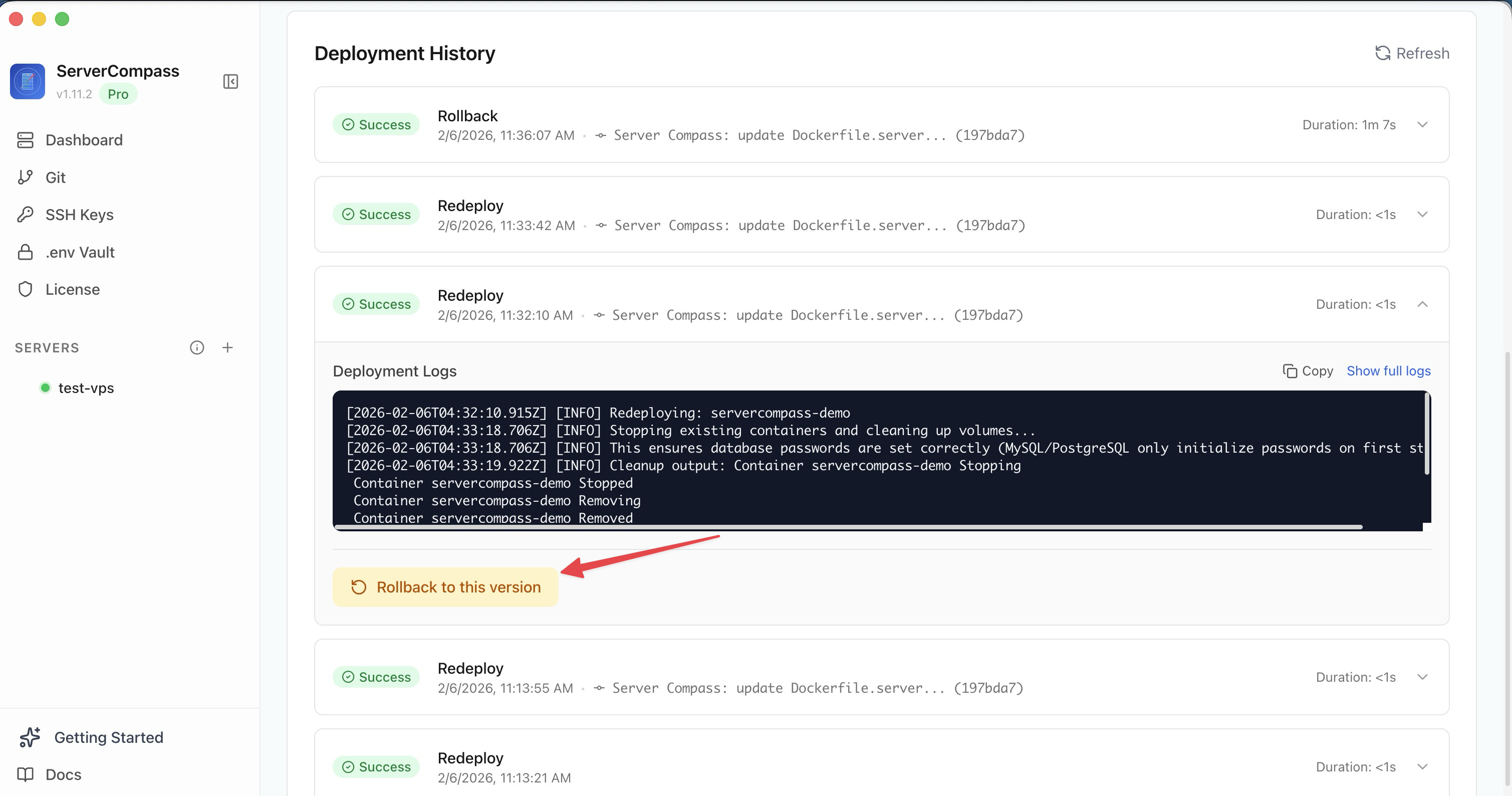
Server Compass keeps deployment history and supports one-click rollback, which gives you a clean escape hatch when a bad deployment causes a 502.
502 decision tree
- Does the container log show a startup error?
- Is the app listening on
0.0.0.0? - Does the proxy target the actual internal port?
- Do proxy logs say refused, timeout, or no route?
- Does a minimal health endpoint work?
- Can you roll back to restore production while debugging?
FAQ
Why do I get 502 if the container is running?
Docker can report a container as running even when the app process inside it is not ready, is listening on the wrong address, or is serving on a different port than the proxy expects.
Is Coolify or Dokploy causing the 502?
Sometimes the platform configuration is wrong, but most 502s come from the app, port, bind address, Docker network, environment variables, or proxy target. Check those before reinstalling the platform.
How do I prevent 502s on future deploys?
Add a real health endpoint, configure the correct internal port, bind to 0.0.0.0, keep startup logs visible, and use rollback or zero-downtime deployment so a bad version does not replace a working one.
Download Server Compass to keep logs, ports, health status, deploy history, and rollback in one workflow instead of chasing 502s through five terminals.
Related in the StoicSoft network
If you're self-hosting on a VPS or working through a deployment guide like the one above, DeployToVPS is the StoicSoft network's handbook for VPS deployment recipes — docker-compose, nginx, traefik, and common app self-hosts.
From across the StoicSoft network
Hand-curated reads on the same topic from sister sites in the StoicSoft family.
 1DevTool10 min read
Docker Desktop Alternatives for Developers in 2026
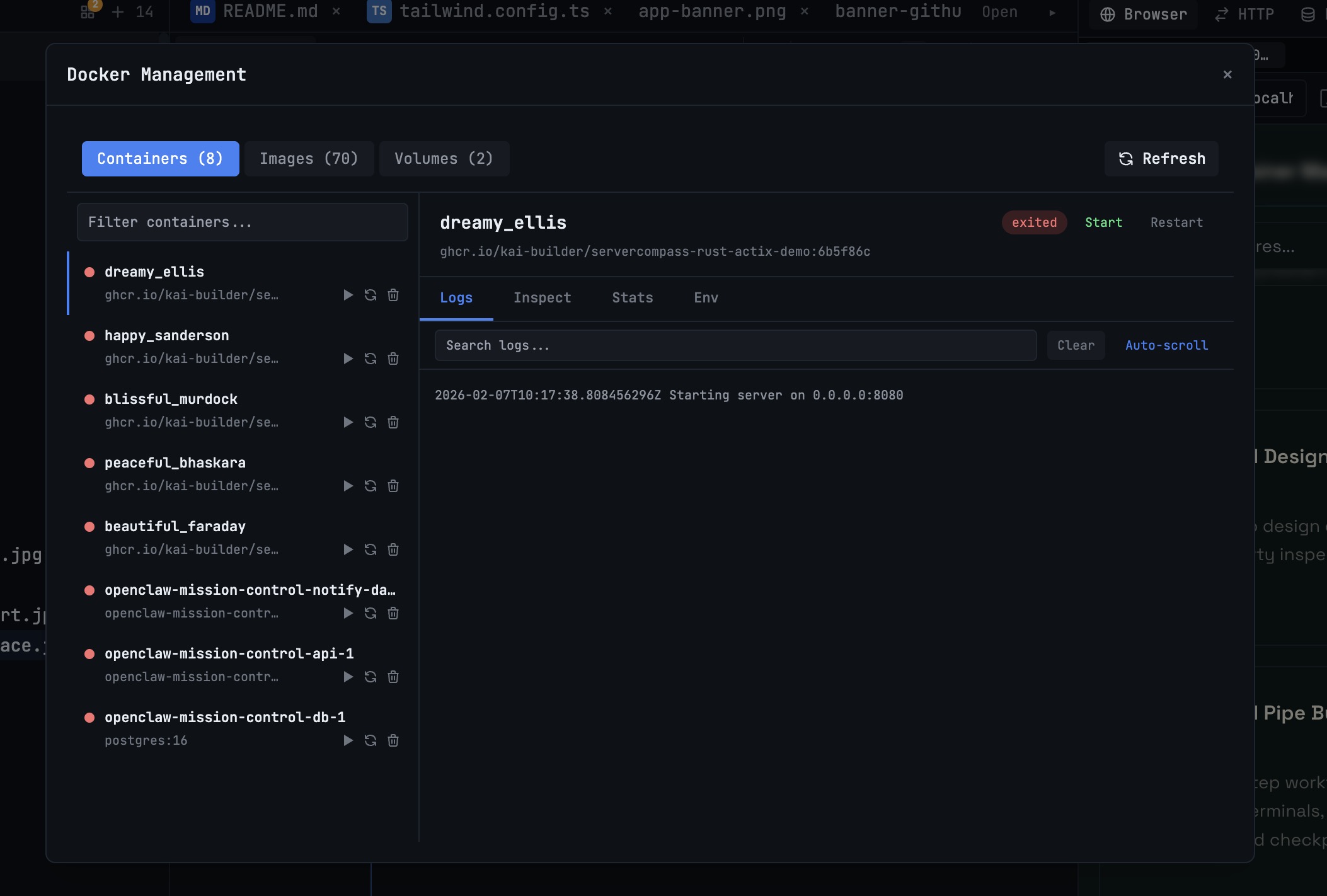
Developers want a Docker workflow that stays close to code, logs, and AI agents. This comparison breaks down Docker Desktop alternatives by performance, observability, and daily usability.
Read on 1devtool.com 1DevTool8 min read
AI Skills Manager & Docker Deep Dive: Extend Your Agents, Monitor Your Containers
Browse, create, and install AI agent skills with built-in security scanning. Plus a redesigned Docker manager with live CPU, memory, and network monitoring for every container.
Read on 1devtool.com