February 26, 2026
How Server Compass Uses GitHub Actions for Zero-Downtime VPS Deployments
A deep dive into how Server Compass generates GitHub Actions workflows, encrypts secrets with libsodium sealed boxes, and performs blue-green deployments on your VPS.
If you've tried setting up CI/CD for a VPS, you know it's painful. Writing GitHub Actions workflows from scratch, managing SSH keys, configuring Docker registries, handling secrets securely, implementing zero-downtime deployments — each piece takes hours to get right.
Server Compass automates the entire pipeline. Click a button, and you get a production-grade GitHub Actions workflow that builds your Docker image, pushes it to GHCR, and deploys it to your VPS with zero downtime. This post explains exactly how it works under the hood.
The Problem: CI/CD for VPS Is Hard
Platforms like Vercel and Railway handle deployment automatically. Push to main, and your app is live. But when you self-host on a VPS, you're on your own.
A typical DIY CI/CD setup for a VPS requires:
- Writing a GitHub Actions workflow YAML file
- Generating SSH keys and adding them to GitHub Secrets
- Configuring Docker build and push to a container registry
- Writing deployment scripts that SSH into your server
- Handling environment variables securely
- Implementing some form of health checking
- Figuring out zero-downtime deployment (or just accepting brief outages)
Most developers spend 4-8 hours getting this right. And when something breaks, debugging a workflow YAML file is nobody's idea of fun.
Server Compass reduces this to one click.
The 5-Phase Pipeline
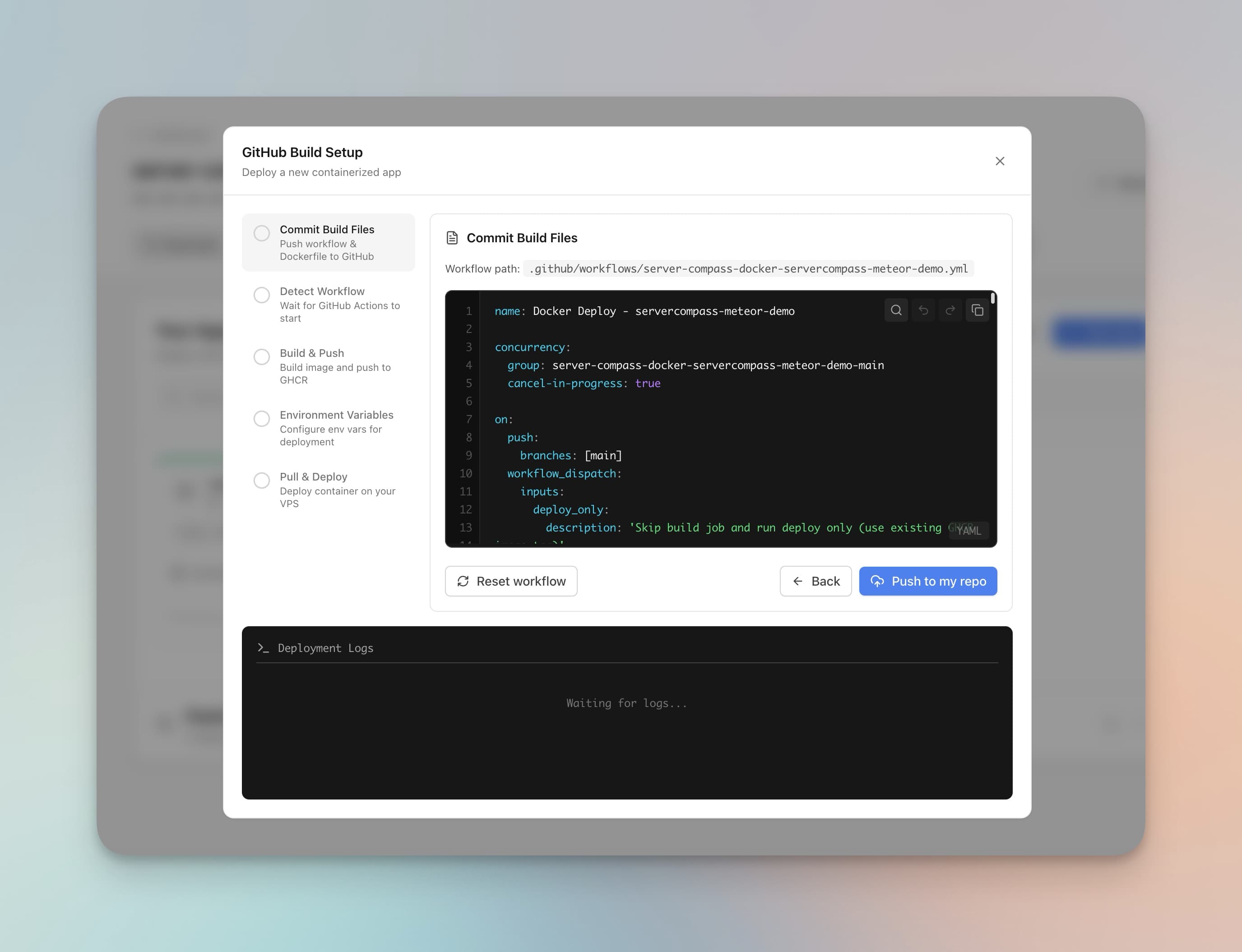
When you choose "Build with GitHub Actions" in Server Compass, it orchestrates a 5-phase deployment pipeline:

Phase 1: Commit Build Files
Server Compass generates two files and commits them to your repository:
- A GitHub Actions workflow at
.github/workflows/server-compass-docker-[app-name].yml - A Dockerfile (if your project doesn't already have one) — auto-generated based on framework detection
The workflow is fully customizable. You can review it before pushing, edit it in the built-in YAML editor, or reset it to the default. Server Compass commits these files directly to your chosen branch using the GitHub API.

Phase 2: Detect Workflow Run
After committing the workflow file, Server Compass watches for the GitHub Actions run to start. It polls the GitHub API to find the workflow run triggered by the commit, tracking the run ID for real-time status updates.
If a workflow_dispatch event is used (for manual deployments), Server Compass triggers it directly via the API and immediately begins tracking.
Phase 3: Build & Push to GHCR
The workflow runs on GitHub's runners (2-core CPU, 7GB RAM — far more than most budget VPS instances). It:
- Checks out your repository
- Logs into GitHub Container Registry using the auto-generated
GITHUB_TOKEN(no additional credentials needed) - Builds your Docker image using
docker/build-push-action - Pushes the image to
ghcr.io/[your-username]/[app-name]
The build uses Docker layer caching from the registry, so subsequent builds are significantly faster. A typical Next.js app builds in 3-5 minutes on the first run and 1-2 minutes on subsequent runs.

Phase 4: Environment Variables
Server Compass encrypts your environment variables and stores them as GitHub Secrets. This is where the security gets interesting.
GitHub Secrets use libsodium sealed box encryption. Each repository has a public key. To create a secret, you must:
- Fetch the repository's public key from the GitHub API
- Encrypt the secret value using
crypto_box_seal(XSalsa20-Poly1305) - Send the encrypted value to GitHub
Server Compass handles all of this automatically using libsodium.js. Your secrets are encrypted on your machine before being sent to GitHub — they never travel in plaintext.
Special Handling for Next.js
Next.js applications need NEXT_PUBLIC_* variables available at build time, not just runtime. Server Compass detects these variables, base64-encodes them, and stores them as a separate GitHub Secret (NEXT_PUBLIC_ENV). The workflow decodes them into an .env file before the Docker build step, ensuring they're baked into the client bundle.
Runtime variables are injected via the --env-file flag when starting the container, so they're available to your server-side code without rebuilding.
Phase 5: Pull & Deploy (Blue-Green)
This is where the magic happens. Instead of simply restarting your container (which causes downtime), the workflow performs a blue-green deployment:
`# Simplified version of the deploy steps - name: Pull image run: docker pull ghcr.io/user/app:latest - name: Start staging container run: | docker run -d --name app-staging \\ --env-file .env \\ -l traefik.enable=true \\ ghcr.io/user/app:latest - name: Health check (5 probes over 15 seconds) run: | for i in 1 2 3 4 5; do curl -sf http://localhost:PORT/ sleep 3 done - name: Swap containers run: | docker stop app-production docker rm app-production docker rename app-staging app-production`
- Pull the image from GHCR to the VPS
- Start a staging container alongside the existing production container, with Traefik routing labels
- Run 5 health probes over 15 seconds to verify the new container responds correctly
- If healthy: Stop the old container, rename staging to production
- If unhealthy: Remove the staging container, keep the old one running. The deployment fails safely — your users never see an error
During the swap, Traefik handles request routing automatically. Users hitting your app during deployment get served by whichever container is available. The result: zero perceived downtime.
Automatic SSH Key Management
For GitHub Actions to deploy to your VPS, it needs SSH access. Setting this up manually involves generating keys, copying them to the right places, and storing them securely. Server Compass automates all of it:
- Generates an Ed25519 key pair locally on your machine — the most secure SSH key type
- Adds the public key to your VPS's
~/.ssh/authorized_keys - Encrypts the private key with GitHub's repository public key using sealed box encryption
- Stores it as a GitHub Secret (
VPS_SSH_KEY)
The private key is never stored on your machine or in Server Compass. It goes from memory directly to GitHub Secrets, encrypted end-to-end.
Each app gets its own SSH key. If one key is compromised, your other deployments remain secure. You can also revoke a key by removing it from your VPS's authorized_keys file.
Framework Detection and Dockerfile Generation
Most deployment tools require you to write your own Dockerfile. Server Compass generates one automatically by analyzing your project:

Detection process:
- Reads your
package.json,requirements.txt,go.mod,Cargo.toml, orGemfile - Identifies the framework: Next.js, React, Vue, Nuxt, Express, NestJS, Django, Flask, FastAPI, Go, Rust, Rails, or static HTML
- Detects the package manager: pnpm (via
pnpm-lock.yaml), yarn (viayarn.lock), bun (viabun.lockb), or npm (viapackage-lock.json) - Generates a multi-stage Dockerfile optimized for that specific stack
For example, a Next.js project with pnpm gets a Dockerfile that uses corepack enable for pnpm, multi-stage builds for smaller images, and Next.js standalone output for minimal production deployments.
A Python Django project gets a Dockerfile with pip install, collectstatic, Gunicorn, and the correct Python version.
If you already have a Dockerfile, Server Compass uses it as-is. No interference.
Docker Auto-Installation
Deploying to a fresh VPS that doesn't have Docker? Server Compass detects the missing dependency and automatically installs Docker using the official get.docker.com installation script. It works across all major Linux distributions:
- Ubuntu / Debian
- CentOS / RHEL / AlmaLinux / Rocky Linux
- Fedora
- Arch Linux
No manual setup. Just point Server Compass at a fresh VPS with SSH access, and it handles the rest.
Concurrency and Deploy-Only Mode
The generated workflow includes smart concurrency settings:
`concurrency: group: server-compass-docker-[app-name]-main cancel-in-progress: true`
If you push multiple commits quickly, only the latest one deploys. Previous in-progress workflow runs are automatically cancelled, saving GitHub Actions minutes.
The workflow also supports a deploy-only mode via workflow_dispatch. This skips the build step and deploys the existing image — useful when you only changed environment variables and don't need a full rebuild.
What the Generated Workflow Looks Like
Here's a simplified version of the workflow Server Compass generates:
`name: Docker Deploy - my-app concurrency: group: server-compass-docker-my-app-main cancel-in-progress: true on: push: branches: [main] workflow_dispatch: inputs: deploy_only: description: 'Skip build, deploy existing image' type: boolean default: false jobs: build: runs-on: ubuntu-latest if: github.event.inputs.deploy_only != 'true' steps: - uses: actions/checkout@v4 - uses: docker/login-action@v3 with: registry: ghcr.io username: \${{ github.actor }} password: \${{ secrets.GITHUB_TOKEN }} - uses: docker/build-push-action@v5 with: push: true tags: ghcr.io/user/my-app:latest cache-from: type=registry,ref=ghcr.io/user/my-app:cache cache-to: type=registry,ref=ghcr.io/user/my-app:cache deploy: needs: [build] runs-on: ubuntu-latest steps: - name: Deploy to VPS uses: appleboy/[email protected] with: host: \${{ secrets.VPS_HOST }} username: \${{ secrets.VPS_USERNAME }} key: \${{ secrets.VPS_SSH_KEY }} script: | # Pull latest image docker pull ghcr.io/user/my-app:latest # Blue-green deployment docker run -d --name my-app-staging ... # Health checks... docker stop my-app-production docker rename my-app-staging my-app-production`
Server Compass generates the full version with proper health checks, Traefik labels, environment variable injection, error handling, and cleanup logic. You can customize any part of it.
Real-Time Deployment Tracking
You don't need to switch to GitHub to watch your deployment. Server Compass tracks everything in real-time:
- Workflow phases: Commit Build Files → Detect Workflow → Build & Push → Environment Variables → Pull & Deploy
- Live logs: Timestamped entries streamed directly from the deployment process
- View on GitHub: One-click link to the full workflow run
- Background mode: Close the deployment window and continue working. Server Compass notifies you when the deployment completes
Auto-Deploy on Every Push
Once the workflow is set up, every push to your configured branch triggers a new deployment automatically. Server Compass tracks all deployments in the Deployment History tab:

Each entry shows the trigger type (Git Push, Manual Deploy), commit hash and message, the GitHub Actions badge, and deployment duration. You can expand any entry to see the full deployment logs.
When to Use GitHub Actions vs Other Build Methods
Build Method
Best For
Trade-offs
Build on VPS
Powerful VPS (4GB+ RAM), simple apps, no GitHub needed
Uses VPS resources during build, may OOM on small servers
Local Build
No GitHub account, privacy-sensitive projects, fast local machine
Requires Docker locally, uploads image over network
GitHub Actions
Small VPS (<2GB RAM), auto-deploy on push, zero-downtime needed
Requires GitHub, limited free minutes (2,000/month on free tier)
For most developers deploying to budget VPS instances ($5-20/month), GitHub Actions is the recommended choice. Your VPS stays cool during builds, you get auto-deploy on push, and the blue-green deployment means zero downtime.
Getting Started
Setting up GitHub Actions deployment with Server Compass takes about 5 minutes:
- Connect your VPS — Add your server with SSH credentials
- Connect GitHub — OAuth flow stores your token locally in your system keychain
- Create a new app — Select your GitHub repo and branch
- Choose "GitHub Actions" as the build location
- Add environment variables — Paste your
.envfile or add individually - Deploy — Server Compass generates the workflow, sets up SSH keys, encrypts secrets, and triggers the first deployment
After the initial setup, every git push to your branch automatically builds and deploys your app. No manual intervention needed.
Server Compass is $29 — a one-time payment with no subscription. Get it at servercompass.app.
Stop writing deployment scripts. Let Server Compass generate a production-grade CI/CD pipeline for your VPS in one click.
Related in the StoicSoft network
If you're self-hosting on a VPS or working through a deployment guide like the one above, DeployToVPS is the StoicSoft network's handbook for VPS deployment recipes — docker-compose, nginx, traefik, and common app self-hosts.
From across the StoicSoft network
Hand-curated reads on the same topic from sister sites in the StoicSoft family.