May 2, 2026
Your Backup Restore Partially Failed. Now What?
A clean restore is rare. Most real-world restores are partial — some files in, some still corrupt, app half-working. A safe rollback strategy from a partial restore is harder than from a fresh failure. Here's the playbook.
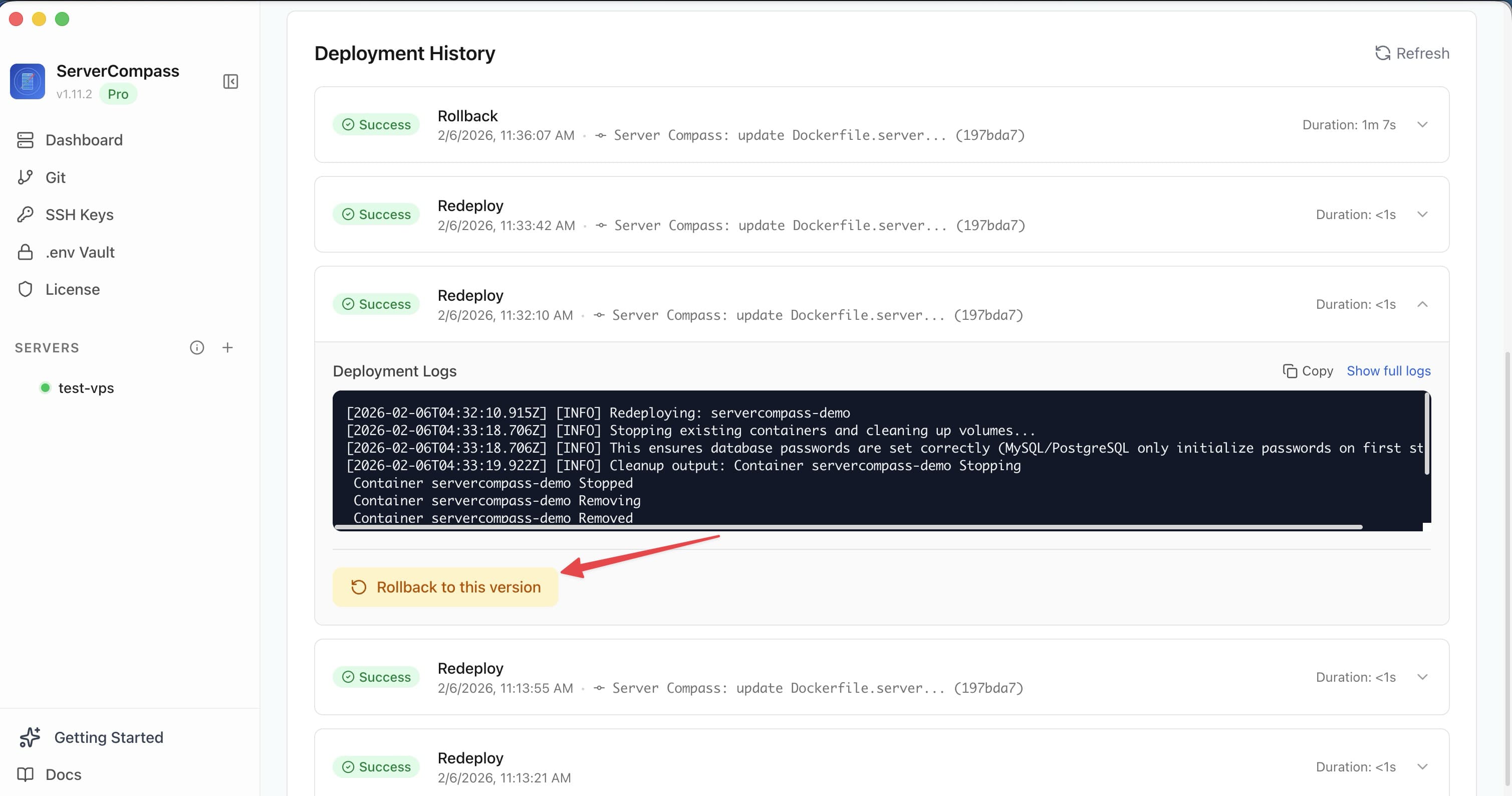
A clean restore from backup is the textbook case. The textbook case is rare. The realistic case: you're three hours into a restore, the app is technically running but throwing errors that suggest some files made it back and some didn't. Now you have to make decisions in a state where neither "keep going" nor "roll back" is obviously safe.
Most incident-response writing assumes a clean failure with a clean recovery. Here's what to do when the recovery itself is the failure.
Step 1: Recognize you're in a partial state
The failure mode of a partial restore is that the app comes back up and starts taking traffic in a corrupt state. By the time you notice the inconsistency, you've also taken on new writes against the half-restored data, and rolling back loses both the new writes and anything the original failure didn't already lose.
Leading indicators of a partial restore:
- App starts up but emits 500s on routes that touch specific tables/files
- Background jobs fail with "row not found" or "foreign key violation" on records that should exist
- File uploads work but referenced media is missing
- Restore tool exited 0 but the log mentions skipped files or failed checksums
If any of these are present, treat it as a partial restore even if the restore tool's exit code said success. Tools lie about success more often than you'd think.
Step 2: Freeze writes immediately
The biggest single mistake in partial-restore recovery is letting new writes pile up before you've assessed the damage. Every new write is a write you might lose if you have to redo the restore from a different snapshot.
The freeze:
- Take the app offline. "Maintenance mode" page is fine if you have one; full HTTP 503 from the reverse proxy is also fine.
- Stop background workers and queues. They're the sneaky source of new writes.
- For databases: revoke write permission on the application user or set the DB to read-only mode if your engine supports it.
- For object storage: revoke the app's write credentials.
Takes 60 seconds with prep, 5 minutes without. The cost of being down for an extra hour while you assess is much lower than the cost of writing into corrupt state.
Step 3: Inventory what you've actually got
Before deciding rollback vs roll-forward, know the state. Three things to enumerate:
- What files/rows actually restored. Run integrity checks. For Postgres:
pg_dump --schema-only, thenpg_dump --data-onlyand compare row counts to the snapshot's expected counts. For files: list and checksum against the backup manifest if you have one. - What's missing or corrupt. From the diff above, you have a list of holes.
- What the app has written since restore started. Logs, audit trails, queue history. This tells you what new state would be lost in a full rollback.
This takes 10-30 minutes for a small system, hours for a big one. Resist the urge to skip — every subsequent decision depends on knowing the actual state, not the believed state.
Step 4: The decision tree
Now choose:
Option A — Roll back further: Try restoring from an earlier backup. Right when:
- The current restore is too damaged to repair
- You have a verified clean older backup
- You can afford the data loss between the clean snapshot and now
Option B — Repair the partial restore: Fill in the gaps from a different source (a secondary backup, a replicated DB, an export from another environment). Right when:
- The damage is localized to specific files/tables
- You have a source for the missing pieces
- The repair is mechanical (rerun a partial restore for the missing tables only)
Option C — Roll forward: Accept the current state, fix the inconsistencies via app-level repair scripts, and resume operation. Right when:
- The damage is small and self-healing (e.g., missing thumbnails that get regenerated lazily)
- You can't afford the rollback's data loss
- The inconsistencies are in cold data that can be reconstructed from logs or external sources
Most incident leads default to Option A out of caution. That's wrong as often as it's right. Option B is usually the highest-EV move when you have the inputs for it.
Step 5: Stage the fix before applying it
Whichever option you pick, run it against a copy first if at all possible. Restore the partial state to a sandbox, apply your fix, verify, then apply to production. The cost of a one-hour sandbox cycle is much lower than the cost of compounding the original problem.
For option B specifically: rerun the partial restore for just the missing tables/files in a sandbox. Check that the restored pieces actually merge cleanly with the production state (no foreign-key violations, no checksum mismatches). Then apply.
Step 6: Bring the app back gradually
When you reopen the gates, do it in stages:
- Read-only mode first. Let users browse but not write. Watch for errors. 30 minutes minimum.
- Background workers next, with a smaller concurrency than normal. Spotting issues at lower throughput is easier.
- Full writes last. Monitor error rates and latency for an hour.
If any stage shows new errors that weren't there before the incident, pause and investigate. Don't push through.
What to fix in your runbook after
A partial restore is almost always a wake-up call about the backup itself. After the dust settles, audit:
- Restore drills. Schedule monthly restores to a sandbox. Most teams have never tested a restore until they need one. Don't be most teams.
- Backup verification. Checksums, row-count manifests, schema dumps stored alongside data dumps. Catches corruption before it becomes a problem.
- Multiple snapshot retention. Daily for a week, weekly for a month. So you have options when the latest snapshot is bad.
- Restore time SLO. Know how long a full restore actually takes before you need to know.
The goal: turn the next partial-restore incident from "three-hour panic" into "45-minute, mostly automated, mostly stress-free." That's the post-incident upgrade that pays back the cost of this one.
From across the StoicSoft network
Hand-curated reads on the same topic from sister sites in the StoicSoft family.