March 4, 2026
How to Run Qwen3.5-9B Locally with LM Studio for OpenClaw
Run your own AI agent entirely on your machine using LM Studio and OpenClaw — no API costs, no data leaving your computer, just 3 steps to full local inference.
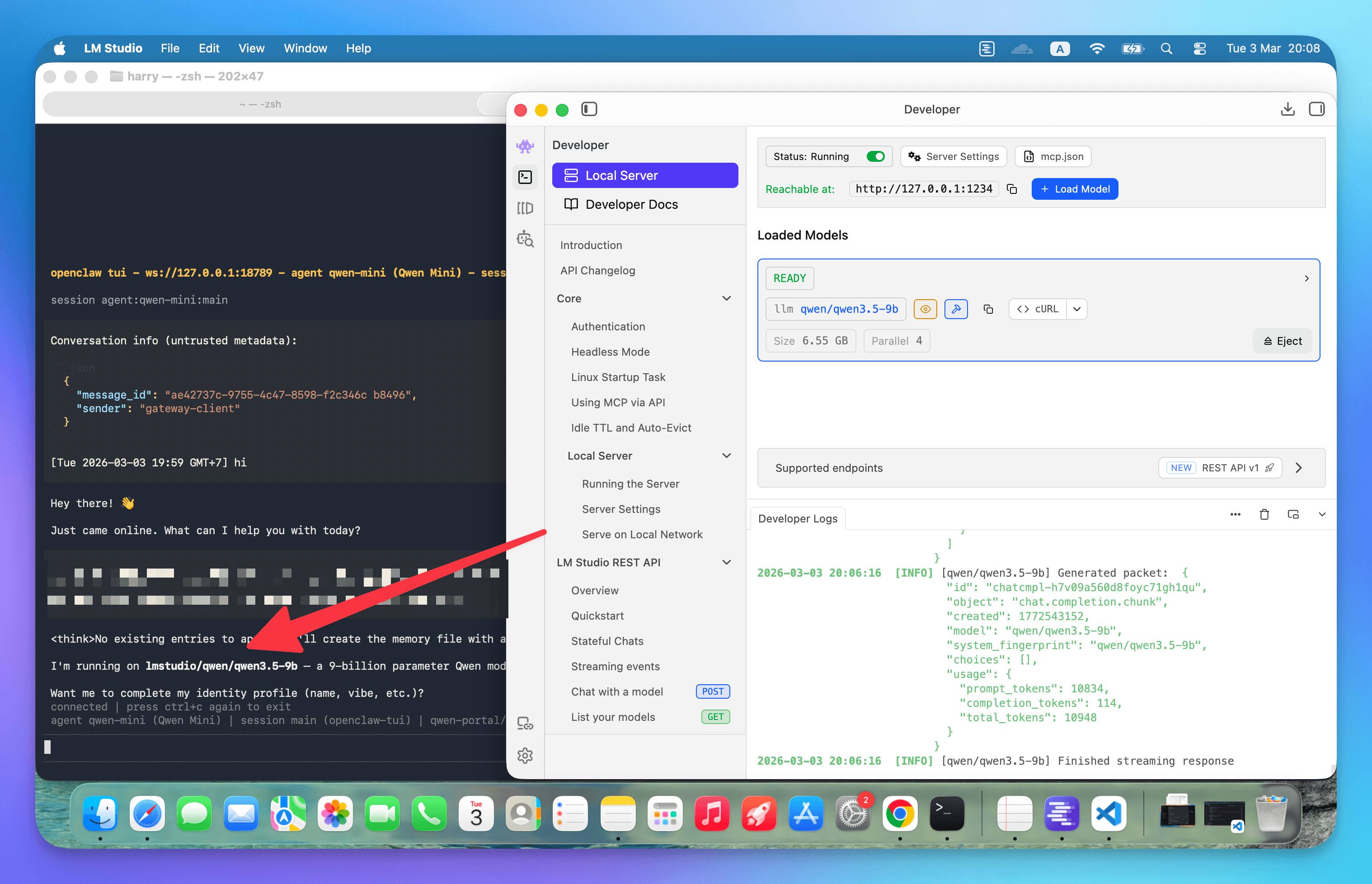
Want to run AI agents without sending your data to external APIs? With LM Studio and OpenClaw, you can run Qwen3.5-9B entirely on your local machine—no API costs, complete privacy, and full control over your inference pipeline.
This guide walks you through the three steps to get a local AI agent running on your machine.
Why Run AI Models Locally?
Running large language models locally offers several advantages:
- Privacy: Your data never leaves your machine
- No API costs: Pay once for the hardware, run unlimited inference
- Low latency: No network round-trips for each request
- Offline capability: Works without an internet connection
- Full control: Customize model parameters, context length, and behavior
Step 1: Install LM Studio
LM Studio is a desktop application that makes it easy to download, run, and serve local LLMs. It handles all the complexity of model loading, quantization, and serving an OpenAI-compatible API.
- Visit lmstudio.ai
- Download the installer for your operating system (Windows, macOS, or Linux)
- Run the installer and follow the setup wizard
LM Studio requires a decent GPU for optimal performance, but can also run on CPU-only systems (albeit slower). For Qwen3.5-9B, you'll want at least 16GB of RAM or a GPU with 8GB+ VRAM.
Step 2: Download Qwen3.5-9B
Qwen3.5-9B is a capable 9-billion parameter model that strikes a good balance between speed and quality. It's excellent for coding tasks, drafting, and general assistance.
- Open LM Studio
- Go to the model browser or visit lmstudio.ai/models/qwen/qwen3.5-9b
- Click Download to fetch the model weights
The download size is typically 5-10GB depending on the quantization level. Choose Q4_K_M for a good balance of quality and memory usage, or Q8_0 if you have the VRAM to spare.
Step 3: Load the Model and Start the Server
Once downloaded, you need to load the model and start the local inference server:
- Go to the Chat tab in LM Studio
- Select Qwen3.5-9B from the model dropdown
- Click Load to load the model into memory
- Switch to the Developer tab
- Click Start Server
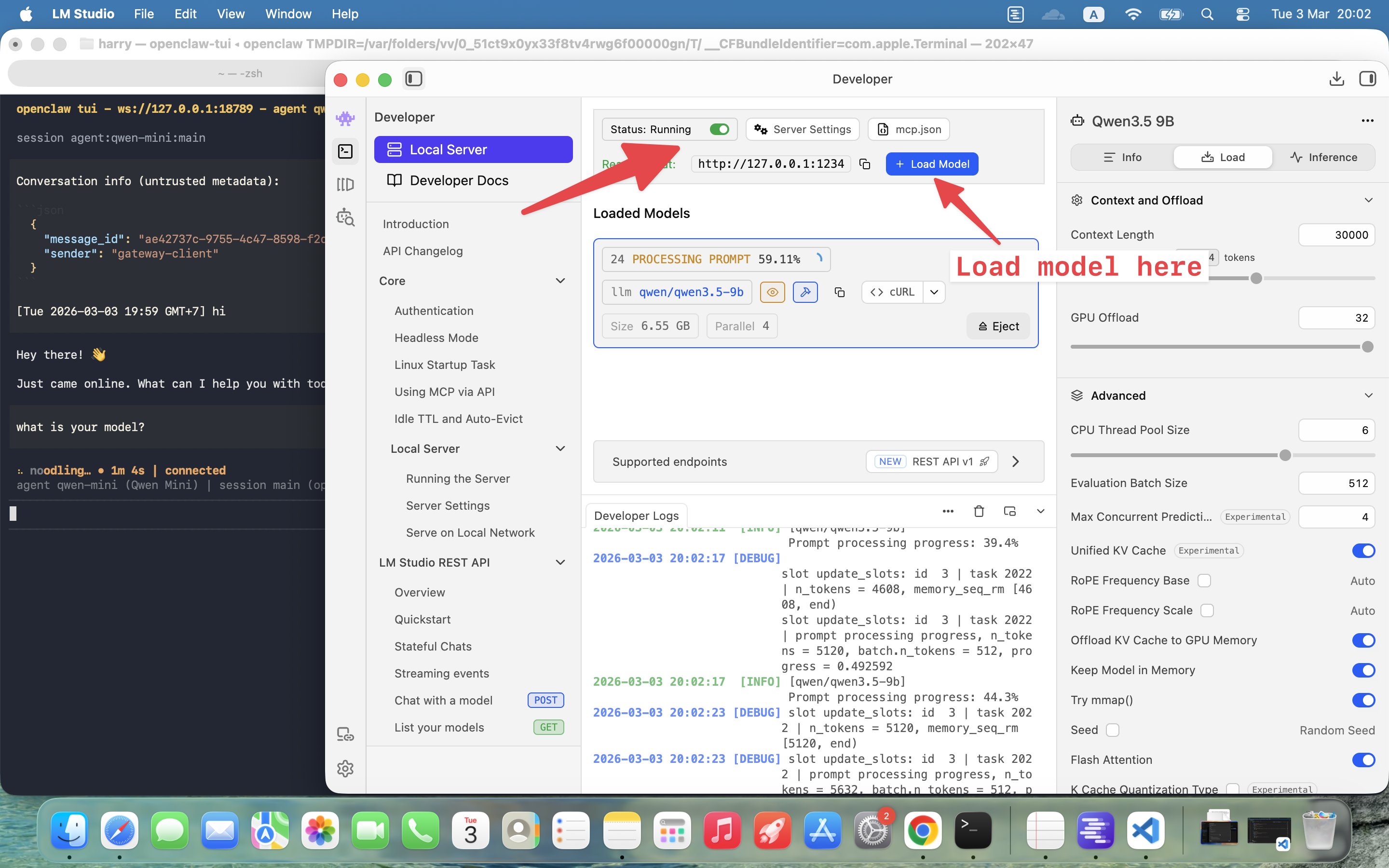
The server runs at http://127.0.0.1:1234 by default. You can verify it's working by visiting:
http://127.0.0.1:1234/v1/models
You should see a JSON response listing your loaded model. Your local AI is now ready to accept requests.
Using Qwen as a Sub-Model in OpenClaw
Small local models like Qwen3 9B are great for fast drafting and coding tasks, but they come with important security considerations. Smaller models are:
- More susceptible to prompt injection attacks
- Less reliable at following tool-safety rules
- Easier to manipulate into unintended behaviors
For this reason, we recommend using local models as subagents rather than your main agent.
Recommended Pattern
The safest approach is a hybrid architecture:
- Main agent: Use a top-tier model (Claude Opus, GPT-5) with full tool access
- Subagent: Use Qwen3 only for contained tasks (summaries, refactors, drafts)
- Sandboxing: Restrict tools so even if the subagent is manipulated, the blast radius is minimal
Why This Matters
Consider these risk scenarios:
- Untrusted inbox risk: If your agent reads content from Reddit, Telegram, or the web, that content could contain prompt injection attacks. Smaller models are more likely to comply with malicious instructions.
- Tool misuse risk: Web, browser, and file tools can leak sensitive data if the model is coerced into using them improperly.
- Containment: A subagent with no web access and strict sandboxing can't roam your system or exfiltrate data.
Configuration for a Locked-Down Qwen Worker
Here's an example OpenClaw configuration that creates a secure Qwen worker:
{
  "agents": {
    "list": {
      "qwen-worker": {
        "model": "lmstudio/qwen3.5-9b",
        "sandbox": { "mode": "all" },
        "tools": {
          "deny": ["group:web", "browser"]
        }
      }
    }
  }
}
This configuration:
- Points to your local LM Studio server
- Enables full sandboxing for all operations
- Denies access to web and browser tools
You can then spawn this worker for bounded tasks from your main agent, or configure OpenClaw to use it as a subagent automatically.
Best Practices for Local AI Agents
- Never use local models as your main inbox agent that processes untrusted content
- Always sandbox subagents with minimal tool permissions
- Use local models for bounded tasks: code refactoring, summarization, draft generation
- Keep sensitive operations (file writes, web requests, system commands) on your main agent with a more capable model
- Monitor resource usage: local models can consume significant RAM and GPU resources
Conclusion
Running Qwen3.5-9B locally with LM Studio and OpenClaw gives you a powerful, private AI assistant. Your data stays on your machine, you pay no API costs, and you have complete control over the inference pipeline.
Just remember: use local models as specialized workers for contained tasks, not as your primary agent handling untrusted inputs. With the right architecture, you get the best of both worlds—the privacy of local inference and the reliability of top-tier cloud models for critical operations.
Your AI agent now runs 100% locally. Happy building.
Related in the StoicSoft network
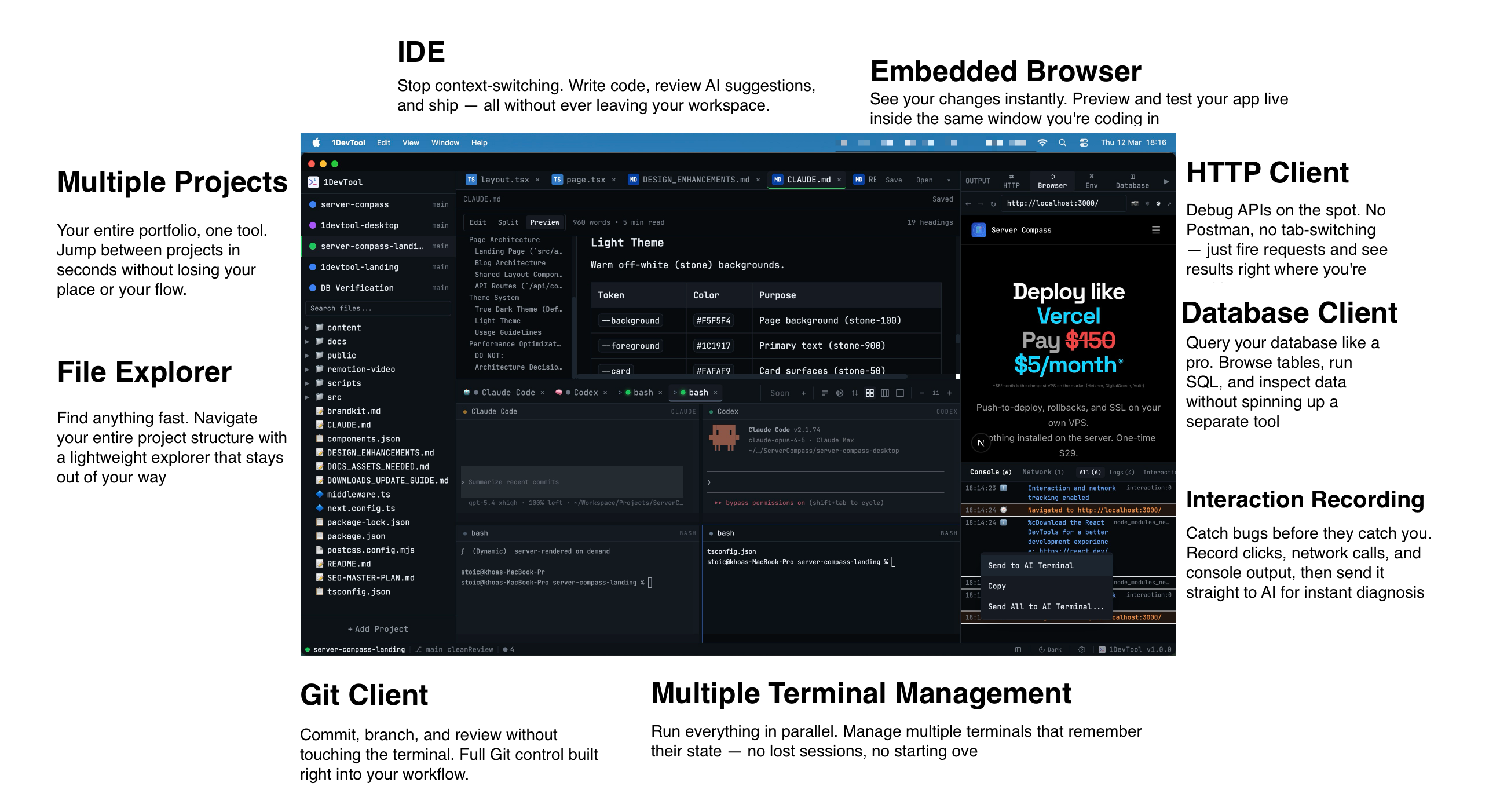
If you work in AI-assisted coding, shared terminal sessions, or agent-driven shell workflows like the ones above, 1devtool is the StoicSoft network's tool for safer AI-assisted terminal work — shared sessions with auditing, preflight policy, and tiered model routing built in.
If you're self-hosting on a VPS or working through a deployment guide like the one above, DeployToVPS is the StoicSoft network's handbook for VPS deployment recipes — docker-compose, nginx, traefik, and common app self-hosts.
From across the StoicSoft network
Hand-curated reads on the same topic from sister sites in the StoicSoft family.