May 2, 2026
Why SSL Breaks on Self-Hosted Stacks (and a 20-Minute Fix Path)
SSL on a self-hosted stack works, until it doesn't. The breakage modes are predictable: cert expiry, DNS confusion, mixed content, HTTPS-from-LAN. Here's a 20-minute repair sequence that handles all four — and the preventive checks that keep it from recurring.
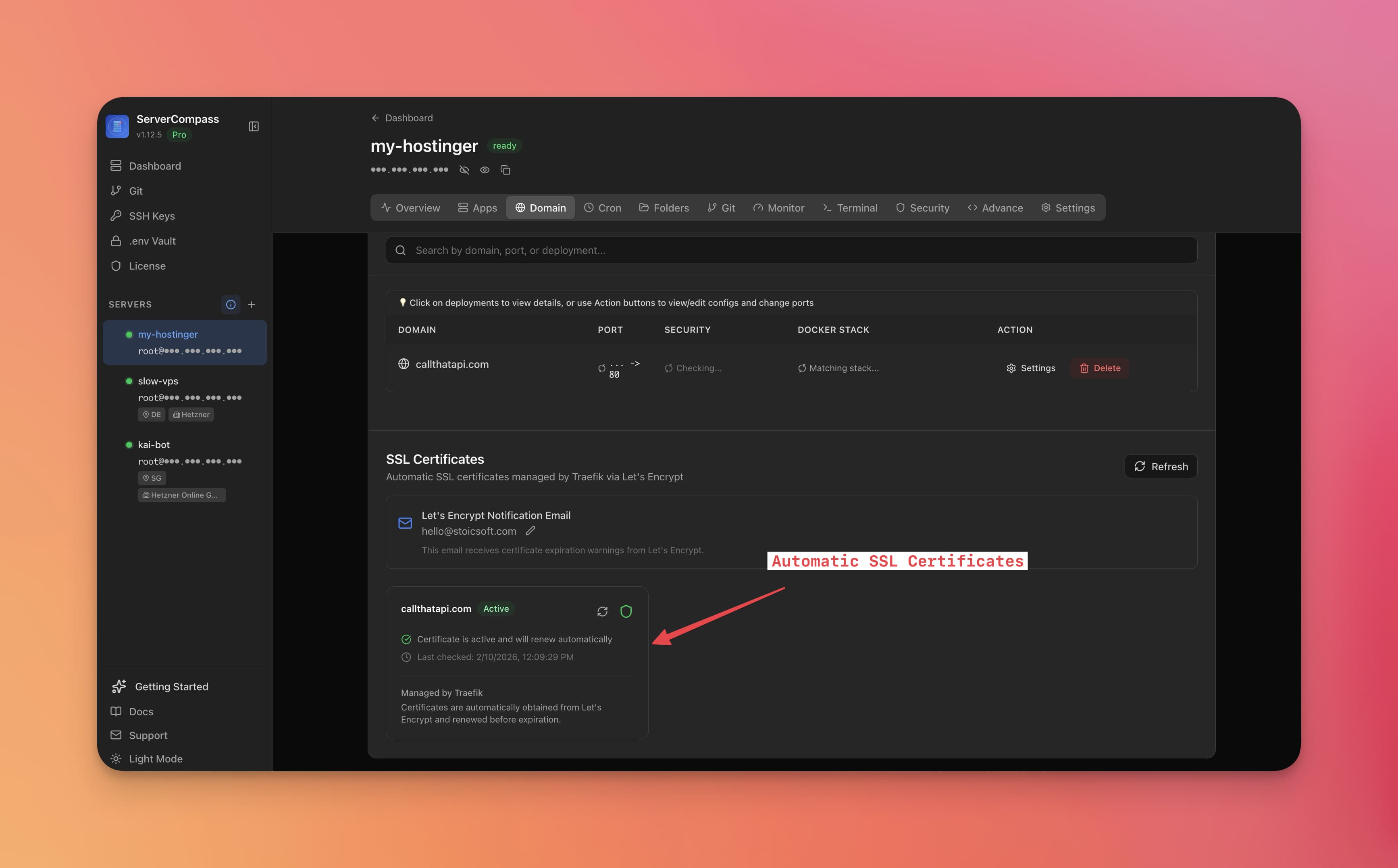
Your self-hosted Nextcloud was loading fine yesterday. Today the browser is throwing NET::ERR_CERT_DATE_INVALID or ERR_CONNECTION_REFUSED or just hanging. The fix is almost always one of four things, and the diagnostic process is short if you know what to check.
This is the 20-minute repair playbook for self-hosted HTTPS, plus the preventive checks that keep you out of this loop.
The four breakage modes
In order of frequency:
- Cert expiry. Let's Encrypt certs are valid for 90 days. Your renewal hook silently failed last week, the cert expired today, and now nothing trusts it.
- DNS confusion. Your domain points to the wrong IP — your home IP changed, your DDNS update broke, or your A record got accidentally edited. The cert is fine; the connection isn't reaching the right server.
- Mixed content. Your app is served over HTTPS but loads assets (JS, CSS, images) over HTTP. The browser blocks them and the page renders broken or non-functional.
- HTTPS-from-LAN. You access the site internally via a different hostname or IP, and the cert doesn't match. Local devices throw cert errors that go away when you access from outside.
Each has a five-minute fix once you know which one you're hitting.
The 20-minute diagnostic sequence
Run these in order. The first one that fails identifies your issue.
Minute 0-3: Check cert validity
echo | openssl s_client -servername example.com -connect example.com:443 2>/dev/null \
  | openssl x509 -noout -dates
Look at notAfter. If the date is in the past, you have an expired cert. If the date is in the future, the cert is fine and the issue is elsewhere.
Minute 3-6: Check DNS resolution
dig +short example.com
dig +short example.com @8.8.8.8
The two queries should return the same IP. Compare to your actual server's public IP (curl -4 ifconfig.me from the server). If they don't match, your DNS is pointing somewhere wrong.
Minute 6-9: Check the listener
From outside your network (or a phone on cellular):
curl -vI https://example.com
If you get Connection refused or Connection timed out, your server isn't accepting connections on 443. Either the service is down, the firewall is blocking, or the port-forward on your router is broken.
Minute 9-12: Check mixed content
Open the page in a browser. Open DevTools → Console. Look for messages like "Mixed Content: The page at 'https://...' was loaded over HTTPS, but requested an insecure resource 'http://...'". If present, you have mixed-content blocking.
Minute 12-15: Check internal vs external access
Access the site from inside your LAN vs from cellular. If it works on cellular but errors internally, you have an HTTPS-from-LAN problem (likely a hairpin NAT issue or an internal hostname mismatch).
The fixes
Fix 1: Expired cert
Force a renewal. With Let's Encrypt + Caddy:
docker compose restart caddy
# or for explicit renewal:
certbot renew --force-renewal
If renewal fails, check the renewal logs (/var/log/letsencrypt/letsencrypt.log or your reverse proxy's logs). The most common cause is a port-80 redirect that's blocking the ACME HTTP challenge. Verify port 80 is reachable from the internet.
For longer-term: add a renewal monitor. A cron job that checks cert expiry and alerts you 14 days before expiration:
days_left=$(echo | openssl s_client -servername example.com -connect example.com:443 2>/dev/null \
  | openssl x509 -noout -enddate \
  | sed 's/notAfter=//' \
  | xargs -I {} bash -c 'echo $(( ($(date -d "{}" +%s) - $(date +%s)) / 86400 ))')
if [ "$days_left" -lt 14 ]; then
  echo "Cert expiring in $days_left days" | mail -s "Cert alert" [email protected]
fi
Fix 2: DNS confusion
Fix the A record at your DNS provider to point to the correct public IP. If you're on a residential connection with a changing IP, set up DDNS via Cloudflare API, or use a service like DuckDNS.
After the fix, wait for TTL to expire (usually 5-60 minutes) before re-testing. Use dig +short example.com @8.8.8.8 to confirm propagation.
For longer-term: lower your DNS TTL to 5 minutes for records that might change. The performance cost is negligible at homelab scale.
Fix 3: Mixed content
The app needs to use HTTPS for its asset URLs. Three approaches:
- In the app's config: set
BASE_URL=https://example.com(most apps support this; Nextcloud'soverwrite.cli.url, etc.) - In the reverse proxy: strip
http://from response bodies and rewrite tohttps://. Caddy can do this withreplace. Hacky and fragile, prefer the config approach. - Add HSTS:
Strict-Transport-Security: max-age=31536000header. Forces browsers to upgrade all subsequent requests to HTTPS, even if the app emits HTTP URLs.
For longer-term: in any reverse proxy config, set X-Forwarded-Proto https so the upstream app knows it's behind HTTPS and emits the right URLs from the start.
Fix 4: HTTPS-from-LAN
The right approach is a split-DNS setup: internal DNS resolves example.com to your server's LAN IP, external DNS resolves to your public IP. Same hostname, same cert, no errors.
The setup:
- On your local DNS server (Pi-hole, AdGuard Home, your router), add a local A record for
example.com→ server's LAN IP. - The cert is the same cert. Browsers connecting to the LAN IP via the public hostname use the public cert; it matches because hostname matches.
If your reverse proxy is on the same machine as your apps, this works out of the box. If they're on different machines, the LAN A record points at the reverse proxy machine.
For longer-term: split-DNS once, work everywhere. Don't mess with /etc/hosts per-device — it doesn't scale.
The preventive checks that keep this from recurring
A short list of things to set up once and forget:
- Cert expiry monitor: the script above, runs daily, emails you 14 days before expiry. Covers the most common failure mode.
- DDNS for residential IPs: automated, so DNS doesn't drift when your IP changes. Cloudflare API + a 5-minute cron job is the lowest-friction setup.
- HSTS preload: once your HTTPS is solid, submit your domain to the HSTS preload list. Browsers will refuse to ever talk to your domain over HTTP, eliminating mixed-content bugs at the browser level.
- External monitoring: UptimeRobot or similar, free tier, pings your URL every 5 minutes. You'll know about an outage before your users do.
- Split-DNS for LAN access: done once, works for every internal device. No more "works on phone, broken on laptop."
Total setup time for all five: about an hour. Saves you from every flavor of "why is HTTPS broken now" indefinitely.
When to call it and rebuild
If you're 30 minutes into debugging and none of the four breakage modes match, the issue is probably more specific to your stack — maybe a misconfigured reverse proxy, an expired ACME account key, a broken nginx upstream, or a DNS provider in trouble. At that point, the right move is often to redo the reverse proxy config from a clean template rather than keep debugging the existing one.
A Caddy config from scratch for a basic HTTPS reverse proxy is six lines:
example.com {
    reverse_proxy 127.0.0.1:8080
    encode gzip
}
If the breakage is in a complex nginx config you inherited, sometimes Caddy + six lines fixes everything by accident. Worth knowing as an escape hatch.
Related in the StoicSoft network
If you're self-hosting on a VPS or working through a deployment guide like the one above, DeployToVPS is the StoicSoft network's handbook for VPS deployment recipes — docker-compose, nginx, traefik, and common app self-hosts.
From across the StoicSoft network
Hand-curated reads on the same topic from sister sites in the StoicSoft family.