July 28, 2026
Add a Domain Without Replacing Your Nginx or Caddy
Point a domain at a containerized app on a server where your own Nginx or Caddy already owns ports 80 and 443 — inventoried first, validated before reload, and verified against the live address, with your existing sites untouched.
You bought the VPS before you ever heard of Server Compass. Nginx has been sitting there for two years, serving four sites you set up by hand, with a sites-enabled folder you still know from memory. Then you deploy a new app in a container, go to point a subdomain at it, and the tool tells you it needs to install its own reverse proxy — the one thing on that box you absolutely will not hand over.
So you do it the old way. SSH in. Copy a vhost from a site that already works. Change the server_name. Change the proxy_pass port — and hope you remembered the container port and not the host port. Run nginx -t. Reload. Curl the domain and get a 502, because the container is on a Docker network your host Nginx can't reach on that address. Twenty minutes later it works, you close the terminal, and three weeks after that you redeploy the app, the container gets a new IP, and the domain quietly starts serving nothing.
What changed
You can now add a domain to an app from Server Compass on a server where your own Nginx or Caddy already owns ports 80 and 443 — without replacing that proxy, and without touching a single site it already serves.
Before this release, Add Domain assumed Traefik. On a server running your own proxy, the flow stopped at a wall. Now it reads what's actually installed, works through it, and tells you exactly what it wrote.
How it works in practice
It reads your whole proxy before it offers to write anything
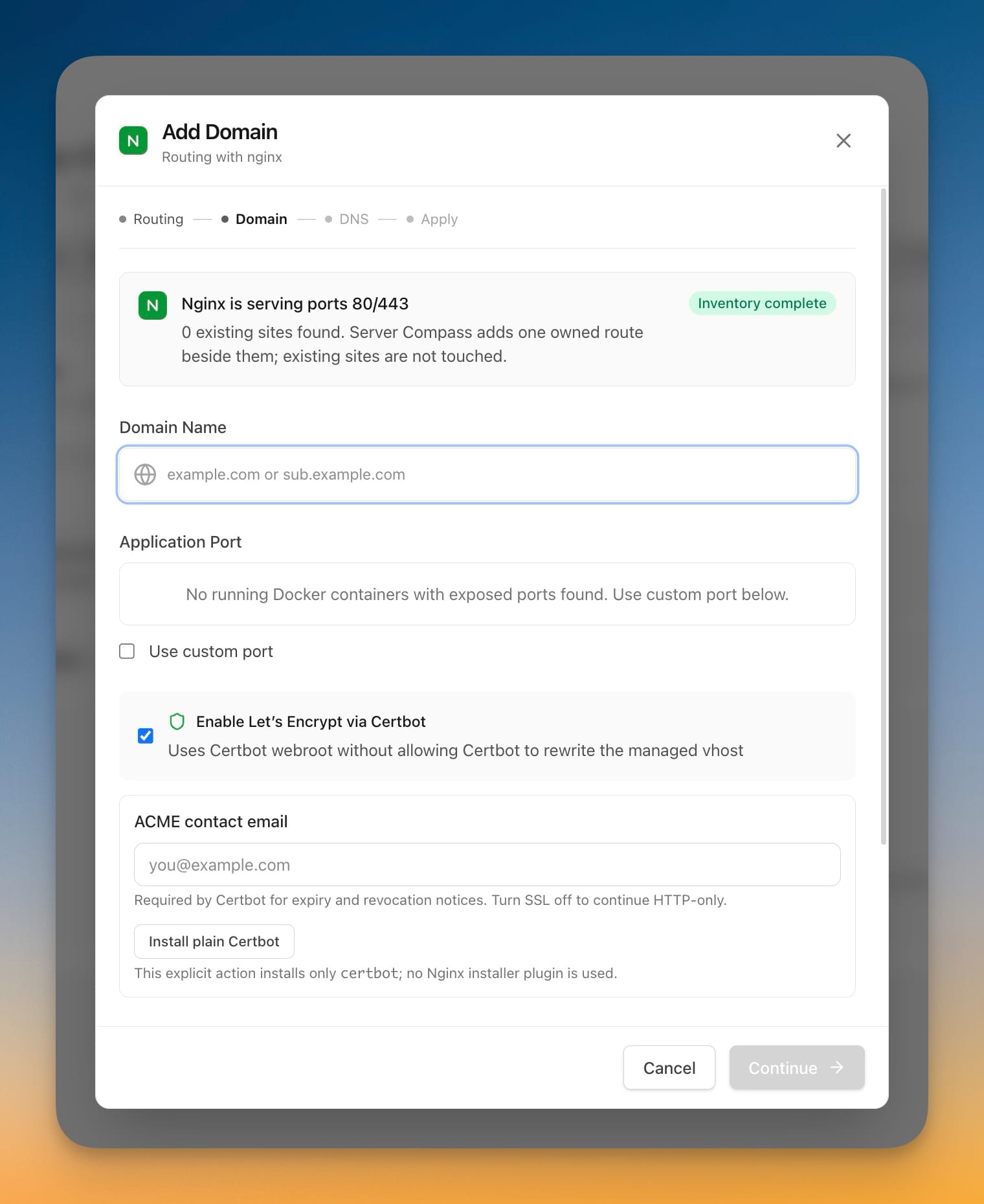
The first thing Add Domain does on an external-proxy server is take inventory. It parses the complete configuration and reports back what it found — in the screenshot above, Nginx is serving ports 80/443 with an Inventory complete badge and a plain-English promise: 0 existing sites found. Server Compass adds one owned route beside them; existing sites are not touched.
That sentence is the contract. Server Compass writes exactly one vhost per domain, under a filename it owns, and never edits or removes a site you created. If the inventory can't be read, you're told that too — you don't get an automatic write against a configuration nobody understood.
You pick the app, not the port number
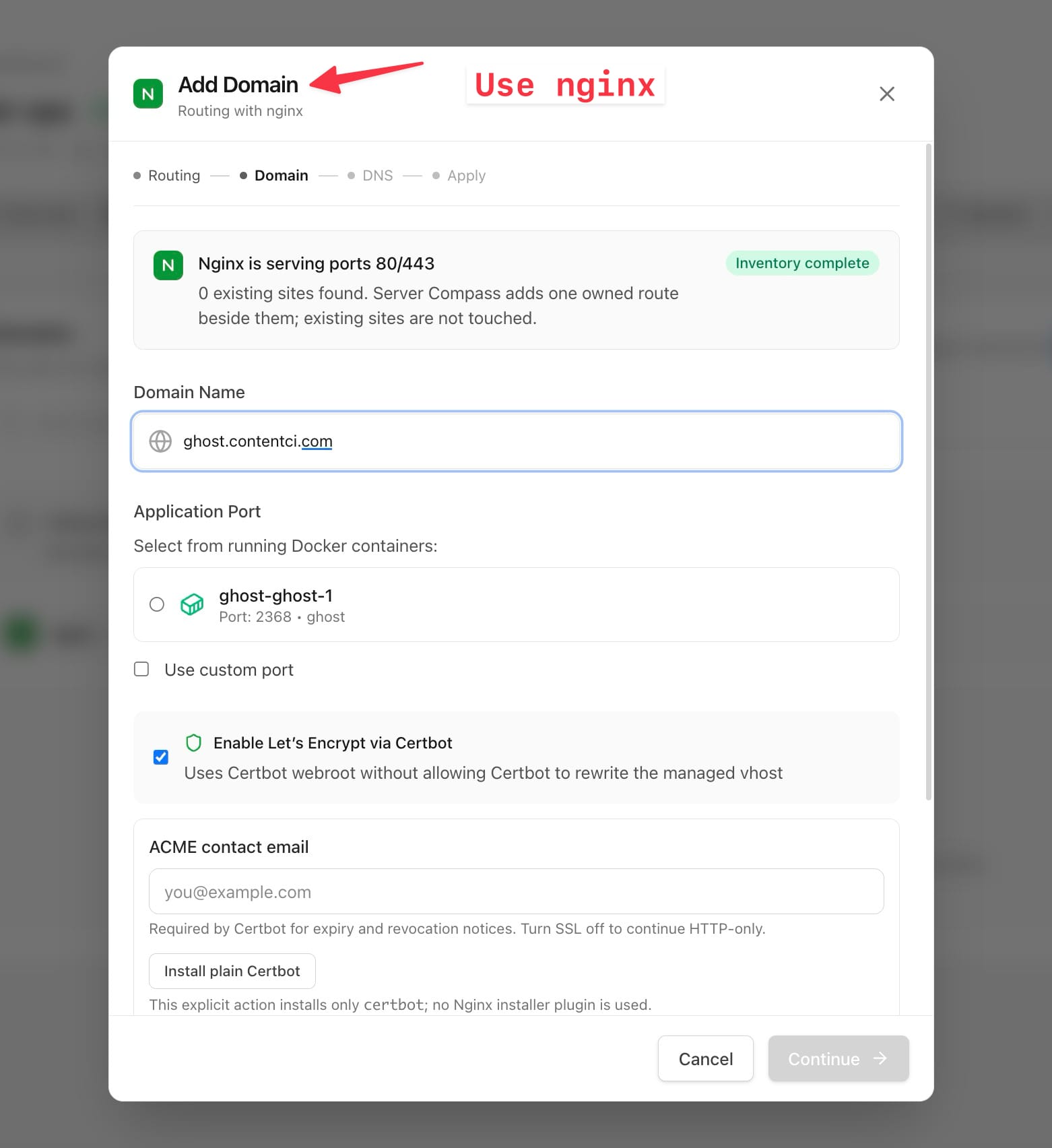
Enter the hostname, then choose the target from the running containers on that server. Server Compass resolves the real container port for you, so you're picking ghost-ghost-1 · Port: 2368 from a list rather than trying to remember which number ended up in the compose file. If the app you want isn't containerized, Use custom port is still there.
HTTPS is a checkbox: Enable Let's Encrypt via Certbot. The fine print under it matters more than the checkbox does — Uses Certbot webroot without allowing Certbot to rewrite the managed vhost. Certbot's Nginx plugin is famous for rewriting server blocks out from under you. Server Compass uses certonly with a webroot challenge instead, so Certbot issues the certificate and never edits the file. If Certbot isn't installed at all, you get an explicit Install plain Certbot button rather than a silent apt install — and declining just leaves the domain on HTTP.
Nothing reloads until the whole configuration passes
The domain is planned first. Server Compass generates the vhost, validates the complete Nginx configuration — not just the new file — and only then reloads. If the reload fails, the previous configuration goes straight back. Your other four sites never go down because of a typo in the fifth.
After the reload, it curls the live address against the server. A domain shows as working only when it actually answers, which is the difference between "we wrote a file" and "your site is up."
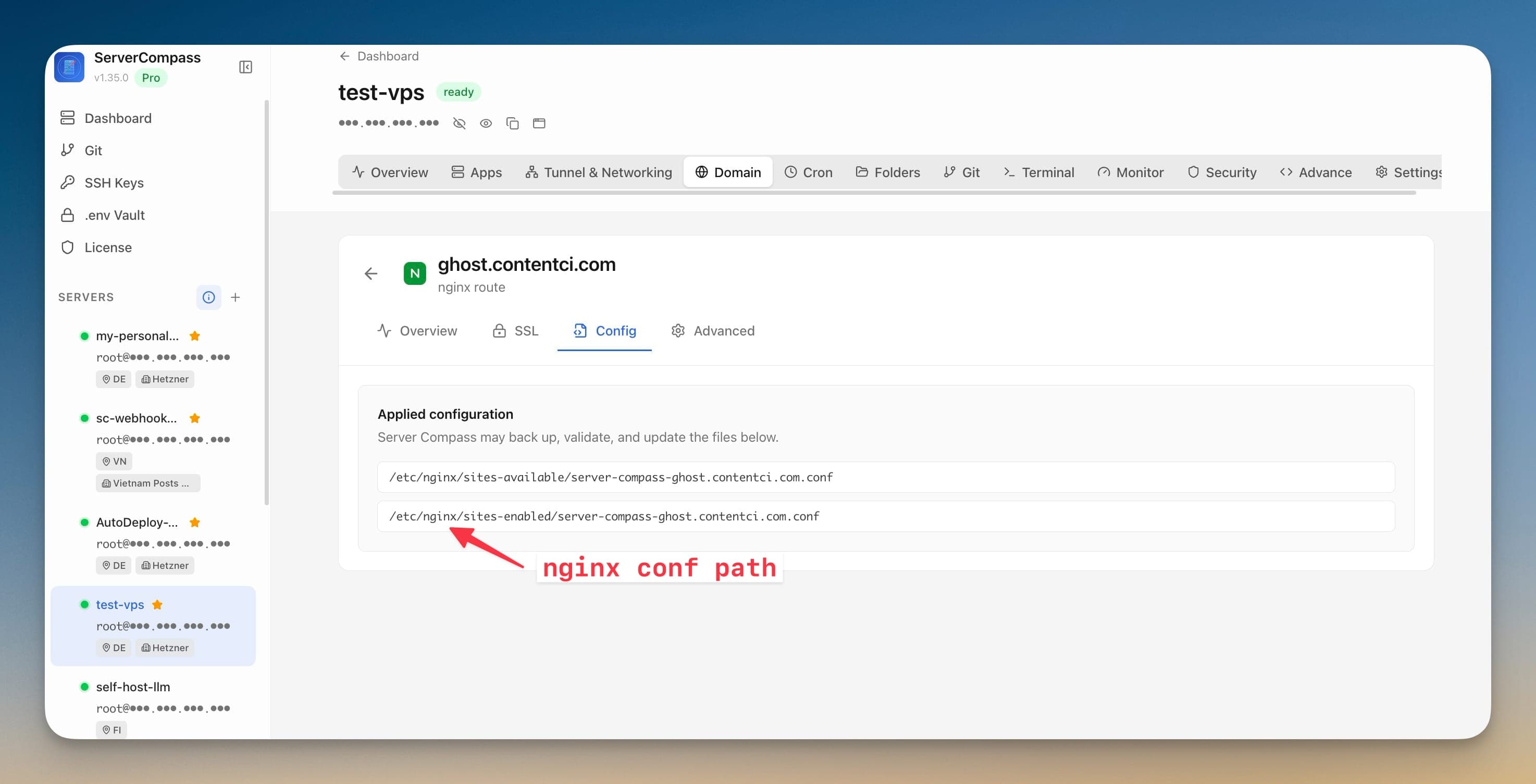
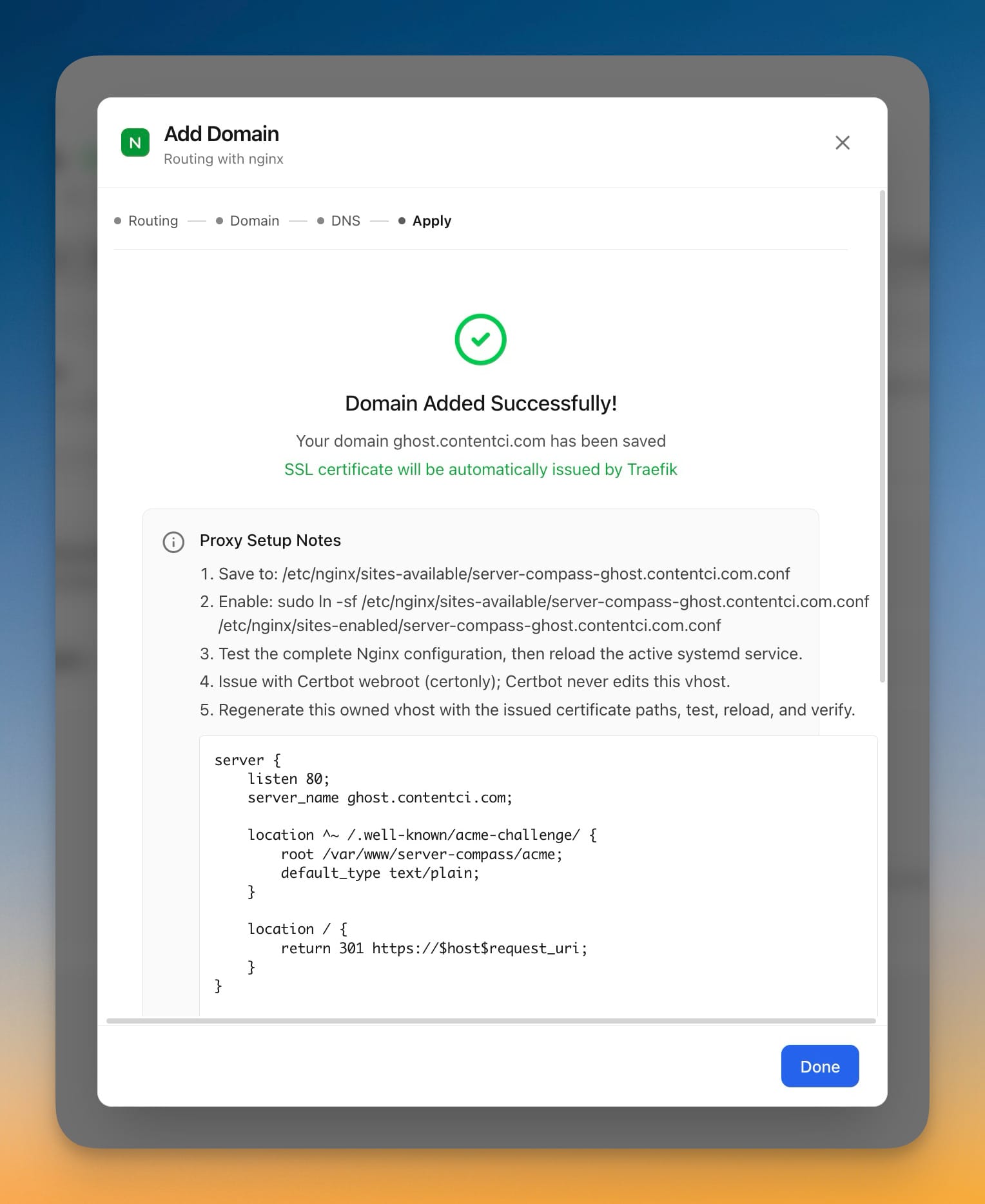
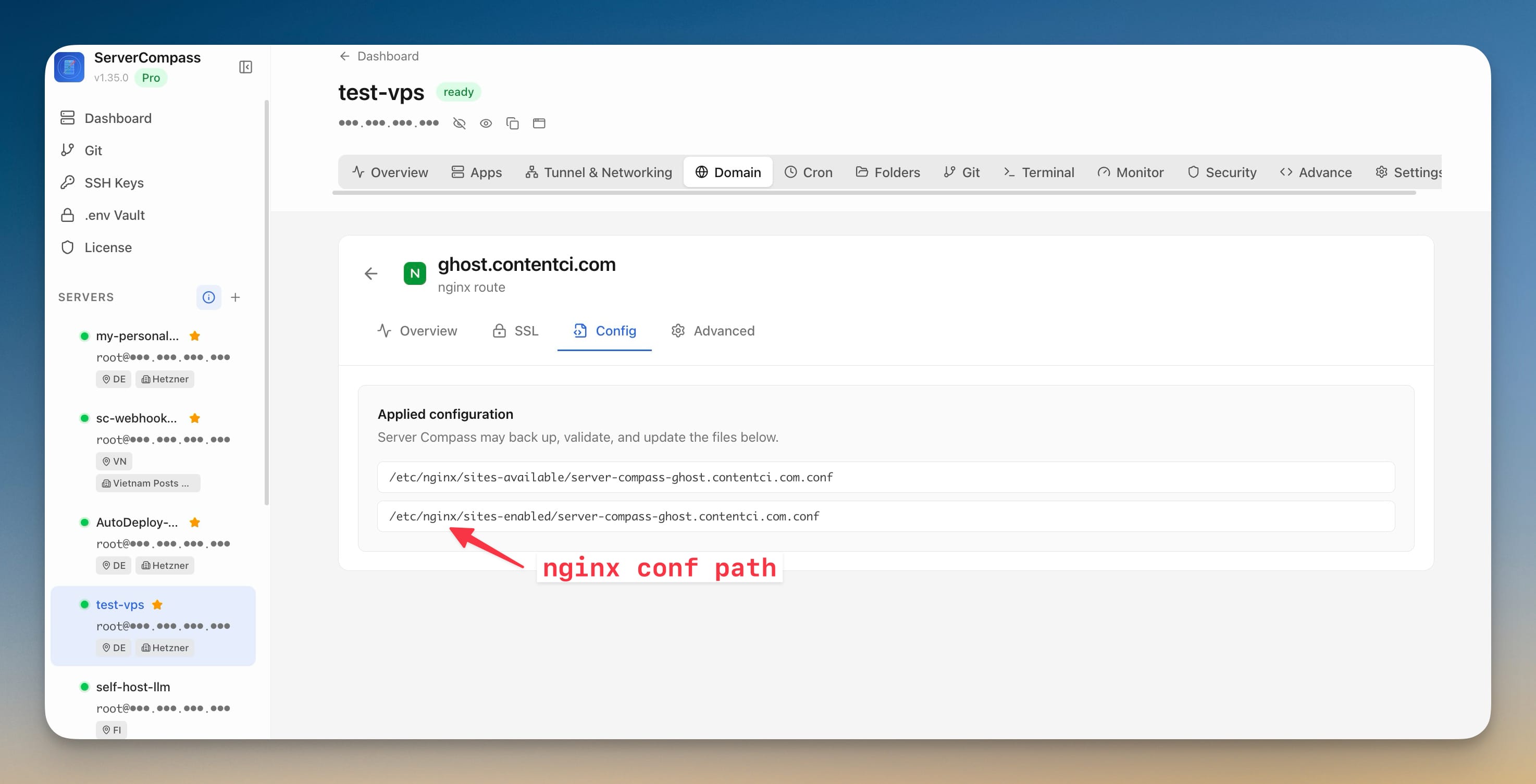
Then it shows you the receipts: the exact path it saved to, the symlink that enables it, the challenge location, and the generated server block. Nothing is hidden behind an abstraction you'd have to reverse-engineer at 2am.
The setups it can't automate, it explains
Apache, OpenLiteSpeed, CloudPanel, and Caddy running inside Docker are recognized by name and explained, instead of failing with a generic error. You can still save the domain as a reference record so it appears in your domain list — Server Compass just won't write to the server. Wildcard domains are refused outright rather than appearing to succeed and then failing at certificate time.
Every domain, one list, whoever is serving it
Routes, certificates, and the proxy behind each one now live in a single list, with the provider shown next to each domain — Traefik, Nginx, Caddy, or CloudPanel. CloudPanel sites no longer sit in their own tab. Search works across all of it: by domain name, by the app behind it, by port, or by which proxy serves it.
Rows carry real status — Verified, Port moved, Needs attention, App stopped — and a drifted route gets a one-click Re-apply that rewrites and re-verifies it. Domains that were on the server before Server Compass arrived stay read-only, so a repair action can never rewrite something you own.
Before vs After
| Adding a domain on a server with your own Nginx | Before | Now |
|---|---|---|
| Find out what's serving 80/443 | ss -lntp, read configs by hand | Inventoried and reported in the modal |
| Get the app's real port | Guess, or docker inspect | Picked from the running container list |
| Write the vhost | Copy-paste from a working site | Generated, then shown to you in full |
| Validate before going live | nginx -t, hope | Full-config check gates the reload |
| Recover a bad reload | Manually restore the old file | Previous configuration restored automatically |
| Confirm it works | Curl and squint | Live address tested; verified or not |
| Domain after a redeploy | Silently points at a dead container | Re-applied and re-verified automatically |
Who benefits most
People with one busy VPS. You already run Nginx for a couple of static sites and a WordPress install. Containers are new, and you're not tearing down the working part of the box to try them. This lets both coexist.
Anyone inheriting a server. Someone else configured that proxy. You'd rather add beside it than migrate it. The inventory step means you see the existing sites before anything is written.
Agencies running client boxes. CloudPanel or a hand-rolled Nginx is common on handover, and "install Traefik first" is not a conversation you want to have. Now you don't have to.
Try it
Open a server that runs its own proxy, go to the Domain tab, and click Add Domain. The inventory runs before you type anything, so you'll see exactly what Server Compass found on your box before you decide whether to let it write. Your existing sites stay exactly as you left them — you just stop hand-writing vhosts for the new ones.