July 3, 2026
Give Coding Agents Scoped Access to Your VPS
Server Compass v1.28.0 adds AI Access, a local token-secured MCP connection that lets coding agents inspect and operate your VPS through scoped permissions instead of raw SSH credentials.
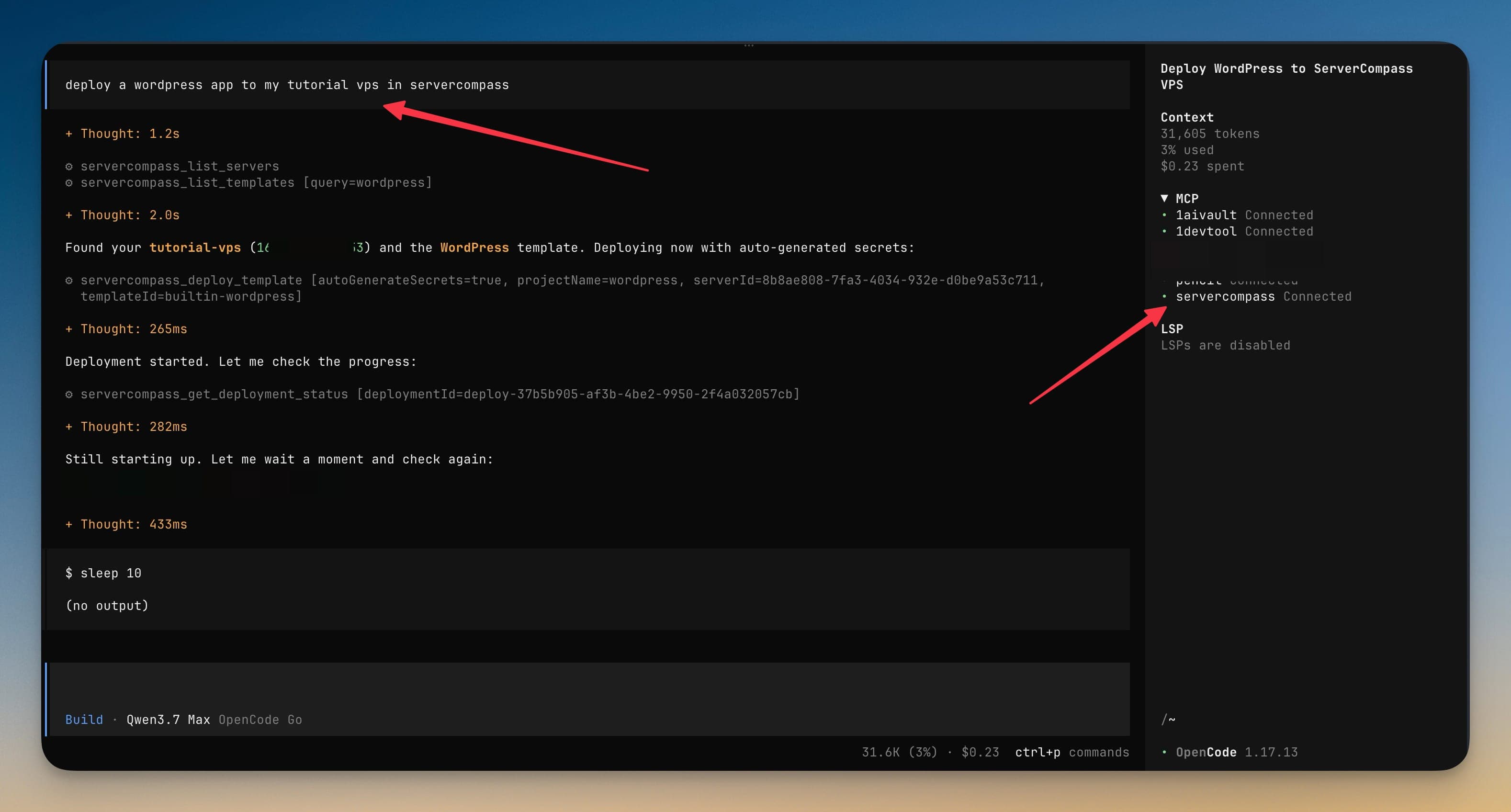
When you are already working inside a coding agent, server operations become a context switch. You ask the agent to change a deployment, then you leave the conversation to open a terminal, remember which VPS has the app, run a Docker command, copy logs back, and decide what to do next. The agent can help with the code, but the server still lives behind a separate SSH workflow.
The risky shortcut is to paste credentials into the agent or give it a broad shell command. That may get one task done, but it also gives the tool more access than it needs. Server work needs narrower boundaries: an agent should be able to inspect a server, deploy an app, or read logs without receiving raw SSH keys or saved secrets.
What Changed
AI Access gives coding agents a local, token-secured MCP connection to Server Compass, so you can let an agent inspect and operate your VPS from the tools you already use without handing over raw server credentials.
How It Works In Practice
You Turn On A Local MCP Server
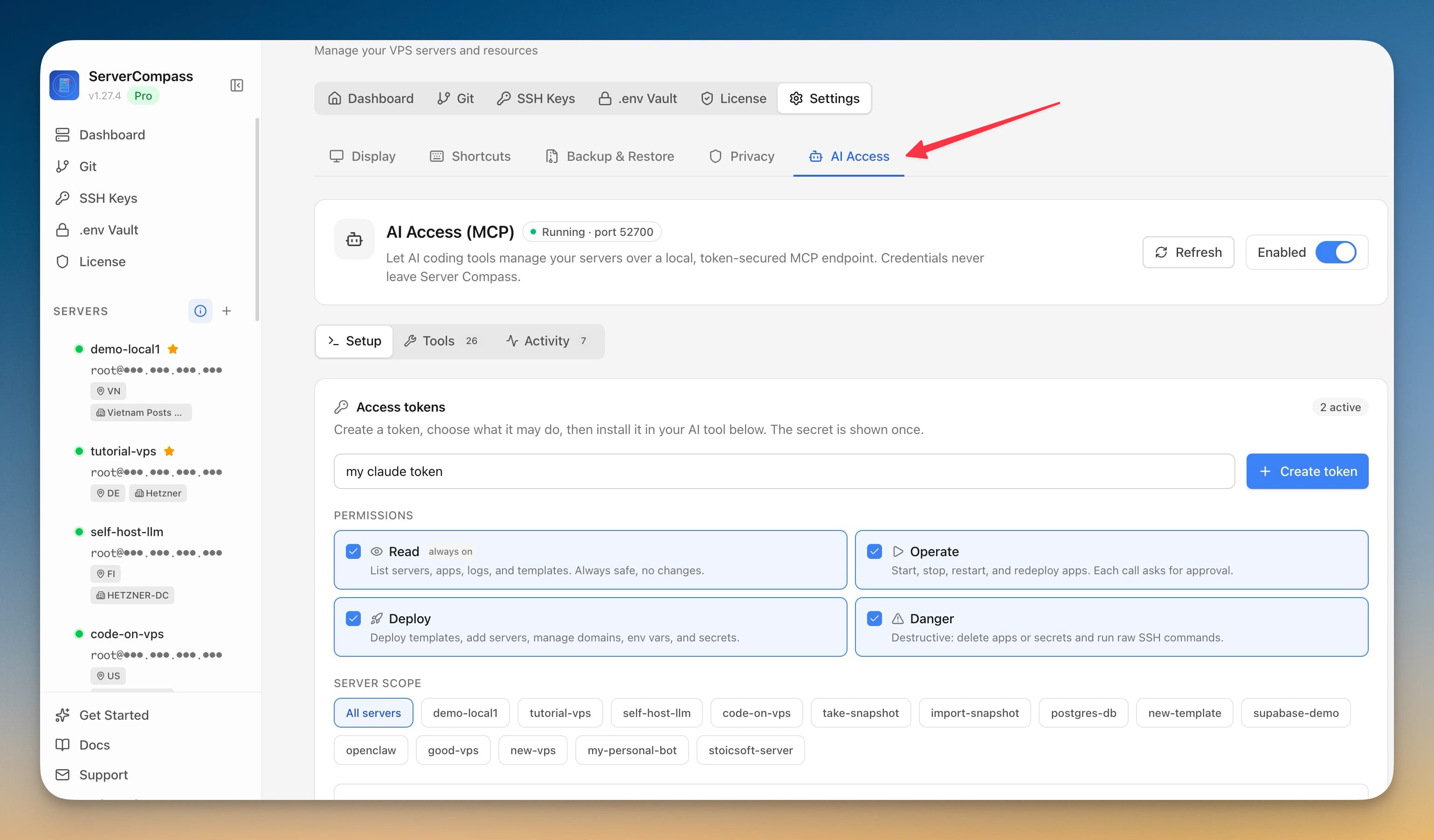
Open Settings and switch to AI MCP. The AI Access (MCP) panel starts a local endpoint on your machine, usually http://127.0.0.1:52700/mcp. The endpoint stays local, so your coding agent talks to Server Compass on your computer instead of connecting directly to every VPS.
That separation matters. Server Compass keeps the SSH keys, passwords, saved environment values, and vault secrets inside the desktop app. The agent gets tools and responses. It can ask Server Compass to list servers, inspect apps, read logs, or run allowed operations, but it does not need the underlying credentials.
You Create A Token With The Right Scope
Each connected AI tool gets its own token. When you create one, you choose permission tiers such as Read, Operate, Deploy, and Danger. You can also restrict the token to selected servers, so a staging agent can work on a tutorial VPS without touching production.
This is the difference between useful automation and blind trust. A read-only token can answer questions about server state. An operate token can restart containers or inspect app health. A deploy token can create or update deployments. Dangerous actions are separated so destructive requests require explicit approval before they run.
You Copy Setup Instructions For Your Tool
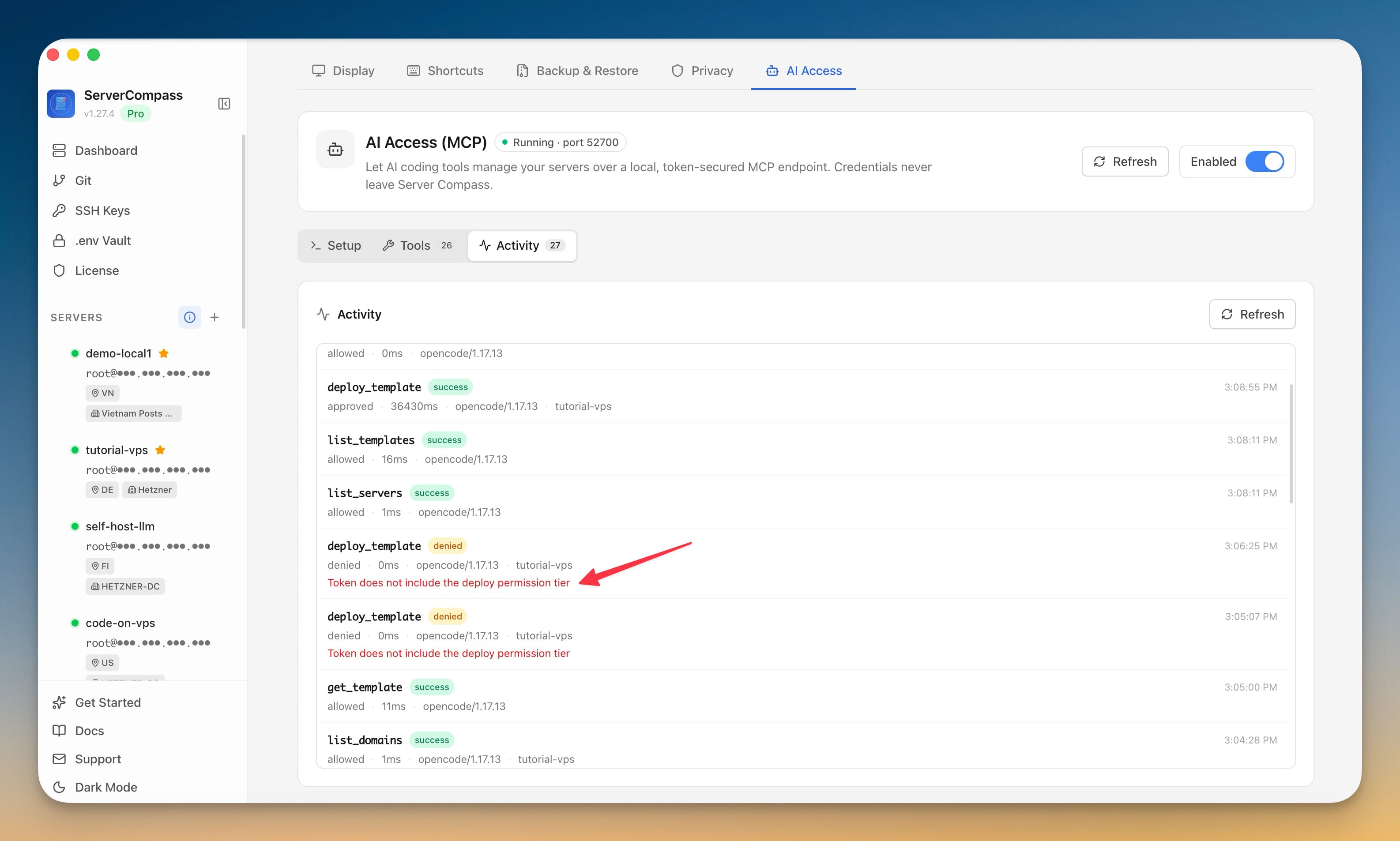
The setup panel includes ready-made install snippets for Claude Code, Codex CLI, Gemini CLI, OpenCode, Cursor, Windsurf, and VS Code. You can choose the full servercompass tool name or the shorter sc alias before copying the config.
That means you do not have to hand-write MCP JSON or remember the exact header format. Pick your tool, choose install or uninstall, copy the snippet, and the agent can start calling the Server Compass tool set through the token you selected.
Your Agent Can Inspect And Act
Once connected, the agent can ask Server Compass for structured server context instead of guessing from pasted logs. It can list servers, list apps on a VPS, read app status, search templates, inspect deployments, manage domains, update environment values, and operate Docker apps through Server Compass.
In practice, this lets you keep a deployment conversation in one place. You can ask the agent what is running on a tutorial VPS, whether a Ghost app is healthy, which templates are available, or what needs to happen before deploying a WordPress test app.
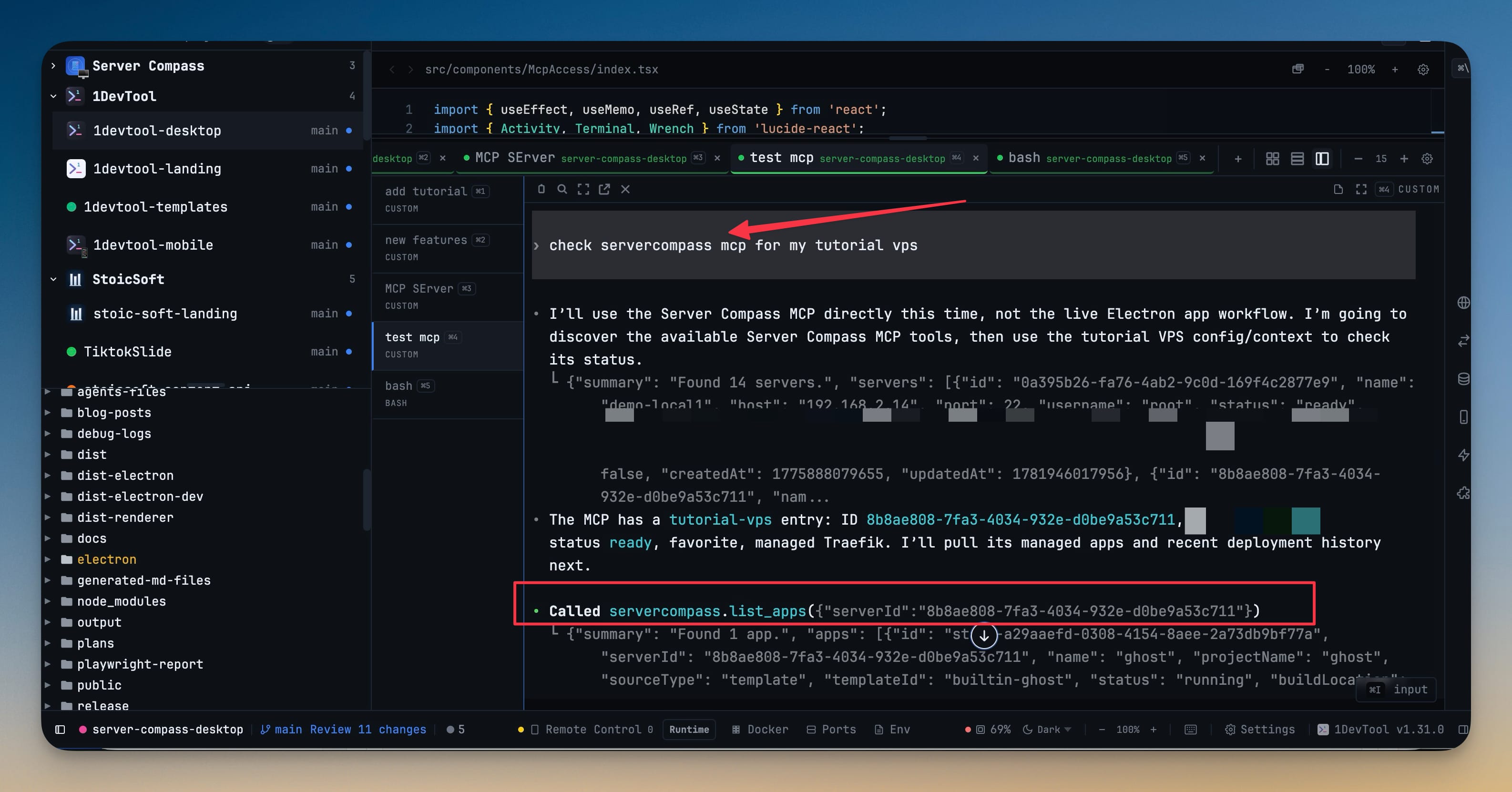
Server Work Becomes Part Of The Coding Session
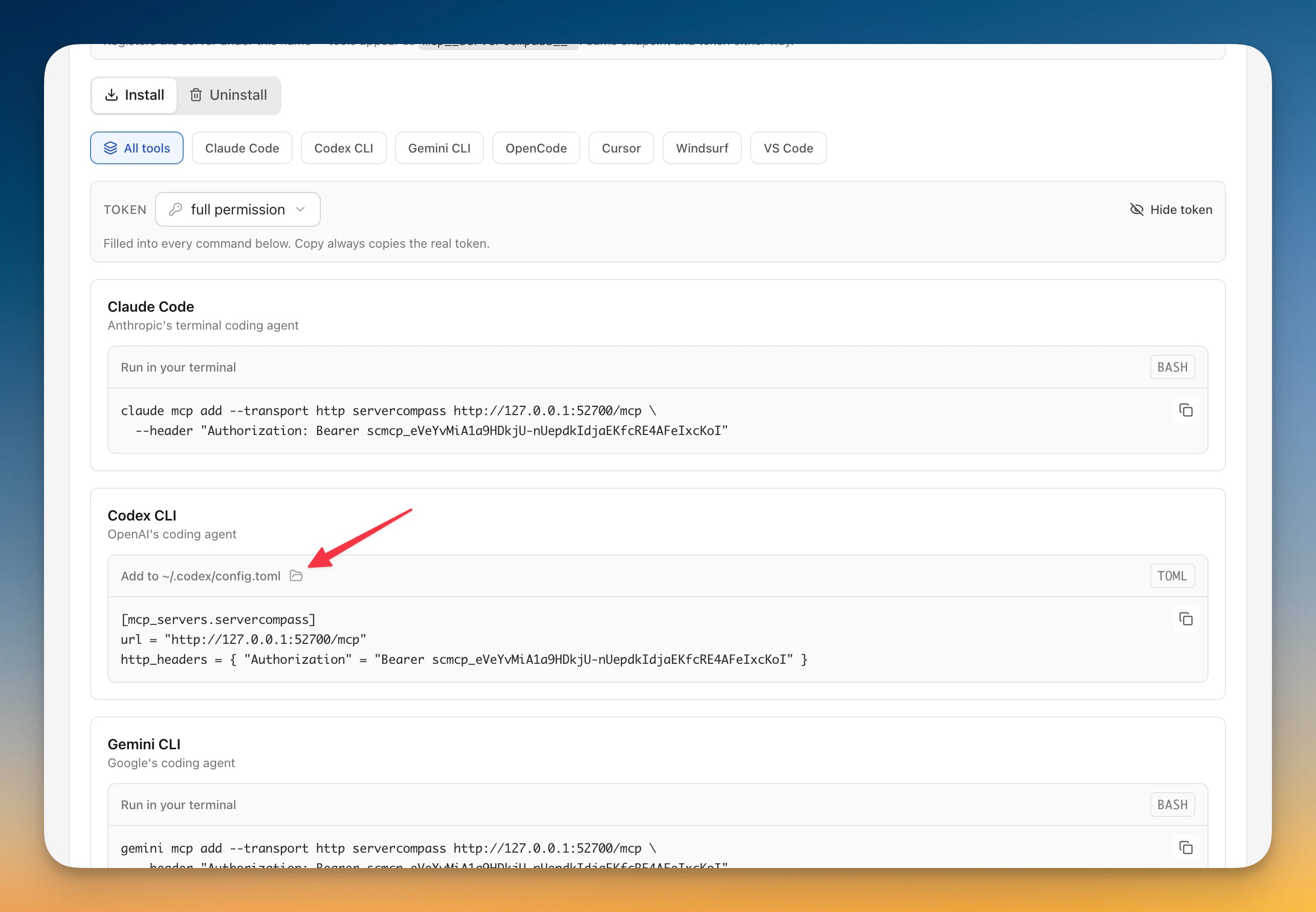
When the agent has the right token, it can move from diagnosis to action. For example, it can deploy a WordPress app through Server Compass, follow the deployment state, and report back in the same conversation. You still keep the permission boundary: the action runs through Server Compass, the request is audited, and dangerous operations do not bypass confirmation.
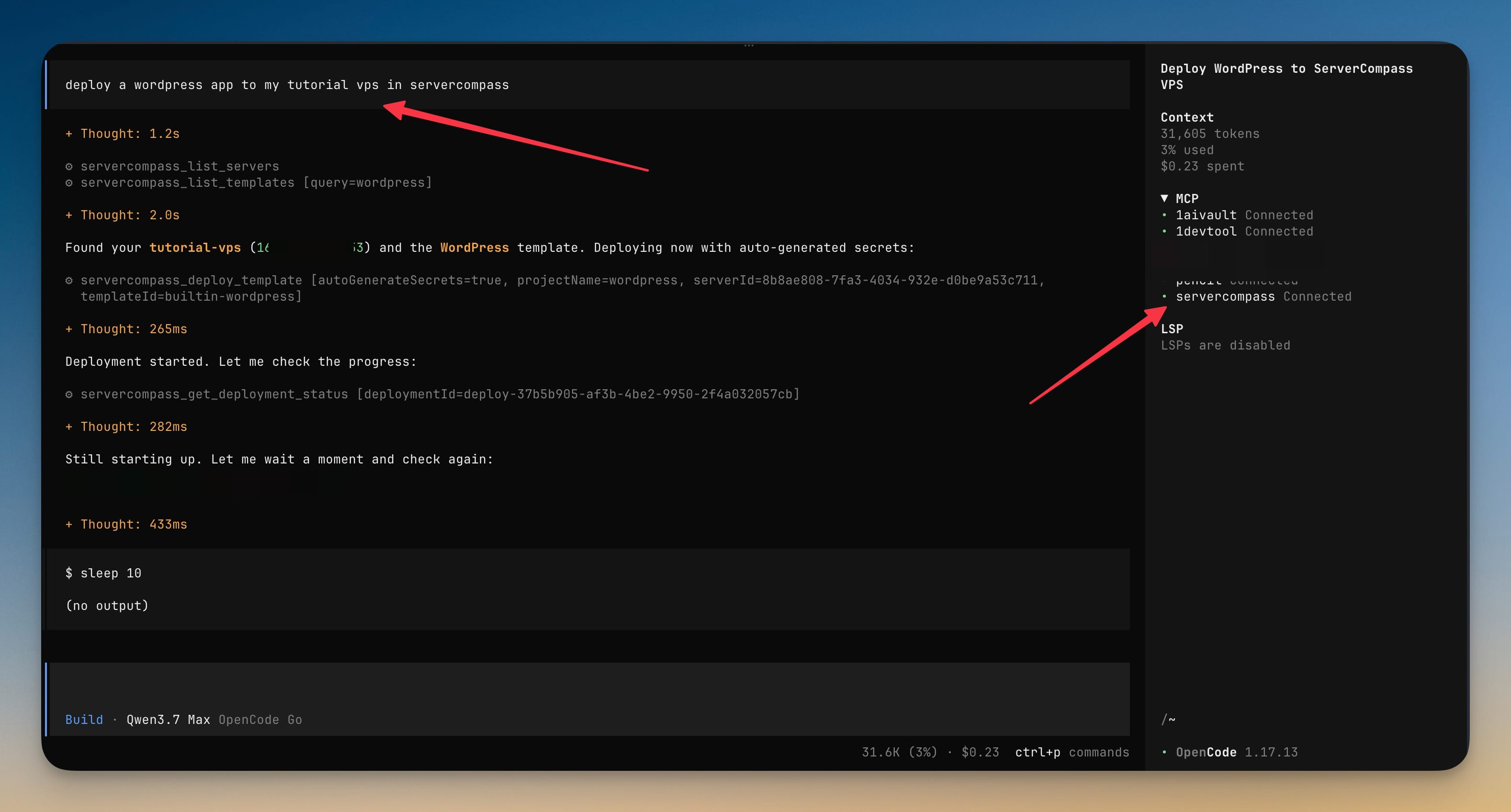
Before Vs After
| Workflow | Before | After |
|---|---|---|
| Check what is running | Open Server Compass or SSH, then paste context back into the agent | Ask the agent to list servers and apps through Server Compass MCP |
| Share access | Paste logs, commands, or credentials into a chat | Create a scoped token with the exact permission tier needed |
| Connect a tool | Manually assemble MCP config and headers | Copy the ready-made setup snippet for your coding tool |
| Deploy from a conversation | Leave the agent, deploy manually, then return with results | Let the agent call approved Server Compass deployment tools |
| Review what happened | Reconstruct actions from terminal history | Read the AI Access activity log with status, timing, client, and server |
Who Benefits Most
Solo developers can keep server work inside the same coding session without turning their agent into a full shell with permanent access. You get help investigating and deploying, while Server Compass keeps the credentials and server state behind a controlled tool boundary.
Teams with staging and production servers can create separate tokens for separate jobs. A docs or QA agent can read staging. A deployment-focused agent can receive deploy permission on one server. Production can stay restricted until you intentionally grant access.
Anyone experimenting with coding agents gets a safer way to test server automation. Instead of asking an agent to invent SSH commands from memory, you expose a known Server Compass tool surface with permission checks, activity logs, and confirmations for destructive operations.
Try It
Update to Server Compass v1.28.0, open Settings → AI MCP, turn on AI Access, create a scoped token, and copy the setup snippet for your coding tool. The next time you are debugging or deploying from an agent session, you can ask it to inspect your VPS through Server Compass instead of switching back to raw SSH.