July 13, 2026
Give clients a private status page for their app
Give a client a private, read-only status page for a single app — scoped to what you choose, on your own domain, without handing over a login to your server.
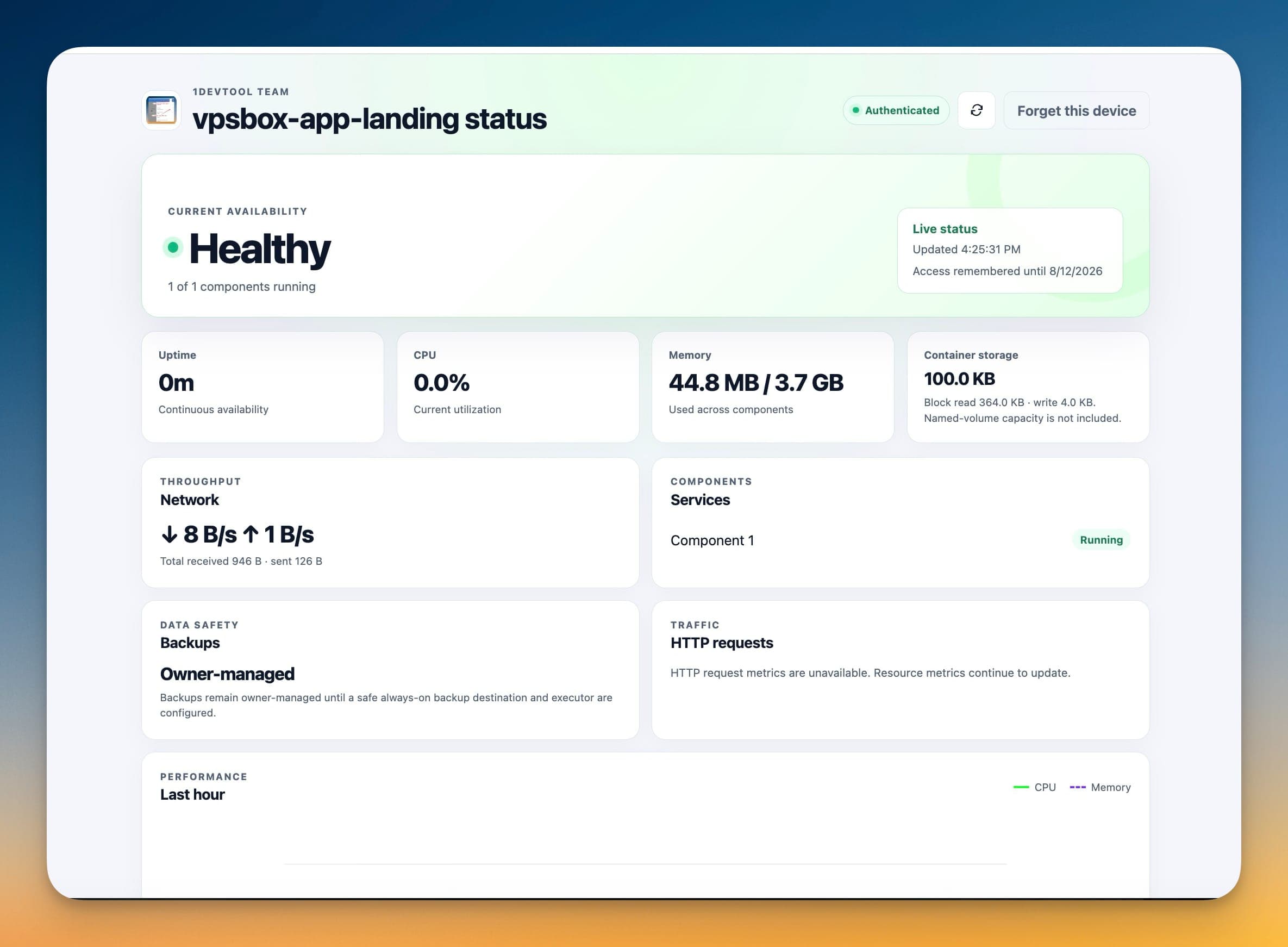
A client emails at 9pm: "Is the site down? It feels slow." You open a terminal, SSH into the server, run docker ps, tail a few logs, take a screenshot, and reply. Ten minutes spent on a question the client could have answered themselves in five seconds — if only they had somewhere safe to look.
The usual fix is worse than the problem. You either keep fielding "is it up?" messages by hand, or you hand the client a login to your control panel — and now the person who just wanted a green light can see every other app on the server, restart the wrong container, or wander into a database that isn't theirs.
A private status page for one app — and nothing else
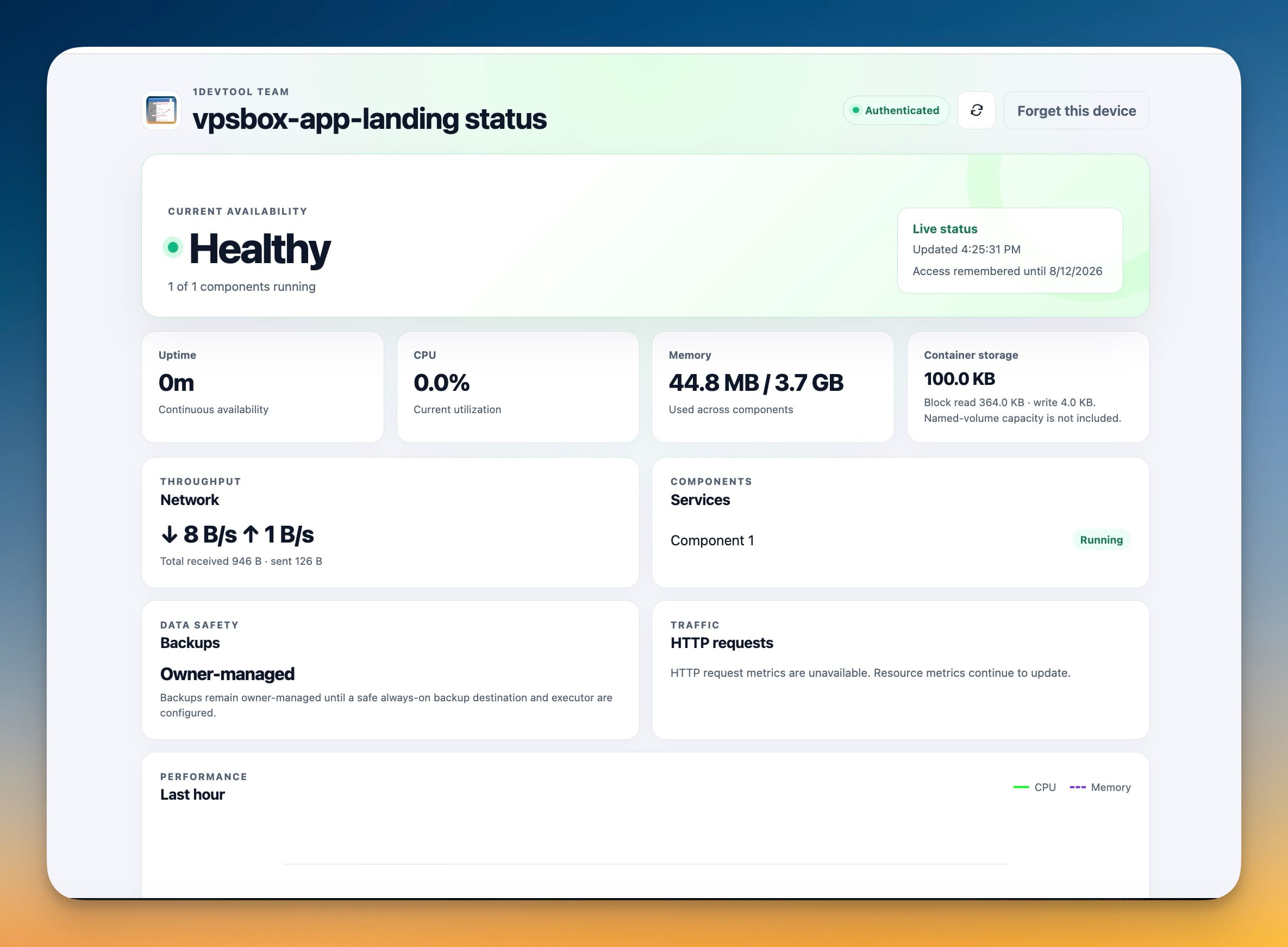
Client Portals give a client a read-only status page for a single app. They open a link, see whether the app is healthy, and check its recent metrics — with no account, without touching the rest of your server, and without seeing anything you didn't choose to share.
The page is scoped to exactly one app. Everything else on that server — your other clients, your own projects, the machine itself — stays invisible.
Turn it on for one app, in a guided flow
From the app you want to share, open Configure client portal. Before anything installs, Server Compass runs a readiness scan on the server: it checks your license, that Docker and Compose are available, that the runtime images are pinned, that the CPU architecture is supported, and that there is at least 512 MB of disk and 256 MB of memory free. Anything that needs attention is listed with a plain label, so you fix it before setup rather than in the middle of it.
When the checks pass, Server Compass installs a small portal runtime at /opt/servercompass/client-portal, configures the public HTTPS route, and verifies HTTPS before the link ever goes live.
Choose exactly what the client can see and do
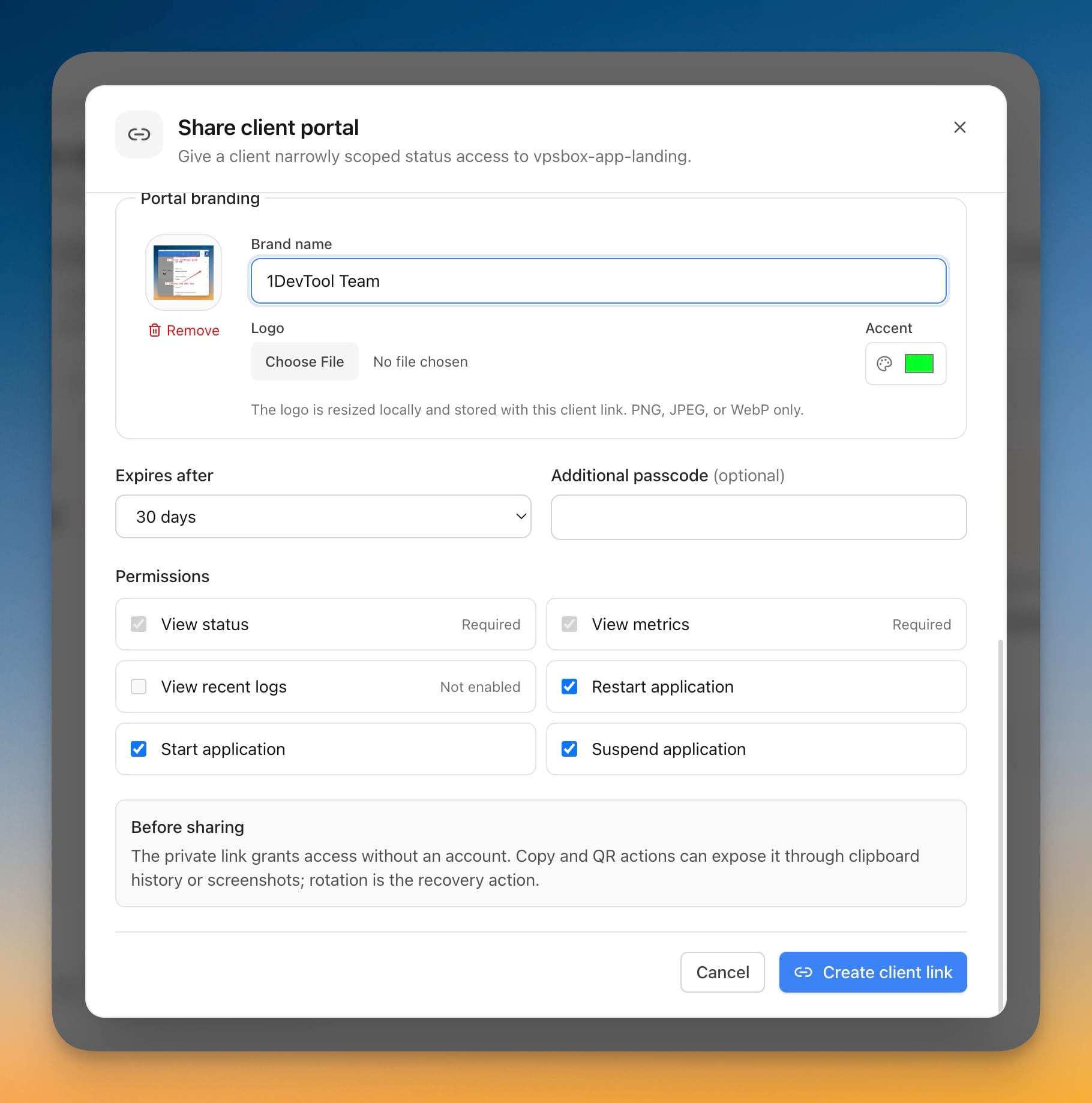
By default a portal is view-only: the client sees status and basic metrics and nothing else. From the Permissions list you decide how far that goes:
- View status and View metrics are always on — that is the point of the page.
- View recent logs lets the client see recent output when something looks off.
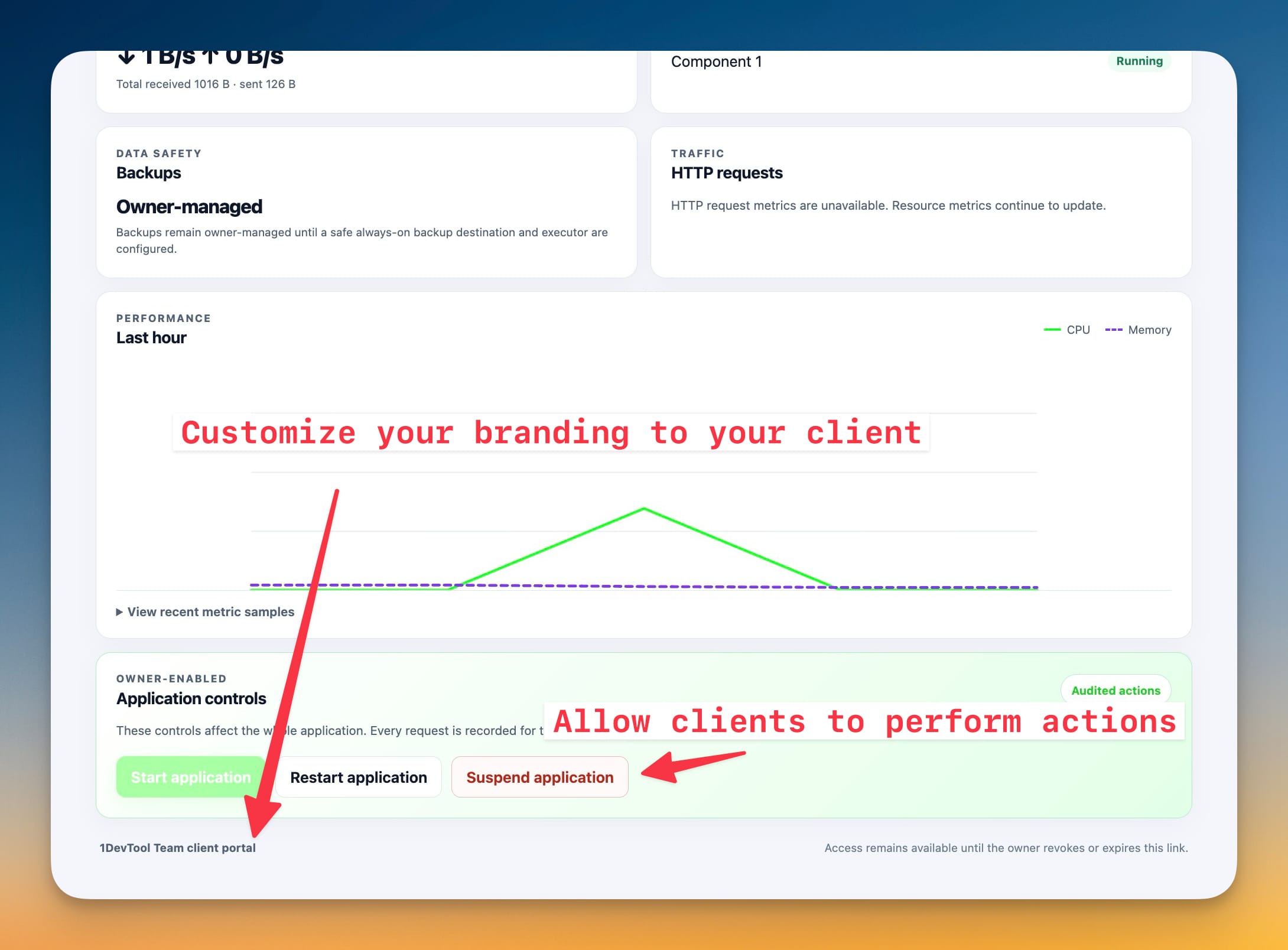
- Restart, Start, and Suspend application give the client one-tap control over that single app.
Hand a non-technical client a pure status page. Give a technical client the ability to restart their own app at 2am instead of paging you. Every action a client takes is written to a per-client activity log, and the controls wear an "audited actions" badge so nobody forgets they are real.
Make it look like yours, on your own domain
A client-facing page shouldn't say "Server Compass." Under Portal branding you set a brand name, upload a logo, and pick an accent color — the logo is resized locally and stored with that link. Point a hostname like status.yourclient.com at the portal and it serves over HTTPS: through managed Traefik automatically, or through your existing reverse proxy if you run one.
Keep every link under control
The private link grants access without a login, so the safeguards matter:
- Expiry — a link can expire after 1, 7, 30, 90, or 365 days. Pick the shortest span that fits the engagement.
- Optional passcode — add a second factor on top of the private link.
- Secrets stay on your device — links live in your computer's system keychain, and your server credentials never leave the encrypted vault.
- Rotate, revoke, or remove any link from one place, with a read-only preview so you can see exactly what the client sees.
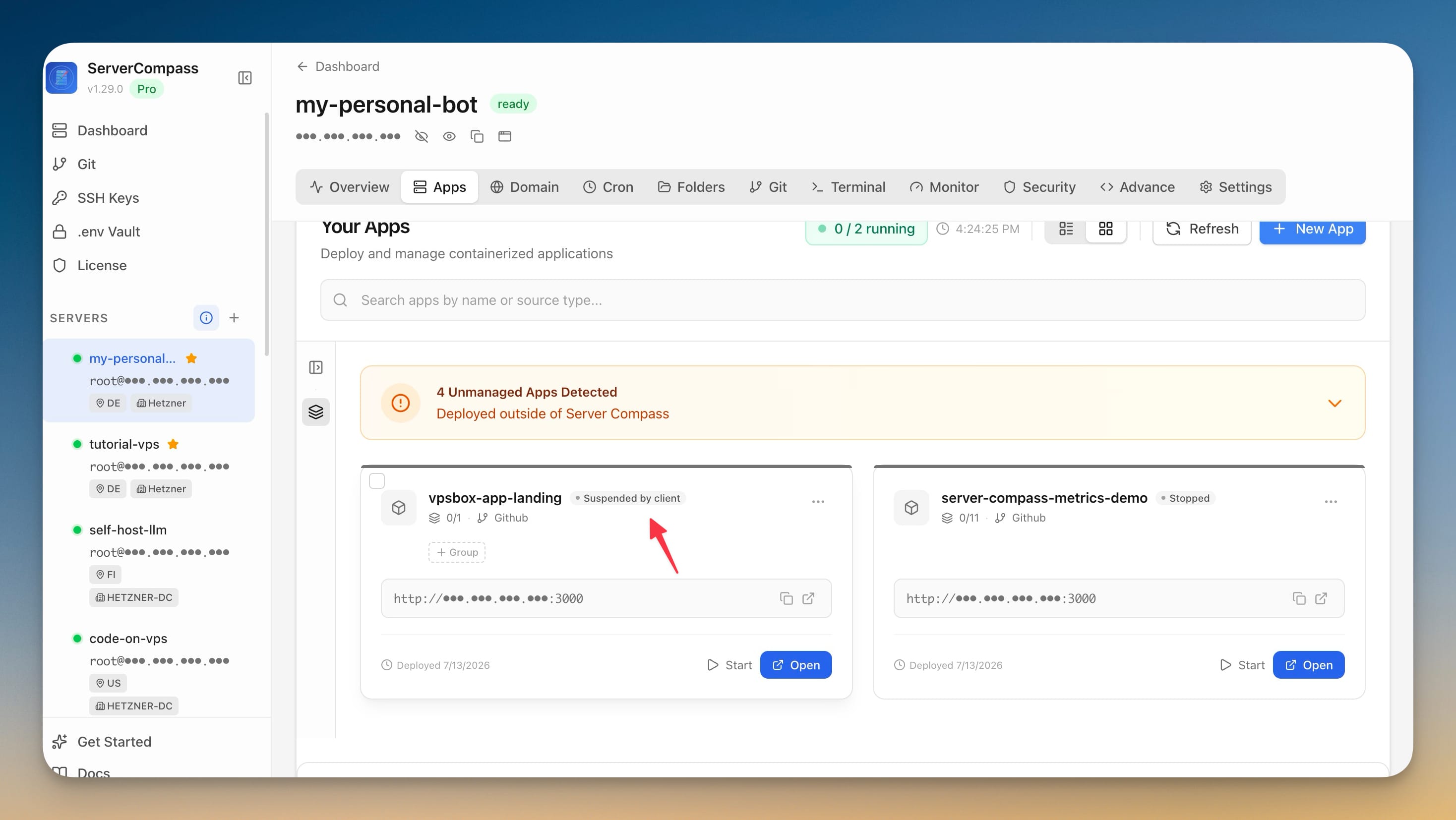
If a client suspends their app, you find out immediately: the app is flagged Suspended by client in your own dashboard, so there is never a mystery about why something stopped.
Before and after
| Answering "is my app up?" | Before Client Portals | With Client Portals |
|---|---|---|
| Client checks the app | Emails you; you SSH in and reply | Opens a private link and reads "Healthy" |
| What access you hand over | A control-panel login that sees everything | A read-only page scoped to one app |
| How it looks | A generic tool's UI | Your name, logo, and color on your domain |
| Client restarts their app | They page you; you do it | One tap, if you allow it — fully audited |
| Revoking access | Change passwords and hope | Rotate or revoke the link in one click |
Who gets the most out of this
- Agencies and freelancers hosting client apps: replace the "is it up?" thread with a branded link, and let clients restart their own app without opening a ticket.
- MSPs running many clients on one server: give each client a portal scoped to just their app, with a per-client activity log for accountability.
- Anyone handing off a project: leave the client a status page they can trust — on your domain, that expires when the engagement does.
Try it
Update to v1.30.0, open the app you want to share, and choose Configure client portal. A couple of minutes later you'll have a branded, private, expiring status page — and one less "is it up?" message to answer by hand.