May 29, 2026
Rename Your Docker Apps Without Breaking Them
Server Compass v1.25.3 introduces friendly Custom App Display Names — replace cryptic project slugs with human-readable labels across every view, while containers, volumes, and folders on the server stay exactly where Docker expects them.
You glanced at your Server Compass sidebar this morning and tried to remember which app was the staging copy. wp-blog-v2-prod. wp-blog-v2-staging. wp-blog-old. wp-blog-archive-2025. Four entries, two characters of difference between them, and the only way to tell at a glance was to click in and check the domain.
You thought about renaming the project. Then you remembered why you stopped doing that: the project slug is baked into the container names, the volume mounts, the bind paths, the Compose service references, and the directory on the server. Renaming the project means breaking every Docker reference your app has, and that's a half-day of regression fixing for the sake of a tidier sidebar. So the slugs stay. So the squinting stays.
This is the kind of friction that compounds. You manage one app, the slug doesn't matter — you can read myblog and know what it is. You manage twelve apps across three servers and the slugs start blurring together. The team Slack message turns into "the one with -v2- in the name", because nobody actually remembers what wp-blog-v2-prod does at 9pm on a Friday.
What changed
Server Compass v1.25.3 introduces Custom App Display Names. You can now give every Docker app a human-readable name — "My WordPress Blog", "Client A — Staging", "Old archive (don't touch)" — that shows up across the apps list, grid view, table view, and the dashboard header. The original project slug is still right there, just under the friendly name, so containers, volumes, and folders on the server stay matched to a recognizable identifier. Nothing on the server changes; only what you see in the UI changes.
How it works in practice
Set the display name from the Settings tab
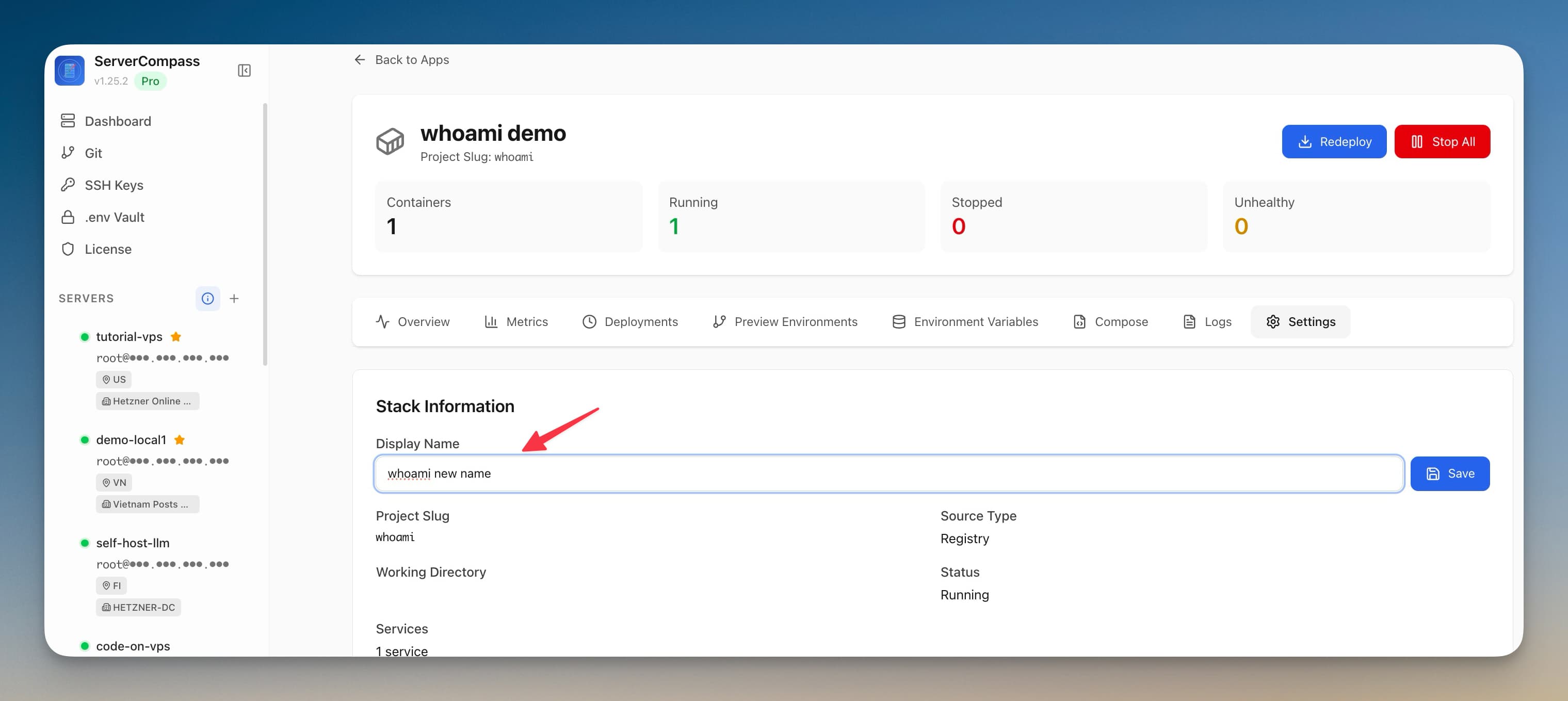
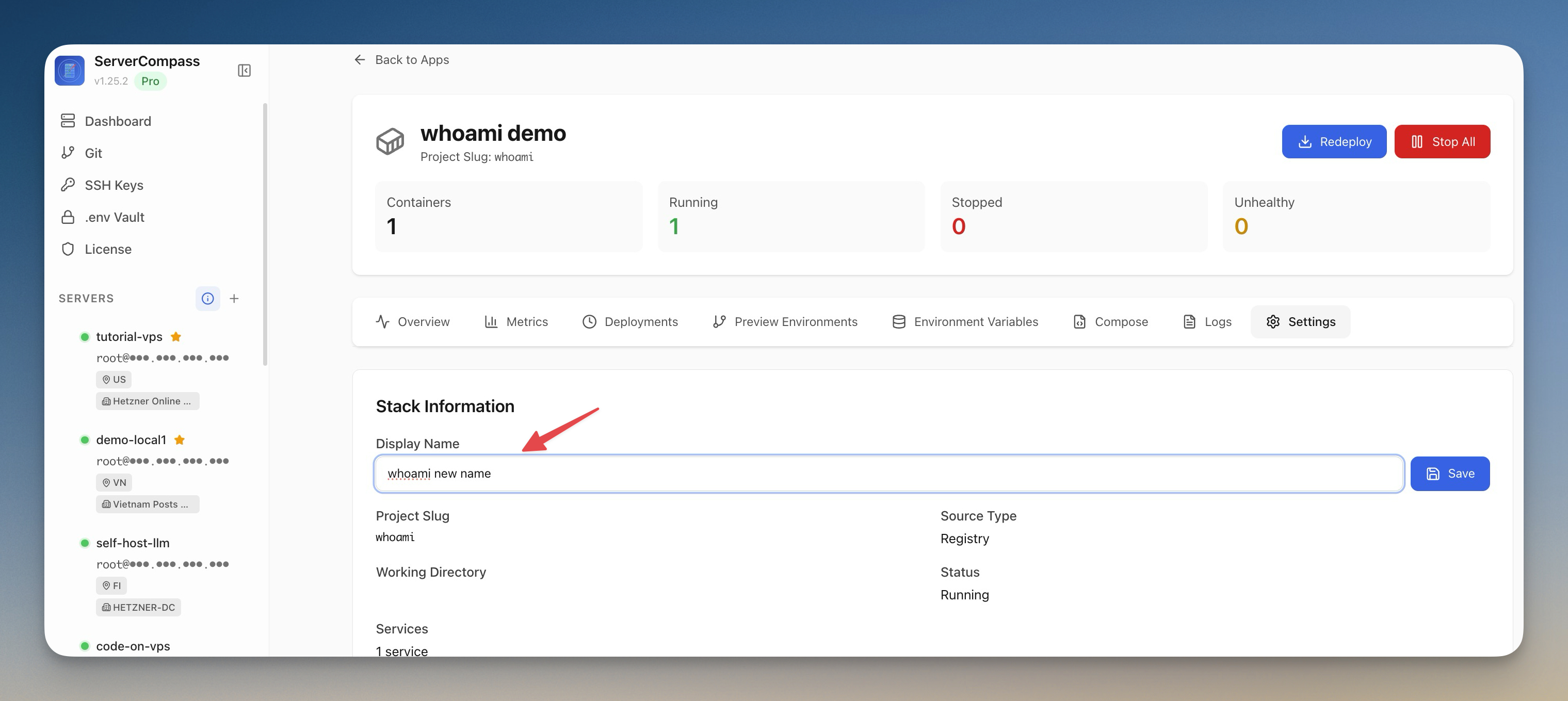
Pick the app from your dashboard and switch to the Settings tab. The Display Name field sits near the top, pre-filled with the current project slug. Type whatever you want — emoji included, if you're into that — and save inline. There's no rename operation behind the scenes: no containers stop, no volumes move, no Compose files rewrite. The display name is metadata, stored against the app record, applied at render time. You can change it as often as you want without paying a runtime cost.
Watch it propagate
The friendly name immediately replaces the slug in:
- The apps list (sidebar). What used to be ten cryptic slugs becomes ten readable labels.
- Grid card view. The card title is now the display name; the slug sits as a small secondary line.
- Table view. Same: display name in the primary column, slug as the muted identifier underneath.
- App dashboard header. When you're inside an app, the page title is the friendly name; the slug appears next to it for unambiguous reference to the server-side resources.
The slug never disappears. It's quieter, but it's still there for the moments when you need to match the app to a docker ps row or a bind path — exactly the moments where a friendly name wouldn't help.
Search by either name
Type "My Blog" into the search bar — match. Type "wp-blog-v2-prod" — match. The apps search now hits both fields, so muscle memory still works while you transition to the friendlier labels. If a teammate sends you a Slack screenshot with the old slug, you can still paste it into search; if you only remember the friendly name, that also works.
Clear the name to fall back
Empty the field in Settings and save. The app falls back to showing the original slug everywhere. Nothing else changes. There's no destructive action, no migration, no risk — and it means you can experiment with display names without committing to any of them.
Before vs After
| Workflow | Before | With Display Names |
|---|---|---|
| Tell two prod/staging apps apart at a glance | Hover, click in, read the domain | One look at the sidebar |
| Rename a project for clarity | Rename folder → break every container, volume, network reference | Set a display name; nothing on the server moves |
| Help a teammate find an app by description | "It's the one with the slug that starts with…" | "It's called My WordPress Blog" |
| Onboard a new dev to a 15-app server | Walk through what each slug means | They read the sidebar |
| Search by either name | Slug only | Display name OR slug |
Who benefits most
Agencies running client apps side by side. Twelve wp- apps in the sidebar is twelve apps that look the same. With display names, the sidebar becomes a client roster: "Acme Co — Production", "Acme Co — Staging", "Beta Industries — Live". You stop scanning, you start reading.
Anyone running prod and staging copies of the same app. The slug difference between myapp-prod and myapp-staging is small enough that muscle memory occasionally hits the wrong one. The display name difference — bold "Production" vs muted "Staging" — is the kind of distinction that's harder to misread when you're tired.
Devs maintaining an old portfolio of self-hosted apps. That side project from two years ago has a slug you barely remember. Rename it to "Side project (don't touch unless something breaks)" and the next-you who logs in will know exactly what they're looking at.
Zero-downtime deploys also got quieter
The other big v1.25.3 change isn't a new feature, it's a sharper edge on an old one. Zero-downtime redeploys now pull the latest code before rebuilding, just like a standard redeploy — previously you had to remember to redeploy the standard way first if you wanted the new commit. They also respect explicit container_name and complex network setups (so the staging build doesn't collide with the live one), sync the latest env file into the staging directory before the new version starts, honor the per-domain SSL setting (HTTP-only domains stop being forced through HTTPS), and combine staging + primary logs in a single stream during the deploy.
If you're using zero-downtime as your default redeploy mode, this release closes the last few gaps where the staging path behaved differently from the standard one — the upgrade path is now a strict superset of the simpler redeploy, with no quiet differences to remember.
Try it
Update to v1.25.3, open any app's Settings tab, and rename it. The new display name shows up everywhere the slug used to — and your filesystem, containers, and Compose files don't know anything happened.
Download v1.25.3 to rename your apps without renaming anything on the server.