January 7, 2026
Browse, Query, and Back Up Your Databases Without Leaving Your Desktop
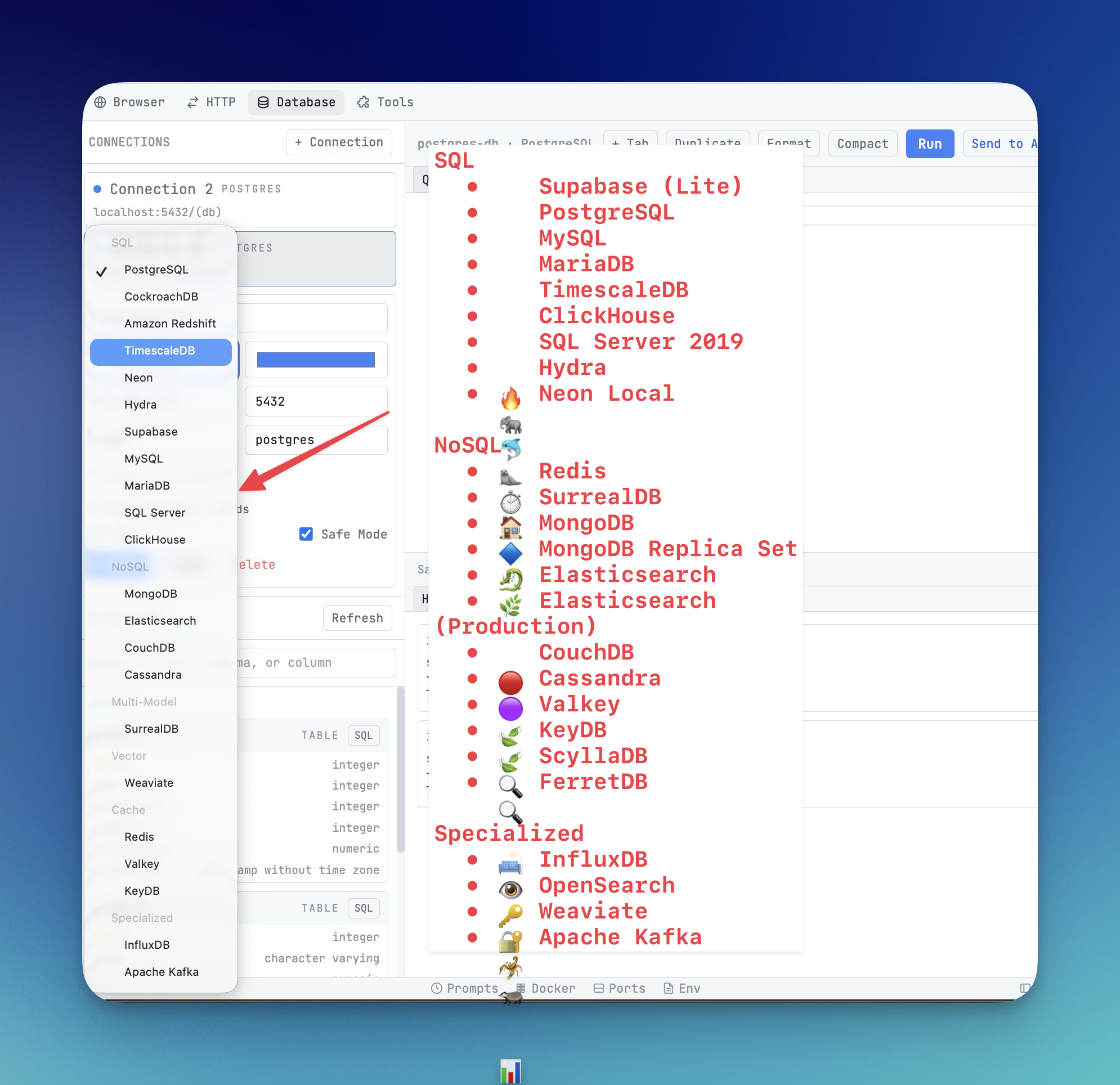
Built-in database admin panel with credentials management, one-click backup/restore, SQL query editor, and table browsing for PostgreSQL, MySQL, and MongoDB.
You deploy a PostgreSQL database alongside your app. Now you need to check if the migration ran. Your options: install pgAdmin, configure a connection through an SSH tunnel, or SSH in and type raw psql commands from memory. Each option takes minutes of setup for seconds of actual work.
Server Compass v1.3.10 ships a built-in database admin panel that's automatically available for every database in your Docker stacks. No extra tools. No SSH tunnels. No port forwarding.
Credentials Tab: Never Hunt for Database Passwords Again
When you deploy a database template—or any Docker Compose stack with a database service—Server Compass extracts the credentials from your environment variables and displays them in a clean Credentials tab.
- Password management — view, copy, or regenerate database passwords
- User management — see which database users exist and their access levels
- Secure password generation — generate strong passwords directly in the UI
- Connection strings — pre-built connection URIs for your app's config
One-Click Database Backups and Restore
The new Data tab gives you push-button database backups. Click "Backup," and Server Compass runs the appropriate dump command (pg_dump, mysqldump, mongodump) inside the container and saves the result. Restoring is equally simple—upload a dump file and Server Compass handles the import.
No more remembering whether it's pg_dump -Fc or pg_dump -F c, whether MySQL needs --single-transaction, or how to pipe mongodump output correctly.
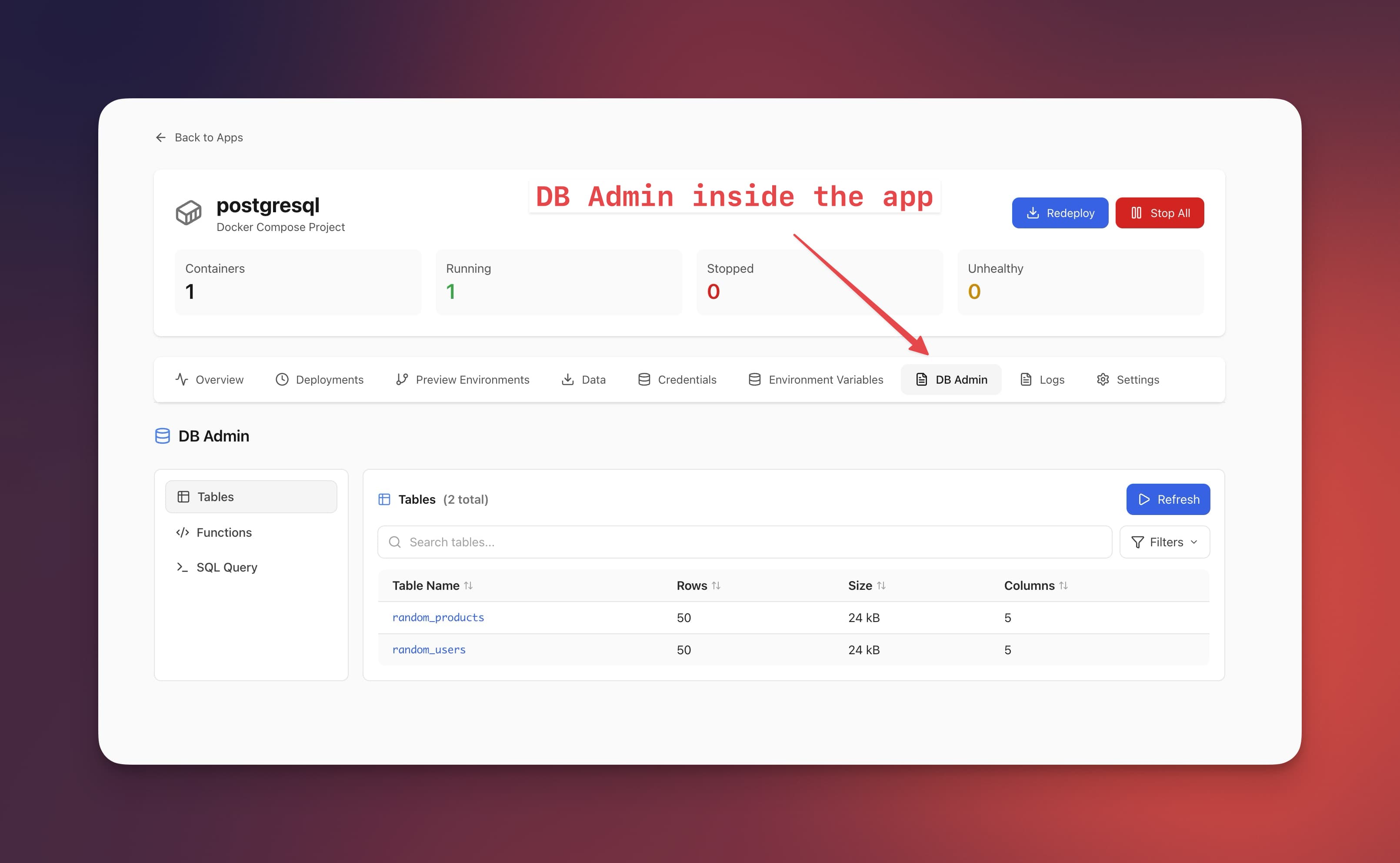
DB Admin: Browse Tables and Run Queries
The DB Admin tab turns Server Compass into a lightweight database management tool. Browse your tables, view stored procedures, and run SQL queries—all through the desktop app.
This isn't meant to replace dedicated tools like pgAdmin or DataGrip for heavy database work. It's designed for the quick checks that happen dozens of times a day: "Did the user get created?" "What's in the sessions table?" "Did the migration add the new column?"
Smart App Type Detection
Templates are now categorized as app, service, or database. When Server Compass detects a database container, it automatically shows the Credentials, Data, and DB Admin tabs. No configuration needed.
Before vs After
Task
Before
After
Check table data
SSH in, connect to DB, type query
Click DB Admin, browse table
Find DB password
Read .env file or docker-compose.yml
Click Credentials tab
Back up database
SSH + remember dump command syntax
Click "Backup" button
Restore from backup
Upload file, pipe to restore command
Upload file, click "Restore"
Try It Today
Every database you deploy through Server Compass now includes a built-in admin panel. No plugins, no extra setup. Download Server Compass and deploy your first database to see it in action.
Related in the StoicSoft network
If you're self-hosting on a VPS or working through a deployment guide like the one above, DeployToVPS is the StoicSoft network's handbook for VPS deployment recipes — docker-compose, nginx, traefik, and common app self-hosts.
From across the StoicSoft network
Hand-curated reads on the same topic from sister sites in the StoicSoft family.