July 28, 2026
Deploy Any Public Git Repository Without Forking It
Paste a public HTTPS repository URL from GitHub, GitLab, or Bitbucket, pick a branch, and deploy — no account connection, no fork, and the app you get has full redeploy, rollback, and backup support.
You find a self-hosted tool you want to run — an analytics dashboard, a status page, someone's tidy little URL shortener. The repo is public. The Dockerfile is right there. You want it on your VPS in five minutes.
Instead you fork it, so a tool can see it through your GitHub account. Now you own a copy you never wanted to maintain, sitting in your repo list next to your real projects. Or you skip the fork, SSH in, git clone, write a compose file by hand, and accept that this app now lives outside everything else — no deployment history, no rollback, no backups, no preview environment. It's a pet, and you'll remember how you set it up for about a week.
What changed
You can now paste a public HTTPS Git URL and deploy it, with no account connection and no fork. GitHub, GitLab, Bitbucket, and other compatible Git hosts all work, and the app you get is a normal Server Compass app — not a special case.
How it works in practice
Paste the URL, then let it inspect the repo
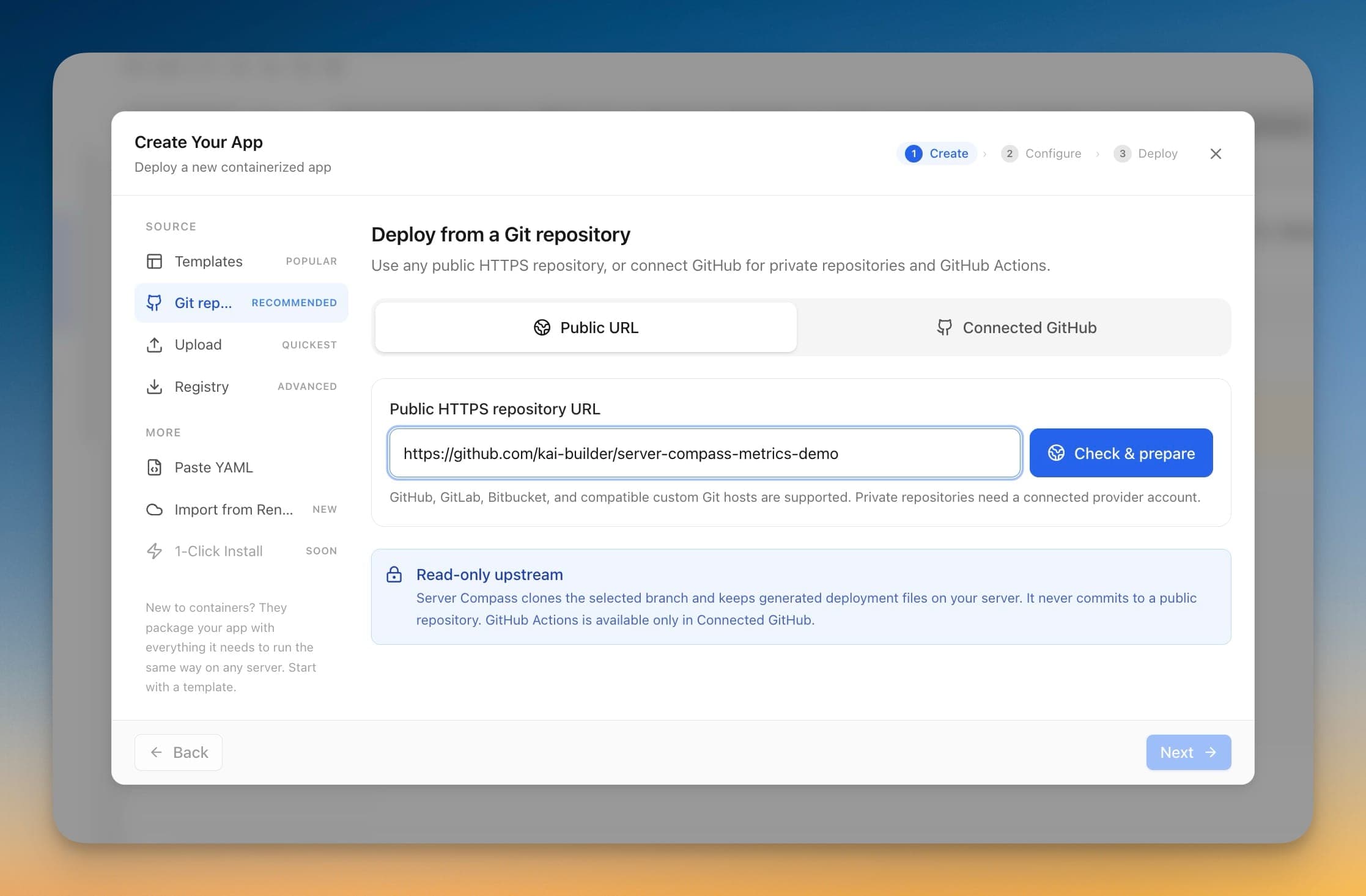
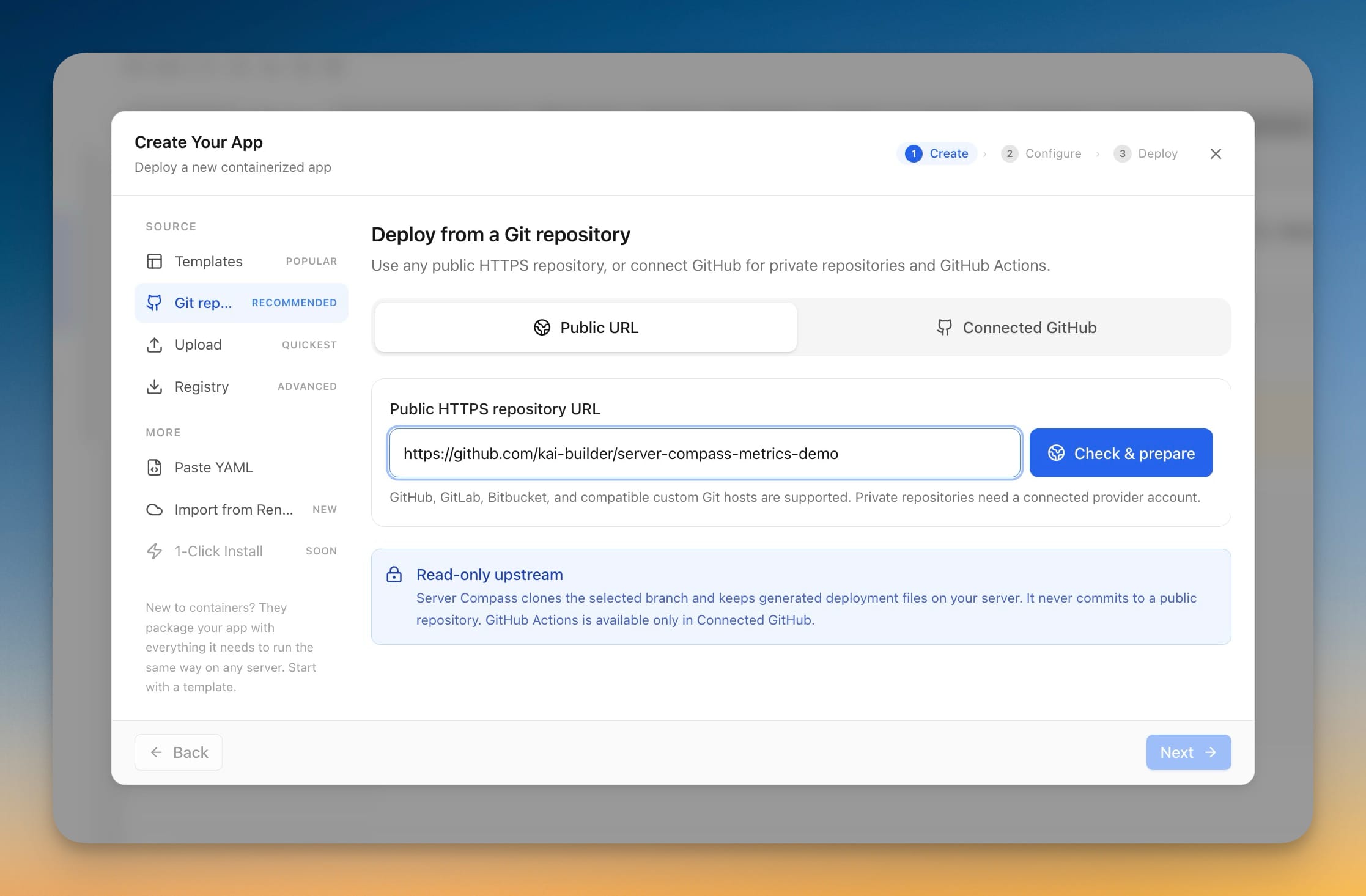
In Create Your App, pick Git repository as the source. There are two tabs now: Public URL and Connected GitHub. Paste an HTTPS repository URL into Public URL and click Check & prepare.
Server Compass probes the remote, identifies the host, reads the available branches, and prepares the repository on your server. If the repo ships its own Dockerfile or compose file, those are used as-is. If it doesn't, a build is generated from the detected framework — the same buildpack path a connected-GitHub deploy uses. By the time you hit Next, you're looking at real content pulled from the actual branch, not a blank template.
Nothing about this requires an account, a token, or a fork. The repository is public; Server Compass reads it the way any git clone would.
Your upstream stays untouched
The wizard is explicit about this, in a panel labelled Read-only upstream: Server Compass clones the selected branch and keeps generated deployment files on your server. It never commits to a public repository.
That matters because Server Compass does generate files — a compose file, sometimes a Dockerfile — and on a connected private repo it can commit them back so your repo stays the source of truth. On a public repo you don't own, that would be nonsense. So those files live on your server instead. Edit the Dockerfile in the app's editor and the edit stays on your server, versioned in your deployment history, invisible to upstream.
Connected GitHub still does what it always did
Private repositories and GitHub Actions builds are unchanged — and Connected GitHub is now the first option in the wizard, because that's the right default when you're deploying your own code. Pick your account, pick the repo, pick the branch, and continue exactly as before.
The split is simple: Connected GitHub for code you own, where webhooks, Actions builds, and auto-deploy on push all apply. Public URL for someone else's code, where none of that is relevant and an account connection would just be friction.

It's a real app afterwards, not a one-off
This is the part that separates it from git clone on the server. A public-repo app gets the full lifecycle:
- Redeploy from the newest commit on your chosen branch, whenever you want it
- Zero-downtime redeploys, so the running version stays up while the new one builds
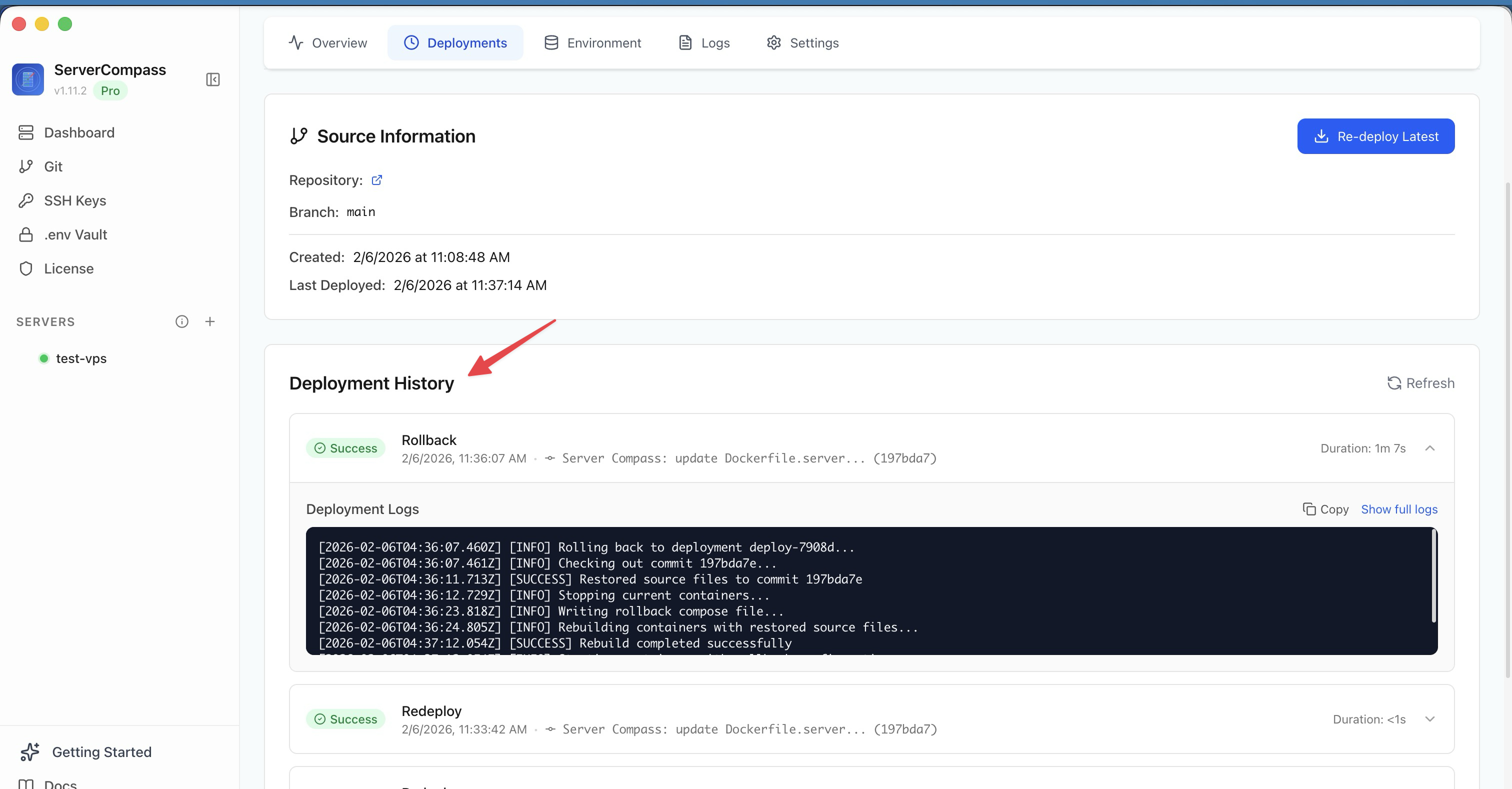
- Rollback to any previous deployment, with the logs to prove what happened
- Preview environments off a different branch
- Backups and server transfers, same as any other app
Upstream ships a fix? Hit redeploy. It pulls the newest commit on the branch you picked and rebuilds. Upstream ships a regression? Roll back to the deployment that worked.
Before vs After
| Running someone else's public repo | Before | Now |
|---|---|---|
| Get the code where a tool can see it | Fork it, or connect an account | Paste the HTTPS URL |
| Pick a branch | Whatever git clone gave you | Branch list read from the remote |
| Get a compose file | Write it yourself | Read from the repo, or generated |
| Update to a newer version | SSH in, git pull, rebuild | Redeploy from the latest commit |
| Undo a bad update | Reconstruct it from memory | Roll back to a known-good deployment |
| Backups and transfers | Not covered — it's a pet | Same as every other app |
| Your GitHub account | One more fork you don't maintain | Untouched |
Who benefits most
Self-hosters trying things out. Most of what you want to run is a public repo with a Dockerfile. Now the distance between finding it and running it is one paste — and if you don't like it, you delete an app instead of cleaning up a fork.
Teams on GitLab, Bitbucket, or self-hosted Git. Deploying no longer means the repo has to live on GitHub. If it's reachable over public HTTPS, it deploys.
Anyone assembling a stack from other people's tools. Uptime monitor here, analytics there, docs site somewhere else. Each one becomes a managed app with history and rollback, instead of three untracked clones you'll be afraid to touch in six months.
Try it
Open Create Your App, choose Git repository, switch to Public URL, and paste a repo you've been meaning to try. Click Check & prepare and watch it read the branches. The interesting part isn't the deploy — it's what you have afterwards: an app with a history, a rollback button, and a backup schedule, built from code you never had to copy into your own account.