November 22, 2026
Deploy from Your Own Gitea or Forgejo
Connect a self-hosted Gitea, Forgejo or Codeberg account with an access token and deploy private repositories to your VPS, with the SSH key and a custom SSH port handled for you.
Your code lives on a Gitea box in the corner of your network, or on a Forgejo instance you run next to everything else. It is light, it is yours, and it works. Then you want to deploy one of those repositories to a VPS, and the easy path disappears. The deploy tool only knows GitHub and GitLab, so you end up on the server by hand: generate a key, paste it into Gitea, remember that SSH listens on 2222 instead of 22, write a Host block so Git uses the right key and port, clone the repository, and then do all of it again the next time you want the latest commit.
None of those steps is hard. Together they are the reason a private repository on your own Git server stays harder to deploy than a public one on someone else's.
What changed
Server Compass 1.47.0 adds Gitea / Forgejo as a Git account you can connect with an access token. Now you can deploy private repositories from your own Gitea, Forgejo or Codeberg account through the Stack Wizard, without setting up keys, SSH ports or clones on the server yourself.
It works with self-hosted Gitea 1.19 or newer, Forgejo, and Codeberg (which runs Forgejo). One account type covers all three, because Forgejo keeps Gitea's API.
How it works in practice
Connect the account with a token
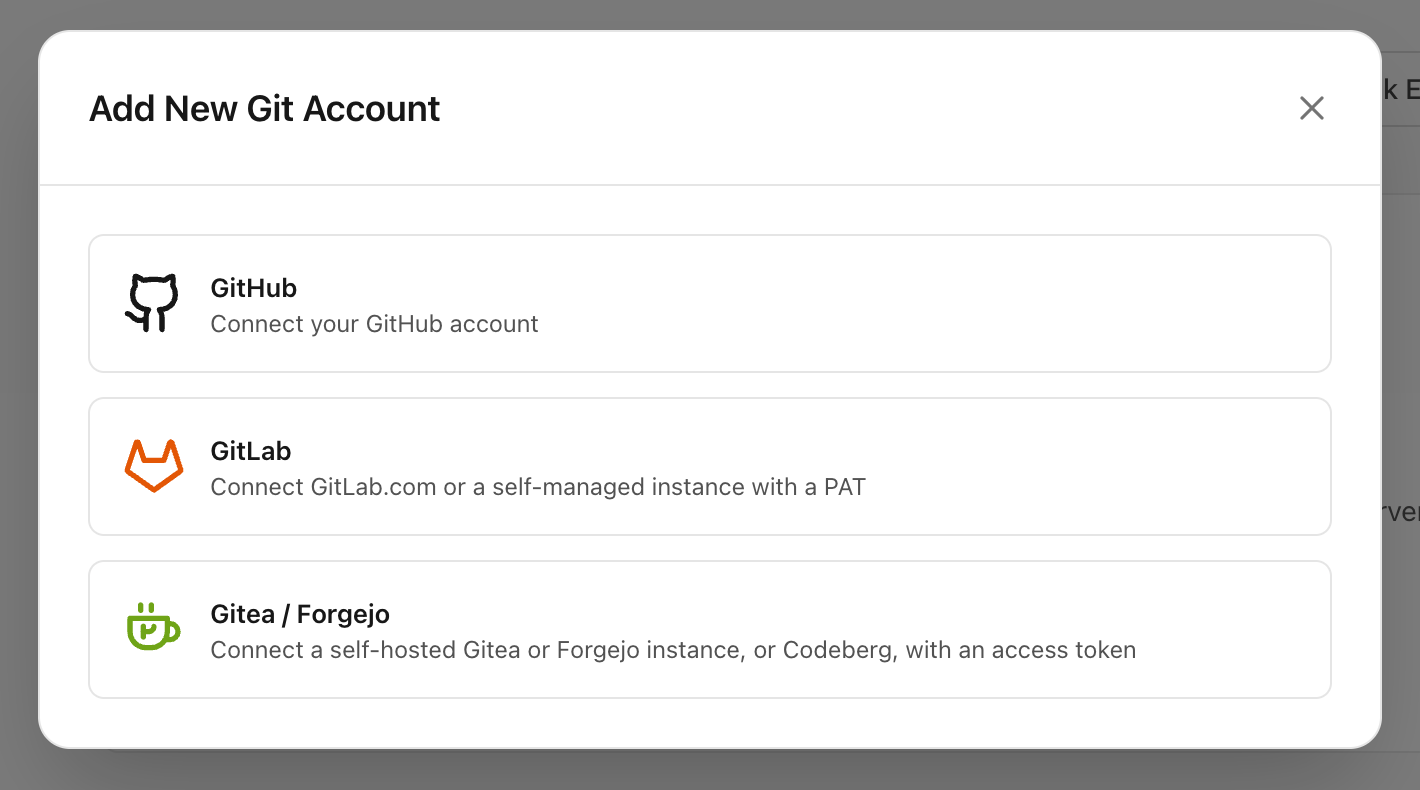
Open a server's Git tab and choose Add New, then Gitea / Forgejo. The same form is on the Git page and behind Add Gitea / Forgejo account in Server Settings.
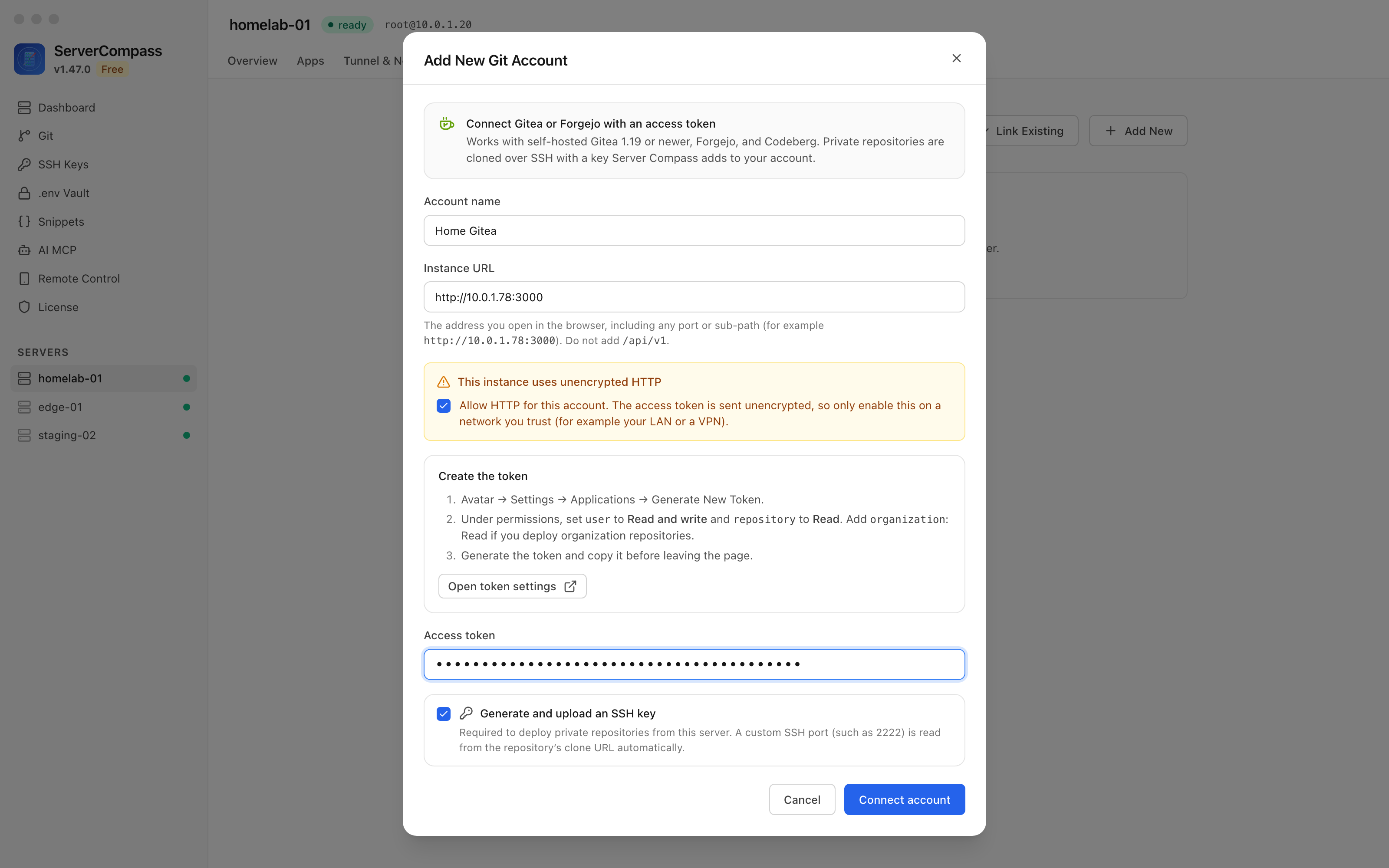
Enter the address you open in the browser, including the port or sub-path if your instance has one, such as http://10.0.1.78:3000. There is no /api/v1 to add. Then paste an access token. The form shows where to create it (Avatar → Settings → Applications → Generate New Token) and which permissions it needs: user: Read and write and repository: Read, plus organization: Read if you deploy organization repositories.
Gitea cannot tell an app which permissions a token has, so Server Compass checks each one it needs before saving anything. A token that can list repositories but cannot add keys is refused with the missing permission named, for example write:user, instead of saving an account that fails on your first deploy.
Keep HTTP instances on your LAN working, on purpose
Plenty of home and office Gitea instances run on plain HTTP inside a trusted network. As soon as the address starts with http://, the form shows This instance uses unencrypted HTTP with an Allow HTTP for this account checkbox, and Connect account stays disabled until you tick it. The token is never sent over HTTP without that choice. HTTPS instances with a self-signed certificate have their own opt-in under the advanced trust options.
Let Server Compass handle the SSH key and port
Leave Generate and upload an SSH key ticked. Server Compass creates a key on your server, adds it to your Gitea or Forgejo account, and writes an SSH alias for that account into the server's SSH config, so private repositories clone over SSH with the right key.
You don't need to know which SSH port your instance uses. Gitea and Forgejo advertise it in each repository's clone address, such as ssh://git@10.0.1.78:2222/owner/repo.git, and Server Compass reads it from there when you connect, again before each SSH test, and before each deploy. If you move SSH to another port later, the next deploy follows.
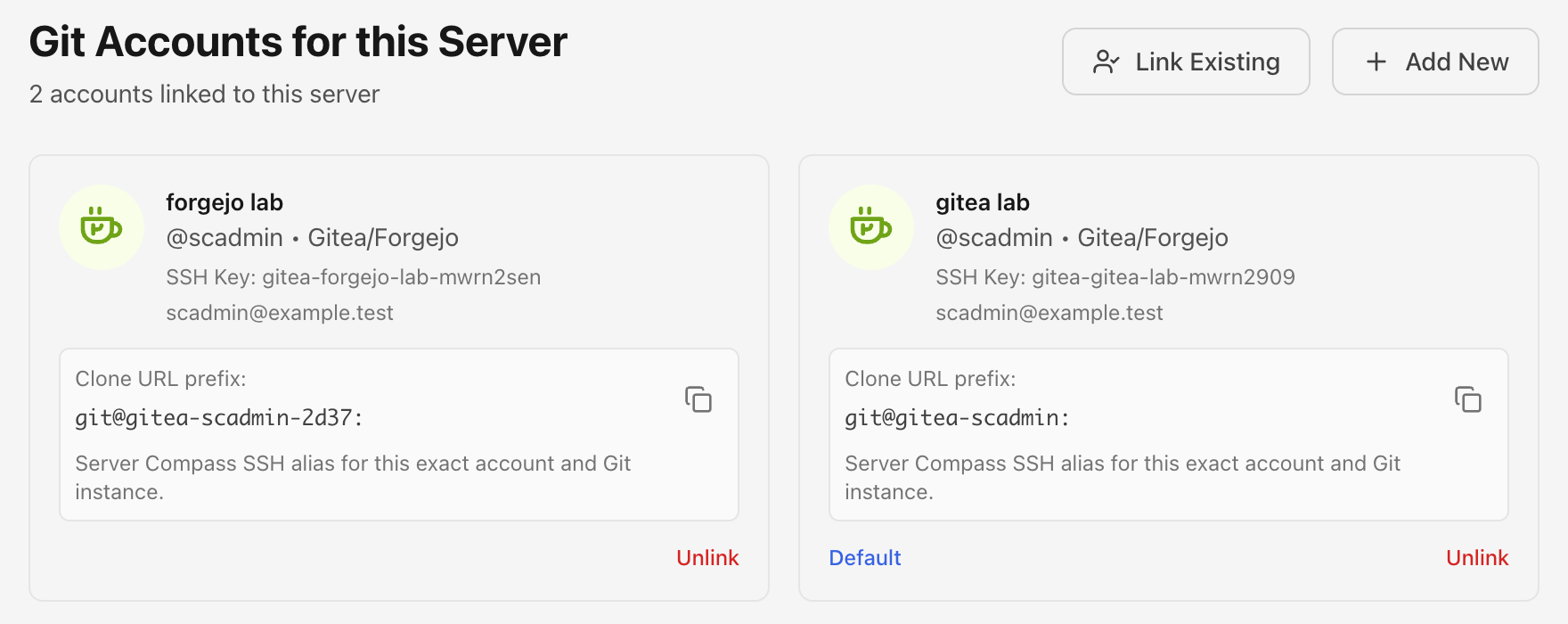
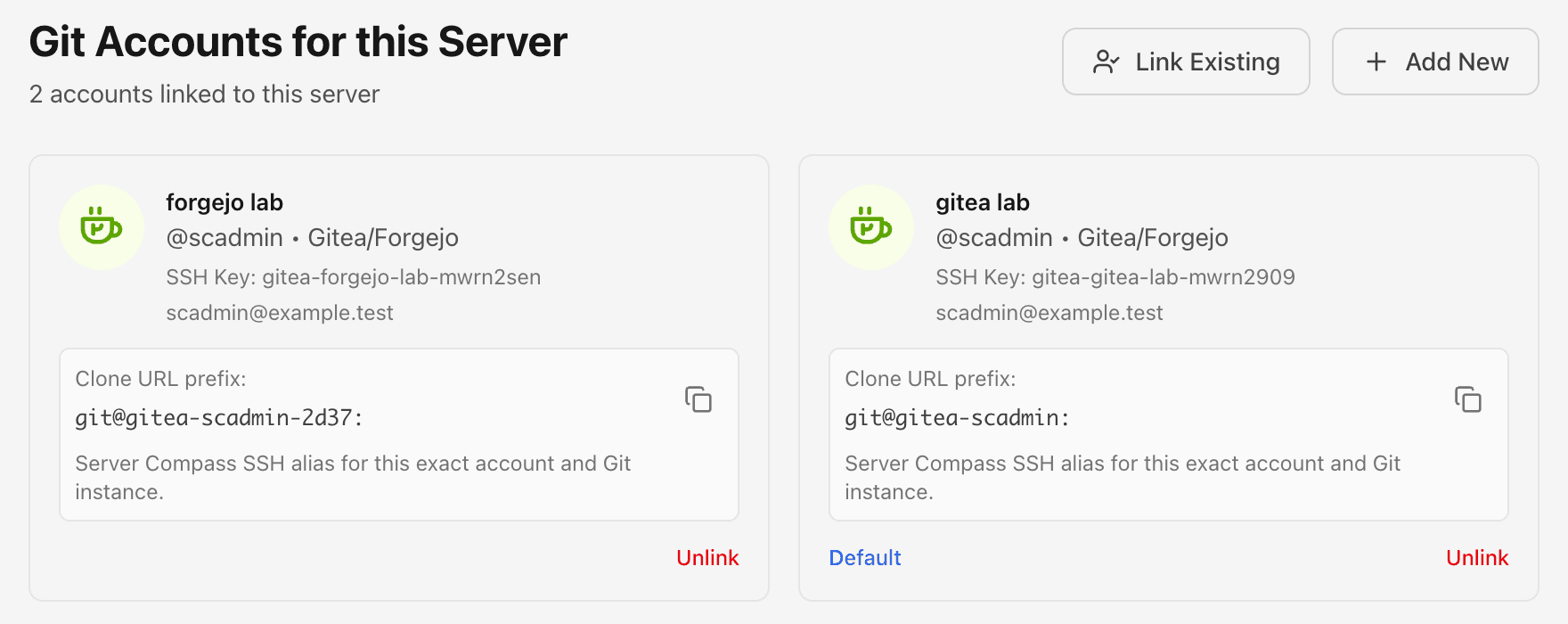
The account card shows the clone URL prefix for that account, such as git@gitea-scadmin:, so you can also use it from the server's terminal. Two accounts on the same instance, or one on Gitea and one on Forgejo, each get their own alias and key.
Deploy a private repository
In the Stack Wizard, choose a Git repository and your connected Gitea or Forgejo account, then pick the repository and branch. Server Compass reads the repository's Dockerfile and compose file to set up the deployment, clones it on your server over SSH, and builds it there. When you redeploy with the latest code, it pulls the new commits through the same account.
Before vs After
| Step | Before | With 1.47.0 |
|---|---|---|
| Deploy key | Generate on the server, paste into Gitea by hand | Generated and uploaded when you connect |
| SSH port | Remember 2222, write a Host block | Read from the repository's clone address |
| Token check | Find out on the first failed deploy | Missing permission named when you connect |
| HTTP instance on your LAN | Clone by hand on the server | Explicit opt-in per account |
| First deploy | git clone on the server, then set up the app | Pick account, repository and branch in the Stack Wizard |
| Getting new commits | SSH in and git pull | Redeploy with the latest code |
Who benefits most
- Homelab users who keep every repository on a Gitea or Forgejo instance at home and deploy to a VPS or another machine on the LAN.
- Small teams on Forgejo or Codeberg who chose them to keep code off the big platforms and don't want to lose easy deploys because of it.
- Anyone moving off GitLab self-managed to something lighter, who still wants the same connect-and-deploy flow.
Try it
Update to Server Compass 1.47.0, open a server's Git tab and choose Gitea / Forgejo. Create a token with the permissions the form lists, paste it, and deploy your next app straight from your own Git server.