August 5, 2026
Deploy Private GitLab Projects to Your Own Server
Server Compass 1.39.0 connects to GitLab.com and self-managed GitLab with a personal access token, so private projects — including ones nested deep in subgroups — deploy the same way GitHub projects already do.
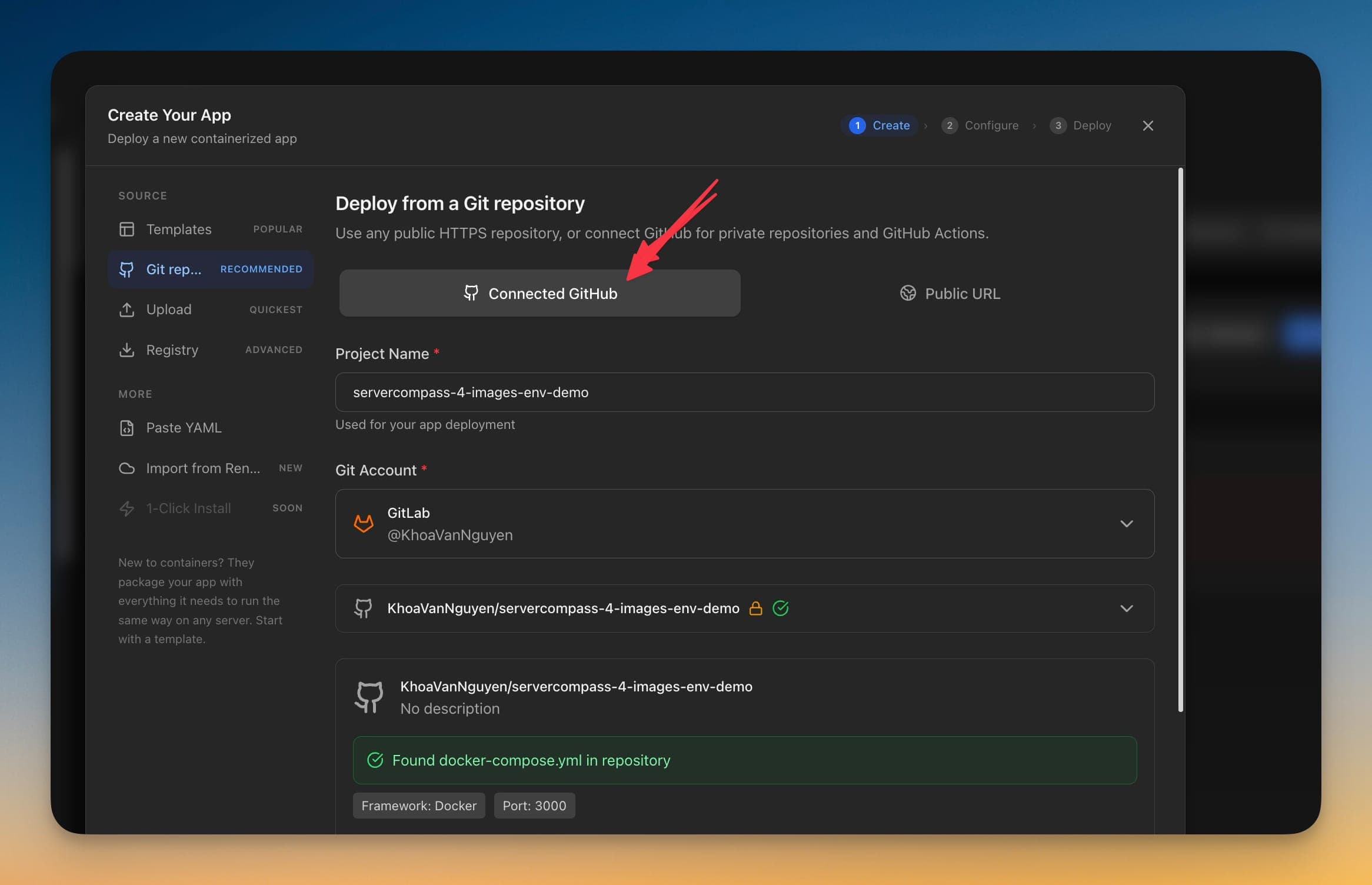
If your code lives on GitLab, deploying it to your own server has meant picking one of two bad options. Either you make the project public long enough to paste an HTTPS URL, or you go around Server Compass entirely — SSH in, set up a deploy key by hand, clone, write the compose file, and remember to do all of it again on the next server.
Neither is deployment. The first is a security decision you did not want to make, and the second is the exact work you bought a deployment tool to stop doing.
What changed
Server Compass 1.39.0 connects to GitLab. Add a GitLab account with a personal access token and your private projects deploy the same way GitHub projects already do — on GitLab.com, or on the GitLab you run yourself.
How it works in practice
Connect the account once
You can add a GitLab account from three places: the global Git Accounts screen, a server's Git tab, or the new Git SSH tab in Server Settings. All three open the same form.
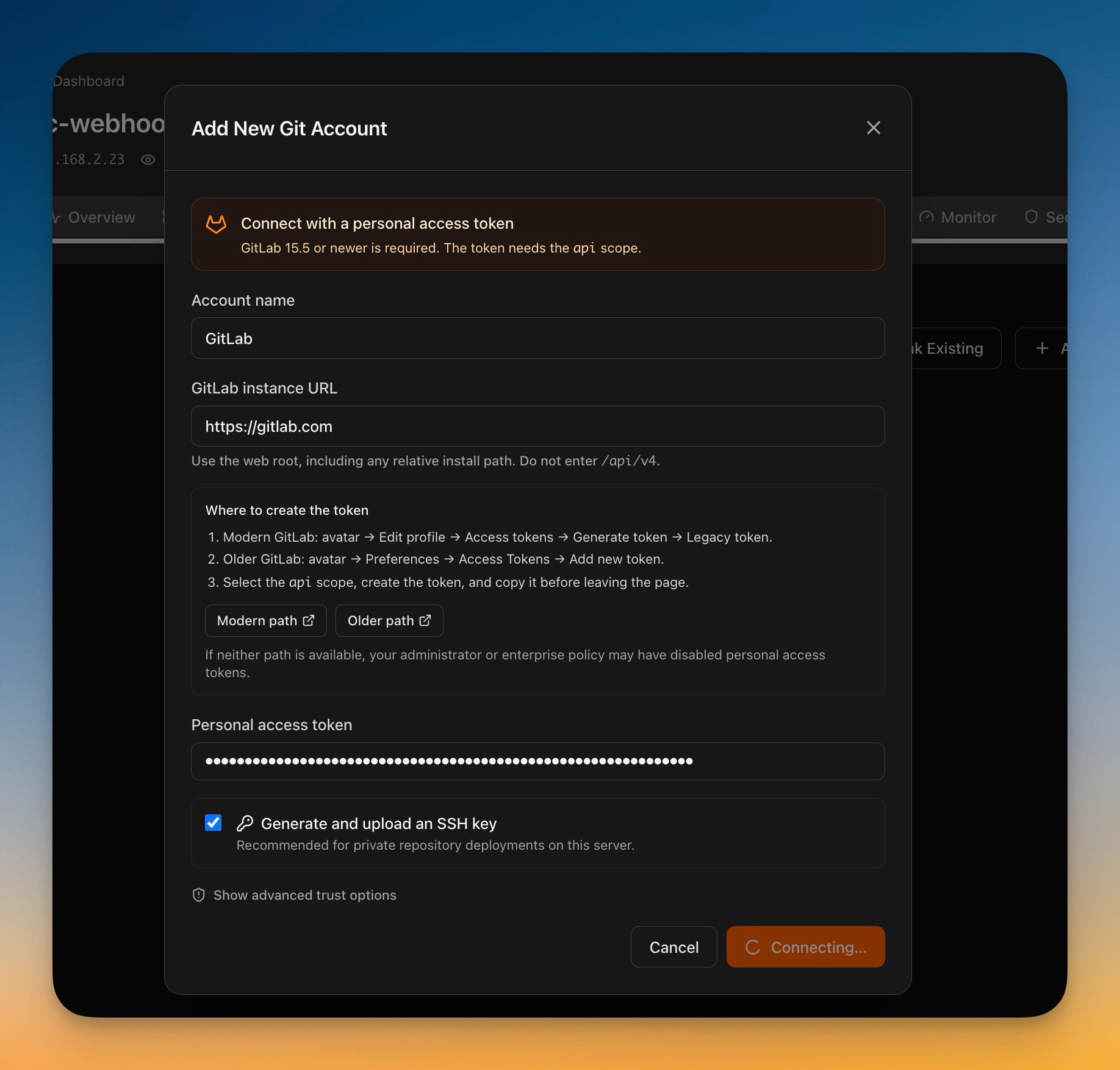
The form tells you where the token actually lives, which is the part that usually costs ten minutes: GitLab moved personal access tokens between releases, so there are separate instructions for modern GitLab (avatar → Edit profile → Access tokens) and older GitLab (avatar → Preferences → Access Tokens), each with a button that opens the right page. It needs GitLab 15.5 or newer and the api scope, and it says so up front rather than failing with a permissions error later.
The GitLab instance URL is where self-managed installs are handled. Point it at gitlab.com or at your own address — including a relative install path if your GitLab lives under one. Leave /api/v4 off the end; Server Compass adds it.
Tick Generate and upload an SSH key and the key for that server is created and pushed to your GitLab account in the same step. For private project deployments that is the recommended path, and doing it here means you never open a terminal to paste a key.
Deploy the project
From that point GitLab is just another source. Create an app, choose to deploy from a Git repository, and pick your GitLab account — the project list is yours, private ones included.
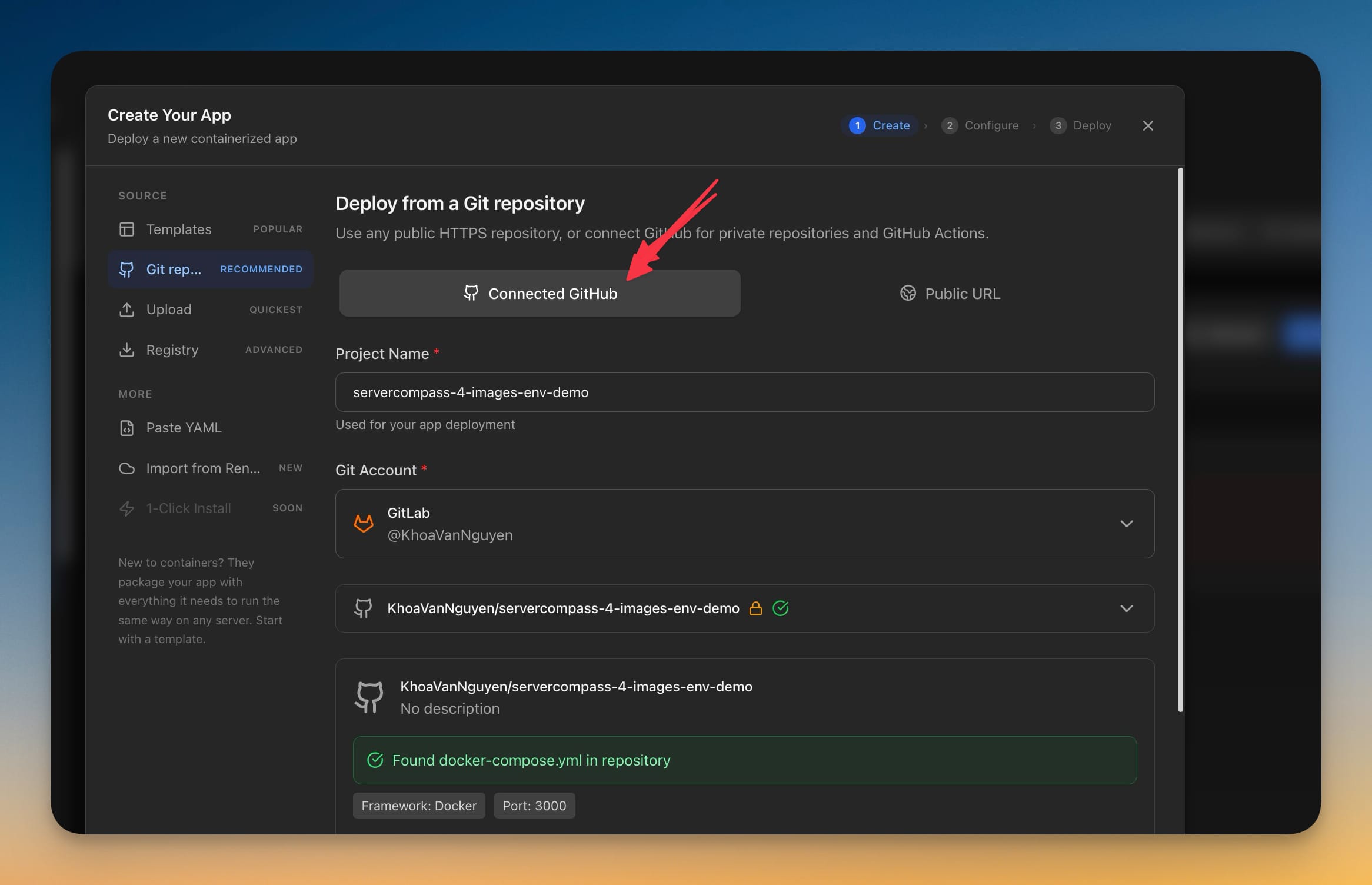
Projects in nested groups work, however deep they are. A project at platform/backend/services/api is selectable, which sounds obvious until you have used a tool that only ever listed your top-level namespace.
Server Compass reads the repository the same way it does for GitHub — finding docker-compose.yml, detecting the framework, and picking up the exposed port — so the rest of the wizard is unchanged.
Choose a branch, then ship it

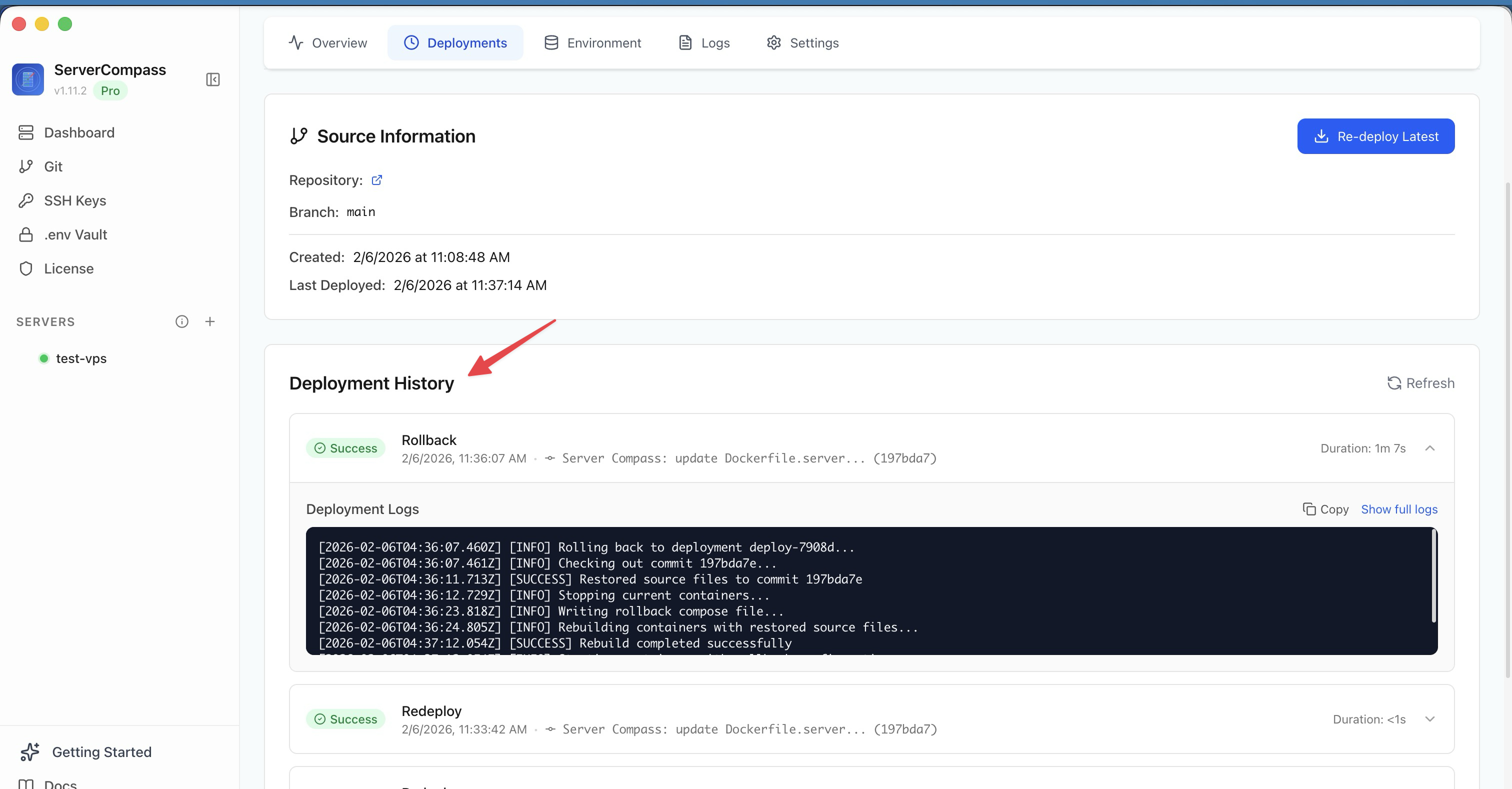
Build on VPS supports GitLab too: pick a project and a branch and it builds straight on your server. Everything downstream — deployment history, logs, redeploys, rollbacks — behaves exactly as it does for any other app.
One deliberate limitation is worth knowing about: GitHub Actions builds and GitHub Container Registry stay GitHub-only, because they are GitHub products. When an account picker hides accounts for that reason it tells you how many were hidden and why, rather than leaving you to wonder where your GitLab account went.
Your tokens stay out of your repositories
This release also stops a quieter problem. Server Compass no longer writes a personal access token into the repository address stored on your server, so a token can no longer be read out of a checkout later by anyone who can see the filesystem.
If an existing checkout still carries one, the app now tells you — and distinguishes the two cases honestly. Sometimes the address just needs migrating; sometimes the token has been sitting in a readable file and should be rotated. It walks you through replacing it and confirming you revoked the old one, instead of quietly rewriting the URL and letting you believe a leaked credential is now safe.
Self-managed GitLab is trusted deliberately, too. Connections are HTTPS by default; plain HTTP or a self-signed certificate each require your explicit approval, remembered per account. And replacing a token with one belonging to a different user is refused with an explanation rather than silently repointing the account at someone else.
Before vs After
| Deploying a private GitLab project | Before | Now |
|---|---|---|
| Getting access | Make the repo public, or set up a deploy key over SSH | Connect an account with a token, once |
| Self-managed GitLab | Not supported | Point it at your own instance URL |
| A project in nested subgroups | Not selectable | Selectable at any depth |
| SSH key for the server | Generate and paste it yourself | Ticked in the same form |
| Token on the server | Embedded in the repository URL | Never written; existing ones flagged |
Also in this release
Deleting a server no longer waits for the server to answer. It disappears from every list immediately and the cleanup finishes in the background — so a server that is already gone can finally be deleted. Anything still outstanding lands in a new Pending Cleanup tab in Settings with a count badge: leftover SSH configuration, local key files, keys on your Git provider, registry tokens. Retry what failed, or abandon it — and abandoning tells you exactly what is being left behind so you can remove it yourself. It survives quitting the app, and a deletion started on another computer is recognised after a restore rather than reappearing as though nothing happened.
Removing a Git account now cleans up only the keys Server Compass created for that server, instead of every key whose name happens to begin with "ServerCompass".
You can stop or start one service at a time. From an app's Overview, a single container goes down while the rest of the app keeps running — and a domain served by that container is suspended so visitors get a clear response instead of a broken page. It comes back automatically when you start the container again, and domains served by other containers are untouched. Force stop is there when you want it down regardless, with a warning that the domain may return an error. Starting a service that was never created builds it rather than failing, failures show the real error from the server, and the app's overall status settles honestly on Running, Partial, or Stopped.
Apps restored onto a different computer ask to be reconnected. The Overview shows which Git account the app needs and lets you pick one — only accounts on the same provider and same instance address are offered, and the original project is matched for you. Deploying is held back until reconnection succeeds, rather than failing halfway through a deploy.
Who benefits most
If your team is on self-managed GitLab, this is the release that makes Server Compass usable at all — the instance URL field and the per-account trust decisions exist precisely for you.
If you run a mix of GitHub and GitLab, accounts now coexist per server, and the pickers are honest about which features are provider-specific instead of quietly dropping options.
If you have ever deleted a server that was already unreachable, the cleanup work finally finishes without holding the UI hostage — and tells you what it could not do.
Try it
Open Git Accounts, add a GitLab account, and deploy something private. The token form links you straight to the page that creates it.
Download Server Compass 1.39.0 and stop making repositories public just to get them deployed.
From across the StoicSoft network
Hand-curated reads on the same topic from sister sites in the StoicSoft family.
 1DevTool11 min read
Self-Hosted AI Coding Assistant Workflow: Practical Setup Guide
A self-hosted AI coding workflow needs more than model hosting. You need environment control, connector governance, and reproducible operations. This guide covers the practical stack.
Read on 1devtool.com 1DevTool5 min read
Switch AI Agents Mid-Task — and Pick Up Sessions From Any Terminal
Switch the AI agent on any terminal tab without losing the conversation, pull in sessions running in iTerm or Ghostty, and publish straight to GitLab.
Read on 1devtool.com 1DevTool8 min read
AI Skills Manager & Docker Deep Dive: Extend Your Agents, Monitor Your Containers
Browse, create, and install AI agent skills with built-in security scanning. Plus a redesigned Docker manager with live CPU, memory, and network monitoring for every container.
Read on 1devtool.com