May 23, 2026
Never Lock Yourself Out of Your Server Again
Server Compass now protects your SSH firewall rule from accidental deletion, blocks duplicate port 22 entries, and adds per-config backup passphrases — so critical access paths can't be removed by mistake.
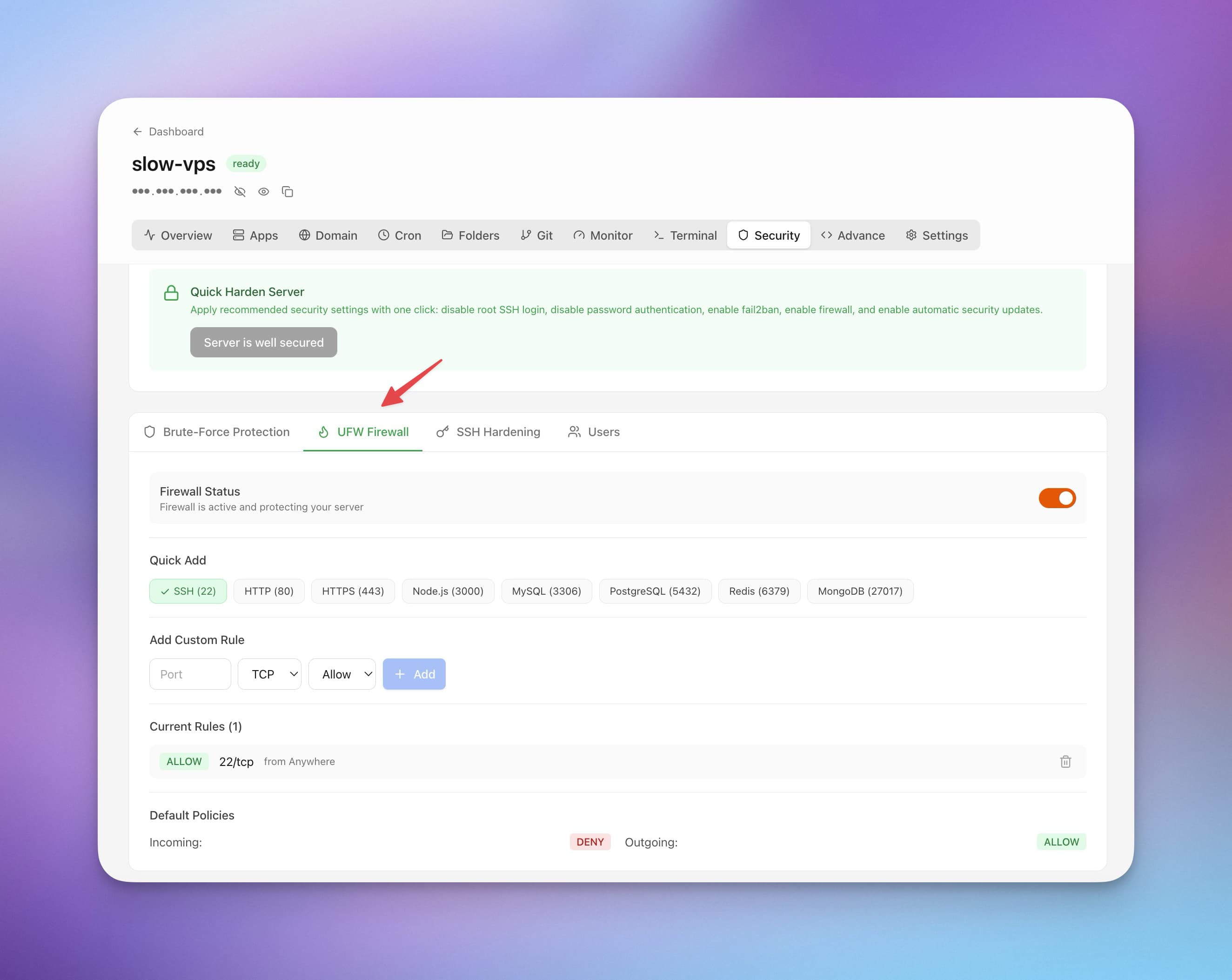
There's a particular kind of panic that every server admin knows: you're cleaning up firewall rules, you delete one that looked redundant, and suddenly your SSH session freezes. You just locked yourself out of your own server. The fix involves a console session through your hosting provider's dashboard, if you're lucky — or a full server rebuild if you're not.
It shouldn't be this easy to brick your own access.
What Changed
Server Compass v1.25.1 makes it impossible to accidentally remove your SSH access rule from the firewall. The app now protects port 22 at every level — the rule list, the custom rule form, and the delete action — so you can manage UFW freely without ever risking a lockout.

How It Works in Practice
SSH Port Protection
The firewall rules panel now marks your SSH access rule (port 22) with a "Protected" badge. The delete button is replaced with a shield icon — there's no way to remove it through the UI, even by accident.
If you try to add a custom rule for port 22, the form shows a clear warning: "SSH is managed automatically." This prevents duplicate rules that could conflict with the protected one, and stops you from creating a rule that you might later delete thinking it's redundant — only to discover it was your only SSH path in.
Quick Add port shortcut buttons are hidden entirely when UFW is inactive. No point showing port shortcuts when the firewall isn't running — it just creates confusion about whether rules are actually applied.

Live Status Indicators
Adding, deleting, or refreshing firewall rules now shows inline progress on each rule row. Instead of clicking "Delete" and wondering if anything happened, you see a spinner on that specific rule until the operation completes. This is especially useful on slower connections where UFW operations can take a few seconds.
Root User Protection
The user management panel applies the same principle to the root account. A shield icon replaces the delete button for root — you can't accidentally remove the account that owns the system. This mirrors the firewall protection: critical system resources get visual protection, not just a confirmation dialog that you can click through on autopilot.
Per-Config Backup Passphrases
Each S3 storage configuration can now have its own encryption passphrase, with automatic fallback to the global passphrase when a per-config one isn't set. If you back up different servers to different S3 buckets — production to one account, staging to another — you no longer share a single passphrase across all of them.
The backup section also got a layout refresh: the server picker is shown by default instead of hiding behind a click, the backup button shows the exact server count ("Back up 3 servers now"), and recent backups are separated into their own card for easier browsing.

Before vs After
| Scenario | Before v1.25.1 | After v1.25.1 |
|---|---|---|
| Delete an SSH firewall rule | Allowed — risk of lockout | Blocked — shield icon, no delete button |
| Add port 22 as a custom rule | Allowed — creates confusing duplicates | Warning message: "SSH is managed automatically" |
| UFW is off, port shortcuts visible | Shortcuts shown — misleading | Hidden until UFW is active |
| Firewall rule operation in progress | No feedback — is it working? | Inline spinner per rule |
| Delete root user | Allowed with confirmation dialog | Blocked — shield icon |
| Backup passphrase for multiple S3 configs | One global passphrase for all | Per-config passphrase with global fallback |
Try It
Update to Server Compass v1.25.1. Open the Firewall section and look for the shield on your SSH rule — it's already protected. Then check Cloud Backup settings if you use multiple S3 configurations — the per-config passphrase field is ready to use.