June 3, 2026
Move Render Apps to Your Own VPS Without Rewriting the Dockerfile
Server Compass v1.26.0 connects to your Render API key, pulls env vars, domains, secret files, and build commands, and generates a Docker plan you can deploy in one click — plus firewall lockout protection for custom SSH ports.
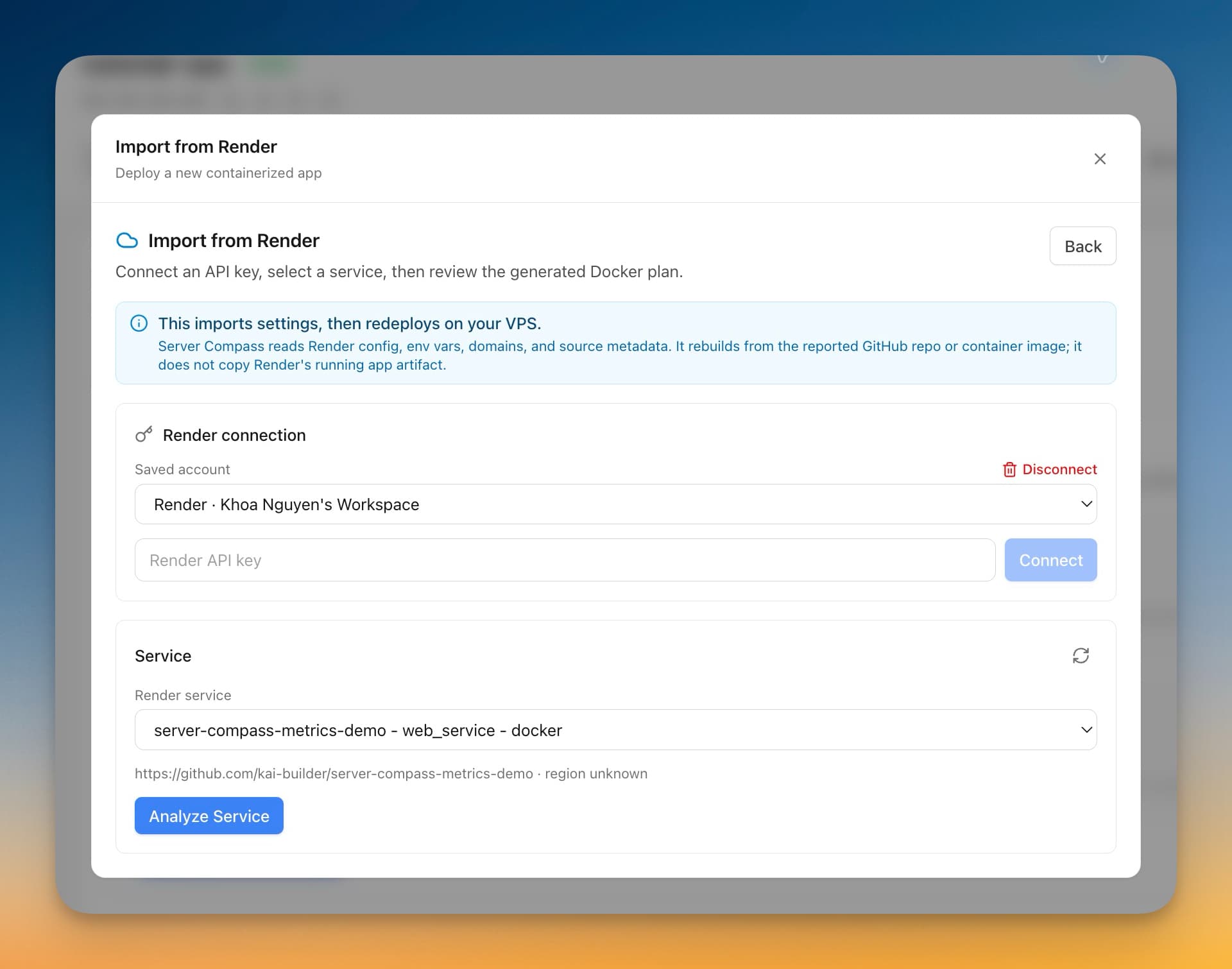
You moved to Render because deploying felt easy. Push to a branch, watch the build, click a domain into place. It was nice — until the monthly bill stopped looking like one service and started looking like a small AWS invoice. Or the cold starts on the Starter plan started cutting into your launch. Or the company VPS sitting at home, idle, started feeling like a missed opportunity.
The plan was simple: move off. Then you opened Render's dashboard, expanded the environment variables tab, and started counting. Twelve env vars on the web service. Three secret files. Two custom domains, each with its own DNS, redirect, and SSL setup. A managed Postgres on the side. A Redis. A build command you wrote eight months ago and now can't quite remember the flags for. The "move it tomorrow" plan turned into a "block out a full Saturday and pray" plan.
What changed
Server Compass v1.26.0 introduces Import from Render — connect a Render API key, pick the service you want to move, and you get a ready-to-deploy Docker plan on your VPS in one wizard. Env vars, custom domains, secret files, runtime, build commands, and dependency hints all come through in a single import. The Docker Compose file, Dockerfile, port config, and project name are auto-generated. Companion managed services (Postgres, Redis, Key-Value) are detected and surfaced as warnings so the data layer doesn't get forgotten.
How it works in practice
Connect a Render API key (once)
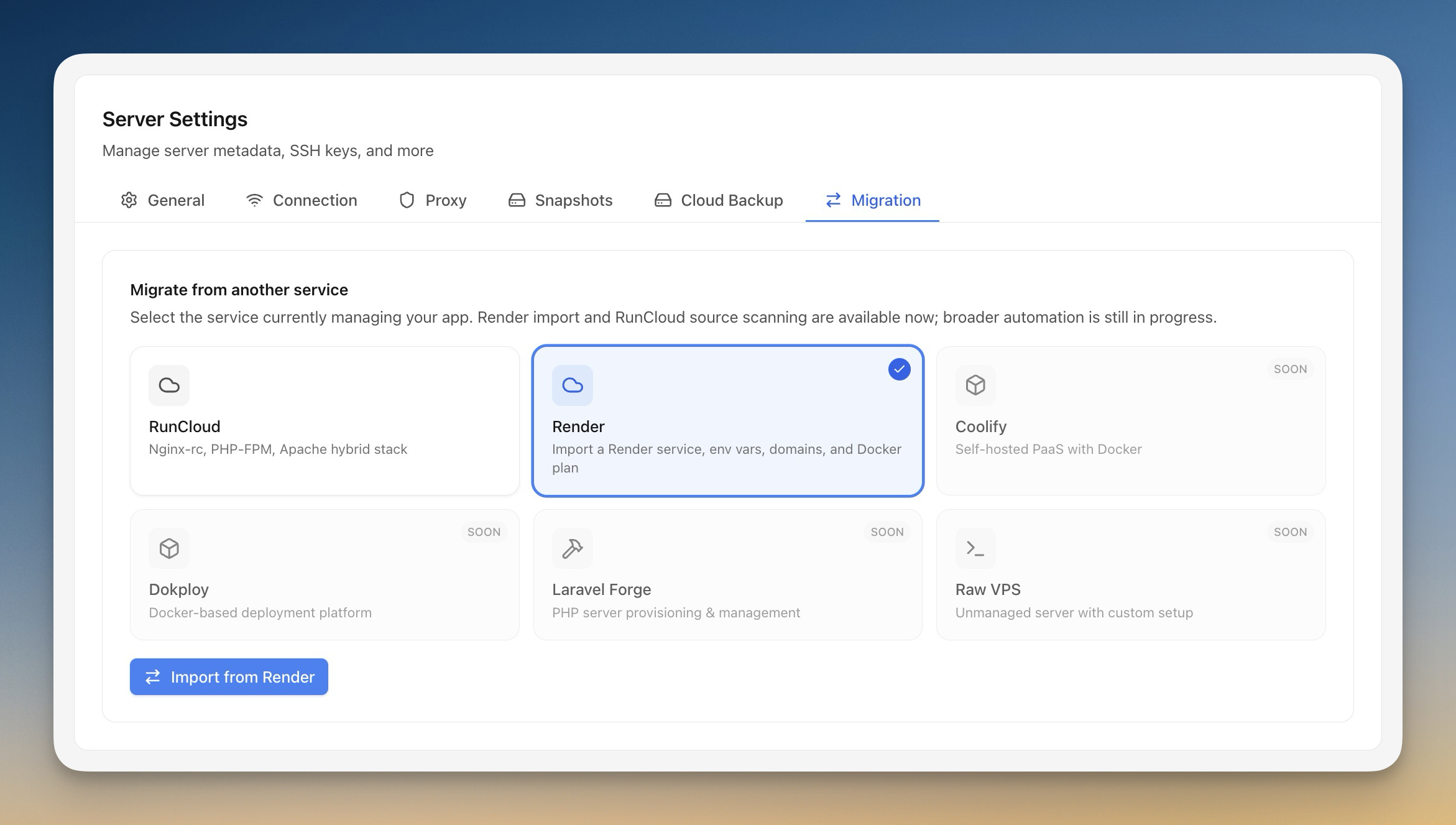
Open Server Compass, pick the server you want to deploy onto, and head to Server Settings → Migration. Pick Render from the source tiles — RunCloud is the other live option; Coolify, Dokploy, Laravel Forge, and Raw VPS are queued for upcoming releases. Click Import from Render and paste a Render API key into the connection panel. The key gets stored in your local encrypted vault, not in any cloud config.
You can connect more than one Render account: switch between workspaces from the picker, disconnect any of them with a single click, and run multiple imports from the same wizard without re-pasting keys.
Pick the service, analyze the plan
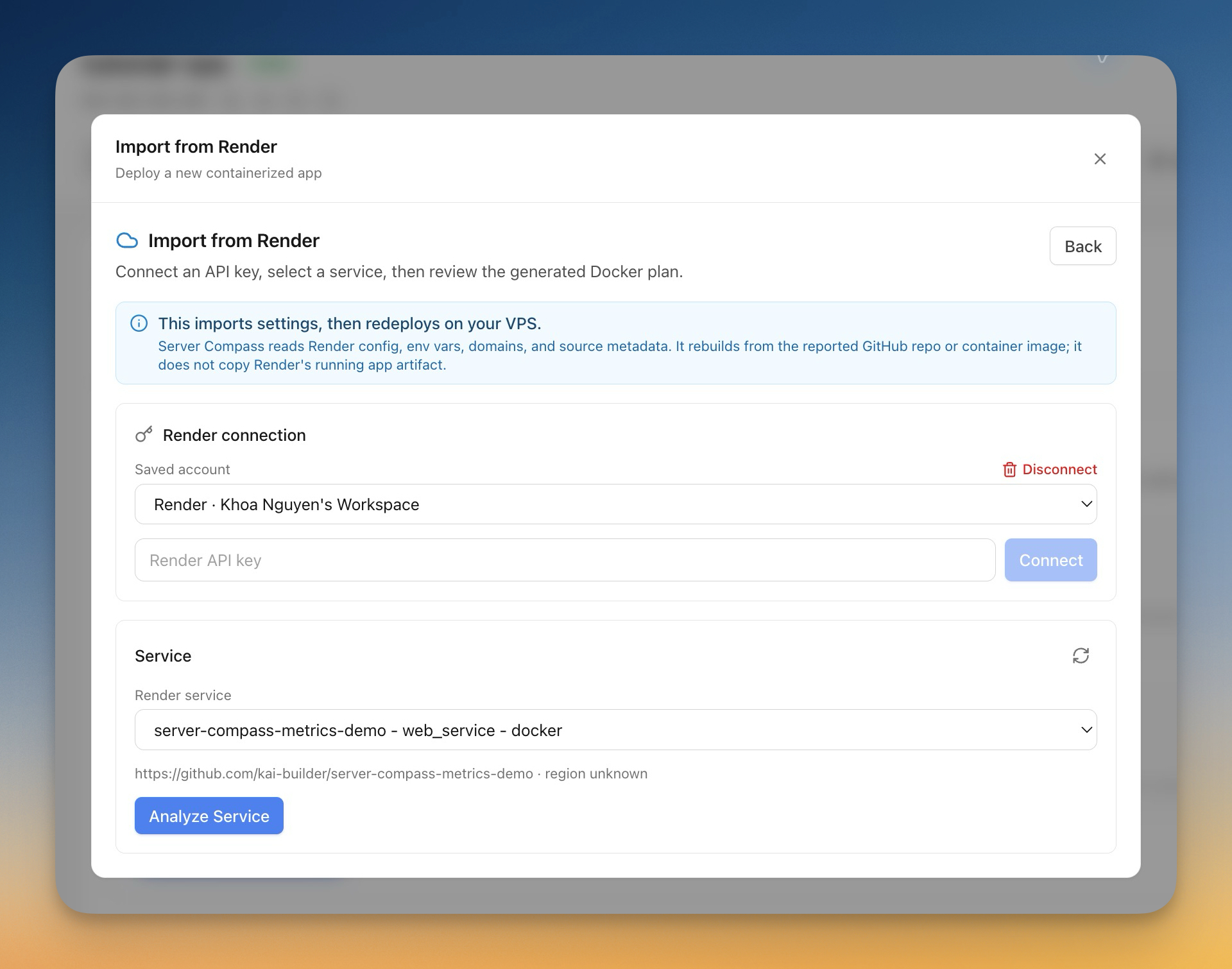
Once a key is connected, the Service dropdown lists every web service, background worker, and static site on the selected owner. Choose the one you want to move and click Analyze Service.
Server Compass reads the Render config in one request: environment variables (including the values, not just the keys), custom domains with their HTTPS settings, secret files, runtime, build command, start command, and the source repo or container image. From that, it builds a deployment plan — and it tells you, before you commit, which path it's going to take:
- GitHub build, if the service is wired to a repo. The generated Compose file points at the repo and branch Render was already tracking. The build command and runtime get translated into a Dockerfile that matches what Render was running.
- Paste-compose, if the service is image-based. The generated Compose pulls the same image Render was using. You'll still need registry access if it's a private image, but that's the only manual step.
Companion managed services — a Postgres database, a Redis instance, a Key-Value store — get listed as migration warnings on the analysis screen. They're not silently dropped or silently included; you decide whether to self-host them as Docker services alongside the app or keep them on Render for now.
Continue into the Stack Wizard
Hit continue and the Stack Wizard opens with everything pre-filled: project name, env vars, port config, Dockerfile (or paste-compose), and the Compose file ready to deploy. Env vars stay in the encrypted local vault until the build step ships them to the server — they don't get written to a tracked file, they don't leak into a public Compose snippet, and they don't sit on disk in plain text.
From here it's a normal Server Compass deploy: review the generated files, hit deploy, watch the build logs stream in real time. The first run takes the same amount of time as any other Compose deploy; from then on, the app behaves like every other Server Compass app — redeploys, env-var edits, custom domains, SSL, backups, all wired through the same dashboard.
Before vs After
| Step | Before | With Import from Render |
|---|---|---|
| Pull env vars | Open Render → Environment → copy each row by hand | One API call, all values in the encrypted vault |
| Pull secret files | Download each file from Render, re-upload to the VPS | Imported with the rest of the config |
| Translate runtime → Dockerfile | Read Render docs, guess at base image, retest build | Auto-generated Dockerfile matching the Render runtime |
| Custom domains | Re-add each domain to the reverse proxy and re-issue certs manually | Pre-filled in the deploy plan |
| Companion DB/Redis | Forget one and have the app boot empty on Sunday | Surfaced as warnings before the deploy starts |
| Time to a working VPS deploy | A full afternoon, maybe two | The length of one Compose build |
Who benefits most
Solo founders watching the Render bill creep up — a single web service plus a managed Postgres on Render is around fifty dollars a month before traffic. The same workload runs on a five-dollar VPS once you're past the Compose file. Import from Render makes the move a wizard step instead of a Saturday.
Agencies moving client apps off shared infrastructure — every client app you import comes with the same env vars, secret files, and domains it had on Render. Re-deploys, backups, and domains then sit in the same Server Compass dashboard as every other client server.
Devs migrating to homelab hardware — Render's free tier is generous until your project gets popular. Importing into a homelab VPS keeps the same env vars, the same domains, and the same runtime — no rewriting required.
Firewall lockout protection — the companion safety net
Once your app is on the VPS, you'll likely want to lock down the firewall. v1.26.0 also ships a quiet but important improvement here: Server Compass now respects your custom SSH port when you enable the firewall.
Before this release, "Enable Firewall" hardcoded port 22 as the allowed SSH rule. If your server ran SSH on a non-standard port (20203, 2222, anything but 22), enabling UFW silently locked you out — the default-deny policy went up, port 22 was the only allowed inbound, and your real SSH connection had nowhere to land.
Now the firewall reads your real SSH port from the server settings, refuses to enable UFW if that rule wasn't persisted first, and blocks you from accidentally adding a custom rule that conflicts with the managed SSH port. The SSH rule in the rules list shows a "Protected" shield instead of a delete button, just like port 22 used to.
It's not the headline of the release, but it's the kind of fix that turns a 30-minute "console rescue" into a non-event.
Try it
Open Server Compass, switch to a server, and head to Server Settings → Migration. Pick Render, paste a key, and click through one service. The whole flow — connect, pick, analyze, deploy — runs in the same wizard you already know.
Download v1.26.0 to get Import from Render and Firewall Lockout Protection on your VPS today.
From across the StoicSoft network
Hand-curated reads on the same topic from sister sites in the StoicSoft family.
 1DevTool8 min read
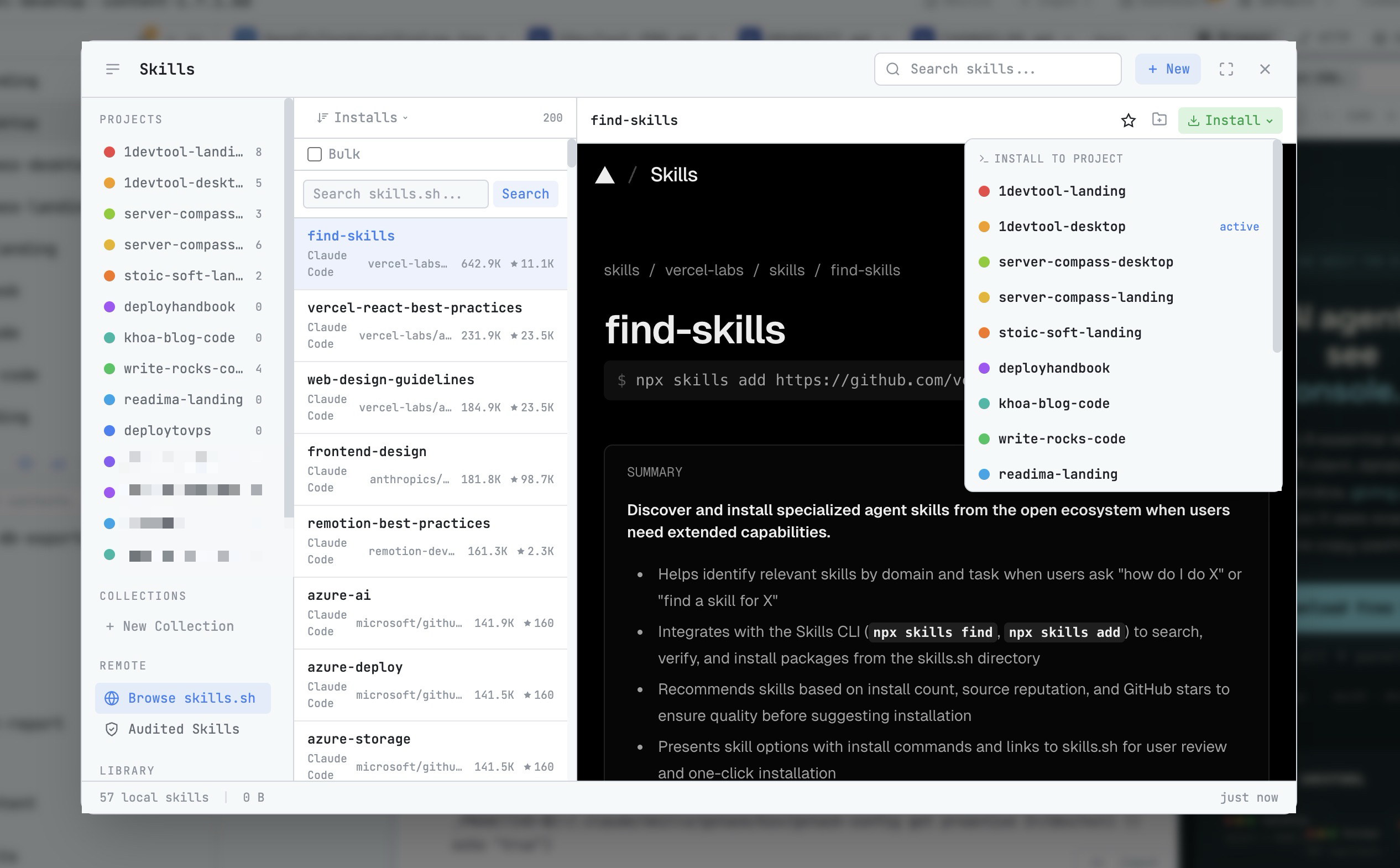
AI Skills Manager & Docker Deep Dive: Extend Your Agents, Monitor Your Containers
Browse, create, and install AI agent skills with built-in security scanning. Plus a redesigned Docker manager with live CPU, memory, and network monitoring for every container.
Read on 1devtool.com 1DevTool10 min read
Docker Desktop Alternatives for Developers in 2026
Developers want a Docker workflow that stays close to code, logs, and AI agents. This comparison breaks down Docker Desktop alternatives by performance, observability, and daily usability.
Read on 1devtool.com