November 22, 2026
Offload Apps to Free Disk Space Without Losing Them
Offload removes a rarely used app's containers and images to free disk space and keeps its data, settings and domains, so Reinstall brings it back at the exact versions it ran.
The disk on your VPS is at 87 percent again. You look at the apps on it: an analytics dashboard you open once a month, a staging copy of a client site, a wiki the team stopped using in the spring. None of them is worth paying for a bigger disk, and none of them is worth losing either. The options were to stop them, which frees nothing because their images stay on disk, or to delete them, which frees space but throws away their data, their domains and the compose file you spent an evening getting right.
So the apps stay, the disk fills up, and the next docker system prune is a careful hour of working out what is safe to remove.
What changed
Server Compass 1.47.0 adds Offload. It removes an app's containers and images to free disk space and keeps everything needed to bring it back: its data, settings, compose file, domains and tunnel routes. When you need the app again, Reinstall brings it back at the exact image versions it was running, not whatever its tags point to today.
How it works in practice
See what offloading frees before anything is removed
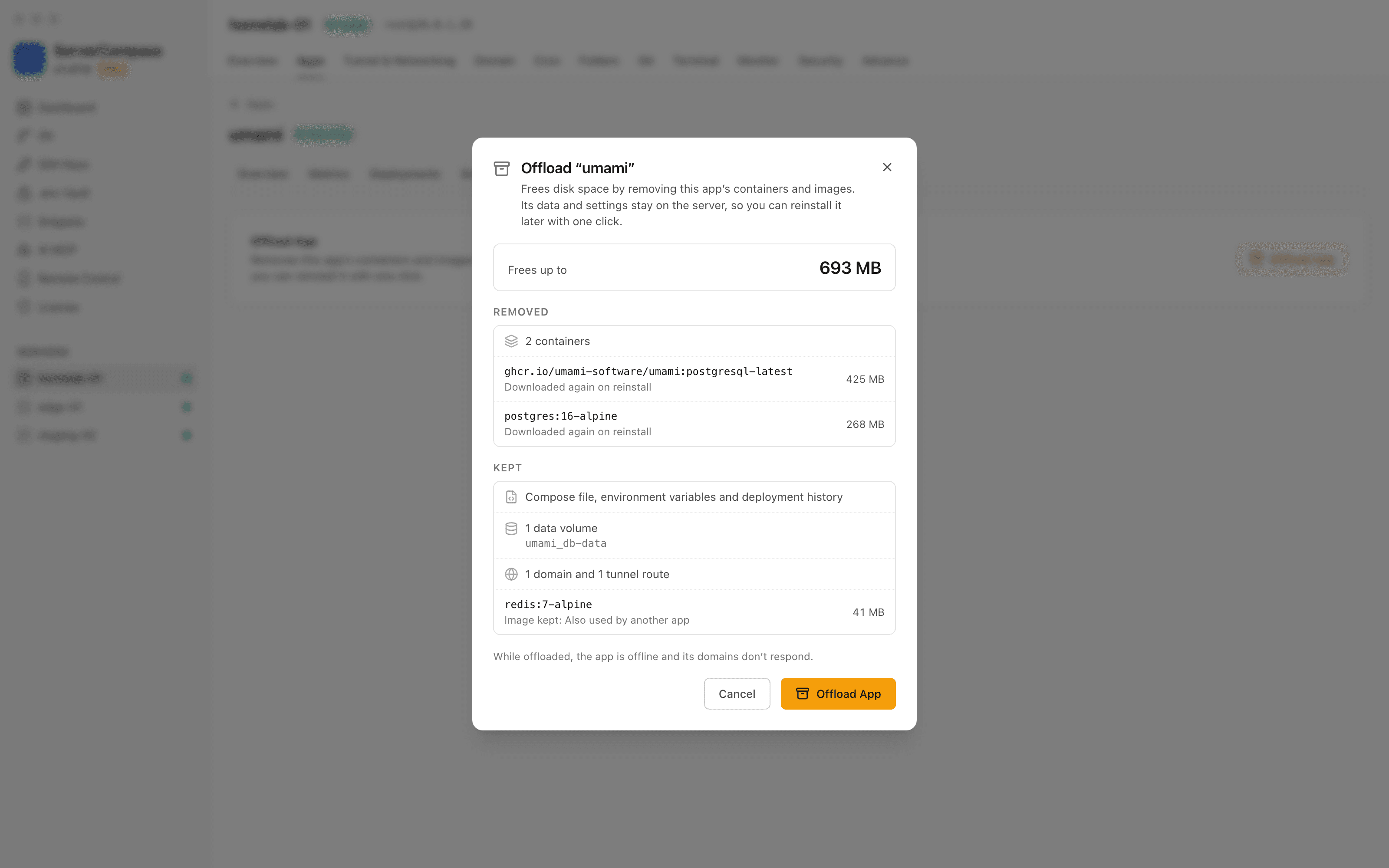
Open the app's Settings tab and choose Offload App. The app's Disk Usage panel offers the same thing when it sees the images taking space: "Rarely used? Offload to free up to" the amount it would free.
Before anything is removed, the dialog checks the server and shows the result:
- Frees up to — the space the removed images take today.
- Removed — the app's containers and each image, with how it comes back. An image built from source on the server says Rebuilt from source on reinstall. An image pulled from a registry says Downloaded again on reinstall, and it comes back by its exact digest.
- Kept — the compose file, environment variables and deployment history, the app's data volumes by name, any mounted folders, its domains and tunnel routes, and any image that is not safe to remove.
Keep what can't come back
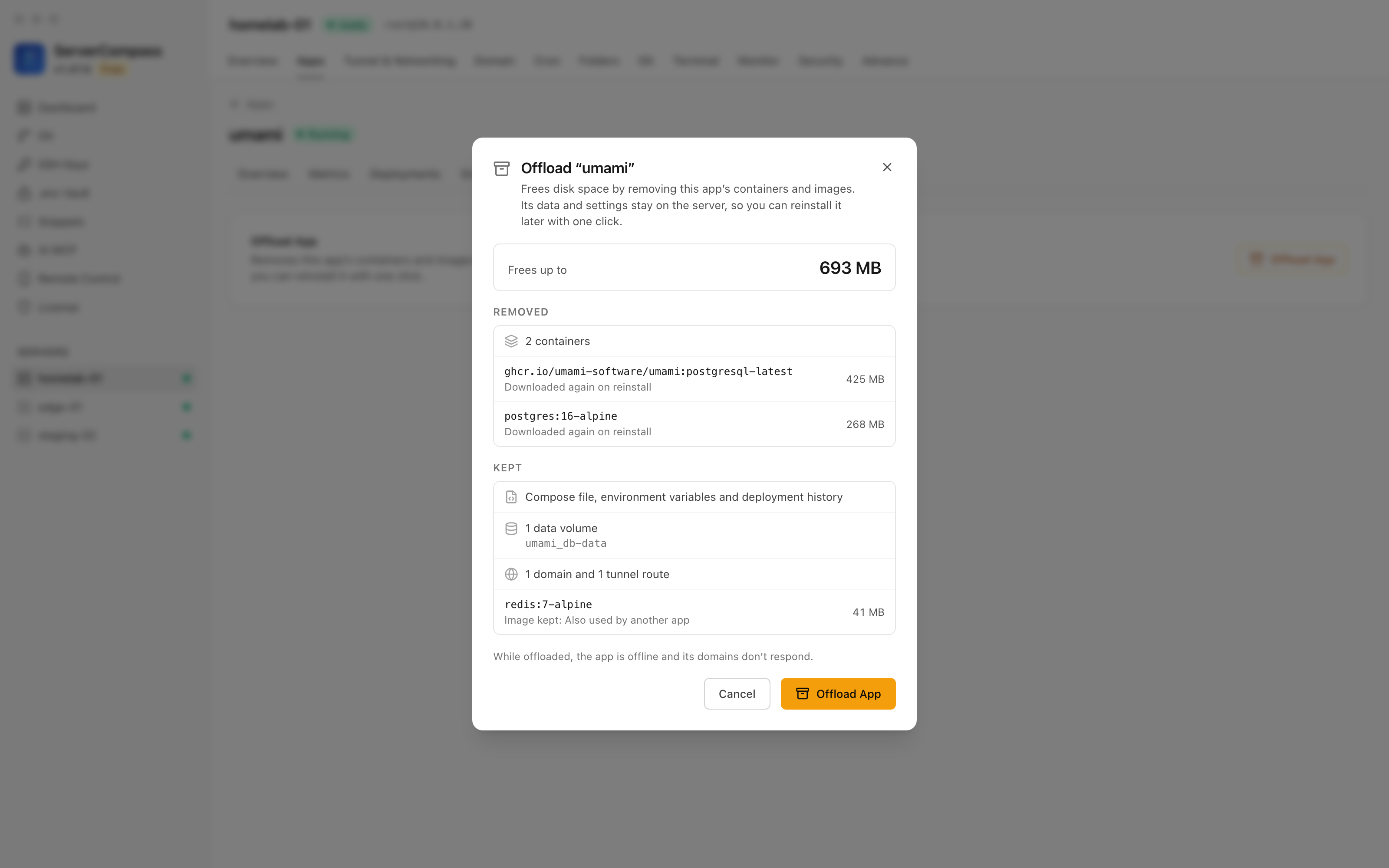
Offload never removes an image it can't restore. An image another app is also using is kept and marked Also used by another app. An image that only exists on this server is kept as Can't be downloaded again. If the registry can't confirm that an image is still downloadable, because it is unreachable or rate-limiting the check, the image is kept as Registry couldn't confirm it can be downloaded again rather than gambled on. When nothing can be removed safely, the dialog says the app can't be offloaded instead of offering an offload that frees nothing.
Data in named volumes stays on the server. Folders that use anonymous Docker volumes are different: the volumes stay on disk, but a reinstalled app starts with them empty. The dialog lists those folders under Some data won't come back and asks you to tick that you understand before it continues. The last line says what to expect while the app is gone: it is offline and its domains don't respond.
Bring it back with one click
An offloaded app shows a banner on its page, This app is offloaded, with how much space it freed and a Reinstall button. In the Apps list its status reads Offloaded and its Start button becomes Reinstall.
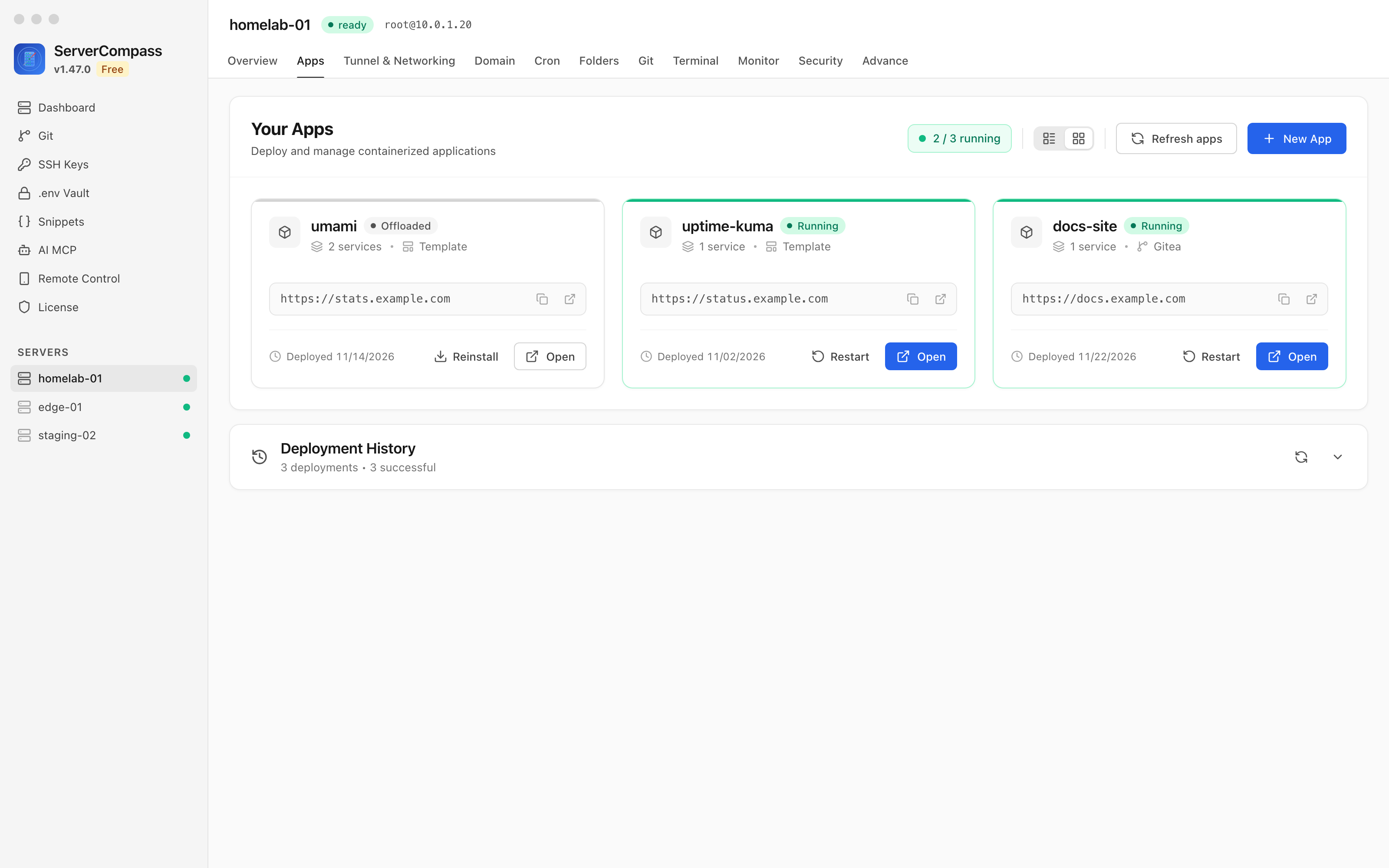
Reinstall rebuilds images from source where they were built on the server and downloads the rest by their exact digest, then starts the app on its existing data. Starting it any other way, from bulk actions, from an AI agent over MCP or from Remote Control on your phone, reinstalls it the same way, so nothing quietly pulls today's latest instead. Restart is refused while an app is offloaded, because there is nothing running to restart.
Domains come back with the app. Routes through Server Compass's Traefik and Cloudflare tunnel routes answer again once the containers are up. Domains served by Caddy or nginx are paused while the app is offloaded and resumed when it returns.
Clean up the rest of the disk without touching it
An offloaded app's data volumes have no container using them, which normally makes Docker treat them as dangling. Disk Management no longer lists those volumes as dangling, and its volume cleanup leaves them in place, so freeing more space later can't wipe the data you kept. The app's own Disk Usage panel disables its clean action while the app is offloaded.
Before vs After
| Goal | Before | With 1.47.0 |
|---|---|---|
| Free an idle app's image space | Stop it (frees nothing) or delete it | Offload it |
| Keep its data and domains | Only by not deleting it | Kept automatically |
| Know what you'll free | Add up docker images by hand | Frees up to in the dialog |
| Avoid losing an image you can't get back | Check each one yourself | Kept and marked as not removable |
| Bring it back | Redeploy and hope the tags didn't move | Reinstall at the exact versions |
| Prune the rest of the disk safely | Work out which volumes are in use | Offloaded data volumes are left alone |
Who benefits most
- Homelab and small-VPS users with a disk that fills up, and a handful of apps they open now and then.
- Agencies and freelancers who host staging copies and old client projects that need to stay recoverable but don't need to run.
- Anyone who self-hosts seasonal tools, like a tax-season dashboard or an event site, that sit idle most of the year.
Try it
Update to Server Compass 1.47.0, open an app you rarely use and choose Offload App in its Settings. You see exactly what comes back and what stays before anything is removed, and you get the disk space back today without giving up the app.