September 23, 2026
Review Device Sync Before It Overwrites, and Serve Every Client Their Own Portal
Server Compass 1.44.0 shows you what changed on each device before a sync writes anything, and lets one server host branded client portals on separate hostnames.
If you run Server Compass on more than one machine, you have probably seen a sync go wrong at some point. Maybe you edited an app on your laptop, a teammate changed a server entry on the Windows box, and the next sync picked one side and quietly dropped the other. Or you logged into a client's portal and saw your own agency's hostname in the address bar, because the whole server shared one portal origin.
Both problems had the same cause. Server Compass assumed there was one right answer: one device state, one portal hostname. Version 1.44.0 drops that assumption in both places.
What changed
You can now serve several branded client portals from a single server, and when two devices disagree, device sync shows you the differences before it writes anything. The release also detects Cloudflare Tunnels that are already running on your server, so you can adopt them instead of rebuilding them.
How it works in practice
Review a sync before anything is overwritten
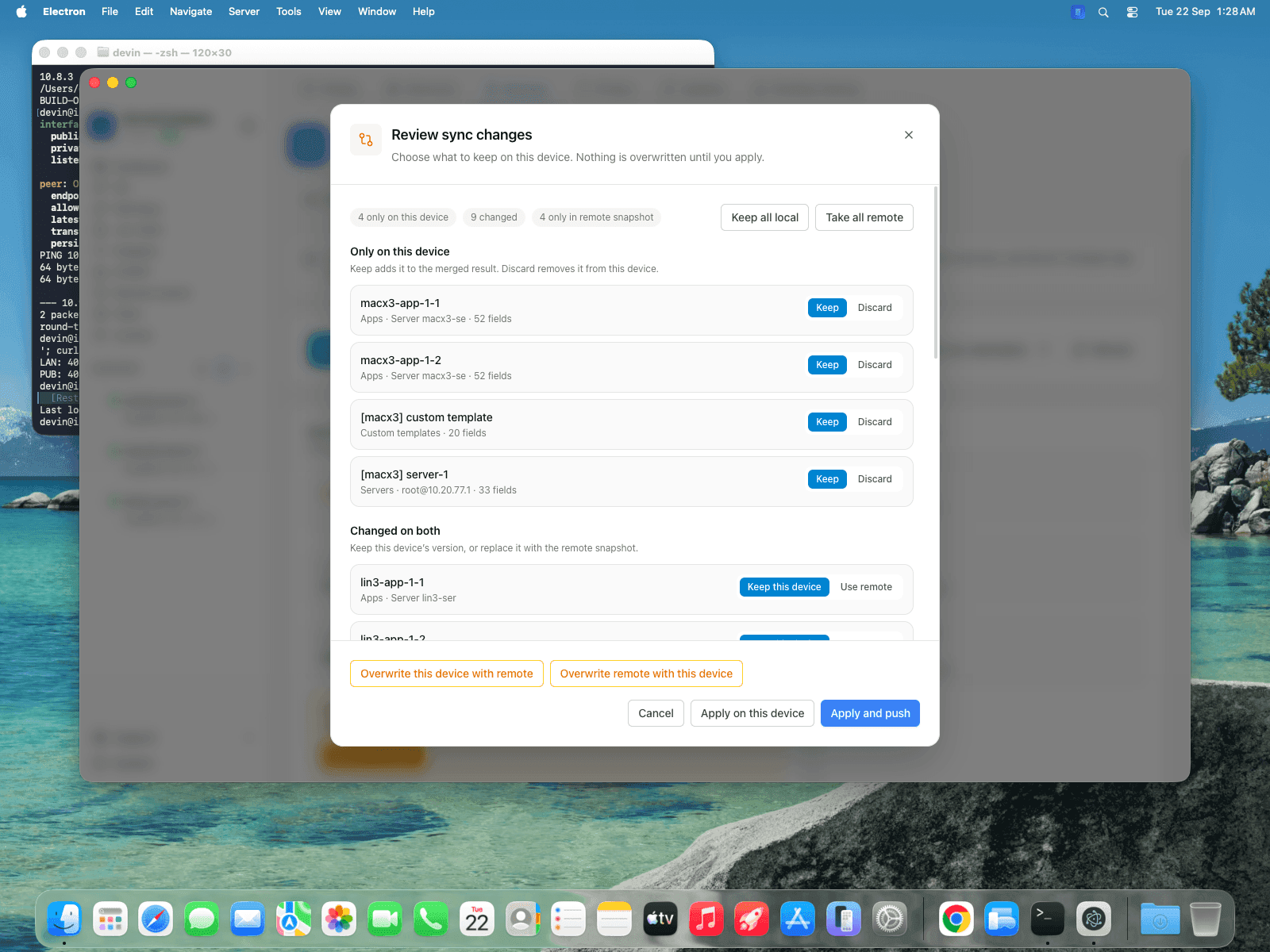
When this device and the remote snapshot have both changed, Server Compass opens Review sync changes instead of picking a winner for you. It explains the rule at the top of the dialog: "Nothing is overwritten until you apply."
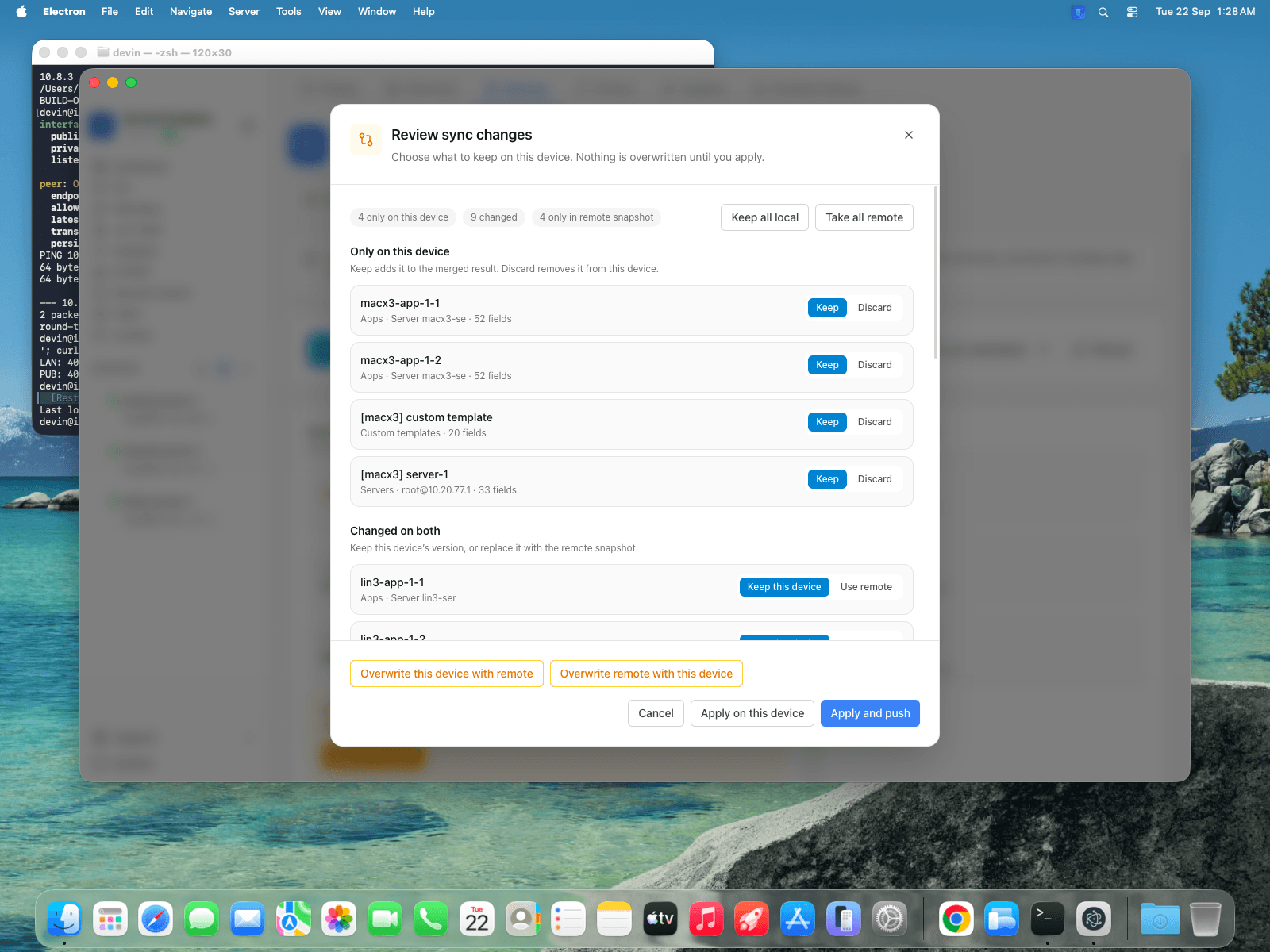
The dialog sorts the changes into groups. The counters at the top show how many records sit in each one:
- Only on this device: each record gets Keep (add it to the merged result) or Discard (remove it from this device).
- Changed on both: each record gets Keep this device or Use remote. If both sides edited the same field, you now see exactly what each side chose.
- Only in remote snapshot: records that came from another machine.
For quick decisions there are Keep all local and Take all remote. When you're done, click Apply on this device, or Apply and push to update the remote snapshot too. The blunt options, Overwrite this device with remote and Overwrite remote with this device, are still there, but you now have to pick them on purpose.
Behind the dialog, the Sync v2 engine tracks where the two devices diverged. It keeps changes from both sides when they don't collide. Before merging it re-checks the sync state, which closes the gap where several devices syncing in quick succession could merge stale records.
See every machine converge
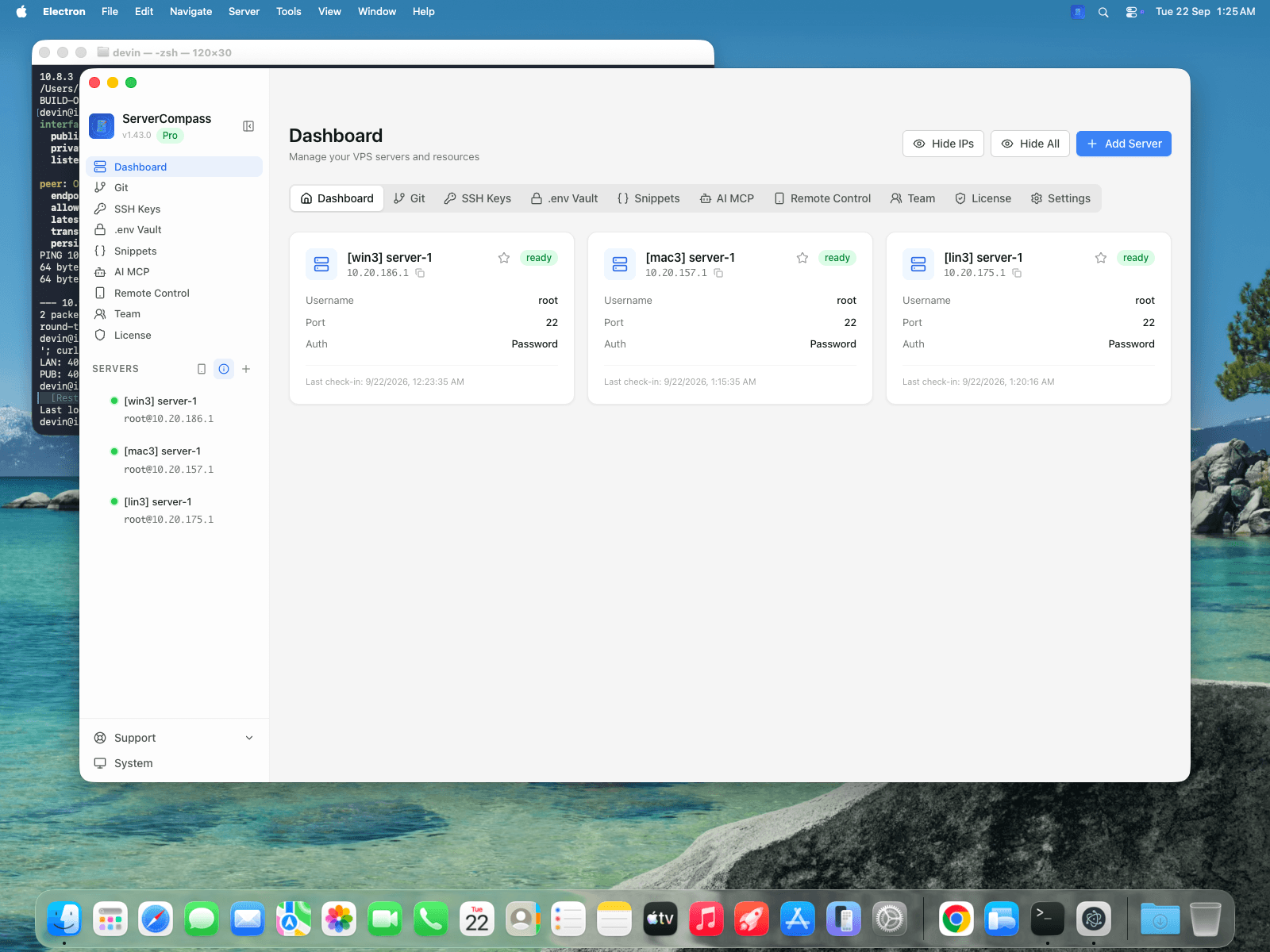
After the merge, each device shows the same servers. Here are three machines' worth of servers on a Mac:
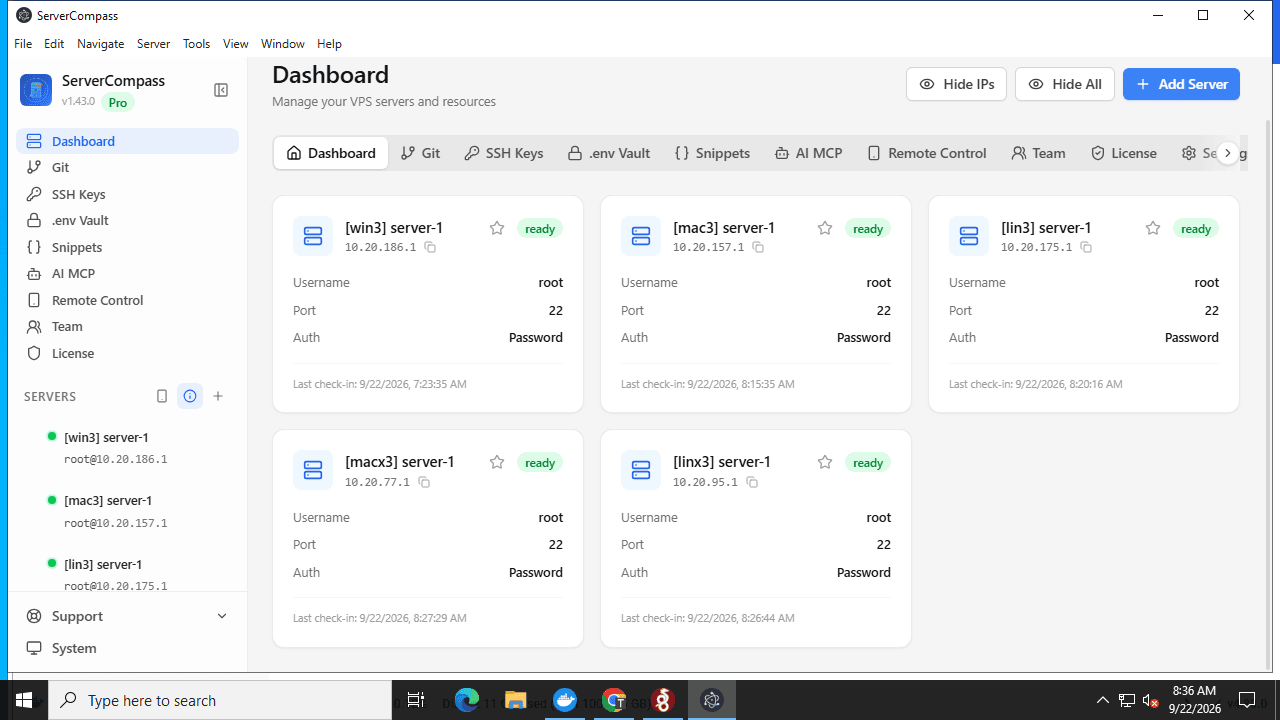
And here is the Windows machine after it pulled the merged snapshot, with servers from all of them:
You can check the state yourself under Settings → Backups → Device Sync. Push Now and Pull Latest run a sync by hand. Known Devices lists every machine and the version it runs. The status card tells you when This device matches the latest remote snapshot.
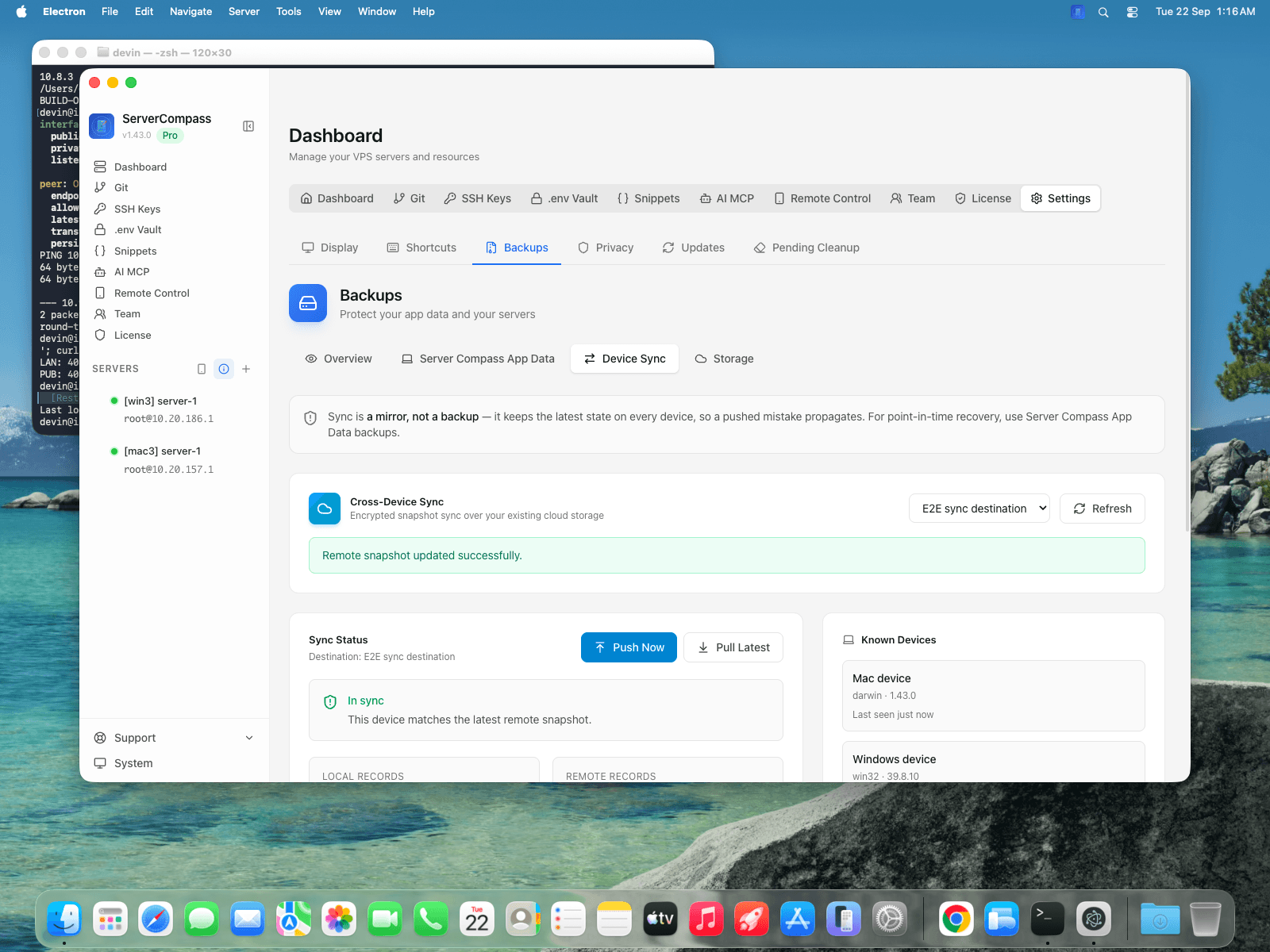
One thing hasn't changed: sync is a mirror, not a backup. A mistake you push spreads to every device. For point-in-time recovery, keep using Server Compass App Data backups.
Give each client their own portal hostname
The client portal runtime can now answer on several hostnames at once. When you create a client portal link, you choose a hostname for it. You can add a new one or reuse an existing one, so client 1 opens portal.company1.com and client 2 opens portal.company2.com, both served by the same runtime on the same server.
A few rules keep this predictable:
- The token is the authority. The hostname only controls branding, so a client's token works on any of the server's portal hostnames.
- Hostnames clean up after themselves. When you remove a hostname's last client link, that hostname goes away. The primary origin always stays with the installation.
- It works with your routing. Use managed Traefik, or point the hostnames at your existing reverse proxy.
Two related fixes make this reliable: hostnames now survive device sync and full restores, and new links no longer fall back to the primary hostname when other origins exist.
Adopt the Cloudflare Tunnels you already run
If you set up cloudflared on a server before Server Compass managed it, the app now finds those running tunnel connectors. You can adopt them and manage them like tunnels you created in the app. You don't have to tear them down and reconfigure them, and importing the existing setup avoids port collisions. Paused connectors are recognized too, and you can resume them. On the DNS side, adding a domain now recognizes CNAME records you already have instead of overwriting your manual setup.
Before vs After
| Task | Before 1.44.0 | With 1.44.0 |
|---|---|---|
| Both devices changed | One side wins silently | Review each record, then apply |
| Same field edited twice | Unclear which value survived | Review shows what each side chose |
| Rapid syncs across devices | Could merge stale records | State re-verified before merge |
| Portals for two clients | One shared hostname | One hostname per client, one runtime |
| Existing Cloudflare Tunnel | Recreate it inside the app | Detect and adopt it |
Who benefits most
- Agencies hosting client apps: every client gets a portal under a hostname that looks like theirs, without a second portal deployment.
- People who use Server Compass on a laptop and a desktop, or on macOS and Windows: edits made on both no longer overwrite each other without warning.
- Teams moving existing servers into Server Compass: tunnels and DNS you set up by hand get picked up instead of clobbered.
Try it
Update to Server Compass 1.44.0 from the download page, or let the in-app updater fetch it. Run a sync from Settings → Backups → Device Sync. The next time two machines disagree, you'll review the changes before anything gets overwritten.
From across the StoicSoft network
Hand-curated reads on the same topic from sister sites in the StoicSoft family.
 1DevTool6 min read
See Every Terminal and Resume AI Sessions Your Way
1DevTool v1.23.0 adds a full-screen Terminal Canvas for scanning live terminal work and editable resume commands for restarting AI sessions with the right mode.
Read on 1devtool.com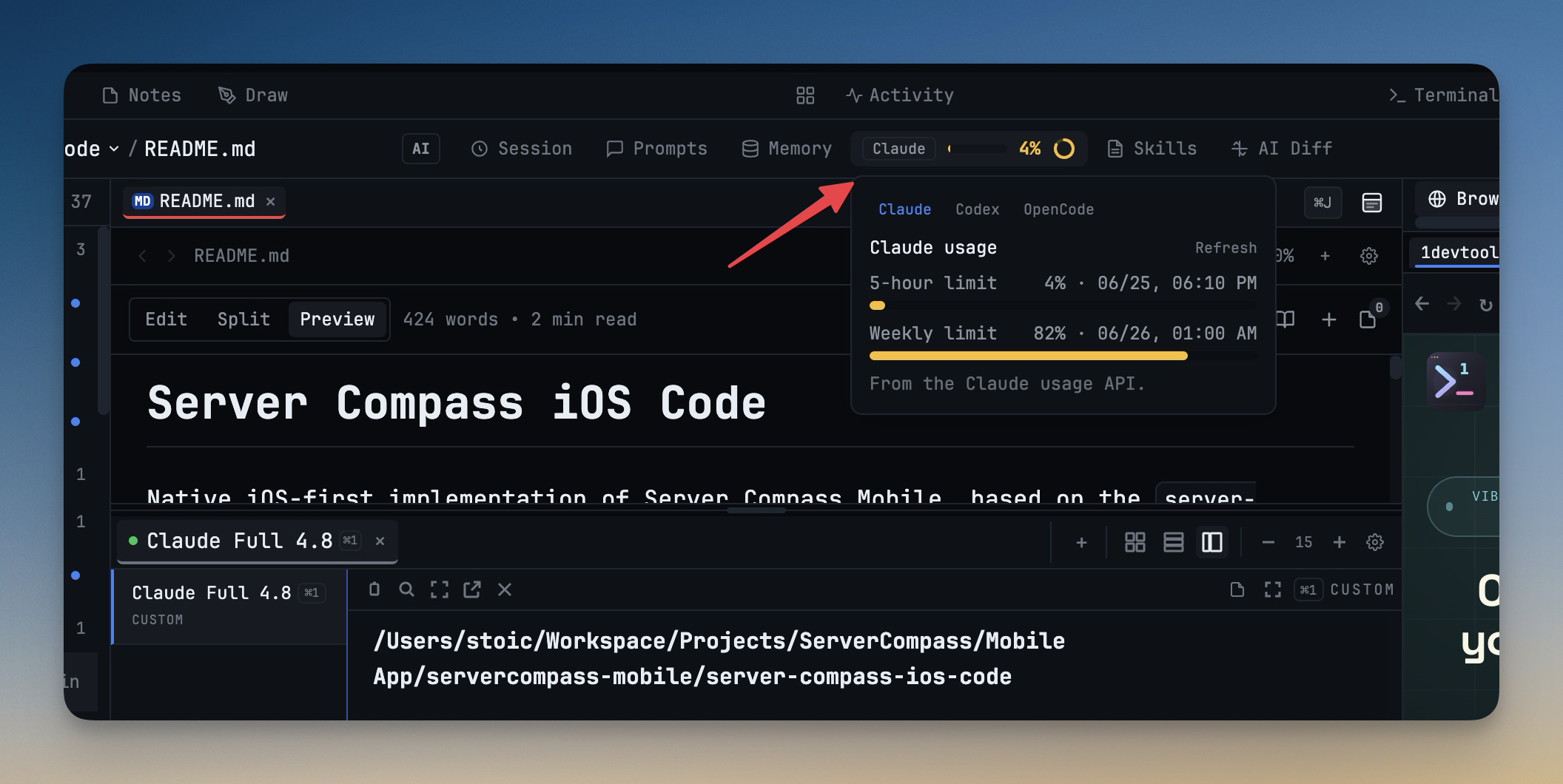 1DevTool6 min read
Track AI Usage Without Leaving Your Workspace
1DevTool v1.28.0 puts Claude and Codex plan usage in the status bar, keeps unsent Agent Input drafts visible, and gives the phone remote a faster tabbed home.
Read on 1devtool.com