August 19, 2026
Run a Full Linux Desktop in Your Browser, Self-Hosted
Deploy the new Webtop template from the Stack Wizard and get a full Linux desktop — Alpine XFCE, Ubuntu, Fedora and more — running in your browser, self-hosted on your VPS with your files kept across updates.
There's a particular kind of stuck you hit when you need a Linux machine that isn't the one in front of you. Maybe you want a clean desktop to test something without touching your laptop. Maybe you're on a locked-down work machine and just need a browser tab that opens into a real Linux session. Maybe you want to run a GUI app — a browser for scraping, a design tool, something that expects a screen — somewhere that stays on after you close the lid.
The old answer was a project in itself. Spin up a VM, install a desktop environment, wrestle with VNC or RDP, punch a hole in the firewall, and then discover the connection is either slow, insecure, or both. By the time you have a working desktop you can reach from anywhere, you've spent an afternoon on plumbing instead of the thing you actually wanted to do.
What changed
Server Compass now ships a Webtop template in the Stack Wizard: a complete Linux desktop that runs in your browser, self-hosted on your own VPS. You pick it from the same wizard you use to deploy anything else, set a username and password, and deploy. A minute or two later you open a URL and you're looking at a real Linux desktop — file manager, terminal, browser, the lot — rendered straight into a browser tab. No VNC client, no RDP, no extra software on the machine you're sitting at.
How it works in practice
Deploy it from the Stack Wizard
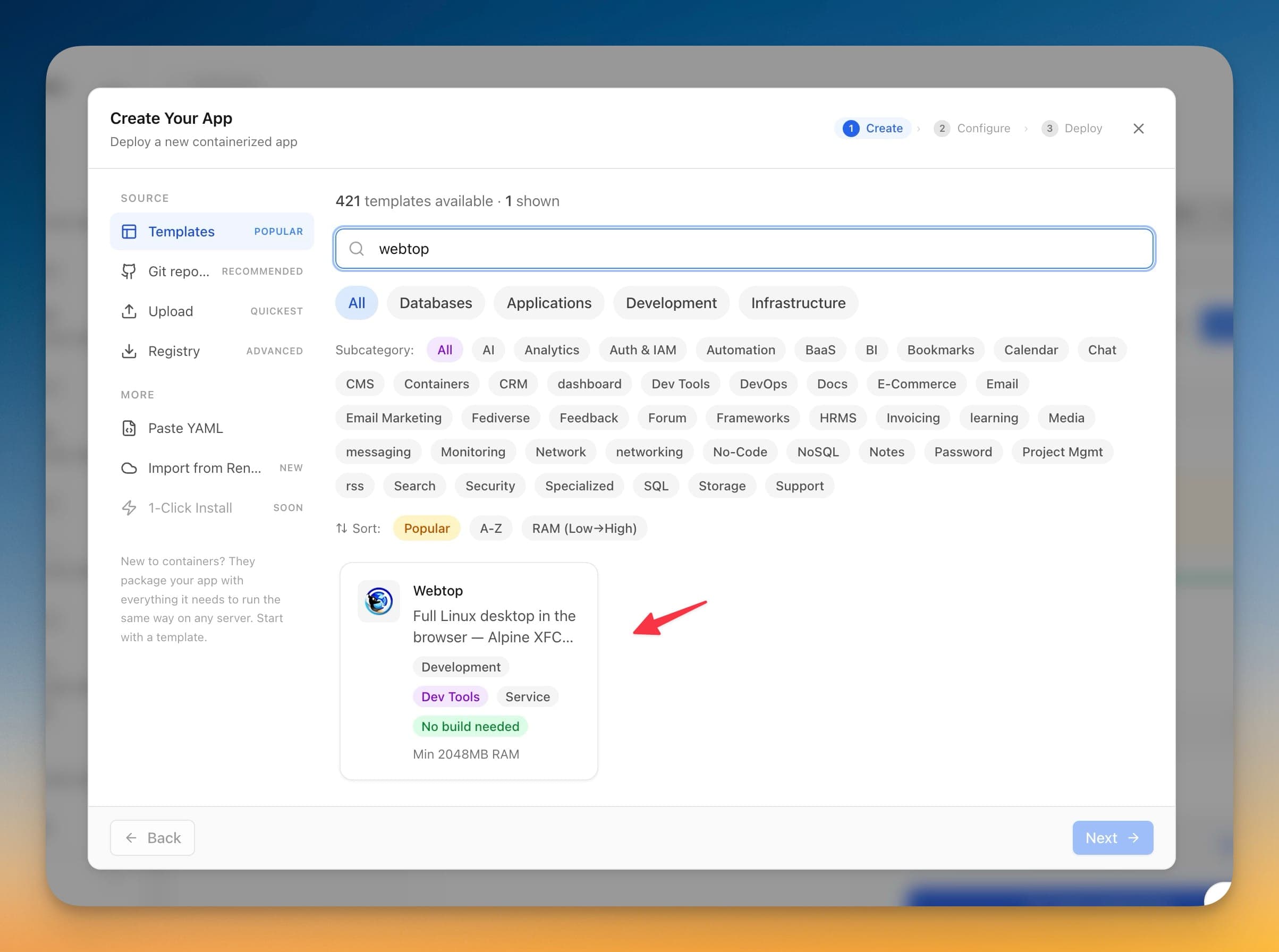
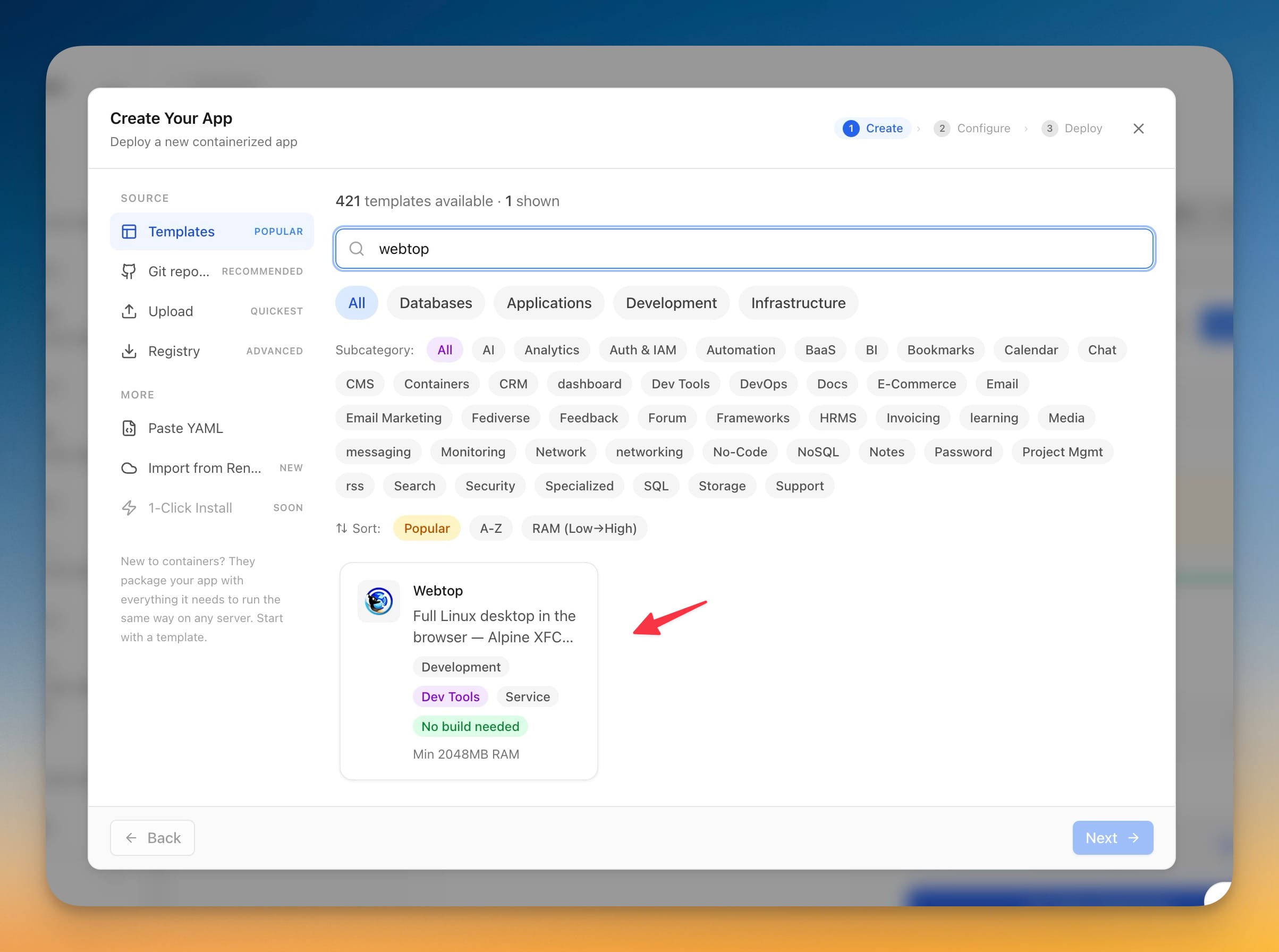
Open Create Your App, search the template catalog for webtop, and pick the Webtop card. It's tagged as a Development / Dev Tools service and needs only about 2 GB of RAM to start, so it fits comfortably on a small server. Give it a username and a password on the Configure step — that's the login you'll use to reach the desktop — and hit Deploy. The first launch takes a few minutes while the container finishes setting the desktop up; after that it comes up quickly. When you open the app you're prompted for that username and password, and then the desktop loads in the tab.
Because the desktop is served over HTTP on its own port to begin with, you can smoke-test it immediately at your server's address before you do anything else. Once you know it works, you'll want to give it a proper front door.
Pick your distro and desktop
The default is Alpine Linux with XFCE — deliberately lightweight, which is why 2 GB of RAM is enough to get going. But you're not locked into it. If you'd rather have Ubuntu, Fedora, Debian, or Arch, and a different desktop like KDE, MATE, or i3, you switch the image flavour and redeploy. The same template covers all of them; you're choosing which combination gets pulled. Want a familiar Ubuntu-with-XFCE session for a teammate who's never touched Alpine? Change the flavour, deploy, done. The desktop you get is a genuine one, not a stripped-down shell — you can install packages, open a terminal, run a browser inside it.
Put it behind a domain for HTTPS
Direct access over a raw IP and port works for a quick look, but you'll want the desktop on HTTPS for real use — and not only for the padlock. Modern browsers gate the APIs that carry desktop audio and video behind a secure origin, so without HTTPS you get a working desktop that can't play sound or smooth video. Attach a domain from the Domains tab and Server Compass terminates TLS in front of the desktop for you. Now the desktop is reachable at a clean https:// address, audio and video work, and you're not exposing an unencrypted session to whatever network you happen to be on.
Your files stick around
A scratch desktop that forgets everything the moment it restarts isn't much use. Webtop keeps your home configuration and the files you leave on the desktop in a dedicated volume, so they survive updates and restarts. Update the container to a newer build, or restart the server, and your setup is still there — the browser you configured, the files you downloaded, the tweaks you made. It behaves like a machine you own rather than a session that resets on you.
Before vs after
| Getting a reachable Linux desktop | Before | With the Webtop template |
|---|---|---|
| Provision the machine | Spin up a VM, install an OS | Pick the Webtop card in the Stack Wizard |
| Install a desktop environment | Install XFCE/KDE by hand, fix missing packages | Comes with the flavour you choose |
| Remote access | Set up VNC/RDP, install a client | Opens in any browser tab, nothing to install |
| Secure it | Configure TLS, tunnel, or a VPN yourself | Attach a domain; HTTPS is handled for you |
| Keep your work | Hope you didn't put it on an ephemeral disk | Files and config persist across updates |
| Time to a working desktop | An afternoon | A couple of minutes |
Who benefits most
Developers who need a throwaway-but-persistent workspace. A remote Linux desktop you can reach from any machine — including a locked-down one — is handy for testing, for running a browser somewhere that isn't your laptop, or for keeping a long-running GUI task alive while you close the lid.
People stuck on restrictive machines. If the computer in front of you won't let you install what you need, a Webtop tab is a full Linux session that lives on your server, not on the machine you're borrowing.
Homelabbers and self-hosters. You already run a VPS with Server Compass. Adding a browser-accessible desktop next to your other services — same wizard, same domains, same server — turns that box into a place you can actually sit down and work, not just a host for containers.
Try it
Open the Stack Wizard, search for webtop, and deploy it to your server. Set a username and password, attach a domain from the Domains tab so audio and video work over HTTPS, and pick the distro and desktop you like. In the time it used to take just to read the VNC setup docs, you'll have a full Linux desktop open in a browser tab — self-hosted, secured, and still there the next time you come back.