July 17, 2026
Stop Hoping Your Servers Are Backed Up — See It in One Place
Server Compass v1.32.0 adds the Backup Protection Center: one overview of every server marked protected, manual-only, or not protected — with in-app scheduling, portable snapshots, selective folder backups, and a restore that can't lock you out of SSH.
You have a few servers. You think they're backed up. But if someone asked you right now — which ones, how often, where the backups actually live, and when the last one succeeded — you'd have to open each server, dig through a couple of different screens, and piece it together. And that nagging one you spun up in a hurry last month? You genuinely can't remember whether you ever set anything up for it.
That's the real problem with backups. It isn't that they're hard to run. It's that "protected" is a status you can never quite see, so you're left hoping instead of knowing. And the one time it matters — the day a disk dies or a bad deploy wipes a volume — hoping is not where you want to be.
What changed
Server Compass v1.32.0 introduces the Backup Protection Center — a single overview that shows the protection status of your Server Compass app data and every VPS in one place. Each one is marked protected, manual-only, or not protected, with its latest backup or snapshot and a direct path to set up anything that's missing.
No more opening servers one at a time to reconstruct the picture. You open one screen and the gaps are obvious.
How it works in practice
See every server's protection at a glance
The overview is the point. Protected servers show their last successful backup and next scheduled run; manual-only servers tell you they'll only be backed up when you remember to; not-protected servers stand out so you can fix them before you need them. When something's missing, there's a direct link to set it up rather than a hunt through menus.
You also get backup health without drilling in: the last result, the next scheduled run, the chosen storage destination, and what's actually included — all readable at a glance.
Schedule server backups without leaving the app
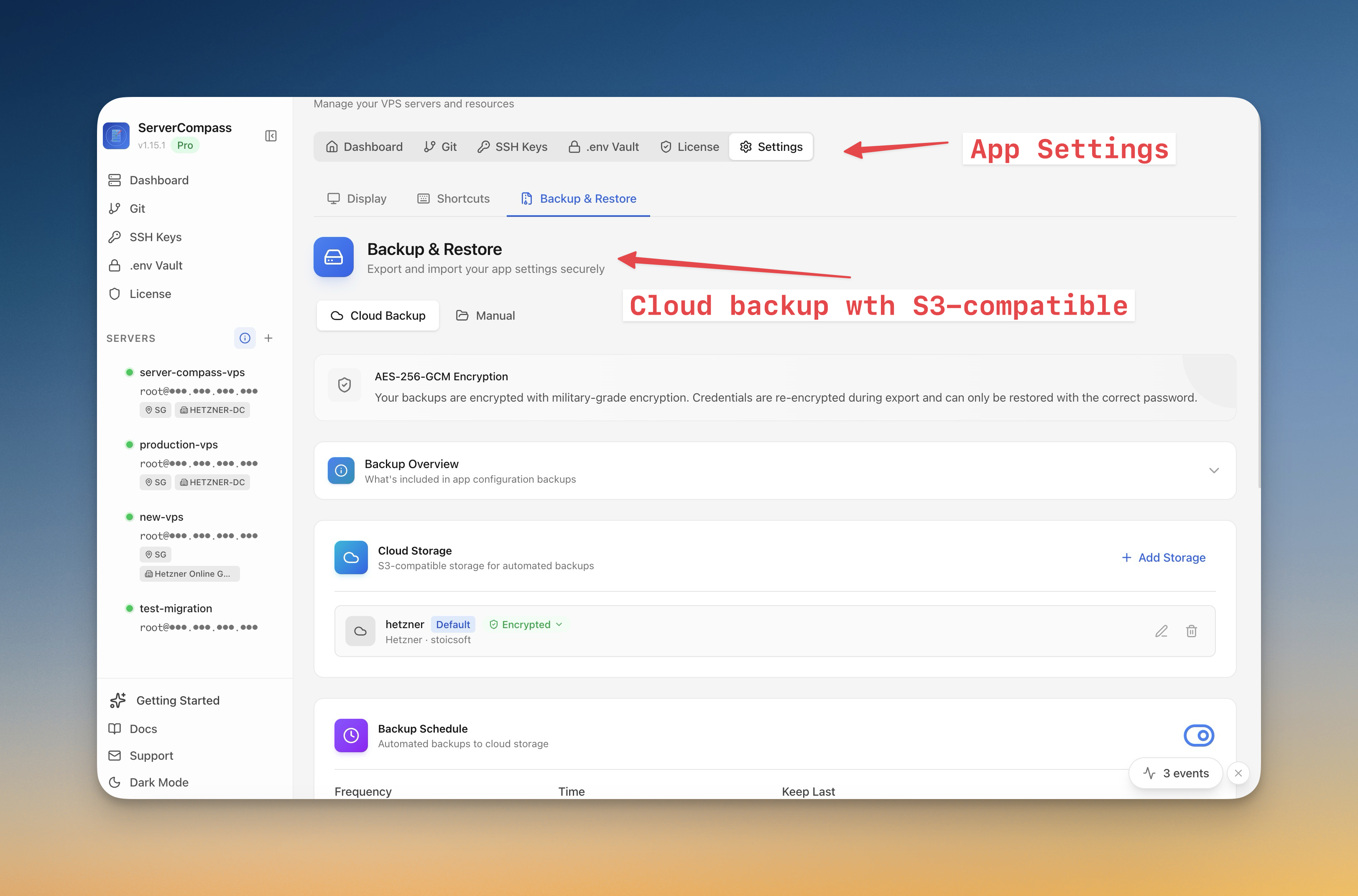
Turn automatic backups on for a server and pick the cadence: hourly, daily, weekly, or monthly, at the time you choose. Set how many to keep — the latest 3, 7, 14, or 30 — and where they go. Retention and destination are decisions you make once, in the app, instead of hand-rolling a cron job and an rsync script you'll have to maintain forever.
Choose in-place recovery or a portable snapshot
Two shapes of protection, for two different bad days. A standard backup is for in-place recovery — something broke on this server, roll it back. A portable snapshot is for moving or rebuilding a VPS entirely — pick it up and stand the whole setup back up somewhere else. The Center makes the difference explicit so you pick the right one instead of guessing.
Back up the folders that live outside your apps
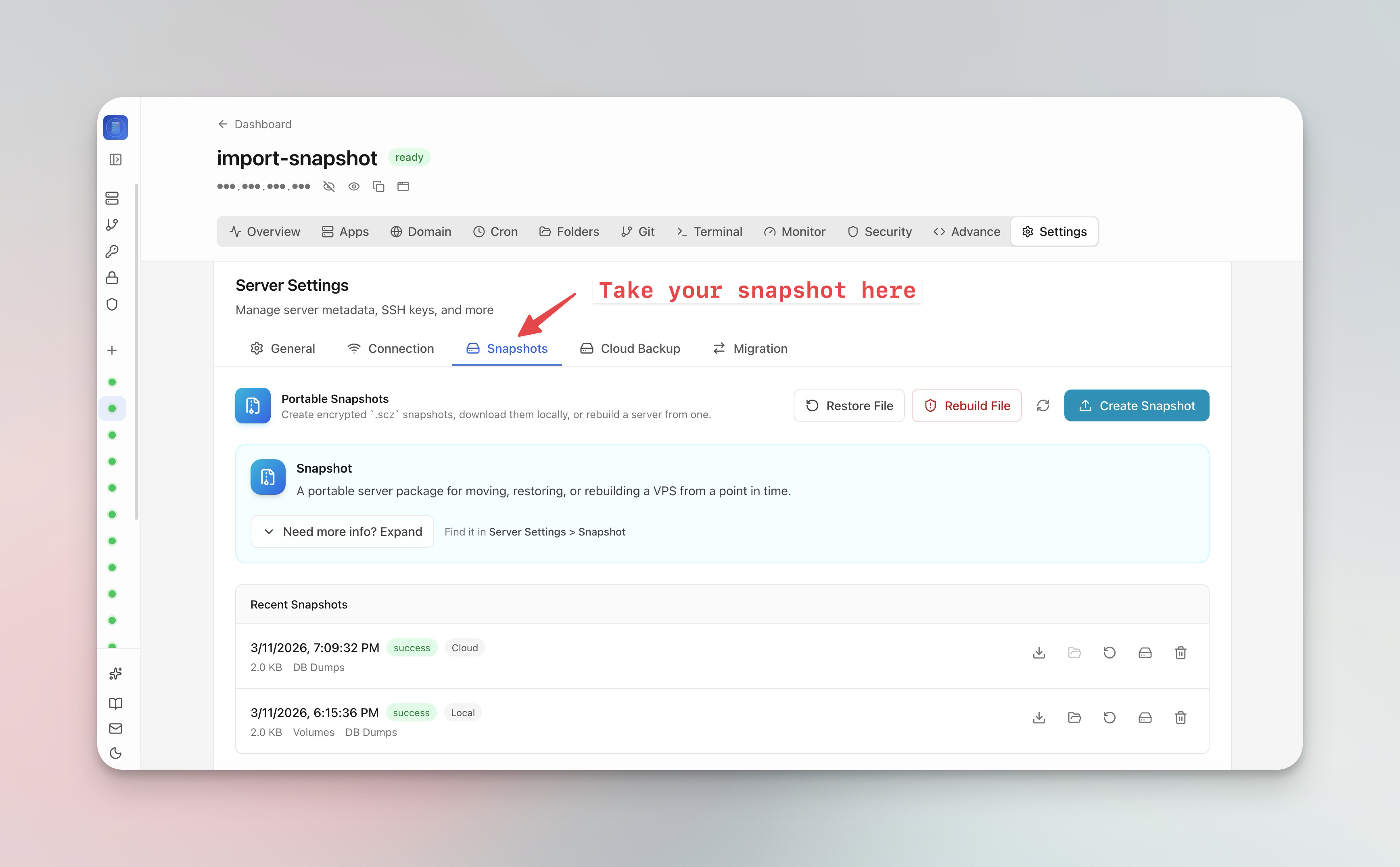
Your managed apps aren't the only things worth keeping. That config directory you edited by hand, a logs folder, some files a script drops on disk — with selective backup you add any server folder you choose, and when it's time to restore you can pick individual folders rather than restoring everything.
Manage where backups actually land
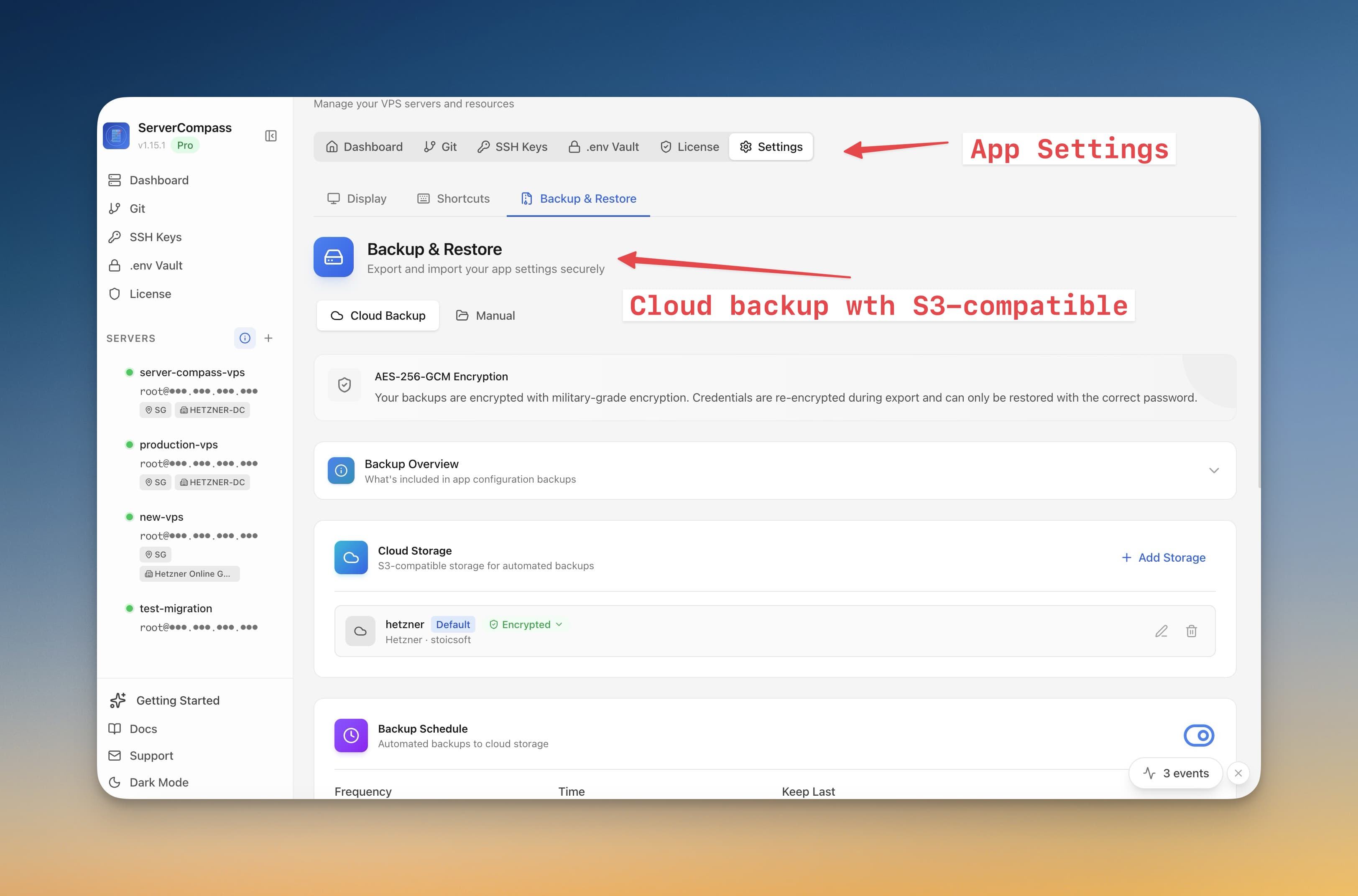
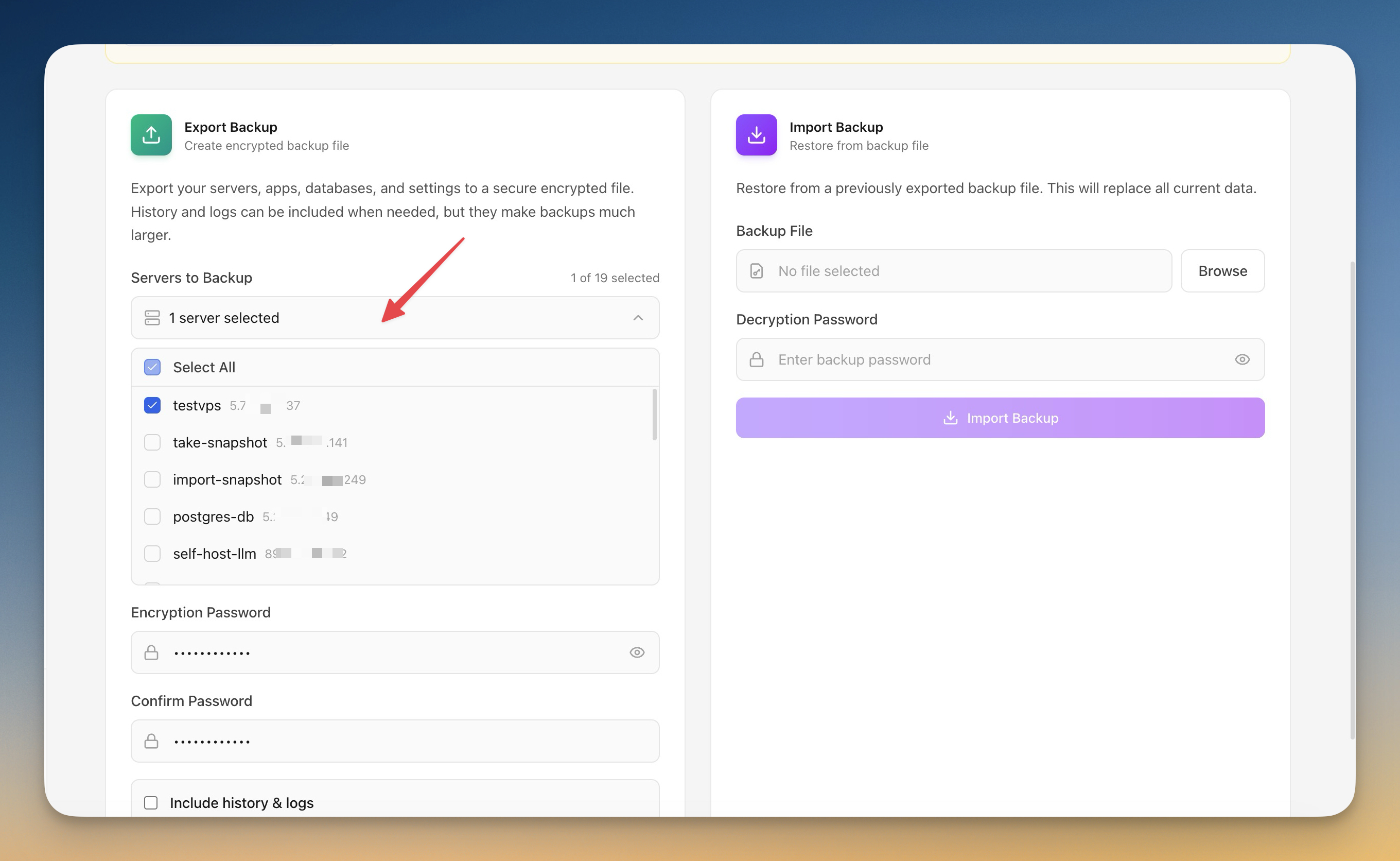
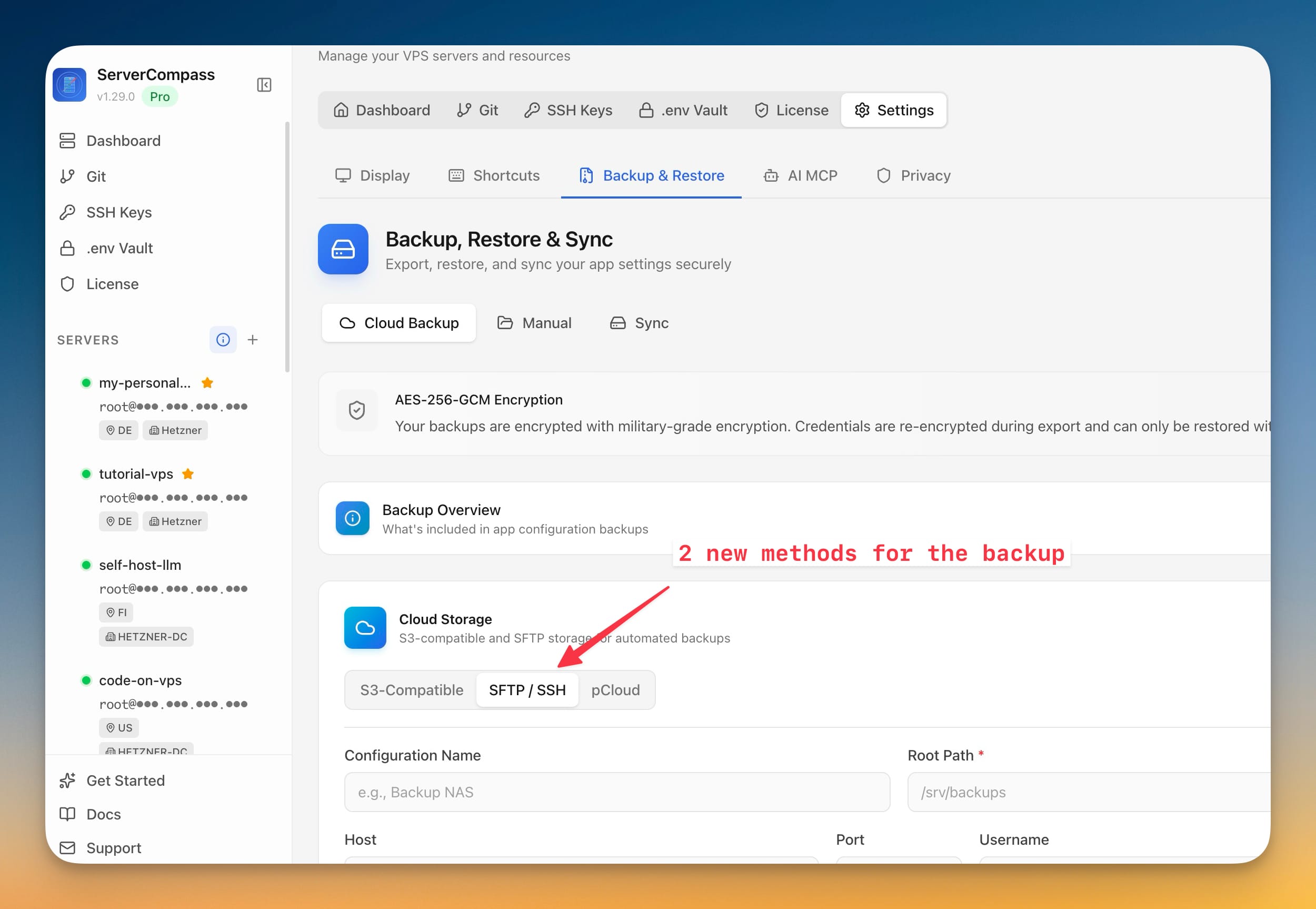
Destinations and passphrases for app-data backups, server backups, cloud snapshots, and device sync now live on one dedicated screen — including SFTP and pCloud targets — so you can see and manage everywhere your data goes from a single place.
A restore that can't lock you out of SSH
This is the safeguard that makes the rest worth trusting. You can include firewall and login-protection settings in a server backup — but on restore, Server Compass does not apply them automatically. It places them in a review folder with instructions and leaves them for you. That means a stale or bad security rule from an old backup can never silently reactivate and lock you out of your own server. Recovery shouldn't be the thing that takes you offline.
Update on your terms, too
v1.32.0 also puts you in charge of how Server Compass itself updates. Choose how updates appear — a subtle sidebar notice, the full update window automatically, or silent checks. Let it download and install automatically and apply on quit, or kick off a background download and keep working while the sidebar shows progress and flips to "Relaunch to update" when it's ready. And set your own check schedule — periodically while running, only at launch, or on demand. Security-critical fixes can still reach you even after a Pro license's included update period ends.
Before vs after
| Backups before | With the Backup Protection Center |
|---|---|
| Open each server and stitch the status together yourself | One overview: protected, manual-only, or not protected at a glance |
| Hand-write cron jobs and rsync scripts to schedule | Pick hourly/daily/weekly/monthly and a retention window in the app |
| Scheduled backups and snapshots split across two screens | Scheduled backups and portable snapshots managed together |
| Guess where each server's backups are stored | One destinations screen for every target and passphrase |
| A restored firewall rule can silently lock you out | Security settings land in a review folder, never auto-applied |
Who benefits most
Anyone running more than one server. The moment you have three VPSes, "is everything backed up?" stops being answerable from memory. The overview answers it in a glance.
Operators with real data to lose. If a database or a config folder going missing would ruin your week, per-server scheduling plus selective folder backups mean the important stuff is covered on a cadence you chose.
The safety-first admin. The no-auto-apply rule on firewall and login settings is built for the person whose worst fear isn't losing data — it's getting locked out of the box during the recovery itself.
Try it
Update to Server Compass v1.32.0 and open the Backup Protection Center. Find the server you're least sure about, read its status, and click straight through to set up a schedule, a destination, and a portable snapshot. The goal isn't more backup busywork — it's getting to the point where "are my servers protected?" is a question you can answer by looking, not by hoping.