June 10, 2026
Self-Host an AI Agent on Your VPS in One Click
Server Compass v1.27.0 deploys Hermes Agent to your VPS in one click — your own OpenAI-compatible gateway, a web dashboard reachable through an SSH tunnel, and chat platforms wired in from the same window.
If you have ever tried to stand up your own AI agent — not a chatbot script, but something that holds memory across conversations, installs skills, and responds in Telegram or Discord without you babysitting it — you know how it goes. You spin up a VPS. You pip-install some agent framework. You configure model providers one credential at a time. You write a tiny FastAPI wrapper to expose an HTTP gateway. You realize the web dashboard you wanted is now exposed to the public internet, so you bolt on an nginx reverse proxy. You drop a Telegram bot token into a YAML file you'll lose track of in two weeks.
At every step the question shifts from what should my agent do? to how do I keep this thing alive?
What changed
Server Compass v1.27.0 adds Hermes Agent — Nous Research's open-source agent runtime — as a one-click app template. Deploy it from the same wizard you use for Postgres or n8n, and Server Compass gives you a full management UI for everything the agent does: its profiles, its providers, its skills, its memories, its sessions, and its dashboards. You stop running a Python project on a VPS and start running an agent the way you run any other service.
How it works in practice
Deploy from a template — no Python required
In Server Compass, App Templates now includes Hermes Agent under self-hosted AI. Click deploy, pick a server, and the agent comes up as a Docker Compose project with the API gateway, dashboard, and persistent volumes pre-wired. The first-time Setup wizard walks you through binding the Nous Portal account, pasting in your model API keys, and connecting chat platforms — three things you would otherwise hand-edit across multiple config files.
Run multiple profiles in one container
Open the Profiles tab and you see each agent profile listed with its own state. Profiles are isolated: each one keeps its own skills, memory store, and session history. Spin up one profile for your personal assistant, another for a support bot, another for a sandboxed experiment. Start, stop, and switch between them without touching the underlying container.
Mix providers, switch models from a dropdown
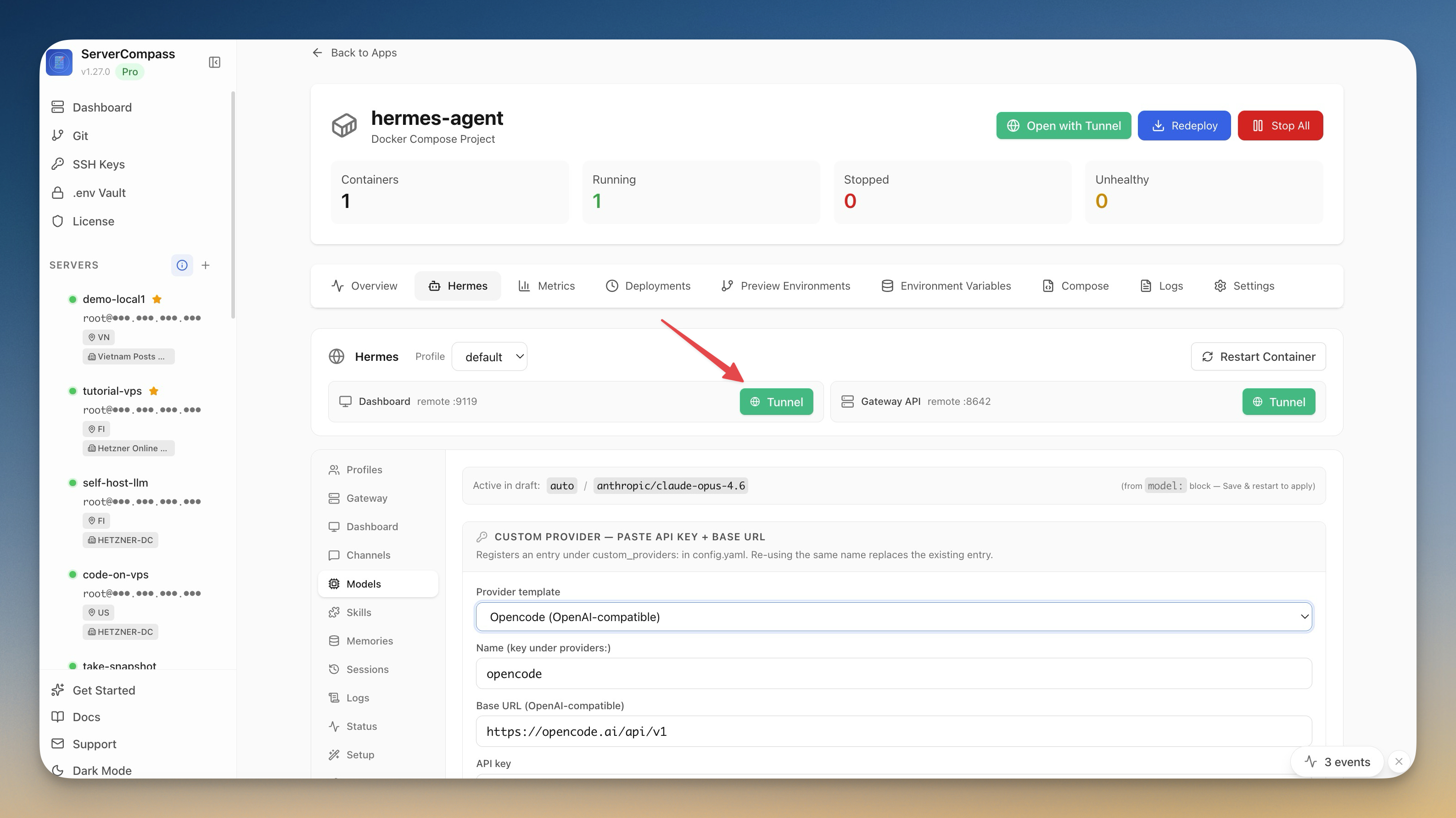
The Models tab is where you tell the agent which AI to call. The screenshot above shows anthropic/claude-opus-4.6 active in draft, with a custom provider being registered through the Opencode (OpenAI-compatible) template — just a Name and a Base URL. Layer in OpenAI, Anthropic, vLLM, Ollama — or anything that speaks the OpenAI chat completions API — and route between them per profile. No code changes, no container rebuild.
Wire up Telegram, Discord, Slack, WhatsApp
The Channels tab gives you the same dropdown experience for chat platforms. Pick Telegram, paste your bot token, and the agent starts answering. Add Discord by selecting a guild. Each channel is bound to a profile, so the same agent body can serve multiple inboxes with different personas.
Reach the dashboard through an SSH tunnel — without exposing port 9119 to the internet
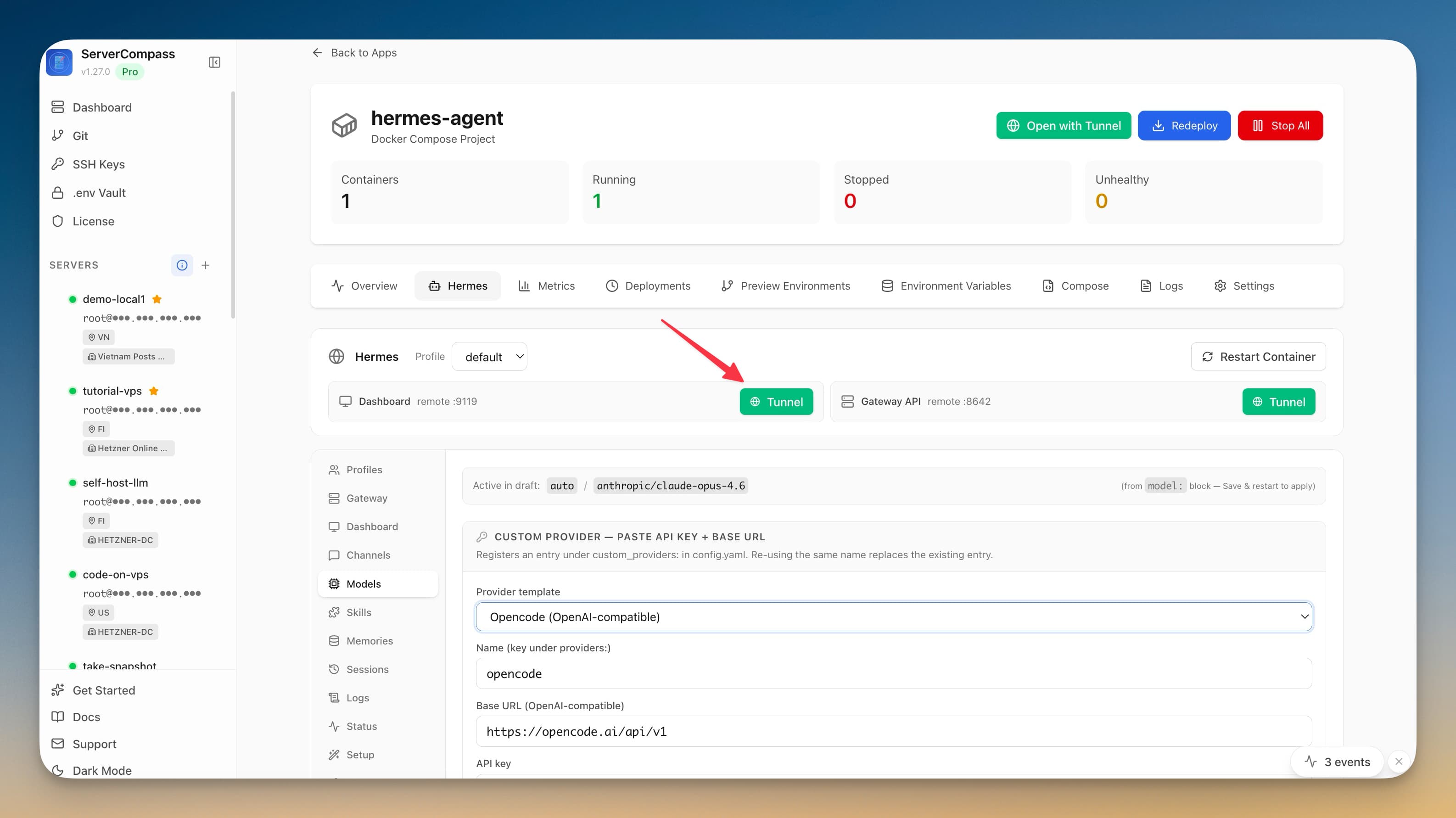
Hermes ships with a web dashboard for talking to your agent directly. By default it binds to 0.0.0.0:9119 inside the container, but you would rather not publish that to the public internet. The screenshot above shows the alternative: a green Tunnel button next to Dashboard remote :9119. One click opens a secure SSH tunnel from your laptop to the container, with basic-auth credentials pulled straight from the .env file. Same for the Gateway API on :8642. Your dashboard is reachable from your machine and nothing else.
Install skills and browse memory from the UI
The Skills tab lists installable agent skills with credential prompts for each — install one and it asks for the right credentials inline. Memories and Sessions are full browsers: every long-term memory the agent has stored, every conversation it has had, with the ability to rename or delete sessions. No more grepping JSON in a volume mount to figure out what your agent remembers.
Quick fixes for the things that break
The Quick Fix panel exposes one-click resolutions for the issues you will actually hit: Rotate Key regenerates the gateway API key, Reset Creds wipes and re-issues dashboard basic auth, Fix Perms corrects ownership inside the data volume, and Audit runs a health check. None of these require SSH-ing in.
Before vs After
| Step | Without Hermes Agent | With Server Compass v1.27.0 |
|---|---|---|
| Choose a runtime | Read three repos, pick one, hope it is maintained | Pick Hermes from the App Templates list |
| Install | git clone, build a Dockerfile, hand-write compose | Click deploy, get a working container |
| Add API keys | Edit .env, restart container | Paste in the Setup wizard |
| Expose dashboard safely | nginx + basic auth + Let's Encrypt + DNS | Click Tunnel |
| Connect Telegram | Find webhook docs, hand-edit YAML | Pick Telegram, paste token |
| Add a model provider | Edit config, restart, hope it parses | Pick template, save, restart from UI |
| Recover from broken creds | SSH, edit files, restart | Click Reset Creds |
Who benefits most
Indie developers experimenting with agentic workflows. You want to try Hermes today, not in three days. Deploy, point an OpenAI-compatible client at the gateway, and start building.
Privacy-conscious users. Your agent's API keys, conversation history, and long-term memory live on a VPS you control. Nothing routes through a third-party agent host.
Anyone running multiple agents. Profiles let you experiment without spinning up new containers per project. One Hermes deployment, many independent agent identities.
Try it
Update Server Compass to v1.27.0, open App Templates, search for Hermes Agent, and deploy. The Setup wizard walks you through the rest — and the Tunnel button on the Dashboard tab gets you a secure web UI in one click.
From across the StoicSoft network
Hand-curated reads on the same topic from sister sites in the StoicSoft family.
 1DevTool11 min read
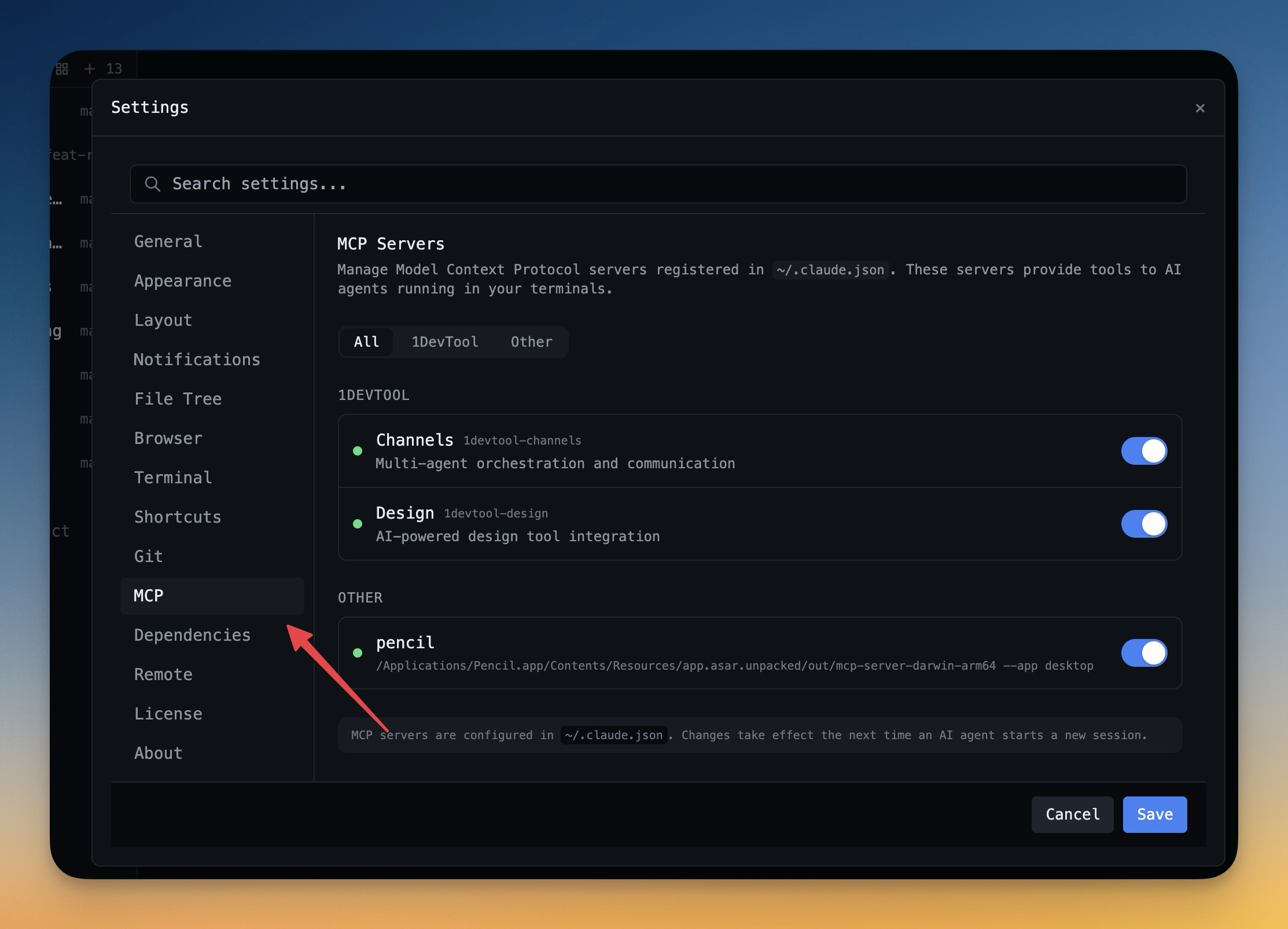
Self-Hosted AI Coding Assistant Workflow: Practical Setup Guide
A self-hosted AI coding workflow needs more than model hosting. You need environment control, connector governance, and reproducible operations. This guide covers the practical stack.
Read on 1devtool.com 1DevTool6 min read
See Every Terminal and Resume AI Sessions Your Way
1DevTool v1.23.0 adds a full-screen Terminal Canvas for scanning live terminal work and editable resume commands for restarting AI sessions with the right mode.
Read on 1devtool.com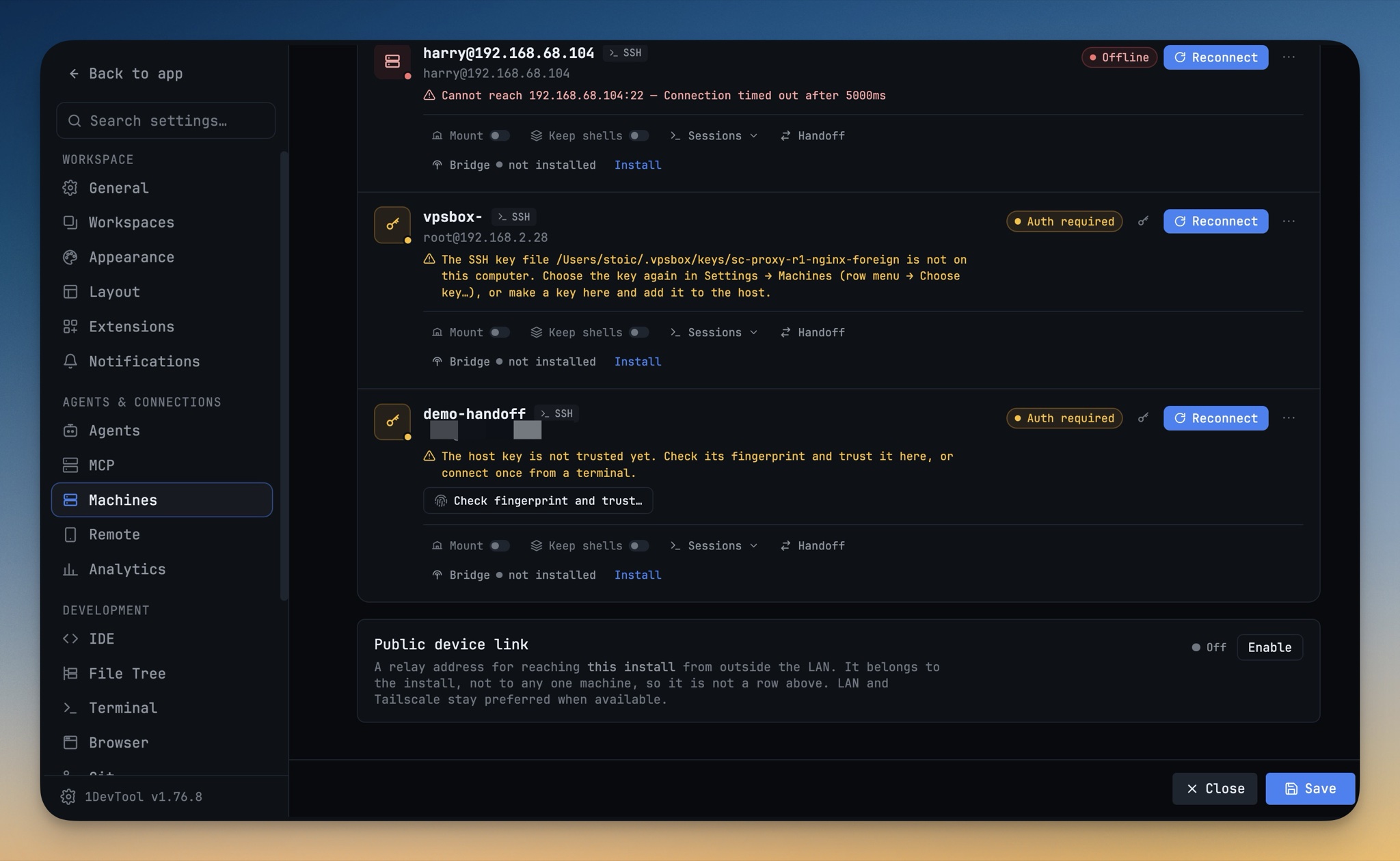 1DevTool7 min read
Hand Your Project to a VPS and Close the Laptop
Send a project to one of your own machines and the agent keeps working with your laptop shut — no push to GitHub first, follow-ups queued on the box, and the whole run watchable from your phone.
Read on 1devtool.com