March 6, 2026
Self-Hosted CI/CD: GitHub Actions + Your VPS (Complete Guide)
Build a complete self-hosted CI/CD pipeline using GitHub Actions and your own VPS. Learn SSH deployment, Docker builds, zero-downtime deployments, rollback strategies, and save hundreds on expensive build minutes.
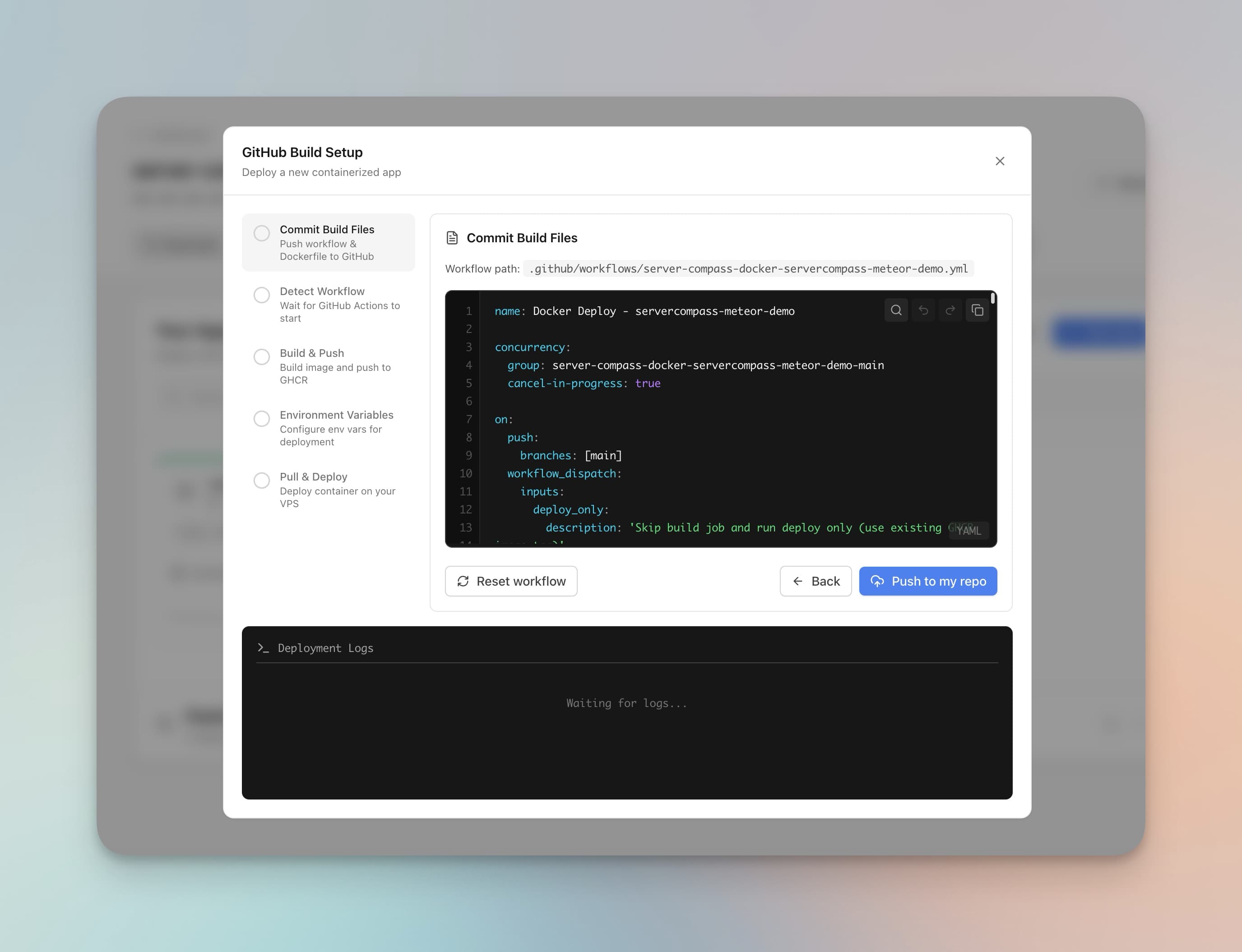
Every time you push code, you want it deployed. That's the promise of CI/CD. But if you're self-hosting on a VPS, you've probably discovered the gap: platforms like Vercel and Netlify handle this automatically, while VPS deployments require you to build everything from scratch.
The good news? GitHub Actions gives you 2,000 free minutes per month on private repos (unlimited on public repos). Combined with your VPS, you get a production-grade CI/CD pipeline that costs nothing beyond your server bill. No expensive build minutes. No vendor lock-in. Complete control over your deployment process.
This guide walks you through building a complete self-hosted CI/CD pipeline: from basic SSH deployment to Docker builds, zero-downtime deployments, and automated rollbacks. By the end, you'll have a deployment system that rivals any managed platform.
Why GitHub Actions + VPS Is the Perfect Combination
Before diving into implementation, let's understand why this combination works so well for self-hosted deployments.
The Build Resource Problem
Building applications is resource-intensive. A Next.js build can easily consume 2-4GB of RAM. A Docker image build with multi-stage compilation? Even more. If you're running a $5-10/month VPS with 1-2GB RAM, building on the server itself is often impossible — or it grinds your production app to a halt.
GitHub Actions solves this by offloading builds to GitHub's runners:
- 2-core CPU with 7GB RAM per runner
- 14GB SSD storage for build artifacts
- 2,000 free minutes/month on private repos
- Unlimited minutes on public repos
Your VPS stays cool and responsive. The heavy lifting happens on GitHub's infrastructure. You only pull the final artifact (a Docker image or compiled bundle) to your server.
Automatic Triggers on Every Push
GitHub Actions workflows trigger automatically on events like push or pull_request. Push to main, and your deployment starts within seconds. No webhooks to configure. No polling scripts. It just works.
Built-in Secrets Management
GitHub Secrets store your SSH keys, environment variables, and API tokens securely. They're encrypted at rest and only exposed to workflow runs. No plaintext credentials in your repository or server.
Prerequisites
Before we start, make sure you have:
- A VPS — Any provider works: DigitalOcean, Hetzner, Vultr, Linode, AWS EC2, etc. Ubuntu 22.04+ recommended.
- SSH access to your VPS with a non-root user that has sudo privileges
- A GitHub repository with your application code
- Docker installed on your VPS (we'll cover this if you don't have it)
If you don't have Docker installed yet, run this on your VPS:
`curl -fsSL https://get.docker.com | sh sudo usermod -aG docker $USER # Log out and back in for group changes to take effect`
Step 1: Set Up Your GitHub Actions Workflow
Let's start with a basic workflow that deploys on every push to main. Create a file at .github/workflows/deploy.yml in your repository:
`name: Deploy to VPS on: push: branches: [main] workflow_dispatch: # Allow manual triggers jobs: deploy: runs-on: ubuntu-latest steps: - name: Checkout code uses: actions/checkout@v4 - name: Deploy to VPS uses: appleboy/ssh-action@v1.0.3 with: host: \${{ secrets.VPS_HOST }} username: \${{ secrets.VPS_USERNAME }} key: \${{ secrets.VPS_SSH_KEY }} script: | cd /var/www/myapp git pull origin main npm install npm run build pm2 restart myapp`
This workflow does the basics: SSH into your server, pull the latest code, install dependencies, build, and restart the app with PM2. But we can do much better.
Step 2: Configure SSH Deployment Securely
The workflow above requires three secrets. Let's set them up properly.
Generate a Dedicated SSH Key Pair
Never use your personal SSH key for CI/CD. Generate a dedicated key pair for deployments:
`# On your local machine ssh-keygen -t ed25519 -C "github-actions-deploy" -f ~/.ssh/github_actions_deploy # This creates: # ~/.ssh/github_actions_deploy (private key) # ~/.ssh/github_actions_deploy.pub (public key)`
Add the Public Key to Your VPS
`# Copy the public key to your VPS ssh-copy-id -i ~/.ssh/github_actions_deploy.pub user@your-vps-ip # Or manually append to authorized_keys: cat ~/.ssh/github_actions_deploy.pub | ssh user@your-vps-ip "cat >> ~/.ssh/authorized_keys"`
Add Secrets to GitHub
Go to your repository on GitHub, then Settings → Secrets and variables → Actions. Add these secrets:
VPS_HOST: Your server's IP address or domainVPS_USERNAME: The SSH username (e.g.,deployorubuntu)VPS_SSH_KEY: The entire contents of your private key file (~/.ssh/github_actions_deploy)

Security Best Practices
-
Use a dedicated deploy user — Create a
deployuser with limited permissions instead of usingroot -
Restrict the SSH key — In
authorized_keys, you can limit what the key can do:`# In ~/.ssh/authorized_keys on your VPS: command="/home/deploy/deploy.sh",no-port-forwarding,no-X11-forwarding ssh-ed25519 AAAA... github-actions-deploy` -
Use GitHub Environments — For production deployments, require approvals before the workflow runs
Step 3: Docker Build and Push to Registry
Building on the VPS is fine for small apps, but Docker images are better for production. They're portable, versioned, and enable zero-downtime deployments.
Here's a workflow that builds a Docker image and pushes it to GitHub Container Registry (GHCR):
`name: Build and Deploy on: push: branches: [main] workflow_dispatch: env: REGISTRY: ghcr.io IMAGE_NAME: \${{ github.repository }} jobs: build: runs-on: ubuntu-latest permissions: contents: read packages: write outputs: image_tag: \${{ steps.meta.outputs.tags }} steps: - name: Checkout code uses: actions/checkout@v4 - name: Set up Docker Buildx uses: docker/setup-buildx-action@v3 - name: Log in to Container Registry uses: docker/login-action@v3 with: registry: \${{ env.REGISTRY }} username: \${{ github.actor }} password: \${{ secrets.GITHUB_TOKEN }} - name: Extract metadata id: meta uses: docker/metadata-action@v5 with: images: \${{ env.REGISTRY }}/\${{ env.IMAGE_NAME }} tags: | type=sha,prefix= type=raw,value=latest - name: Build and push uses: docker/build-push-action@v5 with: context: . push: true tags: \${{ steps.meta.outputs.tags }} labels: \${{ steps.meta.outputs.labels }} cache-from: type=registry,ref=\${{ env.REGISTRY }}/\${{ env.IMAGE_NAME }}:cache cache-to: type=registry,ref=\${{ env.REGISTRY }}/\${{ env.IMAGE_NAME }}:cache,mode=max deploy: needs: build runs-on: ubuntu-latest steps: - name: Deploy to VPS uses: appleboy/ssh-action@v1.0.3 with: host: \${{ secrets.VPS_HOST }} username: \${{ secrets.VPS_USERNAME }} key: \${{ secrets.VPS_SSH_KEY }} script: | # Log in to GHCR echo \${{ secrets.GITHUB_TOKEN }} | docker login ghcr.io -u \${{ github.actor }} --password-stdin # Pull the new image docker pull \${{ env.REGISTRY }}/\${{ env.IMAGE_NAME }}:latest # Stop and remove old container docker stop myapp || true docker rm myapp || true # Start new container docker run -d \\ --name myapp \\ --restart unless-stopped \\ -p 3000:3000 \\ --env-file /home/deploy/.env.myapp \\ \${{ env.REGISTRY }}/\${{ env.IMAGE_NAME }}:latest # Clean up old images docker image prune -f`
Key features of this workflow:
- Docker layer caching — Builds are fast because unchanged layers are cached in the registry
- Git SHA tags — Each image is tagged with its commit SHA for easy rollbacks
- Automatic cleanup — Old images are pruned to save disk space
Sample Multi-Stage Dockerfile
If you don't have a Dockerfile yet, here's a production-ready example for a Next.js application:
`# Stage 1: Dependencies FROM node:20-alpine AS deps WORKDIR /app COPY package.json package-lock.json ./ RUN npm ci --only=production # Stage 2: Build FROM node:20-alpine AS builder WORKDIR /app COPY package.json package-lock.json ./ RUN npm ci COPY . . RUN npm run build # Stage 3: Production FROM node:20-alpine AS runner WORKDIR /app ENV NODE_ENV=production # Create non-root user RUN addgroup --system --gid 1001 nodejs RUN adduser --system --uid 1001 nextjs # Copy built assets COPY --from=builder /app/public ./public COPY --from=builder --chown=nextjs:nodejs /app/.next/standalone ./ COPY --from=builder --chown=nextjs:nodejs /app/.next/static ./.next/static USER nextjs EXPOSE 3000 ENV PORT=3000 CMD ["node", "server.js"]`
Need a Dockerfile for your specific framework? Use our GitHub Actions Generator or Dockerfile Generator to create one automatically.
Step 4: Zero-Downtime Deployment Script
The basic deployment above has a problem: there's a brief period where your app is unavailable between stopping the old container and starting the new one. For production apps, you need zero-downtime deployment.
The solution is a blue-green deployment: start the new container alongside the old one, verify it's healthy, then switch traffic over.
Create a deployment script on your VPS at /home/deploy/deploy.sh:
`#!/bin/bash set -e APP_NAME="myapp" IMAGE="ghcr.io/your-username/your-repo:latest" PORT=3000 HEALTH_ENDPOINT="/" MAX_HEALTH_CHECKS=10 HEALTH_CHECK_INTERVAL=3 # Colors for output RED='\\033[0;31m' GREEN='\\033[0;32m' NC='\\033[0m' # No Color log() { echo -e "\$[DEPLOY]\$ $1" } error() { echo -e "\$[ERROR]\$ $1" exit 1 } # Pull the latest image log "Pulling latest image..." docker pull "$IMAGE" # Find an available port for staging STAGING_PORT=$((PORT + 1000)) # Start staging container log "Starting staging container on port $STAGING_PORT..." docker run -d \\ --name "\$-staging" \\ --restart unless-stopped \\ -p "\$:3000" \\ --env-file "/home/deploy/.env.\$" \\ "$IMAGE" # Wait for container to be ready log "Waiting for container to start..." sleep 5 # Health check log "Running health checks..." HEALTHY=false for i in $(seq 1 $MAX_HEALTH_CHECKS); do HTTP_CODE=$(curl -s -o /dev/null -w "%" "http://localhost:\$\$" || echo "000") if [ "$HTTP_CODE" = "200" ]; then HEALTHY=true log "Health check passed ($i/$MAX_HEALTH_CHECKS)" break else log "Health check attempt $i/$MAX_HEALTH_CHECKS (HTTP $HTTP_CODE)" sleep $HEALTH_CHECK_INTERVAL fi done if [ "$HEALTHY" = false ]; then error "Health checks failed. Rolling back..." docker stop "\$-staging" || true docker rm "\$-staging" || true exit 1 fi # Stop old production container log "Stopping old production container..." docker stop "\$" 2>/dev/null || true docker rm "\$" 2>/dev/null || true # Rename staging to production log "Promoting staging to production..." docker stop "\$-staging" docker rm "\$-staging" # Start fresh on the production port docker run -d \\ --name "\$" \\ --restart unless-stopped \\ -p "\$:3000" \\ --env-file "/home/deploy/.env.\$" \\ "$IMAGE" # Final health check sleep 3 HTTP_CODE=$(curl -s -o /dev/null -w "%" "http://localhost:\$\$" || echo "000") if [ "$HTTP_CODE" = "200" ]; then log "Deployment successful! App is live on port $PORT" else error "Final health check failed (HTTP $HTTP_CODE). Manual intervention required." fi # Cleanup old images log "Cleaning up old images..." docker image prune -f log "Done!"`
Make the script executable:
`chmod +x /home/deploy/deploy.sh`
Update your workflow to use the script:
`- name: Deploy to VPS uses: appleboy/ssh-action@v1.0.3 with: host: \${{ secrets.VPS_HOST }} username: \${{ secrets.VPS_USERNAME }} key: \${{ secrets.VPS_SSH_KEY }} script: | echo \${{ secrets.GITHUB_TOKEN }} | docker login ghcr.io -u \${{ github.actor }} --password-stdin /home/deploy/deploy.sh`
Step 5: Rollback Strategy
Things go wrong. A bad deploy can take down your production app. You need a fast, reliable way to roll back to the previous version.
Automatic Rollback on Failure
The deployment script above already handles this: if health checks fail, it removes the staging container and keeps the old production container running. But what if the new container passes health checks but has a bug that surfaces later?
Manual Rollback Workflow
Create a separate workflow for manual rollbacks. This lets you quickly revert to any previous version:
`name: Rollback on: workflow_dispatch: inputs: commit_sha: description: 'Git commit SHA to rollback to' required: true type: string env: REGISTRY: ghcr.io IMAGE_NAME: \${{ github.repository }} jobs: rollback: runs-on: ubuntu-latest steps: - name: Rollback to previous version uses: appleboy/ssh-action@v1.0.3 with: host: \${{ secrets.VPS_HOST }} username: \${{ secrets.VPS_USERNAME }} key: \${{ secrets.VPS_SSH_KEY }} script: | IMAGE="\${{ env.REGISTRY }}/\${{ env.IMAGE_NAME }}:\${{ github.event.inputs.commit_sha }}" echo "Rolling back to $IMAGE" # Log in and pull the specific version echo \${{ secrets.GITHUB_TOKEN }} | docker login ghcr.io -u \${{ github.actor }} --password-stdin docker pull "$IMAGE" # Stop current container docker stop myapp || true docker rm myapp || true # Start the rollback version docker run -d \\ --name myapp \\ --restart unless-stopped \\ -p 3000:3000 \\ --env-file /home/deploy/.env.myapp \\ "$IMAGE" echo "Rollback complete. Running version: \${{ github.event.inputs.commit_sha }}"`
To rollback, go to Actions → Rollback → Run workflow and enter the commit SHA you want to deploy. Since every build is tagged with its SHA, you can roll back to any version that's still in the registry.
Keep Multiple Versions in the Registry
By default, the workflow tags images with both latest and the commit SHA. This means you always have a history of deployable versions. To prevent storage costs from growing indefinitely, set up a retention policy:
`# Add to your build job: - name: Delete old package versions uses: actions/delete-package-versions@v5 with: package-name: 'your-app-name' package-type: 'container' min-versions-to-keep: 10 delete-only-untagged-versions: 'true'`
Example Workflows for Common Scenarios
Node.js Deployment (Without Docker)
If you're not using Docker, here's a workflow that deploys a Node.js app directly with PM2:
`name: Deploy Node.js App on: push: branches: [main] jobs: deploy: runs-on: ubuntu-latest steps: - name: Deploy via SSH uses: appleboy/ssh-action@v1.0.3 with: host: \${{ secrets.VPS_HOST }} username: \${{ secrets.VPS_USERNAME }} key: \${{ secrets.VPS_SSH_KEY }} script: | cd /var/www/myapp # Fetch latest changes git fetch origin main git reset --hard origin/main # Install dependencies npm ci --only=production # Build the app npm run build # Reload with PM2 (zero-downtime) pm2 reload myapp --update-env # Save PM2 process list pm2 save`
Docker Compose Deployment
For apps with multiple services (app + database + cache), use Docker Compose:
`name: Deploy with Docker Compose on: push: branches: [main] jobs: deploy: runs-on: ubuntu-latest steps: - name: Checkout code uses: actions/checkout@v4 - name: Copy files to VPS uses: appleboy/scp-action@v0.1.7 with: host: \${{ secrets.VPS_HOST }} username: \${{ secrets.VPS_USERNAME }} key: \${{ secrets.VPS_SSH_KEY }} source: "docker-compose.yml,docker-compose.prod.yml" target: "/home/deploy/myapp" - name: Deploy uses: appleboy/ssh-action@v1.0.3 with: host: \${{ secrets.VPS_HOST }} username: \${{ secrets.VPS_USERNAME }} key: \${{ secrets.VPS_SSH_KEY }} script: | cd /home/deploy/myapp # Pull latest images docker compose -f docker-compose.yml -f docker-compose.prod.yml pull # Deploy with zero downtime docker compose -f docker-compose.yml -f docker-compose.prod.yml up -d --remove-orphans # Clean up docker image prune -f`
Multi-Stage Build with Testing
Run tests before deploying to catch issues early:
`name: Test, Build, and Deploy on: push: branches: [main] pull_request: branches: [main] jobs: test: runs-on: ubuntu-latest steps: - uses: actions/checkout@v4 - name: Setup Node.js uses: actions/setup-node@v4 with: node-version: '20' cache: 'npm' - name: Install dependencies run: npm ci - name: Run linter run: npm run lint - name: Run tests run: npm test - name: Run type check run: npm run type-check build: needs: test if: github.ref == 'refs/heads/main' runs-on: ubuntu-latest # ... build steps from earlier deploy: needs: build if: github.ref == 'refs/heads/main' runs-on: ubuntu-latest # ... deploy steps from earlier`
Server Compass Auto-Deploy Feature
Everything above works great, but it's a lot of YAML to write and maintain. If you'd rather skip the manual setup, Server Compass's Auto-Deploy feature generates production-ready GitHub Actions workflows automatically.

Here's what Server Compass handles for you:
- Workflow generation — Creates a complete
.github/workflowsfile based on your framework (Next.js, Django, Go, etc.) - Dockerfile generation — Auto-detects your framework and generates an optimized multi-stage Dockerfile
- SSH key setup — Generates an Ed25519 key pair, adds the public key to your VPS, and stores the private key as a GitHub Secret
- Secret encryption — Encrypts your environment variables with libsodium sealed boxes before storing them in GitHub Secrets
- Zero-downtime deployment — Built-in blue-green deployment with health checks
- Real-time tracking — Watch your deployment progress without switching to GitHub
The setup takes about 60 seconds: connect your GitHub account, select a repository, and deploy. Server Compass commits the workflow file to your repo and triggers the first deployment automatically.
Read the full deep-dive: How Server Compass Uses GitHub Actions for Zero-Downtime VPS Deployments
Comparison: GitHub Actions vs Vercel/Netlify Builds
How does a self-hosted CI/CD pipeline compare to managed platforms? Let's break it down.
Feature
GitHub Actions + VPS
Vercel
Netlify
Build minutes (free)
2,000/month
6,000/month
300/month
Build minutes (paid)
$0.008/min
$0.01/min
$0.02/min
Concurrent builds
20 (free tier)
1 (free), 12 (Pro)
1 (free), 3 (Pro)
Custom domains
Unlimited
50
100
Server-side code
Full control
Serverless only
Serverless only
Database access
Direct (same server)
External only
External only
Persistent storage
Yes (disk)
No
No
WebSockets
Yes
Limited
No
Long-running processes
Yes
No (10s limit)
No (10s limit)
Vendor lock-in
None
Medium-High
Medium
When to Choose GitHub Actions + VPS
- You need full server control (databases, cron jobs, WebSockets)
- You want to avoid per-seat pricing ($20/user/month on Vercel)
- Your app has long-running processes or background workers
- You need persistent file storage
- You want to run multiple apps on one server
- You're cost-conscious and willing to manage infrastructure
When Vercel/Netlify Might Be Better
- You're building a static site or JAMstack app
- You need global edge deployment out of the box
- You don't want to manage any infrastructure
- Your team is small and cost isn't a concern
Frequently Asked Questions
How many free GitHub Actions minutes do I actually get?
2,000 minutes/month for private repositories on the free tier. Public repositories get unlimited minutes. If you need more, GitHub Pro includes 3,000 minutes, and Team/Enterprise plans include more.
Can I use my VPS as a GitHub Actions runner?
Yes! You can install a self-hosted runner on your VPS. This gives you unlimited minutes but uses your server's resources for builds. Best for powerful servers (4+ GB RAM) or when you need access to local services during the build.
How do I handle environment variables securely?
Store sensitive values in GitHub Secrets. For runtime env vars, create a .env file on your VPS (e.g., /home/deploy/.env.myapp) and reference it with --env-file when running Docker containers.
How do I run database migrations during deployment?
Add a migration step to your deployment script:
`# Before starting the new container: docker run --rm \\ --env-file /home/deploy/.env.myapp \\ $IMAGE \\ npm run migrate`
Can I deploy multiple apps to the same VPS?
Absolutely. Each app gets its own container, its own port, and its own env file. Use a reverse proxy like Nginx or Traefik to route traffic based on domain names. Server Compass includes built-in Traefik integration for automatic routing and SSL.
How do I monitor deployment status?
GitHub Actions provides real-time logs in the Actions tab. For notifications, add a Slack or Discord step to your workflow:
`- name: Notify Slack if: always() uses: 8398a7/action-slack@v3 with: status: \${{ job.status }} fields: repo,message,commit,author env: SLACK_WEBHOOK_URL: \${{ secrets.SLACK_WEBHOOK }}`
What happens if I push twice quickly?
By default, both deployments run in parallel, which can cause issues. Add concurrency settings to cancel in-progress runs:
`concurrency: group: deploy-\${{ github.ref }} cancel-in-progress: true`
Conclusion
Self-hosted CI/CD with GitHub Actions and your VPS is a powerful combination. You get the convenience of automatic deployments, the flexibility of full server control, and significant cost savings compared to managed platforms.
The key components:
- GitHub Actions workflows for build automation and deployment triggers
- Secure SSH deployment with dedicated keys stored in GitHub Secrets
- Docker images for portable, versioned deployments
- Blue-green deployment for zero downtime
- Rollback strategy with SHA-tagged images
If you want to skip the manual setup, try Server Compass. It generates production-ready GitHub Actions workflows, handles SSH key management, encrypts your secrets, and gives you a visual interface for managing deployments. One-time purchase, no subscription.
Related resources:
- GitHub Actions Workflow Generator — Create custom workflows interactively
- Dockerfile Generator — Generate optimized Dockerfiles for your framework
- Auto-Deploy Feature — Automatic deployments on every git push
- How Server Compass Uses GitHub Actions — Deep dive into the implementation
Related in the StoicSoft network
If you're choosing a VPS provider or benchmarking real-world performance like the post above explores, StoicVPS is the StoicSoft network's independent tracker for VPS pricing, performance, and migration safety.
From across the StoicSoft network
Hand-curated reads on the same topic from sister sites in the StoicSoft family.
 1DevTool11 min read
Self-Hosted AI Coding Assistant Workflow: Practical Setup Guide
A self-hosted AI coding workflow needs more than model hosting. You need environment control, connector governance, and reproducible operations. This guide covers the practical stack.
Read on 1devtool.com 1DevTool10 min read
Docker Desktop Alternatives for Developers in 2026
Developers want a Docker workflow that stays close to code, logs, and AI agents. This comparison breaks down Docker Desktop alternatives by performance, observability, and daily usability.
Read on 1devtool.com