August 15, 2026
Share Server Access With Your Team Without Sharing Passwords
Server Compass 1.42.0 adds Team workspaces: give a teammate working access to a server without ever showing them its credential, scope it to a single Docker app, put an expiry on it, and take it back in one click.
There is a moment every small team hits. A second person needs to get onto the production box, and the only way to make that happen is to send them something you would rather not send: the root password pasted into a chat window, a private key attached to an email, a shared vault entry that four people already have and nobody has audited in a year.
You do it anyway, because the alternative is being the only person who can restart a container at 11pm. And then it sits there. The contractor who helped for two weeks in March still has the key. The teammate who left in June still has the key. When someone asks "who can actually get into that server?" the honest answer is a shrug and a scroll back through old messages.
The problem was never that you trusted the wrong people. It's that handing someone a credential is a one-way door. Once a secret has been read, it has been read — you cannot un-send it, and the only real revocation is rotating the key on every server it touched and telling everyone to update their config.
What changed
Server Compass 1.42.0 adds Team workspaces. You can now give a teammate working access to a server without ever showing them its credential, scope that access down to a single Docker app, put an expiry on it, and take it back in one click.
How it works in practice
The workspace lives in storage you already own
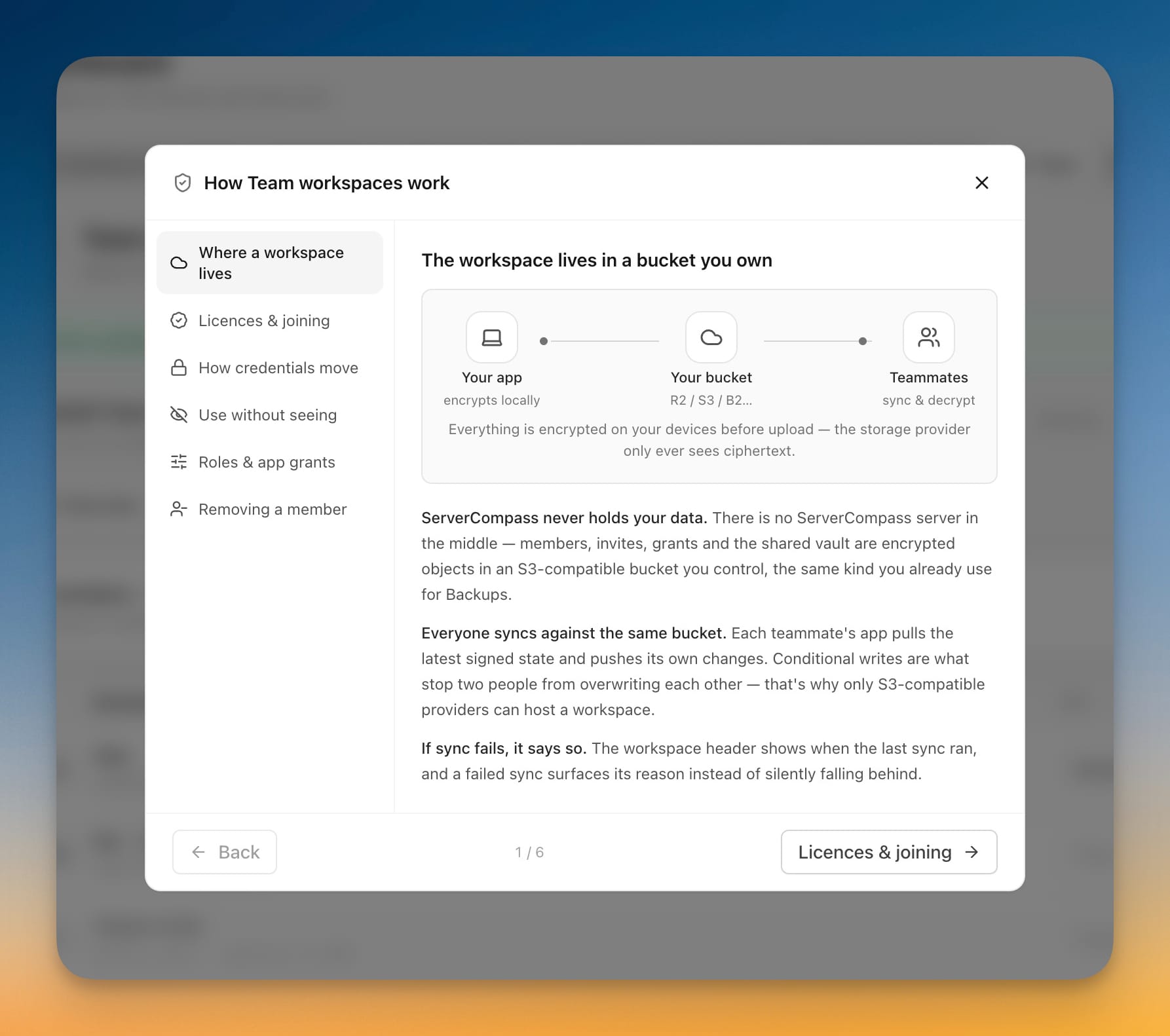
There is no Server Compass account to create and no service sitting between you and your servers. A workspace is a set of encrypted objects in an S3-compatible bucket you control — Cloudflare R2, AWS S3, or MinIO — the same kind of destination you already point your backups at. Everything is encrypted on your machine before it is uploaded, so the storage provider only ever holds ciphertext.
That design choice has one hard requirement, and Server Compass checks it up front: the bucket has to support conditional writes, so two people saving at the same moment cannot silently overwrite each other. If your destination cannot do that safely, workspace creation is refused rather than risking one teammate's changes quietly vanishing. If you have not set up storage yet, the workspace screen takes you straight to the right settings page with the form already open.
Inviting someone is a code, not a credential
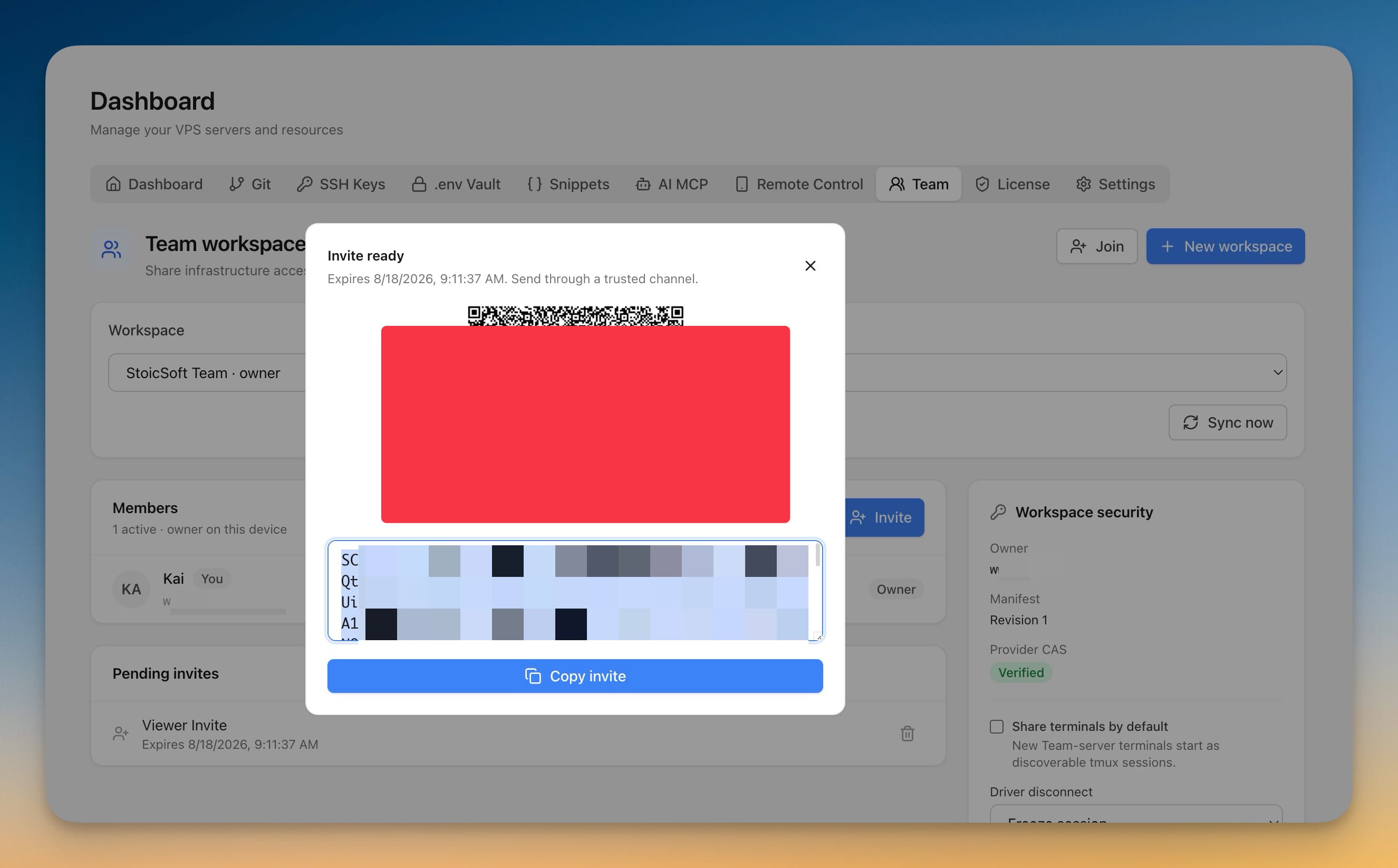
Invites are generated as a QR code your teammate scans in their own copy of Server Compass, or a code you paste into a channel you trust. They are one-time and they expire — you pick 24 hours, 72 hours, 7 days, or 30 days when you create one. An Owner or Admin still approves the request before anyone is actually in.
There are four roles: Owner, Admin, Member, and Viewer. Admins and Members each use their own license. Read-only Viewers need none, so you can give a client or a junior engineer visibility into what is running without paying for a seat.
Share the server, not its password
When you share a server, its SSH credential moves into the encrypted Team vault. Teammates then connect through it rather than holding a copy of it.
You choose how far that goes with two options on Share a server. Use only — the recommended one — lets people connect, deploy, and open a terminal while the key is never displayed or copied anywhere in the app. Use and reveal additionally lets admins display and copy the key, and every reveal is written to the activity log with who did it, when, and from which device.
Server Compass is honest about where the line is: "use only" stops the key being read out of the interface, but it is not a guarantee against someone determined who controls their own machine. That is a meaningfully different security posture from pasting the key into chat — it is not a promise that physics has been repealed.
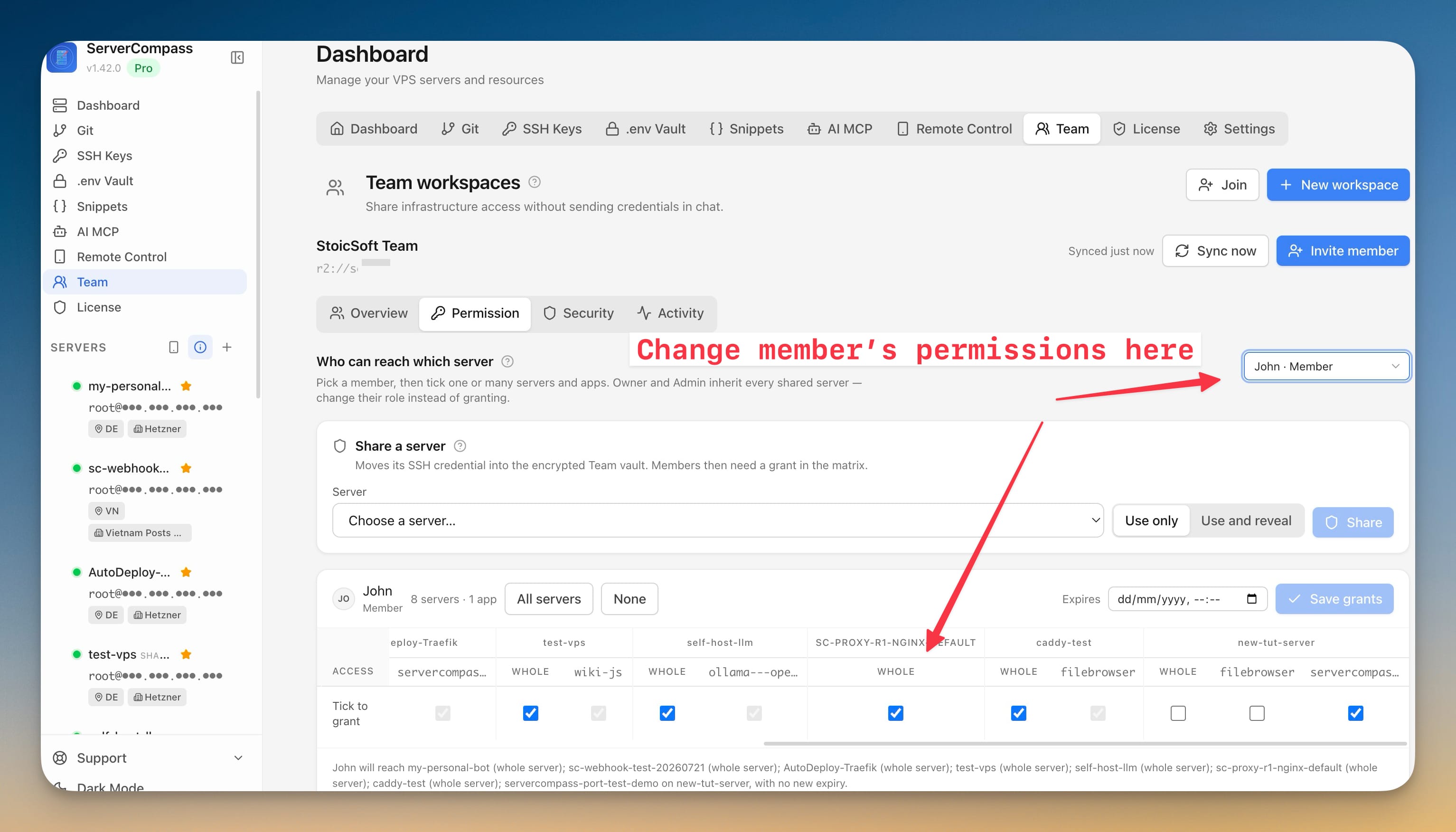
Give someone a whole server, or just one app on it
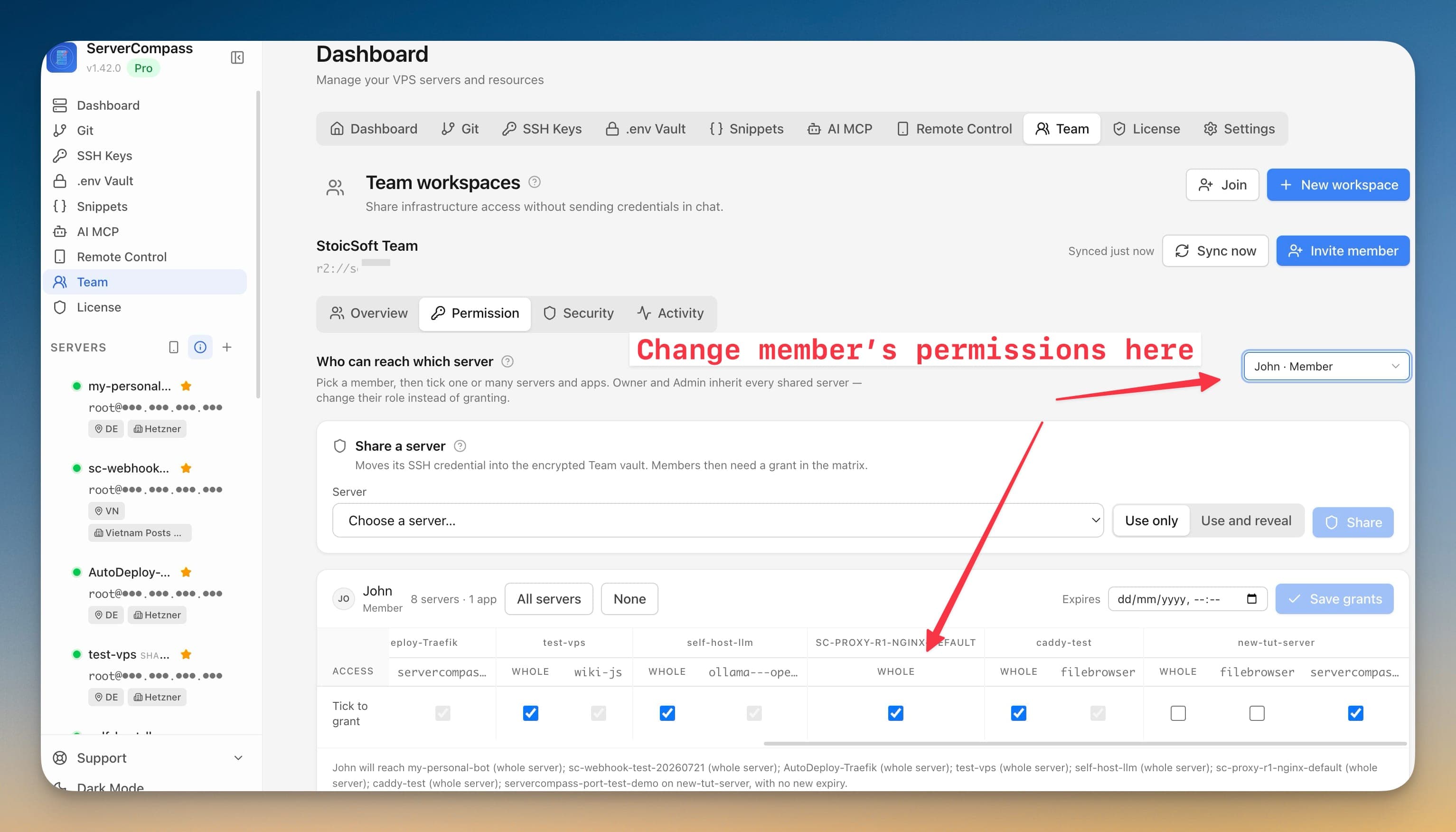
A shared server does not mean the whole machine. In the Permission tab you pick a member, then tick what they can reach — the whole host, or one named Docker app running on it. The person doing your Ghost deployment gets the Ghost app; they do not get the database container sitting next to it.
Every grant can carry an expiry. The contractor who should lose access on Friday loses it on Friday, without anyone having to remember. Expired access is labeled as expired rather than quietly failing later, and grants are checked at every action — not just at login.
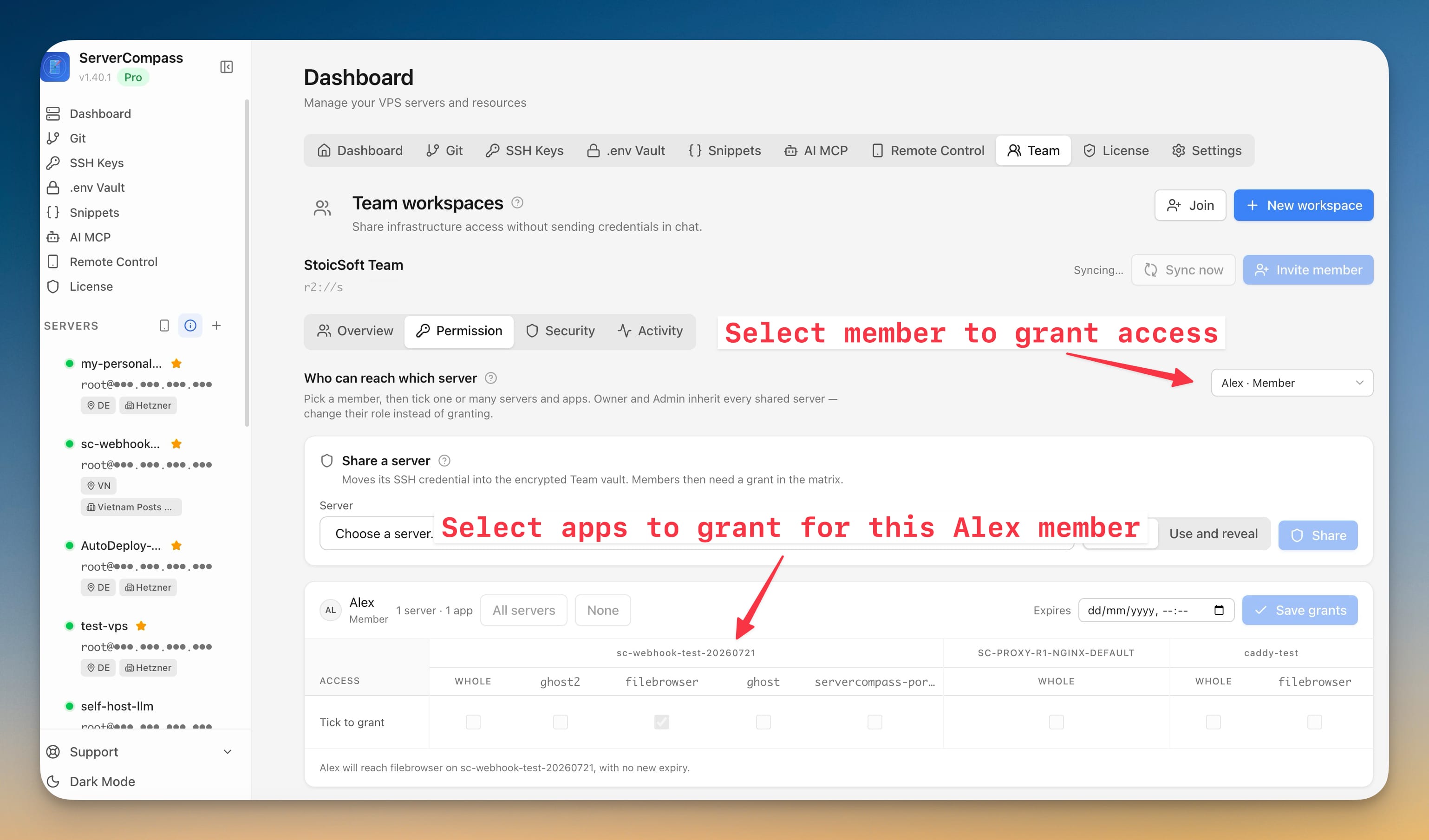
See who can reach what, in one place
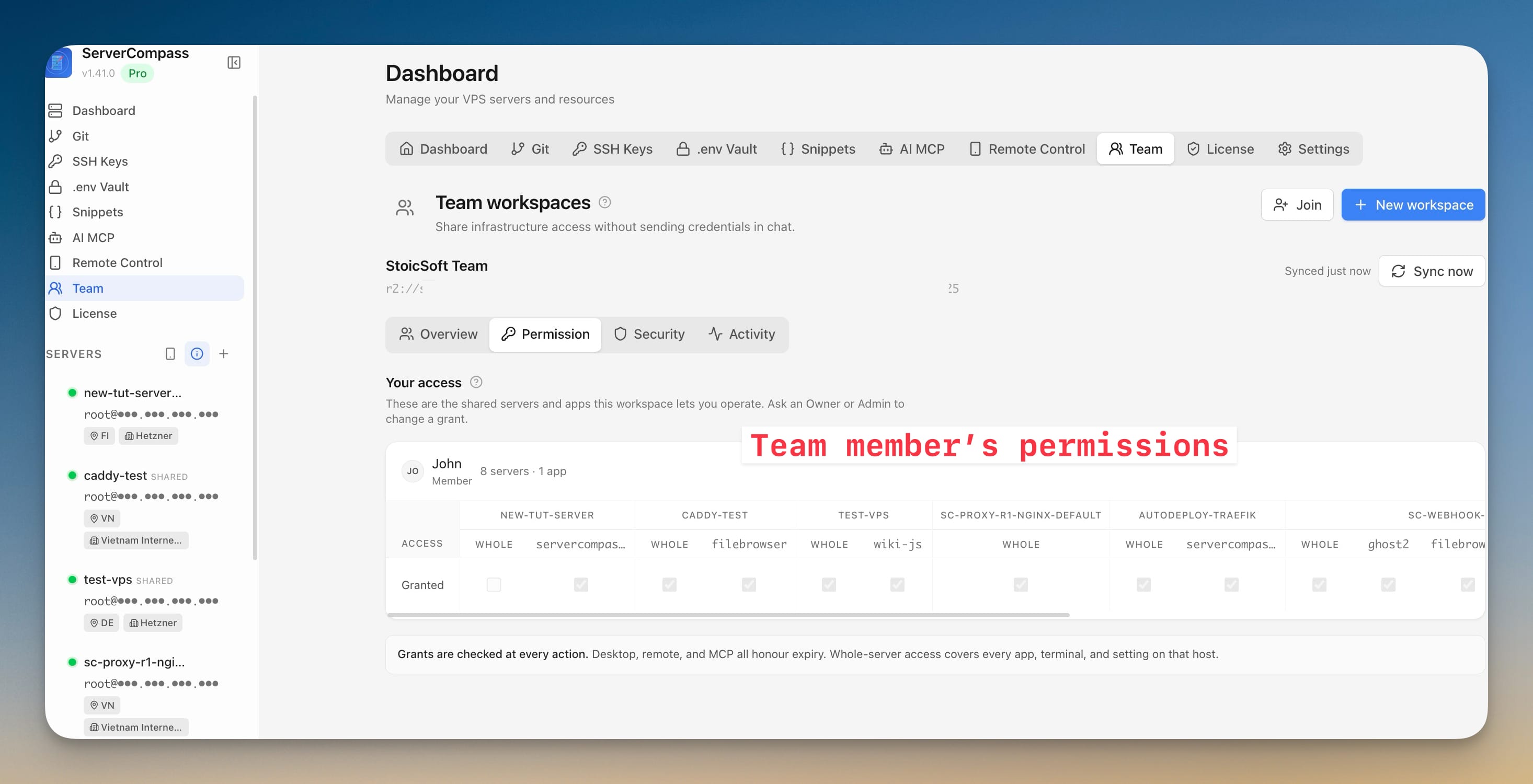
The question that used to require opening every server in turn now has a screen. The Permission tab lists every shared server alongside everyone who can reach it, and you can filter down to a single person to answer "what exactly can they touch?" in one look.
Access that came with someone's role is marked as inherited, so it is obvious why an Admin can reach a server nobody explicitly granted them. Members get the same screen pointed at themselves — they can see what has been shared with them without asking.
Work in the same terminal at the same time
Debugging together used to mean one person driving and everyone else reading pasted output. Share live in the terminal toolbar publishes your session to the workspace, and it keeps running whether or not your window is open. Teammates find it and Join read-only, then Request control when they need to type — you hand it over with one click, and you can see how many people are attached while you work.
Two settings shape the default behaviour. Share terminals by default makes every new terminal on a Team server joinable from the start. Driver disconnect decides what happens when whoever is typing drops off: freeze the session until they are back, or let a viewer take over. Ending the share closes the session for everyone.
Removing someone actually removes them
When you remove a member, the workspace keys are rotated and any phone they had paired loses access too. The confirmation dialog spells out exactly what removal does, what it does not do, and what else you should rotate if the departure was not amicable. That last part matters: if the person held use and reveal on a server, the honest advice is to rotate that credential, and the app says so instead of letting you assume you are clean.
Before vs After
| Getting a teammate onto a production server | Before | Now |
|---|---|---|
| Handing over access | Send the key or password through chat | Share the server; the credential moves into the encrypted vault |
| Scope | Whole machine, always | Whole server, or one named Docker app |
| Time limit | Whatever you remember to do manually | An expiry date on the grant |
| Auditing who has access | Scroll back through old messages | One screen listing every server and everyone who can reach it |
| Revoking | Rotate the key, update every config, tell everyone | Untick the grant, or remove the member and keys rotate |
| Debugging together | Paste terminal output back and forth | Join the same live session, hand over control |
Also in this release
You can now set CPU and memory ceilings on any service in an app straight from its Overview, without hand-editing a compose file. Each container shows its live usage next to the limit currently applied, so you set the ceiling knowing what the service actually uses. Turn on either limit independently, and only the service you changed is restarted — volumes and the rest of the stack keep running. If the new limits stop the service coming back up, the previous configuration is restored automatically and you are told what went wrong.
Who benefits most
Two- and three-person teams sharing one production box. You are past the point where one person can hold everything, but nowhere near wanting a full identity provider. This is the middle step that was missing.
Anyone working with contractors. Time-boxed access to one app, revocable in a click, with an activity log — instead of a key you have to remember to rotate after the engagement ends.
Agencies running client infrastructure. A read-only Viewer costs no license, so a client can watch their own servers without you paying for the privilege or handing out anything that can be used.
Try it
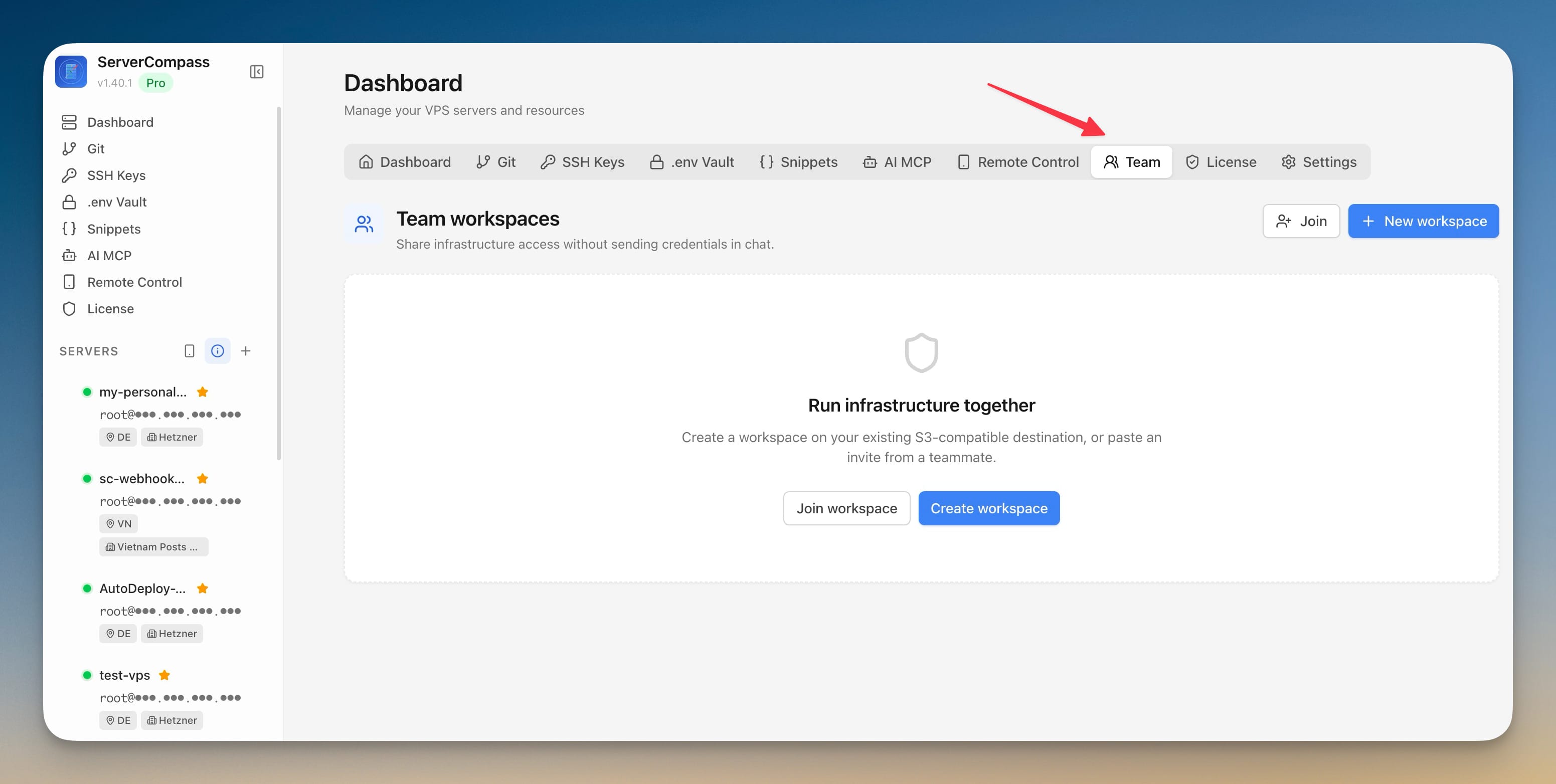
If you already run Server Compass, open the Team tab on the Dashboard and create a workspace against a storage destination you already use for backups. It takes about a minute, and the first thing worth doing is sharing one server with Use only and granting a teammate a single app — that alone replaces the message you were about to send.
The credential never leaves the vault. The access has an end date. And when someone asks who can reach that server, you open a screen instead of scrolling through chat history.