March 13, 2026
Stop Googling Database Commands: Auto-Generate CLI and cURL in One Click
Tired of searching for the right MySQL, PostgreSQL, or MongoDB command syntax? Server Compass auto-detects your database and generates ready-to-use CLI commands and cURL requests instantly.
We've all been there. You deploy a database to your VPS, and now you need to run a quick query. What's the exact syntax for mysql again? How do you pass credentials to psql? What's the cURL command for ClickHouse's HTTP interface?
You open a browser tab, type "mysql connect command line with password," scroll past Stack Overflow answers from 2014, and finally piece together the right incantation. Multiply this by every database you manage, and you've lost hours of your life to syntax lookup.
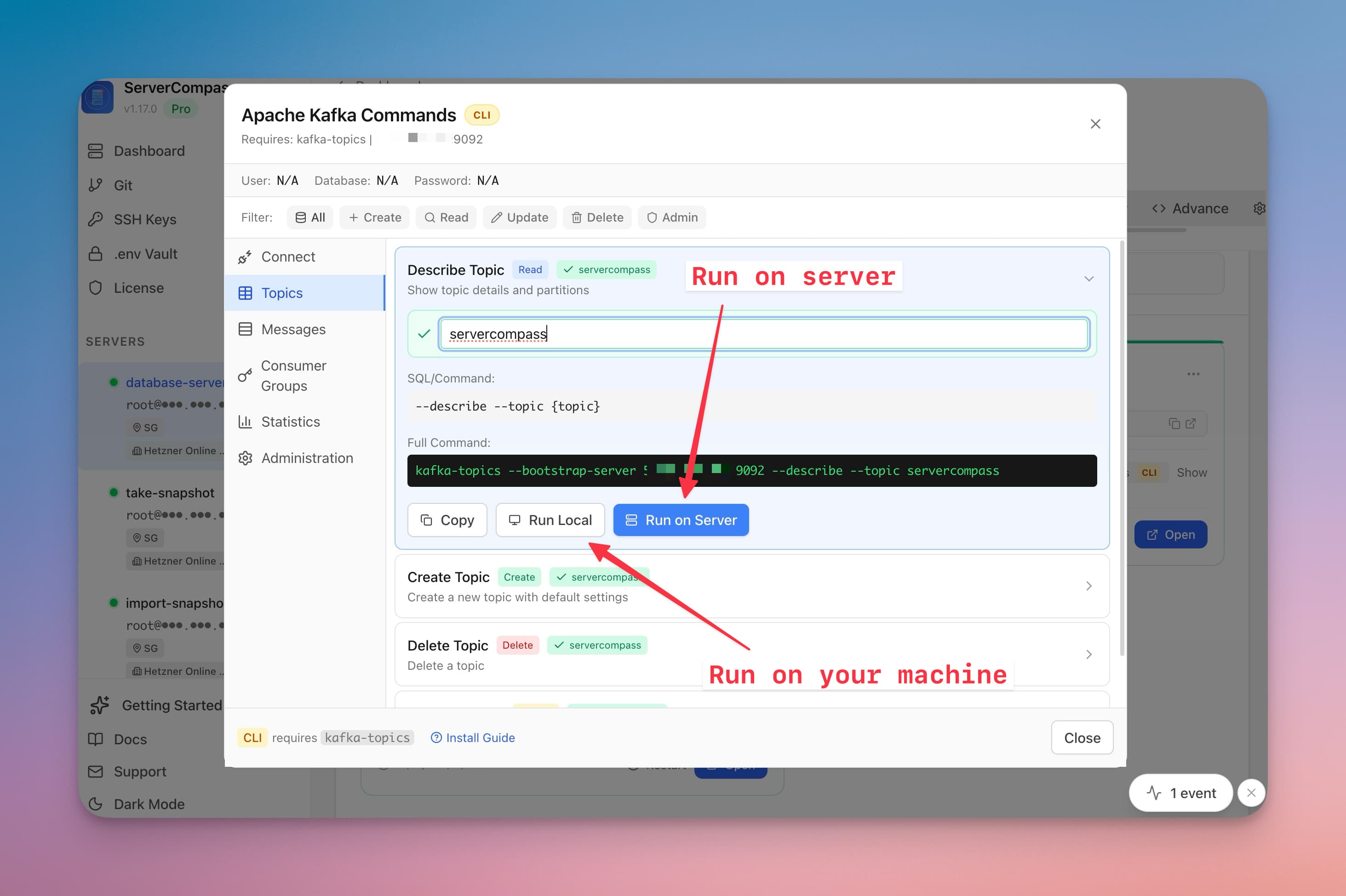
The Database Commands feature in Server Compass eliminates this friction entirely. It auto-detects your database type, extracts connection credentials from your container's environment variables, and generates ready-to-run commands—all with a single click.
The Problem: Context Switching Kills Productivity
Database administration involves constant context switching. You're debugging an issue, you need to check the table structure, and suddenly you're hunting for the right CLI syntax instead of solving the actual problem.
Consider what happens when you deploy a PostgreSQL database to your VPS:
- You need to remember that PostgreSQL uses
psql, notpostgres - The connection flags are different from MySQL (
-h,-p,-U,-d) - Password handling requires
PGPASSWORDenvironment variable or.pgpassfile - Some commands use backslash shortcuts (
\dt,\d tablename), others use SQL
Now multiply this by the databases you actually use: MySQL for your WordPress sites, MongoDB for your Node.js apps, Redis for caching, ClickHouse for analytics. Each has its own CLI tool, its own syntax, its own quirks.
How Database Commands Works
When you click on a database container in Server Compass, the Database Commands modal analyzes your deployment and handles everything automatically.
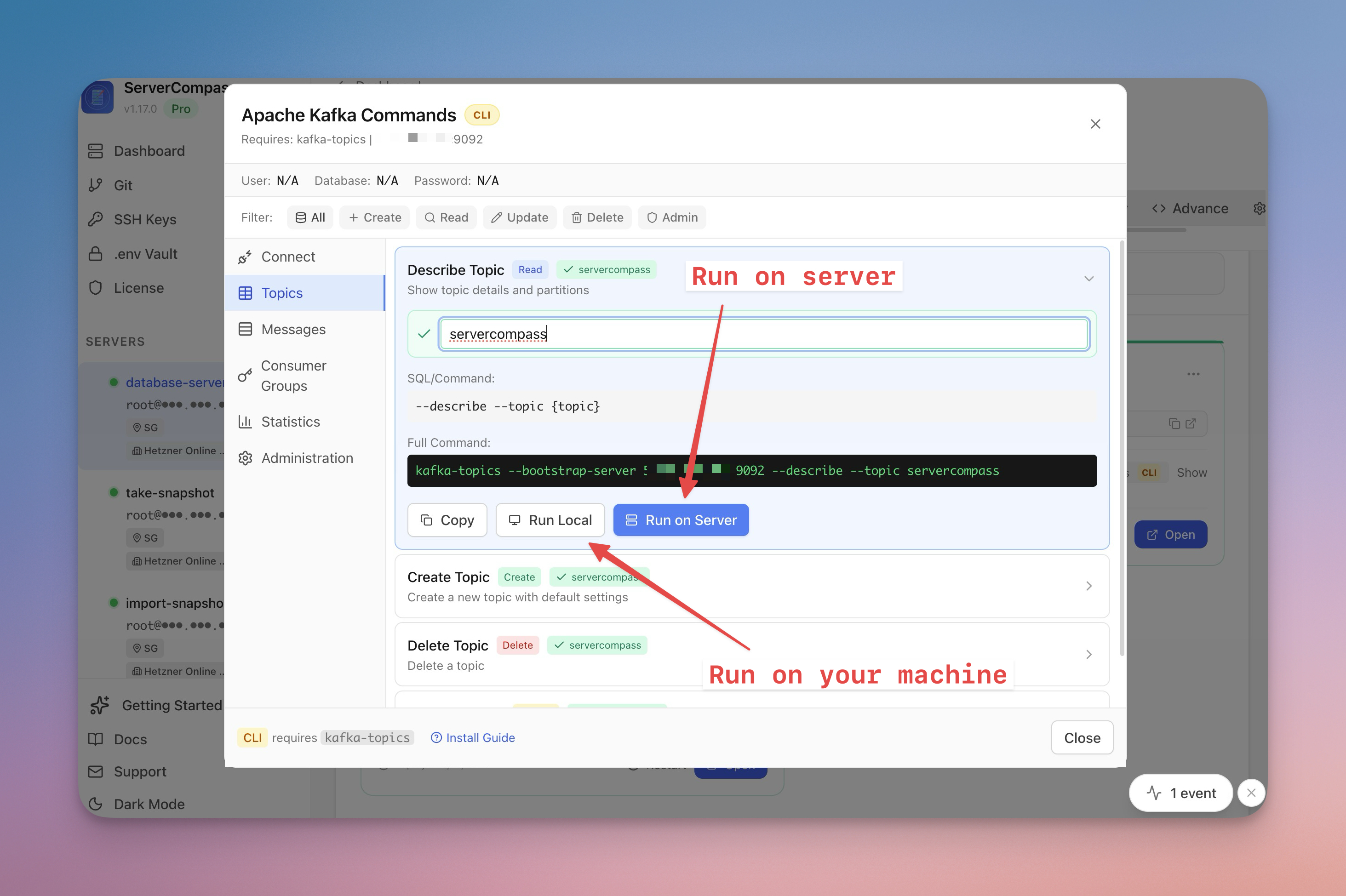
Step 1: Auto-Detection
Server Compass examines your container image and service name to identify the database type. It recognizes over 20 database types including:
Category
Supported Databases
SQL
MySQL, MariaDB, PostgreSQL, MSSQL
PostgreSQL Extensions
TimescaleDB, Hydra, Neon
Document
MongoDB, FerretDB, CouchDB
Key-Value
Redis, Valkey, KeyDB
Analytics
ClickHouse, Elasticsearch, OpenSearch
Time-Series
InfluxDB
Streaming
Kafka
Step 2: Credential Extraction
The feature reads your container's environment variables and extracts connection credentials. It knows that MySQL uses MYSQL_ROOT_PASSWORD while PostgreSQL uses POSTGRES_PASSWORD, and MongoDB uses MONGO_INITDB_ROOT_PASSWORD.
Your connection info appears in a bar at the top: host, port, user, database, and password (masked by default, with a toggle to reveal). No more digging through Docker Compose files or docker inspect output.
Step 3: Command Generation
With the database type identified and credentials extracted, Server Compass generates complete commands organized by category:
- Connect — Open an interactive shell session
- Tables — List tables, describe structure, create/drop tables
- Records — Select, insert, update, delete operations
- Database — Show databases, size info, version
- Backup — Export data with mysqldump, pg_dump, mongodump
- Users — List users, create users, grant permissions
- Config — View configuration variables
CLI vs cURL: Both Covered
Not all databases work the same way. Some require native CLI tools, others expose HTTP APIs.
For databases like MySQL, PostgreSQL, and MongoDB, Server Compass generates CLI commands that require the respective client tool (mysql, psql, mongosh). Each command shows the required tool, and there's an install guide showing how to install it on macOS, Linux, and Windows.
For databases with HTTP interfaces like ClickHouse, Elasticsearch, InfluxDB, and CouchDB, Server Compass generates cURL commands instead. These work on any machine with cURL installed—no database-specific client needed.
# ClickHouse - cURL command
curl "http://your-server:8123/?query=SELECT+name+FROM+system.tables"

# MySQL - CLI command
mysql -h your-server -P 3306 -u root -p'yourpassword' -e "SHOW TABLES;" mydb
CRUD Filtering: Find Commands Fast
With dozens of commands available, finding the right one could become its own problem. That's why every command is tagged with its CRUD type:
- Create — Commands that create tables, insert records, add users
- Read — Commands that query data, describe structures, list items
- Update — Commands that modify existing data
- Delete — Commands that remove data (highlighted for caution)
- Admin — Commands for connection, configuration, and maintenance
Click any filter button, and you see matching commands from all categories. Need to delete something? Filter by Delete and see every destructive command in one view, regardless of whether it's table-level or record-level.
Dynamic Placeholders
Many commands need a table name, collection name, or key. Instead of generating commands with placeholder text you'd need to manually edit, Server Compass prompts you to enter the value directly.
Commands that need input show a "Needs input" badge. When you expand the command, a text field appears. Type your table name, and it's instantly substituted into the command—both in the preview and when you copy or execute it.
Three Ways to Execute
Once you have the right command, you have three options:
- Copy — Copy the complete command to your clipboard
- Run Local — Open the command in your local terminal (Terminal on Mac, Windows Terminal on Windows)
- Run on Server — Execute directly on the remote server via Server Compass's SSH terminal
The "Run on Server" option is particularly powerful for commands that need to run inside the Docker network. Instead of exposing your database port publicly, you can execute commands through Server Compass's secure SSH connection.
Security by Default
Passwords are masked in the command preview by default. You see *** instead of your actual password, preventing accidental exposure during screen shares or over-the-shoulder moments. Click the eye icon to toggle visibility when you need it.
When you copy a command, it includes the real password—the masking is purely visual. The command you paste or execute always works correctly.
What Can You Do?
Here's a sampling of operations available out of the box:
MySQL / MariaDB
- Connect to database shell
- List/describe/create/drop tables
- Select, insert, update, delete records
- Show processlist, kill queries
- Full and partial mysqldump backups
- Create users and grant privileges
PostgreSQL
- Connect with psql
- List tables, describe schema
- Query and modify data
- pg_dump full and schema-only exports
- Role and permission management
- View and modify configuration
MongoDB
- Connect with mongosh
- List collections, show indexes
- Find, insert, update, delete documents
- Aggregation pipeline templates
- mongodump and mongorestore
- User and role management
Redis
- Connect with redis-cli
- Get, set, delete keys
- Scan keys by pattern
- Check memory usage
- BGSAVE and backup
- Server info and stats
ClickHouse
- Query via cURL HTTP API
- List databases and tables
- Insert and select data
- System tables and metrics
- Kill running queries
Why This Matters
Every minute spent searching for command syntax is a minute not spent solving actual problems. Database Commands removes that friction entirely.
Deploy a MySQL database, click the container, and you have every command you need—with your credentials already filled in. No documentation lookup, no copy-paste errors, no "was it -p or -P?" moments.
This is especially valuable when you're managing multiple databases across multiple servers. Each deployment has different credentials, different ports, different database names. Server Compass keeps track of all of it and generates the right commands for each context.
Get Started
The Database Commands feature is available in Server Compass. Deploy any supported database using the template gallery, click on the container, and start generating commands instantly.
Check out our database deployment tutorials to see it in action:
Ready to stop googling database commands? Download Server Compass and reclaim your productivity.
Related in the StoicSoft network
If you're self-hosting on a VPS or working through a deployment guide like the one above, DeployToVPS is the StoicSoft network's handbook for VPS deployment recipes — docker-compose, nginx, traefik, and common app self-hosts.
From across the StoicSoft network
Hand-curated reads on the same topic from sister sites in the StoicSoft family.
 1DevTool9 min read
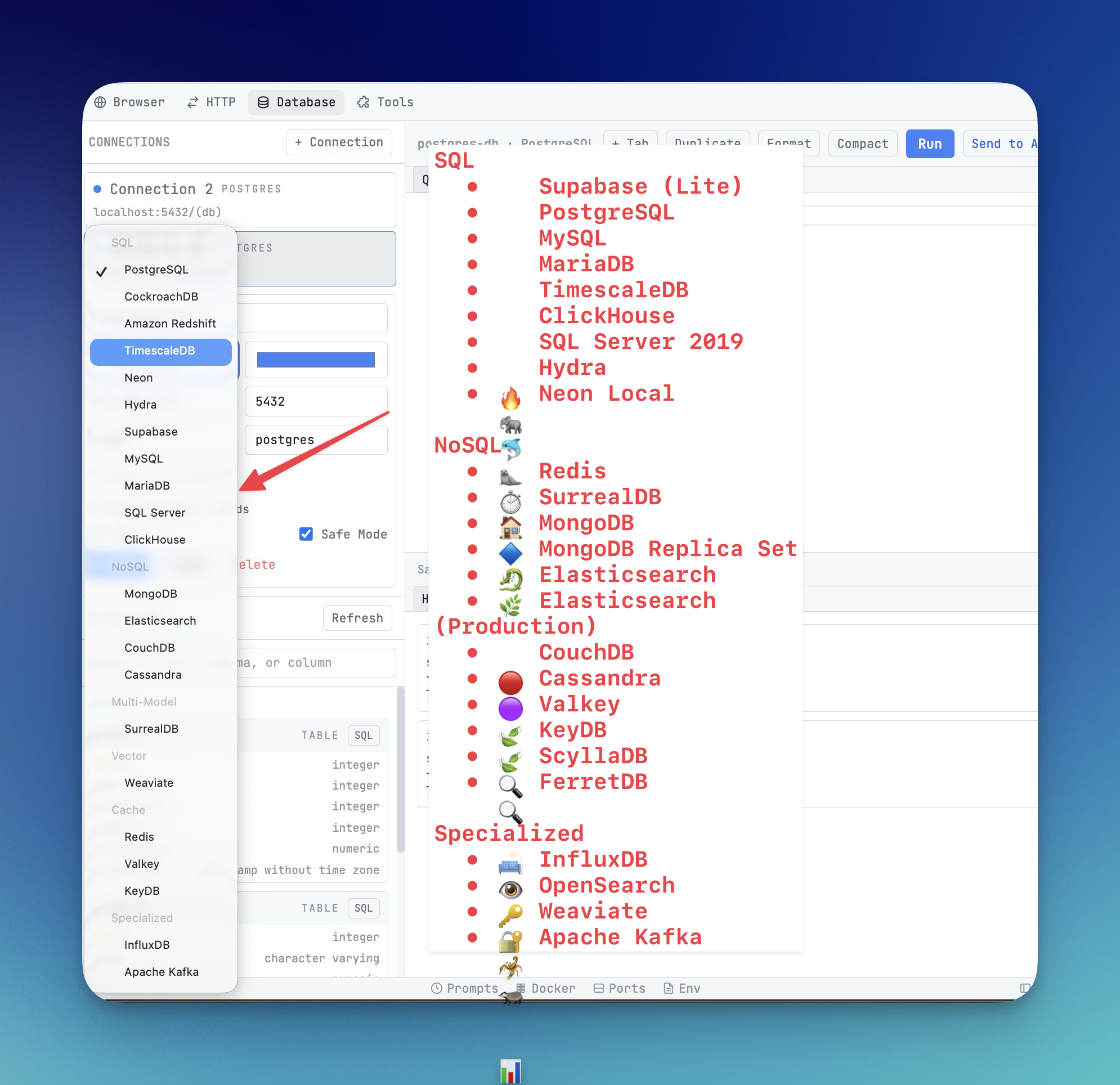
Database GUI Clients Compared: Built-In vs Standalone in 2026
Should you keep a separate database GUI client or use one built directly into your coding workspace? This guide compares speed, context, and query quality in real development workflows.
Read on 1devtool.com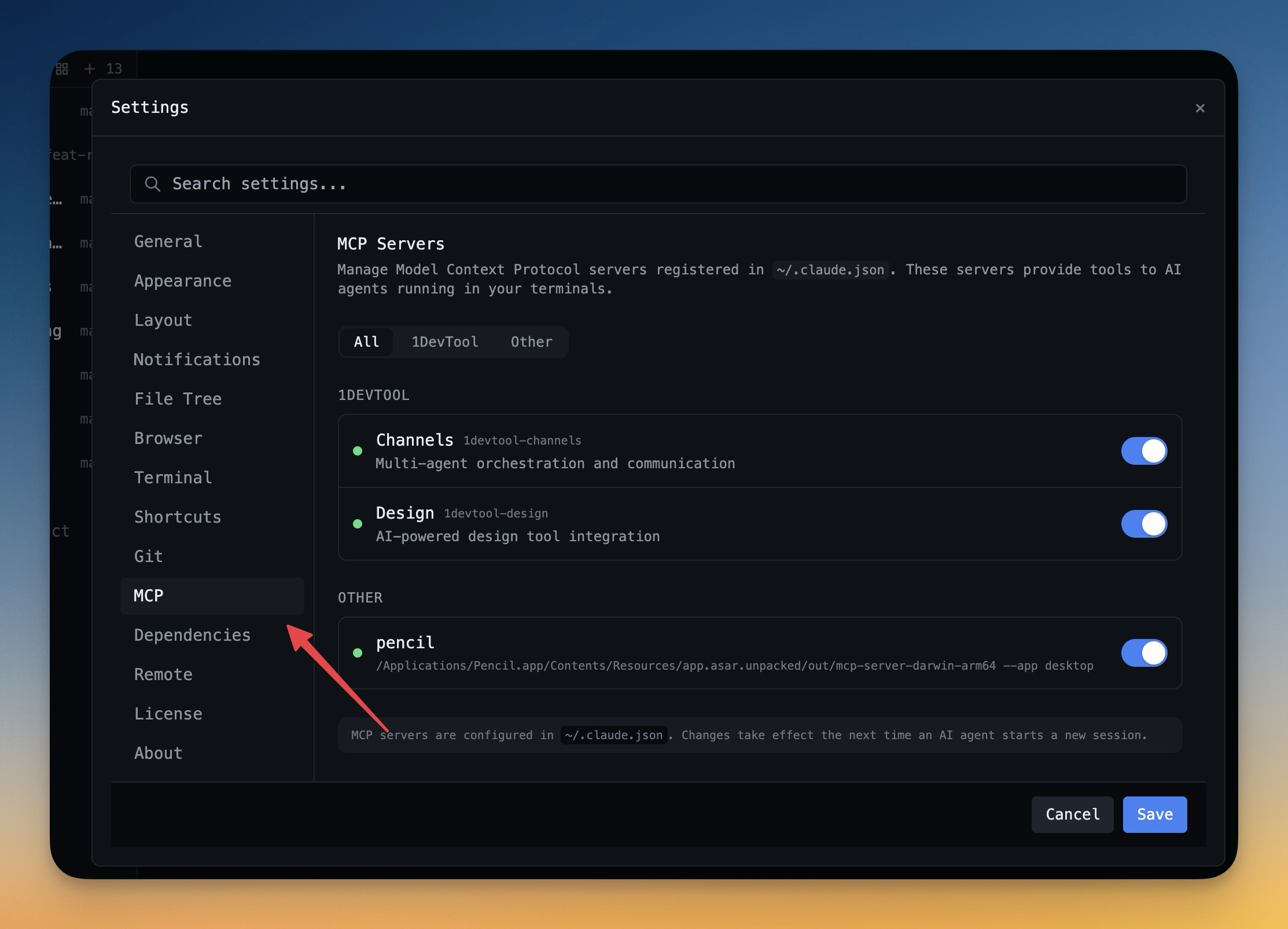 1DevTool11 min read
Self-Hosted AI Coding Assistant Workflow: Practical Setup Guide
A self-hosted AI coding workflow needs more than model hosting. You need environment control, connector governance, and reproducible operations. This guide covers the practical stack.
Read on 1devtool.com