Database Commands Generator
Generate ready-to-use CLI commands or cURL for any database. Auto-detects database type, extracts connection info, and provides categorized commands for MySQL, PostgreSQL, MongoDB, Redis, ClickHouse, MSSQL, InfluxDB, and Kafka.
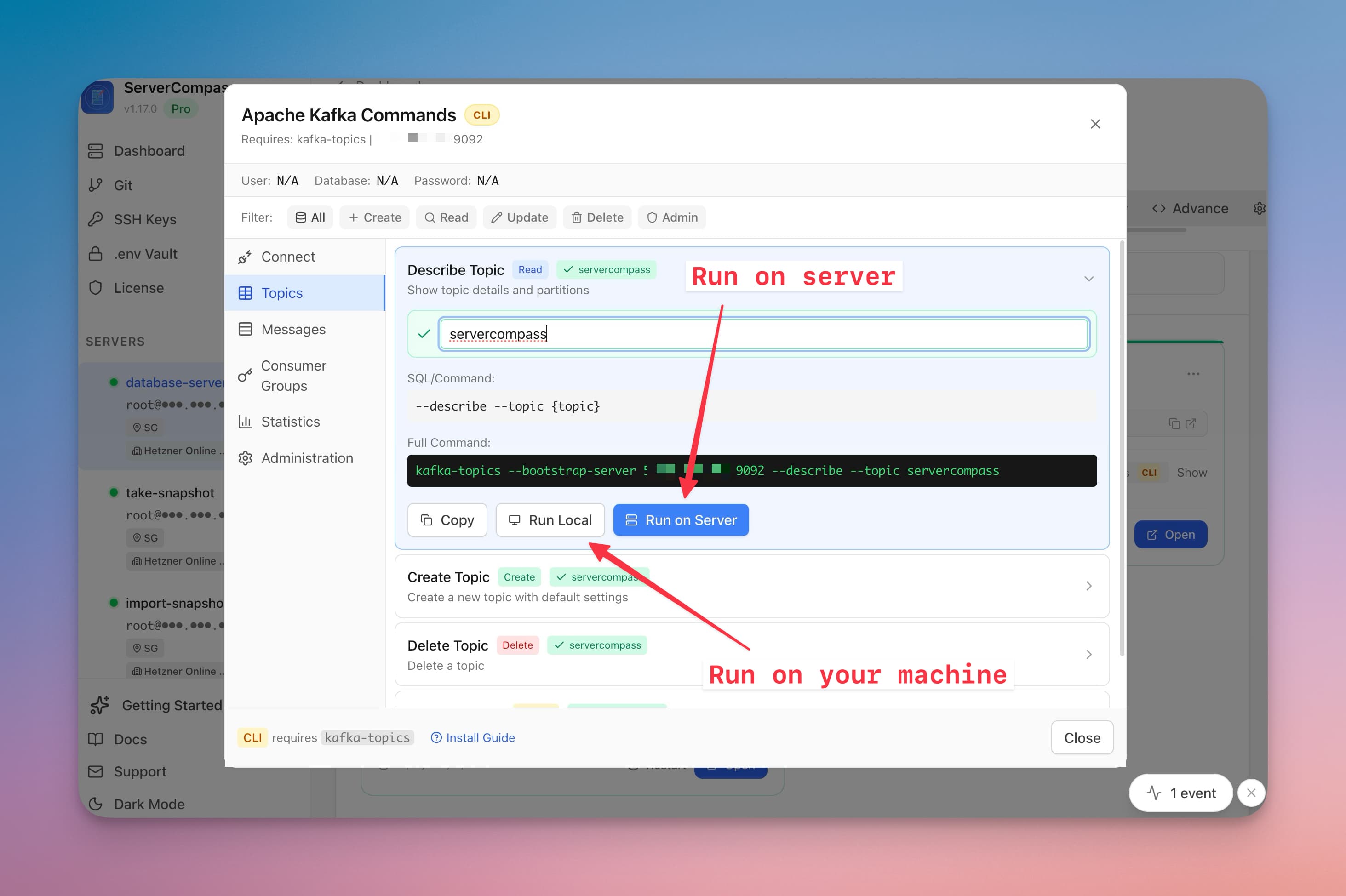
Using Database Commands Generator in Server Compass
Using Database Commands Generator is straightforward. Follow these simple steps to get started.
Open Database Commands
Click the Database Commands button on any database container in your app dashboard.
Auto-Detection
Server Compass detects the database type and extracts connection credentials from environment variables.
Browse Commands
Filter by CRUD type or browse categories: Connect, Tables, Records, Structure, Statistics, Export, and Admin.
Execute or Copy
Copy commands with one click, run locally on your machine, or execute directly on the server via SSH.
Database Commands Generator vs. The Command Line
Miss the old days? Here's how to do everything Database Commands Generator does... the hard way.
SSH into your server
Connect to access your database containers.
ssh root@your-server-ipFind database credentials
Hunt through docker-compose files for credentials.
# Find your docker-compose file
cat /opt/apps/myapp/docker-compose.yml | grep -A 20 "postgres"
# Or for .env files
cat /opt/apps/myapp/.env | grep -i password

# Now remember these values for the next command...
Credentials scattered across multiple files. Easy to miss one.
Connect to MySQL / MariaDB
Run the mysql client with all connection flags.
# Get into container shell first
docker exec -it mysql_container bash

# Or connect directly
mysql -h localhost -P 3306 -u root -p'YourPasswordHere' mydb

# List tables
SHOW TABLES;

# Query data
SELECT * FROM users LIMIT 20;Connect to PostgreSQL
Use psql with environment variables.
# Set password in env to avoid prompt
PGPASSWORD='YourPassword' psql -h localhost -p 5432 -U postgres -d mydb

# Or via docker
docker exec -it postgres psql -U postgres

# List tables
\dt

# Query data
SELECT * FROM users LIMIT 20;Connect to MongoDB
Use mongosh with connection string.
# Connect with auth
mongosh "mongodb://admin:password@localhost:27017/mydb?authSource=admin"

# Or via docker
docker exec -it mongo mongosh -u admin -p password

# List collections
db.getCollectionNames()

# Query documents
db.users.find().limit(20).pretty()Connect to Redis
Use redis-cli with auth.
# Direct connection
redis-cli -h localhost -p 6379 -a 'YourPassword'

# Or via docker
docker exec -it redis redis-cli

# List keys
KEYS "*"

# Get a value
GET mykeyMore databases? More commands...
Each database type has its own CLI tool and syntax.
# ClickHouse - uses HTTP API
curl "http://localhost:8123/?user=default&password=xxx" --data "SHOW TABLES"

# Elasticsearch - REST API
curl -u "elastic:password" "http://localhost:9200/_cat/indices?v"

# Microsoft SQL Server - sqlcmd
sqlcmd -S localhost,1433 -U sa -P 'YourPassword' -Q "SELECT name FROM sys.tables"

# Cassandra - cqlsh
cqlsh localhost 9042 -u cassandra -p cassandra -e "DESCRIBE KEYSPACES"

# InfluxDB - influx CLI
influx query 'from(bucket:"mybucket") |> range(start:-1h)' --host http://localhost:8086 --token xxx

# Kafka - kafka-topics
kafka-topics --bootstrap-server localhost:9092 --list

# Each one different. Each one to memorize.
Different syntax, different auth methods, different ports. Good luck remembering them all.
Export data manually
Each database has its own dump tool.
# MySQL
mysqldump -h localhost -u root -p'xxx' mydb > backup.sql

# PostgreSQL
PGPASSWORD='xxx' pg_dump -h localhost -U postgres mydb > backup.sql

# MongoDB
mongodump --uri="mongodb://admin:xxx@localhost:27017/mydb?authSource=admin" --out=./backup

# Redis
redis-cli -a 'xxx' BGSAVE

# Different tool, different flags, every single time.There's a Better Way
Database Commands Generator in Server Compass does all of this with a single click. No terminal. No memorizing commands. No 3 AM debugging sessions.
- No SSH required
- Guided workflows
- Undo support
- Multi-server management
Everything Database Commands Generator Offers
Everything you need for database management in one integrated tool, replacing complex CLI commands and manual configuration.
Get StartedBenefits of Database Commands Generator
Server management shouldn't require a DevOps team. Database Commands Generator makes professional-grade database management accessible to everyone.
Visual Query Interface
Database Commands Generator provides a full-featured query editor with syntax highlighting and result tables.
Multi-Engine Support
Database Commands Generator works with SQL databases (PostgreSQL, MySQL) and NoSQL stores (MongoDB, Redis) from one interface.
Safe Data Operations
Database Commands Generator includes data preview before import and confirmation before destructive queries.
Import & Export
Database Commands Generator handles CSV import with column mapping and data export in CSV/JSON formats.
Database Commands Generator FAQ
Common questions about Database Commands Generator in Server Compass
How do I access Database Commands Generator in Server Compass?
Database Commands Generator is available in the Database Management section of Server Compass. Simply connect to your server, navigate to Database Management, and you'll find Database Commands Generator ready to use. No additional setup or plugins required.
Does Database Commands Generator require any server-side installation?
No. Server Compass operates as a desktop application that connects to your server via SSH. Database Commands Generator works through this connection without installing any agents or packages on your server (except the optional monitoring agent for resource tracking).
Is Database Commands Generator included in all Server Compass plans?
Yes. Every Server Compass feature, including Database Commands Generator, is included with the one-time $29 payment. There are no tier restrictions, add-ons, or per-server fees. You get all 152+ features for all your servers.
Can I use Database Commands Generator with any VPS provider?
Database Commands Generator works with any VPS or dedicated server that supports SSH access and Docker. This includes DigitalOcean, Hetzner, Vultr, Linode, AWS EC2, Google Cloud, Azure, and any other provider. It also works with local servers and homelab setups.
What makes Database Commands Generator different from command-line alternatives?
Database Commands Generator provides a visual, intuitive interface that replaces complex CLI commands and configuration files. You get real-time feedback, safety confirmations, and a consistent experience across all your servers without memorizing syntax or writing scripts.
More Database Management Features
Explore other database management capabilities in Server Compass
Database Admin Interface
Full database management UI for SQL and NoSQL databases. Query, browse tables, and manage data visually.
SQL Query Editor
Execute SQL queries directly on connected databases. Syntax highlighting, results table, and query history.
NoSQL Query Editors
Specialized query editors for MongoDB, Elasticsearch, CouchDB, and Cassandra. Native query syntax support.
Tables & Schema Browser
Browse database tables, view schemas, column types, and relationships. Understand your data structure visually.
Try Database Commands Generator Today
Download Server Compass and get access to Database Commands Generator along with 151 other features. One-time $29 payment. No subscriptions. No per-server fees.