September 9, 2026
Stop Running Your VPS as Root
Server Compass now runs as a non-root sudo user end to end — firewall, brute-force protection, SSH hardening, Docker and deploys all work from an ordinary account, and disabling root login stays locked until a working key-based fallback is verified.
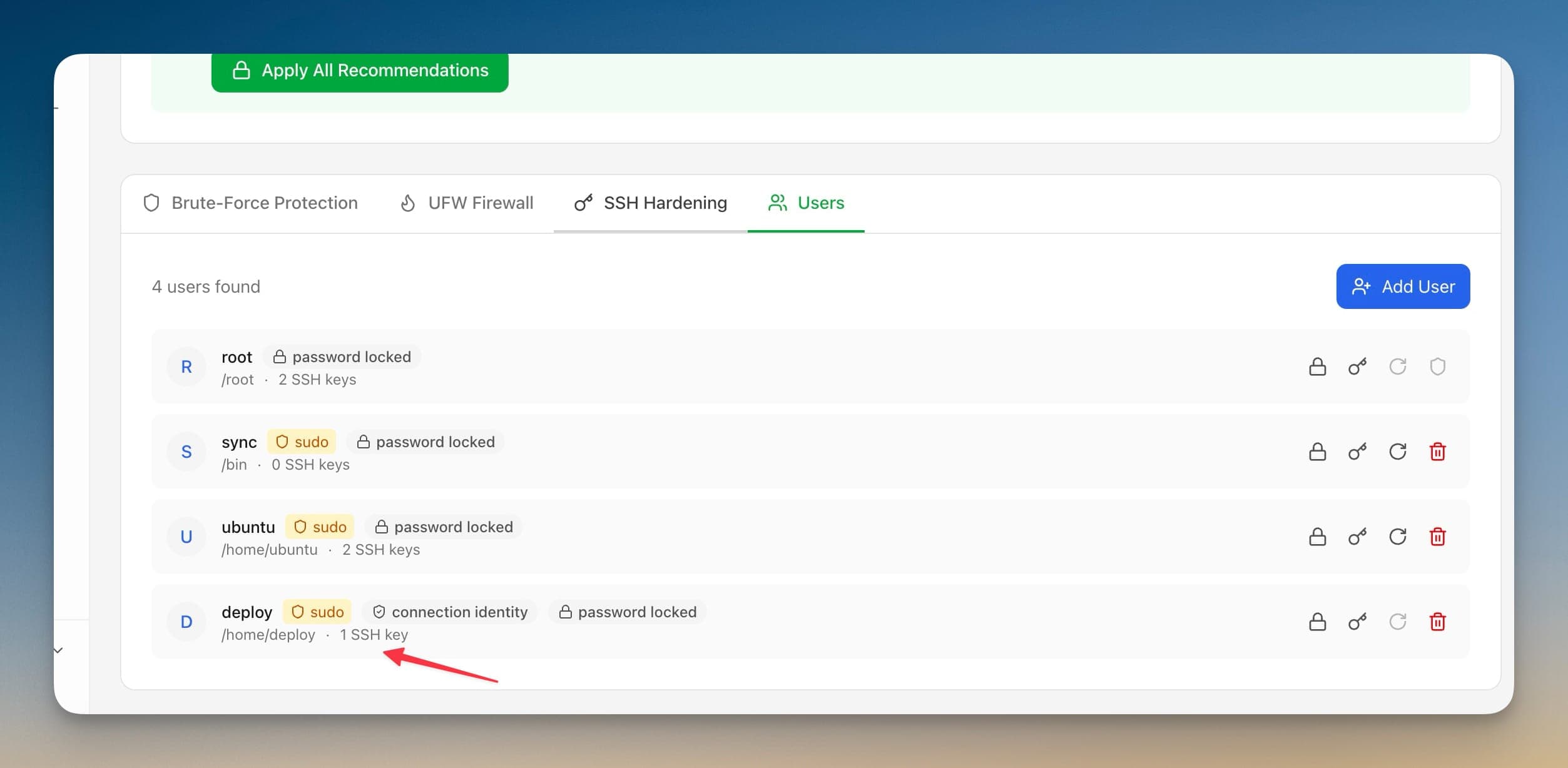
Every VPS tutorial opens the same way: create a user, give it sudo, disable root login. It is the first thing you are told to do, and the first thing you quietly skip — because the moment you do it, half your tooling stops working. The panel that configured your firewall cannot reach it any more. Yesterday's deploy fails on a permission error. Something writes to /root/apps and then cannot read it back.
So the account gets created, sits unused, and you keep signing in as root. Not because you think it is a good idea, but because everything stacked on top of that connection assumed root, and nothing told you which parts would break until they broke.
Server Compass was part of that problem. It would happily create a sudo user for you, and then its own security actions would fail as that user — silently, in a few cases, which is worse than failing loudly. This release fixes the whole path.
What changed
Server Compass now runs as a non-root sudo user end to end. Firewall rules, brute-force protection, SSH hardening, Docker installs, and deploys all work when the app signs in as an ordinary account with sudo — and apps you deploy land in that account's home folder instead of root's.
How it works in practice
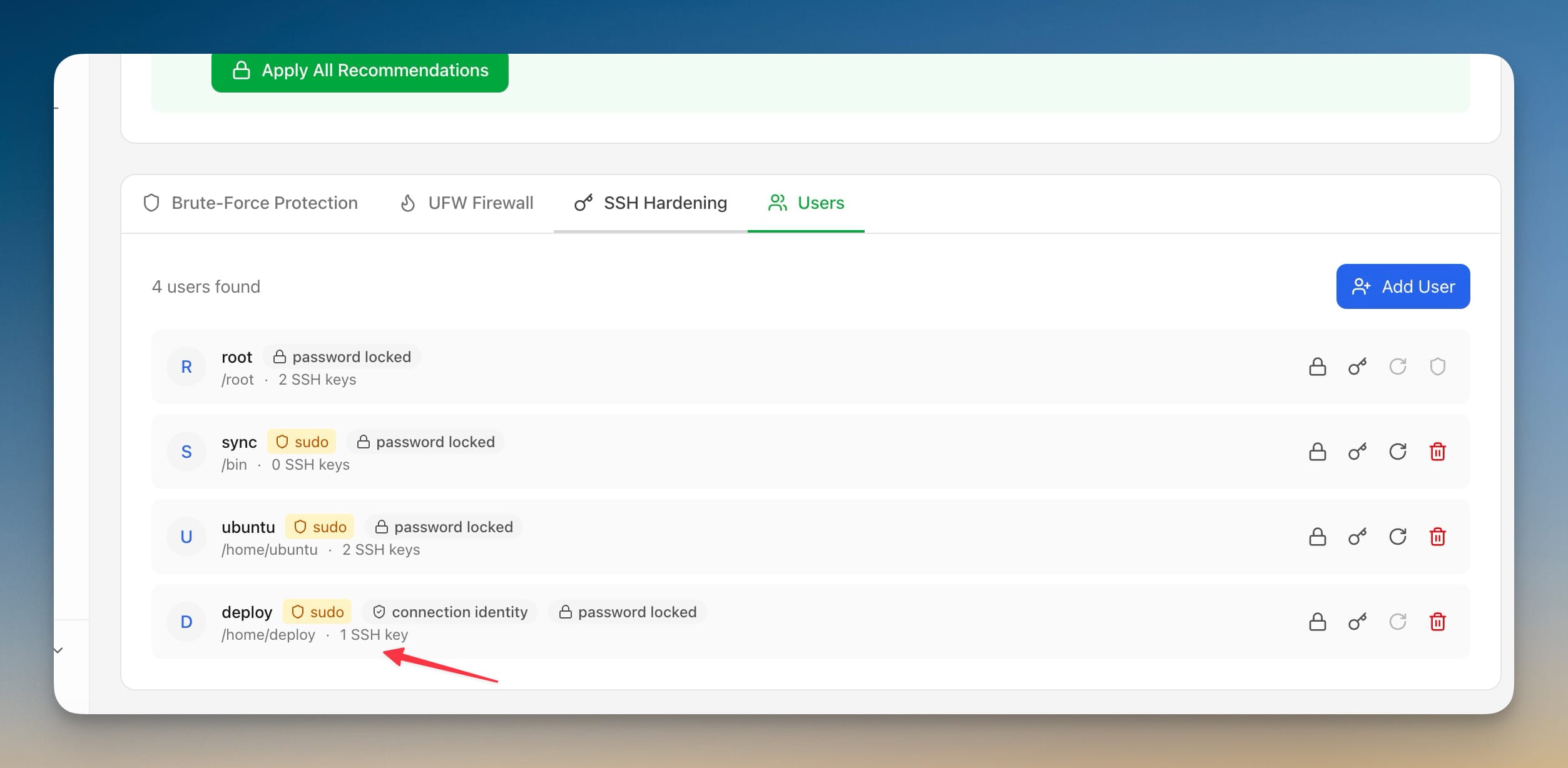
You can see which account you are connected as
The Security tab now states who Server Compass is signed in as and whether passwordless sudo is available on that account. That sounds small, but it is the piece that was missing: when a hardening action failed before, you had no way to tell whether the problem was the server, the command, or the fact that you were connected as an account that could not run it.
If you are still connected as root, the Security tab surfaces a Create a sudo user recommendation rather than leaving you to work out that you should. Add Server no longer nudges you toward root either.
Creating the account explains what it is about to do
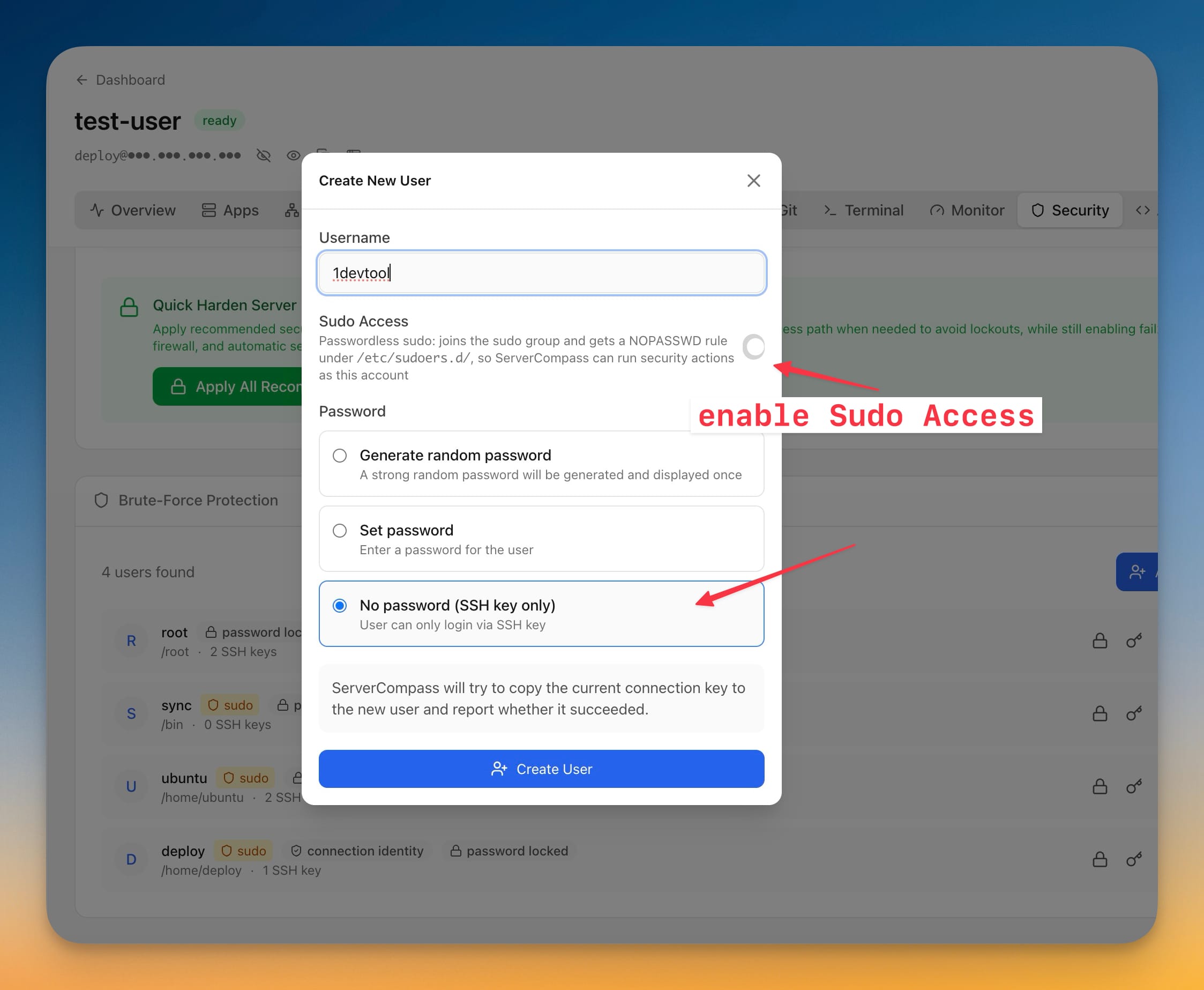
Create New User asks for a username and offers Sudo Access, spelled out in plain terms: the account joins the sudo group and gets a NOPASSWD rule under /etc/sudoers.d/, so Server Compass can run security actions as it. No guessing about what the toggle writes.
Passwords are a three-way choice — Generate random password (shown once), Set password, or No password (SSH key only) — and Server Compass copies the current connection key to the new account and tells you whether that actually succeeded. Previously it would claim the key was installed even when the connection was password-only, which produced an account you could not log in to.
You can also set, generate, or unlock a password for any existing user from the Users tab — including the account Server Compass itself connects with, which used to be the one account you had to fix over a raw SSH session.
Moving an existing server across is a verified step, not a leap
The risky part of this migration has never been creating the user. It is the moment you switch over and find out whether the new account actually works.
Sync hardening to a user does the switch as a checked sequence: it installs the app's key, grants passwordless sudo, verifies passwordless sudo, and verifies an SSH login as that user. Only when those pass does it offer to move the connection over. If any step fails, you are still connected as the account that works.
Locking root out is gated on a fallback that exists
Disable root login is the step that turns a bad afternoon into a rebuild-from-snapshot afternoon. It is now locked until Server Compass has verified a working sudo account with an authorized key — the toggle reads Requires passwordless sudo and an authorized SSH key until that is true.
SSH changes are also reversible now. Server Compass takes a timestamped backup before applying, keeps the five most recent, and lets you restore one from the app. A restore that would reopen a port your firewall still blocks is refused unless you explicitly allow it, so you cannot roll back into a server you can no longer reach.
The security tools work as that user
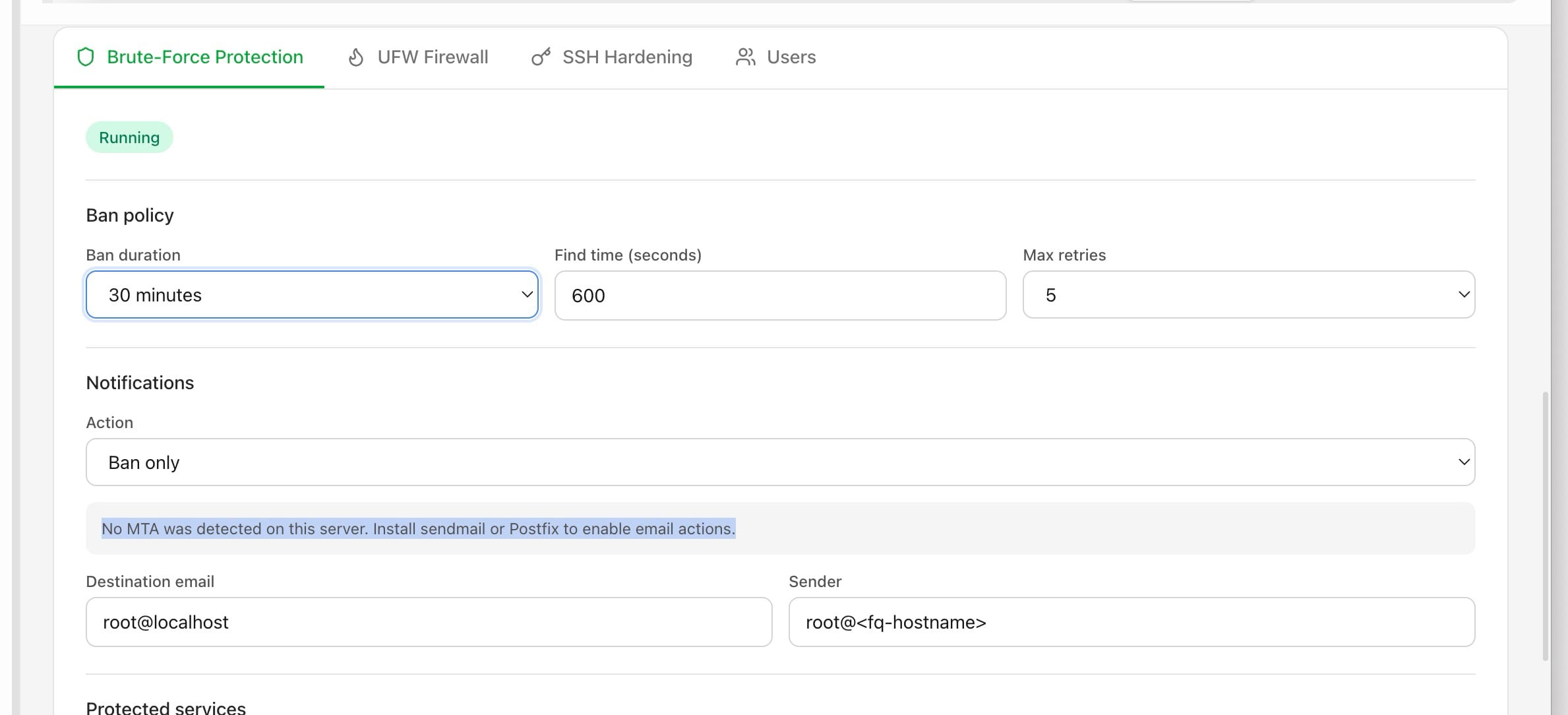
Firewall, fail2ban, and Apply All Recommendations used to fail silently when run from a sudo account — they reported success and changed nothing. They now run correctly as a sudo user, and genuine failures surface instead of disappearing, with real errors listed under Advanced → Activity → Errors.
Before vs after
| Step | Before | Now |
|---|---|---|
| Create the account | adduser, usermod -aG sudo, hand-edit /etc/sudoers.d/ | Create New User with a Sudo Access toggle that states what it writes |
| Install your key | ssh-copy-id, hope it landed | Key copied automatically, with a report on whether it worked |
| Verify it works | Open a second terminal and pray before closing the first | Four checked steps before the connection is switched |
| Deploy as that user | Apps written to /root, unreadable afterwards | Apps land in the sudo user's home |
| Run firewall / fail2ban | Silently did nothing as a sudo user | Runs correctly; real failures are reported |
| Disable root login | One toggle, no safety net | Locked until a key-based sudo fallback is verified |
| Undo an SSH change | Restore from a provider snapshot | Restore one of the five most recent timestamped backups |
Who benefits most
Anyone who has to pass an audit. "No direct root login" is on every checklist, and this is the first version where satisfying it does not cost you the tooling that made the server manageable.
People running someone else's server. A sudo account with a NOPASSWD rule and no shared password is the difference between handing over access and handing over the keys.
Anyone who has locked themselves out once. The verified switch and the SSH backup restore exist specifically for the failure that costs you an evening — disabling root login on a server where the replacement account was never actually reachable.
Try it
Open the Security tab on a server you connect to as root. If the Create a sudo user recommendation is there, that is the whole migration: create the account, let Server Compass verify the key and the sudo rule, switch the connection over, and only then disable root login.
You end up where every guide told you to be on day one — without the week of finding out which of your tools quietly assumed otherwise.
From across the StoicSoft network
Hand-curated reads on the same topic from sister sites in the StoicSoft family.
 1DevTool11 min read
Deploys, HTTP Collections, SSH Manager, and Tasks in One AI Developer Workspace
Deploy to Vercel or Cloudflare Pages, organize API requests in nested collections, manage SSH connections, and turn project tasks into AI-ready prompts without leaving your workspace.
Read on 1devtool.com 1DevTool6 min read
Recover SSH Workspaces Without Restarting
Remote SSH projects can now recover from stale mounts, missing sshfs, and dropped connections without making you restart the app. AI terminals also reopen with useful context when native session resume is not available.
Read on 1devtool.com