Run Your Server Without Root
Server Compass no longer needs to be root. Firewall, brute-force protection, SSH hardening, Docker and deploys all work when the app signs in as a sudo user, apps land in that user's home instead of root's, and disabling root login stays locked until a working key-based sudo fallback is verified. This release also imports servers straight from your ~/.ssh/config (passphrase-protected keys included), adds Static Site and PHP Site templates that need no Git repository and stay editable after a redeploy, stores CPU, memory, disk and load history on the server, ships a seven-chapter guided tour, and lets a Team Owner export a sealed recovery bundle and restore the workspace on a new machine.
Download v1.43.0
Get this version from GitHub Releases
What's Changed
New Features
19- Run your server as a non-root sudo user — firewall, brute-force protection, SSH hardening, Docker and deploys all work when Server Compass signs in as a sudo account instead of root
- New apps land in that user's home folder rather than root's, and the Security tab shows who you are connected as and whether passwordless sudo is available
- Sync hardening to a user installs the app's key, grants passwordless sudo, and verifies the login actually works before offering to switch the connection over
- Set, generate, or unlock any user's password from the Users tab — including the account Server Compass itself signs in with
- Connected as root? The Security tab now recommends Create a sudo user, and Add Server no longer steers you toward root
- Import servers from the SSH config on this computer — pick the aliases you want from
~/.ssh/configand add them in one pass - Jump hosts, proxies and other unsupported entries are explained rather than failing silently, and servers you already added are skipped
- Passphrase-protected SSH keys work end to end — generate one with a passphrase, import one, and connect by entering it; encrypted keys are labeled instead of failing with a generic login error
- Install a Static Site or a PHP Site straight from the Stack Wizard — HTML, CSS and JavaScript on Nginx, or PHP 8.3 on Apache, with an editable document root and no Git repository required
- A starter page is written only when the folder is empty, so a redeploy keeps your edits, and Edit site content on the app overview opens those files directly
- Keep metric history on the server — store CPU, memory, disk and load samples and review them in Monitoring
- Choose the data directory and retention in days, optionally POST each sample as JSON to an HTTP receiver you own, and download the synced samples as JSON
- A guided tour from Get Started — seven short chapters with a diagram in each, covering how Server Compass sits on your computer, where every screen lives, how deploys and domains work, and where secrets stay
- Tour progress is remembered if you close it part-way
- Export a sealed recovery bundle from Team settings and Restore it on a new device with the bundle, the passphrase and the original storage bucket — losing a laptop no longer loses the Owner workspace
- See the timestamped backups taken before SSH settings changed, and restore one — a restore that would open a port the firewall still blocks is refused unless you allow it
- Disabling root login now requires a working sudo account with a key — the toggle stays locked until that fallback is verified
- Cloud-init status is visible under Advanced — installed, disabled, and which datasource — without reading user data or secrets
- Server changes lists what Server Compass itself changed on the box
Improvements
14- Install Docker on purpose — the Stack Wizard lets you browse templates first, then asks you to install Docker Engine and Compose before you pick one
- Install Traefik inline, with named progress, from domain setup and the client portal, instead of a silent wait that can last several minutes
- Choose the monitoring interval before the agent is installed, and that interval is what actually runs
- Brute-force protection can email you when it bans an address if the server already has an MTA, and it leaves a jail file you wrote by hand alone
- Choose which services fail2ban protects — SSH, nginx, Apache, Postfix and repeat offenders — instead of SSH only
- Client portal setup tells you whether DNS, TLS or HTTP failed, instead of a grey "awaiting" with no reason
- Dark mode follows the system on first launch, and the sidebar cycles System, Light and Dark
- Drag the sidebar to resize it, and double-click the edge to reset
- The in-app terminal fills the tab instead of sitting in a fixed-height box
- Local command-log storage can go up to 100 GB, and the setting now says it is storage on this computer
- Security, monitoring and other long actions show named steps and a result, including a confirmation when a password is copied
- The "Enable SSH Protection" toggle is green when protection is on
- Alert rules that name specific channels only notify those channels, and the install prompt reminds you to set channels up
- Pasting a compose that only pulls images no longer recommends "Build on VPS"
Bug Fixes
13- Fixed firewall, fail2ban and "Apply all recommendations" failing silently when signed in as a sudo user — failures now surface, and Advanced → Activity → Errors lists real failures
- Fixed deploying an app as a sudo user failing because files were created under root's home
- Fixed the terminal dropping into Command mode after a server reboot — it retries, shows Reconnecting, and offers Reconnect; reconnecting one tab no longer reloads the others or replays the first command
- Fixed system listeners showing as unknown UDP ports and looking killable — common ports are named, and system services are no longer offered as something to kill
- Fixed connection and proxy-mode buttons reporting success when nothing happened
- Fixed changing an SSH password and then losing the saved login if the save failed — the previous password is restored
- Fixed deleting a busy user also removing their sudo grant
- Fixed redeploy retagging a pinned image as latest
- Fixed creating a user claiming an SSH key was installed when the connection was password-only
- Fixed switching from root to a sudo user without warning that apps deployed as root stay in root's home
- Fixed zero-downtime deploys always using root's app folder even when the app lives elsewhere
- Fixed Team Viewers and Members seeing other people's activity — Viewers see none, Members see their own
- Fixed Team activity export ignoring the person and action filters shown on screen
Screenshots
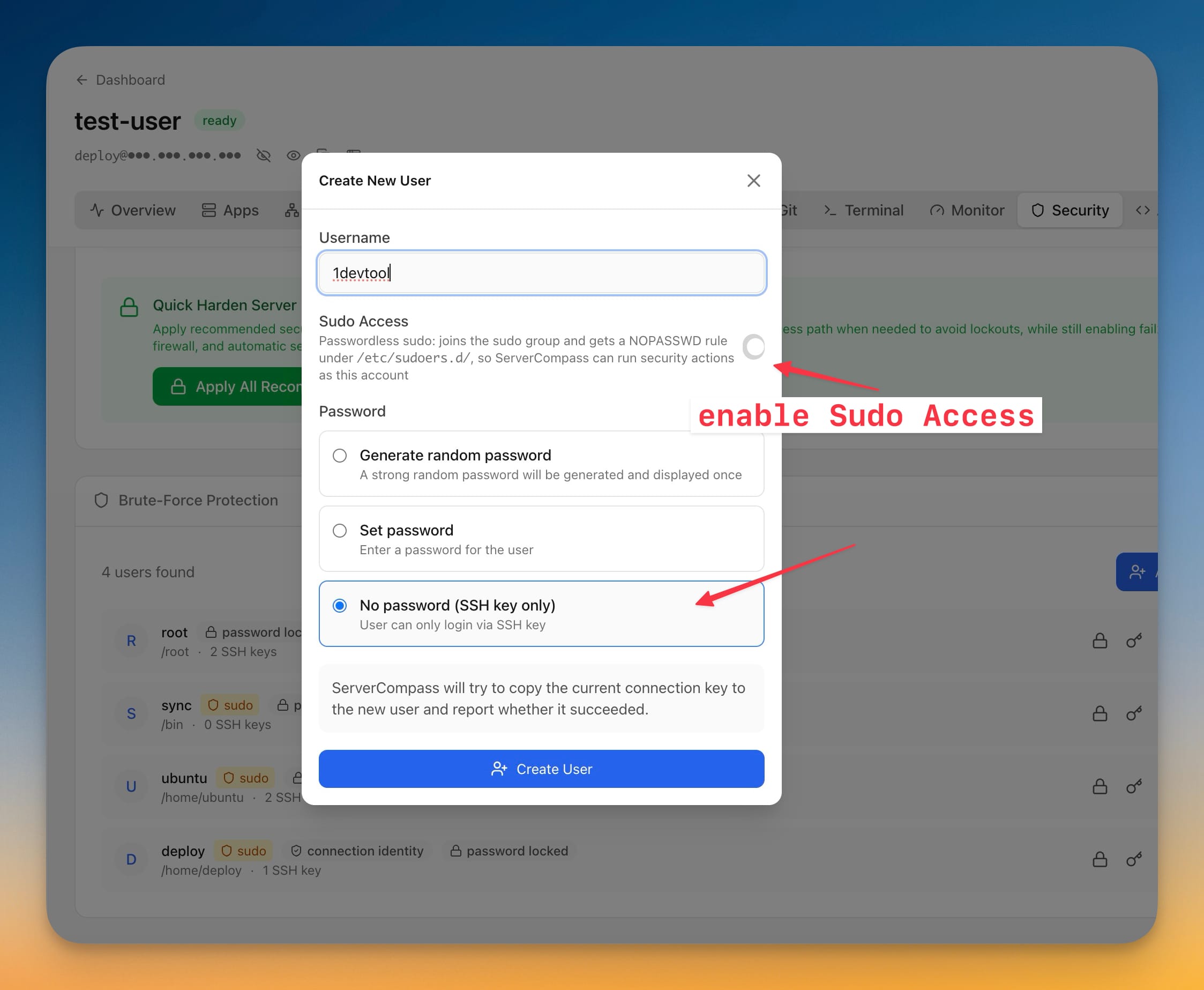
The Create New User dialog on the Security tab with Sudo Access enabled and "No password (SSH key only)" selected, over a user list showing root, sync, ubuntu and deploy
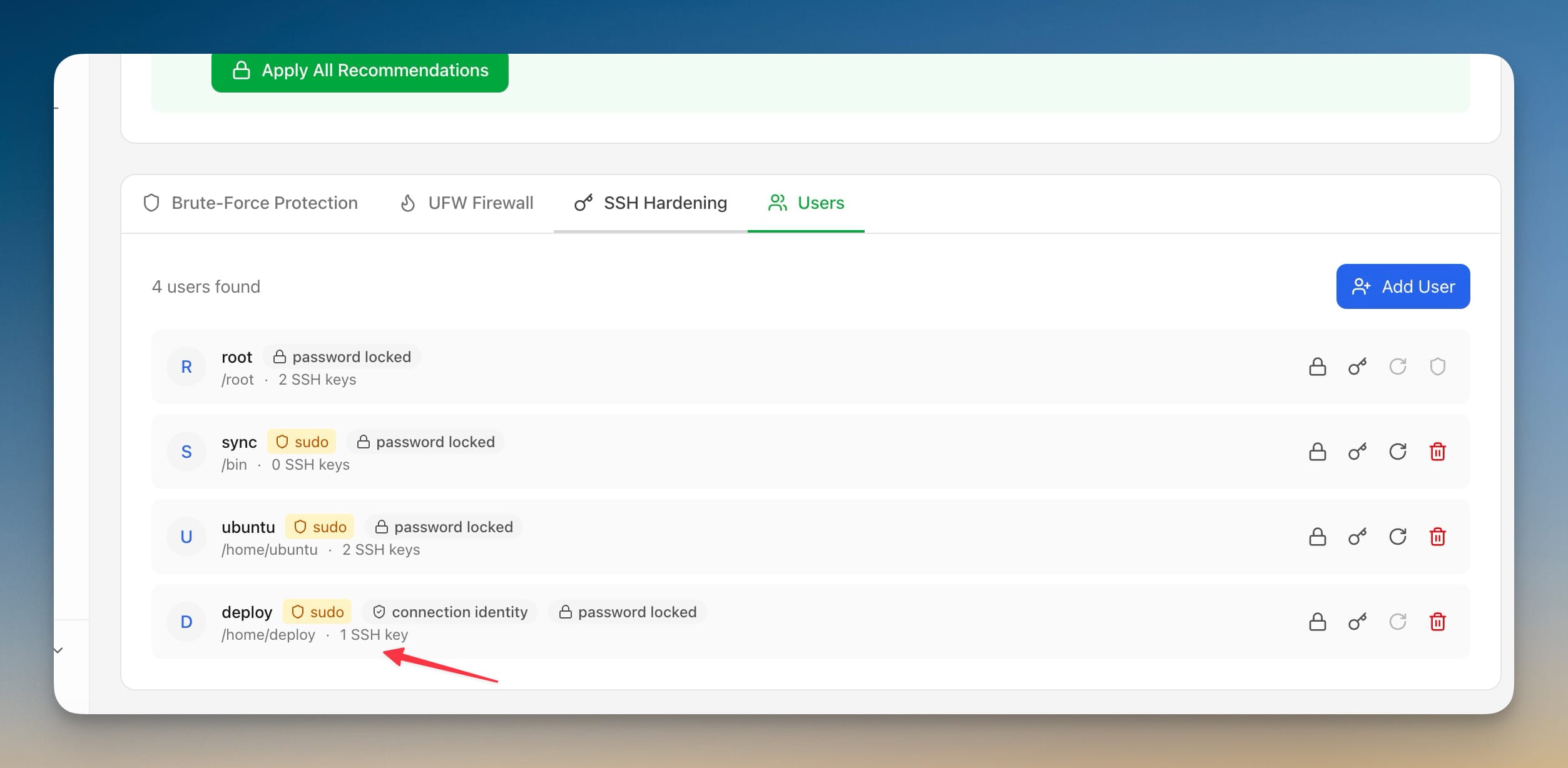
The Users tab under Security listing four accounts with sudo and password-locked badges, and the deploy account marked as the connection identity
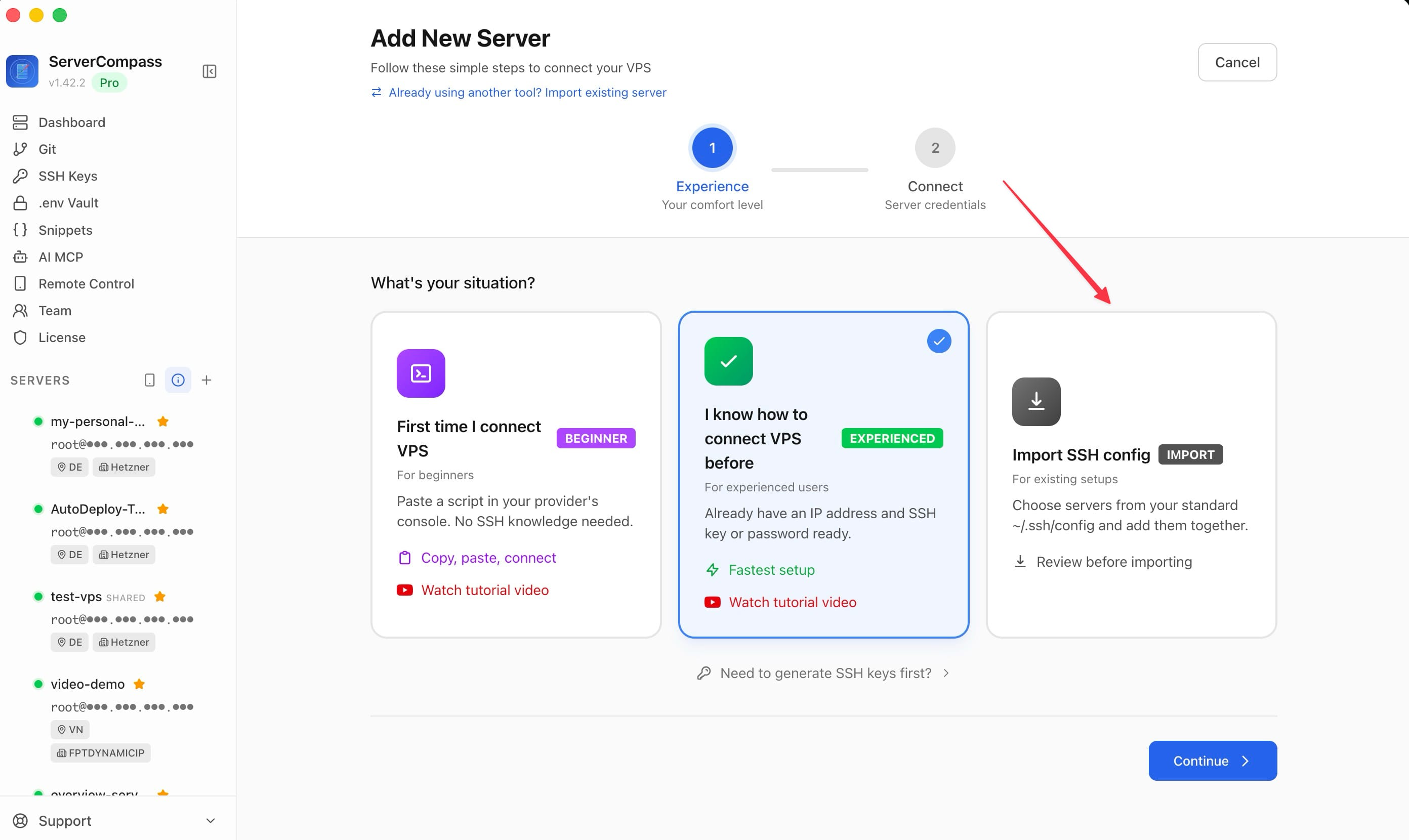
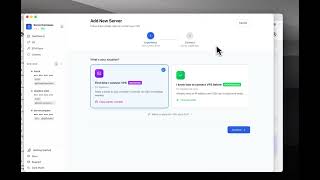
The Add New Server screen offering three paths, with the "Import SSH config" card that reads servers from your standard ~/.ssh/config and adds them together
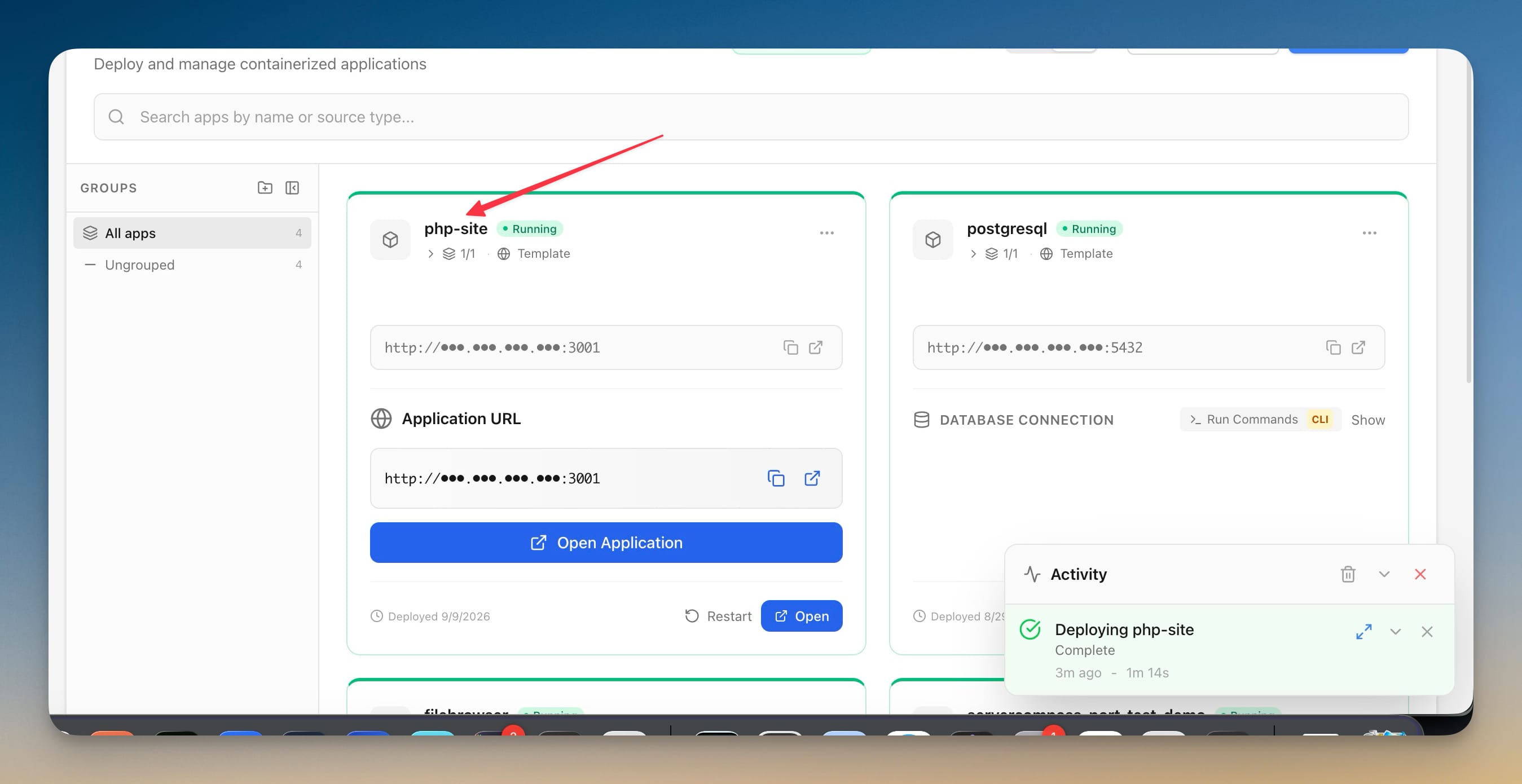
The Apps list showing a freshly deployed php-site running alongside postgresql, both created from templates, with the Activity panel confirming the deploy completed in 1m 14s
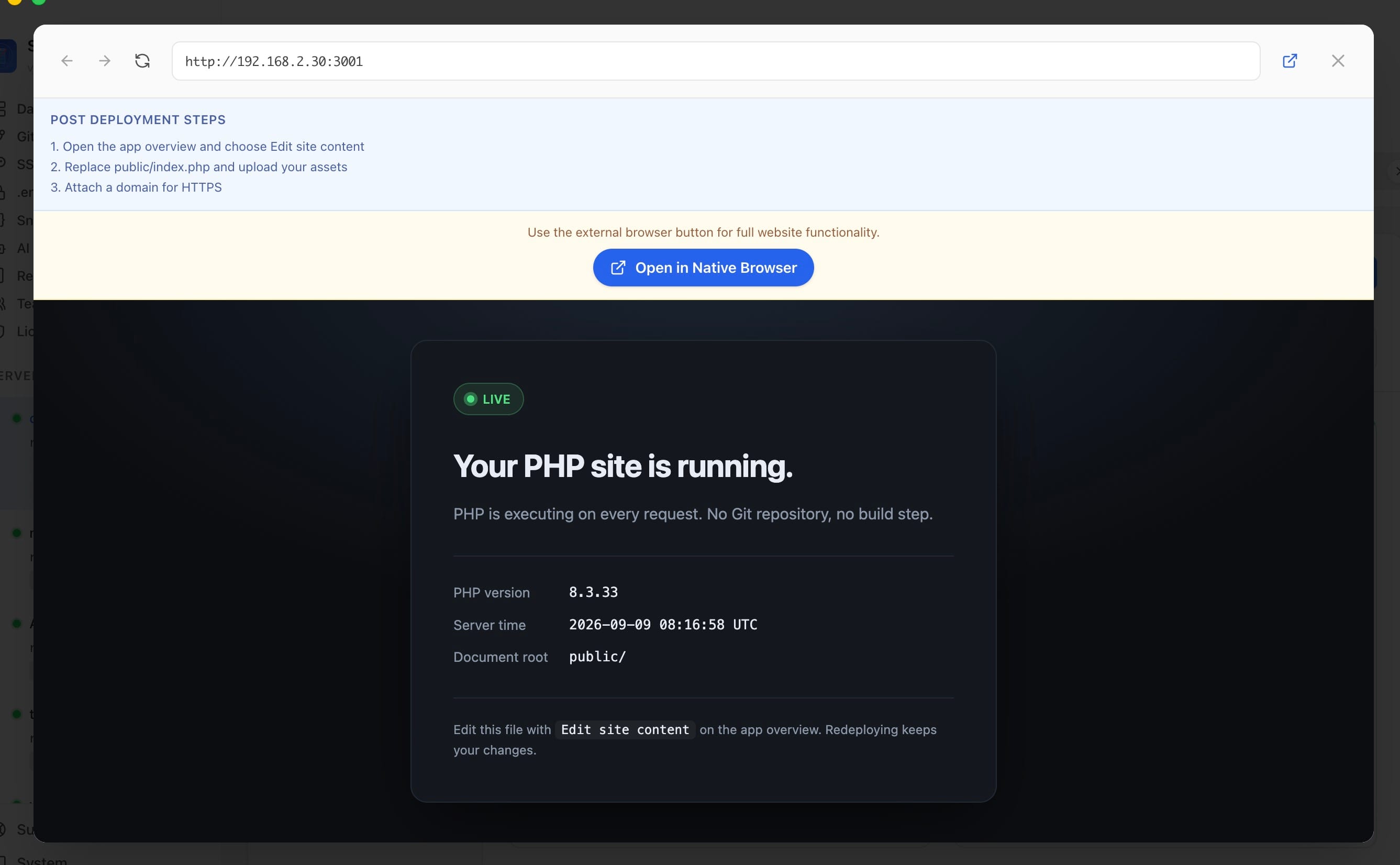
The in-app preview of a deployed PHP site reporting PHP 8.3.33 and a public/ document root, with post-deployment steps explaining how to replace the starter page
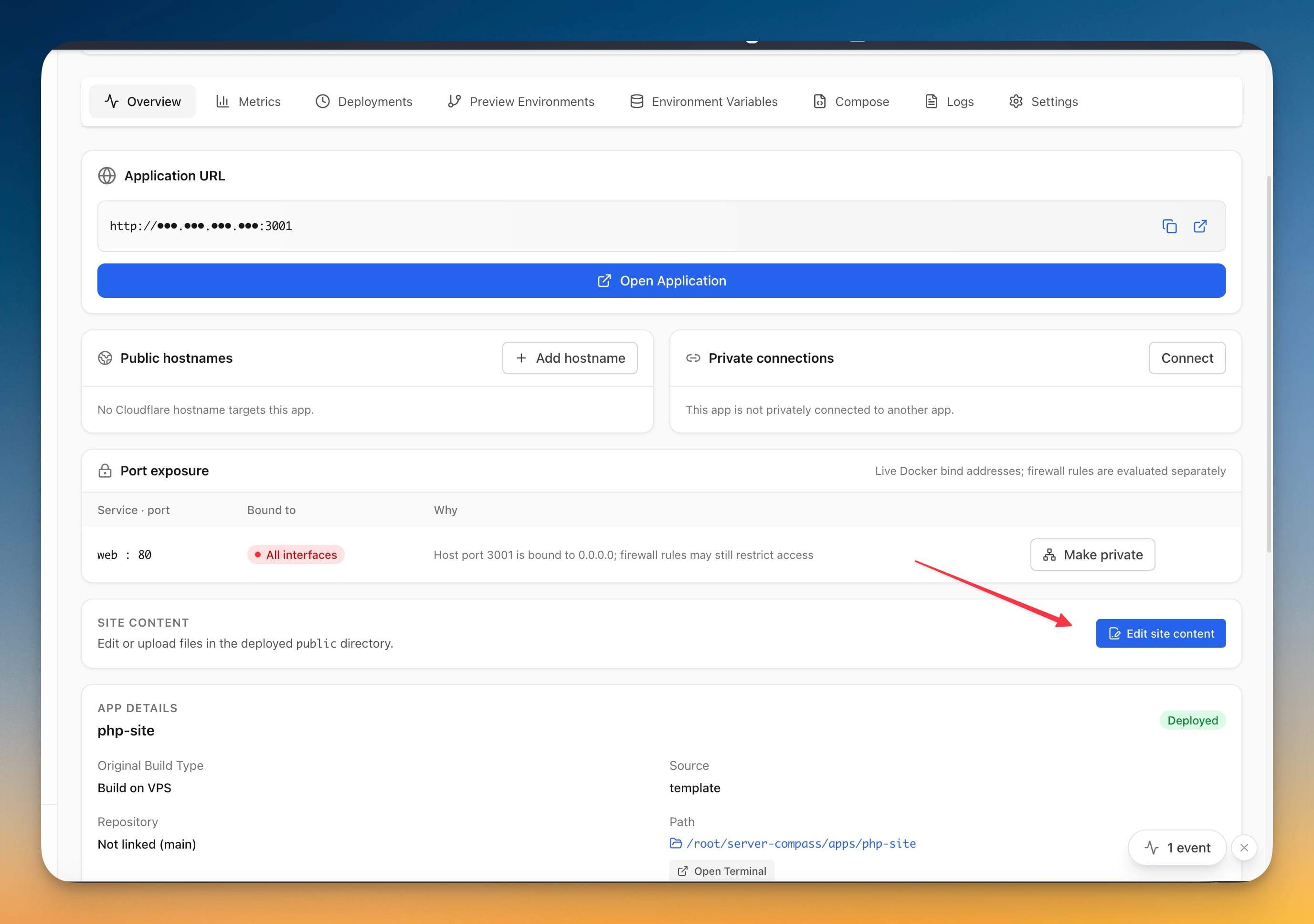
The php-site app overview with a Site content card and its Edit site content button, which opens the deployed public directory in the file manager
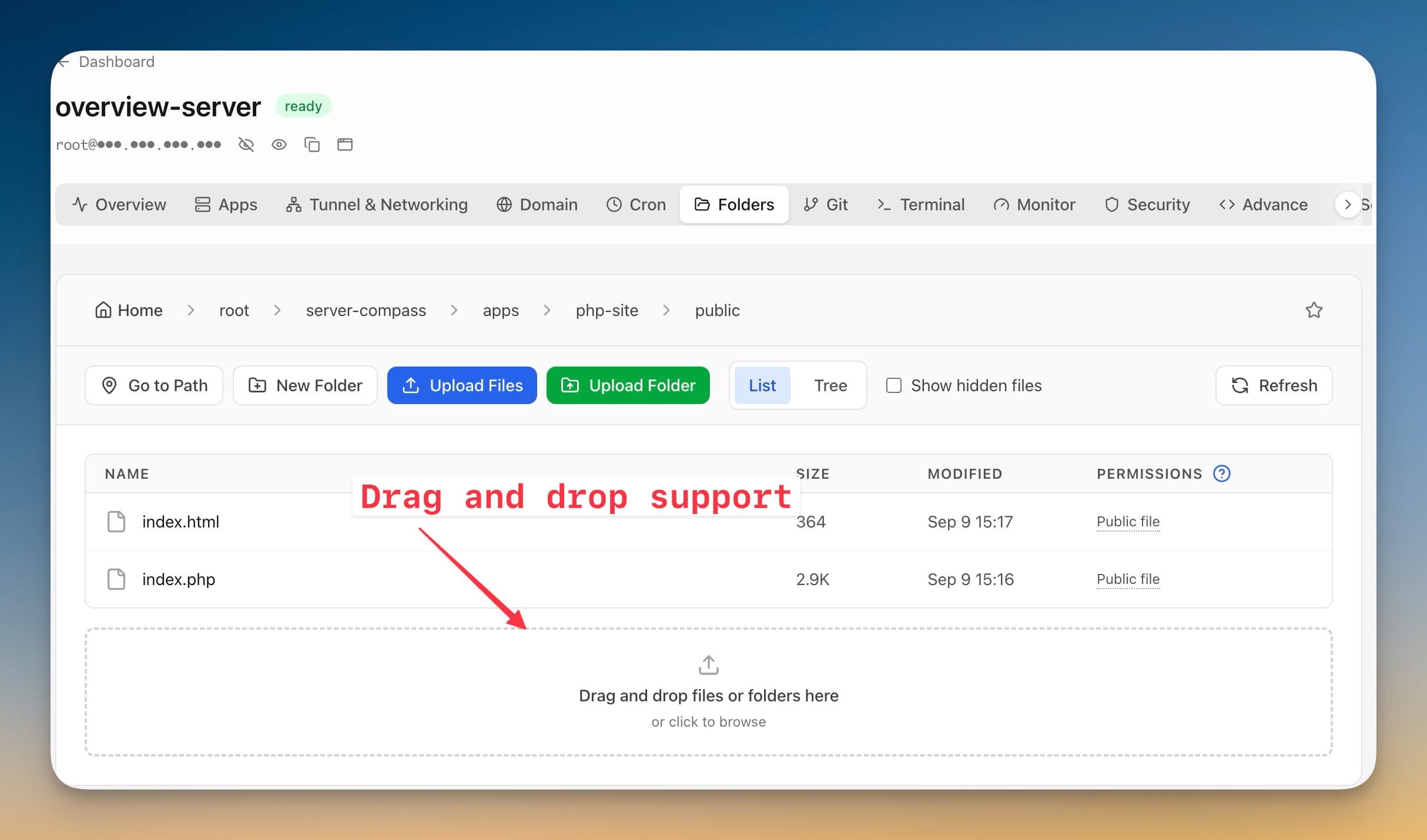
The Folders file manager opened at the php-site public directory showing index.html and index.php, with a drag-and-drop upload target below the file list
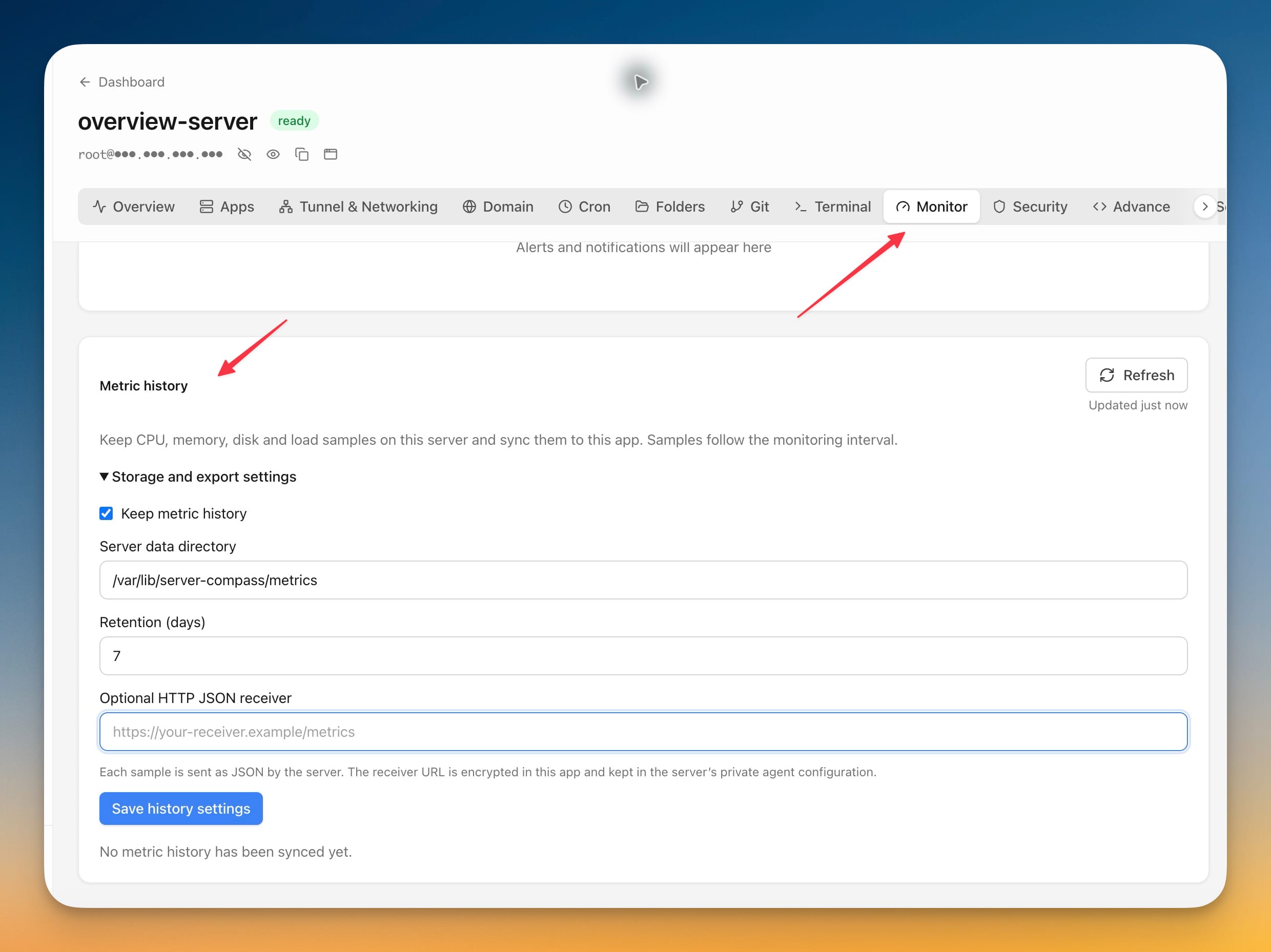
Metric history settings on the Monitor tab with Keep metric history enabled, a server data directory, seven-day retention, and an optional HTTP JSON receiver
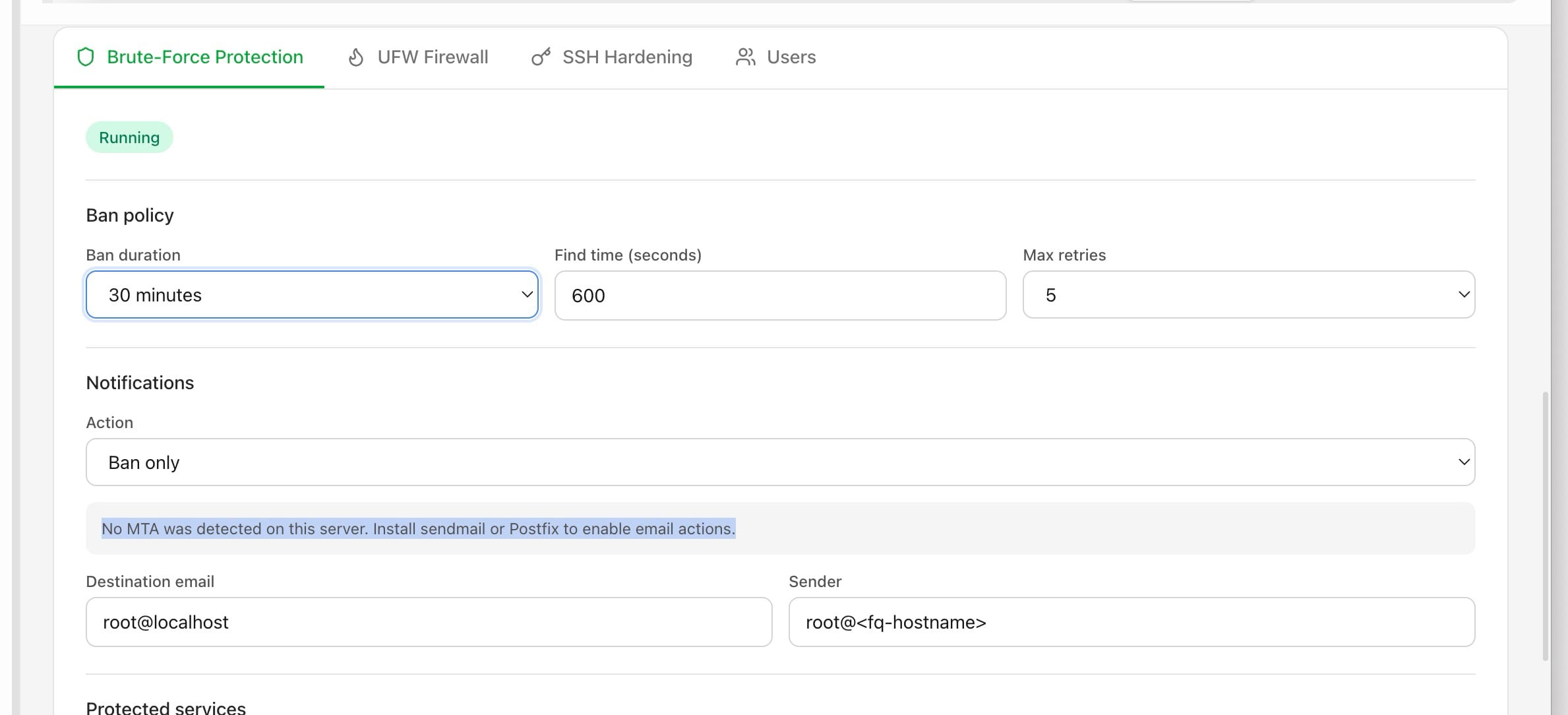
The Brute-Force Protection tab showing ban duration, find time and max retries, plus notification actions and the notice that no MTA was detected on the server
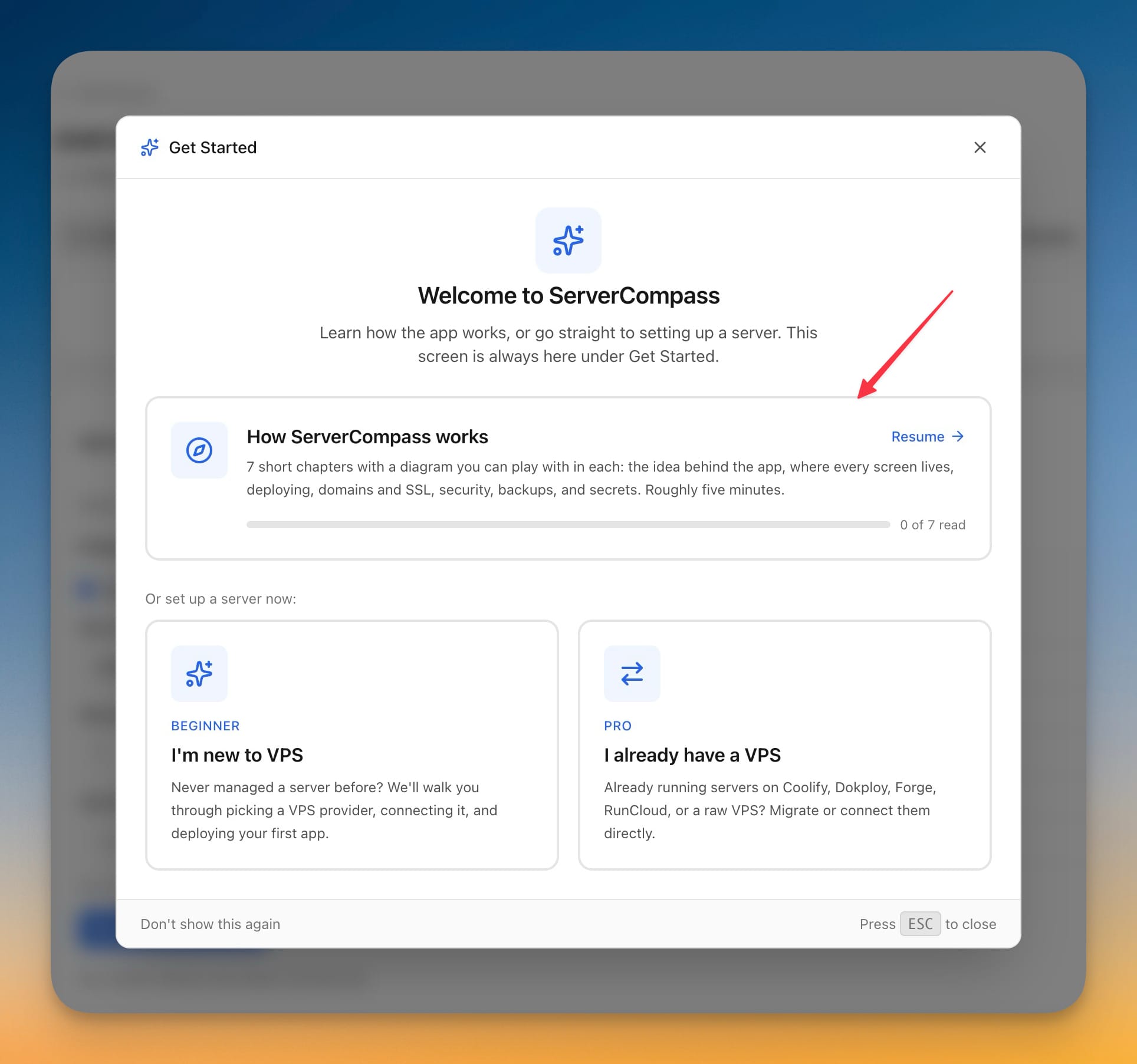
The Get Started dialog offering the "How ServerCompass works" tour — seven short chapters with a diagram in each — alongside shortcuts for new and existing VPS users