Import from EasyPanel
Move your EasyPanel apps and databases to a VPS you control, in a guided six-step wizard. Server Compass connects over your existing SSH login, takes a read-only inventory of your EasyPanel projects, and copies supported apps into isolated staging on unused ports — while EasyPanel keeps serving traffic. (Preview: stage and inspect today; production cutover is next.)
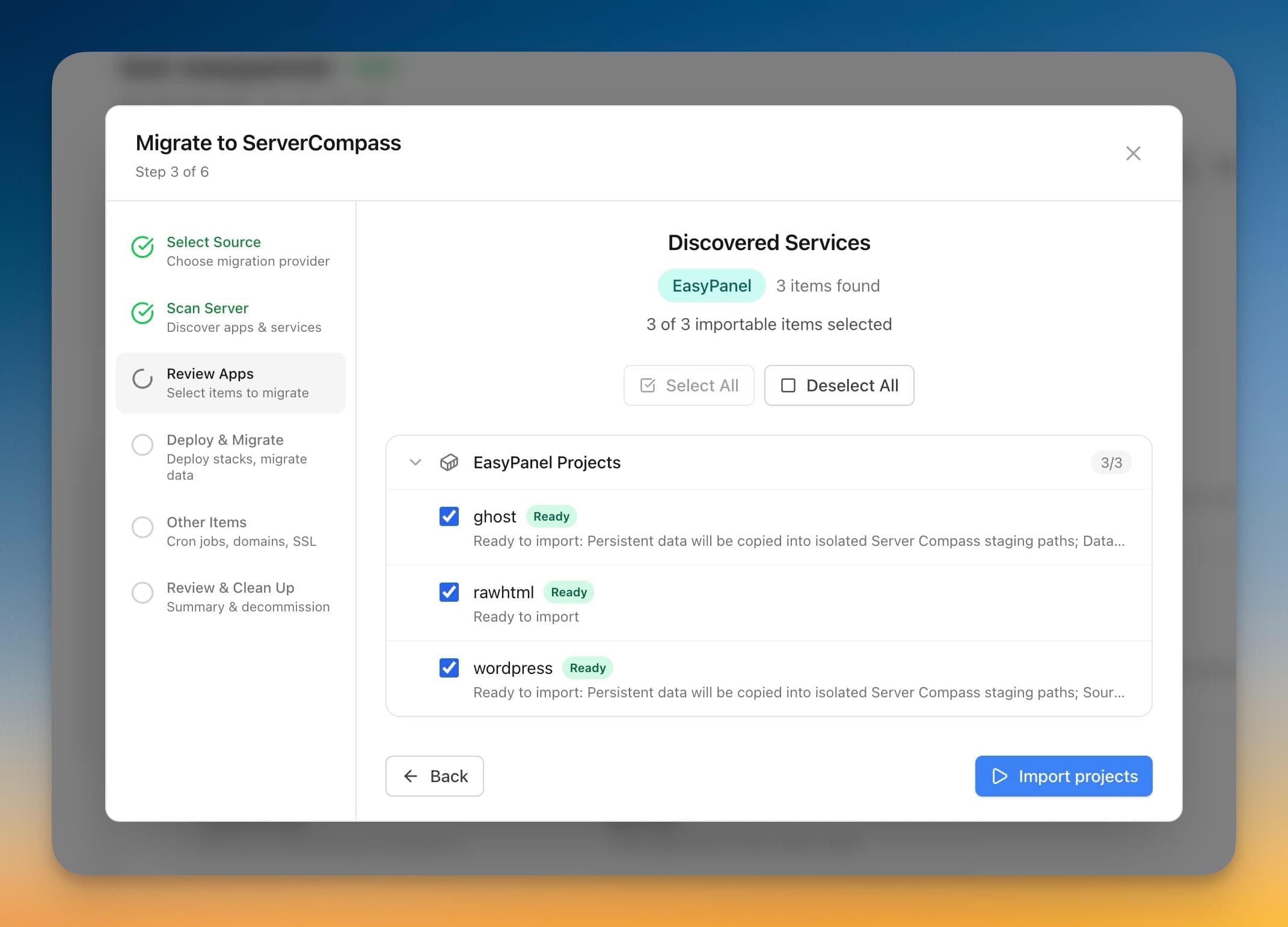
Using Import from EasyPanel in Server Compass
Import from EasyPanel replaces complex workflows with a few clicks. Here's the process.
Open Server Compass
Connect to your server from the Server Compass desktop app.
Navigate to Import from EasyPanel
Find Import from EasyPanel in the relevant section of the dashboard.
Configure & Use
Set up your preferences and start using the feature immediately.
Manual Alternative to Import from EasyPanel
Without Import from EasyPanel, you'd need to SSH into your server and run these commands manually. Every. Single. Time.
SSH into your server
First, open your terminal and connect to your VPS.
ssh root@your-server-ipClone your repository
Navigate to your apps directory and clone the repo.
cd /opt/apps
git clone https://github.com/your-username/your-repo.git
cd your-repoCreate environment file
Manually create and configure your .env file.
nano .env
# Add all your environment variables one by one
# DATABASE_URL=...
# API_KEY=...
# SECRET_KEY=...
One wrong character and your app won't start. No validation, no hints.
Build the Docker image
Build your application image from the Dockerfile.
docker build -t myapp:latest .
# Wait 5-15 minutes...
# Hope there are no build errors...Write docker-compose.yml
Manually write your compose configuration.
nano docker-compose.yml
# services:
#   app:
#     image: myapp:latest
#     ports:
#       - "3000:3000"
#     environment:
#       - NODE_ENV=production
# restart: unless-stoppedDeploy the container
Start the container and pray it works.
docker compose up -d
docker compose logs -f
# Ctrl+C when you're tired of watching logsSkip All That. Use Server Compass.
Import from EasyPanel automates the tedious parts. What takes 30 minutes via terminal takes 30 seconds with Server Compass.
- Visual interface
- No terminal needed
- Built-in error handling
- Works on any VPS
Everything Import from EasyPanel Offers
Everything you need for server migration in one integrated tool, replacing complex CLI commands and manual configuration.
Get StartedWhy Import from EasyPanel Matters
Server management shouldn't require a DevOps team. Import from EasyPanel makes professional-grade server migration accessible to everyone.
Deploy in Minutes
Import from EasyPanel eliminates complex CLI workflows. Deploy your applications visually without memorizing Docker commands.
Zero-Configuration Defaults
Import from EasyPanel comes pre-configured with production-ready settings so you can ship with confidence.
Visual Feedback
Track every step of your deployment with Import from EasyPanel. See progress, logs, and status in real time.
Repeatable Process
Once configured, Import from EasyPanel lets you replicate deployments across servers consistently.
Common Questions About Import from EasyPanel
Common questions about Import from EasyPanel in Server Compass
How do I access Import from EasyPanel in Server Compass?
Import from EasyPanel is available in the Server Migration section of Server Compass. Simply connect to your server, navigate to Server Migration, and you'll find Import from EasyPanel ready to use. No additional setup or plugins required.
Does Import from EasyPanel require any server-side installation?
No. Server Compass operates as a desktop application that connects to your server via SSH. Import from EasyPanel works through this connection without installing any agents or packages on your server (except the optional monitoring agent for resource tracking).
Is Import from EasyPanel included in all Server Compass plans?
Yes. Every Server Compass feature, including Import from EasyPanel, is included with the one-time $29 payment. There are no tier restrictions, add-ons, or per-server fees. You get all 152+ features for all your servers.
Can I use Import from EasyPanel with any VPS provider?
Import from EasyPanel works with any VPS or dedicated server that supports SSH access and Docker. This includes DigitalOcean, Hetzner, Vultr, Linode, AWS EC2, Google Cloud, Azure, and any other provider. It also works with local servers and homelab setups.
What makes Import from EasyPanel different from command-line alternatives?
Import from EasyPanel provides a visual, intuitive interface that replaces complex CLI commands and configuration files. You get real-time feedback, safety confirmations, and a consistent experience across all your servers without memorizing syntax or writing scripts.
More Server Migration Features
Explore other server migration capabilities in Server Compass
Server Migration Wizard
Migrate apps from RunCloud, Coolify, Dokploy, Laravel Forge, or raw VPS. Scan and discover existing applications, then import them into Server Compass with one click.
Multi-Provider Support
Support for migrating from popular server management platforms. Select your source provider and let the wizard handle the rest.
Migration History
Track all past migrations with detailed status, discovery counts, and import progress. Resume or rollback migrations as needed.
Import from Dockge
Adopt your running Dockge stacks into Server Compass in a guided six-step migration, over the SSH login you already use. Stacks are adopted in place — same containers, data, volumes, and ports — so nothing is recreated, moved, or taken offline, and Dockge keeps running until you choose to retire it.
Try Import from EasyPanel Today
Download Server Compass and get access to Import from EasyPanel along with 151 other features. One-time $29 payment. No subscriptions. No per-server fees.