Selective Backup
Choose which servers to include when exporting or uploading backups. Select specific servers for manual export or cloud backup instead of all-or-nothing.
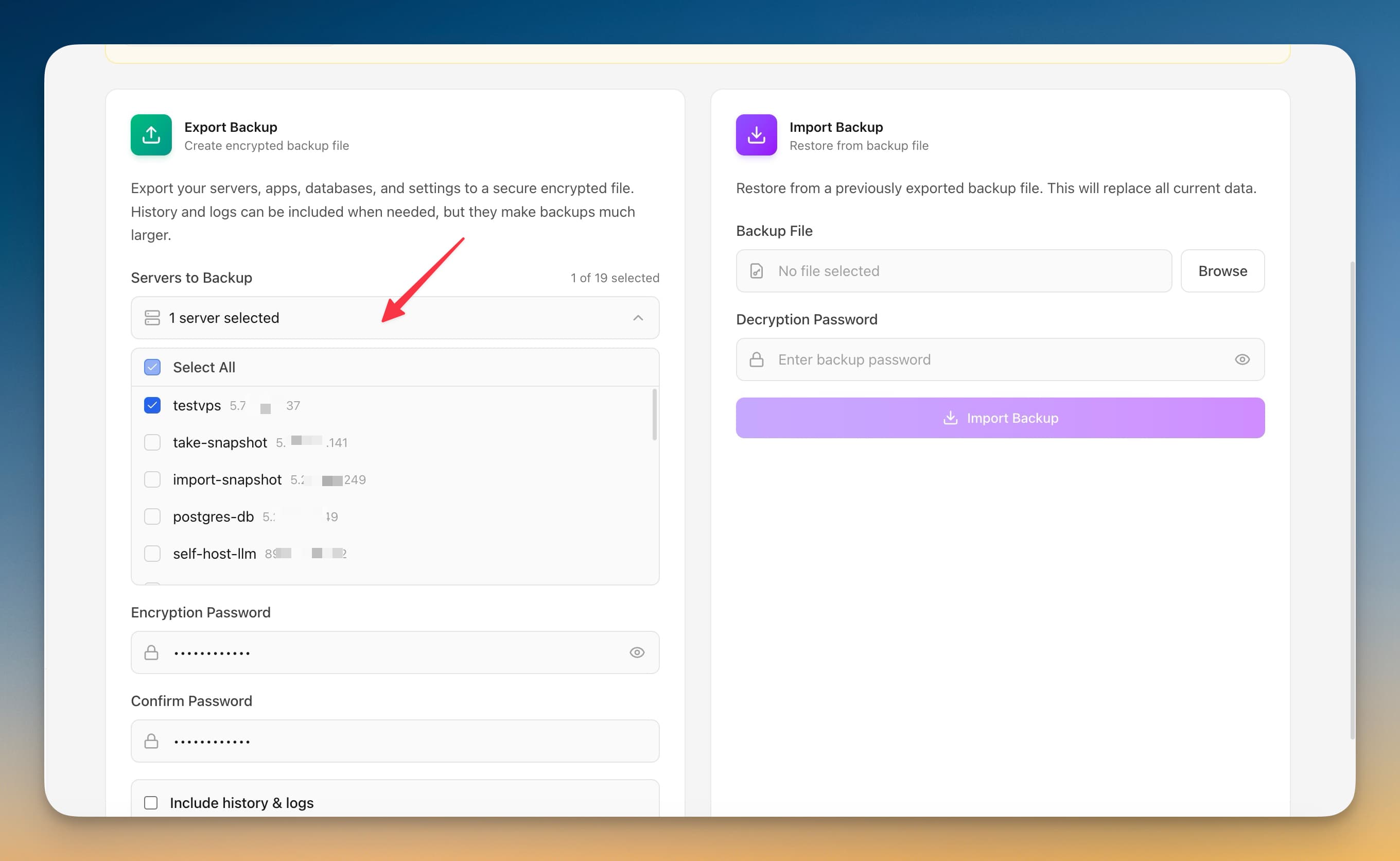
Getting Started with Selective Backup
Selective Backup replaces complex workflows with a few clicks. Here's the process.
Open Server Dashboard
Navigate to the Server Management section.
Access Selective Backup
Open Selective Backup from the server overview panel.
View & Manage
Review server information and take management actions through the UI.
Doing It Manually Without Selective Backup
Think Selective Backup is overkill? Here's the alternative: raw terminal commands and manual config files.
SSH into server
Connect to check server status.
ssh root@your-server-ipCheck system info
Gather server details.
# OS info
cat /etc/os-release
uname -a

# CPU info
lscpu | head -20

# Memory
free -h

# Disk
df -h

# Now remember all these commands for every serverUpdate packages
Keep system up to date.
apt update
apt upgrade -y
# Wait 10 minutes
# Hope nothing breaks
# Reboot if kernel updated
reboot
Updates can break things. No rollback button.
Manage services
Check and control services.
systemctl status docker
systemctl status nginx
# Check each service one by one
# No unified dashboardLet Server Compass Handle It
Selective Backup isn't just faster—it's safer. No typos, no forgotten flags, no accidental disasters.
- Visual interface
- No terminal needed
- Built-in error handling
- Works on any VPS
What Selective Backup Can Do
Everything you need for server management in one integrated tool, replacing complex CLI commands and manual configuration.
Get StartedWhy Selective Backup Matters
Server management shouldn't require a DevOps team. Selective Backup makes professional-grade server management accessible to everyone.
At-a-Glance Monitoring
Selective Backup shows CPU, RAM, disk, and network metrics in a single dashboard view.
Quick Actions
Selective Backup provides one-click package updates, Docker setup, and system configuration.
Multi-Server Support
Selective Backup manages unlimited VPS servers from one application with saved connections.
Resource Trending
Selective Backup tracks resource usage over time so you can plan capacity and identify bottlenecks.
Common Questions About Selective Backup
Common questions about Selective Backup in Server Compass
How do I access Selective Backup in Server Compass?
Selective Backup is available in the Server Management section of Server Compass. Simply connect to your server, navigate to Server Management, and you'll find Selective Backup ready to use. No additional setup or plugins required.
Does Selective Backup require any server-side installation?
No. Server Compass operates as a desktop application that connects to your server via SSH. Selective Backup works through this connection without installing any agents or packages on your server (except the optional monitoring agent for resource tracking).
Is Selective Backup included in all Server Compass plans?
Yes. Every Server Compass feature, including Selective Backup, is included with the one-time $29 payment. There are no tier restrictions, add-ons, or per-server fees. You get all 152+ features for all your servers.
Can I use Selective Backup with any VPS provider?
Selective Backup works with any VPS or dedicated server that supports SSH access and Docker. This includes DigitalOcean, Hetzner, Vultr, Linode, AWS EC2, Google Cloud, Azure, and any other provider. It also works with local servers and homelab setups.
What makes Selective Backup different from command-line alternatives?
Selective Backup provides a visual, intuitive interface that replaces complex CLI commands and configuration files. You get real-time feedback, safety confirmations, and a consistent experience across all your servers without memorizing syntax or writing scripts.
More Server Management Features
Explore other server management capabilities in Server Compass
Server Overview Dashboard
At-a-glance view of CPU, RAM, and disk usage. See OS info, auth method, location, and provider details.
Resource Monitoring
Real-time CPU, memory, and disk usage graphs. Track resource trends and identify bottlenecks.
System Packages
List and manage installed APT packages, update individual ones, or run a system-wide upgrade. Install Recommended covers the baseline a server needs — including sudo and jq — and an Available Packages section installs optional software like Caddy with its repository set up for you.
Port Management
View all open ports and the services using them. Identify conflicts and manage port allocations.
Try Selective Backup Today
Download Server Compass and get access to Selective Backup along with 151 other features. One-time $29 payment. No subscriptions. No per-server fees.