Server Snapshots
Export your entire server to a single AES-256 encrypted .scz file — Docker stacks, volumes, databases, domains, cron jobs, alerts, and notification channels. Save locally or upload to S3, then restore to the same server for disaster recovery or rebuild on a new VPS for migration. Domain remapping lets you switch domains during restore.
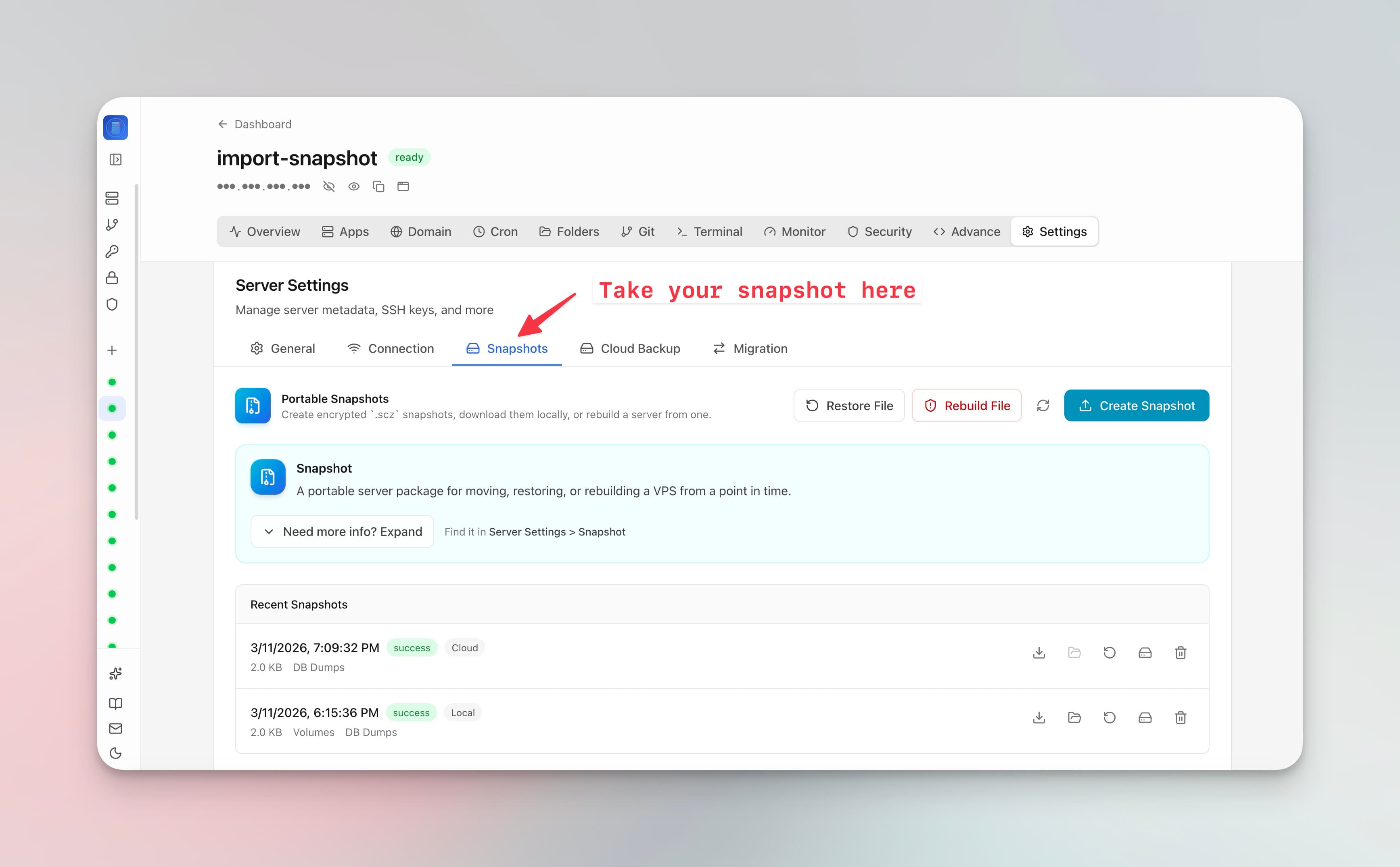
Using Server Snapshots in Server Compass
Server Snapshots replaces complex workflows with a few clicks. Here's the process.
Open Server Dashboard
Navigate to the Server Management section.
Access Server Snapshots
Open Server Snapshots from the server overview panel.
View & Manage
Review server information and take management actions through the UI.
Doing It Manually Without Server Snapshots
Think Server Snapshots is overkill? Here's the alternative: raw terminal commands and manual config files.
SSH into server
Connect to start the backup process.
ssh root@your-server-ipStop all containers
Ensure data consistency during backup.
cd /opt/apps
docker compose down
# Repeat for every stack on your server
# Your apps are now offline
Downtime required. Hope your users are asleep.
Export Docker volumes
Backup each volume to a tar archive.
# List all volumes
docker volume ls

# Export each volume one by one
docker run --rm -v myapp_data:/data -v $(pwd):/backup \
  alpine tar cvf /backup/myapp_data.tar /data

# Repeat for postgres_data, redis_data, uploads, etc.
# 10 volumes = 10 commands
Miss a volume? That data is gone on restore.
Dump all databases
Export database contents.
# PostgreSQL
docker exec postgres pg_dumpall -U postgres > postgres_backup.sql

# MySQL
docker exec mysql mysqldump -u root -p --all-databases > mysql_backup.sql

# MongoDB
docker exec mongo mongodump --out /backup
docker cp mongo:/backup ./mongo_backup

# Redis
docker exec redis redis-cli BGSAVE
docker cp redis:/data/dump.rdb ./redis_backup.rdb

# Different command for every database type!Copy compose files and configs
Gather all configuration files.
# Find and copy all docker-compose files
find /opt/apps -name "docker-compose.yml" -exec cp {} ./backup/ \;

# Copy .env files (don't forget these!)
find /opt/apps -name ".env" -exec cp {} ./backup/ \;

# Copy nginx/traefik configs
cp -r /etc/nginx/sites-available ./backup/
cp -r /opt/traefik ./backup/

# Crontabs
crontab -l > ./backup/crontab.txtEncrypt the backup
Protect sensitive data before transfer.
# Create tarball of everything
tar cvf server_backup.tar ./backup/

# Encrypt with gpg
gpg --symmetric --cipher-algo AES256 server_backup.tar
# Enter passphrase twice
# Don't forget it!

# Or with openssl
openssl enc -aes-256-cbc -salt -pbkdf2 \
  -in server_backup.tar -out server_backup.tar.enc
Lose the password = lose your backup forever.
Upload to cloud storage
Transfer backup to S3 or remote storage.
# Install AWS CLI if not present
apt install awscli
aws configure  # Enter credentials

# Upload to S3
aws s3 cp server_backup.tar.enc s3://my-backups/

# Or use rclone for other providers
rclone copy server_backup.tar.enc remote:backups/Restore on new server
Reverse the entire process.
# Download backup
aws s3 cp s3://my-backups/server_backup.tar.enc .

# Decrypt
gpg -d server_backup.tar.enc > server_backup.tar

# Extract
tar xvf server_backup.tar

# Restore each volume manually
docker volume create myapp_data
docker run --rm -v myapp_data:/data -v $(pwd):/backup \
  alpine tar xvf /backup/myapp_data.tar -C /

# Import databases
docker exec -i postgres psql -U postgres < postgres_backup.sql

# Restore configs, update domains, restart everything...
# This takes HOURS
One wrong path or permission = restore fails.
Let Server Compass Handle It
Server Compass replaces all those commands with a beautiful UI. Server Snapshots just works—click, configure, done.
- Visual interface
- No terminal needed
- Built-in error handling
- Works on any VPS
Everything Server Snapshots Offers
Everything you need for server management in one integrated tool, replacing complex CLI commands and manual configuration.
Get StartedWhy Server Snapshots Matters
Server management shouldn't require a DevOps team. Server Snapshots makes professional-grade server management accessible to everyone.
At-a-Glance Monitoring
Server Snapshots shows CPU, RAM, disk, and network metrics in a single dashboard view.
Quick Actions
Server Snapshots provides one-click package updates, Docker setup, and system configuration.
Multi-Server Support
Server Snapshots manages unlimited VPS servers from one application with saved connections.
Resource Trending
Server Snapshots tracks resource usage over time so you can plan capacity and identify bottlenecks.
Common Questions About Server Snapshots
Common questions about Server Snapshots in Server Compass
How do I access Server Snapshots in Server Compass?
Server Snapshots is available in the Server Management section of Server Compass. Simply connect to your server, navigate to Server Management, and you'll find Server Snapshots ready to use. No additional setup or plugins required.
Does Server Snapshots require any server-side installation?
No. Server Compass operates as a desktop application that connects to your server via SSH. Server Snapshots works through this connection without installing any agents or packages on your server (except the optional monitoring agent for resource tracking).
Is Server Snapshots included in all Server Compass plans?
Yes. Every Server Compass feature, including Server Snapshots, is included with the one-time $29 payment. There are no tier restrictions, add-ons, or per-server fees. You get all 152+ features for all your servers.
Can I use Server Snapshots with any VPS provider?
Server Snapshots works with any VPS or dedicated server that supports SSH access and Docker. This includes DigitalOcean, Hetzner, Vultr, Linode, AWS EC2, Google Cloud, Azure, and any other provider. It also works with local servers and homelab setups.
What makes Server Snapshots different from command-line alternatives?
Server Snapshots provides a visual, intuitive interface that replaces complex CLI commands and configuration files. You get real-time feedback, safety confirmations, and a consistent experience across all your servers without memorizing syntax or writing scripts.
More Server Management Features
Explore other server management capabilities in Server Compass
Server Overview Dashboard
At-a-glance view of CPU, RAM, and disk usage. See OS info, auth method, location, and provider details.
Resource Monitoring
Real-time CPU, memory, and disk usage graphs. Track resource trends and identify bottlenecks.
System Packages
List and manage installed APT packages, update individual ones, or run a system-wide upgrade. Install Recommended covers the baseline a server needs — including sudo and jq — and an Available Packages section installs optional software like Caddy with its repository set up for you.
Port Management
View all open ports and the services using them. Identify conflicts and manage port allocations.
Try Server Snapshots Today
Download Server Compass and get access to Server Snapshots along with 151 other features. One-time $29 payment. No subscriptions. No per-server fees.