1
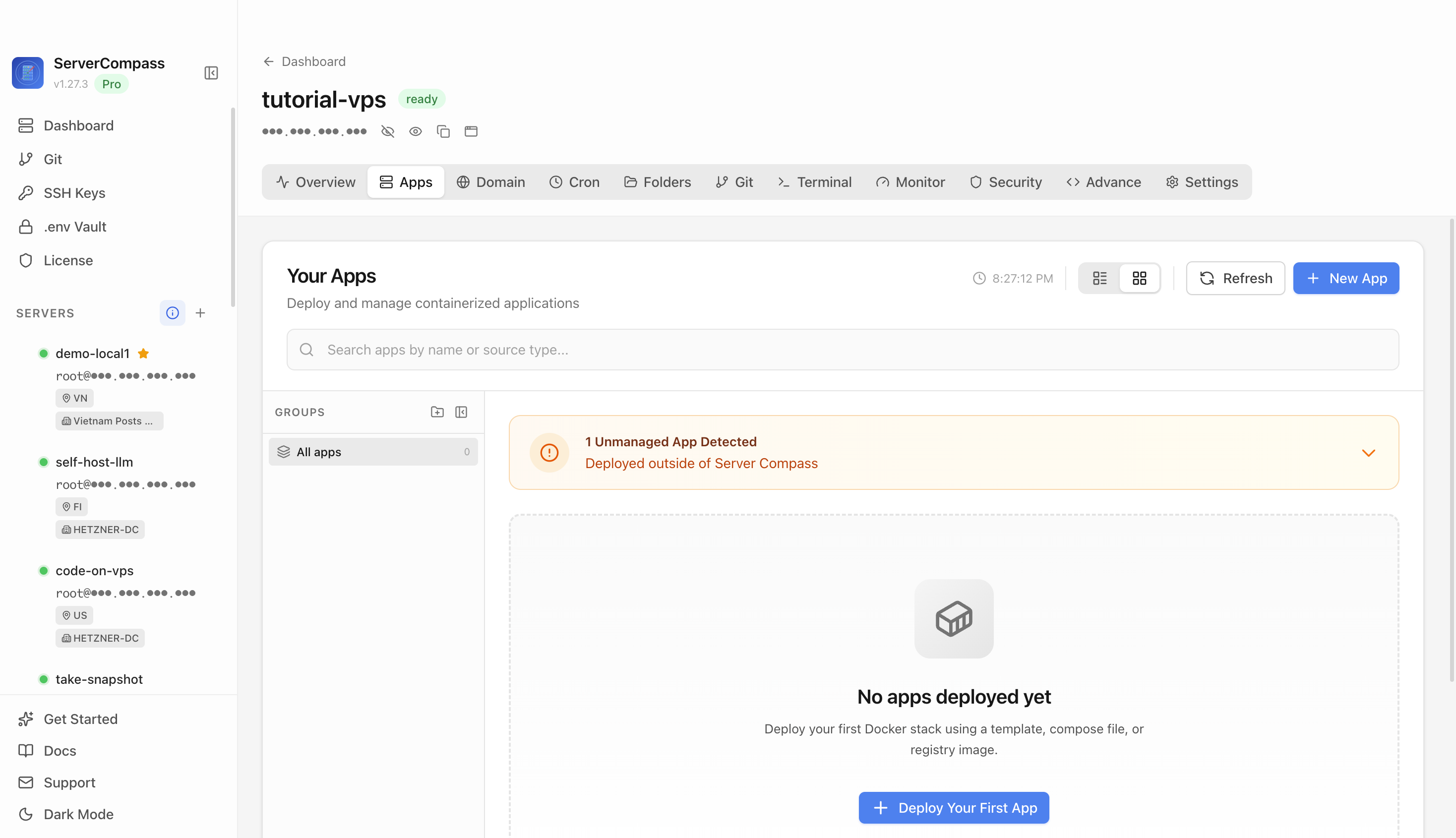
Step 1Open the server Apps tab
Select the tutorial-vps VPS, open the Apps tab, and start a new app deployment. Keep sensitive server details hidden before capturing or sharing screenshots.

Free, online and open source accounting software for small businesses and freelancers
Add your server credentials to Server Compass
Choose from our template library
Fill in settings and click Deploy
Use the Akaunting template in Server Compass to deploy a self-hosted accounting app on your VPS, then verify the login/setup web UI.
Select the tutorial-vps VPS, open the Apps tab, and start a new app deployment. Keep sensitive server details hidden before capturing or sharing screenshots.
Click New App and choose the template deployment path so Server Compass can load the built-in catalog.
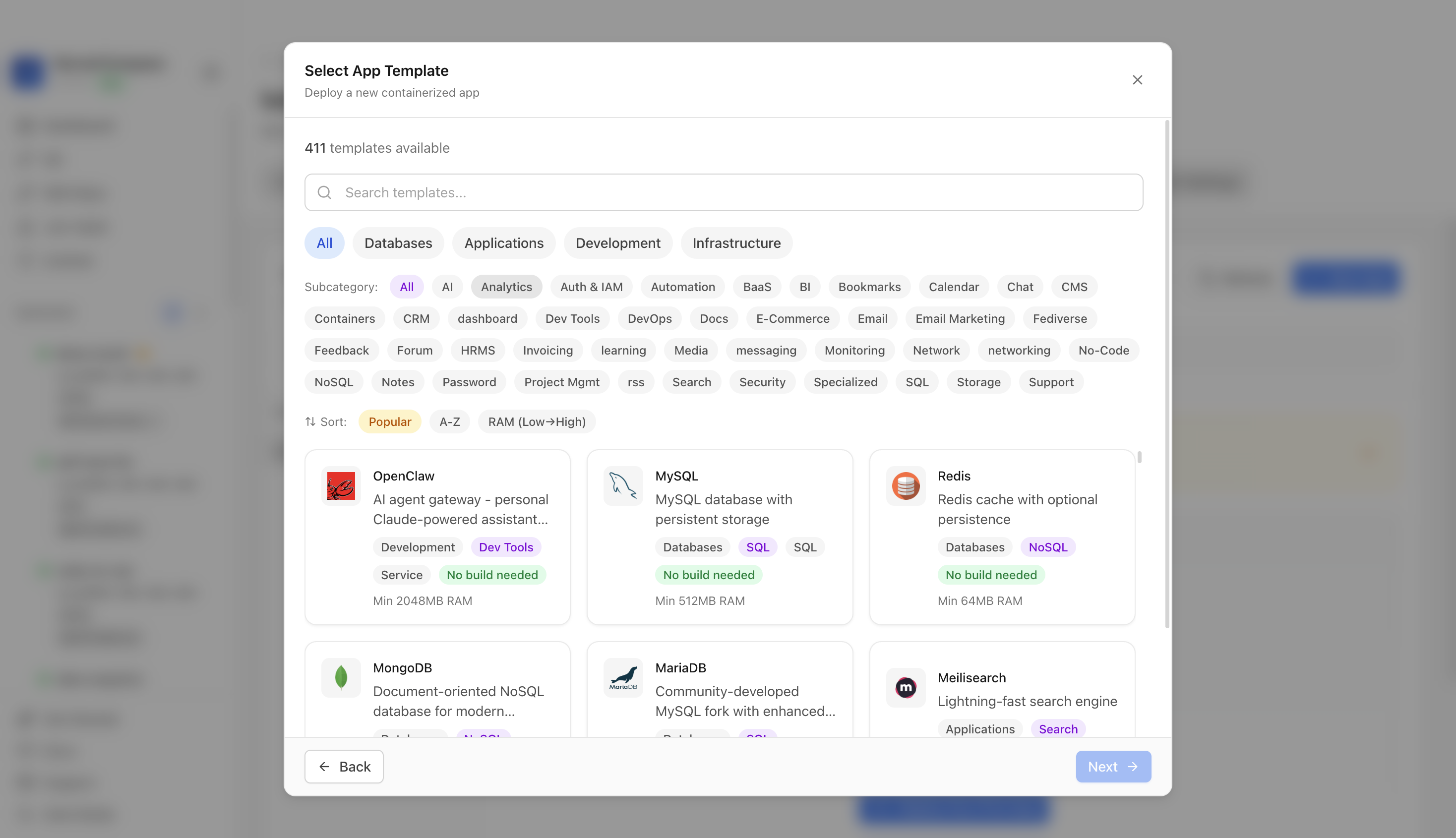
Use the template picker search to find Akaunting in the Server Compass template catalog.
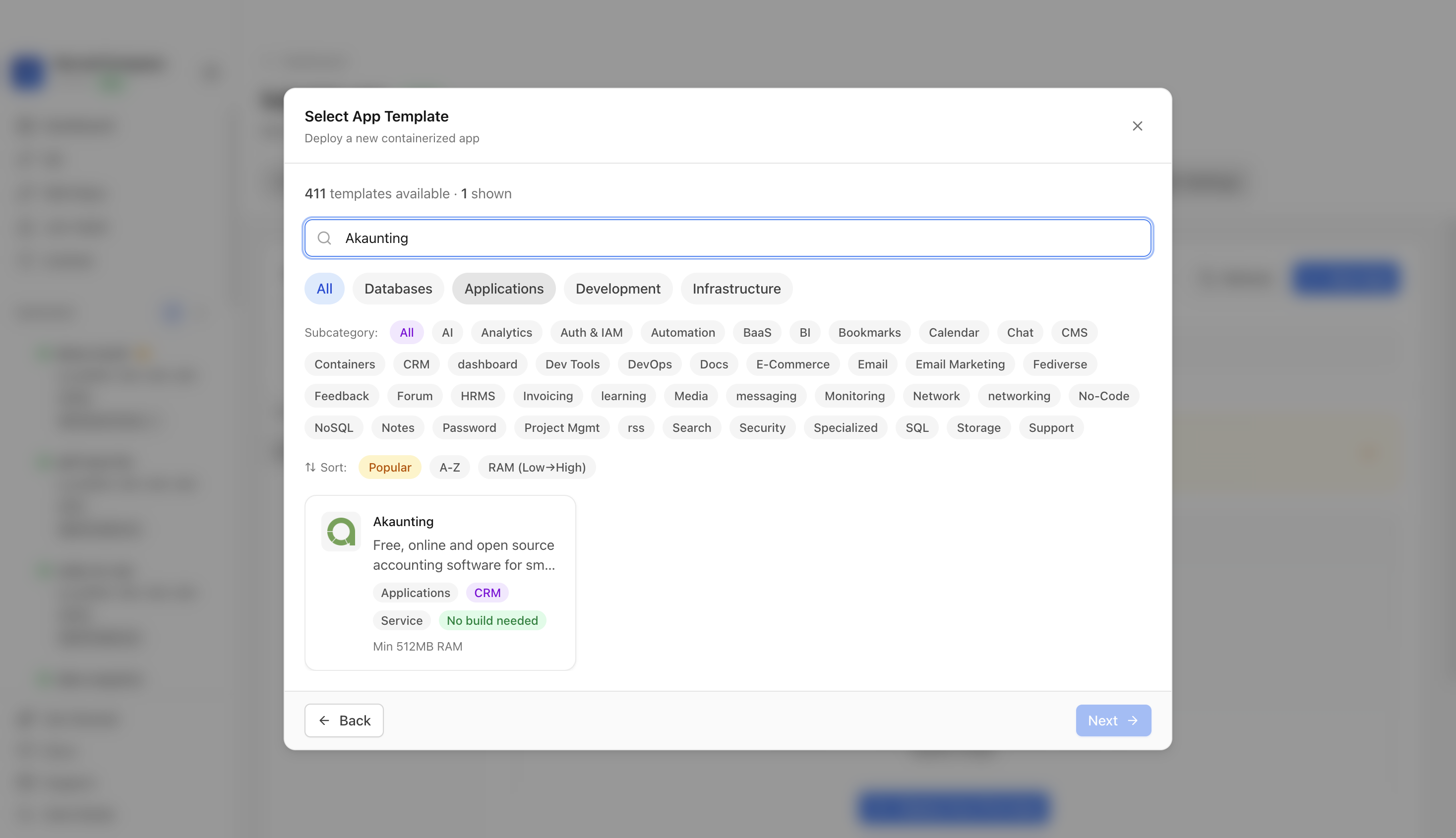
Choose the Akaunting template. Server Compass fills the accounting app, MariaDB service, persistent volumes, and public web port.
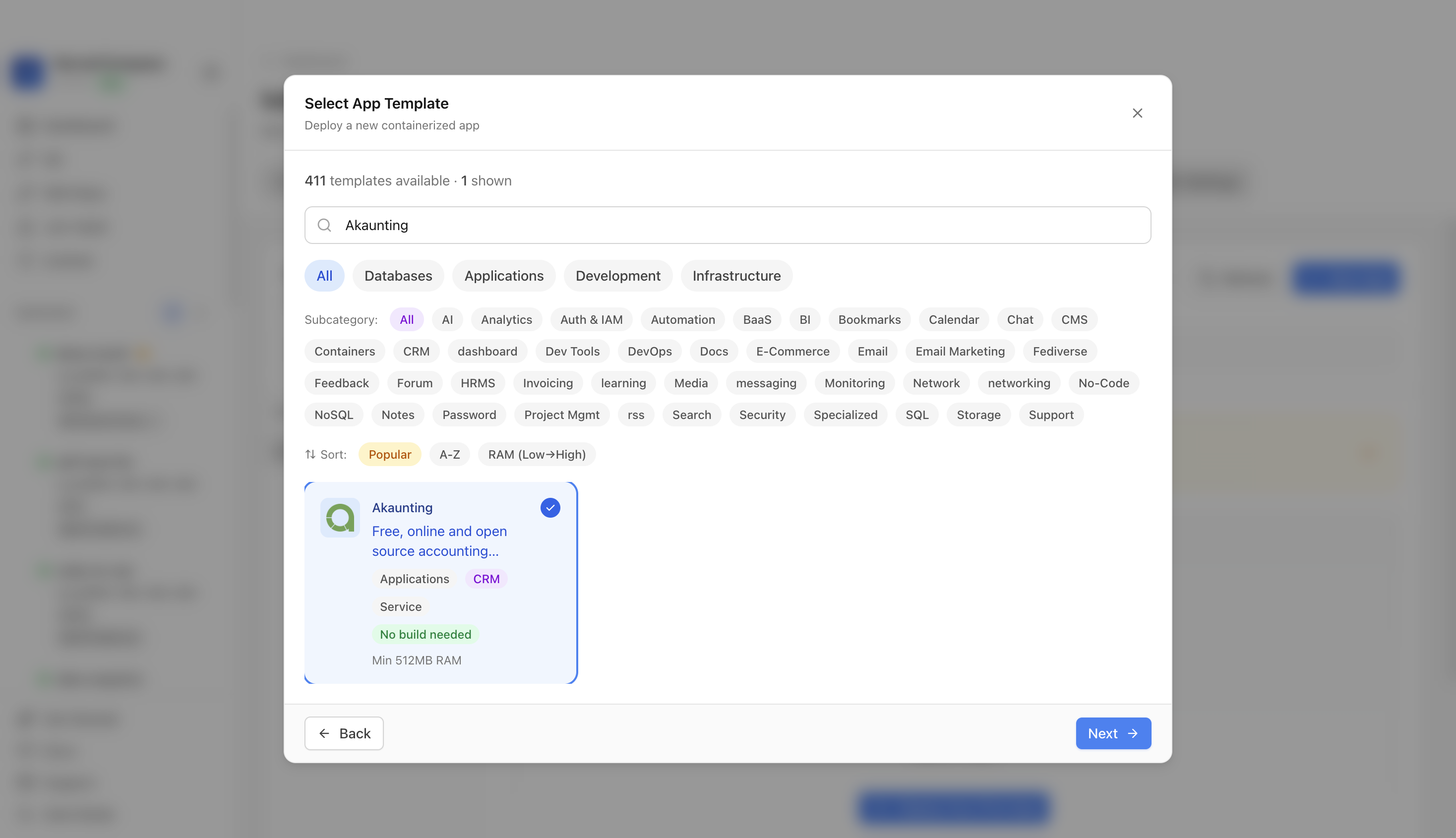
Confirm the app name and compose services. In this run, the app was named akaunting-demo and used web port 4100.
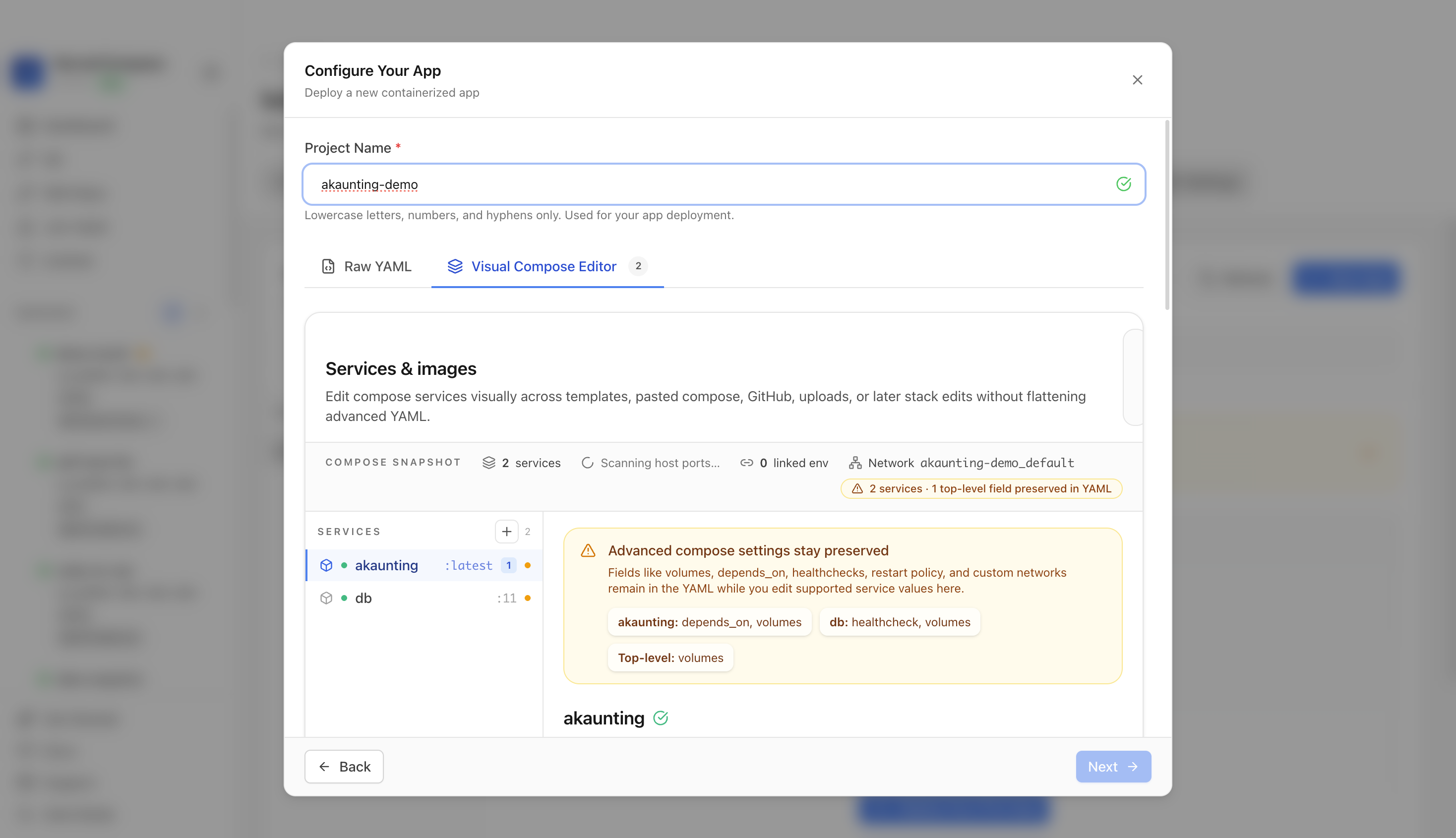
Review the generated compose settings, confirm the Akaunting web port is available, and click Deploy.
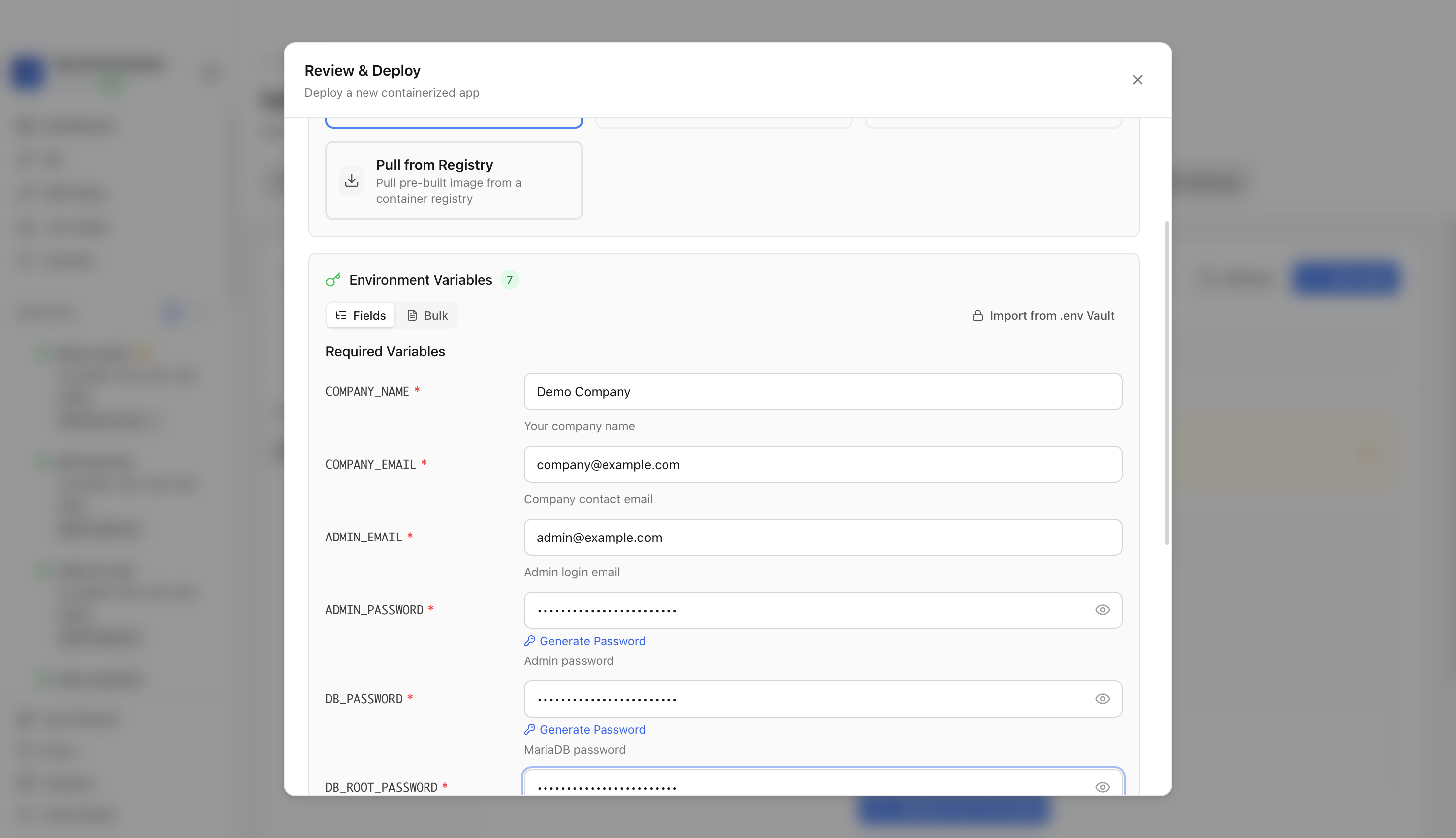
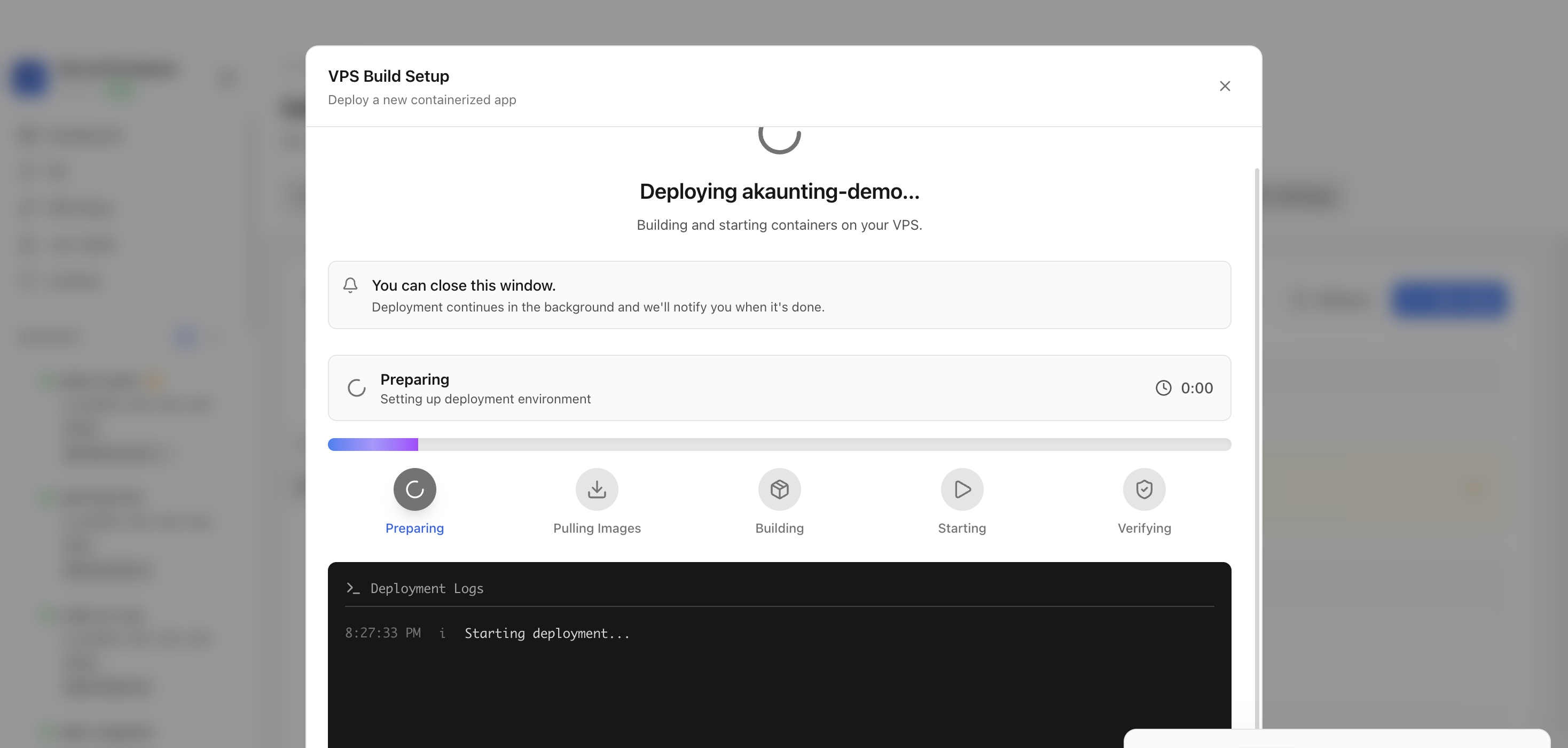
Keep the deployment modal open while Server Compass uploads the compose file, pulls the Akaunting image, starts the container, and verifies the stack.
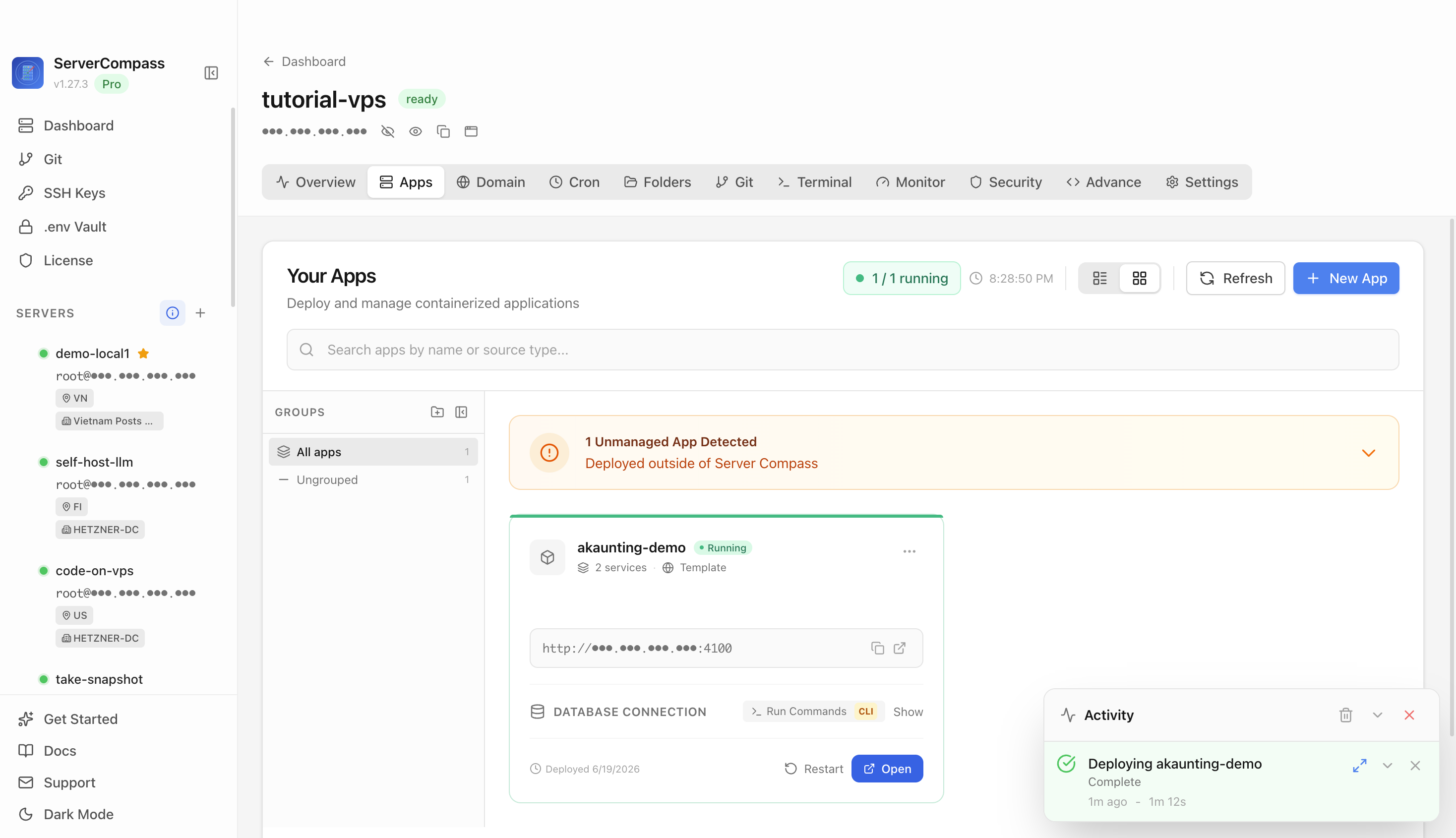
After deployment finishes, return to the Apps tab and confirm the Akaunting app is marked Running with its application URL available.
Open the application URL in a browser. The Akaunting login or setup screen confirms the web UI is reachable.
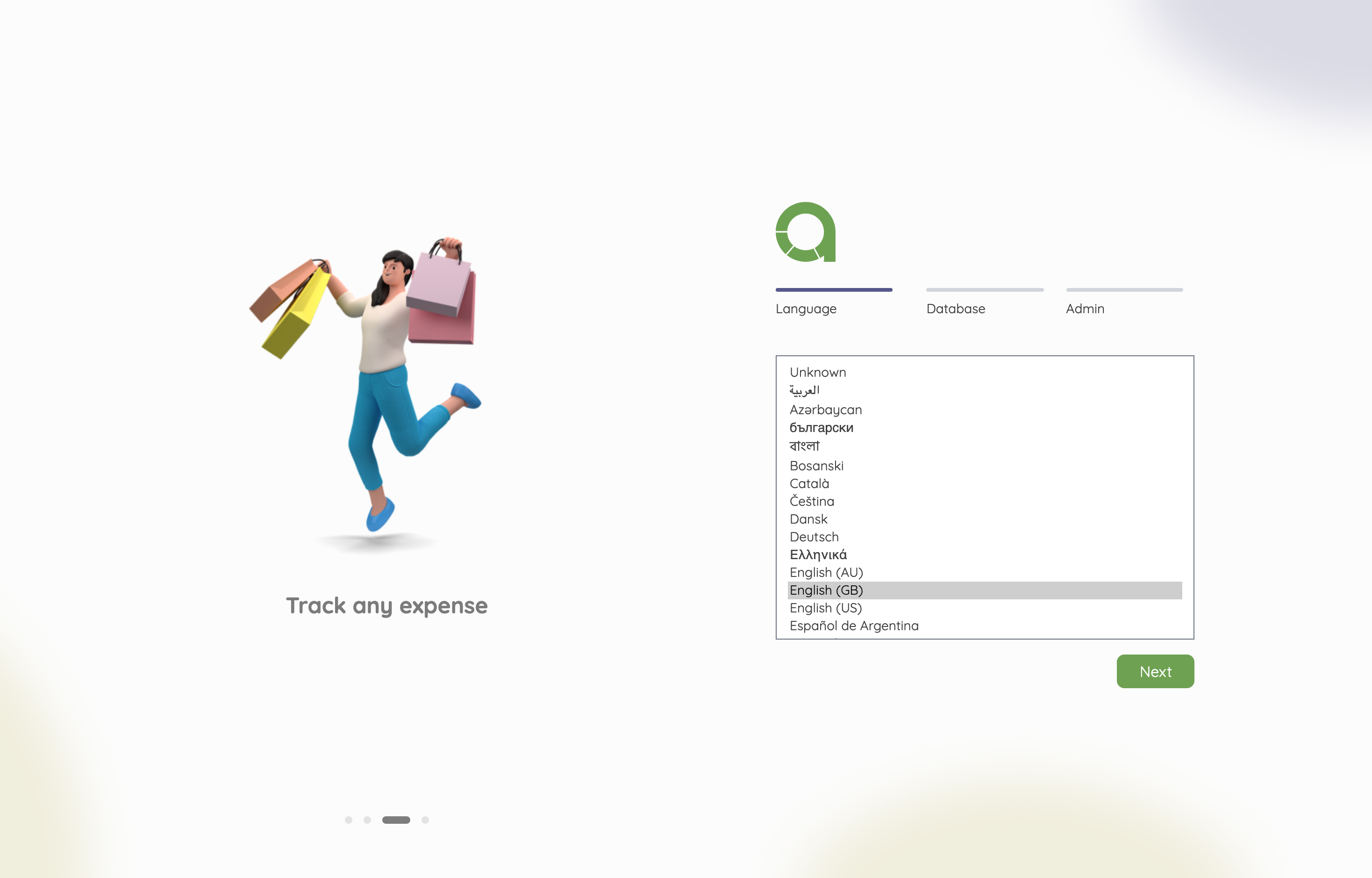
The Akaunting web interface loaded successfully from the deployed container.
It deploys the Akaunting web app with a MariaDB service and persistent app/database volumes.
The tutorial used host web port 4100, which maps to the Akaunting web UI on container port 80.
Yes. The template provisions the admin login email and password during deployment.
No. The deployment guide should live on the Akaunting template detail page and be linked from the reusable template deployment docs page.
After deploying Akaunting with Server Compass, complete these steps to finish setup
Visit the application URL
Log in with your admin credentials
Complete the company setup wizard
Configure currencies, taxes, and chart of accounts
Need help? Check out our documentation for detailed guides.
Common questions about self-hosting Akaunting
Simply download Server Compass, connect to your VPS, and select Akaunting from the templates list. Fill in the required configuration and click Deploy. The entire process takes under 3 minutes.
Akaunting requires a minimum of 512MB RAM. We recommend a VPS with at least 1024MB RAM for optimal performance. Any modern Linux server with Docker support will work.
Yes! Server Compass provides volume mapping that allows you to import existing data. You can also use standard Akaunting backup and restore procedures.
Server Compass makes updates easy. Simply click the Update button in your deployment dashboard, and the latest Akaunting image will be pulled and deployed with zero downtime.
Akaunting is open-source software. You only pay for your VPS hosting (typically $5-20/month) and optionally Server Compass ($29 one-time). No subscription fees or per-seat pricing.
Download Server Compass and deploy Akaunting to your VPS in under 3 minutes. No Docker expertise required.
Download Server Compass