1
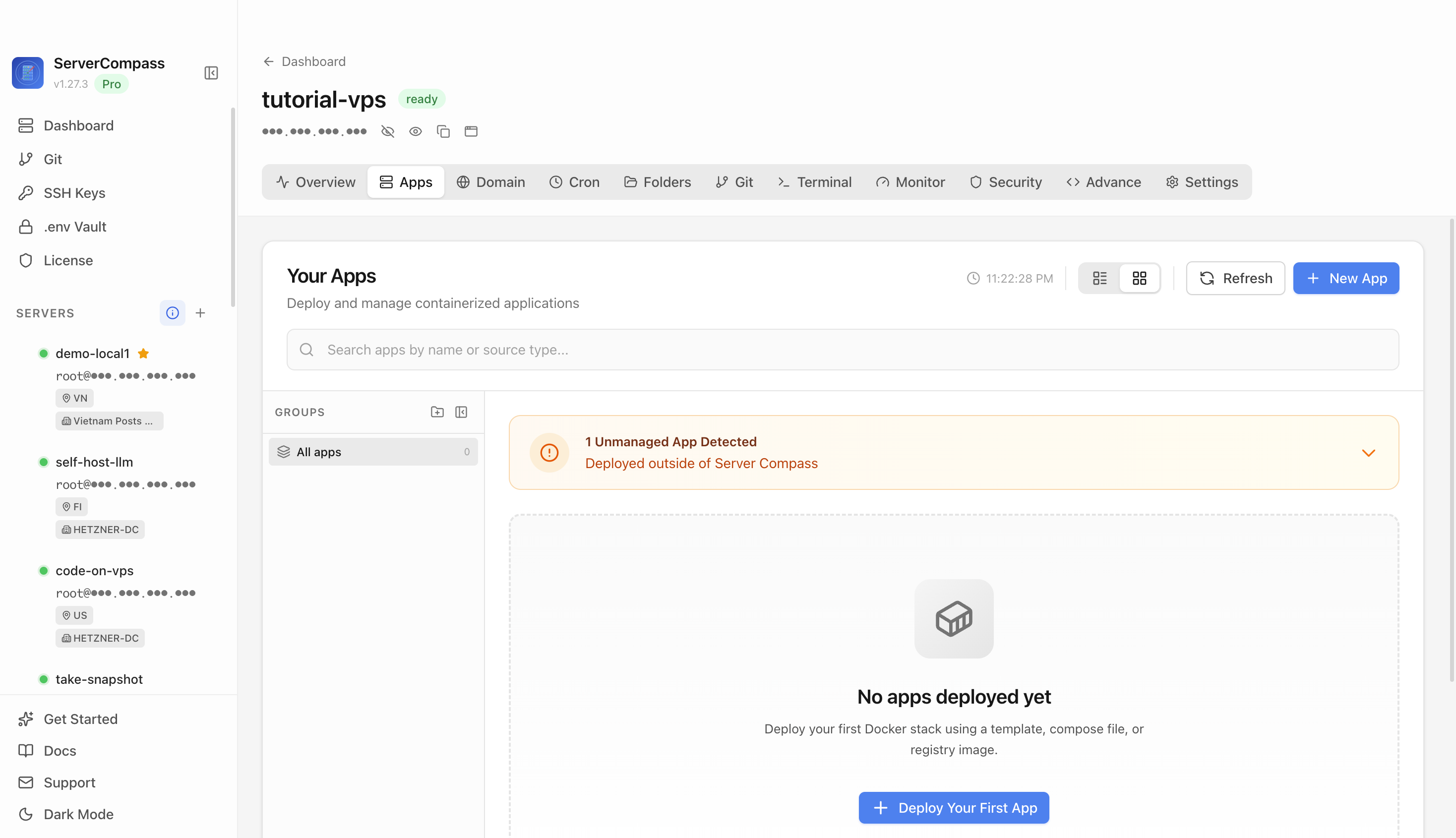
Step 1Open the server Apps tab
Select the tutorial-vps VPS, open the Apps tab, and start a new app deployment. Keep sensitive server details hidden before capturing or sharing screenshots.

Personal budgeting dashboard with transactions, accounts, and goal tracking
Add your server credentials to Server Compass
Choose from our template library
Fill in settings and click Deploy
Use the Budget Board template in Server Compass to deploy a self-hosted personal budgeting dashboard on your VPS, then verify the web UI.
Select the tutorial-vps VPS, open the Apps tab, and start a new app deployment. Keep sensitive server details hidden before capturing or sharing screenshots.
Click New App and choose the template deployment path so Server Compass can load the built-in catalog.
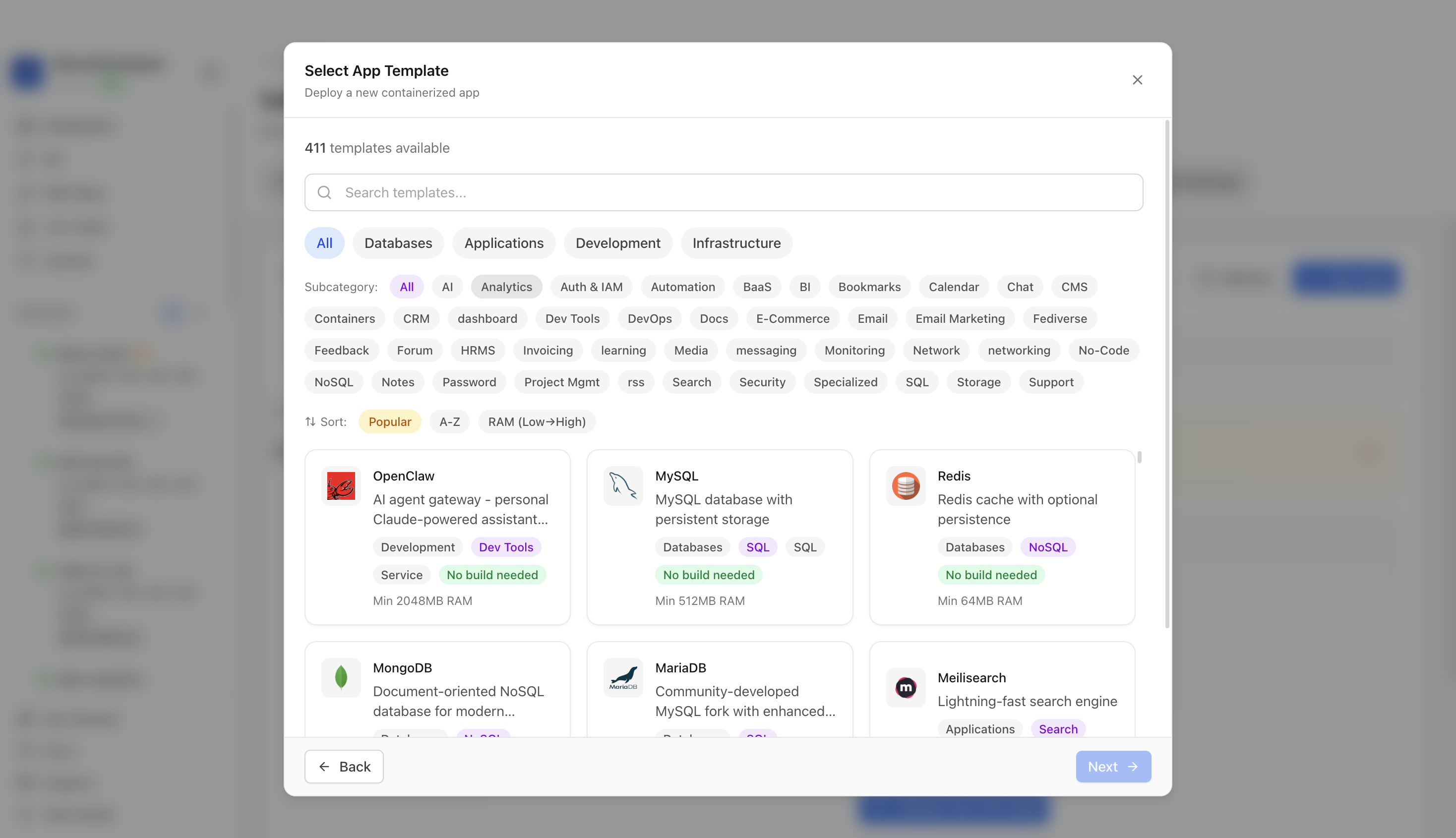
Use the template picker search to find Budget Board in the Server Compass template catalog.
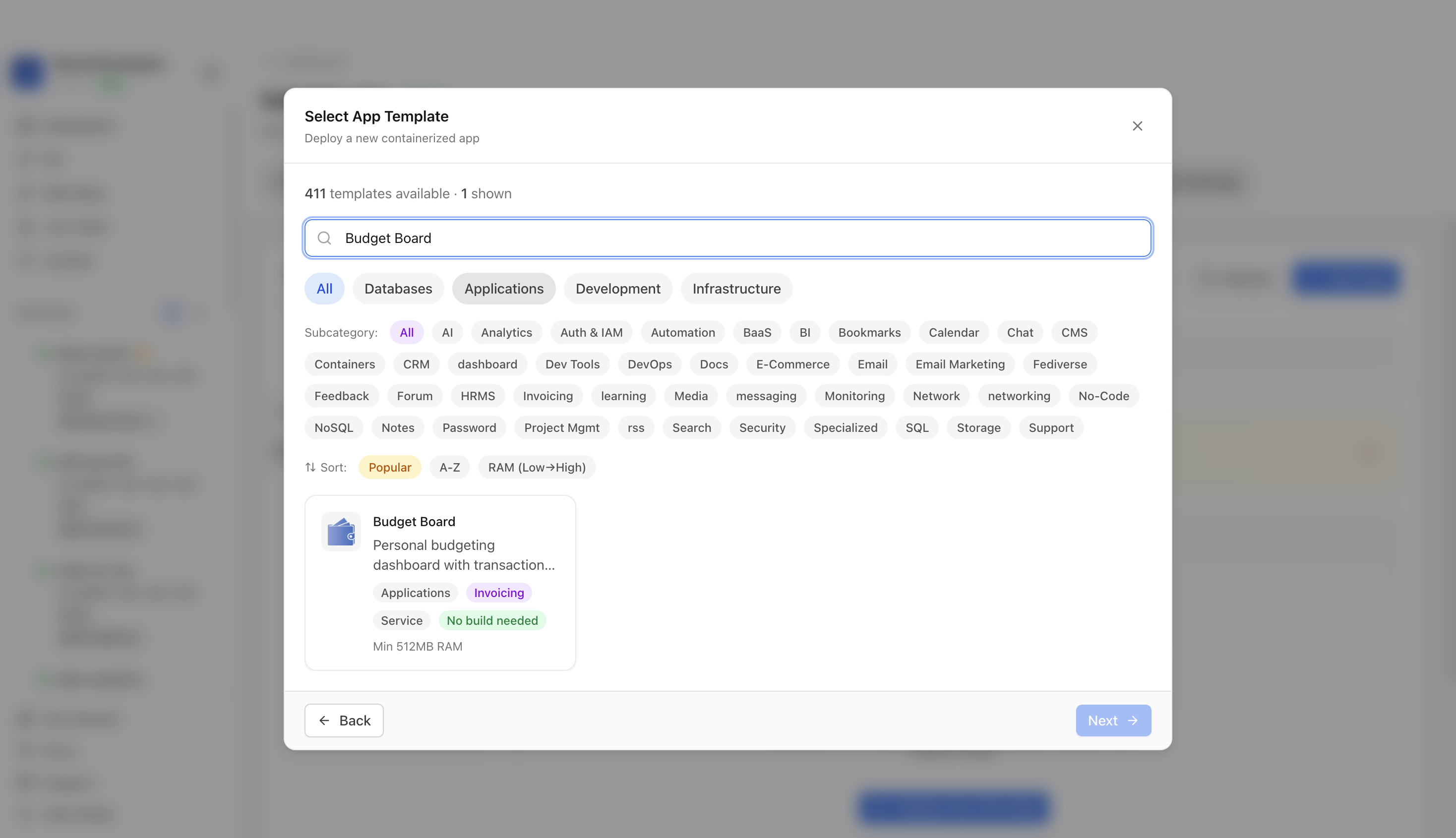
Choose the Budget Board template. Server Compass fills the client service, API service, PostgreSQL database, generated database credentials, persistent volume, and public web port.
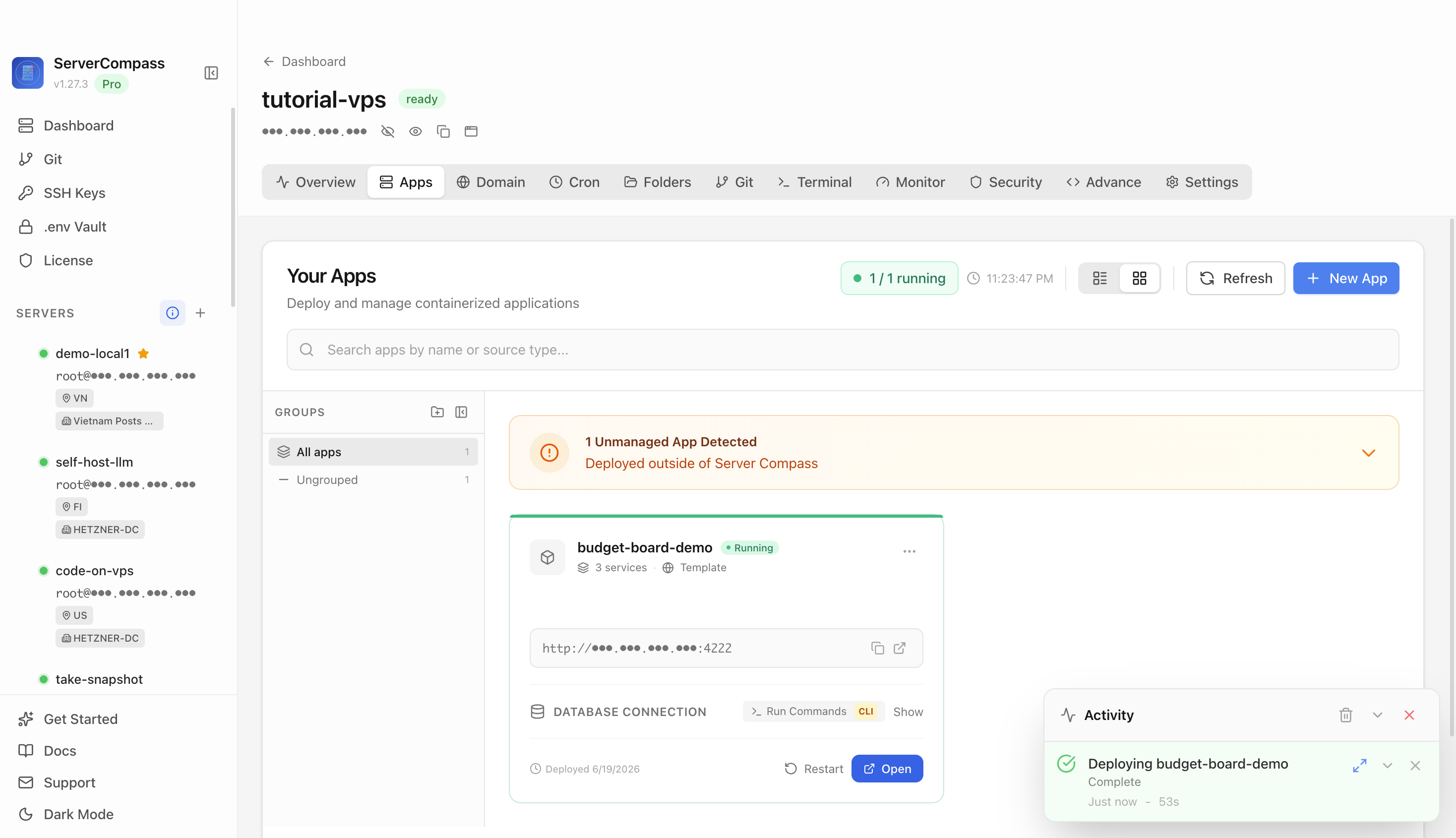
Confirm the app name and compose service. In this run, the app was named budget-board-demo and used host port 4222.
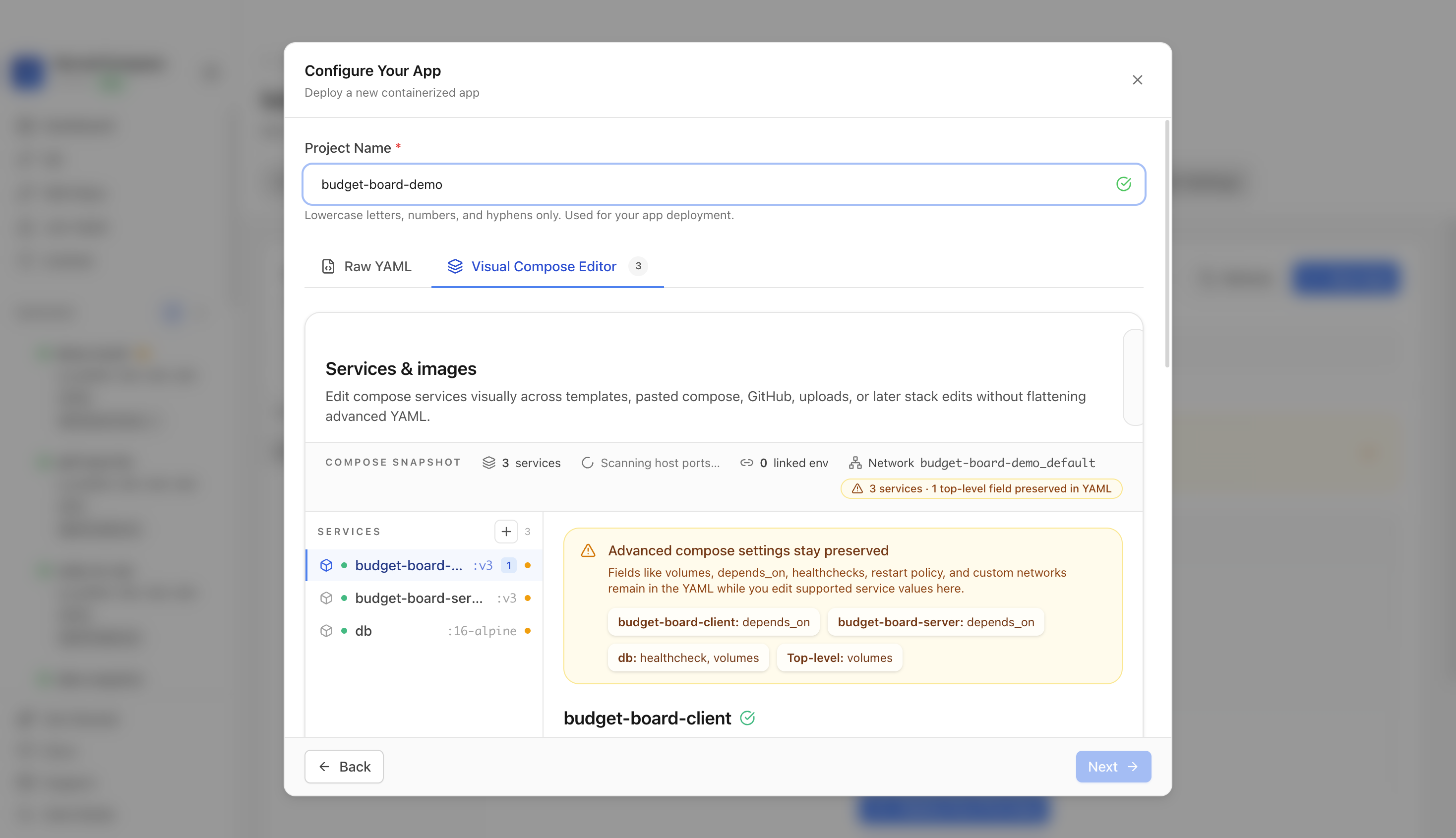
Review the generated compose settings, confirm the Budget Board web port is available, and click Deploy.
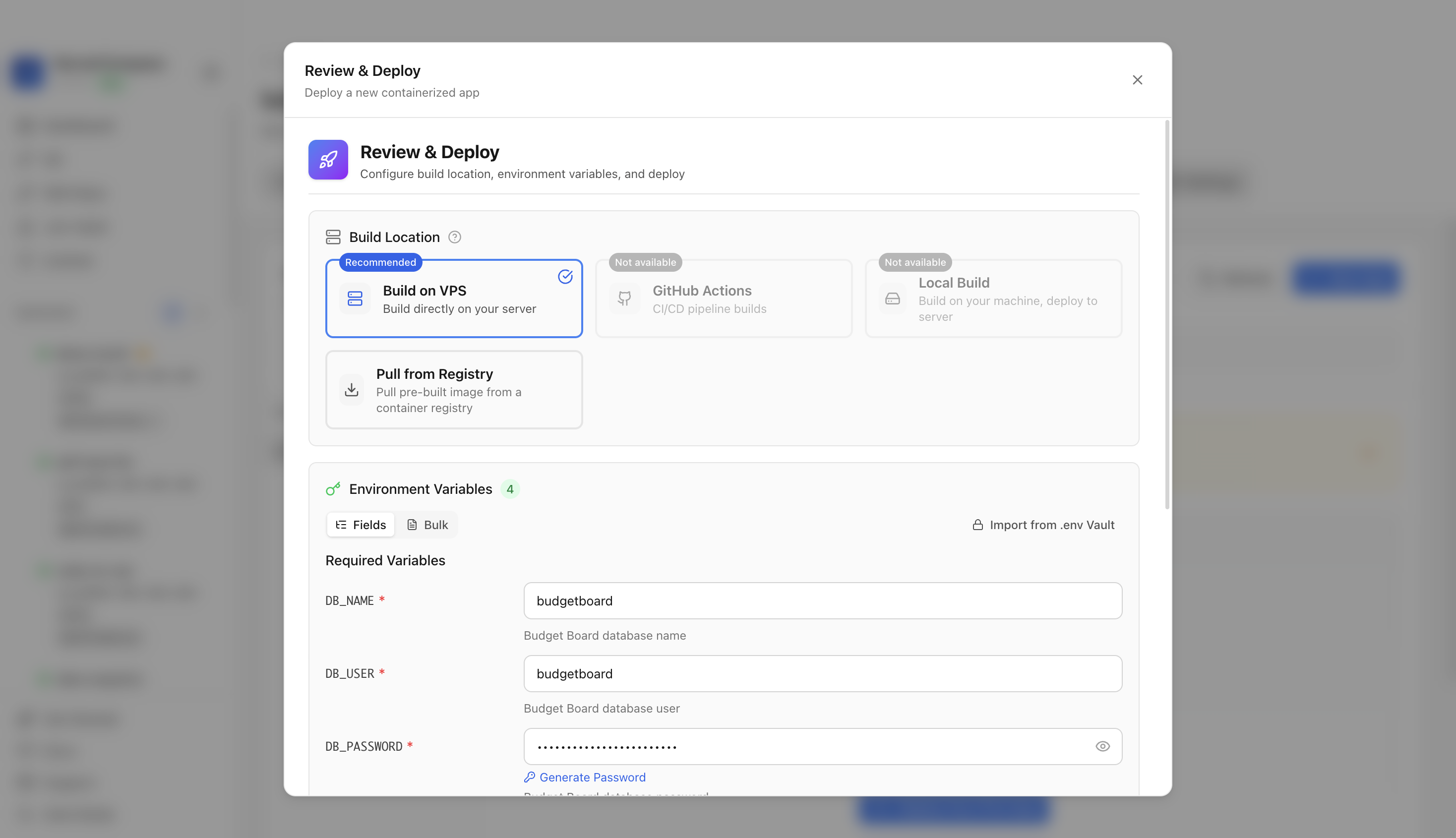
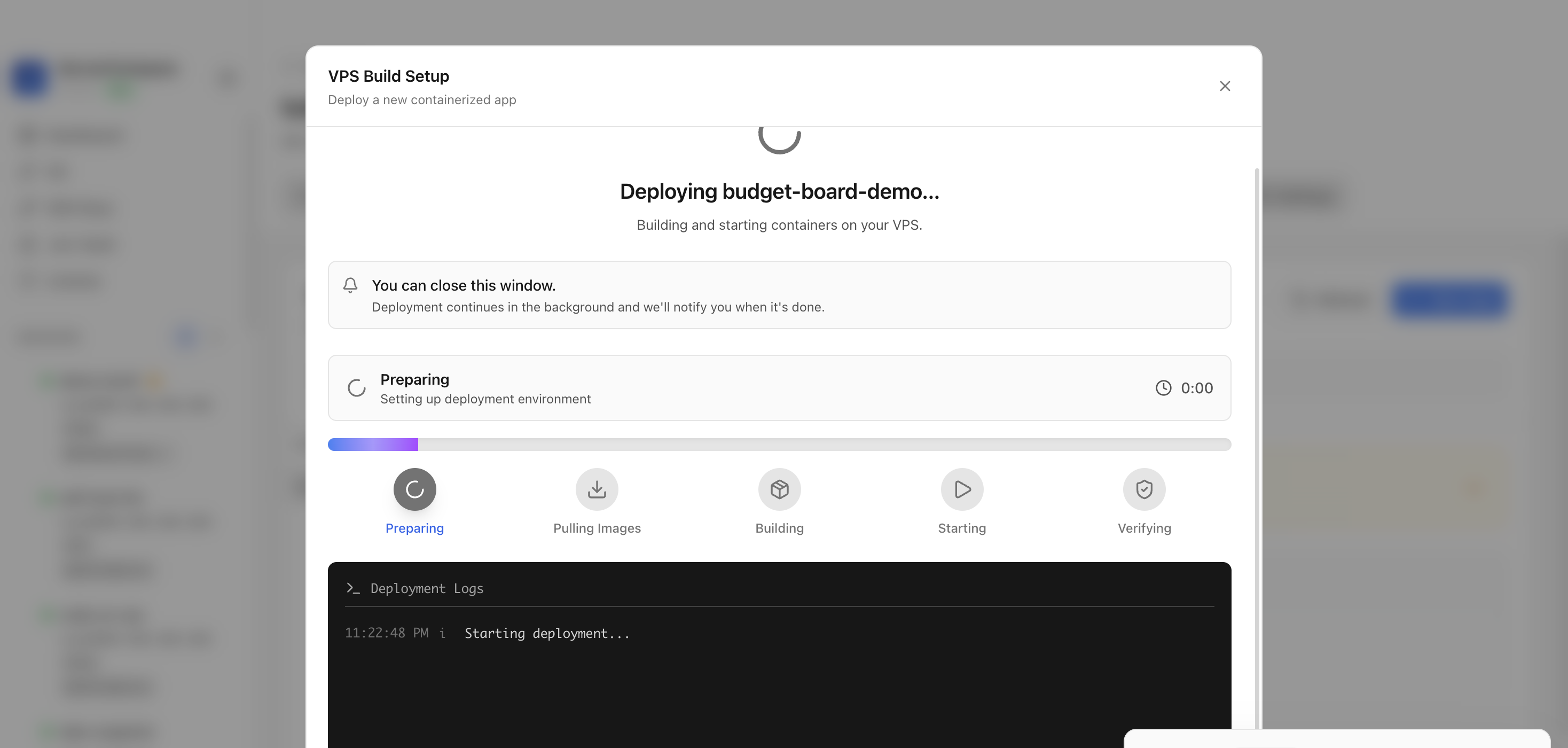
Keep the deployment modal open while Server Compass uploads the compose file, pulls the Budget Board image, starts the container, and verifies the stack.
After deployment finishes, return to the Apps tab and confirm the Budget Board app is marked Running with its application URL available.
Open the application URL in a browser. The Budget Board login or dashboard screen confirms the personal finance web UI is reachable.
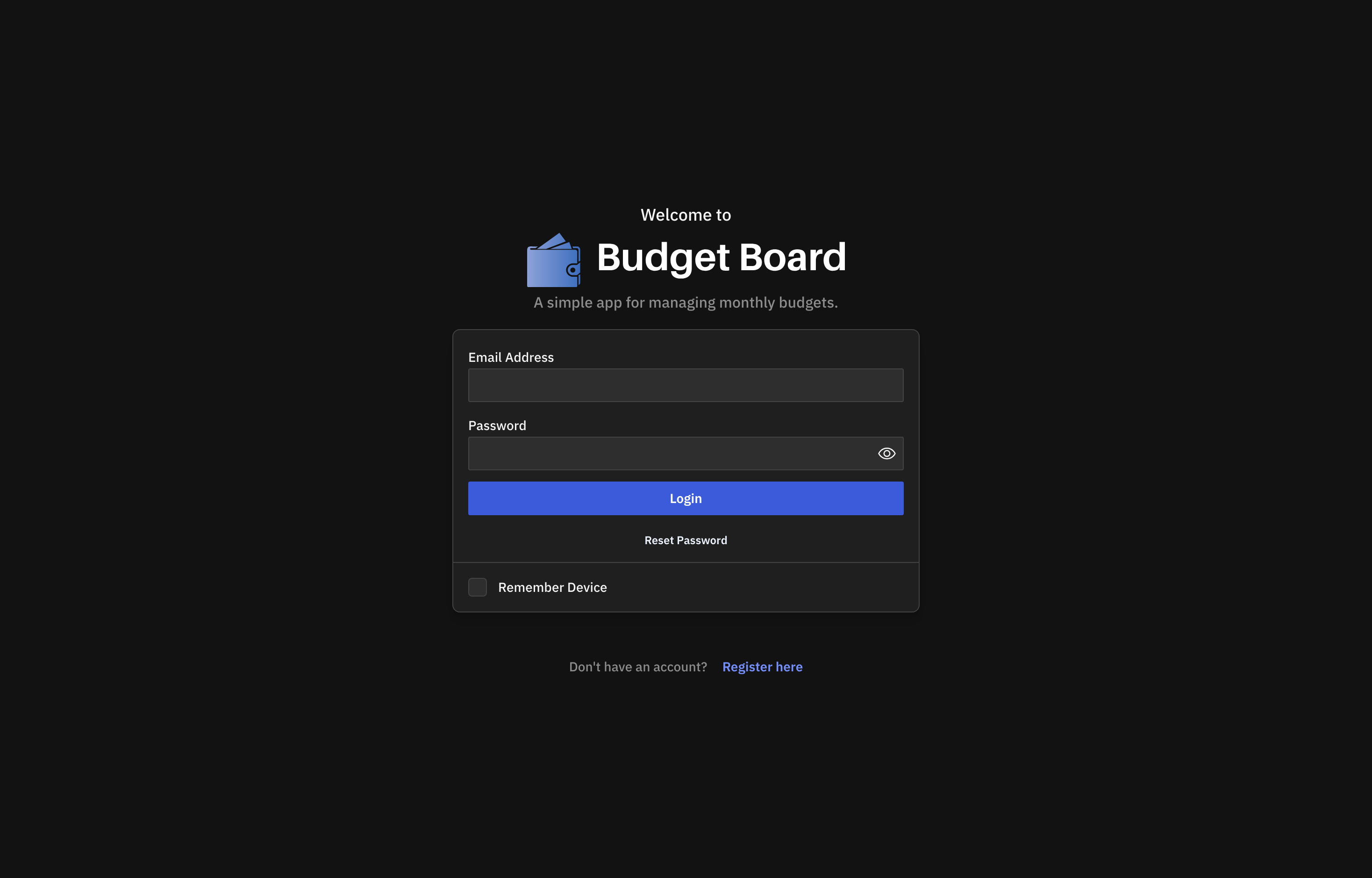
The Budget Board web interface loaded successfully from the deployed container.
It deploys the Budget Board web client, API server, and PostgreSQL database with a persistent database volume.
The tutorial used host port 4222, which maps to the Budget Board web UI on container port 6253.
Yes. Create the first admin account, configure the public URL, then add bot integrations and provider keys.
No. The deployment guide should live on the Budget Board template detail page and be linked from the reusable template deployment docs page.
After deploying Budget Board with Server Compass, complete these steps to finish setup
Open the URL and register your account
Disable public registration from admin settings
Create your accounts (checking, savings, credit, etc.)
Add transactions or import a CSV
Configure budget categories and goals
Need help? Check out our documentation for detailed guides.
Common questions about self-hosting Budget Board
Simply download Server Compass, connect to your VPS, and select Budget Board from the templates list. Fill in the required configuration and click Deploy. The entire process takes under 3 minutes.
Budget Board requires a minimum of 512MB RAM. We recommend a VPS with at least 1024MB RAM for optimal performance. Any modern Linux server with Docker support will work.
Yes! Server Compass provides volume mapping that allows you to import existing data. You can also use standard Budget Board backup and restore procedures.
Server Compass makes updates easy. Simply click the Update button in your deployment dashboard, and the latest Budget Board image will be pulled and deployed with zero downtime.
Budget Board is open-source software. You only pay for your VPS hosting (typically $5-20/month) and optionally Server Compass ($29 one-time). No subscription fees or per-seat pricing.
Download Server Compass and deploy Budget Board to your VPS in under 3 minutes. No Docker expertise required.
Download Server Compass