1
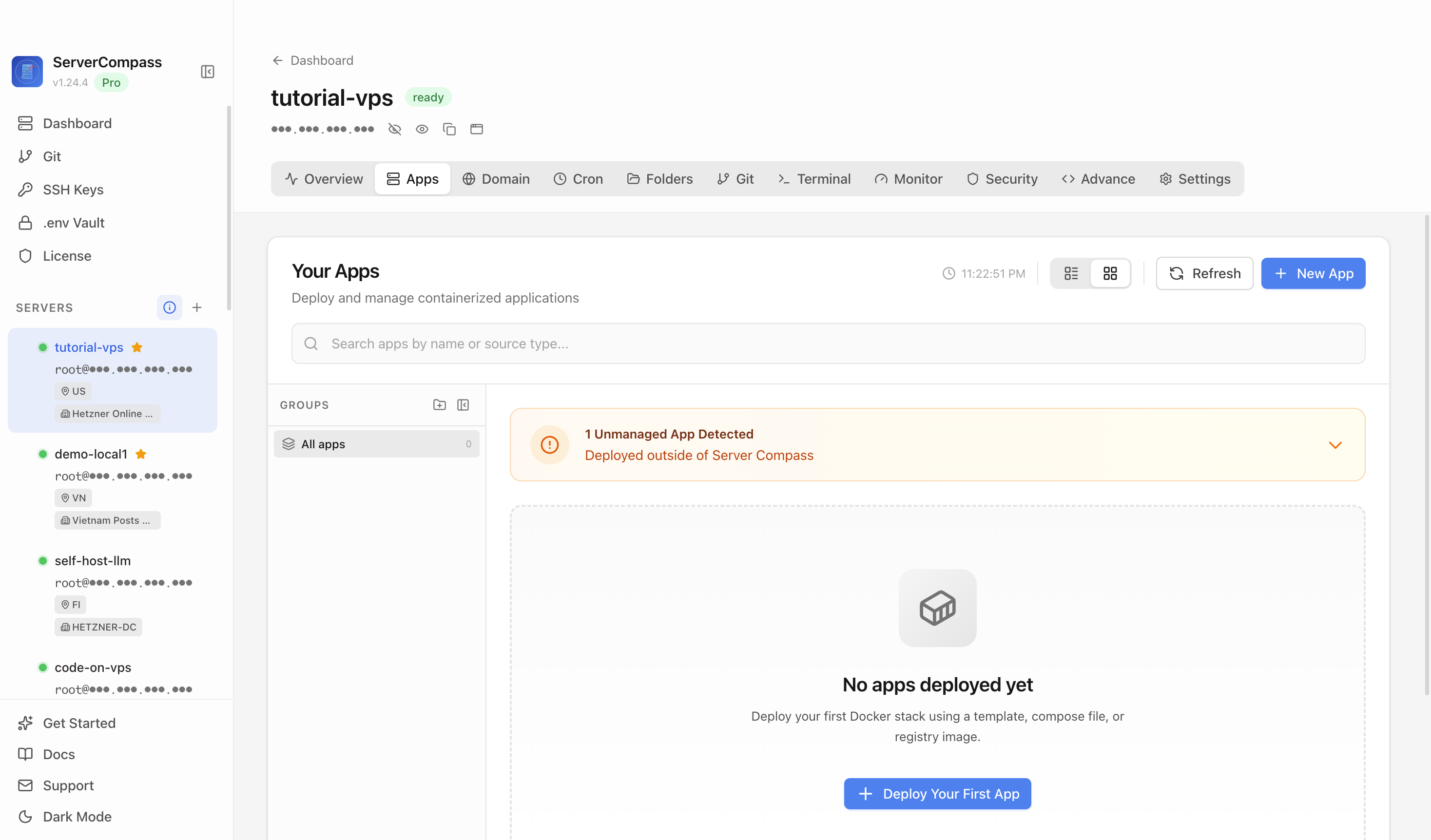
Step 1Open the server Apps tab
Select your VPS, open the Apps tab, and start a new app deployment.

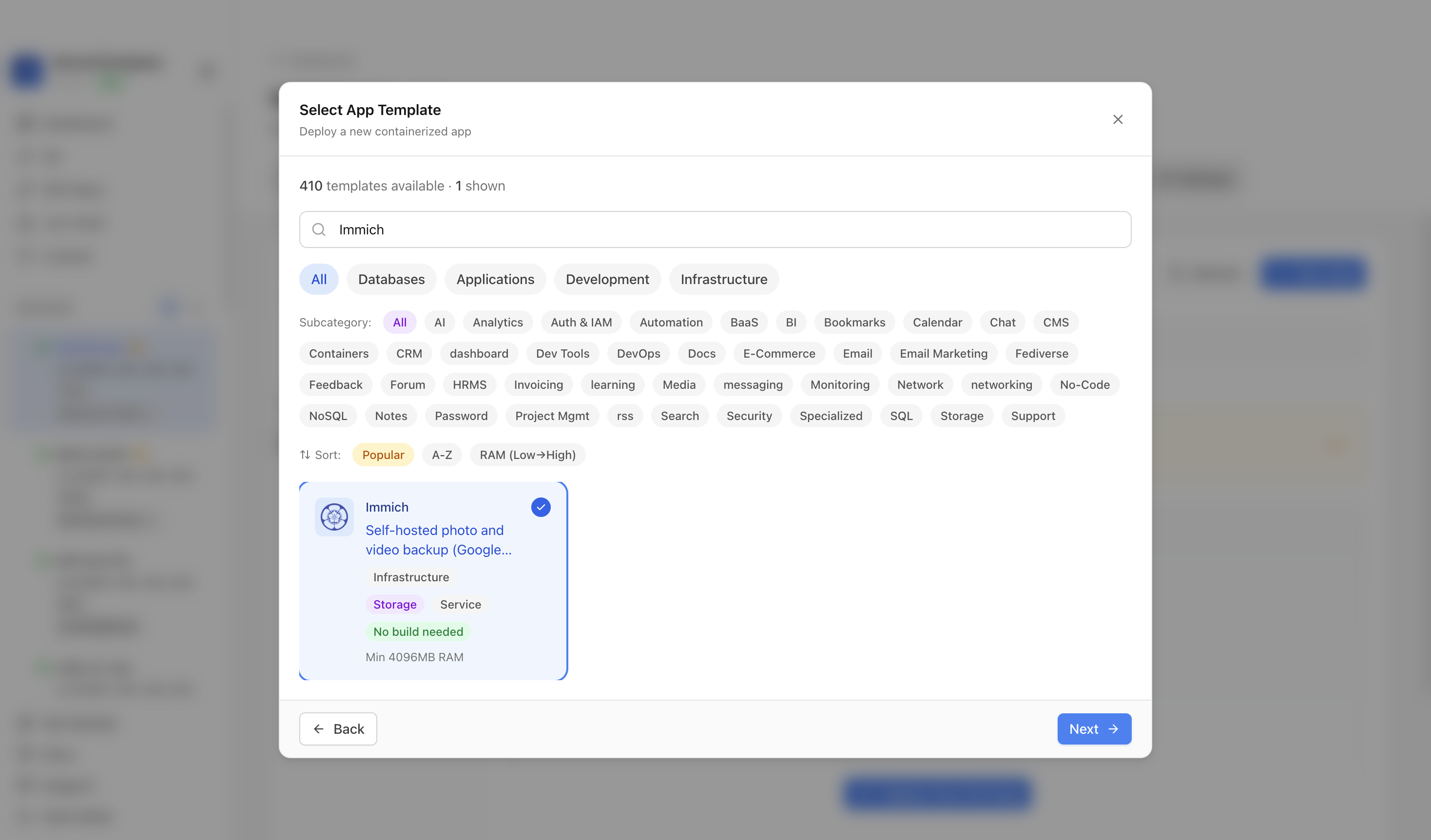
Self-hosted photo and video backup (Google Photos alternative)
Add your server credentials to Server Compass
Choose from our template library
Fill in settings and click Deploy
Use the Immich template in Server Compass to deploy a self-hosted photo and video backup server with PostgreSQL, Redis, machine learning, and upload storage, then verify the welcome screen in a browser.
Select your VPS, open the Apps tab, and start a new app deployment.
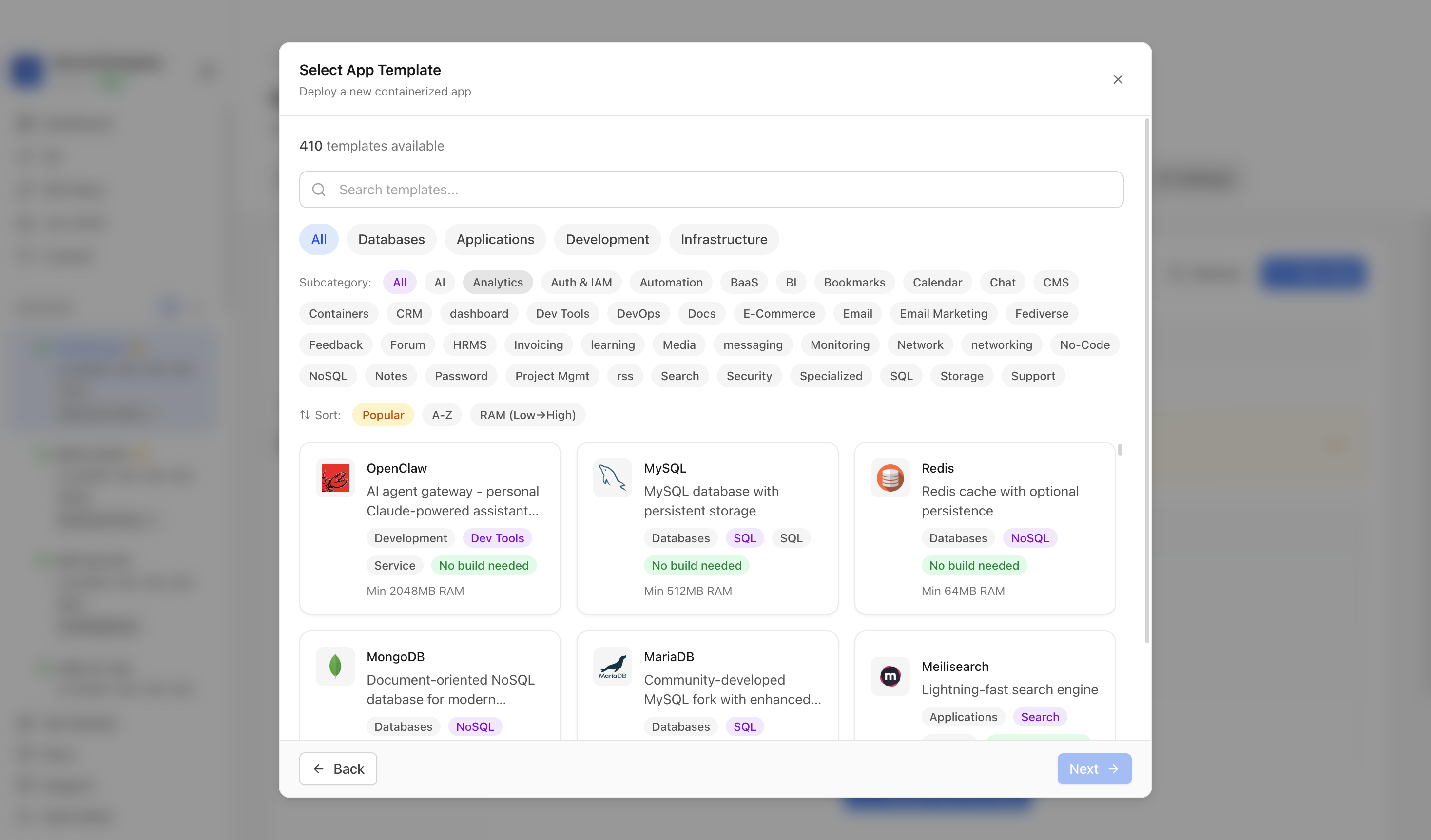
Click New App and choose the template deployment path so Server Compass can load the built-in catalog.
Use the template picker search to find Immich.
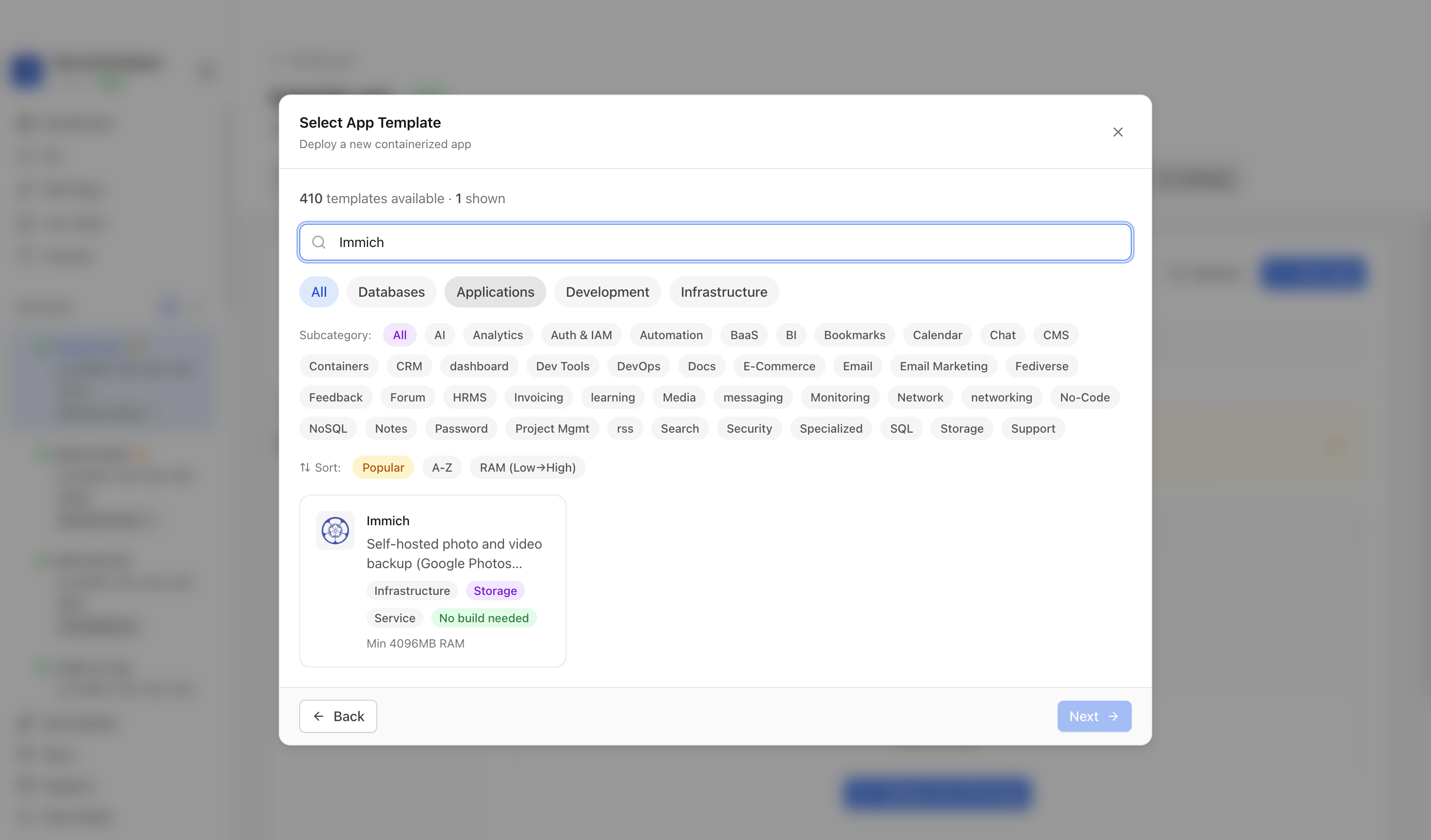
Choose the Immich template. Server Compass fills the app image, published server URL, host port, and PostgreSQL, Redis, machine learning, and upload storage.
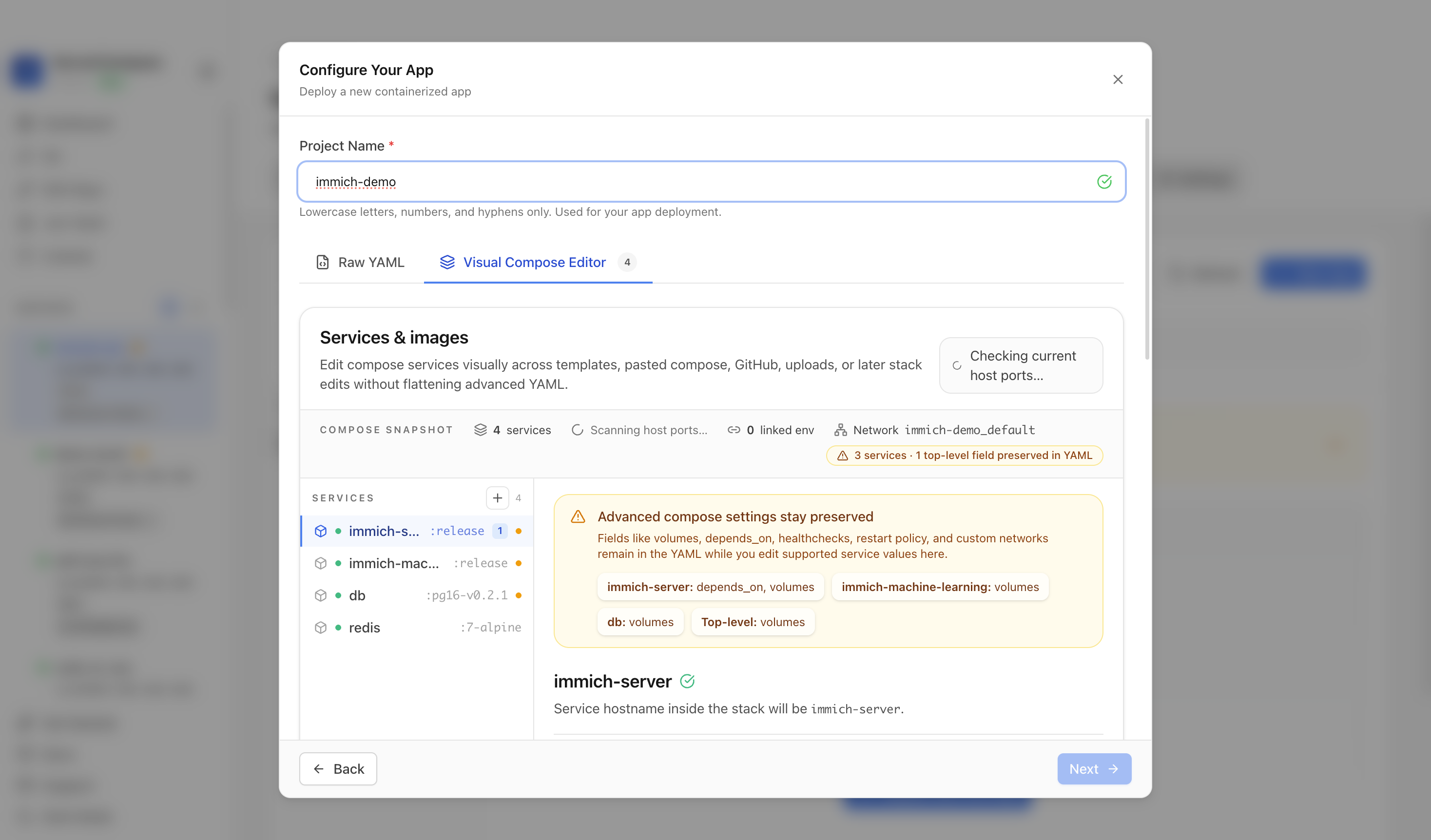
Confirm the app name, compose services, and generated configuration.
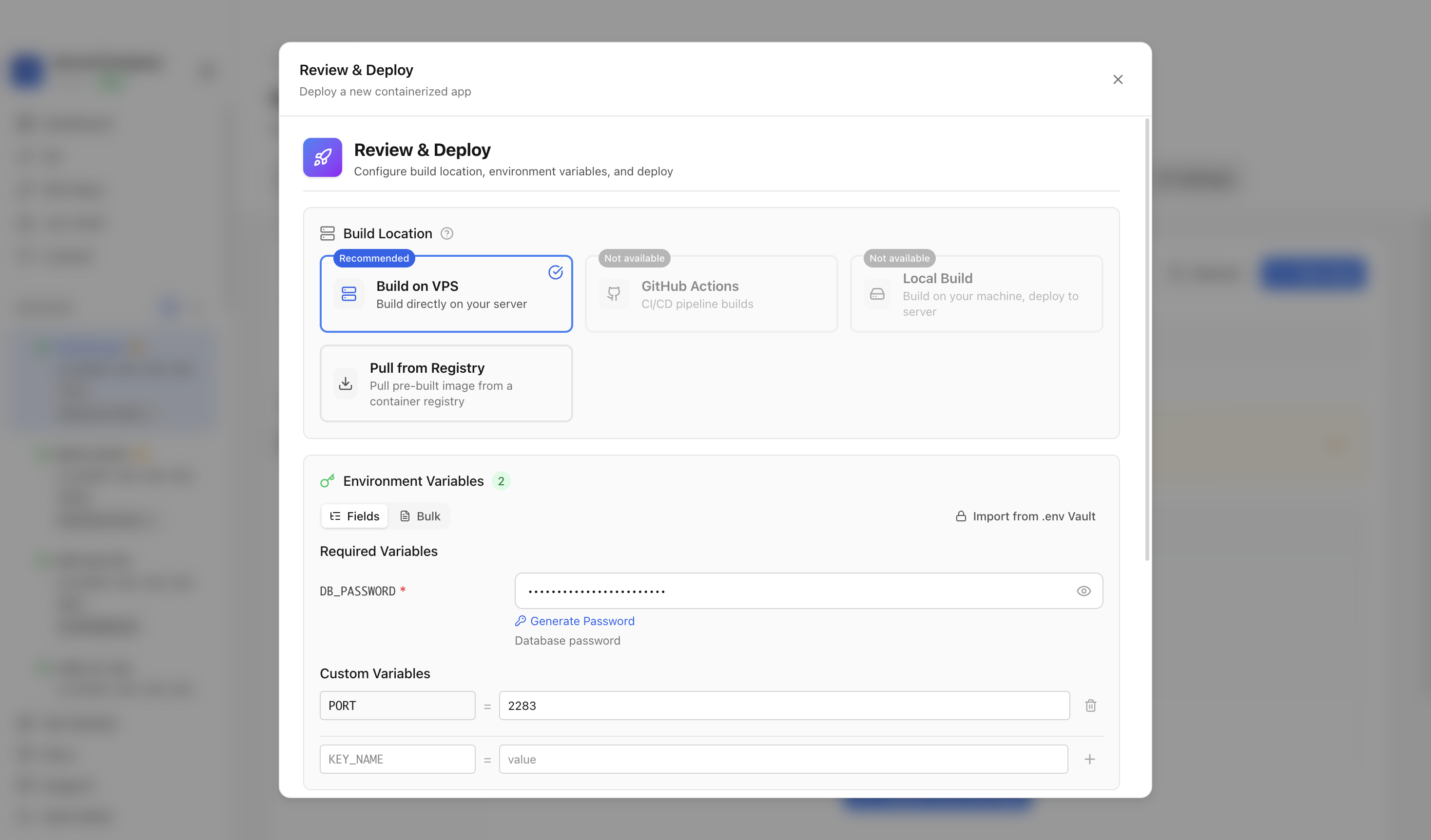
Review the generated environment values, confirm the port is available, and click Deploy Now.
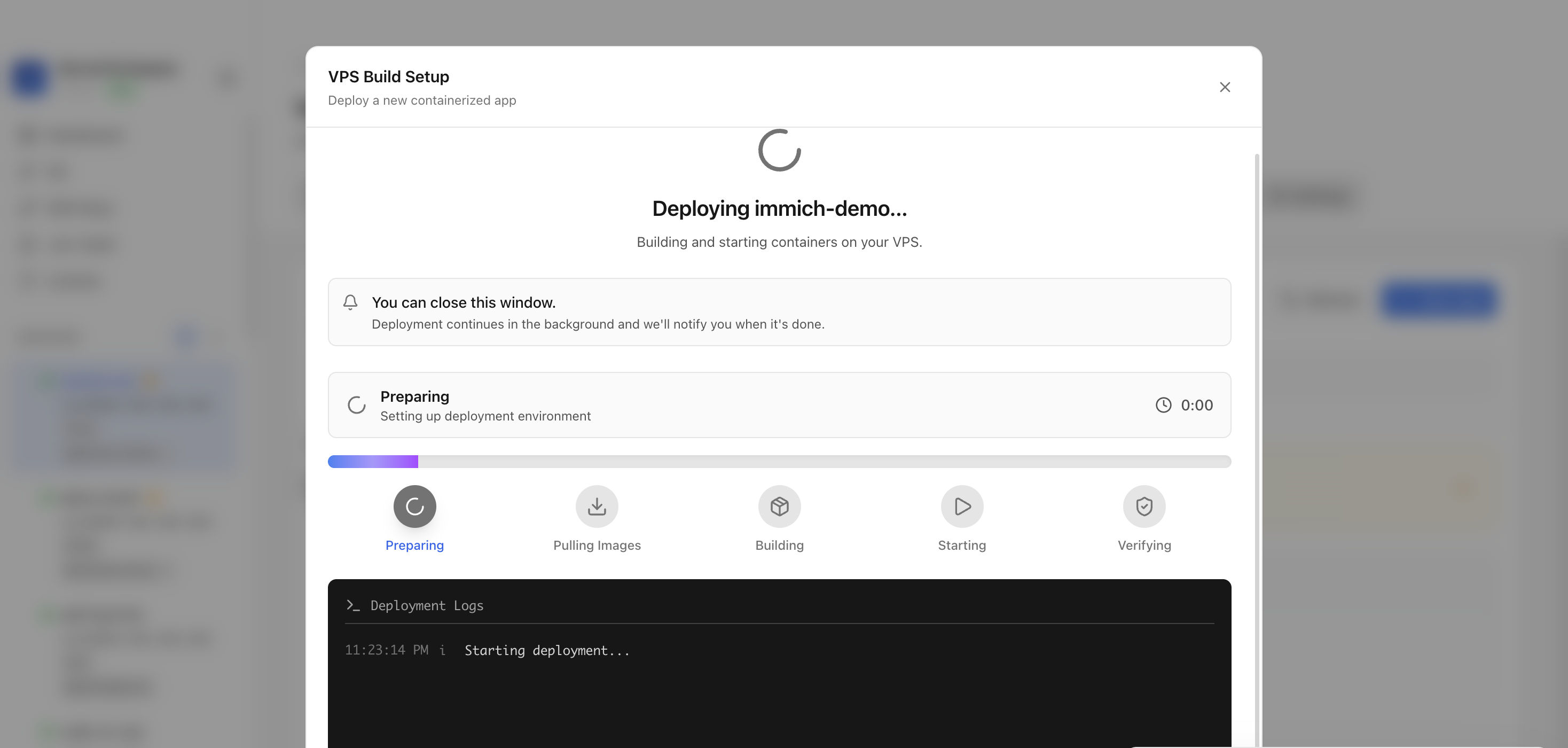
Keep the deployment modal open while Server Compass pulls images, starts services, and verifies the stack.
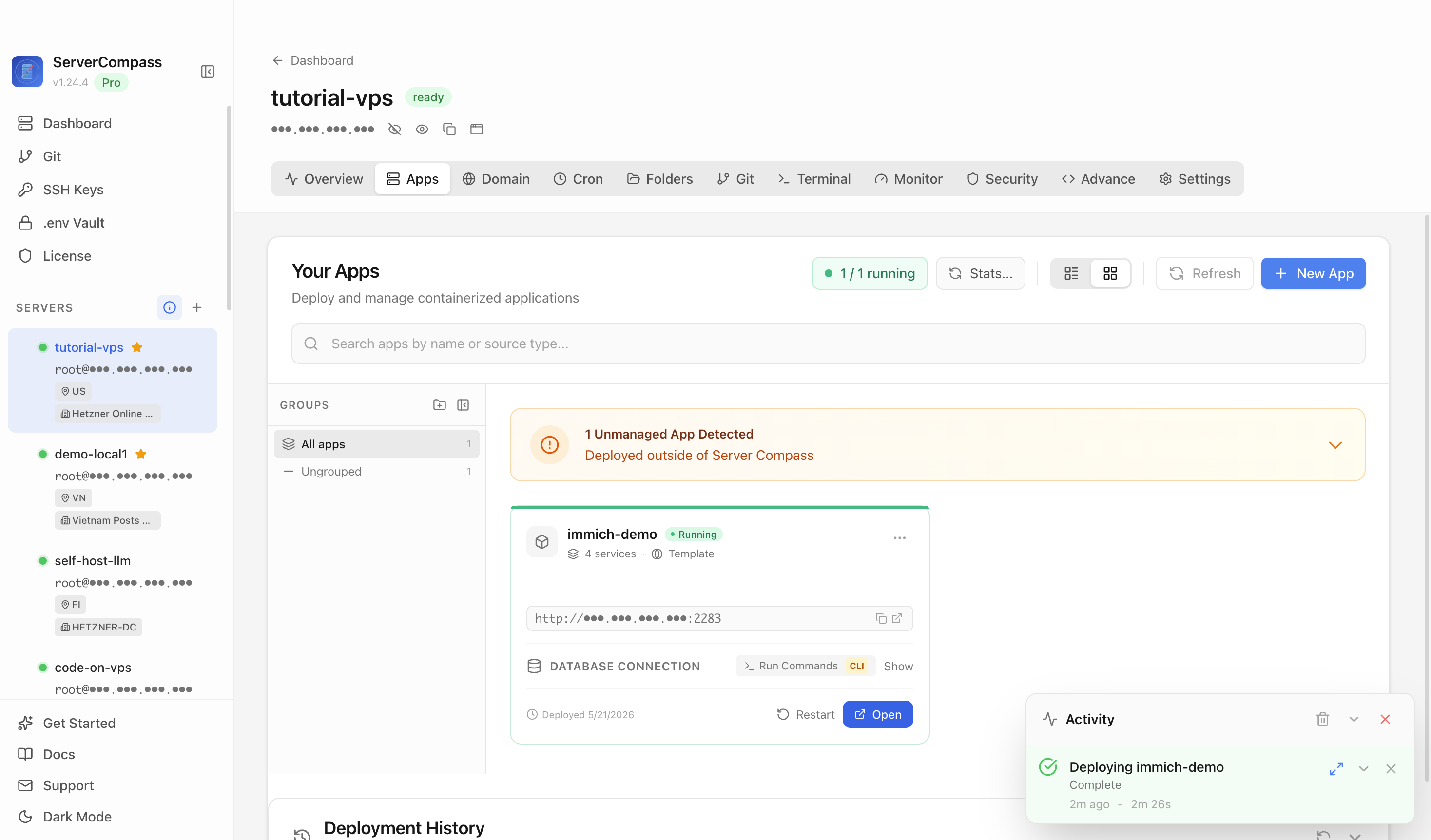
After deployment finishes, confirm the Immich app is marked Running.
Open the application URL in a browser. The Immich welcome screen confirms the app is reachable.

Immich loaded successfully and displayed the welcome screen.
It deploys Immich with PostgreSQL, Redis, machine learning, and upload storage.
The tutorial used host port 2283, which maps to the Immich web server on container port 2283.
Set up Immich yourself using Docker Compose and the command line.
Initiate a secure shell connection to your server using the command below.
# Connect to your VPS
ssh root@your-server-ip

# Or with a specific SSH key
ssh -i ~/.ssh/your-key root@your-server-ip
First time? Docker required! Install it with: curl -fsSL https://get.docker.com | sh
Organize your deployment by creating a dedicated project folder.
# Create and navigate to project directory
mkdir -p ~/apps/immich
cd ~/apps/immichCreate a new docker-compose.yml file and paste this configuration:
services:
  immich-server:
    image: ghcr.io/immich-app/immich-server:release
    ports:
      - "2283:2283"
    environment:
      - DB_HOSTNAME=db
      - DB_USERNAME=immich
      - DB_PASSWORD=<your-db-password>
      - DB_DATABASE_NAME=immich
      - REDIS_HOSTNAME=redis
    volumes:
      - immich_upload:/usr/src/app/upload
      - /etc/localtime:/etc/localtime:ro
    restart: unless-stopped
    depends_on:
      - db
      - redis

  immich-machine-learning:
    image: ghcr.io/immich-app/immich-machine-learning:release
    volumes:
      - immich_model_cache:/cache
    restart: unless-stopped

  db:
    image: tensorchord/pgvecto-rs:pg16-v0.2.1
    environment:
      - POSTGRES_USER=immich
      - POSTGRES_PASSWORD=<your-db-password>
      - POSTGRES_DB=immich
    volumes:
      - postgres_data:/var/lib/postgresql/data
    restart: unless-stopped

  redis:
    image: redis:7-alpine
    restart: unless-stopped

volumes:
  immich_upload:
  immich_model_cache:
  postgres_data:
PORTHost port(default: 2283)DB_PASSWORDDB passwordStart the services and tail the logs to verify startup.
# Spin up containers
docker compose up -d

# Verify deployment
docker compose ps

# Check logs for errors
docker compose logs -fOpen the required port in your firewall to allow access.
# Allow the application port through firewall
sudo ufw allow 2283/tcp
sudo ufw reload

# Access your app at:
# http://your-server-ip:2283No terminal needed. Deploy Immich through a visual dashboard with automatic configuration.
Common questions about self-hosting Immich
Simply download Server Compass, connect to your VPS, and select Immich from the templates list. Fill in the required configuration and click Deploy. The entire process takes under 3 minutes.
Immich requires a minimum of 4096MB RAM. We recommend a VPS with at least 8192MB RAM for optimal performance. Any modern Linux server with Docker support will work.
Yes! Server Compass provides volume mapping that allows you to import existing data. You can also use standard Immich backup and restore procedures.
Server Compass makes updates easy. Simply click the Update button in your deployment dashboard, and the latest Immich image will be pulled and deployed with zero downtime.
Immich is open-source software. You only pay for your VPS hosting (typically $5-20/month) and optionally Server Compass ($29 one-time). No subscription fees or per-seat pricing.
Download Server Compass and deploy Immich to your VPS in under 3 minutes. No Docker expertise required.
Download Server Compass