July 22, 2026
Auto Deploy When Your Reverse Proxy Runs in Docker
If your reverse proxy runs in a container, Auto Deploy webhooks used to die at connection refused — the gateway only listened on localhost. Server Compass v1.34.1 lets you say where your proxy runs, so Nginx Proxy Manager, a Traefik container, or a cloudflared tunnel can reach it.
You already have a reverse proxy, and it already works. Nginx Proxy Manager sits in a container, terminates TLS for a dozen hostnames, and has been doing it flawlessly for a year. So when you turn on Auto Deploy, you do the obvious thing: add one more proxy host, point it at the webhook gateway, save.
Then GitHub delivers the push event and nothing happens. The delivery log shows a red X. Your proxy logs say connection refused. You check the gateway container — running. You check the port — listening. You re-read every field twice. Nothing in your setup looks wrong, and technically nothing is.
The culprit is one line of Docker networking. The Auto Deploy gateway published its port on 127.0.0.1 only, which is exactly right when your proxy runs on the server itself. But inside a bridge-networked container, 127.0.0.1 is the container, not the host. Your proxy dials localhost, finds nothing listening there, and hands GitHub a 502.
What changed
Server Compass v1.34.1 asks you where your proxy actually runs, and binds the gateway to match. Pick Proxy runs in Docker and the gateway becomes reachable from your containers — so Nginx Proxy Manager, a Traefik container you manage yourself, or a containerized tunnel can forward webhooks without you hand-editing a compose file on the server.
How it works in practice
Tell Server Compass who owns the route
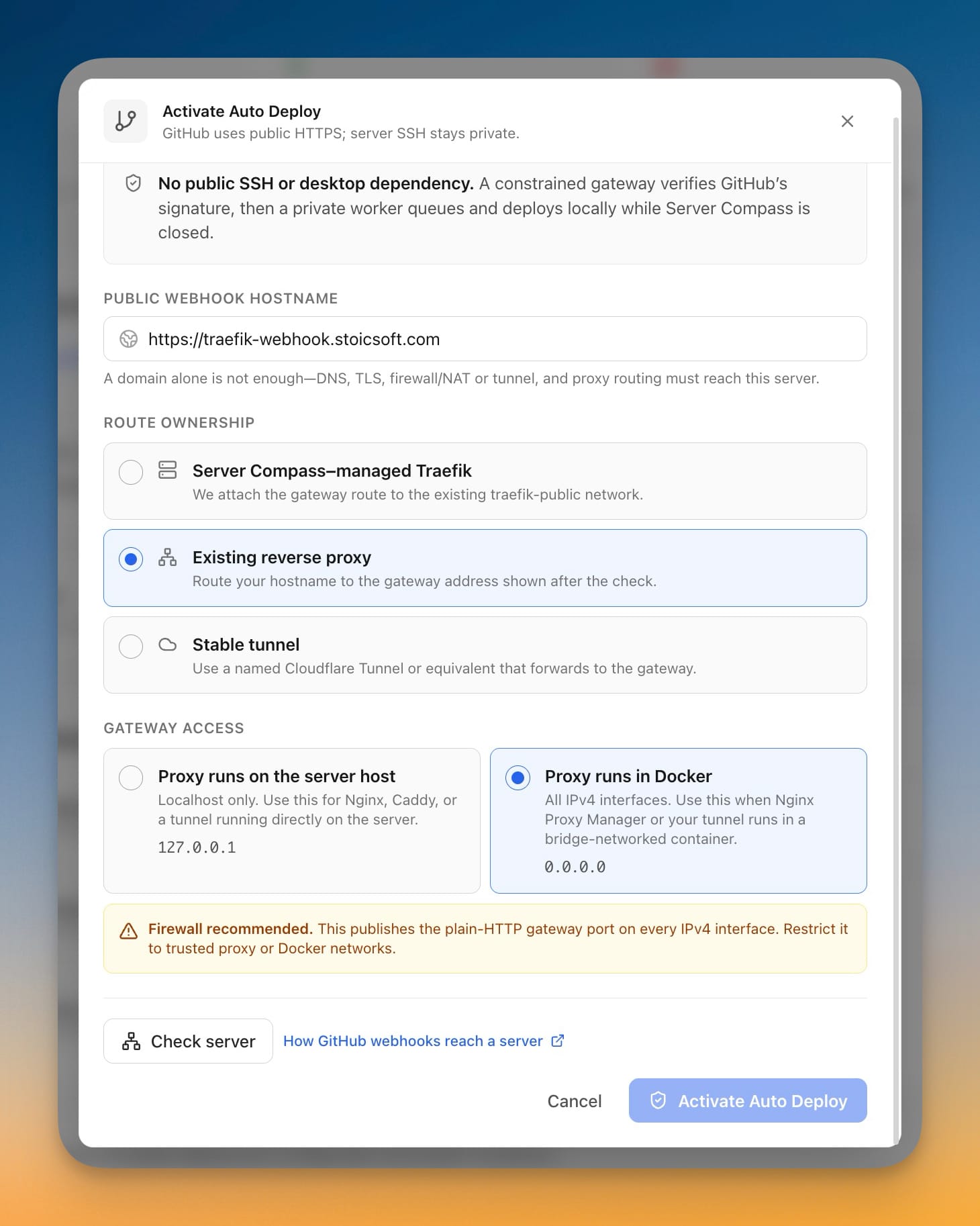
Open your app, go to Auto Deploy, and click Set up Auto Deploy. Under Route ownership you get three choices:
- Server Compass–managed Traefik — Server Compass attaches the gateway route to your existing
traefik-publicnetwork. - Existing reverse proxy — you route your hostname to the gateway address shown after the check.
- Stable tunnel — a named Cloudflare Tunnel (or equivalent) forwards to the gateway.
The new Gateway access section appears for the last two. Managed Traefik doesn't need it: Server Compass puts the gateway on Traefik's own network, so there's no host port to reach across.
Choose where your proxy runs
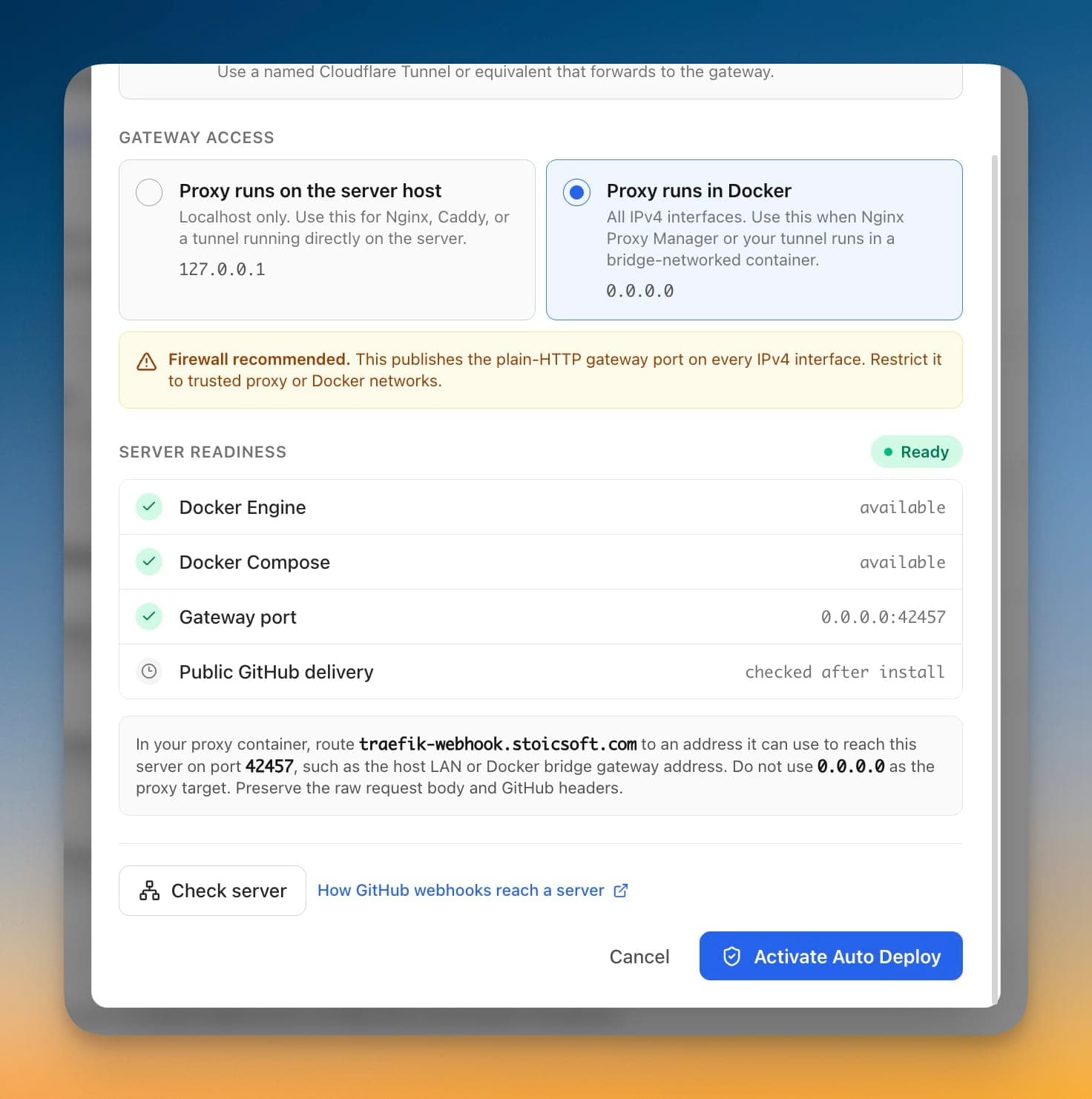
Two options, and the difference is the bind address printed under each one:
- Proxy runs on the server host —
127.0.0.1. Localhost only. This is the right pick for Nginx, Caddy, or a tunnel installed directly on the VPS, and it's what every existing setup keeps doing. - Proxy runs in Docker —
0.0.0.0. All IPv4 interfaces. This is the pick for Nginx Proxy Manager, a Traefik or Caddy container, or acloudflaredcontainer on a separate Docker network.
Choosing the Docker option surfaces an amber warning, and it's worth taking seriously: this publishes the plain-HTTP gateway port on every IPv4 interface. The gateway itself still verifies GitHub's signature on every request, but the port is now visible beyond loopback. Restrict it — see below.
Read the gateway address off the readiness check
Click Check server. The readiness list confirms Docker Engine and Docker Compose are available, then shows the Gateway port with the exact address your proxy needs — 0.0.0.0:42457, for example. Public GitHub delivery stays pending; it's checked after install, once the route exists.
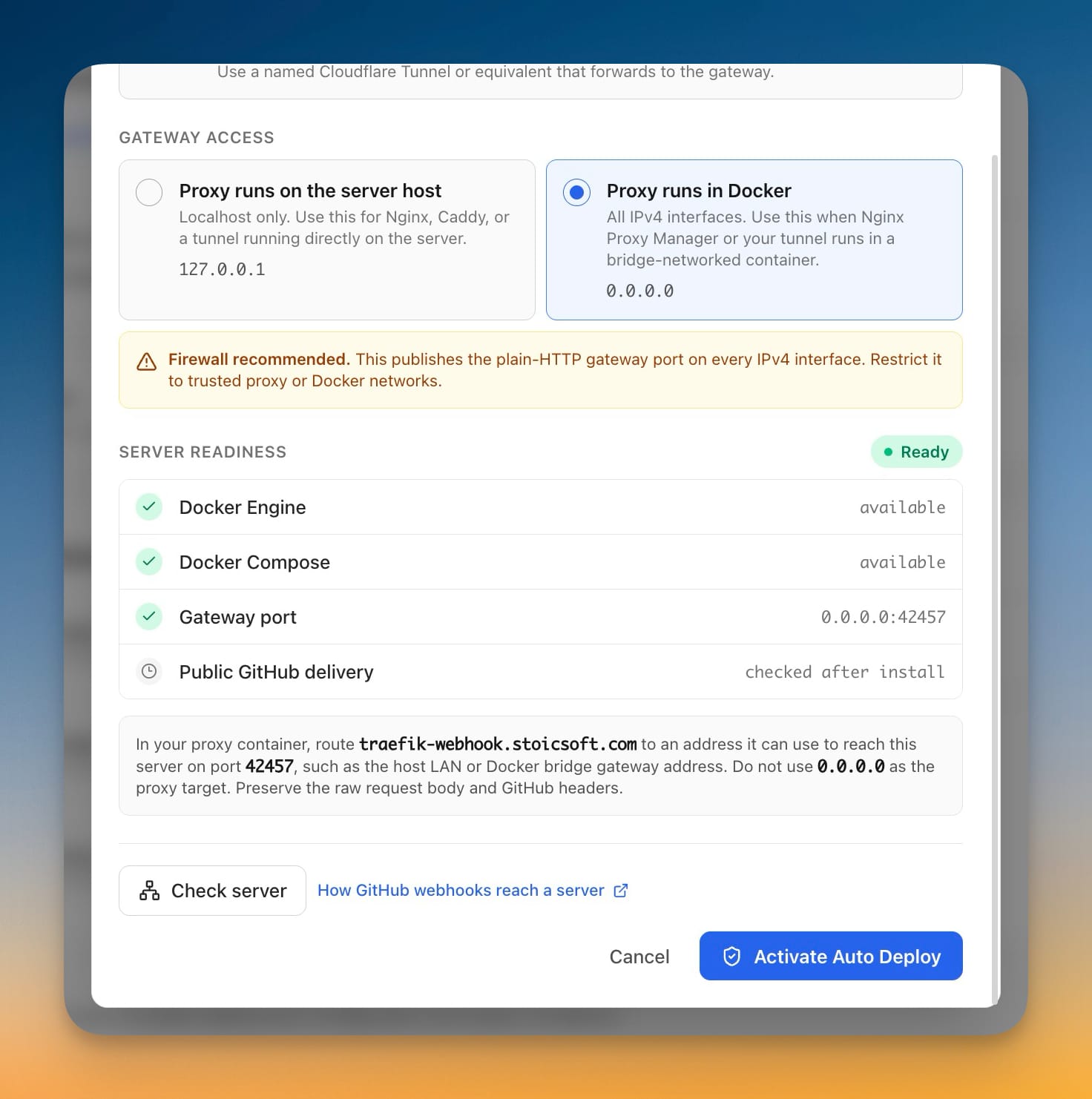
Underneath the checks is the instruction that saves the most time. In your proxy container, route your webhook hostname to an address the container can use to reach the server on that port — the host's LAN address, or the Docker bridge gateway (commonly 172.17.0.1). Do not point the proxy at 0.0.0.0; that's a bind address, not a destination. And preserve the raw request body and GitHub headers, or signature verification fails on a payload that was helpfully re-encoded in transit.
Confirm the binding after activation
Once it's live, the Deployment runtime card on the server's Deployment tab carries a Gateway bind tile showing the active address and port, sitting alongside Version, Route mode, Queue, Disk, and Active targets. When a webhook stops arriving six months from now, that tile answers "what is this thing actually listening on?" without an SSH session.
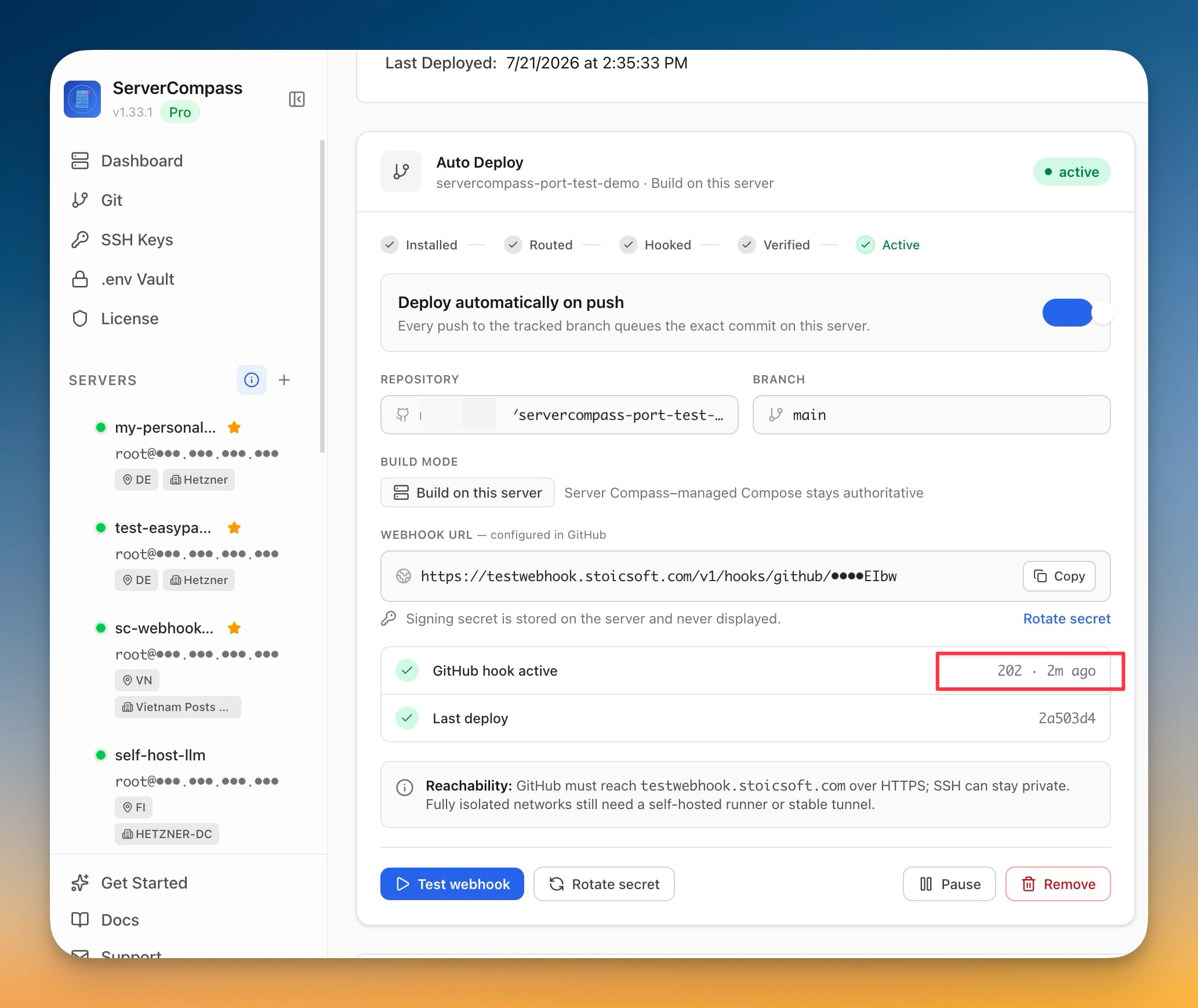
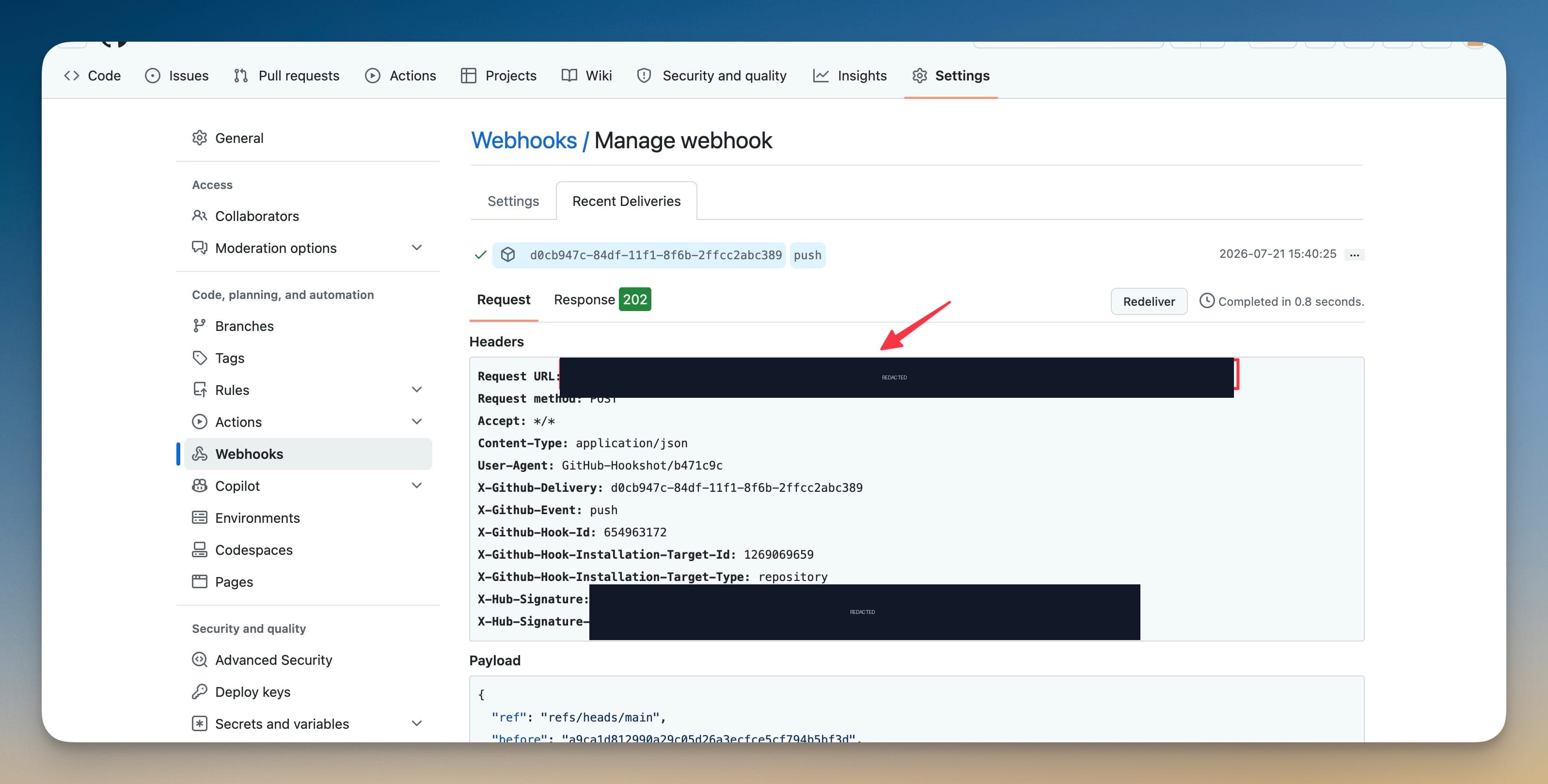
A successful delivery in GitHub's webhook log looks the same as it always did — a 202 response, and a deployment starting on the server while the desktop app stays closed.
Lock the port down
One caveat that catches people: the gateway port is published by Docker, and Docker writes its own iptables rules ahead of ufw. A ufw deny on that port will look correct and do nothing. Filter it in the DOCKER-USER chain instead, dropping traffic that arrives on your public interface:
sudo iptables -I DOCKER-USER -i eth0 -p tcp --dport 42457 -j DROP
Swap eth0 for your public interface and 42457 for your gateway port. Container-to-host traffic from your proxy still works; the outside world gets nothing. If your provider offers a network firewall (Hetzner, DigitalOcean, AWS security groups), closing the port there is equally effective and survives a rules flush.
Before vs after
| Situation | Before v1.34.1 | With v1.34.1 |
|---|---|---|
| Proxy installed on the server host | Works | Works, unchanged — 127.0.0.1 is still the default |
| Proxy in a bridge-networked container | connection refused, no supported fix in the UI | Pick Proxy runs in Docker, gateway binds 0.0.0.0 |
| Finding the address to route to | Inferred from the compose file over SSH | Printed by the readiness check before you activate |
| Checking what's live later | Route mode only | Gateway bind tile on the Deployment runtime card |
| Securing the exposed port | On you, undocumented | Inline warning plus guidance to restrict it |
Who benefits most
Nginx Proxy Manager users. NPM is the most common way to run a proxy in a container, and it was the setup most likely to fail before. It now works with one radio button.
Homelab and multi-app servers. If one box serves eight apps behind a single containerized proxy, you were never going to install a second proxy on the host just for webhooks.
Tunnel users running cloudflared in Docker. Same networking problem, same fix — the tunnel container reaches the gateway over the bridge instead of a loopback it can't see.
Also in this release: one home for server-side services
Auto Deploy's runtime and the monitoring agent now live together under /opt/server-compass/agents/. If you already had Auto Deploy running from the old path, the update moves it for you: the directory is relocated, the compose file is rewritten to match, and the containers are rebuilt in place. Your configuration, webhook secrets, and deployment history come along. There's nothing to do and nothing to reconfigure — you'll only notice if you go looking for the files.
Try it
Update to v1.34.1, open the app you deploy from GitHub, and click Set up Auto Deploy. Pick Existing reverse proxy, choose Proxy runs in Docker, run the server check, and route your hostname to the address it prints. The next git push deploys itself — through the proxy you already trust, with your SSH port still closed.
New to Auto Deploy? Start with the full walkthrough: How to auto-deploy to your VPS on every git push.