April 15, 2026
Cloudflare Tunnel Feels Random? A Reliability Checklist for Homelab Remote Access
A practical checklist for intermittent Cloudflare Tunnel outages: system service setup, multiple connectors, log separation, external health checks, alerts, proxy headers, and fallback access.
Cloudflare Tunnel is a strong fit for homelabs because you can expose services without opening inbound ports. The confusing part is reliability. When remote access drops, is the tunnel down, the connector unhealthy, the app container broken, DNS wrong, or the local network offline?
The checklist below is designed to separate those failure domains quickly, then add enough monitoring that you find out before someone else reports the outage.
Quick answer: why does Cloudflare Tunnel feel unreliable?
Cloudflare Tunnel often feels random when all failures are grouped together. A cloudflared connector can be down while the app is healthy, the app can be down while the tunnel is healthy, or DNS and proxy headers can be wrong while both processes are running. Reliable homelab remote access comes from checking each layer separately.
1. Run cloudflared as a real service
Do not leave the connector running in an interactive shell. Install it as a system service with auto-restart, then verify it comes back after a reboot.
sudo systemctl status cloudflared
sudo systemctl enable cloudflared
sudo systemctl restart cloudflared
journalctl -u cloudflared -n 100 --no-pager
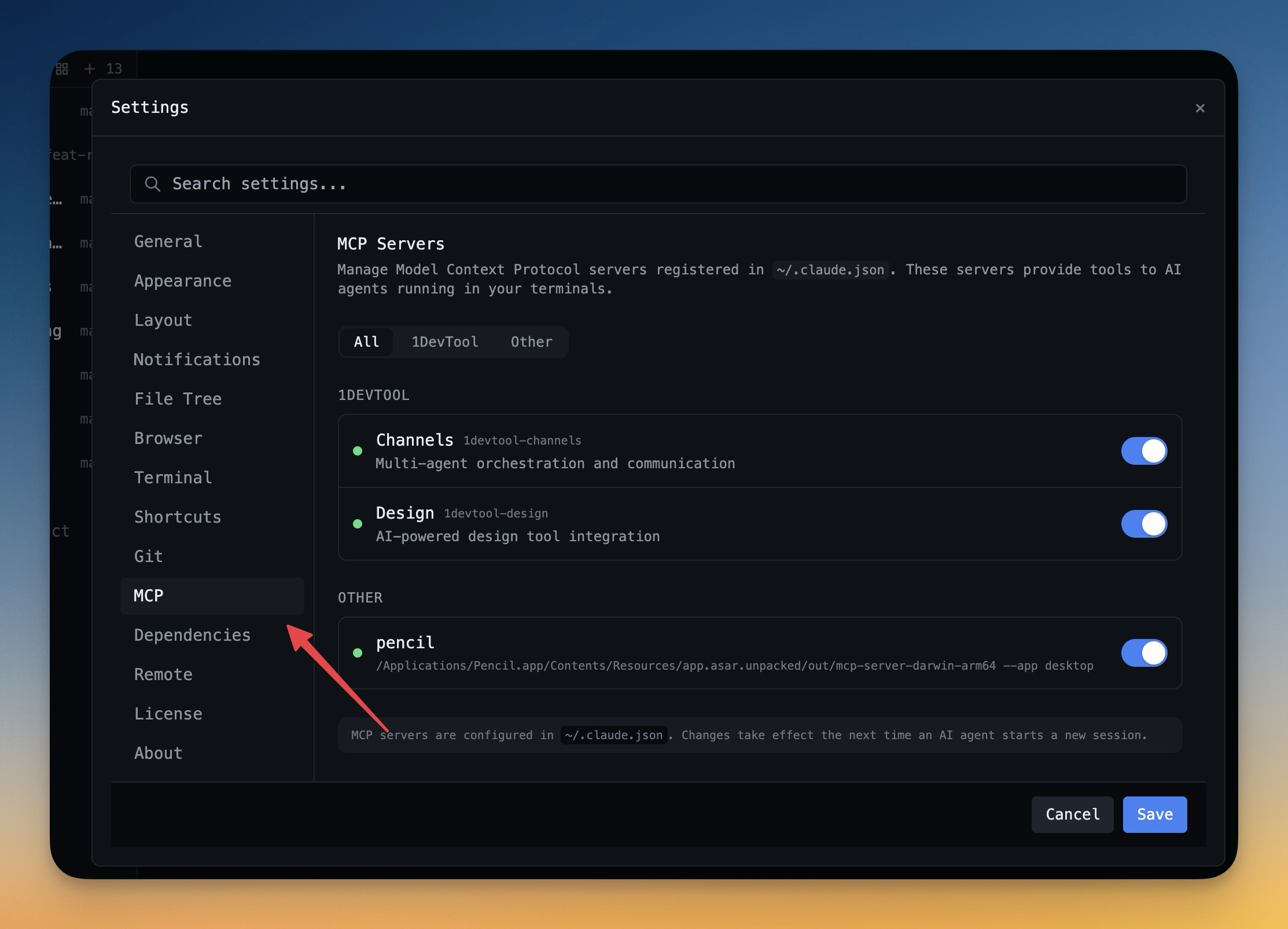
In Server Compass, use the SSH terminal for quick service checks and download terminal logs when you need to keep a record of the outage timeline.
Also check whether the service is crash-looping after boot. A connector that restarts every few minutes can look like intermittent Cloudflare Tunnel downtime even when the dashboard briefly reports it as connected.
2. Use two connectors for the same tunnel
A single connector is a single point of failure. If your remote access matters, run a second connector on another machine, VM, or host on the same network. It does not need to be powerful; it only needs to survive when the primary connector host is rebooting or overloaded.
After adding the second connector, test failure explicitly: stop the first connector and confirm the service still resolves through the second. Do this once during setup, not during an incident.
3. Separate app, host, tunnel, and edge failures
Most "tunnel is random" incidents are easier to debug when you check in layers:
Layer
Check
Failure means
App
curl localhost:3000/health
The app itself is unhealthy.
Host
CPU, RAM, disk, process status
The machine cannot serve reliably.
Connector
journalctl -u cloudflared
The tunnel agent is disconnected or restarting.
Public URL
Outside-in HTTPS check
Users cannot reach the service.
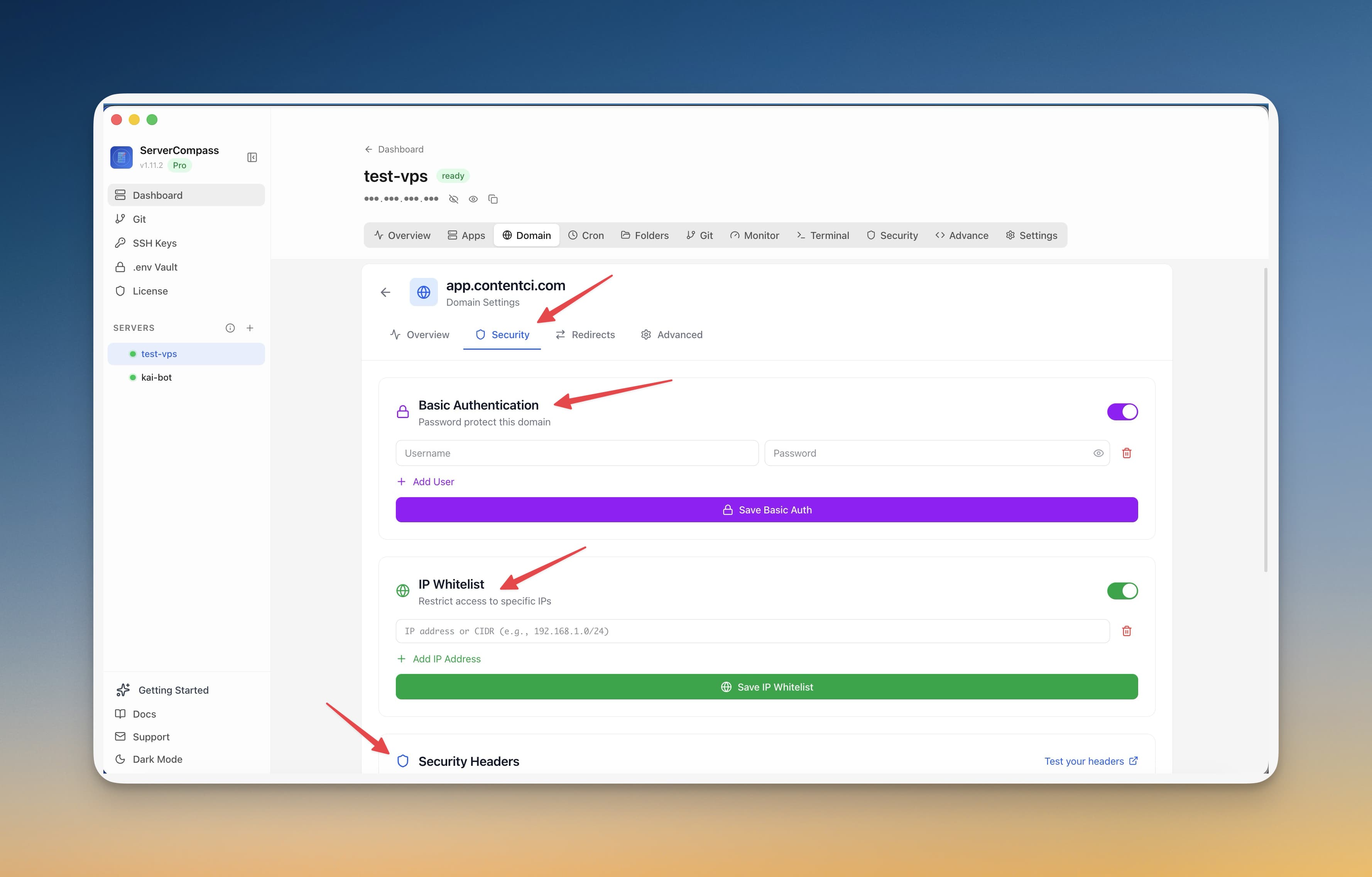
Server Compass gives you the host and app side in one place: container status, app logs, resource usage, activity logs, and open ports.
4. Add external health checks and alerts
Local checks tell you whether the app should work. External checks tell you whether it works for users. Add an outside-in HTTPS check for every remotely exposed service and alert after repeated failures.
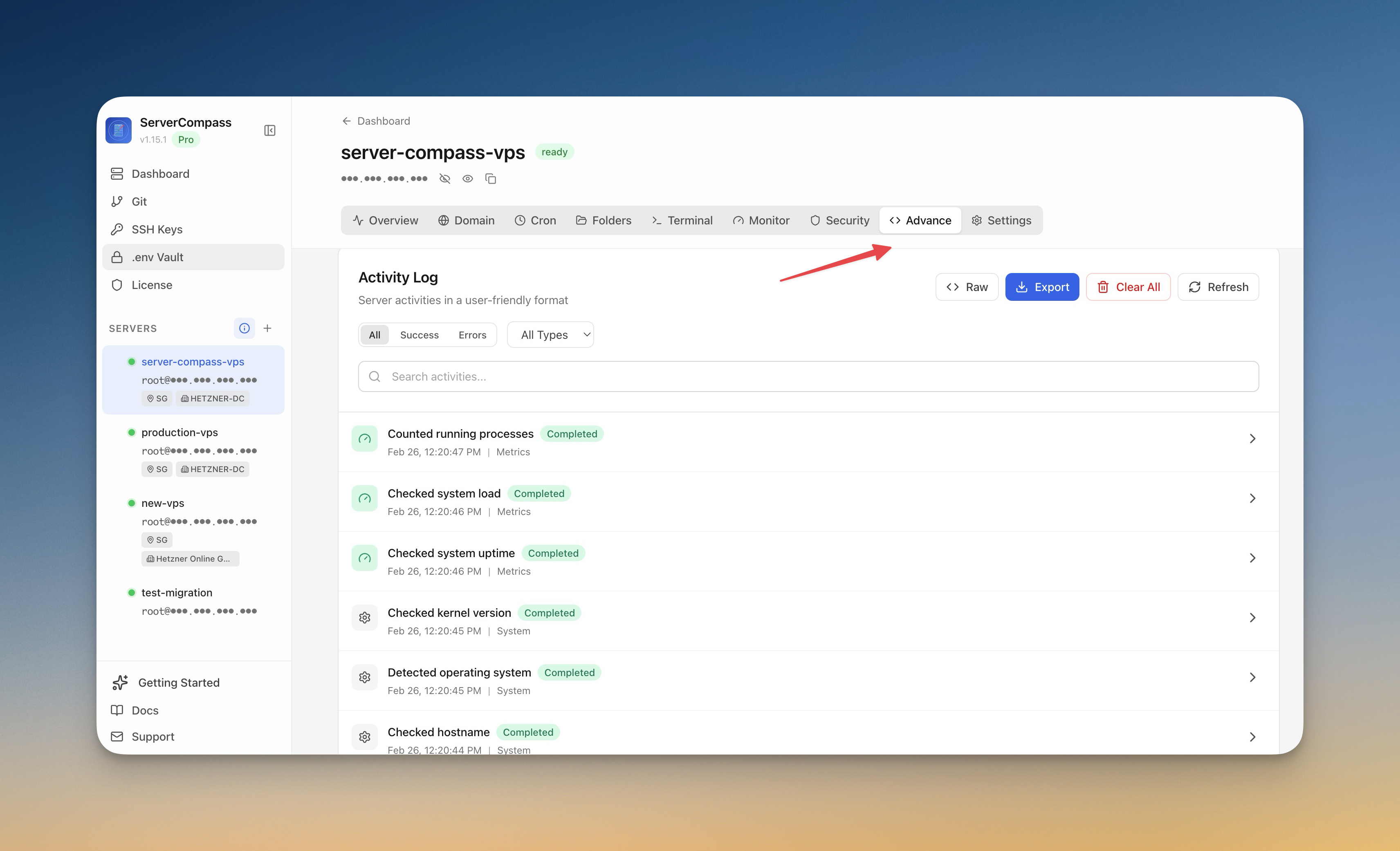
Use the monitoring agent, alert rules, and notification channels in Server Compass for the host side, and deploy a small uptime checker such as Uptime Kuma if you want a dedicated public URL monitor on your own infrastructure.
5. Configure proxy headers intentionally
If your app sits behind Cloudflare, Traefik, Nginx, or another proxy layer, make sure it sees the correct visitor IP and scheme. Otherwise rate limits, audit logs, auth callbacks, and redirect logic can behave unpredictably.
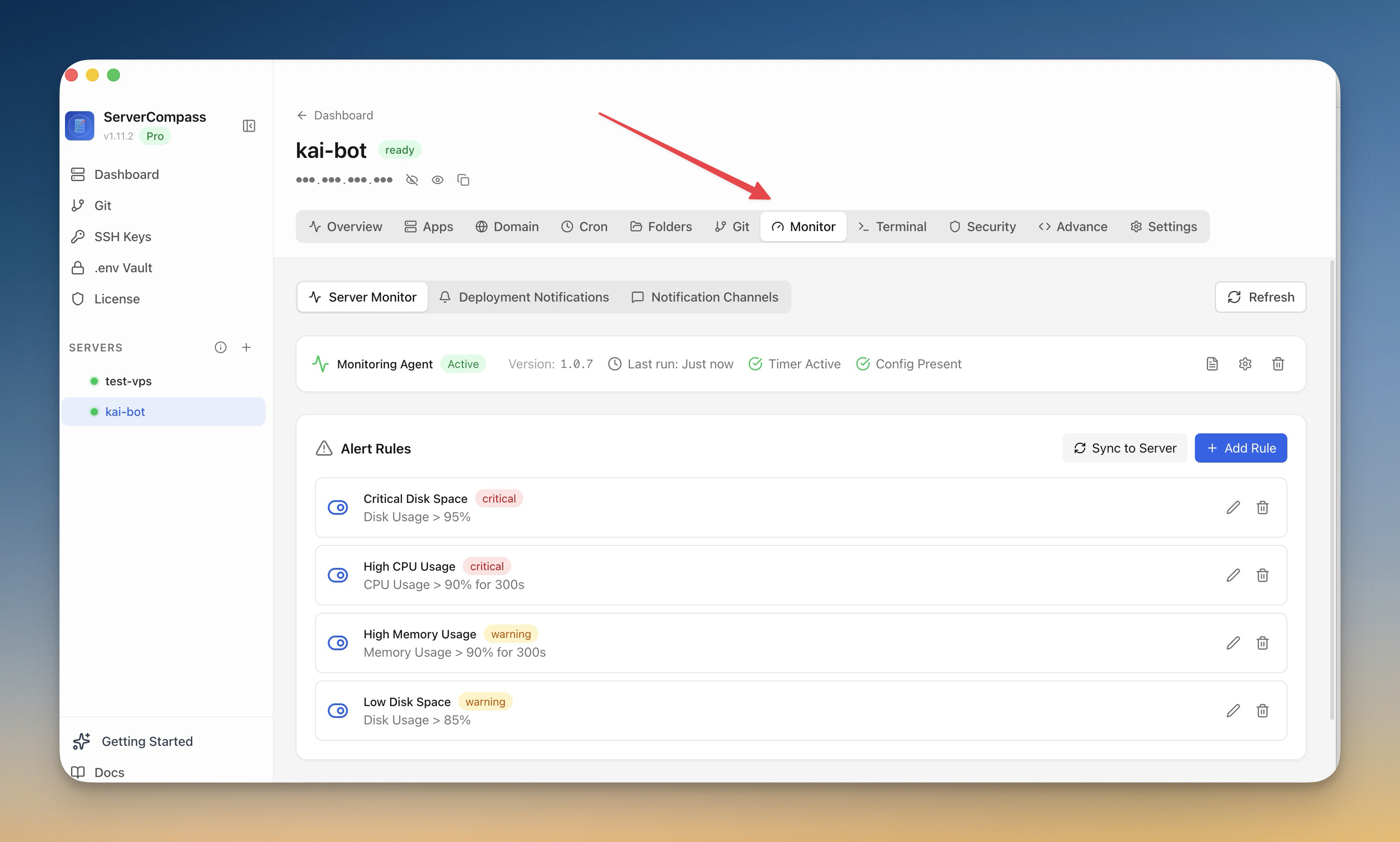
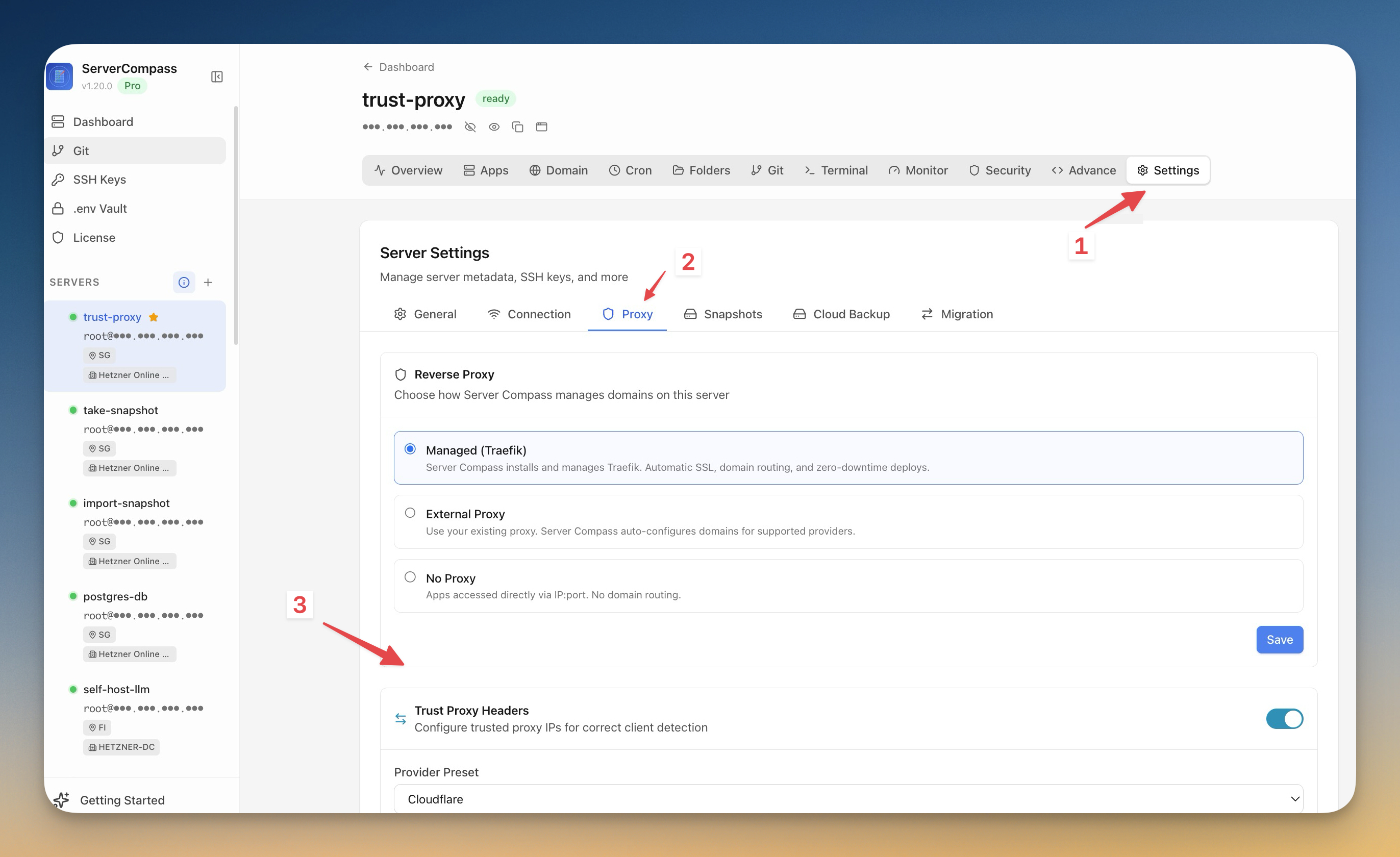
Server Compass includes trust proxy header presets for providers including Cloudflare, plus domain security settings for headers, access controls, and HTTPS behavior.
6. Keep a fallback path
A tunnel is not a complete incident plan. Keep at least one fallback access path ready:
- Provider console access for the VPS.
- SSH key access that does not depend on the tunnel.
- A documented local network path for homelab machines.
- A known-good backup or snapshot if the host needs to be rebuilt.
For VPS-hosted apps, Server Compass server snapshots give you a rebuild path if the host itself becomes the problem.
Common mistakes
- No logs: if you cannot compare app logs and connector logs, every outage looks random.
- One connector: it works until the connector host reboots or hangs.
- No outside-in check: local health does not prove public reachability.
- No fallback: tunnel-only access makes tunnel incidents harder to fix.
The starter checklist
- Run
cloudflaredas a system service with auto-restart. - Add a second connector and test failover.
- Check app, host, connector, and public URL separately.
- Add resource and uptime alerts.
- Configure trusted proxy headers and domain security.
- Document a fallback access path.
FAQ
Why does cloudflared keep disconnecting?
Common causes include a connector host rebooting, unstable local networking, DNS changes, system service misconfiguration, CPU or memory pressure, and a single connector with no failover. Start with journalctl -u cloudflared and compare it with app logs.
Do I need two Cloudflare Tunnel connectors?
For non-critical homelab services, one connector may be enough. For services you rely on remotely, two connectors remove the most obvious single point of failure.
How should I monitor Cloudflare Tunnel services?
Monitor the public URL from outside the network, the connector service status on the host, and the app container locally. Alert only after repeated failures so short network blips do not become noise.
Download Server Compass to monitor the VPS side of the tunnel, inspect logs, and harden the domains you expose.
Related in the StoicSoft network
If you're self-hosting on a VPS or working through a deployment guide like the one above, DeployToVPS is the StoicSoft network's handbook for VPS deployment recipes — docker-compose, nginx, traefik, and common app self-hosts.
From across the StoicSoft network
Hand-curated reads on the same topic from sister sites in the StoicSoft family.