November 2, 2026
Run Kubernetes on Your VPS Without Living in kubectl
Install single-node k3s after a nine-check preflight, or connect the cluster you already run, then handle pods, logs, scaling, rollbacks and manifests from one tab instead of a shell full of kubectl.
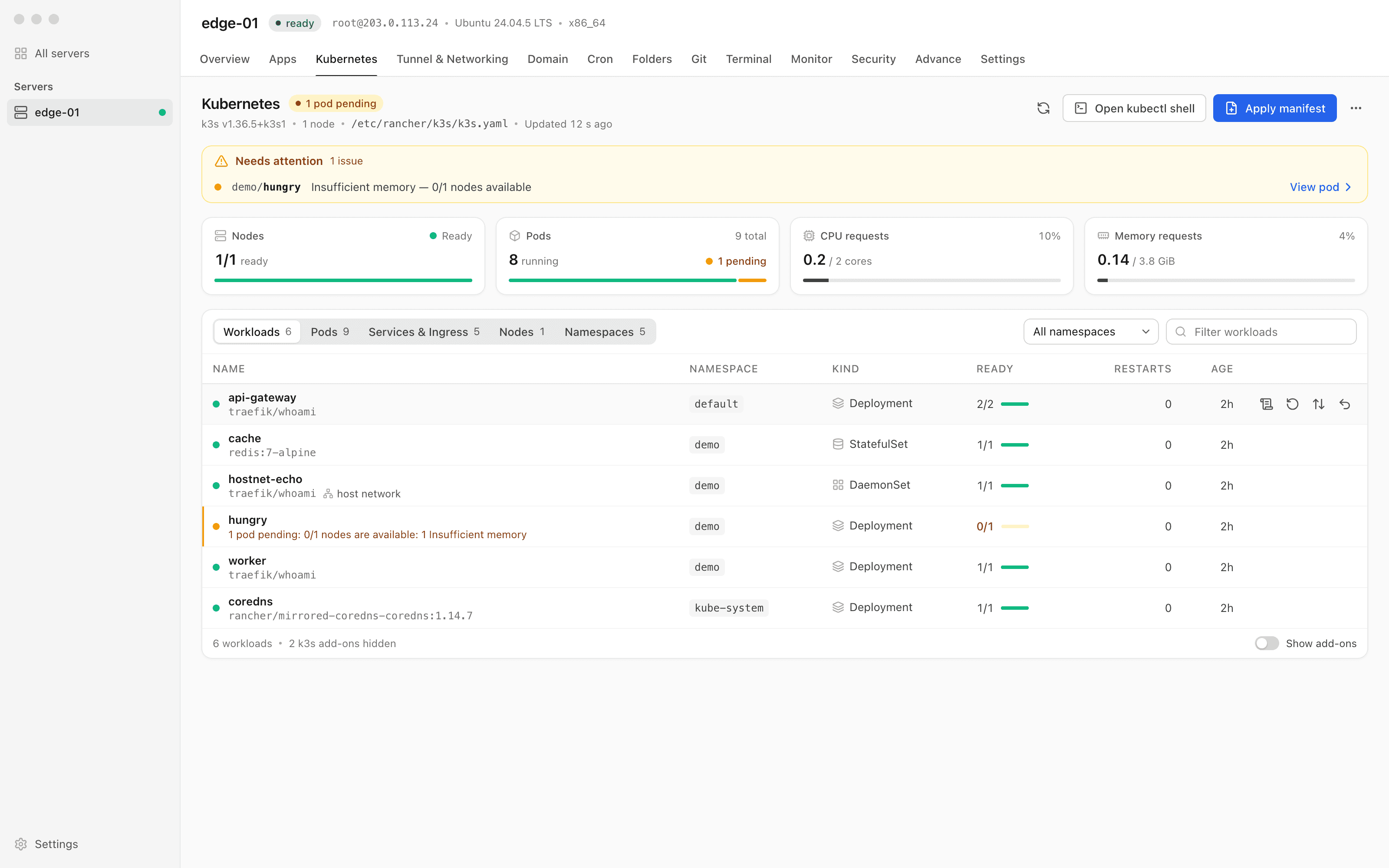
You SSH in to find out why a deploy is stuck. kubectl get pods -A scrolls past forty lines, most of them system pods you never created. One says Pending. You run kubectl describe on it, scroll to the Events at the bottom, and find "Insufficient memory". Then you want the logs from the container that crashed before it, so you look up which flag that was again, and by the time you have found the Deployment that owns the pod you have four terminal tabs open and a half-remembered rollout undo on your clipboard.
That is if the cluster already exists. Putting k3s on a VPS that already serves your sites meant working out first whether its bundled Traefik would fight your reverse proxy for ports 80 and 443, which firewall rules pods need to reach cluster DNS, and whether the box even has the memory for it.
What changed
Server Compass 1.46.0 adds a Kubernetes tab to every server that runs a cluster. You can see what is broken, read pod logs, scale, roll back and apply manifests without typing kubectl, and install single-node k3s from the app when the server has no cluster yet.
Server Compass looks for k3s, k0s, MicroK8s and kubeadm over SSH, checks the usual kubeconfig locations such as /etc/rancher/k3s/k3s.yaml and /etc/kubernetes/admin.conf, and shows the tab once a cluster answers. It works on the server you already manage, next to the Docker apps you deployed with Server Compass.
How it works in practice
Install k3s after a preflight that checks what usually bites
A server without a cluster shows Not installed on the new Kubernetes card in Server Settings. Open Kubernetes tab offers two ways in: Install k3s…, marked Recommended, or Connect an existing cluster.
Install k3s runs nine checks before it touches anything: Root access, Existing cluster, Operating system, CPU and memory, Disk space, Ports, Download, Firewall, and Ingress on 80/443. Less than about 1.8 GB of RAM, or under 2 GB free on /var/lib, stops the install. A single vCPU only earns a warning, because k3s recommends two but one is fine for light workloads. Ports 6443 and 10250 have to be free.
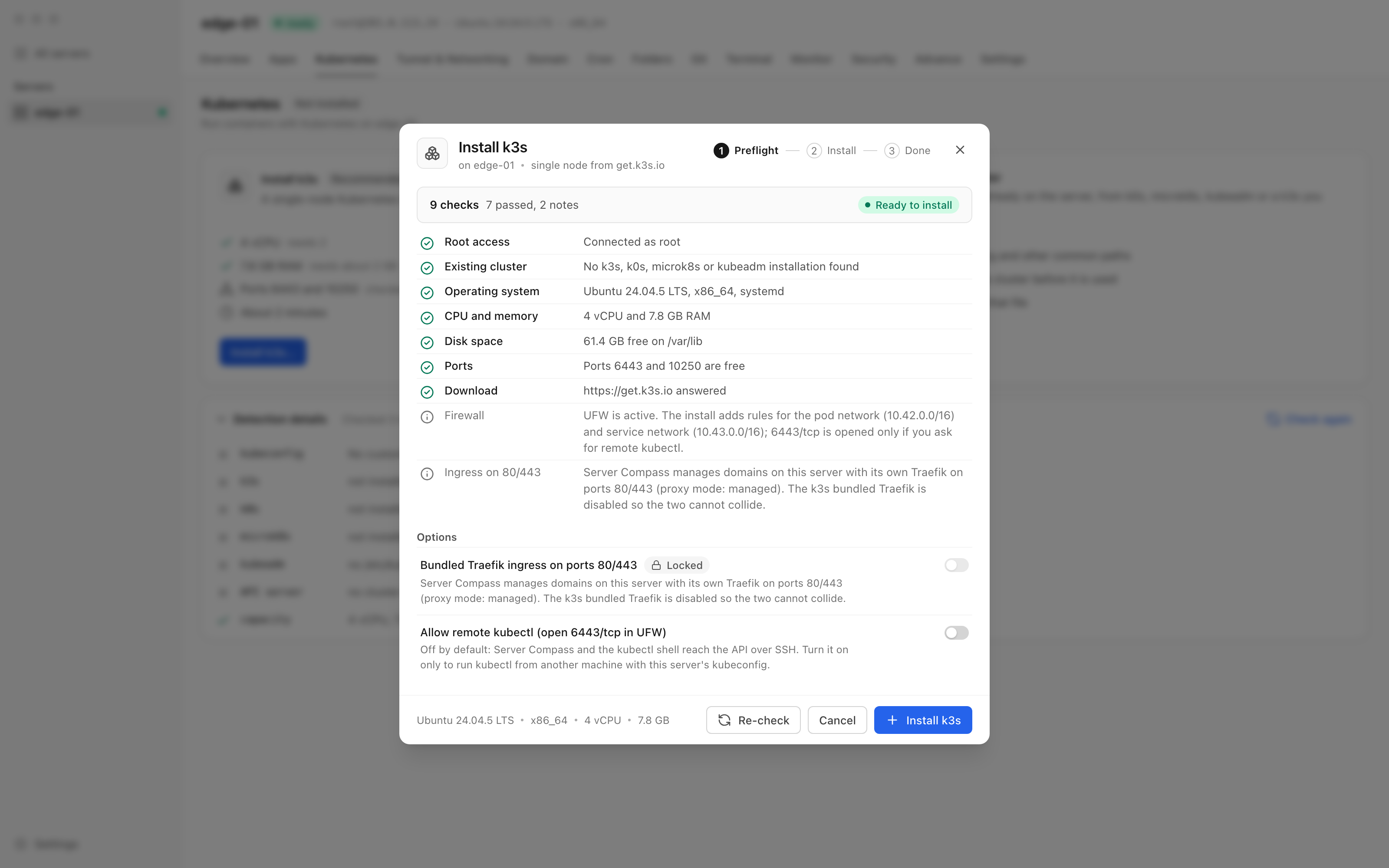
Two options sit under the checks:
- Bundled Traefik ingress on ports 80/443 starts switched off. When Server Compass already runs its own Traefik on 80/443, or anything else listens there, the option is Locked. k3s installs with
--disable traefik, so your existing domains keep routing exactly as before. - Allow remote kubectl (open 6443/tcp in UFW) is off by default and only appears when UFW is active. Server Compass and its kubectl shell reach the API over SSH, so you only need it to run kubectl from another machine.
With UFW on, the install adds two rules so pods can reach the pod network (10.42.0.0/16) and the service network (10.43.0.0/16), which is how they reach cluster DNS. Then it runs the standard curl -sfL https://get.k3s.io | sh - installer as root, and Open the cluster takes you to the tab.
Changed your mind? Uninstall k3s… runs k3s's own uninstall script and removes the UFW rules the install added, once you type the server name to confirm. Data on hostPath volumes outside /var/lib/rancher/k3s is kept.
Or connect the cluster you already run
Connect an existing cluster → Choose kubeconfig… asks for the path on the server, such as /home/deploy/.kube/config, and offers the common locations as one-click chips. Check on server runs kubectl against that file, and Use this kubeconfig only becomes available once the cluster answers with its version.
See what is broken before you go looking
When something is wrong, the tab opens with Needs attention. It lists a node that is not ready, a workload still rolling out or short of replicas, and pods stuck in states like CrashLoopBackOff, ImagePullBackOff, OOMKilled or Pending for lack of memory, each with a short reason and a link to the pods behind it.
Below that are cards for nodes, pods, CPU requests and memory requests, then Workloads, Pods, Services & Ingress, Nodes and Namespaces, with an All namespaces filter and a search box. k3s system add-ons such as metrics-server and local-path-provisioner stay out of the list until you turn on Show add-ons, so the list holds what you deployed.
Fix it from the row
Each workload row has Restart (rollout restart), Scale and Roll back to a previous revision. The Scale dialog prints the exact kubectl scale command it will run on the server, so you see the command instead of guessing at it. Roll back lists each revision with current and previous badges, and DaemonSets, which run one pod per node, are not offered a scale they cannot take.
Pods get View logs: up to 2,000 lines, Previous instance for the container that crashed, Find in logs, Wrap and Download. Delete pod asks you to type the pod's name only when no controller will recreate it.
Apply YAML with a dry run in front of it
Apply manifest takes pasted YAML or a file and walks Write, Dry run, Apply. Apply stays locked until a server-side dry run of that exact text has passed, and editing the text resets it. When you would rather type, Open kubectl shell opens the Terminal tab with KUBECONFIG already exported and kubectl get nodes as the first command.
Let your agent read the cluster, within the tiers you set
If you connect a coding agent through AI Access, it gets ten Kubernetes tools on the same permission tiers as everything else: Read covers the overview, lists, pod logs and rollout status and history; Operate covers restart, scale, delete pod and roll back; Deploy covers applying a manifest. Installing and uninstalling k3s are not offered to agents at all. That stays a decision you make in the app, the same way Cloudflare tunnels for AI agents stay inside the tiers you grant.
Pods stop showing up as strangers
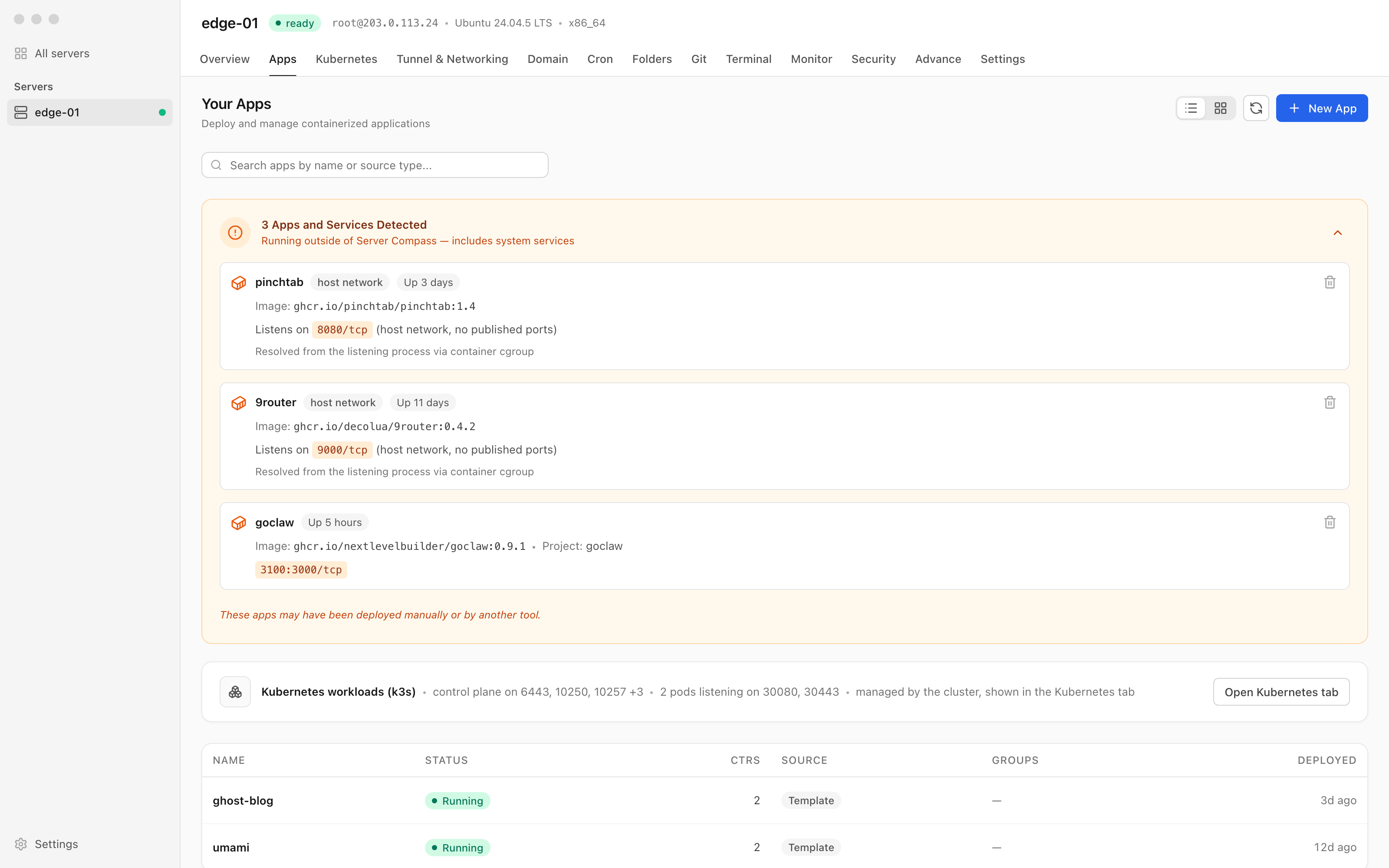
Before, the ports a cluster opened appeared in Unmanaged Apps as unexplained listeners. Now they fold into one Kubernetes workloads (k3s) row with Open Kubernetes tab, and containers on network_mode: host appear by container name with a host network badge and the ports they listen on.
Before vs After
| Task | Before | With Server Compass 1.46.0 |
|---|---|---|
| Put k3s on a VPS that already hosts sites | Read the k3s docs, pass --disable traefik yourself, write UFW rules for 10.42/10.43, hope 80/443 survive | Install k3s after nine preflight checks; Traefik locked off when your proxy owns 80/443 |
| Find out why a deploy is stuck | get pods -A, then describe, then scroll to Events | Needs attention names the pod and the reason |
| Read logs from the crashed container | Remember --previous, pipe to grep | View logs → Previous instance → Find in logs |
| Scale or roll back | Recall the resource kind and rollout undo --to-revision | Scale or Roll back from the row, with the command shown |
| Apply a manifest safely | Remember to run --dry-run=server first | Apply unlocks only after the dry run passes |
| Let an agent check the cluster | Hand it SSH and a kubeconfig | Ten MCP tools behind Read, Operate and Deploy |
Who benefits most
- You run a small k3s next to Docker apps. The Kubernetes tab sits beside Apps, Domain and Terminal, so the cluster stops being the one part of the server you can only see from a shell.
- You are learning Kubernetes on a real server. The preflight explains what it found, and every action shows or uses the kubectl command behind it, so you learn the commands instead of losing them in shell history.
- You hand day-to-day checks to an agent. It can read rollout status and pod logs on a token that cannot touch anything else.
Also in 1.46.0: every disk on the server
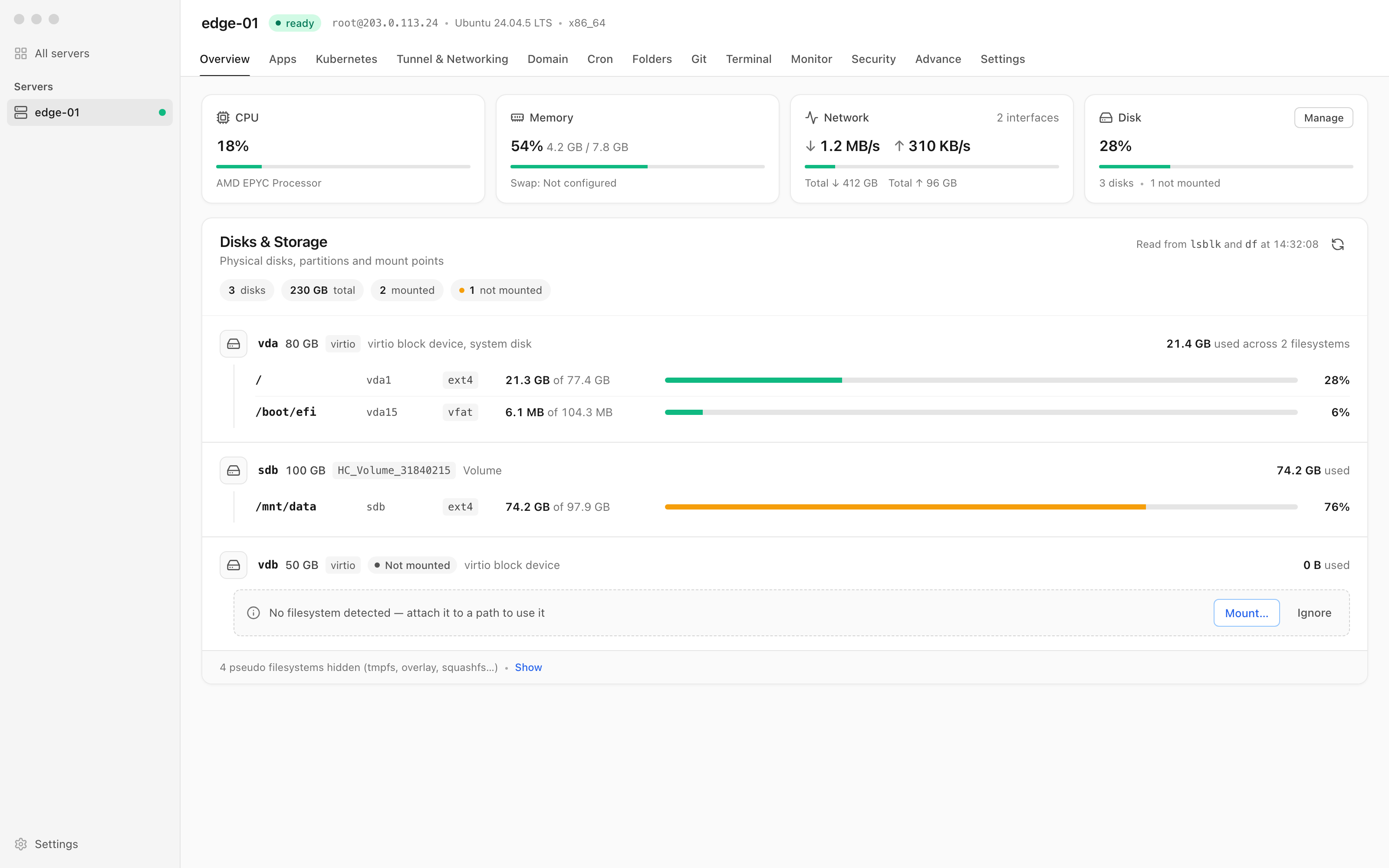
The Overview now has a Disks & Storage section that groups partitions and mount points under each physical disk, read from lsblk and df. A volume you attached but never mounted shows Not mounted with Mount… and Ignore. Mount picks the partition and path, and can add it to /etc/fstab by UUID with nofail, so the server still boots if the volume goes away. Disk Usage alerts and Metrics History can now follow a filesystem other than root. The Disks & Storage guide walks through it, and the full 1.46.0 changelog covers the rest, including MCP commands that can run in the background.
Try it
Update to Server Compass 1.46.0, open a server, and go to Settings → Kubernetes. If a cluster is there, the tab is already waiting in the server's tab bar. If not, the preflight tells you whether this server can take k3s before anything is installed. Either way, the next stuck pod is a row with a reason next to it, not four terminal tabs. The Kubernetes guide has the details.
From across the StoicSoft network
Hand-curated reads on the same topic from sister sites in the StoicSoft family.
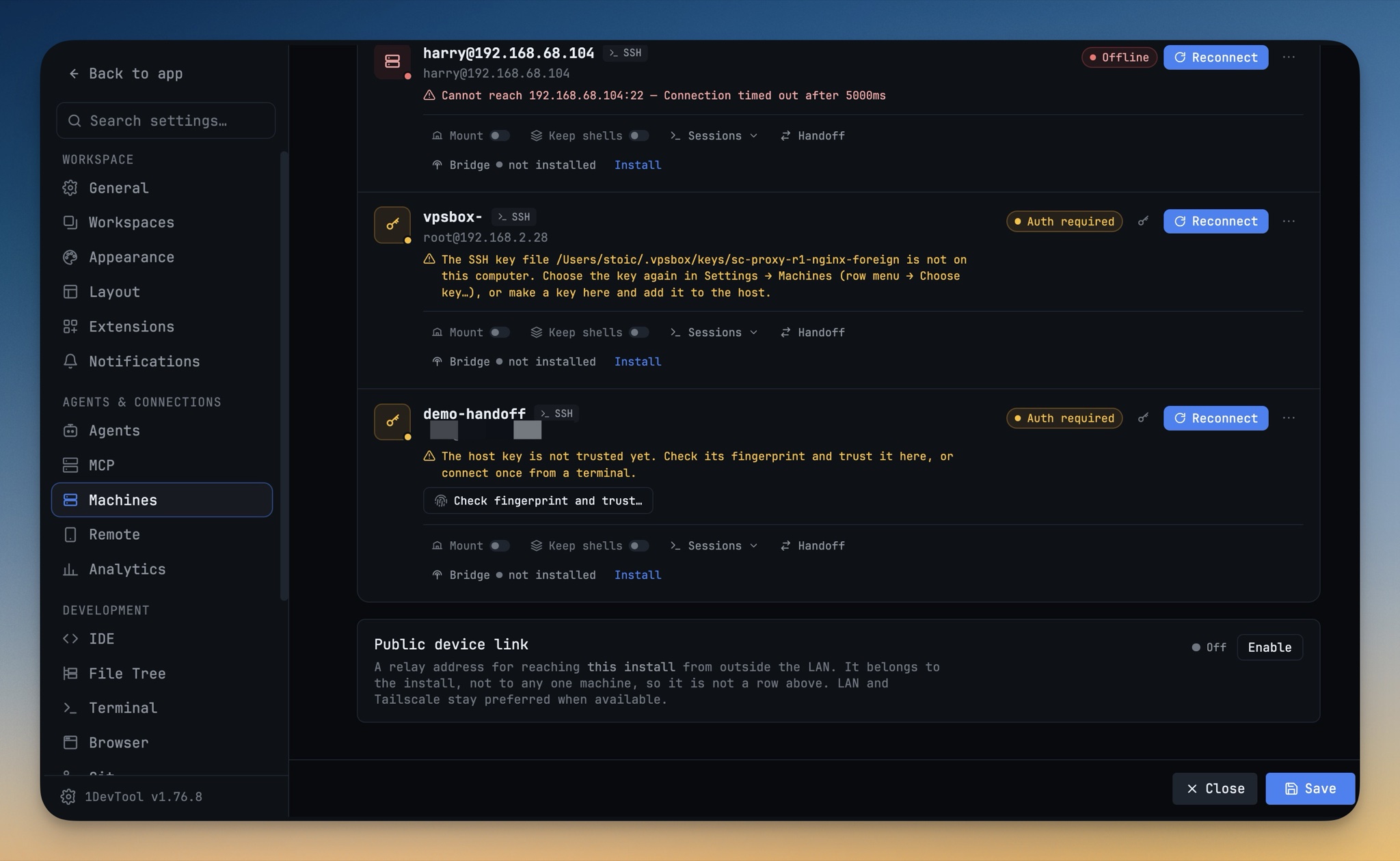 1DevTool7 min read
Hand Your Project to a VPS and Close the Laptop
Send a project to one of your own machines and the agent keeps working with your laptop shut — no push to GitHub first, follow-ups queued on the box, and the whole run watchable from your phone.
Read on 1devtool.com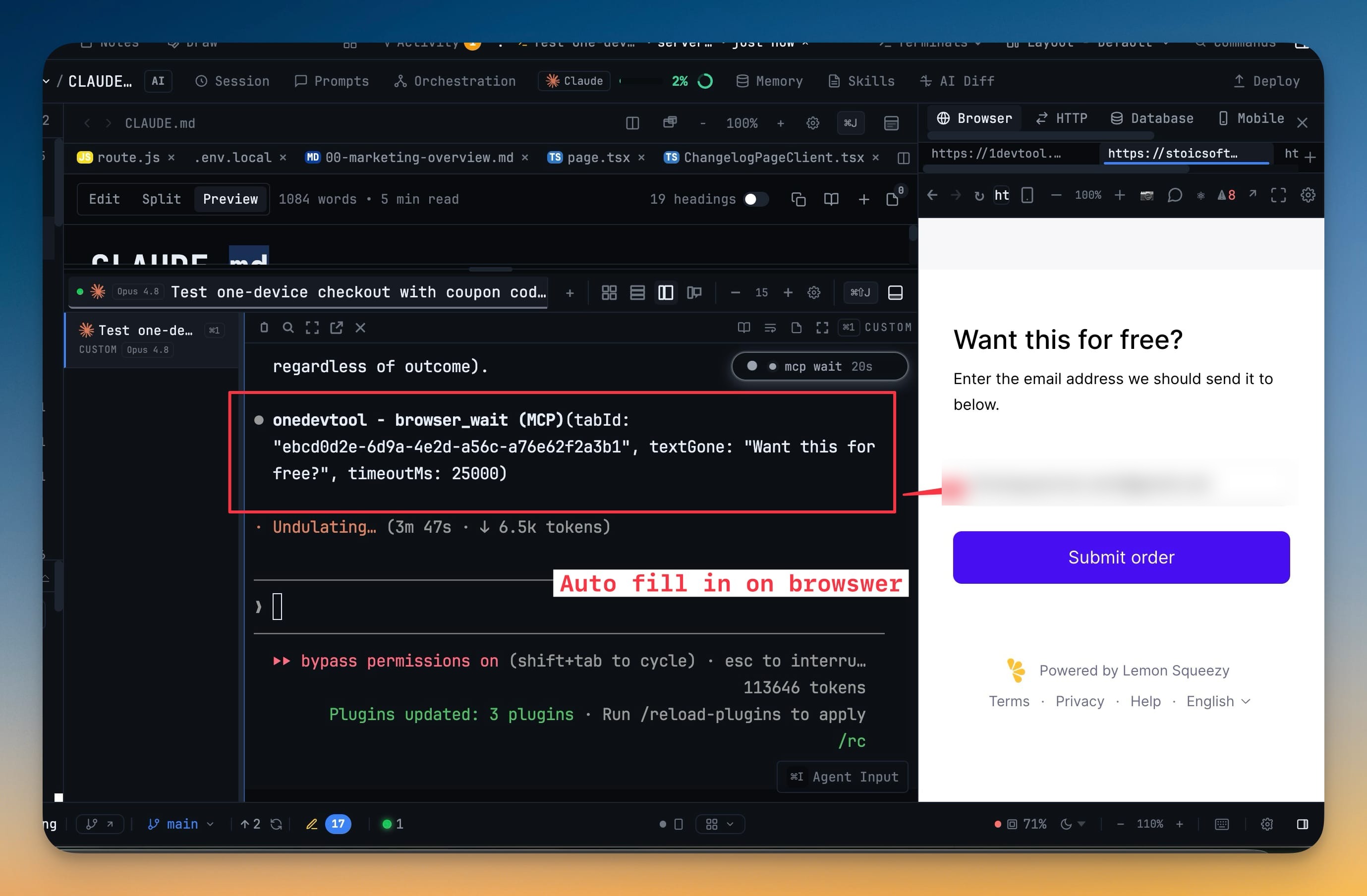 1DevTool6 min read
Let an AI Agent Drive the Browser You're Already Using
Agent browser automation usually means a second, empty browser that hits your login wall on step one. In 1DevTool v1.51.0, an agent connected through MCP drives the Browser panel already docked in your workspace — your tabs, your session, watched live.
Read on 1devtool.com