July 24, 2026
Put an App Online Without Opening a Single Port
Server Compass 1.35.0 publishes any app to a real hostname through an outbound-only Cloudflare Tunnel — no open firewall port, no fighting your reverse proxy, and your server's IP stays private.
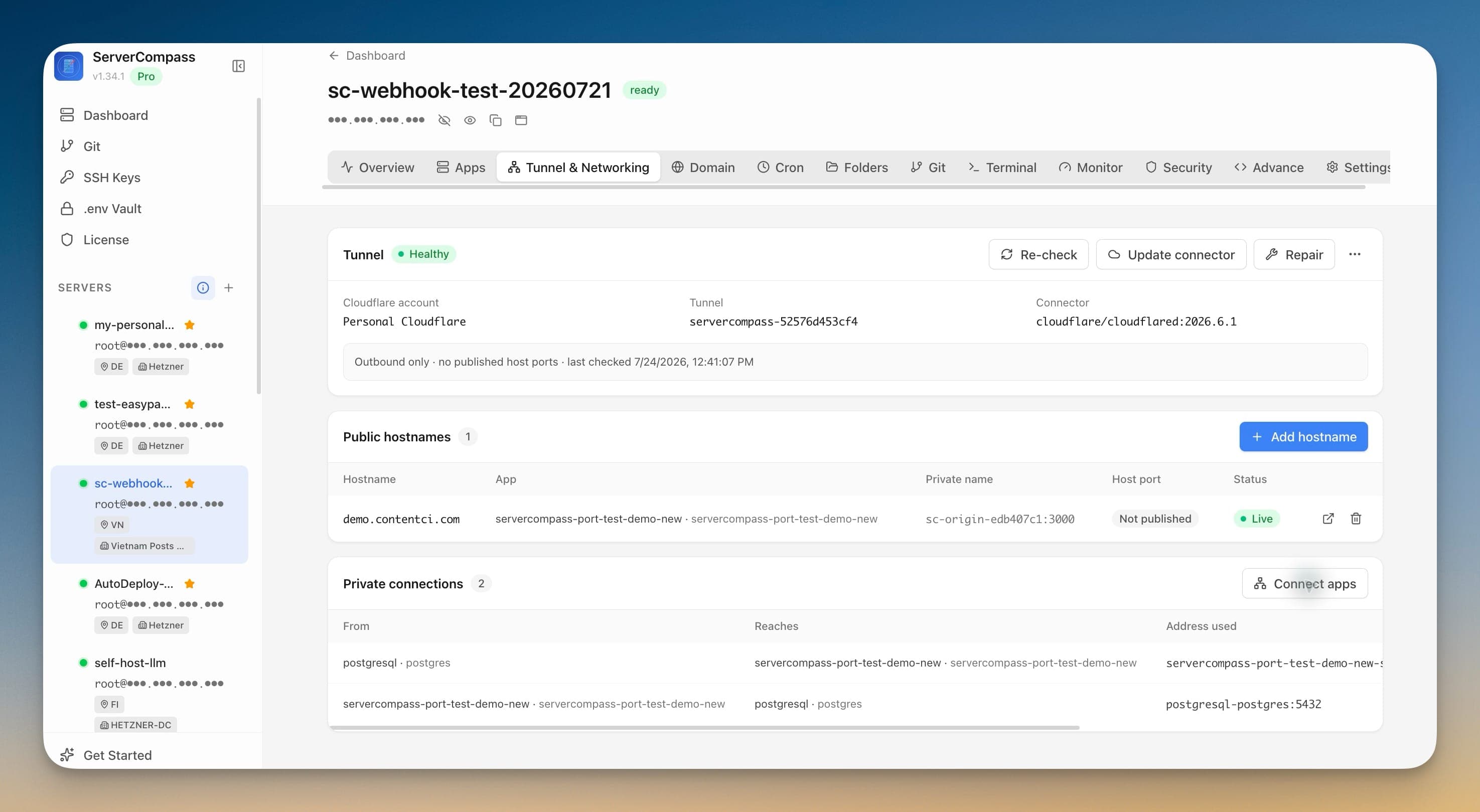
Putting one app online used to be a whole afternoon. You SSH in, decide whether to forward a port on the firewall, then realize port 80 and 443 are already taken by the reverse proxy in front of everything else. So you edit an nginx or Traefik config by hand, reload it, hope you didn't break the three other sites sharing that box, and point a DNS record at your server's raw public IP — the one you'd rather not advertise to the internet at all. If the server sits behind NAT, or you simply don't want an open inbound port, you're stuck before you start.
The frustrating part is that you only wanted to do one small thing: make a single container reachable at a real hostname. Everything else — the firewall rule, the proxy surgery, the exposed IP — was overhead you took on just to get there.
What changed
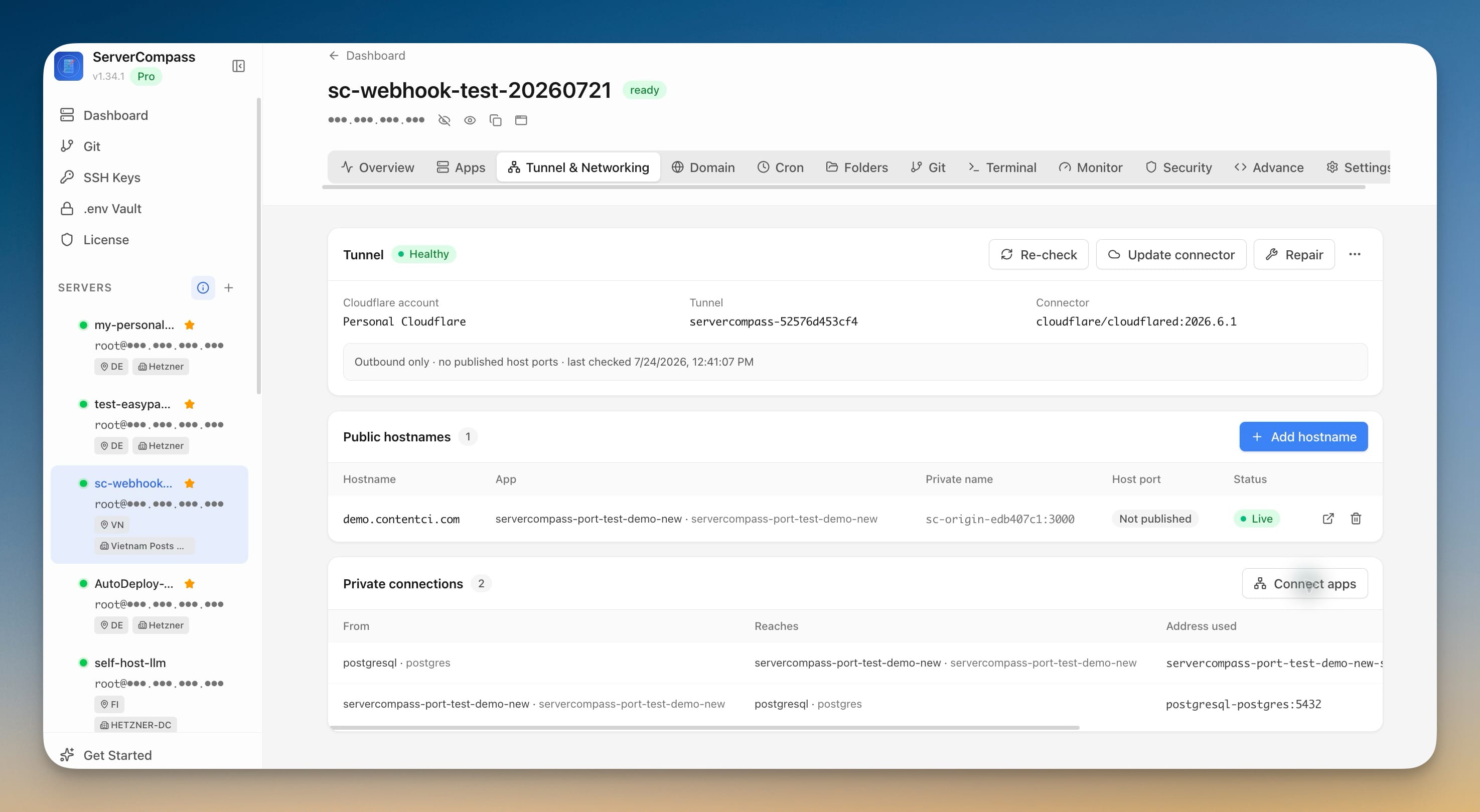
Server Compass 1.35.0 lets you publish an app through a dedicated Cloudflare Tunnel that only makes outbound connections. You pick the app, pick a hostname, and it goes live — without opening a firewall port, taking over 80/443, or replacing the reverse proxy you already run. Traffic reaches your container by leaving your server and meeting Cloudflare on the way out, so there's nothing new listening for inbound connections.
How it works in practice
Connect your Cloudflare account once
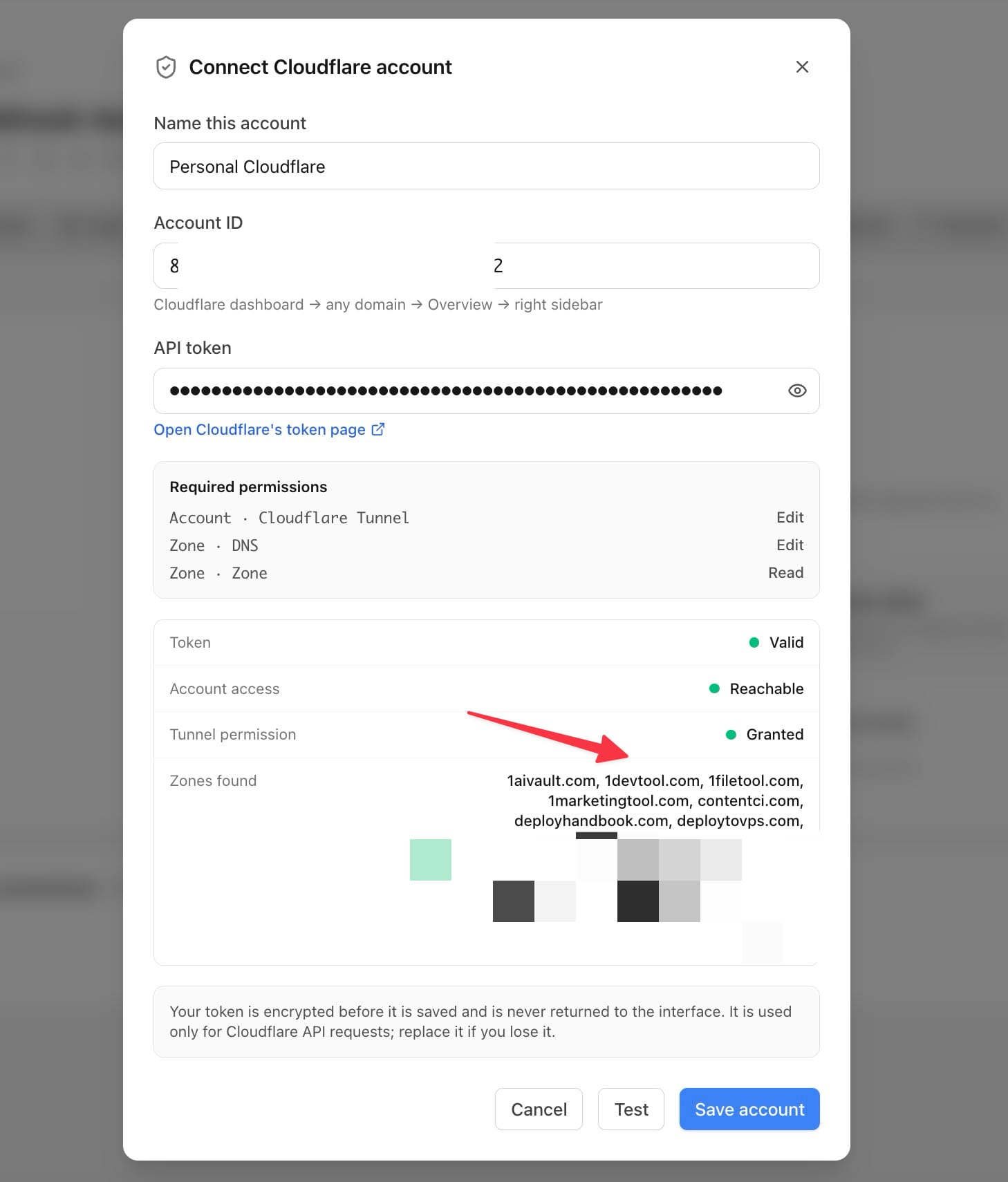
Open a server, go to the Tunnel & Networking tab, and connect a Cloudflare account. You paste your Account ID and an API token, click Test, and Server Compass verifies the token, confirms it can reach the account, and lists the zones it found — before you save anything. The token is encrypted on your machine and never shown back to the interface; it's used only for Cloudflare API calls.
The screen tells you exactly which permissions the token needs — Account · Cloudflare Tunnel · Edit, Zone · DNS · Edit, and Zone · Zone · Read — so you're not guessing at scopes in the Cloudflare dashboard.
Add a public hostname in a guided flow
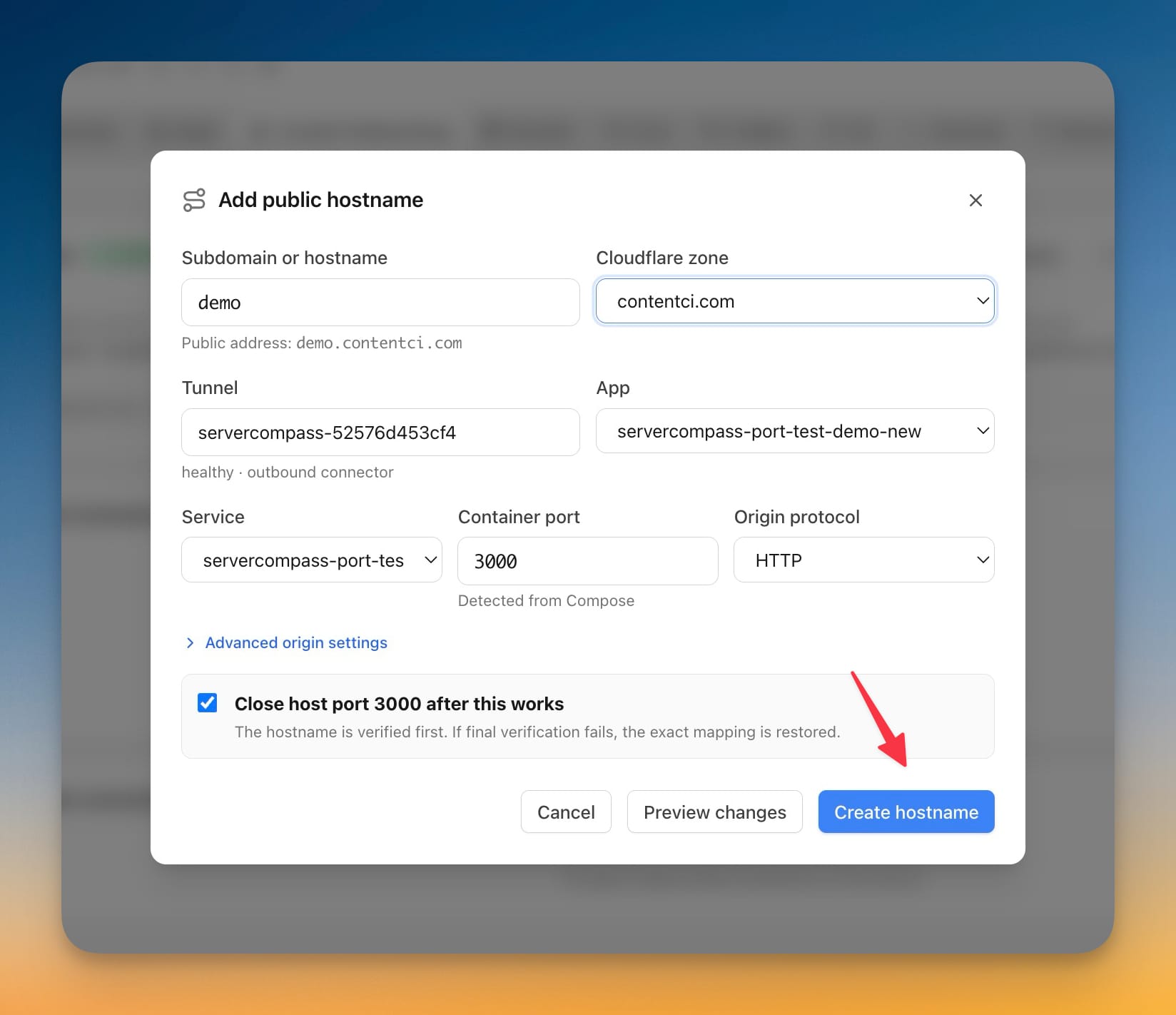
With the account connected, Add hostname walks you through the four things that actually matter: the subdomain, the Cloudflare zone it belongs to, the app and service to publish, and the container port. Server Compass reads the ports straight from your Compose file, so the port dropdown shows real values marked "Detected from Compose" instead of asking you to remember them. You choose whether the origin speaks HTTP or HTTPS, and that's it.
See the exact changes before anything happens
Before a single record is written, the What will happen panel draws the whole path — visitor to public hostname, through the private tunnel, to your container's private name and port — and the Changes to your server list spells out each edit: the CNAME it will create, the internal Docker network it will add, the Compose lines it will touch. Nothing outside those lines is modified. You approve a plan, not a black box.
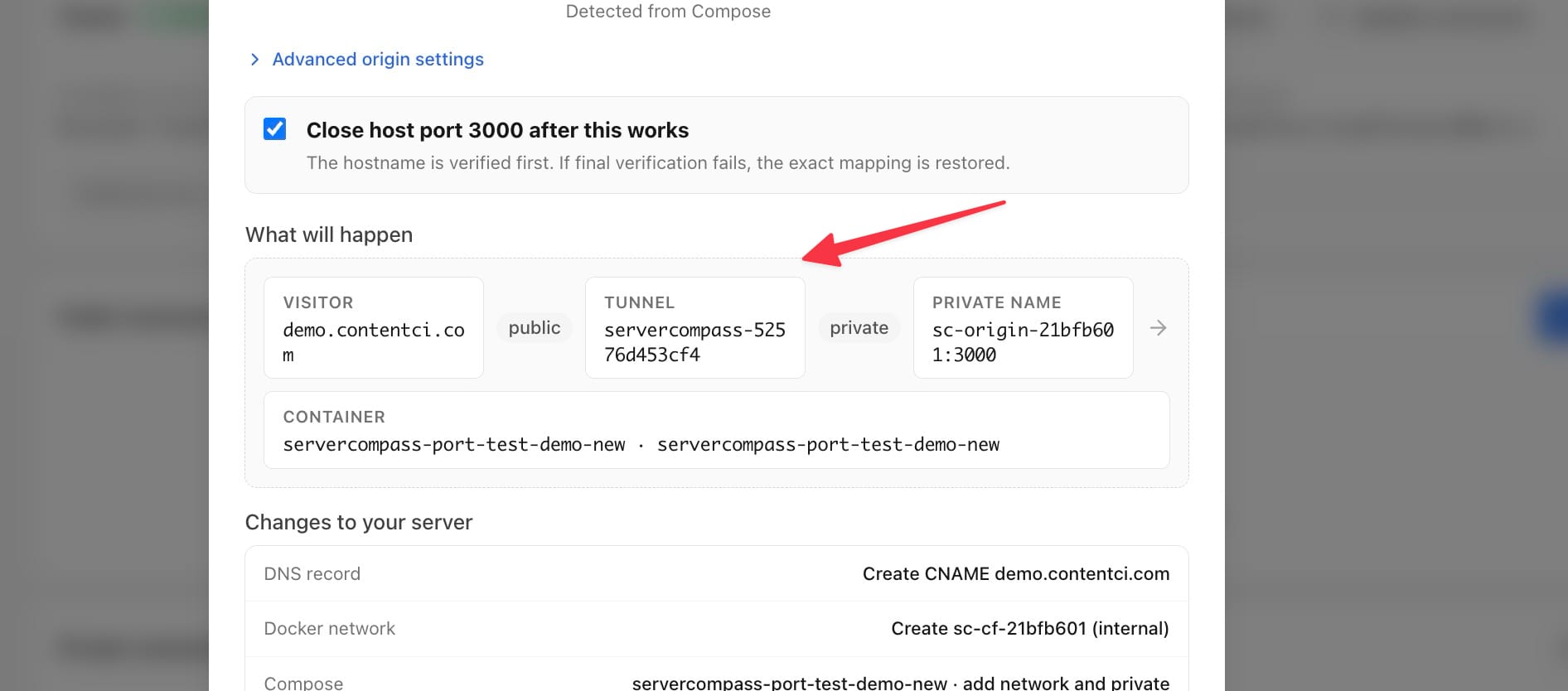
If an existing DNS record already points at that hostname — one you made directly in Cloudflare, or another domain Server Compass manages — it's flagged for review instead of being silently overwritten. And if the saved token can't create the record, the flow hands you the exact CNAME to paste into Cloudflare by hand, then verifies and adopts it so you don't end up with a duplicate.
Close the door behind you
Publishing through the tunnel doesn't automatically leave your old open port lying around. Tick Close direct server access after the tunnel works and, once the hostname verifies, Server Compass removes the published host-port mapping to that container — Cloudflare access stays live, and if verification fails the mapping is restored exactly as it was. The result is an app that can only be reached through Cloudflare, with your server's raw port no longer answering.
From then on the overview shows the tunnel's health at a glance, and one-click Re-check, Repair, and Update connector actions fix a broken connector without redoing setup. Taking a hostname or an entire tunnel down is just as deliberate — a step-by-step removal that can restore a closed port if you want it back and safely retry if a cleanup step fails.
Before vs after
| Publishing one app to a hostname | The old way | With Cloudflare Tunnel in Server Compass |
|---|---|---|
| Inbound firewall port | Open and forward one manually | None — the tunnel is outbound only |
| Ports 80/443 | Fight the existing reverse proxy | Untouched; your proxy keeps running |
| DNS | Hand-edit an A record to your raw IP | CNAME created (or handed to you) after review |
| Server IP exposure | Advertised in public DNS | Never exposed; traffic exits through Cloudflare |
| Knowing what will change | Find out after you apply it | Reviewed line-by-line before anything runs |
| Closing the old open port | A separate task you'll forget | One checkbox, reverted automatically if it fails |
Who benefits most
Homelabbers and anyone behind NAT. If your box doesn't have a clean inbound path — CGNAT, a restrictive router, a provider that only NATs outbound traffic — an outbound-only tunnel is often the only way to publish an app at all.
Agencies and freelancers running client apps side by side. You can put a new client's app on a real hostname without touching the shared reverse proxy or risking the other sites on the same server.
Anyone who doesn't want to expose a server IP. Keeping your origin IP out of public DNS removes a whole class of direct-to-origin attacks, and you get there without maintaining a hand-rolled tunnel config.
Also in 1.35.0
Cloudflare Tunnel is the headline, but two more networking pieces landed alongside it:
- Migrate from Dockge. Start a Server Migration, choose Dockge, and Server Compass finds every stack Dockge is running over your existing SSH login and adopts them exactly where they are — same containers, data, volumes, and ports, nothing recreated or taken offline. Dockge keeps running until you decide to retire it.
- Private connections between apps. Let one app reach another — an API to its database or cache — over a stable private name that never leaves the server, with the option to close the producer's public port once the private link is tested. Private connections and tunnel routes now sit together under Tunnel & Networking.
Try it
Update to Server Compass 1.35.0, open any server, and look for the Tunnel & Networking tab. Connect a Cloudflare account, pick one app, and you'll have it online at a real hostname in a few clicks — with no open port, no proxy surgery, and your server's IP still private.