Connect Apps
Connect any two apps on the same server by defining a private Docker network — Server Compass auto-configures networking, injects service URLs as environment variables (e.g. REDIS_URL), and monitors network health to detect ghost or misconfigured networks.
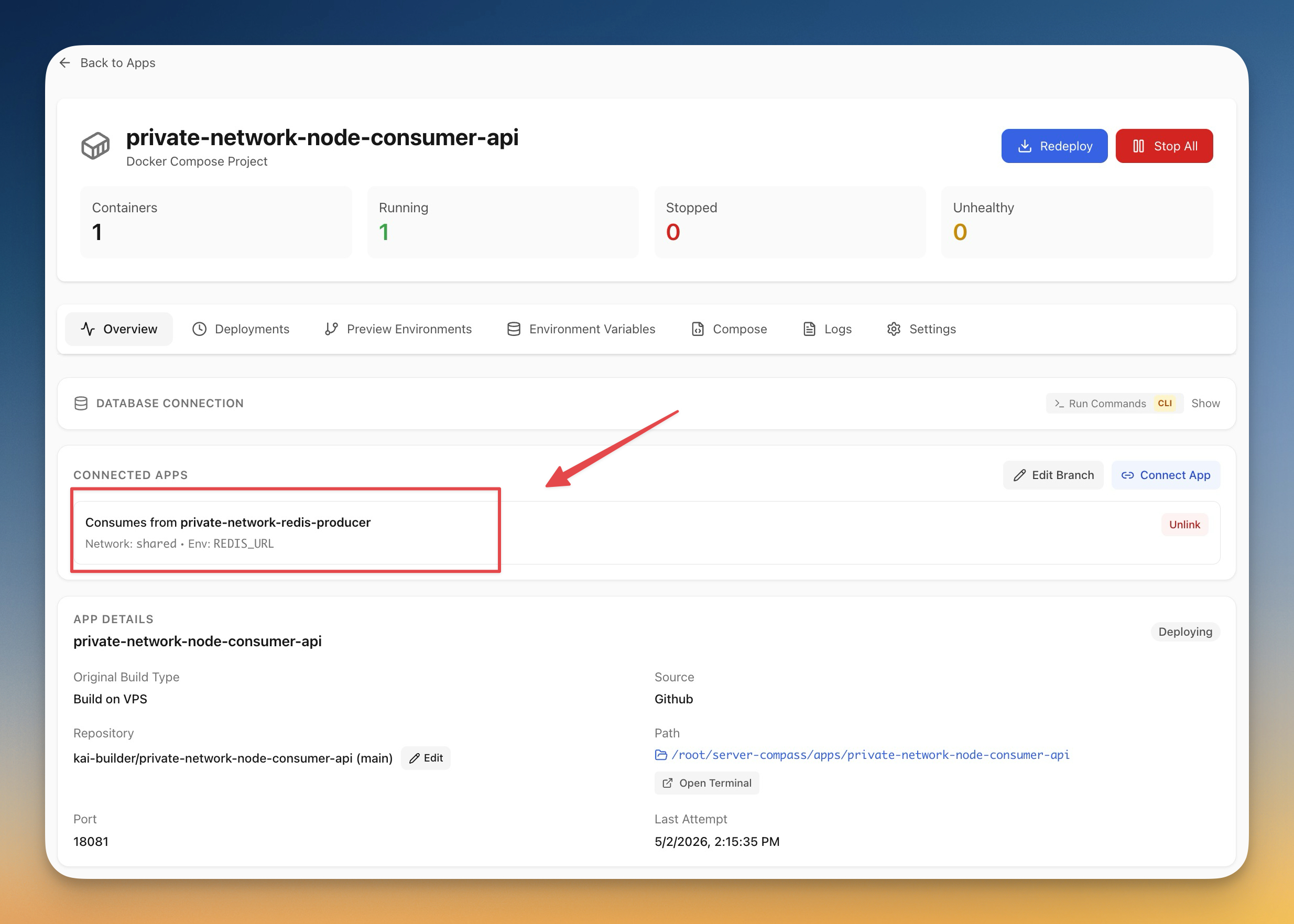
Connect Apps: Step by Step
Connect Apps is designed to be intuitive. Here's how you use it in Server Compass.
Open Connect Apps
From any app's detail page, click Connect Apps. Server Compass lists every other app on the same server.
Pick caller and target
Choose 'I call the other app' or 'Other app calls me', or click Auto-detect to infer roles from container images (Redis, Postgres, MySQL, MariaDB, MongoDB, Valkey, KeyDB, TimescaleDB).
Accept the suggested env value
For known data services, the modal prefills a working URL like redis://shared-redis:6379. Edit the env key or value if your app expects a different name.
Optionally remove the producer public port
Tick 'Remove producer public port' to drop the producer's published ports while linked apps keep talking internally. Original ports are snapshotted for safe unlinking.
Connect
Server Compass writes the network into both compose files, runs docker network create on the server, redeploys producer then consumer, and persists the link in the app_connections table.
Before Connect Apps Existed
This is what you'd have to do manually without Connect Apps. We don't recommend it.
SSH into your server
You need a shell on the host to wire up Docker networking.
ssh root@your-server-ipCreate a shared private network
Two apps on the same host can't talk privately by default. You have to create a user-defined network.
docker network create shared

# Verify it exists
docker network ls | grep shared
Forget this step and your apps fall back to localhost or public IPs — neither works the way you want.
Edit the producer's docker-compose.yml
Add the network at the top level and attach the service. Optionally remove published ports so it's no longer reachable from the internet.
# /opt/apps/redis/docker-compose.yml
services:
  redis:
    image: redis:7
    # ports:
    #   - "6379:6379"   # delete this if you want it private
    networks:
      - shared
networks:
  shared:
    external: true
Indentation matters. One bad space and compose silently ignores the network block.
Edit the consumer's docker-compose.yml
Same network change, plus add the env var your app reads. The hostname is the producer's service name.
# /opt/apps/api/docker-compose.yml
services:
  api:
    image: my-api:latest
    environment:
      REDIS_URL: "redis://redis:6379"
    networks:
      - shared
networks:
  shared:
    external: true
Get the hostname wrong (e.g. `localhost`, the public IP, the container ID) and the connection silently fails on the next deploy.
Redeploy both stacks in the right order
Producer first, then consumer. If you redeploy in the wrong order, the consumer's env var points at a hostname that doesn't exist yet.
cd /opt/apps/redis && docker compose up -d
cd /opt/apps/api   && docker compose up -d

# Did the network actually attach? Check.
docker network inspect shared | grep -A2 Containers
No rollback. If the consumer fails to start, you have to manually undo the env var, the network block, and the port removal.
Document what you connected — somewhere — anywhere
There is no source of truth. In six months you will not remember which apps share which network or which env var came from where.
# Hope you wrote it down. Otherwise grep through every compose file:
grep -l "shared:" /opt/apps/*/docker-compose.yml
grep -r "REDIS_URL" /opt/apps/*/
Multiply this by every Redis, Postgres, and Mongo you self-host across your projects.
Or... Just Use Server Compass
Connect Apps isn't just faster—it's safer. No typos, no forgotten flags, no accidental disasters.
- Point and click
- Instant validation
- Safe defaults
- Works with any provider
Connect Apps: Full Feature List
Everything you need for app management in one integrated tool, replacing complex CLI commands and manual configuration.
Get StartedConnect Apps: Why It's Essential
Server management shouldn't require a DevOps team. Connect Apps makes professional-grade app management accessible to everyone.
Complete Visibility
Connect Apps gives you a bird's-eye view of all your applications. No more guessing container states.
Instant Actions
Connect Apps puts start, stop, restart, and rollback at your fingertips with one-click controls.
Safe Operations
Connect Apps includes safety guards and confirmations to prevent accidental destructive actions.
Historical Context
Connect Apps keeps a full audit trail so you always know what changed and when.
Questions About Connect Apps
Common questions about Connect Apps in Server Compass
How do I access Connect Apps in Server Compass?
Connect Apps is available in the App Management section of Server Compass. Simply connect to your server, navigate to App Management, and you'll find Connect Apps ready to use. No additional setup or plugins required.
Does Connect Apps require any server-side installation?
No. Server Compass operates as a desktop application that connects to your server via SSH. Connect Apps works through this connection without installing any agents or packages on your server (except the optional monitoring agent for resource tracking).
Is Connect Apps included in all Server Compass plans?
Yes. Every Server Compass feature, including Connect Apps, is included with the one-time $29 payment. There are no tier restrictions, add-ons, or per-server fees. You get all 152+ features for all your servers.
Can I use Connect Apps with any VPS provider?
Connect Apps works with any VPS or dedicated server that supports SSH access and Docker. This includes DigitalOcean, Hetzner, Vultr, Linode, AWS EC2, Google Cloud, Azure, and any other provider. It also works with local servers and homelab setups.
What makes Connect Apps different from command-line alternatives?
Connect Apps provides a visual, intuitive interface that replaces complex CLI commands and configuration files. You get real-time feedback, safety confirmations, and a consistent experience across all your servers without memorizing syntax or writing scripts.
More App Management Features
Explore other app management capabilities in Server Compass
Application Dashboard
View all deployed applications with real-time status indicators. Switch between grid and table view for your preferred workflow.
Grid & Table View
Toggle between visual grid cards and compact table view. See container status, uptime, and quick actions at a glance.
Container Health Monitoring
Real-time container status with uptime tracking, health check indicators, and resource usage per container.
Zero-Downtime Deployment
Blue-green deployment keeps the old container serving while the new one is built and health-checked, then switches traffic over. Progress appears the moment you press Redeploy, the deployment is recorded in history right away with its commit, and a deploy that passes 45 minutes stops with a message pointing you at the logs.
Try Connect Apps Today
Download Server Compass and get access to Connect Apps along with 151 other features. One-time $29 payment. No subscriptions. No per-server fees.