Back to ChangelogDownload
v1.42.1August 19, 2026
Linux Desktop in the Browser
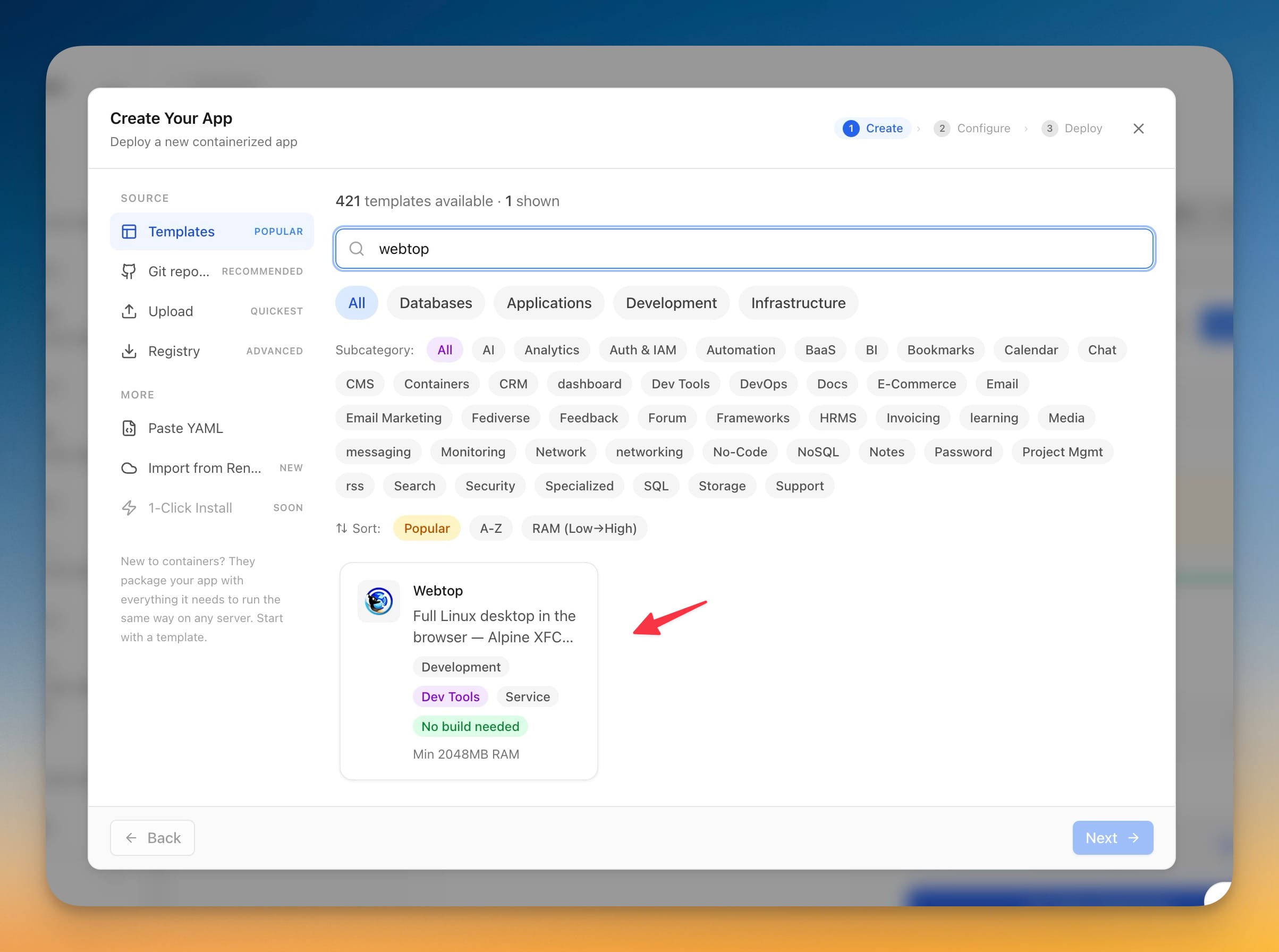
Install a full Linux desktop in your browser straight from the Stack Wizard: the Webtop template self-hosts Alpine XFCE (or Ubuntu, Fedora, Debian and Arch, with KDE, MATE or i3) on your VPS, signs in with a username and password you set, and keeps your files across updates. This release also makes S3-compatible cloud storage — Cloudflare R2, MinIO, Hetzner — connect reliably, cleans up the endpoint URLs you paste, and stops credential fields being auto-filled with a saved website password.
Download v1.42.1
Get this version from GitHub Releases
What's Changed
New Features
7- Install Webtop from the Stack Wizard — a complete Linux desktop in the browser, self-hosted on your VPS
- Alpine with XFCE is the default, light enough for a small server (2 GB of RAM is enough to start)
- Switch to Ubuntu, Fedora, Debian or Arch, and to KDE, MATE or i3, by picking a different desktop flavour and redeploying
- Sign in with a username and password you set during install
- Attach a domain so the desktop is served over HTTPS — that's what browsers need for audio and video
- Files you keep on the desktop survive updates
- The first launch can take a few minutes while the desktop finishes setting itself up
Improvements
6- Cloud storage accepts the URLs you actually paste — a Cloudflare R2, MinIO or custom endpoint works with or without
https://, with a trailing slash, or with the bucket name still on the path. Addresses copied from the R2 dashboard are cleaned up automatically - The R2 form tells you which endpoint to use — the S3 API endpoint from the R2 dashboard, not the public r2.dev URL
- Switching storage providers no longer keeps the previous one's leftover settings — changing from R2 to Amazon S3 drops the old endpoint and the region Amazon doesn't accept
- Testing a destination explains what went wrong — wrong credentials, a missing bucket, or an unreachable host are spelled out instead of a generic failure
- Confirmations in Backup settings live in the app — deleting a destination, clearing a passphrase, overwriting a sync snapshot, or deleting a cloud backup uses the same in-app dialog as the rest of Server Compass
- Credential fields no longer get filled with a saved website password — access keys, secret keys, passphrases, and pCloud tokens stay empty until you type them
Bug Fixes
4- Fixed typing doing nothing after a file picker or confirmation on Windows — the cursor blinked in the field but keystrokes never arrived until you switched away from the window and back. Typing now works immediately
- Fixed Cloudflare R2, MinIO, Hetzner and other S3-compatible storage failing to connect or upload — destinations that look valid in their own dashboards now connect from Server Compass, which also unblocks Team workspaces that live in those buckets
- Fixed Amazon S3 connection tests failing after filling in an R2 destination first — leftover region and endpoint values are no longer sent to Amazon
- Fixed testing a storage destination failing on S3-compatible providers even when the bucket was reachable — a working bucket now shows as connected instead of as a failure
Related Resources
Templates
Related Topics
Linux desktop in the browserself-hosted WebtopAlpine XFCE desktopbrowser desktop on VPSCloudflare R2 S3 endpointS3-compatible storage connectionMinIO backup fixone-click desktop template