Run Your Servers With a Team
Run your servers with a team: create an encrypted workspace in an S3-compatible bucket you already own, share a server without handing out its SSH credential, grant access down to a single Docker app with an expiry, work in the same terminal at once, and put CPU and memory ceilings on any service.
Download v1.42.0
Get this version from GitHub Releases
What's Changed
New Features
35- Create a Team workspace and invite the people you work with — everyone gets their own level of access, and nobody has to be sent a server password
- There's no Server Compass account to create and no service sitting in the middle — the workspace lives in storage you already own (Cloudflare R2, AWS S3, or MinIO) and everything is encrypted on your machine before it's uploaded
- Before a workspace is created, Server Compass checks your storage can safely handle two people saving at the same time, and refuses rather than risk one person's changes silently overwriting another's
- No storage set up yet? The workspace screen takes you straight to the right place with the form already open
- Invite by QR code, or by a code you paste into a channel you trust — invites are one-time and expire, and an Owner or Admin approves the request before anyone is in
- Four roles: Owner, Admin, Member and Viewer
- Admins and Members each use their own license; read-only Viewers need none, so you can give someone visibility at no cost
- The workspace is organised into four screens — Overview for members and pending invites, Permission for who can reach what, Security for workspace settings, and Activity for the log
- Its SSH credential moves into the encrypted Team vault and teammates connect through it, without the secret ever being shown to them
- Use only (recommended) lets people connect, deploy and open a terminal while the key is never displayed or copied anywhere in the app
- Use and reveal additionally lets admins display and copy the key — and every reveal is written to the activity log with who did it, when, and from which device
- Server Compass is honest about the limit: "use only" stops the key being read out of the interface, but it isn't a guarantee against someone determined who controls their own machine
- Give someone a whole server, or just one Docker app on it
- Put an expiry on the access — useful for a contractor who should lose it on Friday, without anyone having to remember
- Revoke any grant at any time, and locked servers stay locked for everyone, including the Owner
- Removing someone actually removes them — the workspace keys are rotated and any phone they had paired loses access too, and the confirmation spells out exactly what removal does, what it doesn't, and what else to rotate if the departure wasn't amicable
- A Permission screen lists every shared server and everyone who can reach it — instead of opening each server in turn to piece it together
- Grant and revoke access right there, with the whole-server or single-app choice and the expiry alongside
- Access that came with someone's role is marked as inherited, so it's clear why an Admin can reach a server nobody explicitly granted them
- Time-boxed access is labeled, and expired access is called out rather than quietly failing later
- Filter down to a single person to answer "what exactly can they touch?" in one look
- Members see their own access — the same screen shows what has been shared with you
- "Share live" in the terminal toolbar publishes your session to the workspace, and it keeps running whether or not your window is open
- Teammates can find it and join read-only, then ask for control when they need to type — you hand it over with one click
- See how many people are attached at a glance while you work
- Decide what happens when whoever is driving disappears — freeze the session until they're back, or let a viewer take over
- Or turn it on for everything with "Share terminals by default", so new terminals on Team servers are joinable from the start
- Ending the share closes the shared session for everyone
- Point a paired phone at a teammate and it takes on their Team role — the servers, apps and terminals they can reach are exactly the ones they were granted, and nothing else even appears
- The same grants and expiry times apply on the desktop, on the phone, and to AI assistants connected to Server Compass
- Set CPU and memory limits on any service in an app, from the app's Overview — no editing configuration files by hand
- See what it's actually using first — each container shows its live CPU and memory next to the limit currently set on it
- Limit one, both, or neither — turn each ceiling on independently, and nudge the CPU figure up and down in small steps
- Only the service you changed is restarted — persistent volumes and the rest of the app keep running
- If the new limits stop the service coming back up, the previous setup is restored automatically and you're told what went wrong
Improvements
8- Popping a terminal out into its own window keeps the session you were in — your scrollback and whatever was running come with it, instead of a fresh connection starting from scratch
- Search your snippets from the phone — the Snippets screen filters by name, description, command or folder as you type
- Filter the Team activity log by person, or search it, instead of scrolling
- Shared servers are marked everywhere — the sidebar, the dashboard and the server header all show which servers came from a Team workspace
- Team credentials never end up in a personal backup — a shared server's secret stays in the Team vault and is left out of your own backups and exports
- Session recordings note who was at the keyboard — each recorded terminal session remembers the teammate and device it came from
- When two people change the same thing at once, Server Compass picks a winner and then lets you keep your version or take theirs before the next sync
- Adding a public hostname to a Cloudflare Tunnel warns when you've typed the domain twice — enter
appwithexample.comselected and it points out thatapp.example.com.example.comisn't what you meant, with a one-click fix
Screenshots
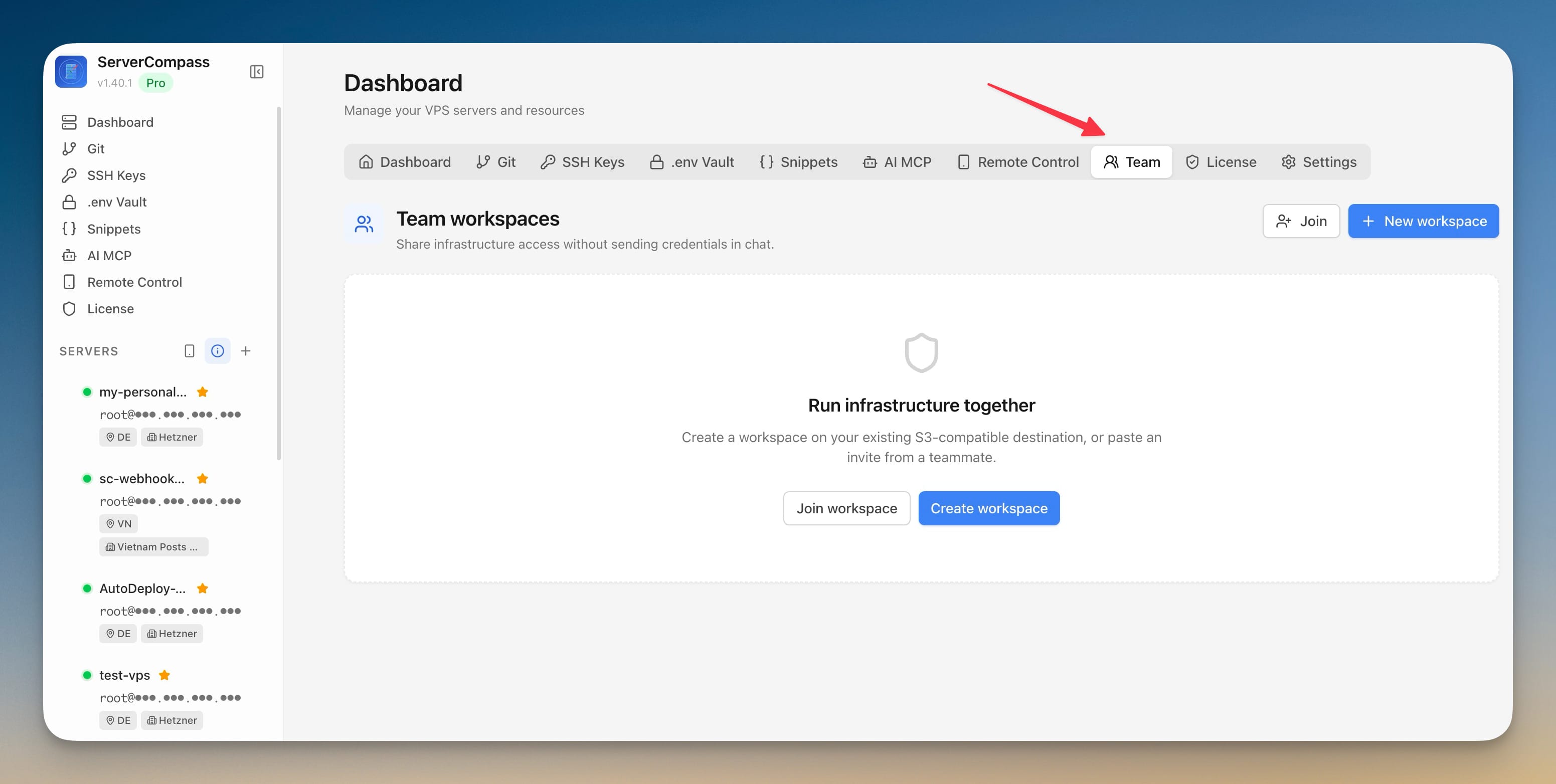
The Team tab on the Dashboard showing the empty Team workspaces state with Join workspace and Create workspace actions
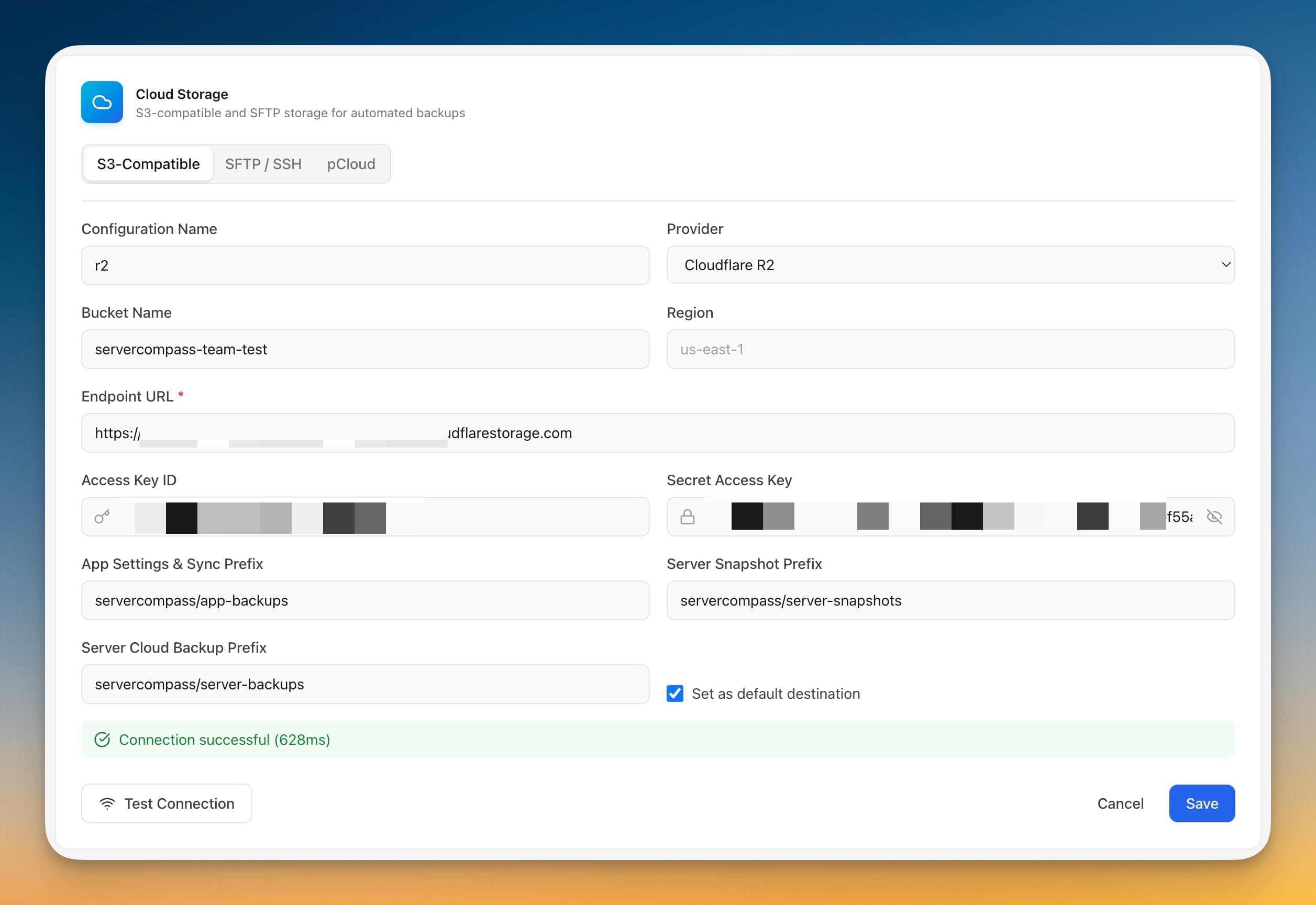
Cloud Storage settings configuring a Cloudflare R2 S3-compatible bucket, with a successful connection test before it can host a workspace
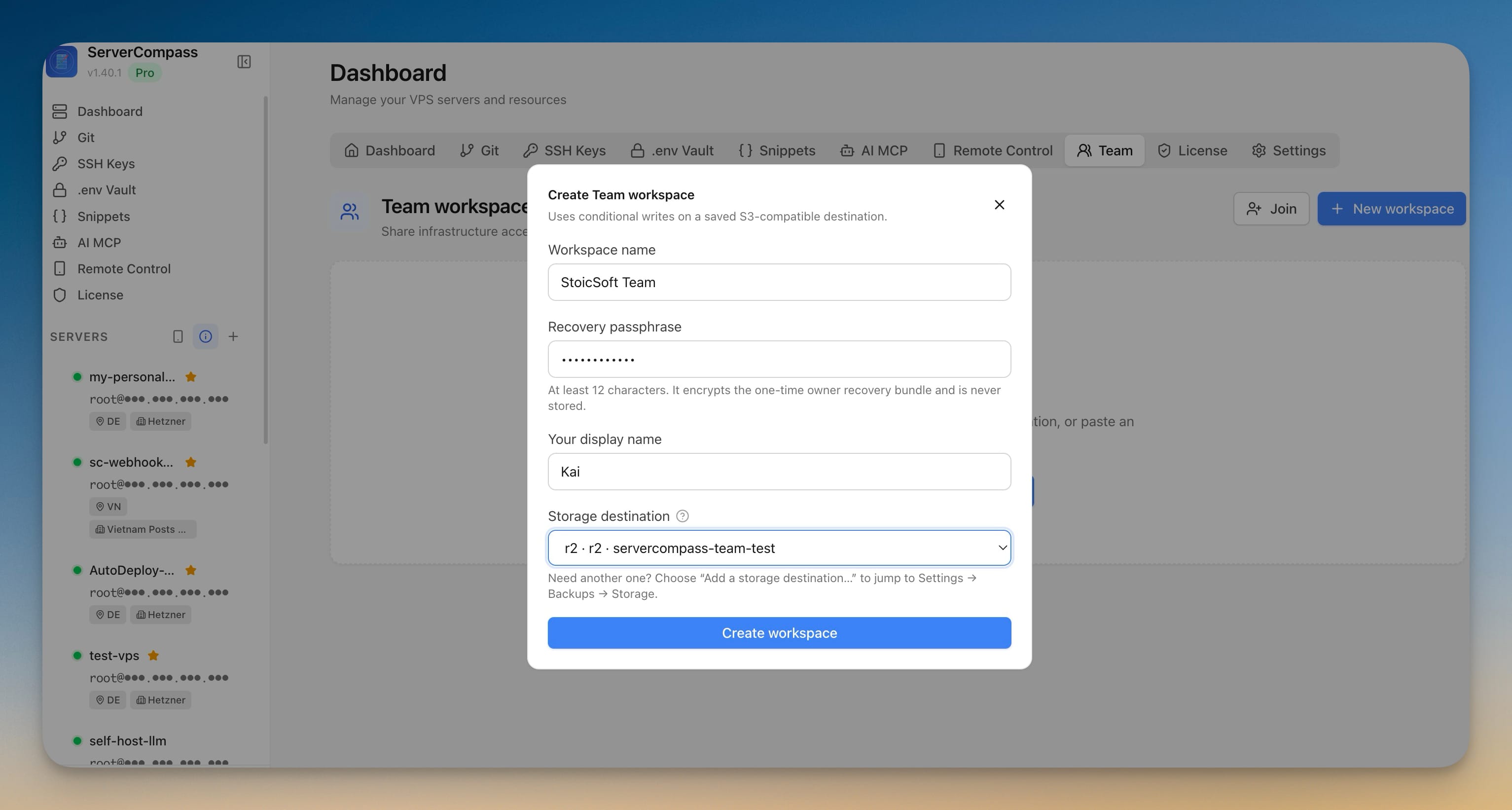
Create Team workspace dialog with workspace name, recovery passphrase, display name, and the saved R2 storage destination selected
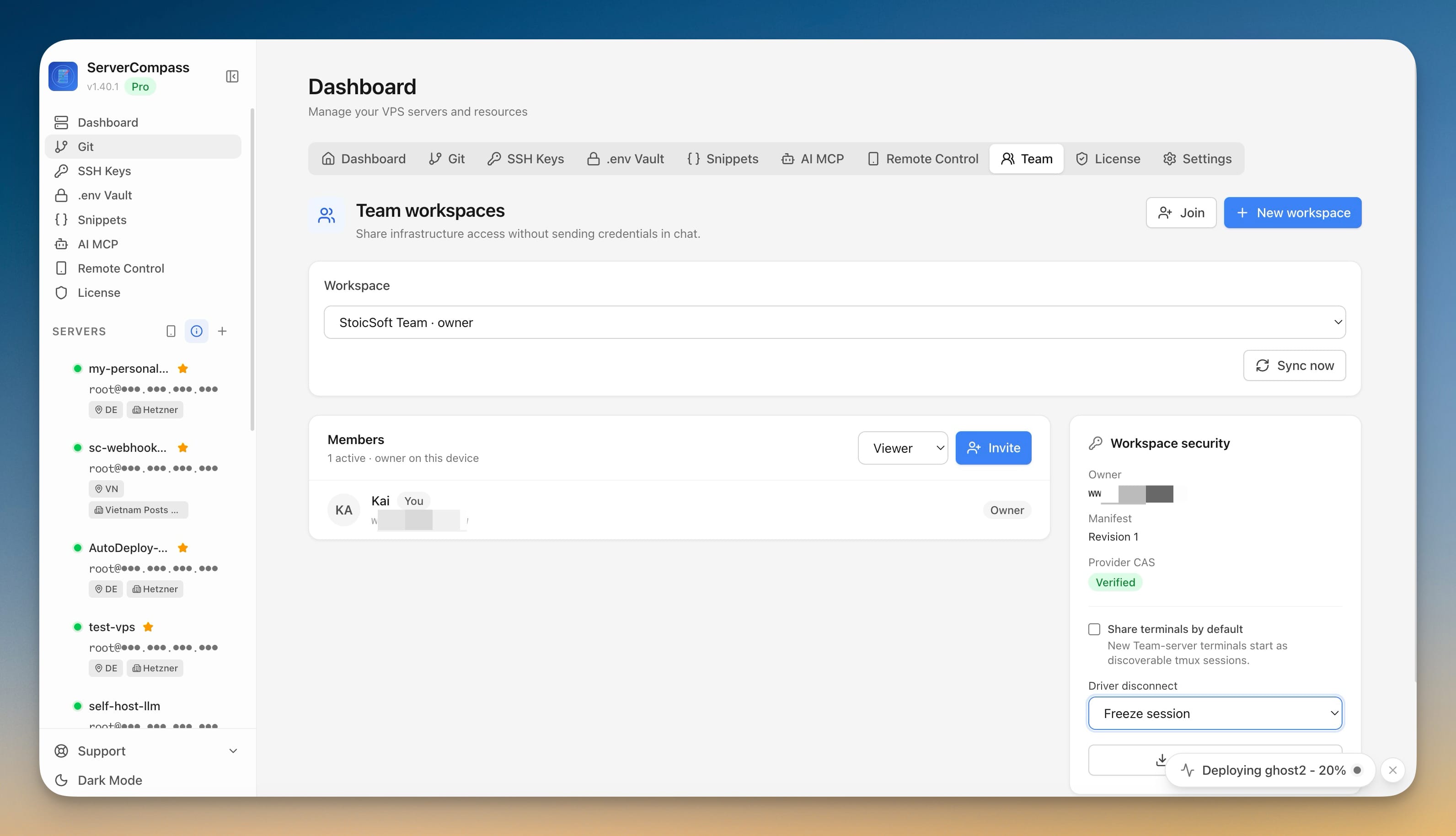
Team workspace Overview showing the members list, the Invite control, and a Workspace security panel with Share terminals by default and the Driver disconnect policy
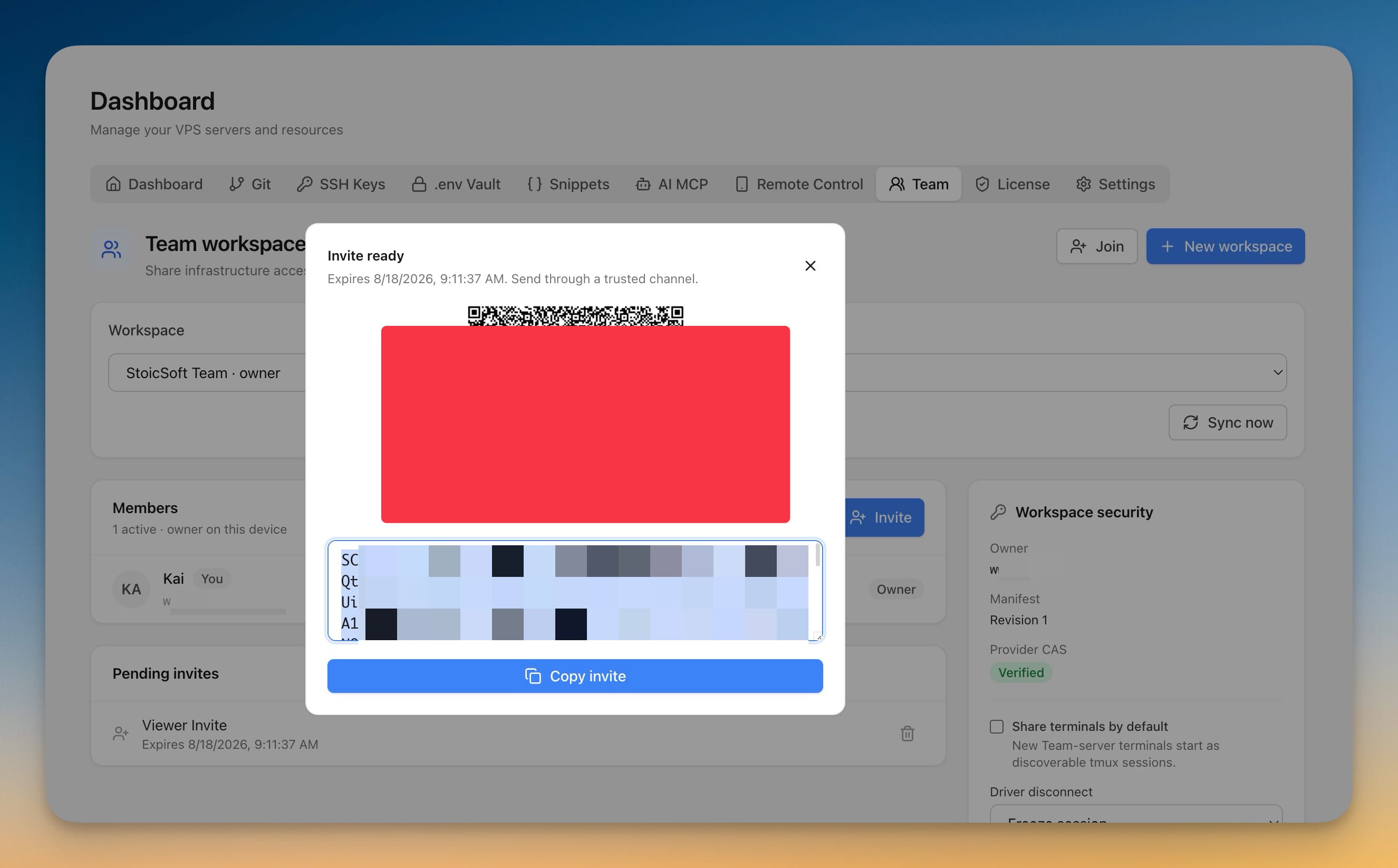
Invite ready dialog showing a QR code, an expiry time, a copyable invite code, and the pending Viewer invite listed behind it
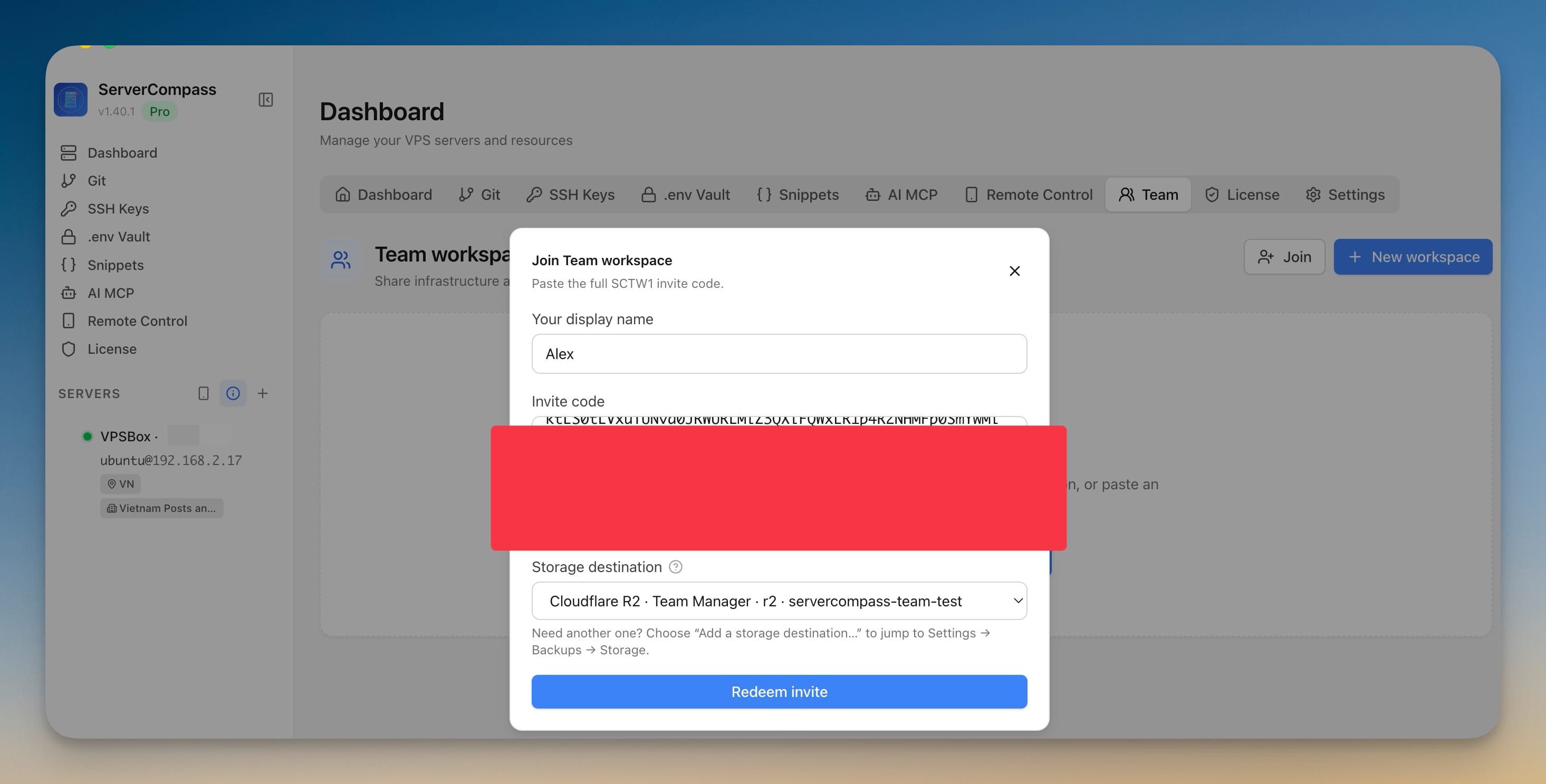
Join Team workspace dialog where a teammate pastes the SCTW1 invite code, sets a display name, and picks the shared storage destination
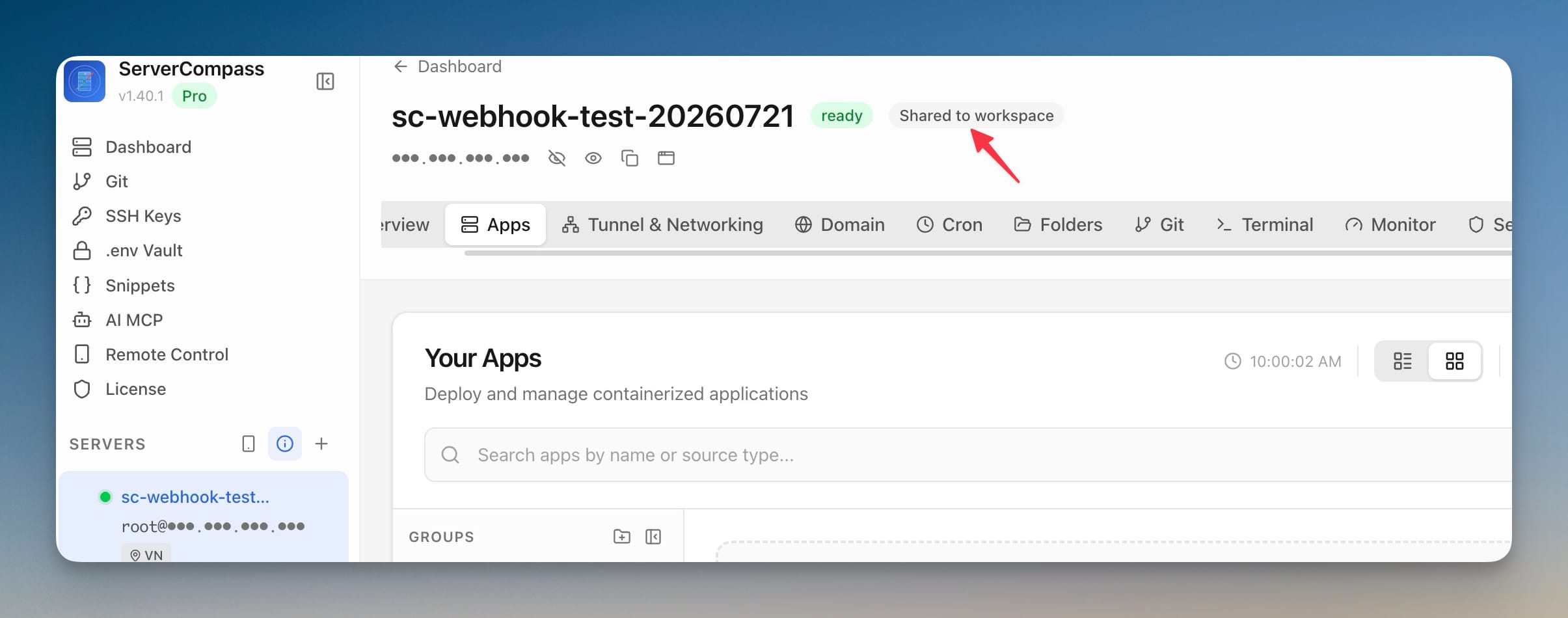
A server header marked with a Shared to workspace badge beside its ready status
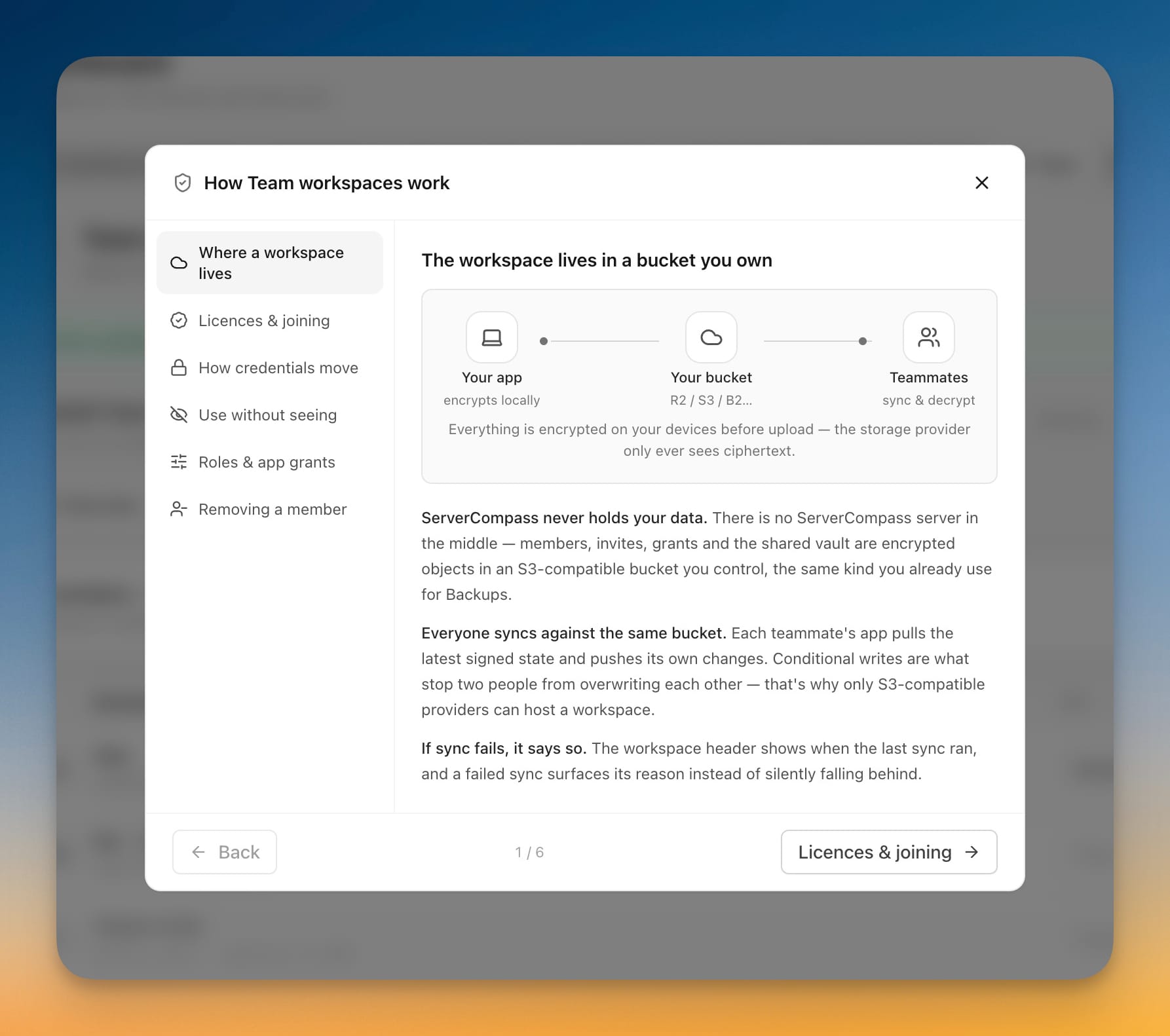
The How Team workspaces work guide explaining that the workspace lives in a bucket you own and is encrypted on your device before upload
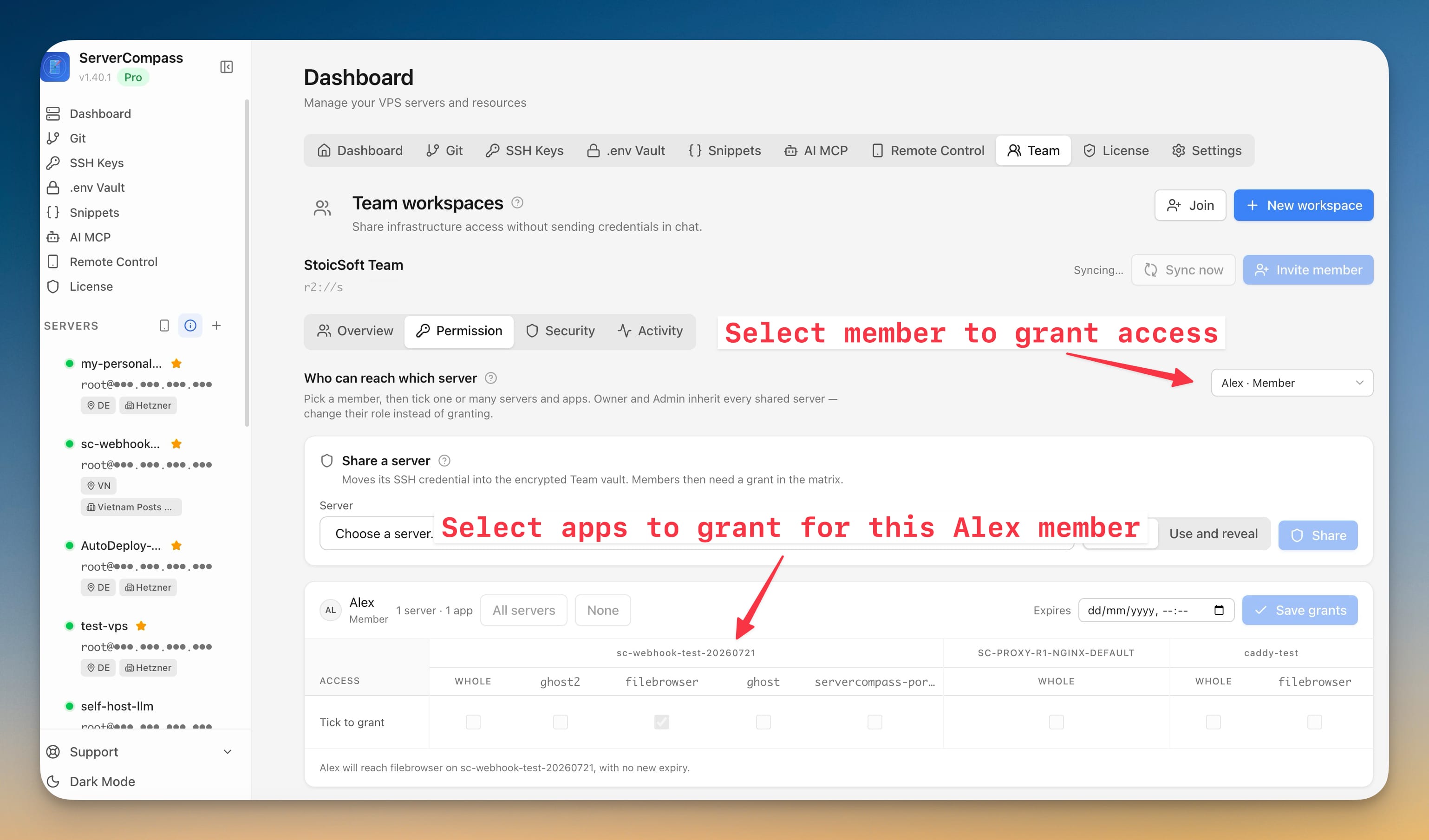
The Permission tab granting a member access to a single Docker app on one server through the tick-to-grant matrix
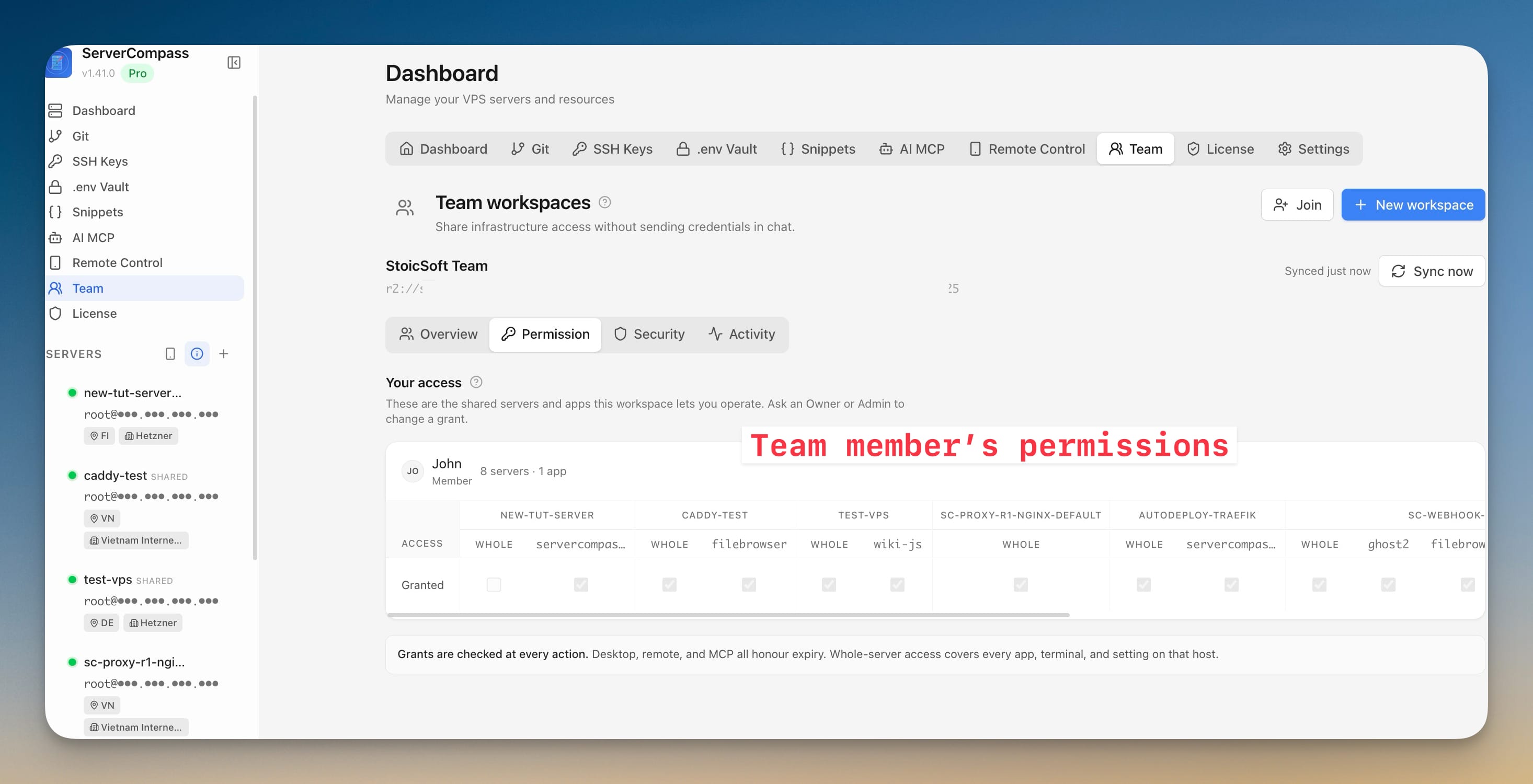
A member's Your access view listing every shared server and app they can reach, noting that grants are checked at every action
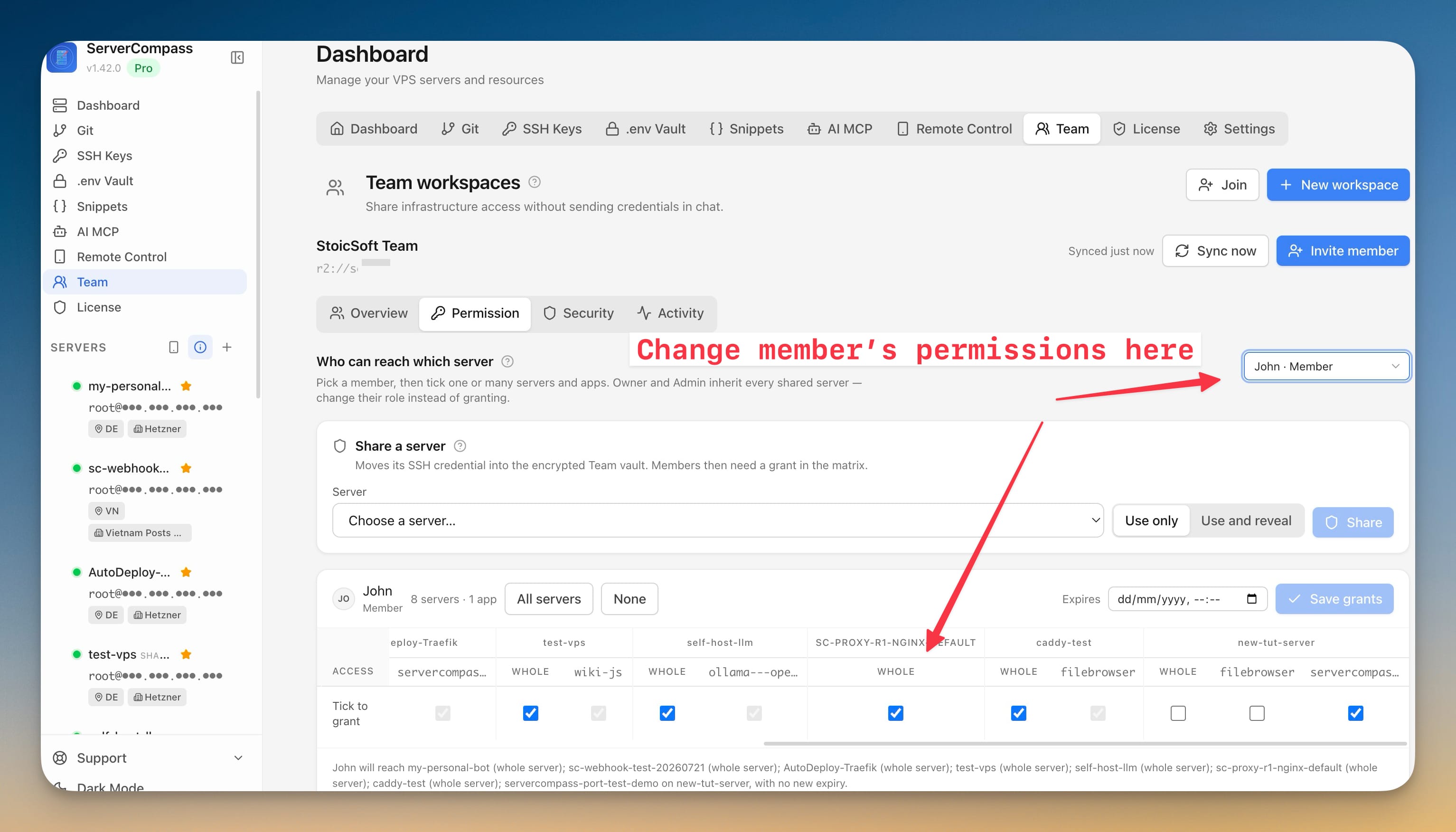
Configuring whole-server and per-app grants for a member, with the Use only and Use and reveal choice on Share a server and an optional expiry date
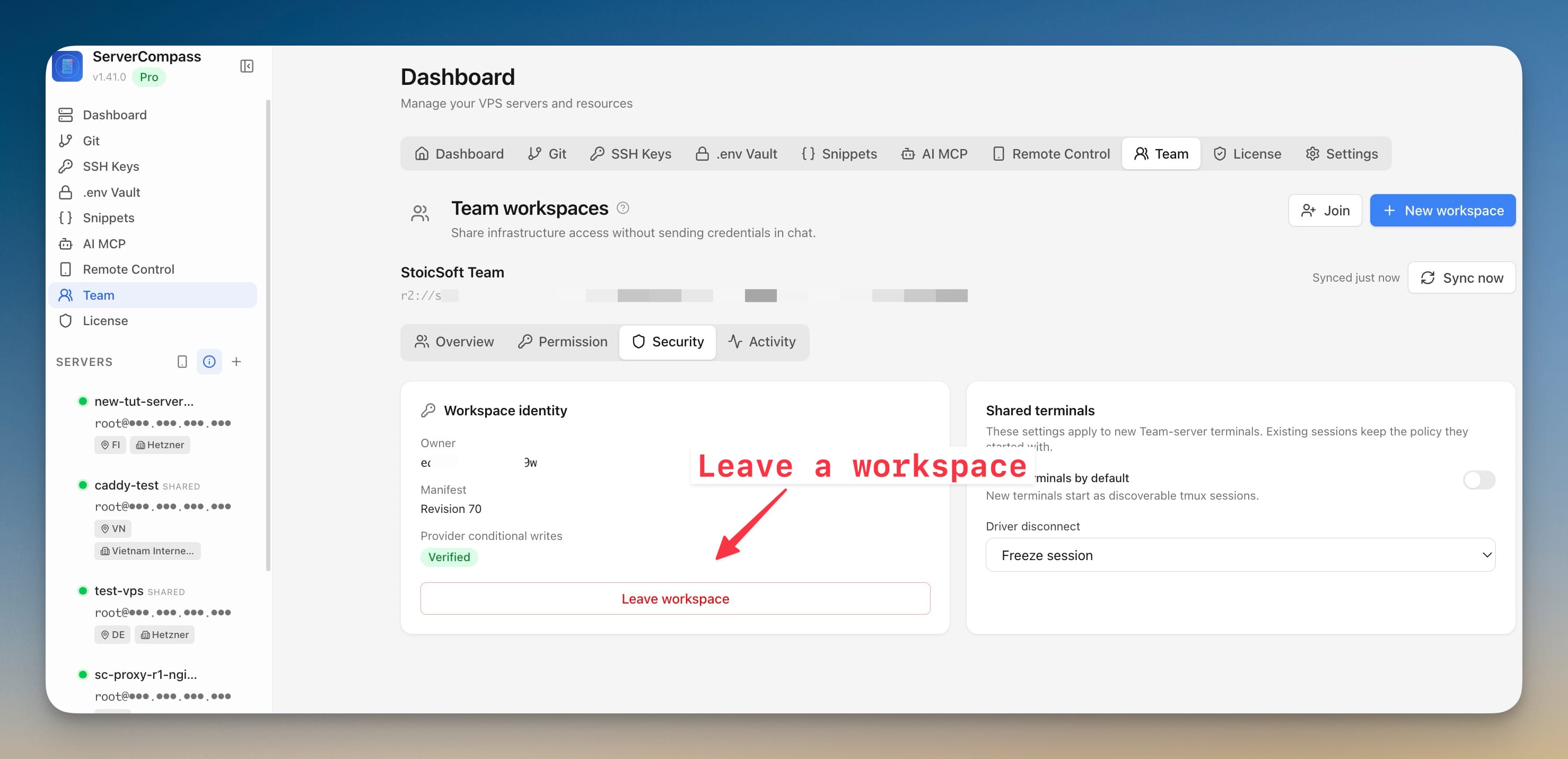
The Security tab showing workspace identity, verified provider conditional writes, Leave workspace, and the shared-terminal defaults