Back to documentation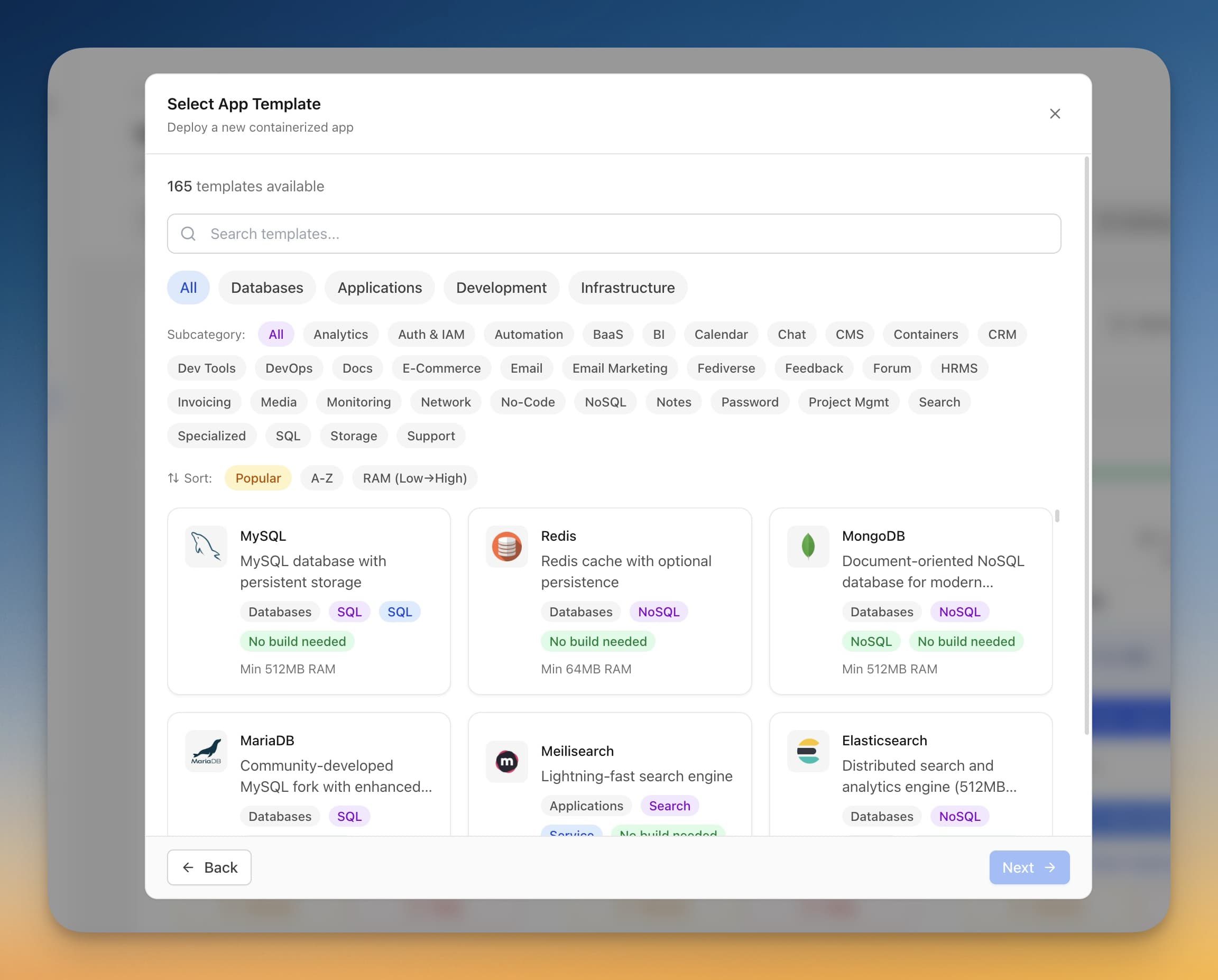
Getting Started
Deploy Your First App in 5 Minutes
A quick walkthrough to deploy your first application using Server Compass templates.
Beginner5 min readUpdated 2024-02-01
Choose a template
- Select your server from the sidebar
- Click "Deploy New App" or the + button
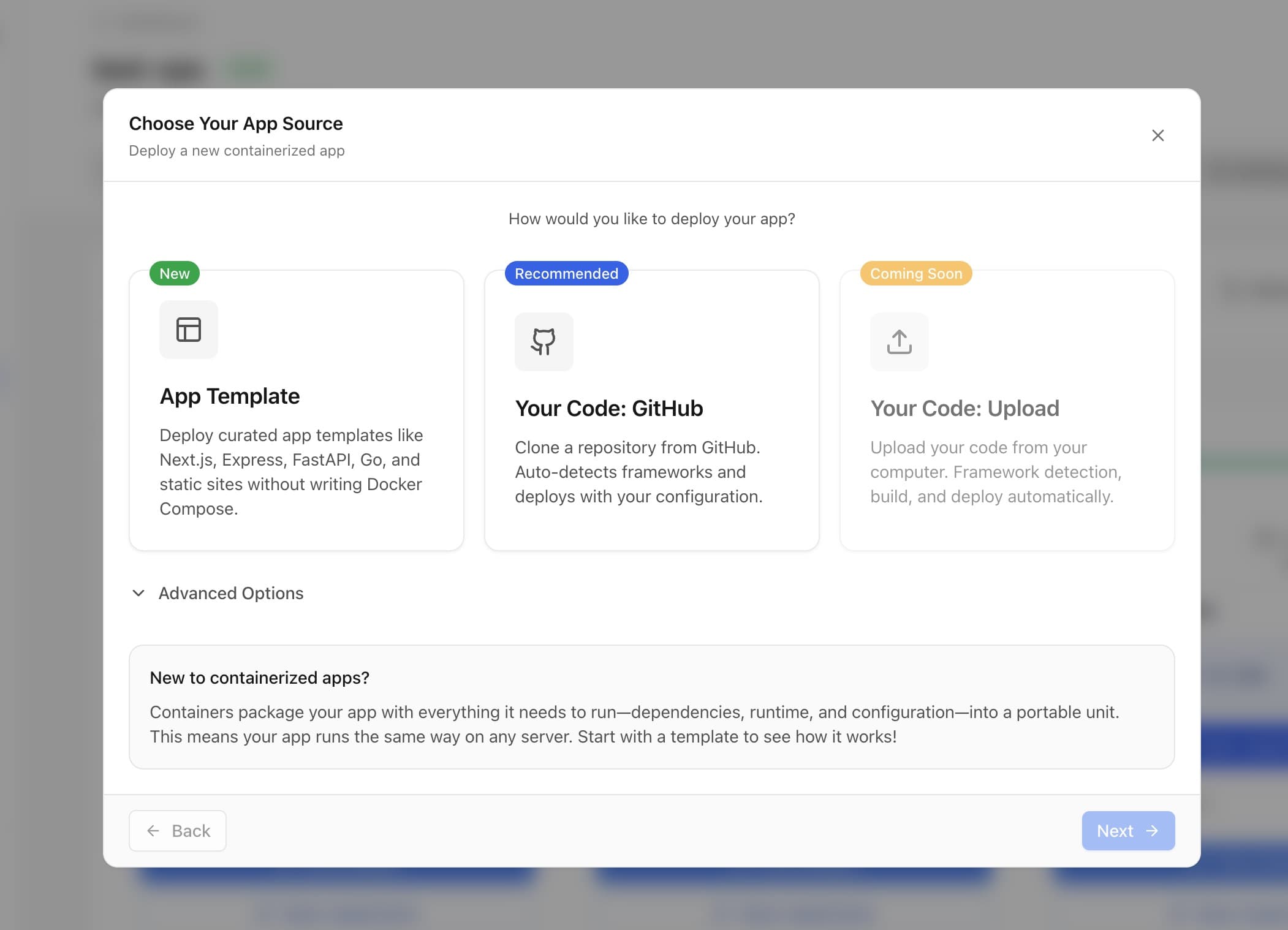
- Choose "Template" as your deployment source
- Browse or search for an app (e.g., "WordPress", "Ghost", "n8n")
- Click on the template card to select it
Configure the app
Each template comes with sensible defaults, but you can customize:
- App Name: A unique name for this deployment
- Domain: Optional domain to connect (or use IP:port)
- Environment Variables: Passwords, API keys, etc.
- Resources: Memory and CPU limits
Review the pre-filled values and adjust as needed.
Deploy
- Review your configuration
- Click "Deploy"
- Watch the deployment progress in real-time
- Wait for the success message
Your app is now running! Click the app card to view logs, configure domains, or manage the deployment.
Access your app
After deployment:
- Without domain: Access via
http://your-server-ip:port - With domain: Access via your configured domain (after DNS setup)
Server Compass shows the access URL in the app dashboard.
Screenshots
Video Tutorials
Related Features
Related Templates
Ready to try Server Compass?
Download the app and deploy your first application in under 5 minutes.
Download Server Compass