Adding Your First Server
Connect your VPS to Server Compass using SSH password or key authentication.
Before you begin
You'll need:
- A VPS from any provider (DigitalOcean, Hetzner, Vultr, AWS, etc.)
- SSH access credentials (IP address, username, password or SSH key)
- Port 22 open (default SSH port)
Adding a server with password
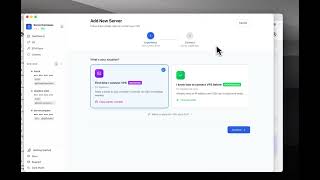
- Click "Add Server" in the sidebar
- Enter your server details:
- Name: A friendly name for your server
- Host: Your server's IP address or hostname
- Port: Usually 22
- Username: Usually "root" or your created user
- Password: Your SSH password
- Click "Test Connection"
- If successful, click "Save Server"
Adding a server with SSH key
- Click "Add Server" in the sidebar
- Enter your server details
- Choose "SSH Key" as authentication method
- Either:
- Select an existing key from your system
- Paste your private key content
- Generate a new key pair
- Click "Test Connection" then "Save Server"
Initial server setup
When you first connect, Server Compass will:
- Check if Docker is installed
- Offer to install Docker automatically if missing
- Set up the Traefik reverse proxy for domains
- Configure basic security settings
This happens automatically - just click "Setup Server" when prompted.
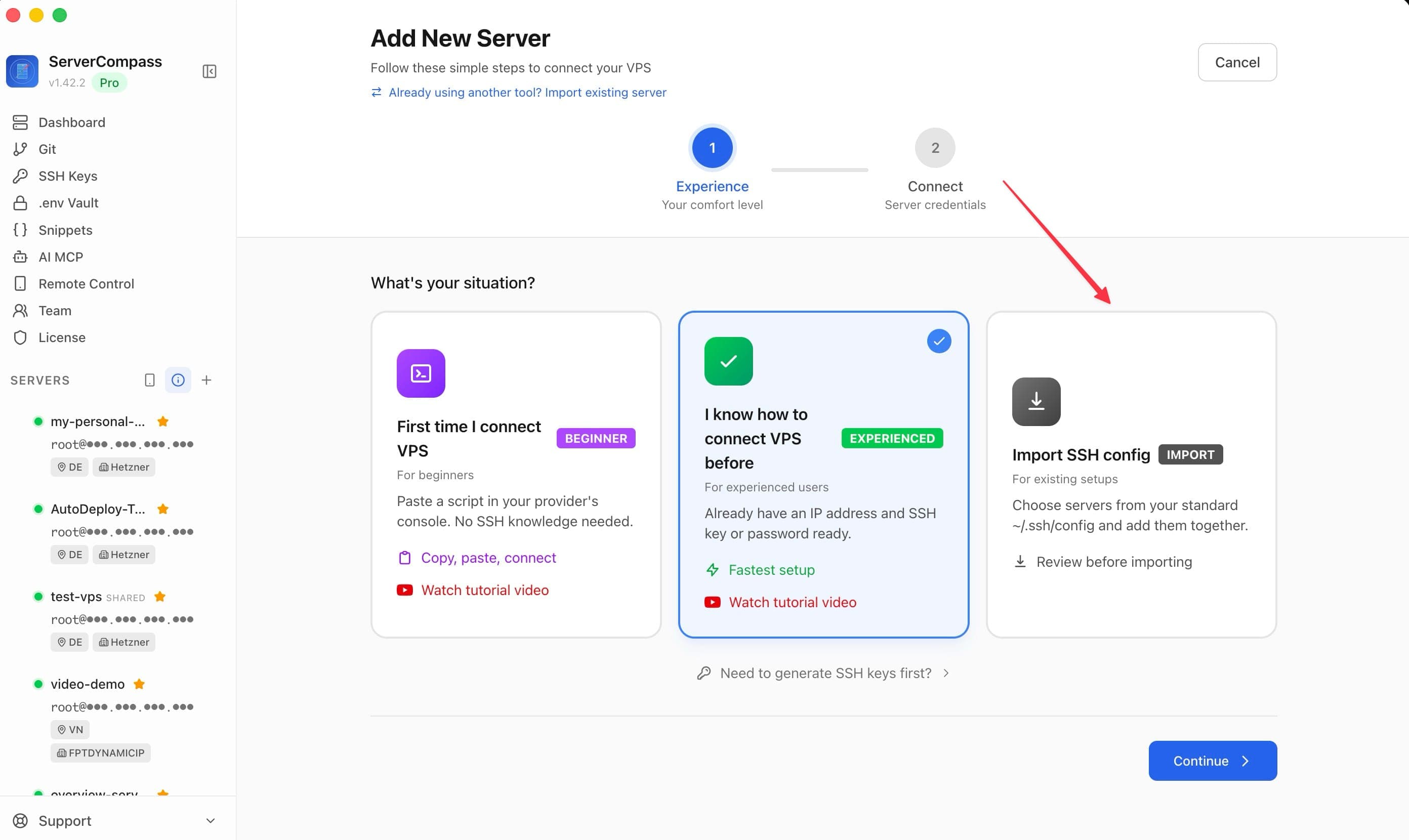
Importing servers from your SSH config
If your servers are already described in ~/.ssh/config, you can add them without retyping anything:
- On Add New Server, choose the Import SSH config card
- Server Compass reads
~/.ssh/configon this computer and lists the host aliases it can use - Aliases you have already added are marked and skipped, and entries needing an unsupported SSH feature — a jump host or a
ProxyCommand— are listed with the reason instead of failing silently - Select the aliases you want and import them together
Wildcard, Include and Match entries are not imported. Your SSH config is only read — Server Compass never modifies it.
Passphrase-protected keys are supported. An alias pointing at an encrypted key is labeled Passphrase-protected and takes the passphrase inline, rather than failing with a generic login error.
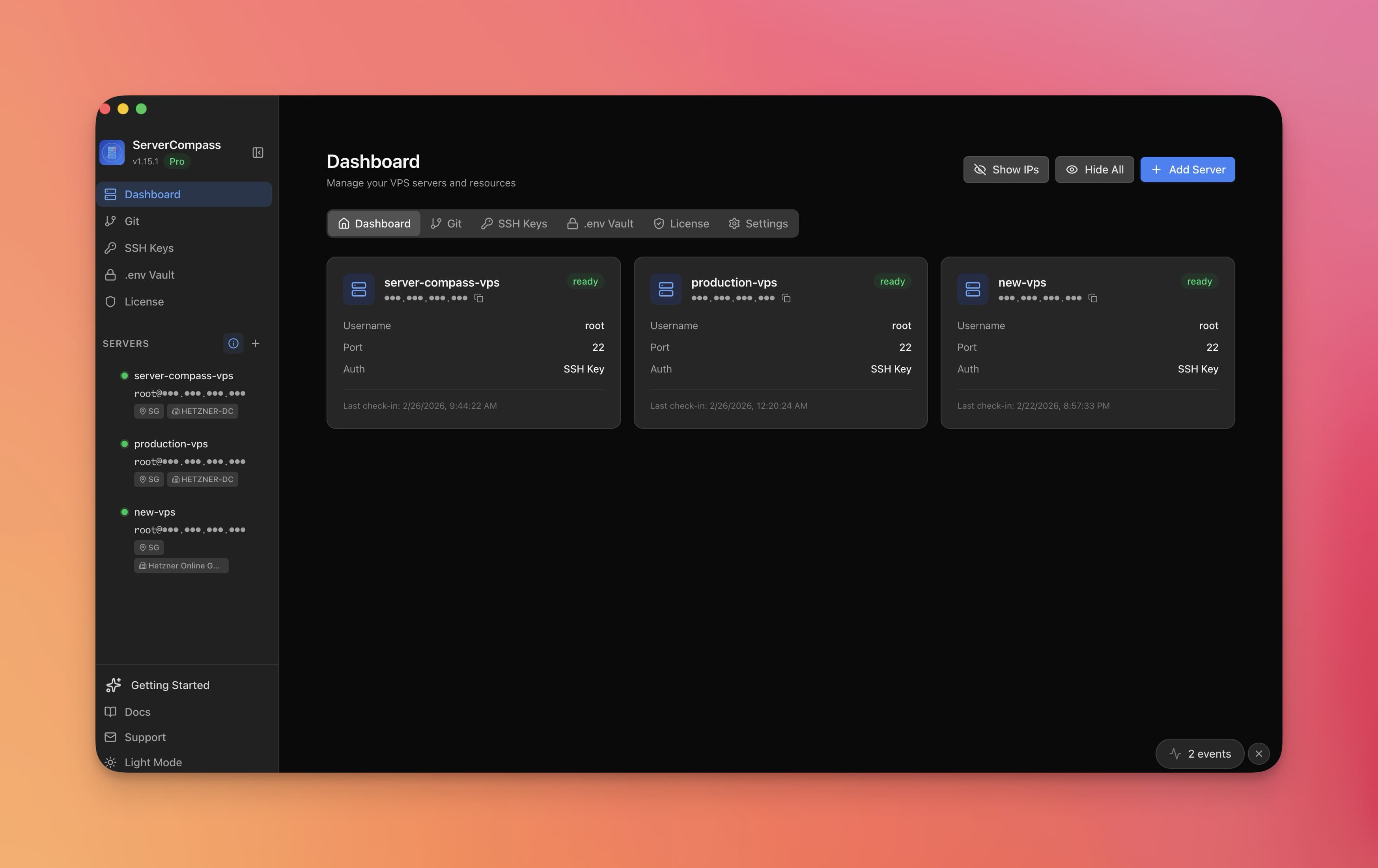
Screenshots
Frequently Asked Questions
Can I use a non-root user?
Yes! You can use any user with sudo privileges. Server Compass will prompt for sudo password when needed.
What if my SSH port is not 22?
Enter your custom SSH port in the Port field. Server Compass supports any port number.
Can I add servers from any provider?
Yes! Server Compass works with any VPS or dedicated server that has SSH access, including DigitalOcean, Hetzner, Vultr, Linode, AWS EC2, Google Cloud, Azure, and self-hosted servers.
Video Tutorials
Related Features
Ready to try Server Compass?
Download the app and deploy your first application in under 5 minutes.
Download Server Compass