Add Domains Through Your Existing Proxy
Point a domain at a containerized app on a server where your own Nginx or Caddy already owns ports 80 and 443, without replacing that proxy. Server Compass inventories the existing configuration first, adds one vhost it owns beside your sites, and verifies the live address before calling the domain done.
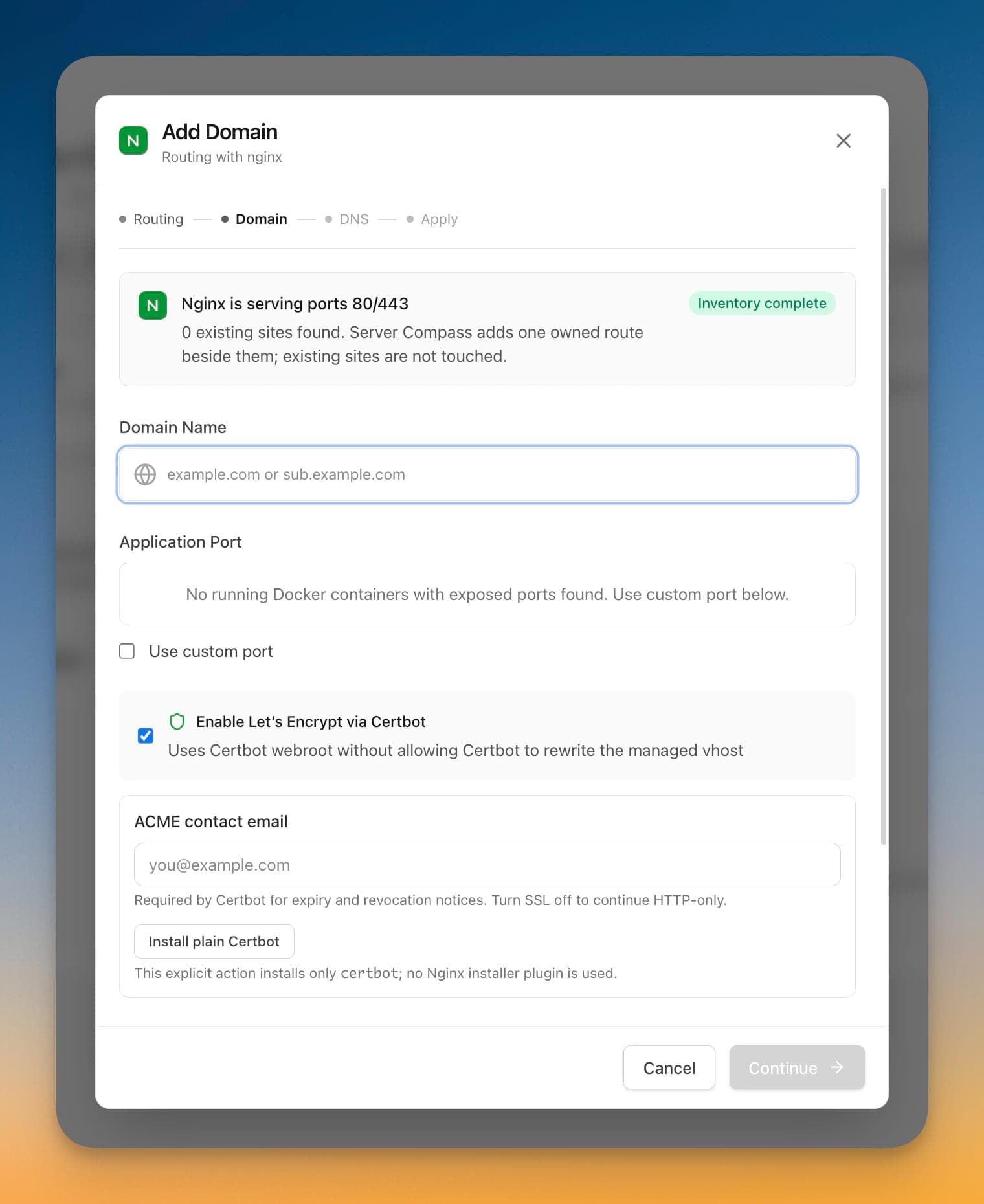
Add Domains Through Your Existing Proxy Walkthrough
Add Domains Through Your Existing Proxy is designed to be intuitive. Here's how you use it in Server Compass.
Open Domain Settings
Navigate to the Domains & SSL section of your application.
Configure Domain
Use Add Domains Through Your Existing Proxy to set up your domain configuration.
Verify & Apply
Server Compass verifies your settings and applies changes automatically.
The Hard Way: Without Add Domains Through Your Existing Proxy
No Add Domains Through Your Existing Proxy? Get ready to memorize these terminal commands and pray you don't make a typo.
SSH into your server
Connect to configure domains.
ssh root@your-server-ipInstall Certbot
Set up Let's Encrypt tooling.
apt update
apt install certbot python3-certbot-nginx
# Or for standalone:
apt install certbotConfigure nginx
Set up reverse proxy manually.
nano /etc/nginx/sites-available/myapp
# server {
#     listen 80;
#     server_name myapp.com www.myapp.com;
#     location / {
#         proxy_pass http://localhost:3000;
#         proxy_http_version 1.1;
#         proxy_set_header Upgrade $http_upgrade;
#         proxy_set_header Connection 'upgrade';
#         proxy_set_header Host $host;
#         proxy_cache_bypass $http_upgrade;
#     }
# }

ln -s /etc/nginx/sites-available/myapp /etc/nginx/sites-enabled/
nginx -t
systemctl reload nginx
One syntax error = site down.
Generate SSL certificate
Run Certbot and cross your fingers.
certbot --nginx -d myapp.com -d www.myapp.com
# Answer the interactive prompts
# Wait for DNS verification
# Hope it doesn't failSet up auto-renewal
Don't forget or your cert expires.
# Test renewal
certbot renew --dry-run

# Add cron job
crontab -e
# 0 12 * * * /usr/bin/certbot renew --quiet
Forget this step and your site shows security warnings in 90 days.
Why Suffer? We Built Something Better
Add Domains Through Your Existing Proxy automates the tedious parts. What takes 30 minutes via terminal takes 30 seconds with Server Compass.
- Point and click
- Instant validation
- Safe defaults
- Works with any provider
Add Domains Through Your Existing Proxy Capabilities
Everything you need for domains & ssl in one integrated tool, replacing complex CLI commands and manual configuration.
Get StartedAdd Domains Through Your Existing Proxy: Why It's Essential
Server management shouldn't require a DevOps team. Add Domains Through Your Existing Proxy makes professional-grade domains & ssl accessible to everyone.
Automatic HTTPS
Add Domains Through Your Existing Proxy handles SSL certificate provisioning and renewal automatically via Let's Encrypt.
Instant Propagation
Add Domains Through Your Existing Proxy verifies DNS settings and configures routing instantly once records are pointing correctly.
Certificate Monitoring
Add Domains Through Your Existing Proxy tracks certificate expiry and health so you never face an unexpected SSL error.
Zero Downtime Changes
Add Domains Through Your Existing Proxy applies domain configuration changes without interrupting live traffic.
Questions About Add Domains Through Your Existing Proxy
Common questions about Add Domains Through Your Existing Proxy in Server Compass
How do I access Add Domains Through Your Existing Proxy in Server Compass?
Add Domains Through Your Existing Proxy is available in the Domains & SSL section of Server Compass. Simply connect to your server, navigate to Domains & SSL, and you'll find Add Domains Through Your Existing Proxy ready to use. No additional setup or plugins required.
Does Add Domains Through Your Existing Proxy require any server-side installation?
No. Server Compass operates as a desktop application that connects to your server via SSH. Add Domains Through Your Existing Proxy works through this connection without installing any agents or packages on your server (except the optional monitoring agent for resource tracking).
Is Add Domains Through Your Existing Proxy included in all Server Compass plans?
Yes. Every Server Compass feature, including Add Domains Through Your Existing Proxy, is included with the one-time $29 payment. There are no tier restrictions, add-ons, or per-server fees. You get all 152+ features for all your servers.
Can I use Add Domains Through Your Existing Proxy with any VPS provider?
Add Domains Through Your Existing Proxy works with any VPS or dedicated server that supports SSH access and Docker. This includes DigitalOcean, Hetzner, Vultr, Linode, AWS EC2, Google Cloud, Azure, and any other provider. It also works with local servers and homelab setups.
What makes Add Domains Through Your Existing Proxy different from command-line alternatives?
Add Domains Through Your Existing Proxy provides a visual, intuitive interface that replaces complex CLI commands and configuration files. You get real-time feedback, safety confirmations, and a consistent experience across all your servers without memorizing syntax or writing scripts.
More Domains & SSL Features
Explore other domains & ssl capabilities in Server Compass
Visual Domain Management
Add and configure domains with an intuitive UI. Built-in Traefik reverse proxy handles routing and load balancing.
Automatic SSL Certificates
Free SSL certificates from Let's Encrypt with automatic renewal. HTTPS for all your domains with zero configuration.
DNS Verification
Automatic DNS verification checks ensure your domain is correctly pointed before configuring SSL and routing.
Certificate Viewer
View detailed SSL certificate information including issuer, expiry, and chain. Renew certificates with one click.
Try Add Domains Through Your Existing Proxy Today
Download Server Compass and get access to Add Domains Through Your Existing Proxy along with 151 other features. One-time $29 payment. No subscriptions. No per-server fees.