Client Portals
Give a client a private, read-only status page for a single app — with scoped permissions, your own branding and HTTPS hostname, an expiry, and an optional passcode — without handing over a login to your server.
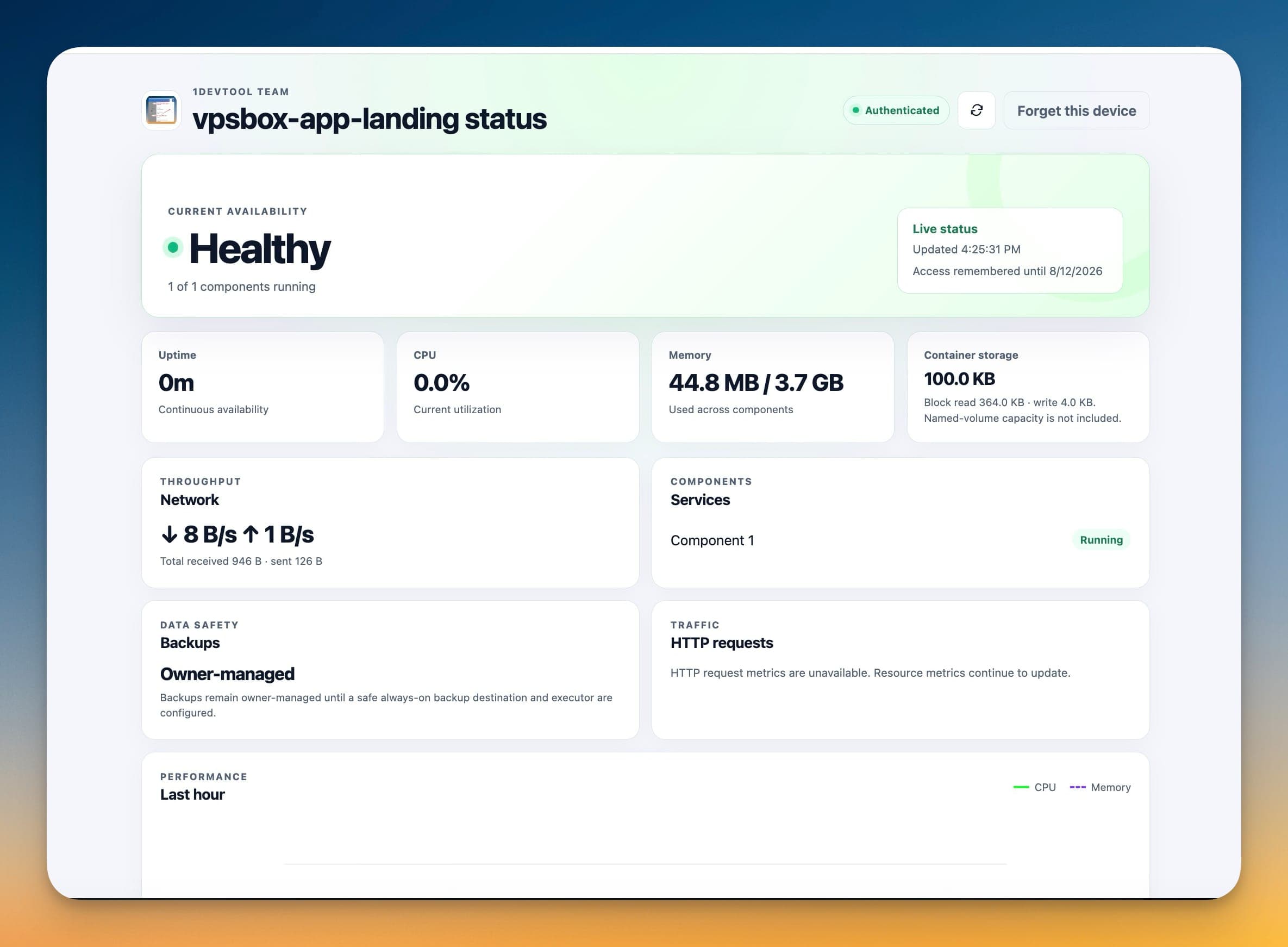
Using Client Portals in Server Compass
Client Portals is designed to be intuitive. Here's how you use it in Server Compass.
Open Dashboard
Navigate to your application dashboard to see all deployed apps.
Use Client Portals
Access Client Portals from the application detail view.
Take Action
Apply changes and monitor results in real time.
Before Client Portals Existed
This is what you'd have to do manually without Client Portals. We don't recommend it.
SSH into your server
Connect to your server via terminal.
ssh root@your-server-ipList all containers
See what's running (and what's crashed).
docker ps -a
# Good luck remembering which container is which
# CONTAINER ID   IMAGE          STATUS
# a1b2c3d4e5f6   myapp:v1.2.3   Up 2 days
# f6e5d4c3b2a1 myapp:v1.2.2 Exited (1) 3 days agoCheck container logs
Dig through logs to find errors.
docker logs container_name --tail 500
# Scroll through 500 lines of unformatted text
# grep for errors manually
No syntax highlighting, no search, no filtering.
Restart a container
Stop and start the container manually.
docker compose stop app
docker compose start app
# Or the nuclear option:
docker compose down && docker compose up -dRollback to previous version
Hope you tagged your images properly.
# First, find the old image
docker images | grep myapp
# Edit docker-compose.yml to use old tag
nano docker-compose.yml
# Change image: myapp:latest to myapp:v1.2.2
docker compose up -d
If you didn't tag versions... good luck.
Or... Just Use Server Compass
Server Compass replaces all those commands with a beautiful UI. Client Portals just works—click, configure, done.
- Point and click
- Instant validation
- Safe defaults
- Works with any provider
Everything Client Portals Offers
Everything you need for app management in one integrated tool, replacing complex CLI commands and manual configuration.
Get StartedClient Portals: Why It's Essential
Server management shouldn't require a DevOps team. Client Portals makes professional-grade app management accessible to everyone.
Complete Visibility
Client Portals gives you a bird's-eye view of all your applications. No more guessing container states.
Instant Actions
Client Portals puts start, stop, restart, and rollback at your fingertips with one-click controls.
Safe Operations
Client Portals includes safety guards and confirmations to prevent accidental destructive actions.
Historical Context
Client Portals keeps a full audit trail so you always know what changed and when.
Questions About Client Portals
Common questions about Client Portals in Server Compass
How do I access Client Portals in Server Compass?
Client Portals is available in the App Management section of Server Compass. Simply connect to your server, navigate to App Management, and you'll find Client Portals ready to use. No additional setup or plugins required.
Does Client Portals require any server-side installation?
No. Server Compass operates as a desktop application that connects to your server via SSH. Client Portals works through this connection without installing any agents or packages on your server (except the optional monitoring agent for resource tracking).
Is Client Portals included in all Server Compass plans?
Yes. Every Server Compass feature, including Client Portals, is included with the one-time $29 payment. There are no tier restrictions, add-ons, or per-server fees. You get all 152+ features for all your servers.
Can I use Client Portals with any VPS provider?
Client Portals works with any VPS or dedicated server that supports SSH access and Docker. This includes DigitalOcean, Hetzner, Vultr, Linode, AWS EC2, Google Cloud, Azure, and any other provider. It also works with local servers and homelab setups.
What makes Client Portals different from command-line alternatives?
Client Portals provides a visual, intuitive interface that replaces complex CLI commands and configuration files. You get real-time feedback, safety confirmations, and a consistent experience across all your servers without memorizing syntax or writing scripts.
More App Management Features
Explore other app management capabilities in Server Compass
Application Dashboard
View all deployed applications with real-time status indicators. Switch between grid and table view for your preferred workflow.
Grid & Table View
Toggle between visual grid cards and compact table view. See container status, uptime, and quick actions at a glance.
Container Health Monitoring
Real-time container status with uptime tracking, health check indicators, and resource usage per container.
Zero-Downtime Deployment
Blue-green deployment keeps the old container serving while the new one is built and health-checked, then switches traffic over. Progress appears the moment you press Redeploy, the deployment is recorded in history right away with its commit, and a deploy that passes 45 minutes stops with a message pointing you at the logs.
Try Client Portals Today
Download Server Compass and get access to Client Portals along with 151 other features. One-time $29 payment. No subscriptions. No per-server fees.