Compose Edit History
Track every compose save, import, and restore in a version history timeline. Preview changes, compare snapshots, and roll back safely when edits go wrong.
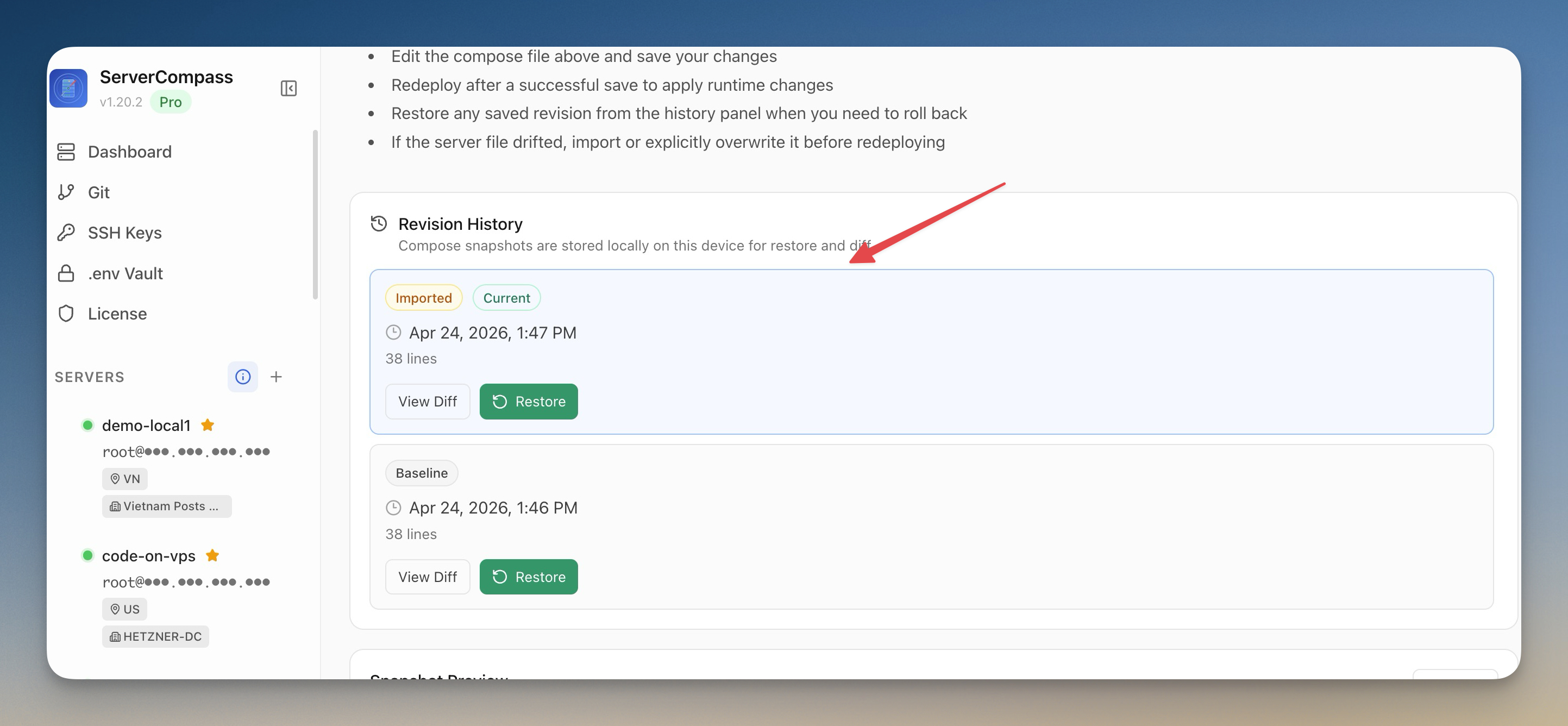
Compose Edit History Walkthrough
No documentation needed. Compose Edit History guides you through each step visually.
Open Deployment Panel
Navigate to the Compose Edit History section in your Server Compass dashboard.
Configure Settings
Fill in the required configuration through the visual interface.
Deploy
Review your settings and deploy with a single click.
The Terminal Way: No Compose Edit History
Without Compose Edit History, you're back to the dark ages of server management. Here's what that looks like.
SSH into your server
First, open your terminal and connect to your VPS.
ssh root@your-server-ipClone your repository
Navigate to your apps directory and clone the repo.
cd /opt/apps
git clone https://github.com/your-username/your-repo.git
cd your-repoCreate environment file
Manually create and configure your .env file.
nano .env
# Add all your environment variables one by one
# DATABASE_URL=...
# API_KEY=...
# SECRET_KEY=...
One wrong character and your app won't start. No validation, no hints.
Build the Docker image
Build your application image from the Dockerfile.
docker build -t myapp:latest .
# Wait 5-15 minutes...
# Hope there are no build errors...Write docker-compose.yml
Manually write your compose configuration.
nano docker-compose.yml
# services:
#   app:
#     image: myapp:latest
#     ports:
#       - "3000:3000"
#     environment:
#       - NODE_ENV=production
# restart: unless-stoppedDeploy the container
Start the container and pray it works.
docker compose up -d
docker compose logs -f
# Ctrl+C when you're tired of watching logsYour Time is Worth More
Everything above in one visual interface. Compose Edit History handles the complexity so you can focus on building.
- One-click actions
- Real-time feedback
- Automatic backups
- Zero CLI knowledge required
Compose Edit History Capabilities
Everything you need for deployment in one integrated tool, replacing complex CLI commands and manual configuration.
Get StartedThe Power of Compose Edit History
Server management shouldn't require a DevOps team. Compose Edit History makes professional-grade deployment accessible to everyone.
Deploy in Minutes
Compose Edit History eliminates complex CLI workflows. Deploy your applications visually without memorizing Docker commands.
Zero-Configuration Defaults
Compose Edit History comes pre-configured with production-ready settings so you can ship with confidence.
Visual Feedback
Track every step of your deployment with Compose Edit History. See progress, logs, and status in real time.
Repeatable Process
Once configured, Compose Edit History lets you replicate deployments across servers consistently.
Compose Edit History: Frequently Asked
Common questions about Compose Edit History in Server Compass
How do I access Compose Edit History in Server Compass?
Compose Edit History is available in the Deployment section of Server Compass. Simply connect to your server, navigate to Deployment, and you'll find Compose Edit History ready to use. No additional setup or plugins required.
Does Compose Edit History require any server-side installation?
No. Server Compass operates as a desktop application that connects to your server via SSH. Compose Edit History works through this connection without installing any agents or packages on your server (except the optional monitoring agent for resource tracking).
Is Compose Edit History included in all Server Compass plans?
Yes. Every Server Compass feature, including Compose Edit History, is included with the one-time $29 payment. There are no tier restrictions, add-ons, or per-server fees. You get all 152+ features for all your servers.
Can I use Compose Edit History with any VPS provider?
Compose Edit History works with any VPS or dedicated server that supports SSH access and Docker. This includes DigitalOcean, Hetzner, Vultr, Linode, AWS EC2, Google Cloud, Azure, and any other provider. It also works with local servers and homelab setups.
What makes Compose Edit History different from command-line alternatives?
Compose Edit History provides a visual, intuitive interface that replaces complex CLI commands and configuration files. You get real-time feedback, safety confirmations, and a consistent experience across all your servers without memorizing syntax or writing scripts.
More Deployment Features
Explore other deployment capabilities in Server Compass
Docker Stack Wizard
Multi-step wizard walks you through deploying containerized applications. Choose source, configure settings, and deploy in minutes.
Template-Based Deployment
Choose from 100+ pre-built templates for databases, services, and development tools. Deploy popular stacks with one click.
Deploy from GitHub
Deploy directly from any GitHub repository. Select branches, configure build settings, and ship your code to production.
Docker Compose Editor
Full-featured YAML editor for docker-compose configurations. Write, edit, and validate your compose files visually.
Try Compose Edit History Today
Download Server Compass and get access to Compose Edit History along with 151 other features. One-time $29 payment. No subscriptions. No per-server fees.