Visual File Browser
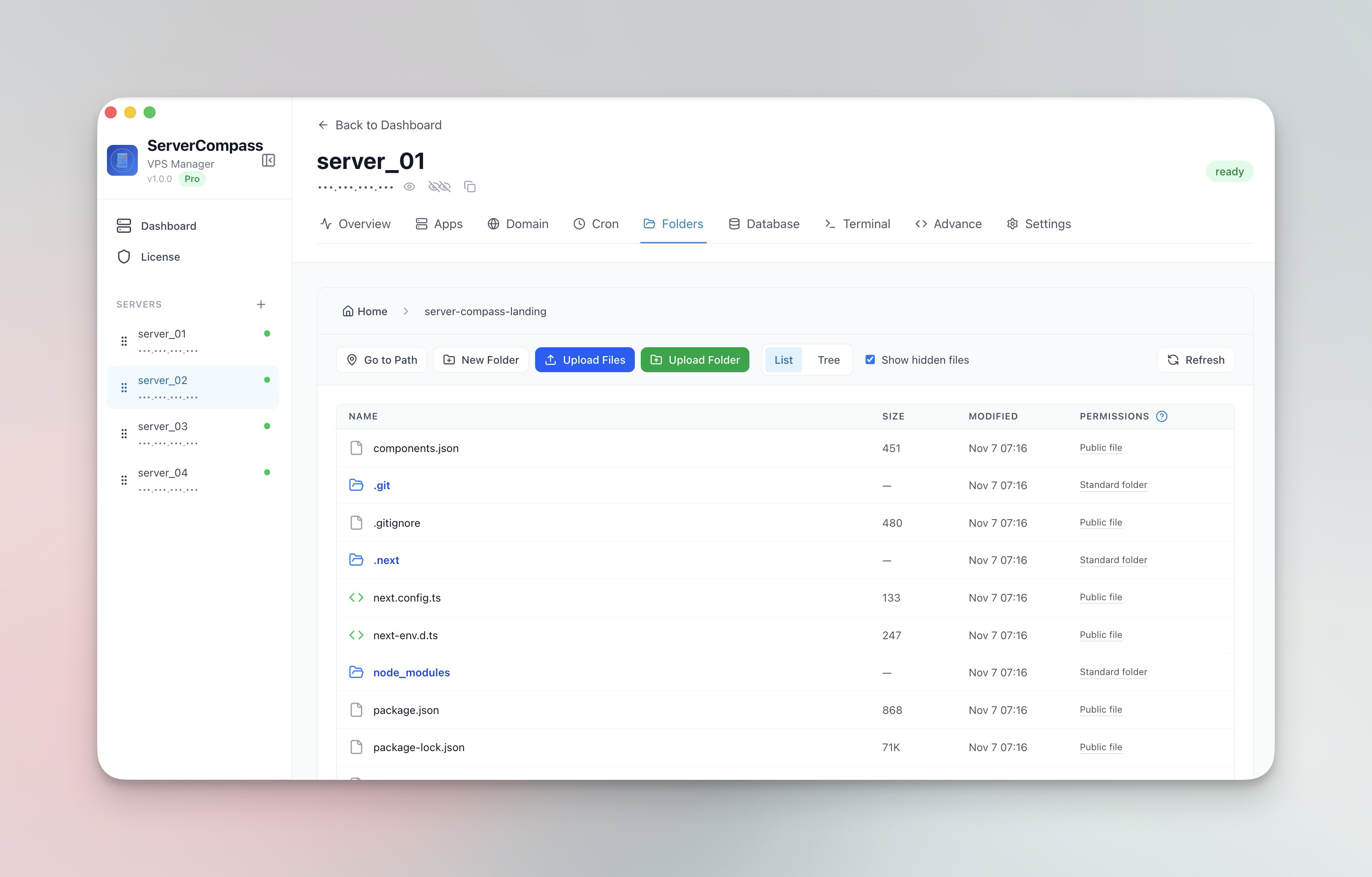
Navigate your server filesystem with list or tree view. Toggle hidden files and browse directories like a local file manager.
How Visual File Browser Works
Visual File Browser is designed to be intuitive. Here's how you use it in Server Compass.
Open File Manager
Navigate to the File Management section of your server.
Browse Files
Navigate through your server filesystem using the visual file browser.
Use Visual File Browser
Perform file operations using Visual File Browser capabilities.
The Hard Way: Without Visual File Browser
No Visual File Browser? Get ready to memorize these terminal commands and pray you don't make a typo.
Connect via SFTP
Use a separate file transfer tool.
# Using command line sftp:
sftp root@your-server-ip
# Or use FileZilla, Cyberduck, WinSCP...
# Another app to install and configureNavigate to directory
Find the file you need.
cd /opt/apps/myapp
ls -la
# Was it config.json or config.yaml?
# .env or .env.local?Download file
Get the file to your local machine.
get config.json
# File downloaded to current directory
# Now find it in your Downloads folder...Edit and upload
Make changes and put it back.
# Edit locally
# Re-upload
put config.json
# Hope you didn't break the JSON syntax
No syntax validation. No backup. No undo.
Why Suffer? We Built Something Better
Visual File Browser isn't just faster—it's safer. No typos, no forgotten flags, no accidental disasters.
- Point and click
- Instant validation
- Safe defaults
- Works with any provider
Visual File Browser Features
Everything you need for file management in one integrated tool, replacing complex CLI commands and manual configuration.
Get StartedVisual File Browser: Why It's Essential
Server management shouldn't require a DevOps team. Visual File Browser makes professional-grade file management accessible to everyone.
Visual Navigation
Visual File Browser presents your server filesystem as a familiar file manager with list and tree views.
Direct Editing
Visual File Browser lets you edit server files in-app with syntax highlighting, no SFTP needed.
Safe Operations
Visual File Browser includes confirmations for destructive actions like delete, protecting you from mistakes.
Progress Tracking
Visual File Browser shows real-time upload/download progress with automatic compression for faster transfers.
Questions About Visual File Browser
Common questions about Visual File Browser in Server Compass
How do I access Visual File Browser in Server Compass?
Visual File Browser is available in the File Management section of Server Compass. Simply connect to your server, navigate to File Management, and you'll find Visual File Browser ready to use. No additional setup or plugins required.
Does Visual File Browser require any server-side installation?
No. Server Compass operates as a desktop application that connects to your server via SSH. Visual File Browser works through this connection without installing any agents or packages on your server (except the optional monitoring agent for resource tracking).
Is Visual File Browser included in all Server Compass plans?
Yes. Every Server Compass feature, including Visual File Browser, is included with the one-time $29 payment. There are no tier restrictions, add-ons, or per-server fees. You get all 152+ features for all your servers.
Can I use Visual File Browser with any VPS provider?
Visual File Browser works with any VPS or dedicated server that supports SSH access and Docker. This includes DigitalOcean, Hetzner, Vultr, Linode, AWS EC2, Google Cloud, Azure, and any other provider. It also works with local servers and homelab setups.
What makes Visual File Browser different from command-line alternatives?
Visual File Browser provides a visual, intuitive interface that replaces complex CLI commands and configuration files. You get real-time feedback, safety confirmations, and a consistent experience across all your servers without memorizing syntax or writing scripts.
More File Management Features
Explore other file management capabilities in Server Compass
File & Folder Upload
Upload files and entire folders with progress tracking and automatic compression. Drag and drop support.
File Download
Download files from your server to your local machine with progress tracking. No SCP or SFTP tools needed.
In-App File Editor
View and edit server files directly in the app. Syntax highlighting and save directly back to the server.
Directory Tree View
Expandable directory tree for quick navigation. Install tree utility automatically if not present on server.
Try Visual File Browser Today
Download Server Compass and get access to Visual File Browser along with 151 other features. One-time $29 payment. No subscriptions. No per-server fees.