Deploy from GitLab
Connect a GitLab account with a personal access token and deploy private projects from GitLab.com or the GitLab you run yourself. Projects nested any number of subgroups deep are selectable, and Build on VPS works the same way it does for GitHub.
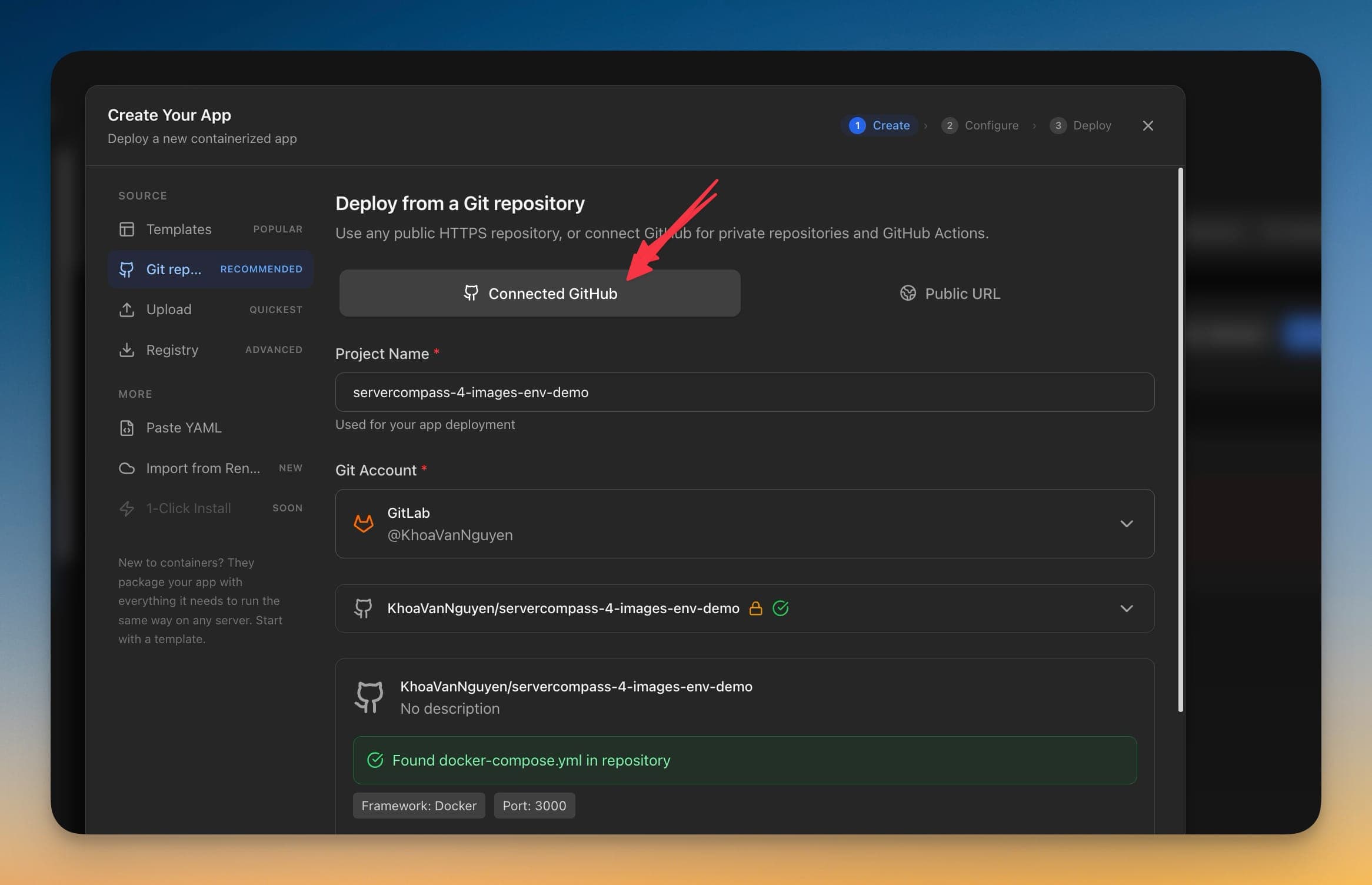
How Deploy from GitLab Works
No documentation needed. Deploy from GitLab guides you through each step visually.
Open the Add New Git Account form
Reachable from the global Git Accounts screen, a server’s Git tab, or the Git SSH tab in Server Settings. All three open the same form.
Create a token where GitLab keeps it
The form links both paths: modern GitLab under Edit profile → Access tokens, older GitLab under Preferences → Access Tokens. GitLab 15.5 or newer, with the api scope.
Point it at your instance
Enter gitlab.com or your own address in GitLab instance URL — the web root including any relative install path, without /api/v4. Tick Generate and upload an SSH key for private project deploys.
Deploy the project
Create an app, choose the Git repository source, pick your GitLab account and project — nested subgroups included — then a branch. Build on VPS builds it on your server.
Life Without Deploy from GitLab
Here's what developers do without Deploy from GitLab: open terminal, SSH in, type commands, hope nothing breaks.
SSH into your server
First, open your terminal and connect to your VPS.
ssh root@your-server-ipClone your repository
Navigate to your apps directory and clone the repo.
cd /opt/apps
git clone https://github.com/your-username/your-repo.git
cd your-repoCreate environment file
Manually create and configure your .env file.
nano .env
# Add all your environment variables one by one
# DATABASE_URL=...
# API_KEY=...
# SECRET_KEY=...
One wrong character and your app won't start. No validation, no hints.
Build the Docker image
Build your application image from the Dockerfile.
docker build -t myapp:latest .
# Wait 5-15 minutes...
# Hope there are no build errors...Write docker-compose.yml
Manually write your compose configuration.
nano docker-compose.yml
# services:
#   app:
#     image: myapp:latest
#     ports:
#       - "3000:3000"
#     environment:
#       - NODE_ENV=production
# restart: unless-stoppedDeploy the container
Start the container and pray it works.
docker compose up -d
docker compose logs -f
# Ctrl+C when you're tired of watching logsLife's Too Short for Terminal Commands
Everything above in one visual interface. Deploy from GitLab handles the complexity so you can focus on building.
- One-click actions
- Real-time feedback
- Automatic backups
- Zero CLI knowledge required
Deploy from GitLab Features
Everything you need for deployment in one integrated tool, replacing complex CLI commands and manual configuration.
Get StartedThe Power of Deploy from GitLab
Server management shouldn't require a DevOps team. Deploy from GitLab makes professional-grade deployment accessible to everyone.
Deploy in Minutes
Deploy from GitLab eliminates complex CLI workflows. Deploy your applications visually without memorizing Docker commands.
Zero-Configuration Defaults
Deploy from GitLab comes pre-configured with production-ready settings so you can ship with confidence.
Visual Feedback
Track every step of your deployment with Deploy from GitLab. See progress, logs, and status in real time.
Repeatable Process
Once configured, Deploy from GitLab lets you replicate deployments across servers consistently.
Deploy from GitLab: Frequently Asked
Common questions about Deploy from GitLab in Server Compass
How do I access Deploy from GitLab in Server Compass?
Deploy from GitLab is available in the Deployment section of Server Compass. Simply connect to your server, navigate to Deployment, and you'll find Deploy from GitLab ready to use. No additional setup or plugins required.
Does Deploy from GitLab require any server-side installation?
No. Server Compass operates as a desktop application that connects to your server via SSH. Deploy from GitLab works through this connection without installing any agents or packages on your server (except the optional monitoring agent for resource tracking).
Is Deploy from GitLab included in all Server Compass plans?
Yes. Every Server Compass feature, including Deploy from GitLab, is included with the one-time $29 payment. There are no tier restrictions, add-ons, or per-server fees. You get all 155+ features for all your servers.
Can I use Deploy from GitLab with any VPS provider?
Deploy from GitLab works with any VPS or dedicated server that supports SSH access and Docker. This includes DigitalOcean, Hetzner, Vultr, Linode, AWS EC2, Google Cloud, Azure, and any other provider. It also works with local servers and homelab setups.
What makes Deploy from GitLab different from command-line alternatives?
Deploy from GitLab provides a visual, intuitive interface that replaces complex CLI commands and configuration files. You get real-time feedback, safety confirmations, and a consistent experience across all your servers without memorizing syntax or writing scripts.
More Deployment Features
Explore other deployment capabilities in Server Compass
Docker Stack Wizard
Multi-step wizard walks you through deploying containerized applications. Choose source, configure settings, and deploy in minutes.
Template-Based Deployment
Choose from 100+ pre-built templates for databases, services, and development tools. Deploy popular stacks with one click.
Deploy from GitHub
Deploy directly from any GitHub repository. Select branches, configure build settings, and ship your code to production.
Docker Compose Editor
Full-featured YAML editor for docker-compose configurations. Write, edit, and validate your compose files visually.
Try Deploy from GitLab Today
Download Server Compass and get access to Deploy from GitLab along with 154 other features. One-time $29 payment. No subscriptions. No per-server fees.