Install Caddy from the Packages Tab
Add Caddy to a server in one click from Advance → Packages, with its official signing key and APT repository set up for you. Every installation step streams into the log panel, and the button reads Installed once Caddy is on the server.
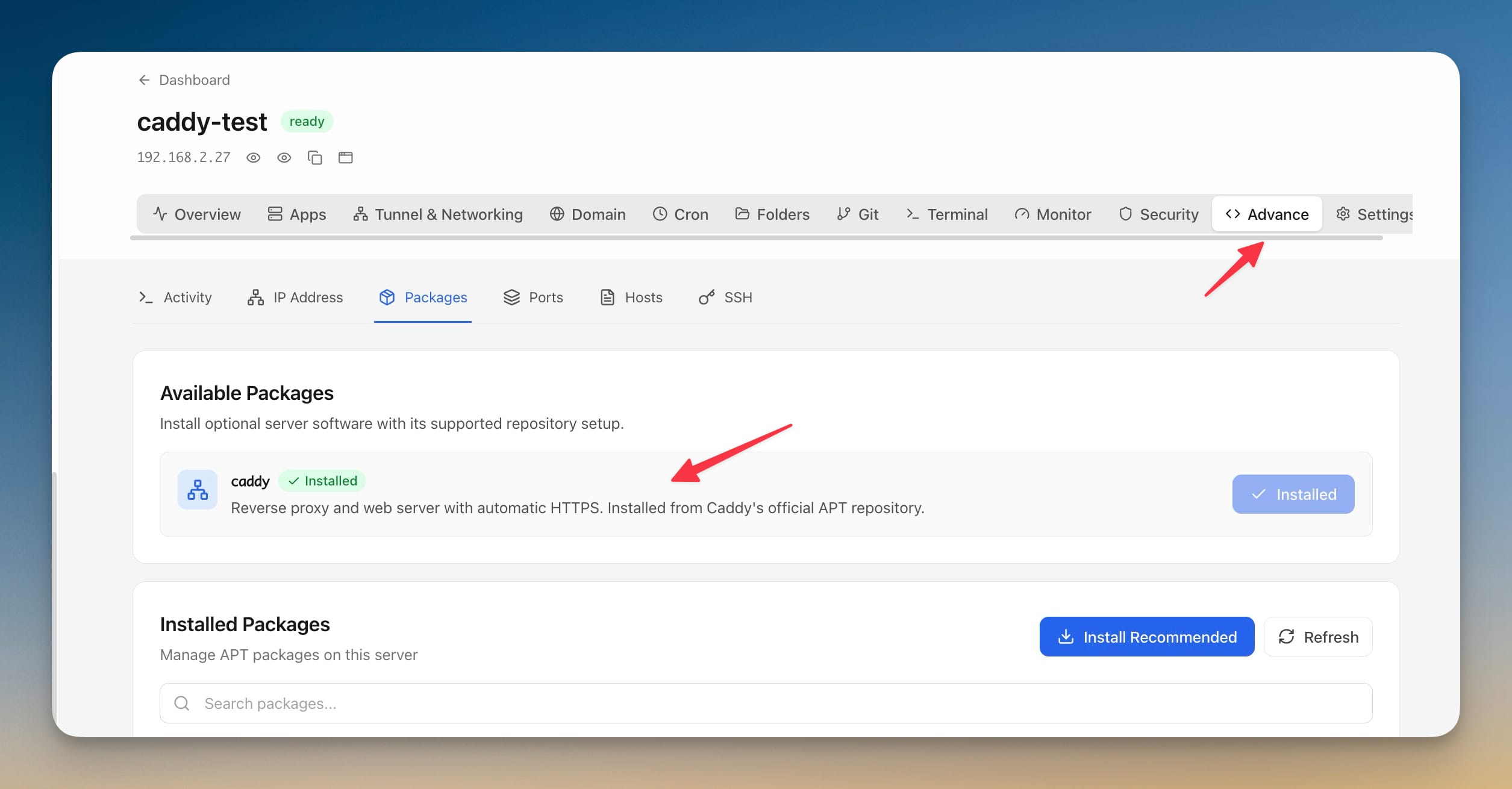
Install Caddy from the Packages Tab: Step by Step
Install Caddy from the Packages Tab is designed to be intuitive. Here's how you use it in Server Compass.
Open Advance → Packages
Select a server, open the Advance tab, then Packages. The Available Packages section lists optional software with supported repository setup.
Click Install Caddy
A confirmation dialog explains that Caddy’s official package starts a systemd service on ports 80 and 443.
Clear the ports first if you need to
If Nginx or another proxy already owns 80 and 443, stop or reconfigure it before confirming — the warning is there so you decide before the install, not after.
Watch the four steps run
Prerequisites, signing key, repository, then the package — each step streams into the log panel and the install is verified with caddy version.
The Hard Way: Without Install Caddy from the Packages Tab
No Install Caddy from the Packages Tab? Get ready to memorize these terminal commands and pray you don't make a typo.
Install the repository prerequisites
Caddy's APT repository needs keyring and HTTPS transport packages before it can be added.
sudo apt-get update
sudo apt-get install -y debian-keyring debian-archive-keyring apt-transport-https curl gnupgAdd the official signing key
Fetch Caddy's GPG key and dearmor it into the keyrings directory.
curl -1sLf 'https://dl.cloudsmith.io/public/caddy/stable/gpg.key' \
| sudo gpg --dearmor --yes -o /usr/share/keyrings/caddy-stable-archive-keyring.gpgAdd the package repository
Write the sources list, then make both files world-readable.
curl -1sLf 'https://dl.cloudsmith.io/public/caddy/stable/debian.deb.txt' \
  | sudo tee /etc/apt/sources.list.d/caddy-stable.list
sudo chmod o+r /usr/share/keyrings/caddy-stable-archive-keyring.gpg \
  /etc/apt/sources.list.d/caddy-stable.list
Forget the chmod and apt warns on every single update from then on.
Install and verify Caddy
The package installs a systemd service that binds ports 80 and 443.
sudo apt-get update
sudo apt-get install -y caddy
caddy version
If Nginx already listens on 80 and 443, stop or reconfigure it first — otherwise Caddy's service fails to bind.
Why Suffer? We Built Something Better
Install Caddy from the Packages Tab isn't just faster—it's safer. No typos, no forgotten flags, no accidental disasters.
- Point and click
- Instant validation
- Safe defaults
- Works with any provider
Install Caddy from the Packages Tab: Full Feature List
Everything you need for server management in one integrated tool, replacing complex CLI commands and manual configuration.
Get StartedInstall Caddy from the Packages Tab: Why It's Essential
Server management shouldn't require a DevOps team. Install Caddy from the Packages Tab makes professional-grade server management accessible to everyone.
At-a-Glance Monitoring
Install Caddy from the Packages Tab shows CPU, RAM, disk, and network metrics in a single dashboard view.
Quick Actions
Install Caddy from the Packages Tab provides one-click package updates, Docker setup, and system configuration.
Multi-Server Support
Install Caddy from the Packages Tab manages unlimited VPS servers from one application with saved connections.
Resource Trending
Install Caddy from the Packages Tab tracks resource usage over time so you can plan capacity and identify bottlenecks.
Questions About Install Caddy from the Packages Tab
Common questions about Install Caddy from the Packages Tab in Server Compass
How do I access Install Caddy from the Packages Tab in Server Compass?
Install Caddy from the Packages Tab is available in the Server Management section of Server Compass. Simply connect to your server, navigate to Server Management, and you'll find Install Caddy from the Packages Tab ready to use. No additional setup or plugins required.
Does Install Caddy from the Packages Tab require any server-side installation?
No. Server Compass operates as a desktop application that connects to your server via SSH. Install Caddy from the Packages Tab works through this connection without installing any agents or packages on your server (except the optional monitoring agent for resource tracking).
Is Install Caddy from the Packages Tab included in all Server Compass plans?
Yes. Every Server Compass feature, including Install Caddy from the Packages Tab, is included with the one-time $29 payment. There are no tier restrictions, add-ons, or per-server fees. You get all 152+ features for all your servers.
Can I use Install Caddy from the Packages Tab with any VPS provider?
Install Caddy from the Packages Tab works with any VPS or dedicated server that supports SSH access and Docker. This includes DigitalOcean, Hetzner, Vultr, Linode, AWS EC2, Google Cloud, Azure, and any other provider. It also works with local servers and homelab setups.
What makes Install Caddy from the Packages Tab different from command-line alternatives?
Install Caddy from the Packages Tab provides a visual, intuitive interface that replaces complex CLI commands and configuration files. You get real-time feedback, safety confirmations, and a consistent experience across all your servers without memorizing syntax or writing scripts.
More Server Management Features
Explore other server management capabilities in Server Compass
Server Overview Dashboard
At-a-glance view of CPU, RAM, and disk usage. See OS info, auth method, location, and provider details.
Resource Monitoring
Real-time CPU, memory, and disk usage graphs. Track resource trends and identify bottlenecks.
System Packages
List and manage installed APT packages, update individual ones, or run a system-wide upgrade. Install Recommended covers the baseline a server needs — including sudo and jq — and an Available Packages section installs optional software like Caddy with its repository set up for you.
Port Management
View all open ports and the services using them. Identify conflicts and manage port allocations.
Try Install Caddy from the Packages Tab Today
Download Server Compass and get access to Install Caddy from the Packages Tab along with 151 other features. One-time $29 payment. No subscriptions. No per-server fees.