Team Permissions
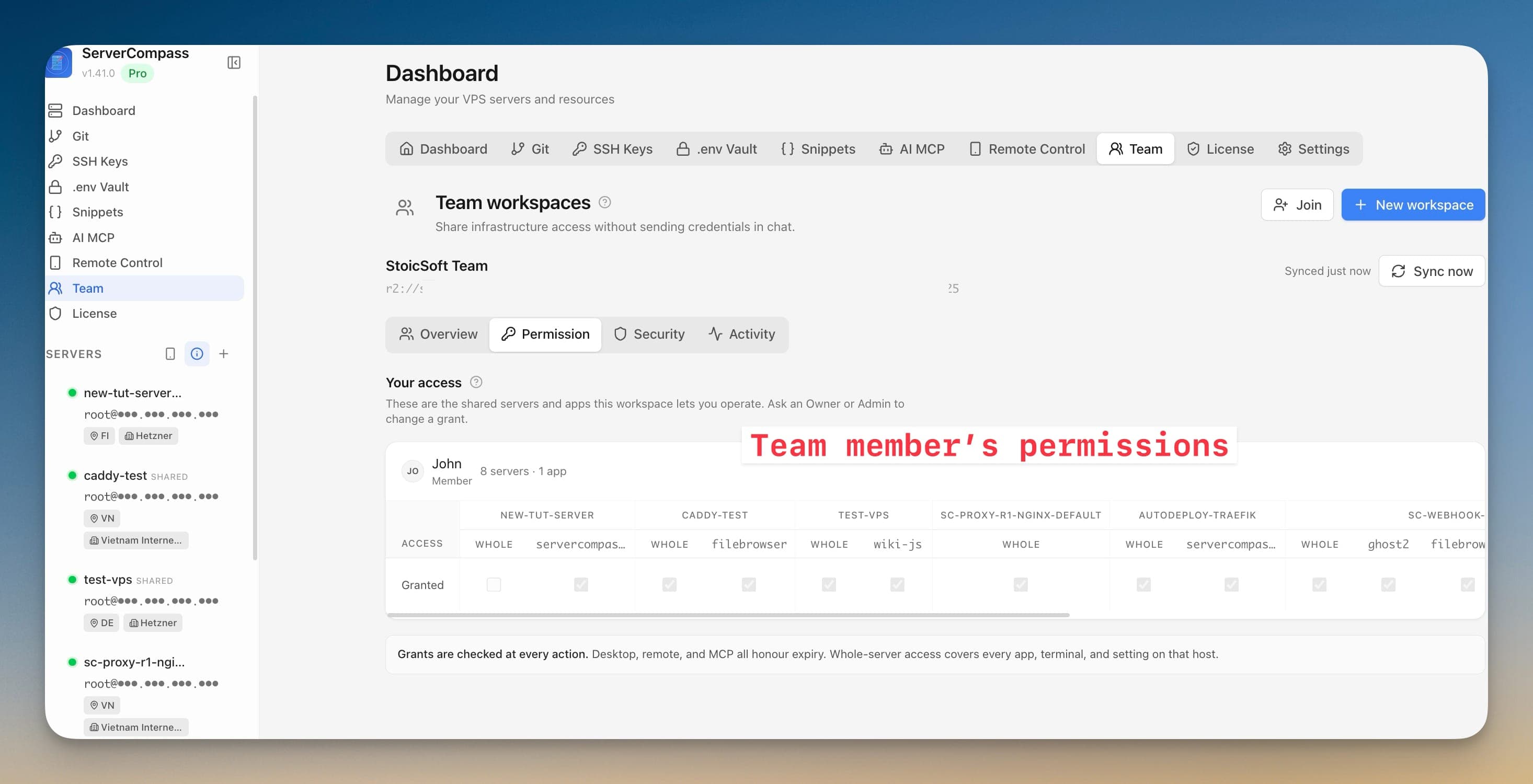
One screen listing every shared server and everyone who can reach it, down to individual Docker apps. Grant, time-box and revoke access without opening each server in turn.
How Team Permissions Works
No documentation needed. Team Permissions guides you through each step visually.
Pick a member
Choose the person from the member dropdown on the Permission tab. Owners and Admins inherit every shared server — change their role instead of granting them individual access.
Tick what they can reach
The matrix lists each shared server with a WHOLE column and a column per Docker app on it. Tick to grant, or use All servers and None to move in bulk.
Add an expiry
Set an Expires date so a contractor loses access on the day they should. Time-boxed access is labelled, and expired access is called out rather than quietly failing.
Save grants
A plain-language summary confirms exactly what the person will reach before you commit. Members see the same screen pointed at themselves under Your access.
The Terminal Way: No Team Permissions
Without Team Permissions, you're back to the dark ages of server management. Here's what that looks like.
Reconstruct who has access, host by host
Without a permission matrix, answering “who can reach this server?” means reading every authorized_keys file yourself.
sudo awk '{print FILENAME": "$3}' /home/*/.ssh/authorized_keys /root/.ssh/authorized_keysWork out what each account can actually do
Reaching the host and being able to touch a particular app are different questions, answered in different files.
getent group docker sudo
sudo cat /etc/sudoers.d/* 2>/dev/null
docker ps --format '{{.Names}} {{.Label "com.docker.compose.project"}}'Time-box access with a cron job you must not forget
There is no expiry on an authorized_keys entry, so the usual workaround is scheduling the removal yourself.
echo 'sudo deluser --remove-home alex' | at 18:00 2026-08-22If the at job is lost, cleared, or the host is rebuilt, the access silently outlives the engagement.
Your Time is Worth More
Everything above in one visual interface. Team Permissions handles the complexity so you can focus on building.
- One-click actions
- Real-time feedback
- Automatic backups
- Zero CLI knowledge required
Team Permissions Features
Everything you need for security in one integrated tool, replacing complex CLI commands and manual configuration.
Get StartedThe Power of Team Permissions
Server management shouldn't require a DevOps team. Team Permissions makes professional-grade security accessible to everyone.
Proactive Protection
Team Permissions identifies vulnerabilities before they're exploited with automated security scanning.
Visual Configuration
Team Permissions makes firewall rules, SSH settings, and Fail2Ban configuration accessible through a GUI.
One-Click Hardening
Team Permissions applies security best practices with a single click: disable root, change ports, enforce key auth.
Continuous Monitoring
Team Permissions keeps watching your security posture and alerts you when new issues are detected.
Team Permissions: Frequently Asked
Common questions about Team Permissions in Server Compass
How do I access Team Permissions in Server Compass?
Team Permissions is available in the Security section of Server Compass. Simply connect to your server, navigate to Security, and you'll find Team Permissions ready to use. No additional setup or plugins required.
Does Team Permissions require any server-side installation?
No. Server Compass operates as a desktop application that connects to your server via SSH. Team Permissions works through this connection without installing any agents or packages on your server (except the optional monitoring agent for resource tracking).
Is Team Permissions included in all Server Compass plans?
Yes. Every Server Compass feature, including Team Permissions, is included with the one-time $29 payment. There are no tier restrictions, add-ons, or per-server fees. You get all 152+ features for all your servers.
Can I use Team Permissions with any VPS provider?
Team Permissions works with any VPS or dedicated server that supports SSH access and Docker. This includes DigitalOcean, Hetzner, Vultr, Linode, AWS EC2, Google Cloud, Azure, and any other provider. It also works with local servers and homelab setups.
What makes Team Permissions different from command-line alternatives?
Team Permissions provides a visual, intuitive interface that replaces complex CLI commands and configuration files. You get real-time feedback, safety confirmations, and a consistent experience across all your servers without memorizing syntax or writing scripts.
More Security Features
Explore other security capabilities in Server Compass
Security Audit Scanner
Run comprehensive security audits on your server. Get actionable recommendations for hardening your infrastructure.
Fail2Ban Configuration
Manage Fail2Ban brute-force protection rules. Configure jail settings, ban times, and whitelist IPs visually.
UFW Firewall Management
Configure UFW firewall rules with a visual interface. Add, remove, and toggle rules without memorizing iptables.
SSH Hardening
Apply SSH security best practices with one click. Disable root login, change ports, and configure key-only auth.
Try Team Permissions Today
Download Server Compass and get access to Team Permissions along with 151 other features. One-time $29 payment. No subscriptions. No per-server fees.