Deploy from GitLab
Connect a GitLab account with a personal access token and deploy private projects the same way you already deploy from GitHub — from GitLab.com or the GitLab you run yourself, including projects buried any number of subgroups deep. Deleting a server no longer waits for the server to answer: it disappears from every list immediately, the rest finishes in the background, and a new Pending Cleanup tab in Settings shows anything still outstanding so you can retry it or abandon it knowingly. You can now stop or start a single service from an app's Overview while the rest of the app keeps running, with any domain served by that container suspended so visitors don't hit a broken page — and brought back automatically when you start it again. Access tokens are no longer written into repository addresses on your server, and if an old checkout still has one, Server Compass tells you whether to migrate the address or rotate the token.
Download v1.39.0
Get this version from GitHub Releases
What's Changed
New Features
11- Deploy from GitLab.com or your own GitLab server — connect a GitLab account with a personal access token and deploy private projects the same way you already deploy from GitHub. Add an account from three places: the global Git Accounts screen, a server's Git tab, or the new Git SSH tab in Server Settings. The form tells you exactly where to create the token, with separate instructions for newer and older GitLab versions, and you can point it at
gitlab.comor the address of the GitLab you run yourself. Optionally generate and upload an SSH key for the server in the same step — recommended for private project deployments. - Projects in nested groups work — a project buried any number of subgroups deep can be selected and deployed.
- Build on VPS supports GitLab — pick a GitLab project and branch and deploy it straight to your server.
- Account pickers only offer accounts that actually work — GitHub Actions builds and GitHub Container Registry stay GitHub-only, and when accounts are hidden you're told how many and why, instead of them silently disappearing.
- Deleting a server no longer waits for the server to answer — it disappears from every list immediately and the remaining cleanup finishes in the background, so you can delete a server that's already gone.
- A new Pending Cleanup tab in Settings shows anything still waiting, with a count badge when something needs attention. See exactly what's left behind: SSH configuration on each server, local key files, SSH keys on your Git provider, and registry tokens. Retry a cleanup that failed, or abandon it — abandoning tells you precisely what is being left in place so you can remove it yourself. Cleanup survives quitting and reopening the app.
- Removing a Git account cleans up the right keys — only the keys Server Compass created for that server are removed from your Git provider, instead of every key whose name happens to start with “ServerCompass”.
- A deletion started on another computer is recognized after a restore — it's listed for you to finish rather than silently reappearing as if nothing happened.
- Stop or start a single service from an app's Overview — the rest of the app keeps running. A domain served by the container you stopped is suspended so visitors don't hit a broken page, and it comes back automatically when you start that container again; domains served by other containers are left alone. Force stop is offered when you want the container down anyway, with a warning that the domain may return an error.
- Starting a service that was never created works — it gets built and started rather than failing. Failures explain themselves with the actual error from the server and a way to dismiss it, and the app's overall status stays correct, showing Running, Partial, or Stopped based on what's actually up.
- Apps restored onto a different computer ask to be reconnected — an app's Overview shows which Git account it needs and lets you pick one. Only accounts on the same provider and same GitLab or GitHub address are offered, and the exact original project is matched for you. Deploying and redeploying are held back until reconnection succeeds, instead of failing partway through. If nothing matches, you're told to add or link an account first.
Improvements
5- Tokens are never written into repository addresses — Server Compass no longer stores a personal access token inside a repository URL on your server, so a token can't be read out of a checkout later. If an old checkout still has one, the app shows whether the address needs migrating or whether the exposed token should be rotated, and walks you through replacing it and confirming you revoked the old one.
- Self-managed GitLab is trusted deliberately — connections use HTTPS by default, and plain HTTP or a self-signed certificate each require your explicit approval, remembered per account.
- An account can't be swapped to a different person by accident — replacing a token with one belonging to another user is refused with a clear explanation rather than quietly repointing the account.
- “Hide all data” now hides more — the dashboard also masks each server's username, port, and authentication type.
- Adding a Git account is clearer about what's supported — the empty state now offers GitHub, GitLab.com, and self-managed GitLab, and the account list shows every connected provider account with the servers it's linked to.
Bug Fixes
4- Fixed “Delete remote tunnel” failing when the tunnel was already deleted in Cloudflare — Server Compass now finishes clearing its own records instead of stopping with an error.
- Fixed hostname removal getting stuck when the tunnel setup was changed in Cloudflare directly — your change is left untouched, and the removal continues rather than trapping the hostname.
- Fixed an app card's colored status stripe poking outside its rounded corners in the app grid.
- Fixed the Updates screen using an interactive blue for a purely informational panel.
Screenshots
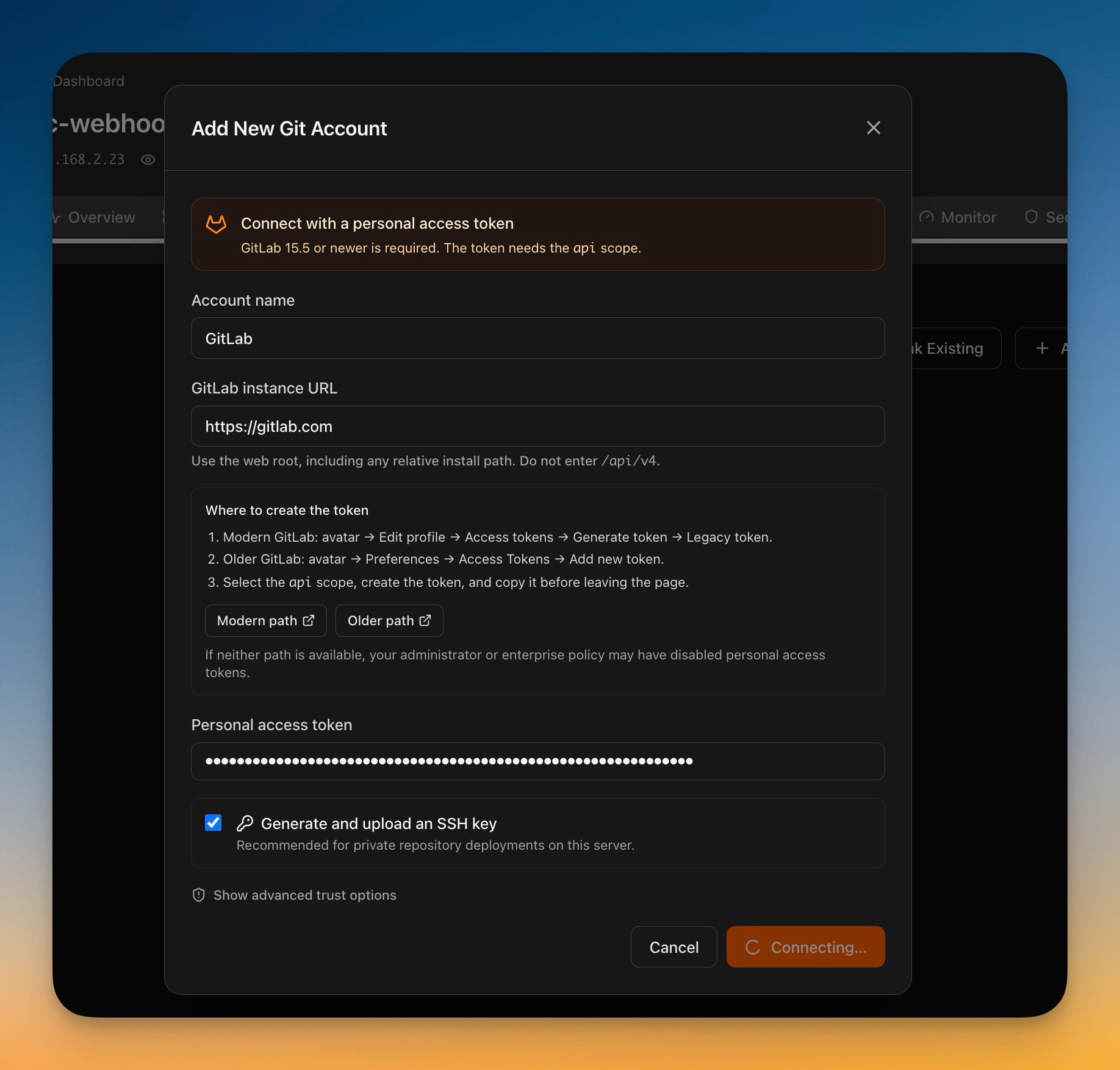
The Add New Git Account dialog connecting GitLab with a personal access token, showing the instance URL field, where-to-create-the-token instructions for modern and older GitLab, and the Generate and upload an SSH key option
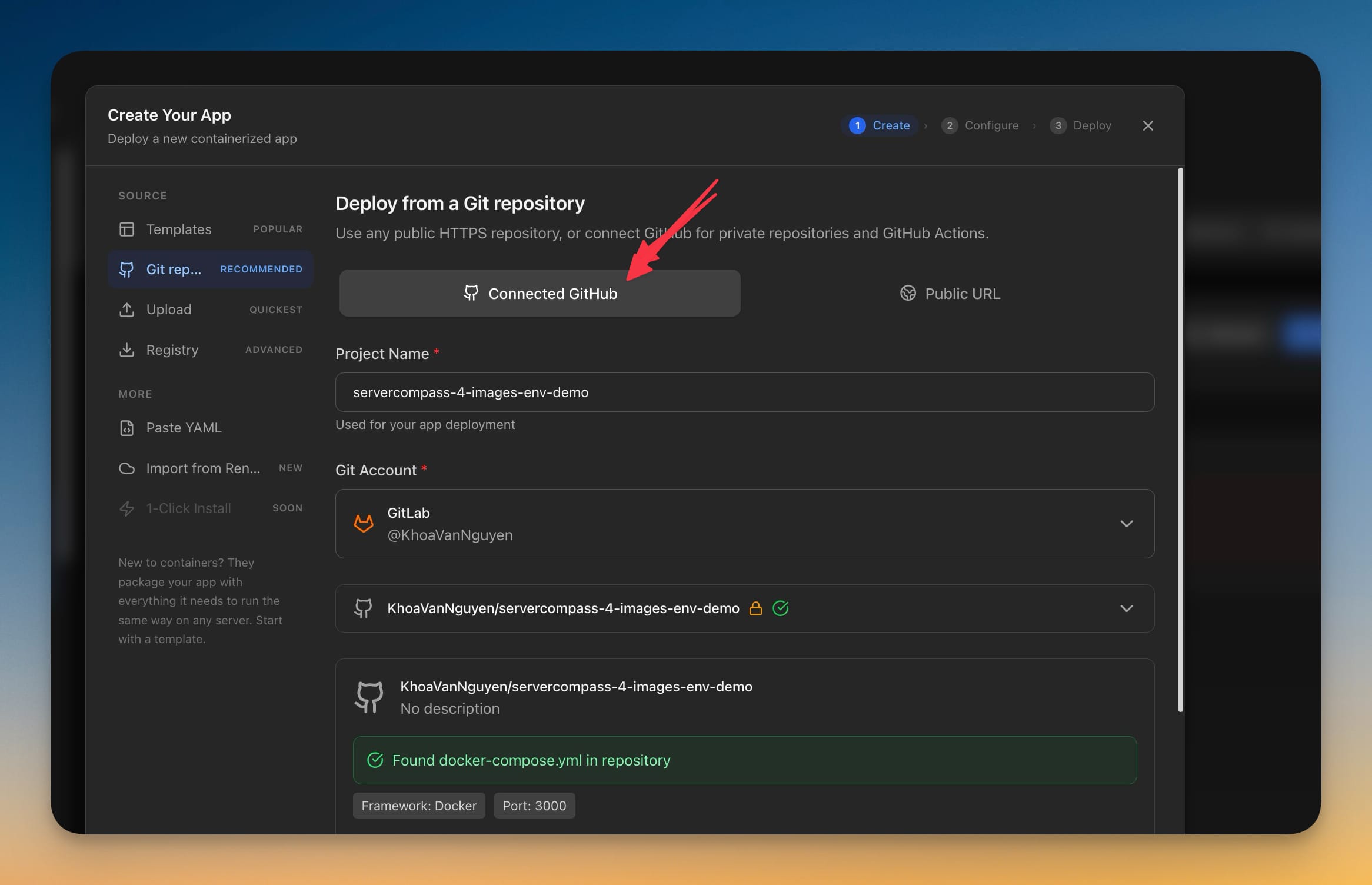
The Create Your App wizard deploying from a Git repository with a GitLab account selected, the project picked from GitLab, and docker-compose.yml detected in the repository